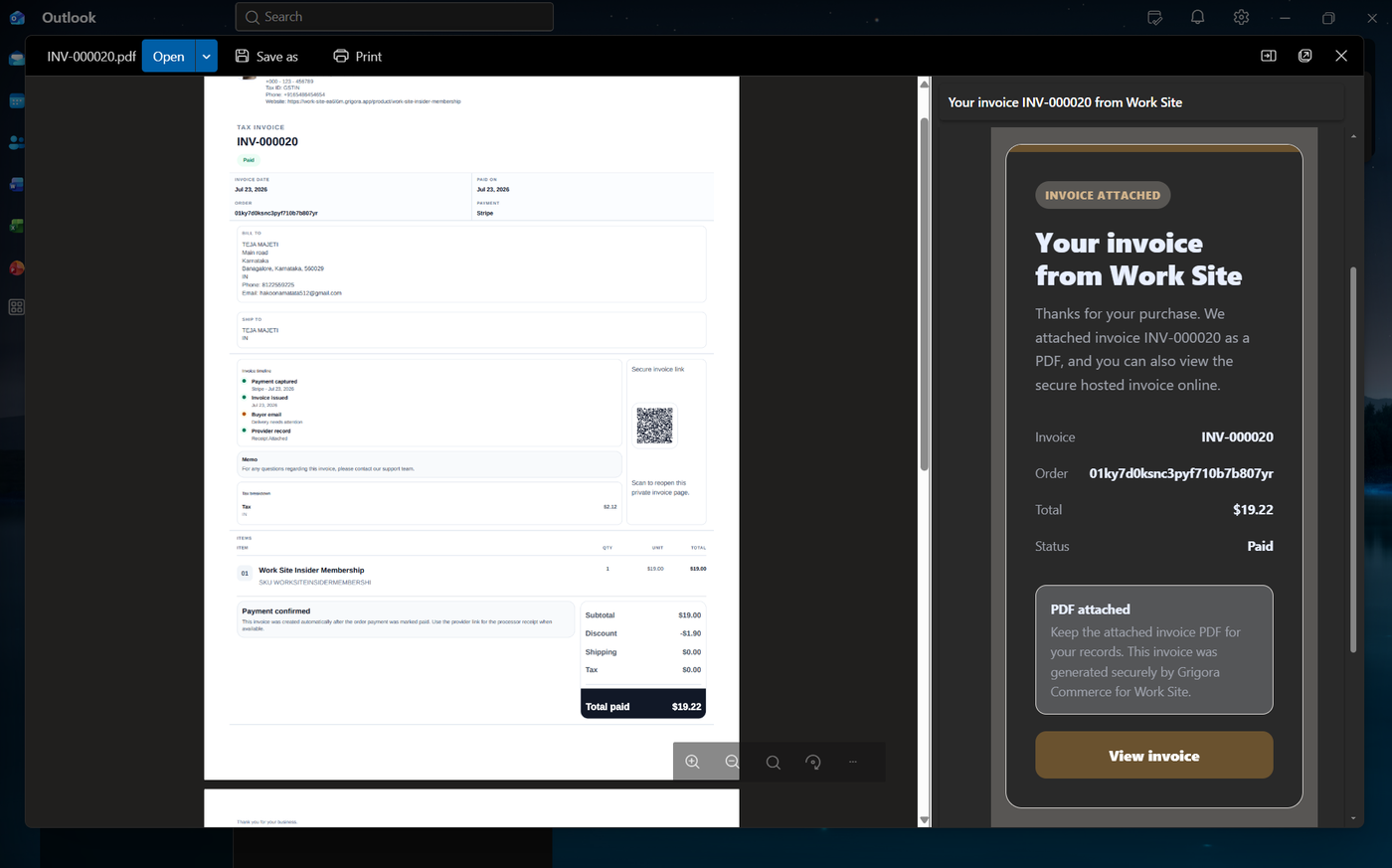
Invoices in Grigora Commerce help you manage the billing information associated with customer orders. You can configure the invoice settings for your store and ensure that the information displayed on generated invoices matches your business details.
Open Invoice Settings
Step 1: Open Invoice Settings
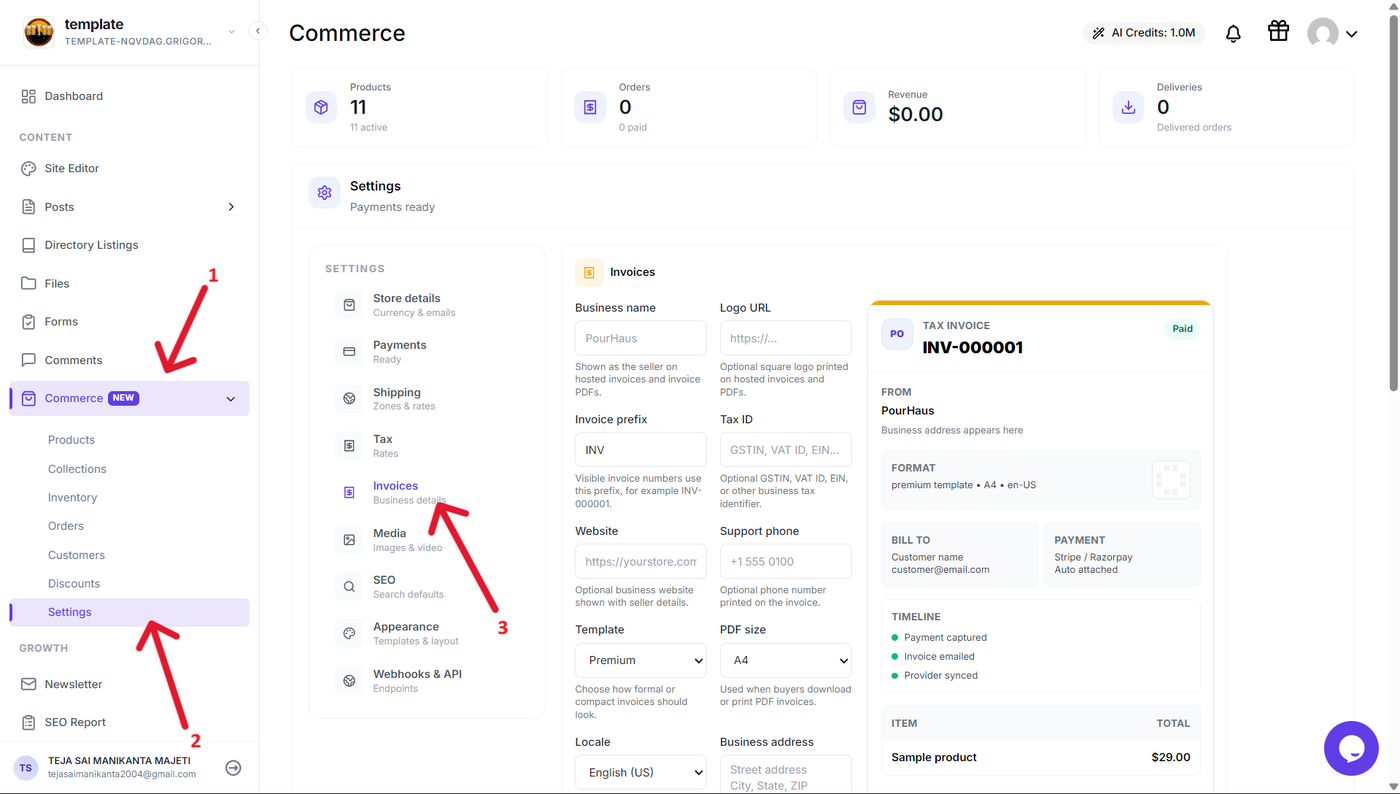
From the Grigora dashboard, expand Commerce in the sidebar and open Settings. Navigate to the Invoices section to access the available invoice configuration options.
The invoice settings allow you to configure the information that appears on invoices generated for your store's orders.
Configure Invoice Details
Step 2: Enter your business information
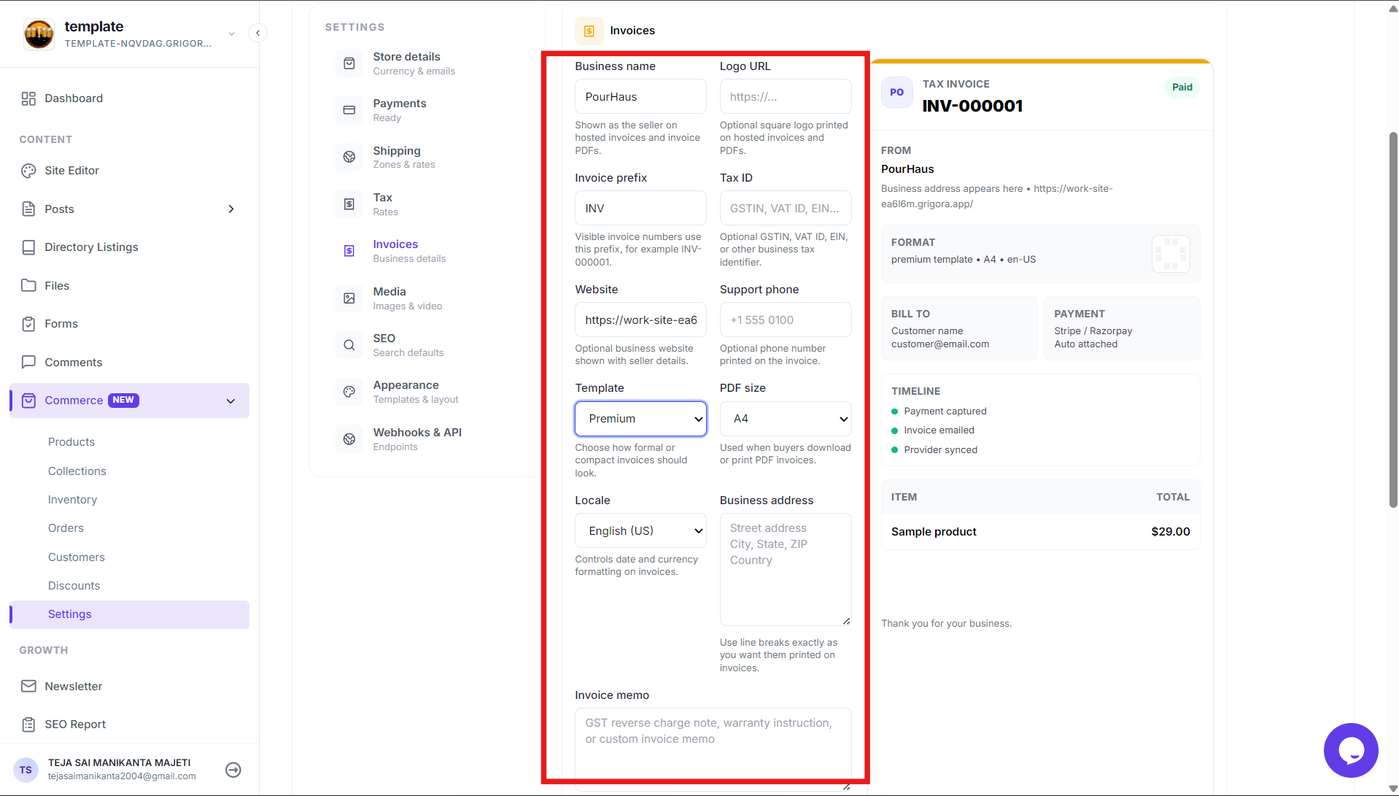
Add or update the business information that should appear on your invoices. Enter the required details such as your business name, address, and other supported information.
Make sure the information is accurate because it will be displayed to customers on their invoices.
Customize the Invoice
Step 4: Configure invoice options
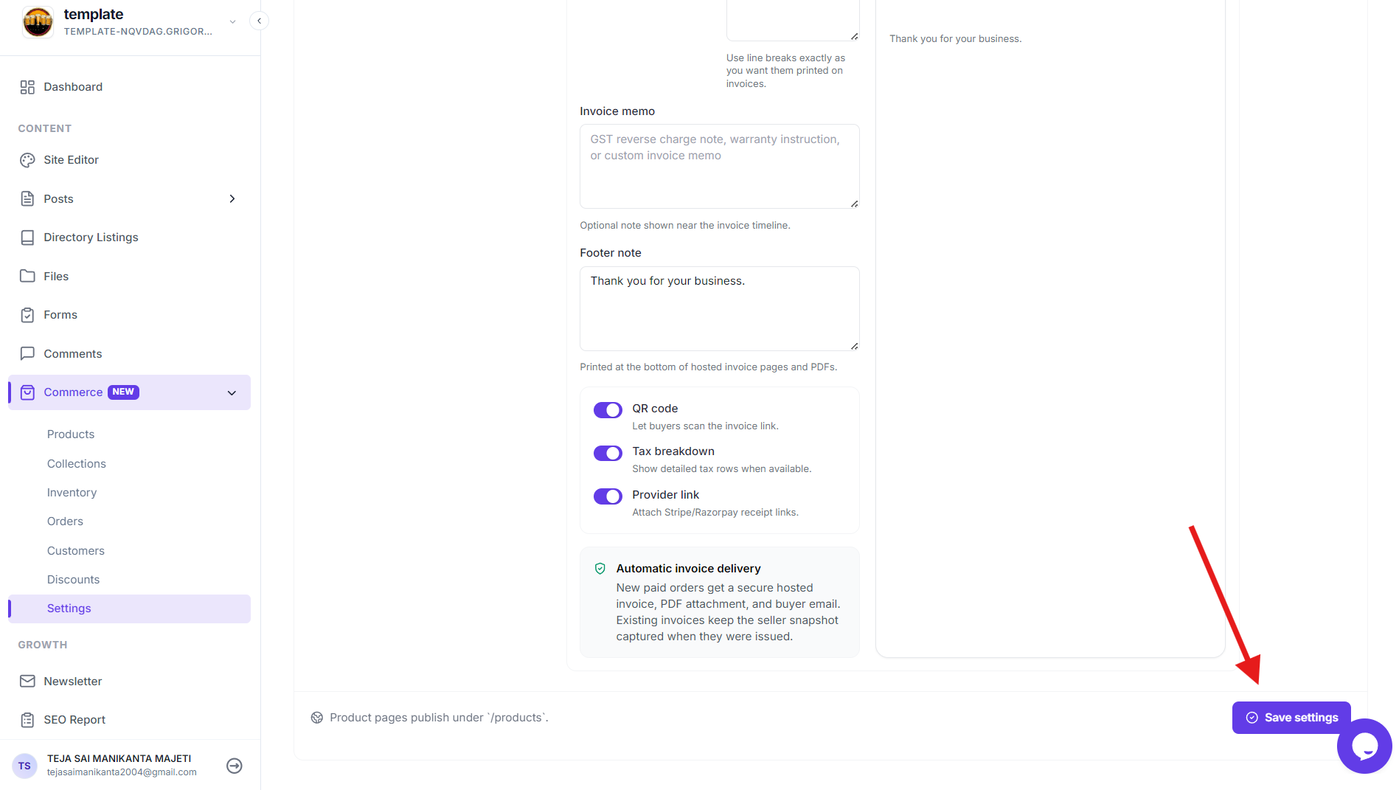
After entering the invoice details in the previous step, use the available options to control how additional information is displayed on the generated invoice.
You can enable or disable options such as:
QR code – Allows buyers to scan the invoice link.
Tax breakdown – Displays detailed tax rows when available.
Provider link – Includes Stripe or Razorpay receipt links on the invoice.
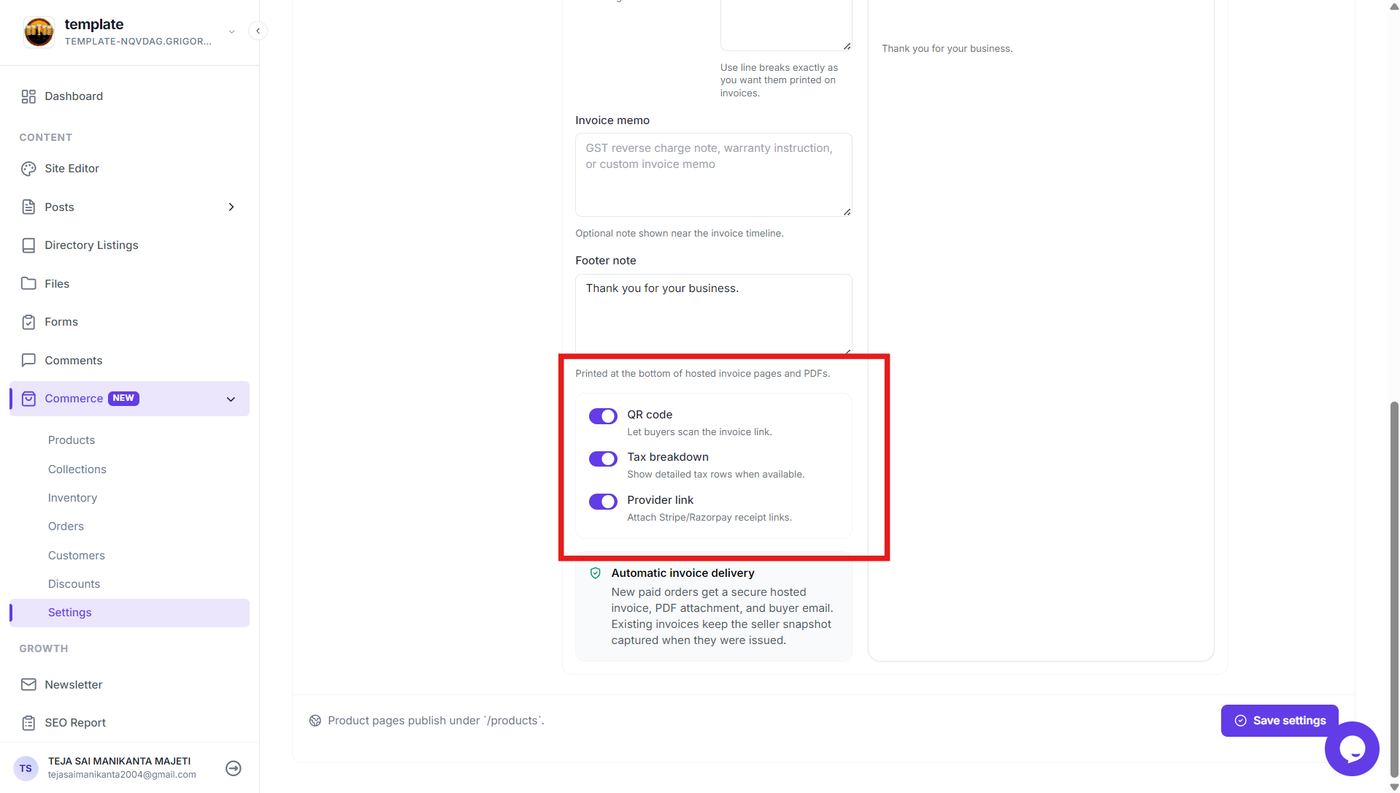
Review the selected options and make sure the invoice is configured according to your requirements.
Save the Invoice Configuration
Step 5: Save the invoice settings
After completing the invoice configuration, save the changes.
The updated settings will be used for invoices generated for your Commerce orders.
Verify the Invoice
Step 6: Preview or generate an invoice
Open an order that has an invoice available and preview or generate the invoice using the available invoice action.
Review the generated invoice to confirm that the business information, invoice number, customer details, order items, totals, and other configured information are displayed correctly.
If anything is incorrect, return to the invoice settings, make the required changes, and generate the invoice again.