

The Orders section in Grigora Commerce provides a centralized view of customer orders placed through your store. From the order list, you can review payment and delivery status, view order details, manage shipping and refunds, and access invoices and payment provider receipts.
Open the Orders Section
Step 1: Open Orders
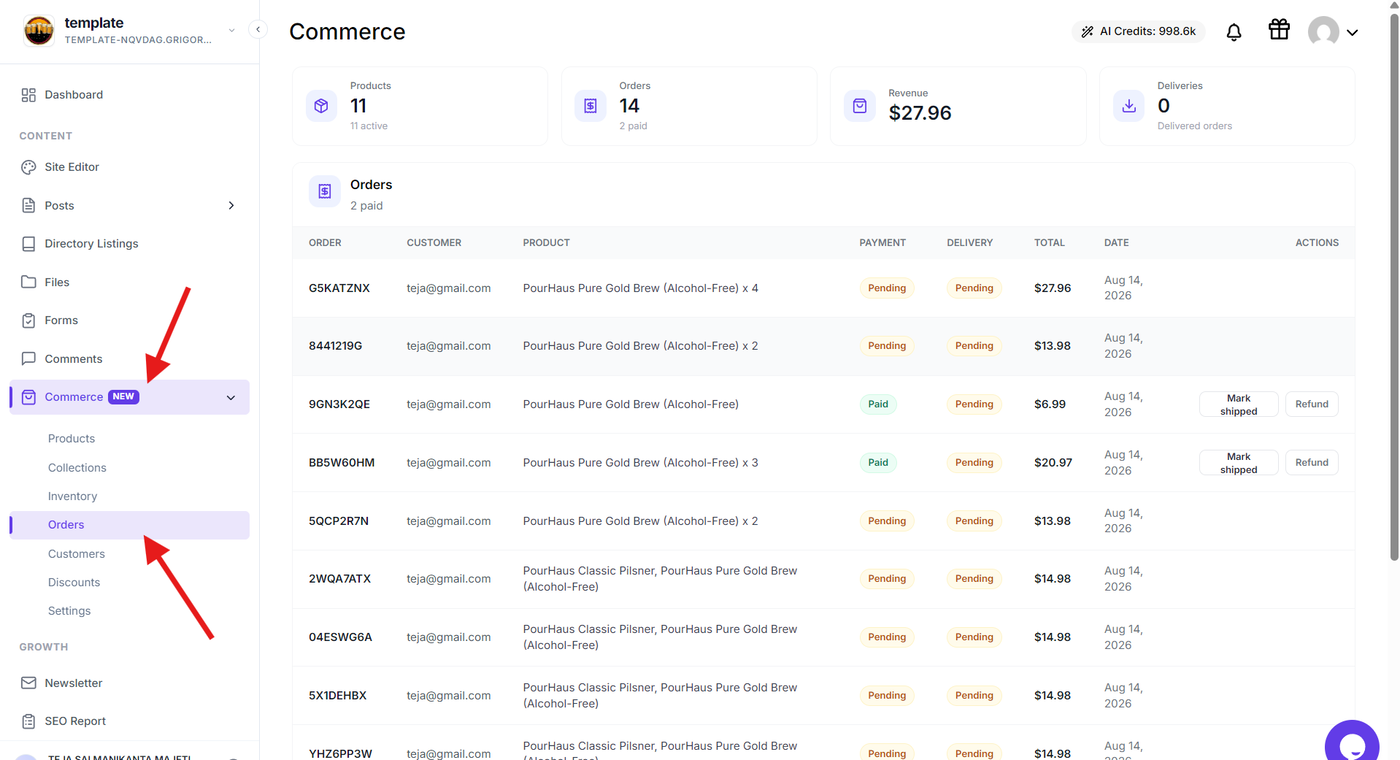
From your Grigora dashboard, expand Commerce in the sidebar and select Orders.
The Orders section displays the orders placed through your store in a table. Each order shows the order number, customer, product, payment status, delivery status, total amount, date, and available actions.
View Order Details
Step 2: View all orders
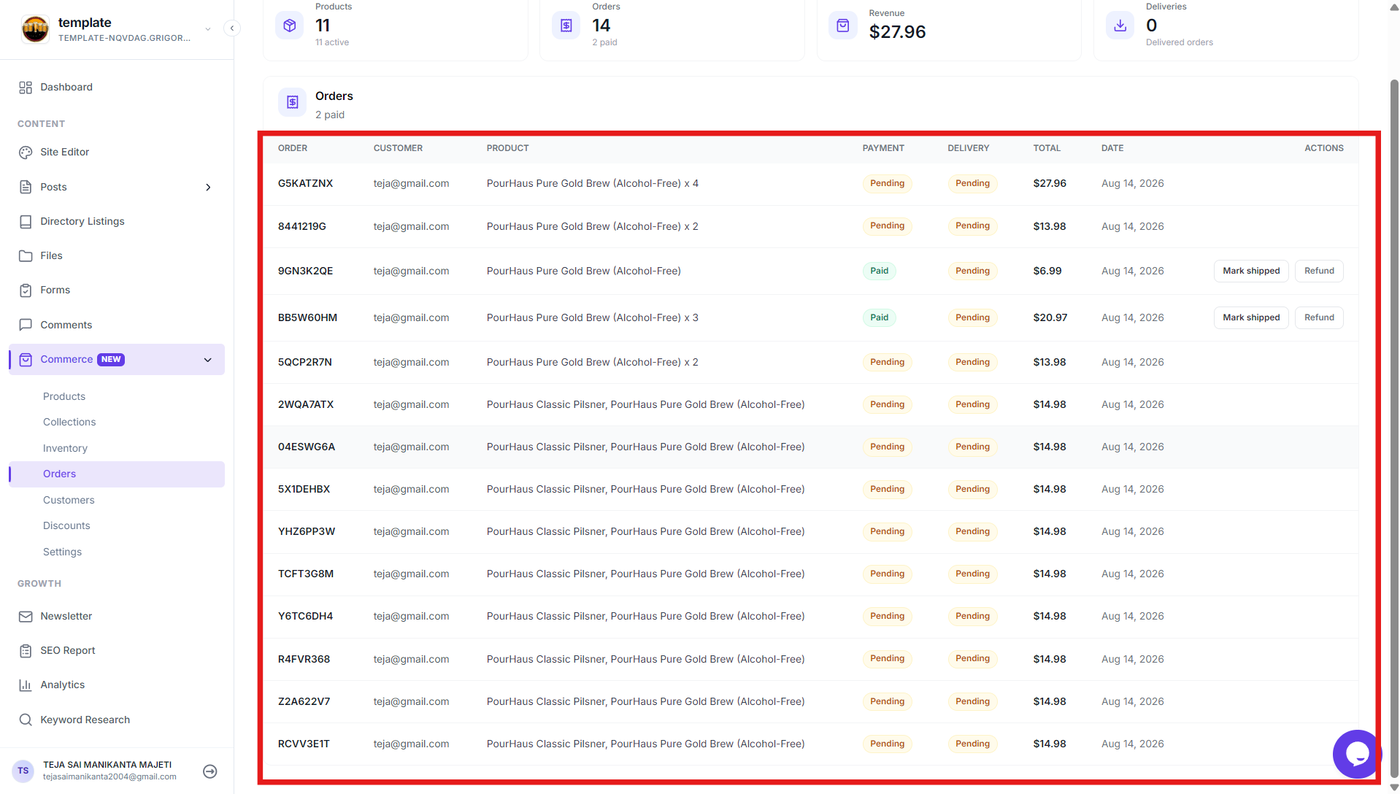
The Orders section displays all orders placed through your store, regardless of which product was purchased.
The order list provides an overview of each order, including the order number, customer, product, payment status, delivery status, total amount, date, and available actions. Use this list to quickly review the orders associated with your products.
Review Order Information
Step 3: Review the order details
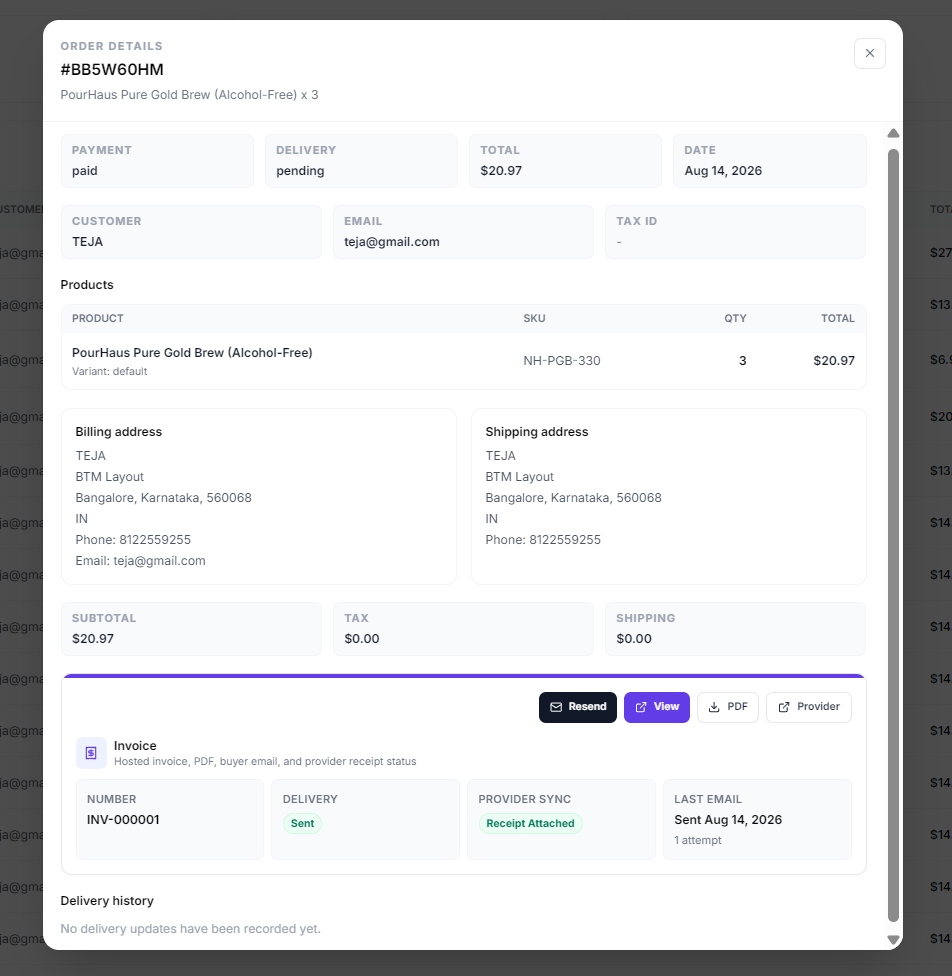
Review the information displayed in the Order Details window to verify the order and customer information.
The order details include:
Payment – Shows the current payment status.
Delivery – Shows the current delivery status.
Total – Displays the total order amount.
Date – Shows when the order was placed.
Customer – Displays the customer's name and email.
Products – Lists the products, variants, SKUs, quantities, and item totals.
Billing address – Displays the customer's billing information.
Shipping address – Displays the delivery information.
Subtotal, Tax, and Shipping – Shows the individual components of the order total.
Manage the Order
Step 4: Manage shipping and refunds
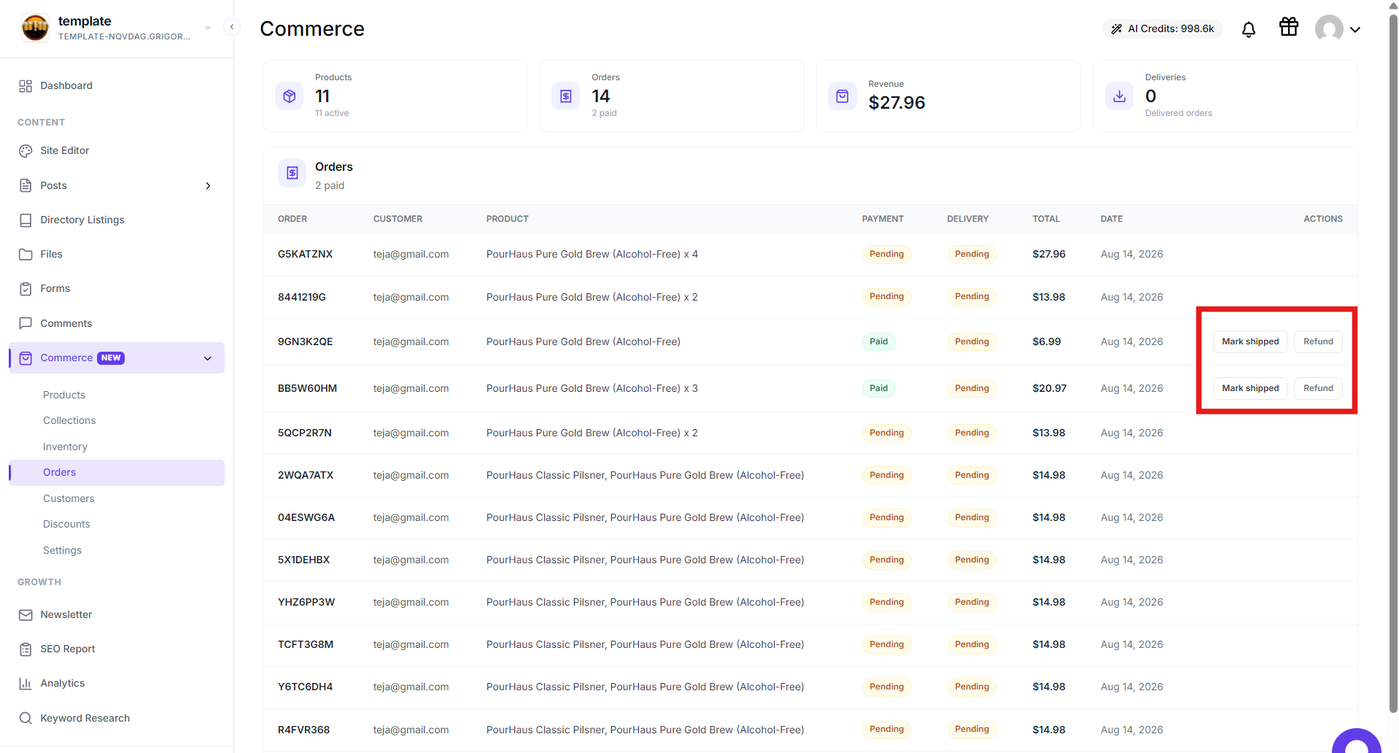
From the Orders list, use the available actions for eligible orders.
Click Mark shipped to update the delivery status when the order has been shipped.
Use Refund when you need to process a refund for the order. Follow the confirmation flow to complete the refund.
The available actions depend on the current payment and delivery status of the order.
Manage the Invoice
Step 5: Access the order invoice
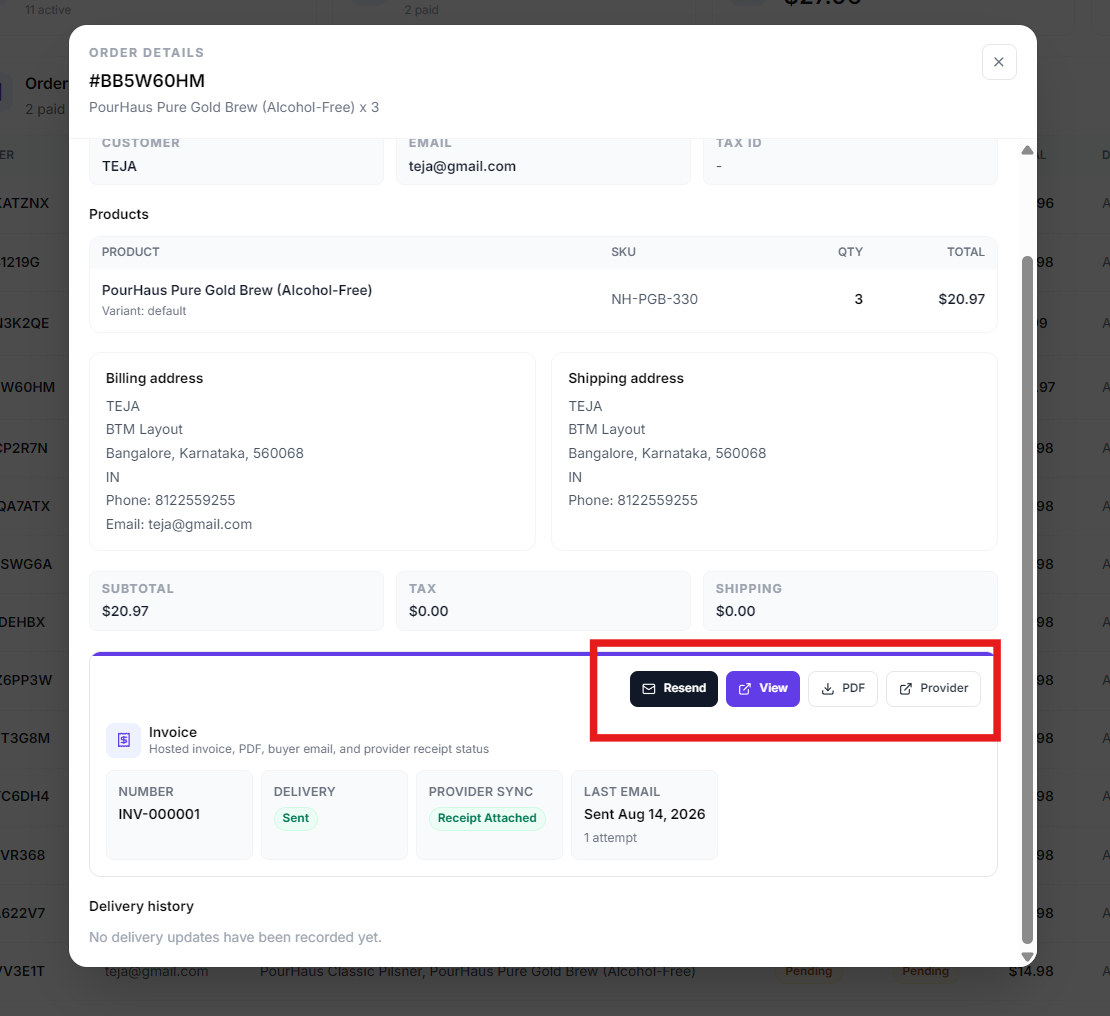
In the Order Details window, use the invoice section to manage the invoice associated with the order.
You can use the available options to:
Resend the invoice email to the customer.
View the invoice.
Download the invoice as a PDF.
The invoice section also displays information such as the invoice number, invoice delivery status, provider synchronization status, and the last email sent to the customer.
View the Payment Provider Receipt
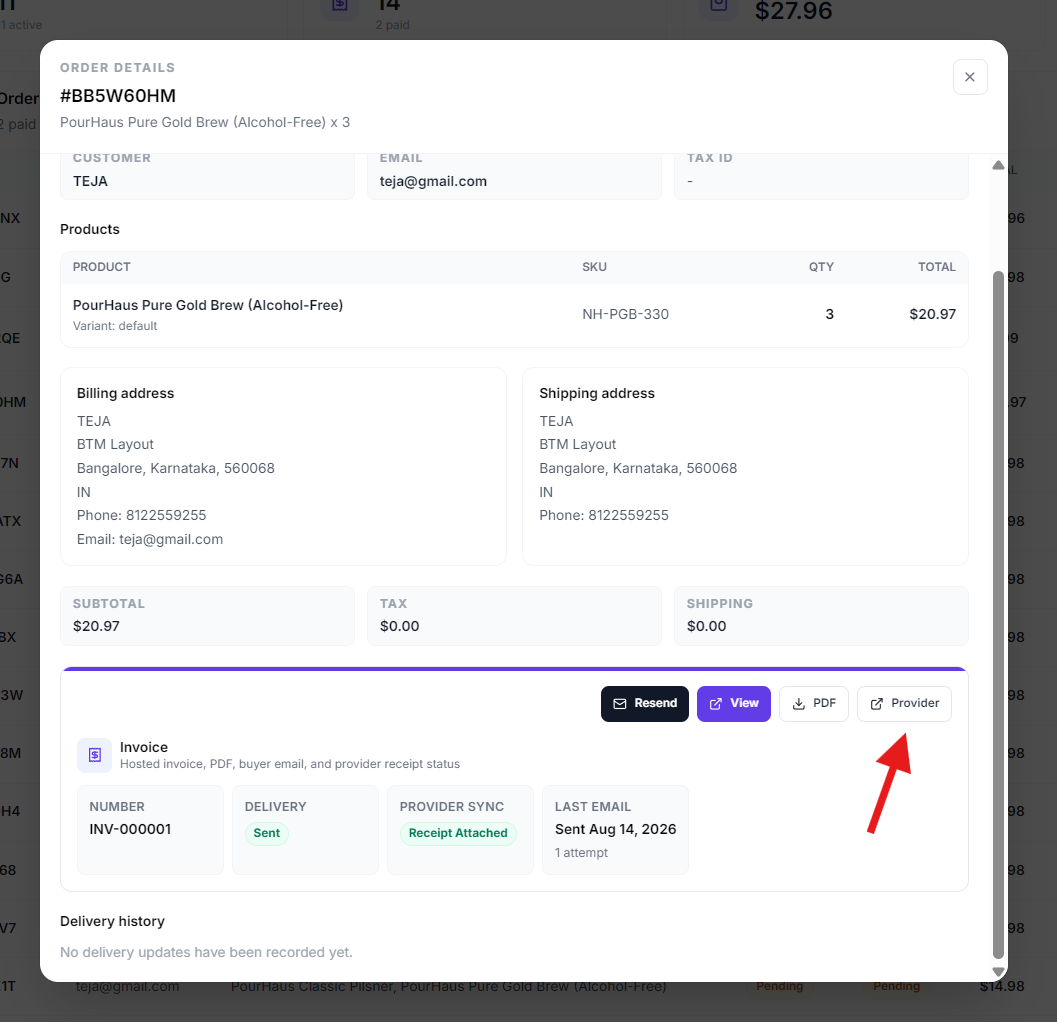
Step 6: View the payment provider receipt
Use the Provider option in the invoice section to open the payment receipt or transaction details from the payment gateway used for the order.
This allows you to access the payment provider's record for the transaction, such as the receipt or payment details provided by gateways including Stripe, Razorpay, PayPal, or another connected provider.
Review Delivery History
Step 7: Review delivery updates
Scroll to the Delivery history section in the Order Details window to review delivery updates recorded for the order.
The delivery history provides a record of shipping-related updates when they are available.
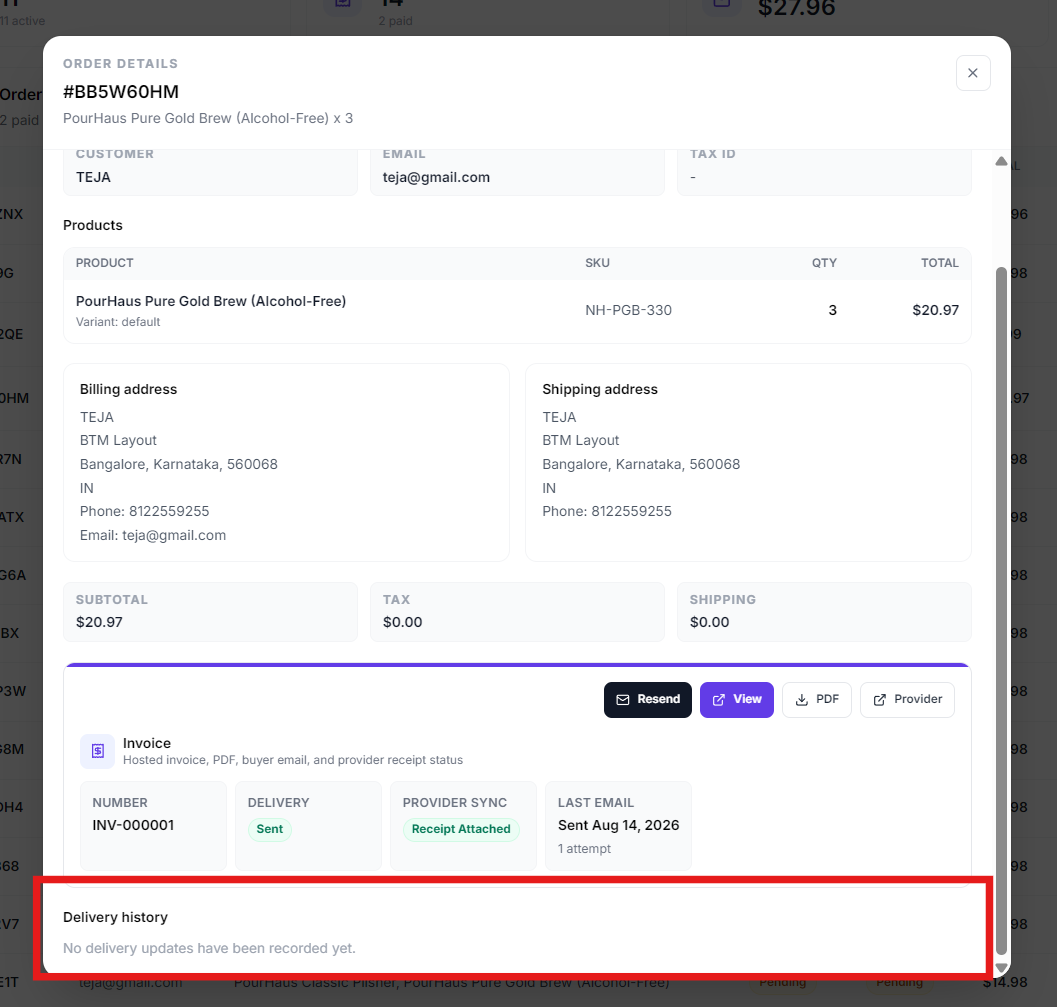
Note: Currently, Grigora supports manual delivery management for physical products. If an external shipping provider such as DTDC, Blue Dart, or another supported provider is configured, the delivery updates received from that provider will be displayed in the Delivery history section.