

Grigora provides a flexible way to customize the background colors of your website elements. Here's a step-by-step guide on how to change background colors:
1. Access the Site Editor:
Log in to your Grigora dashboard.
Select the website you want to edit.
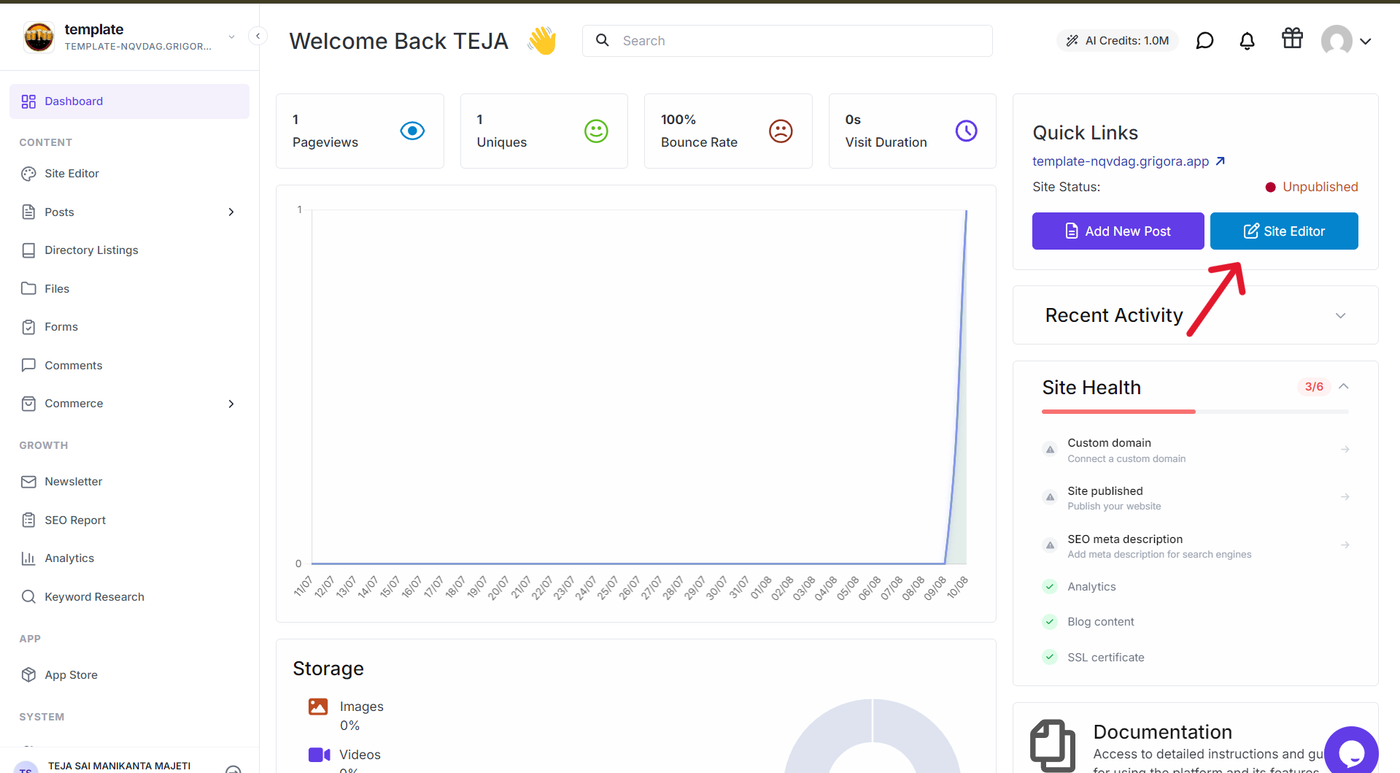
Click on the "Site Editor" button in the top right corner.
2. Select the Element:
Click on the element whose background color you want to change. This could be a section, Frame, text block, or any other element.
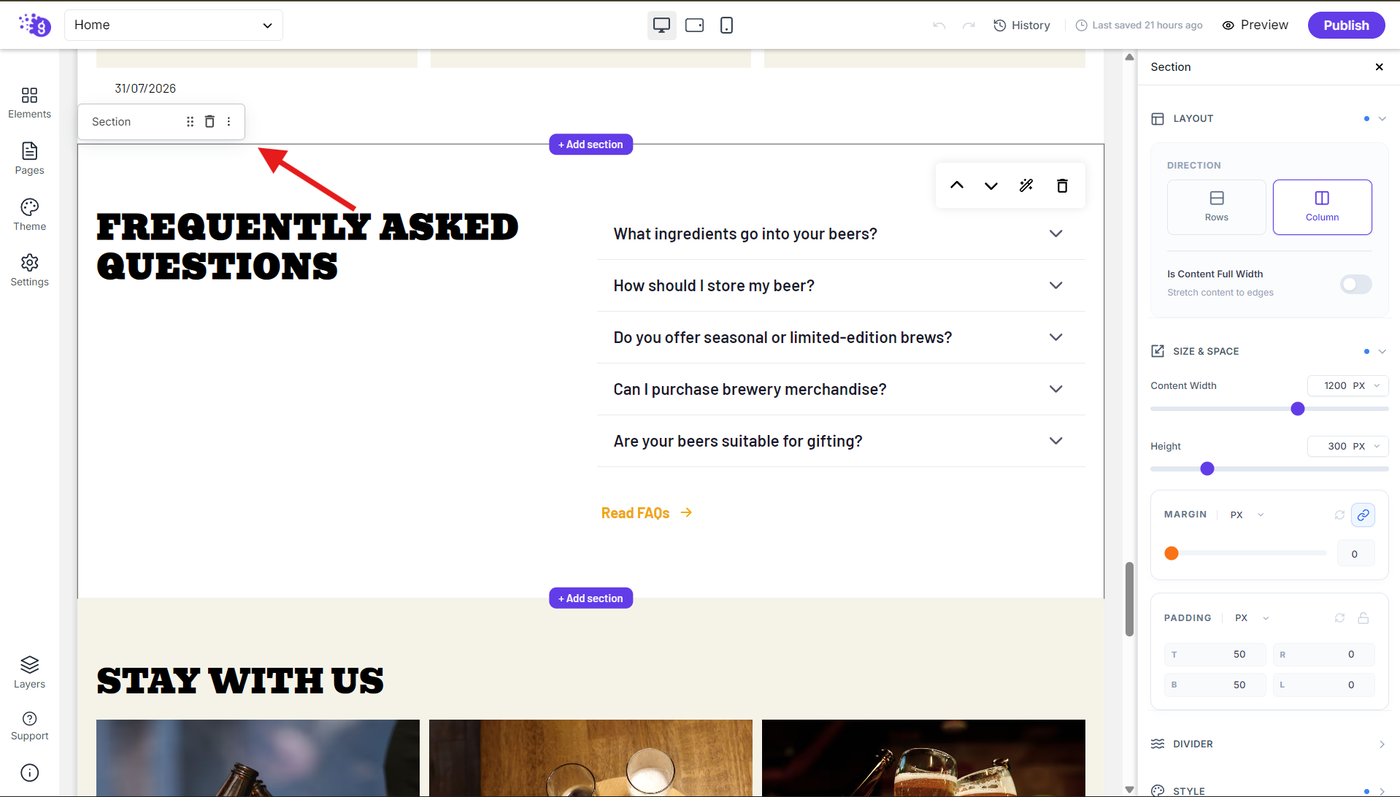
3. Open the Settings Panel:
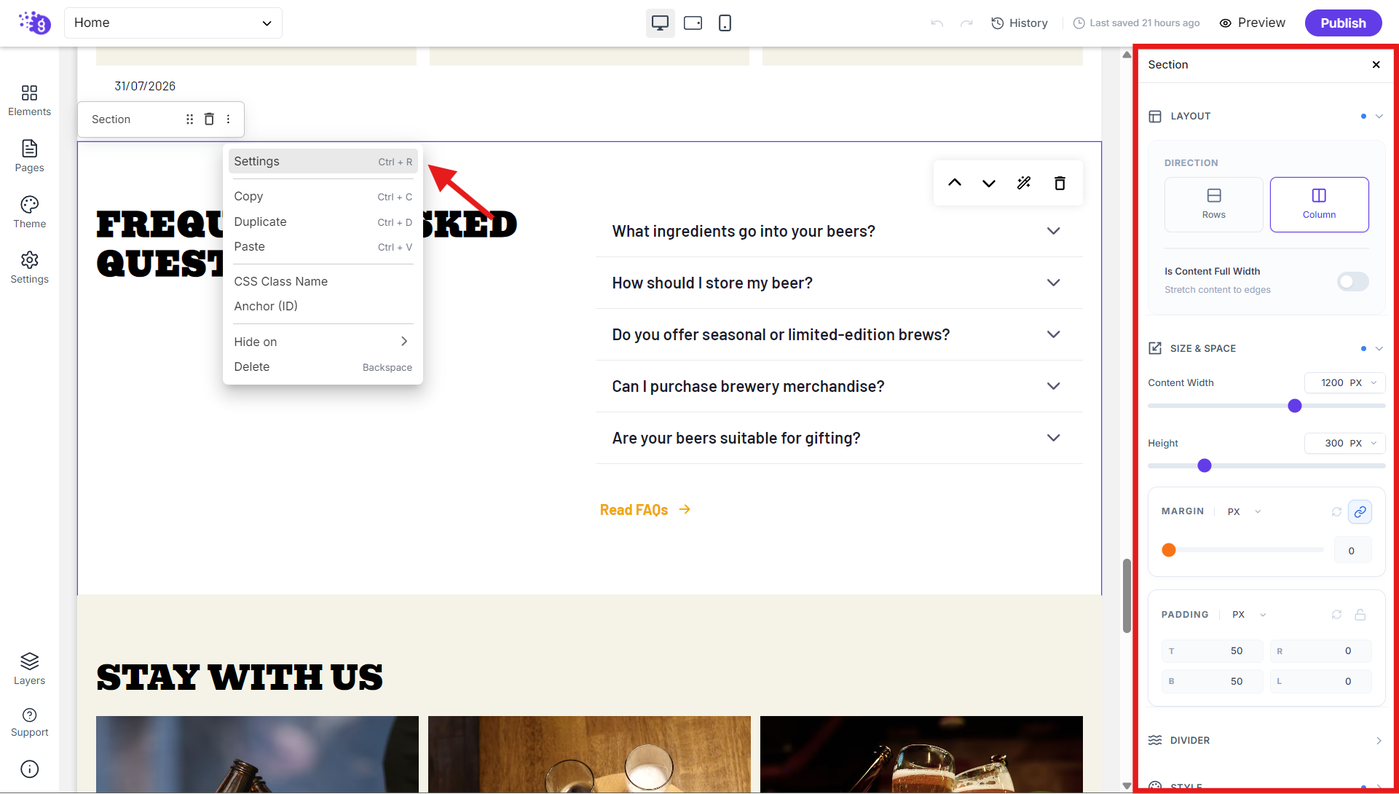
The settings panel will appear on the right-hand side. If it's not visible, right-click on the element and select "Settings".
4. Go to the Styles Panel:
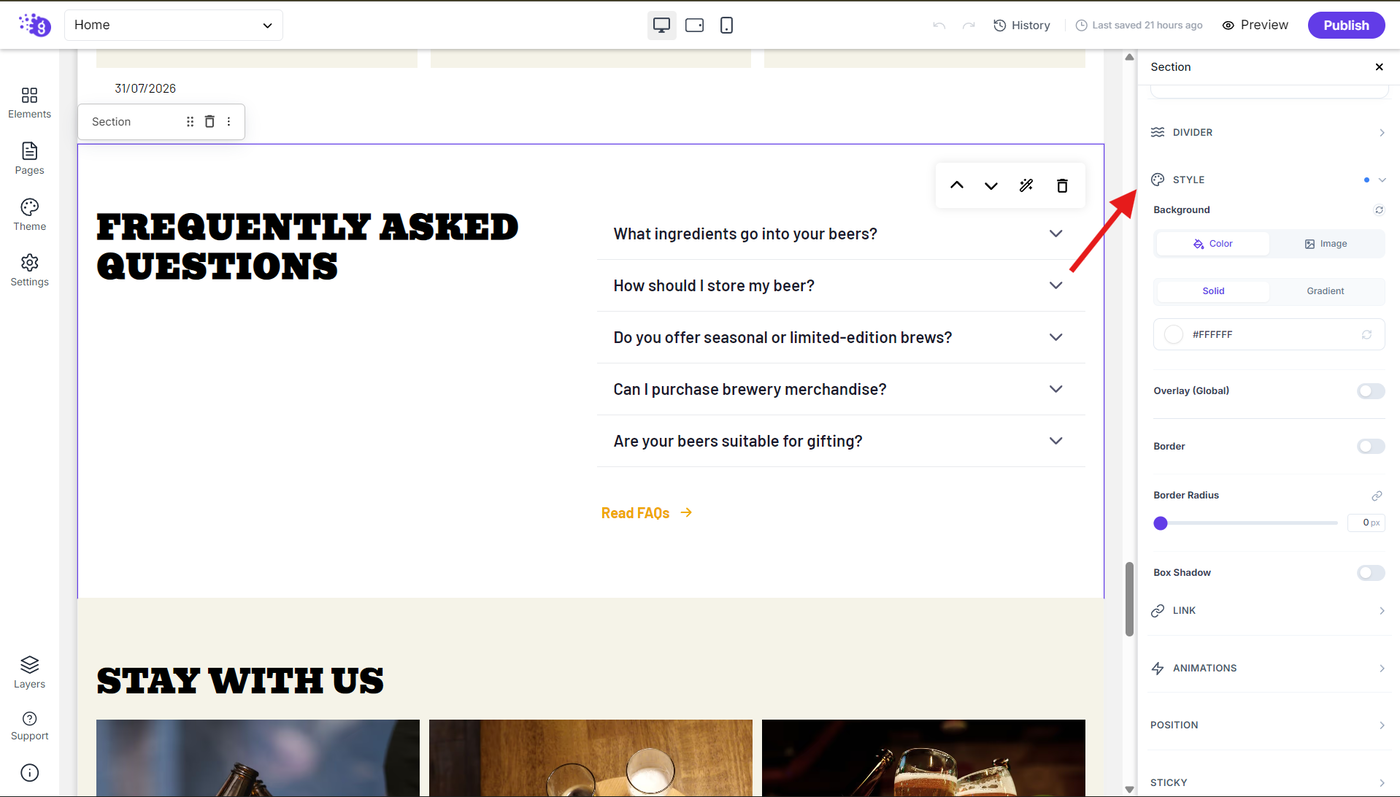
In the settings panel, scroll down to the style panel.
5. Access the Background Settings:
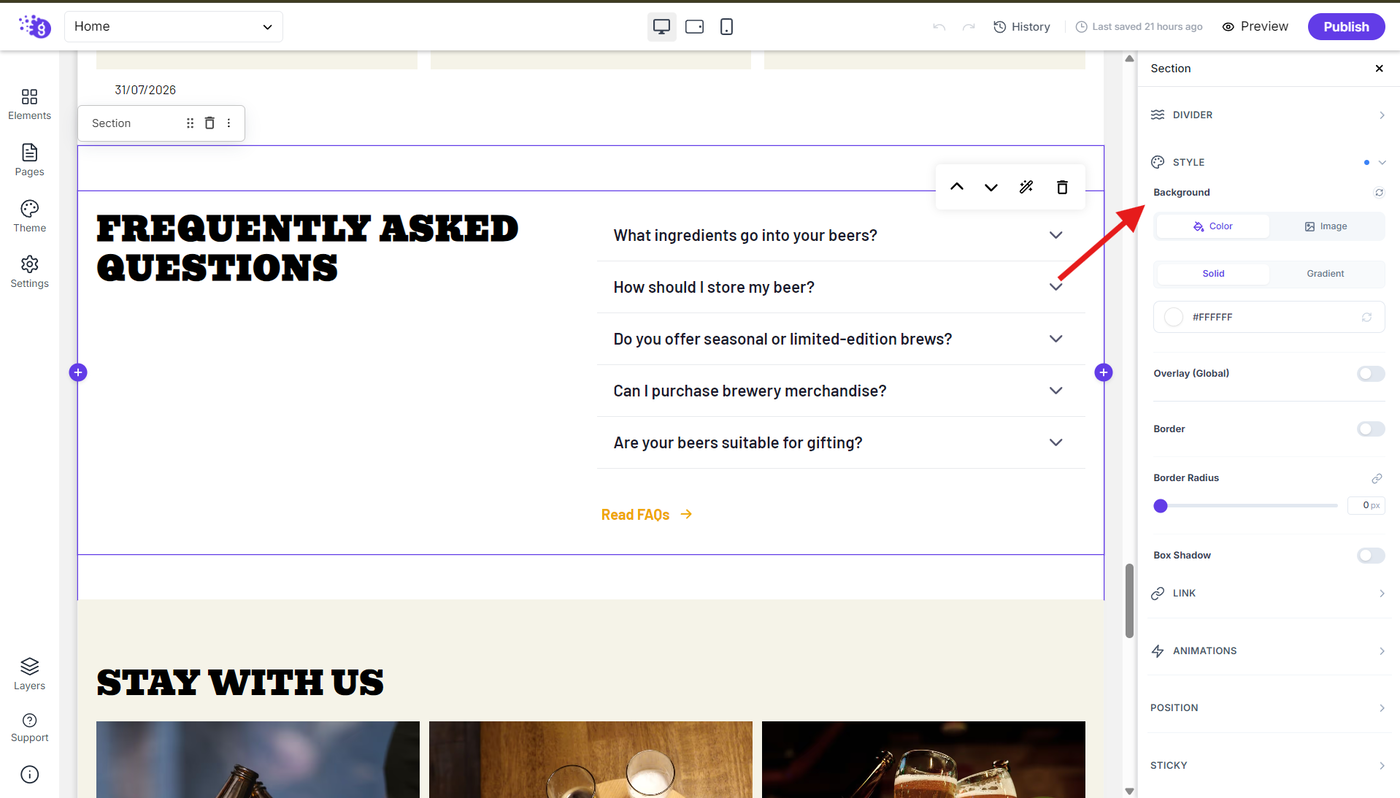
In the Style panel, under Background, select the Color option..
6. Change the Background Color:
In the Background settings, you can choose between Color and Gradient options to customize the background..
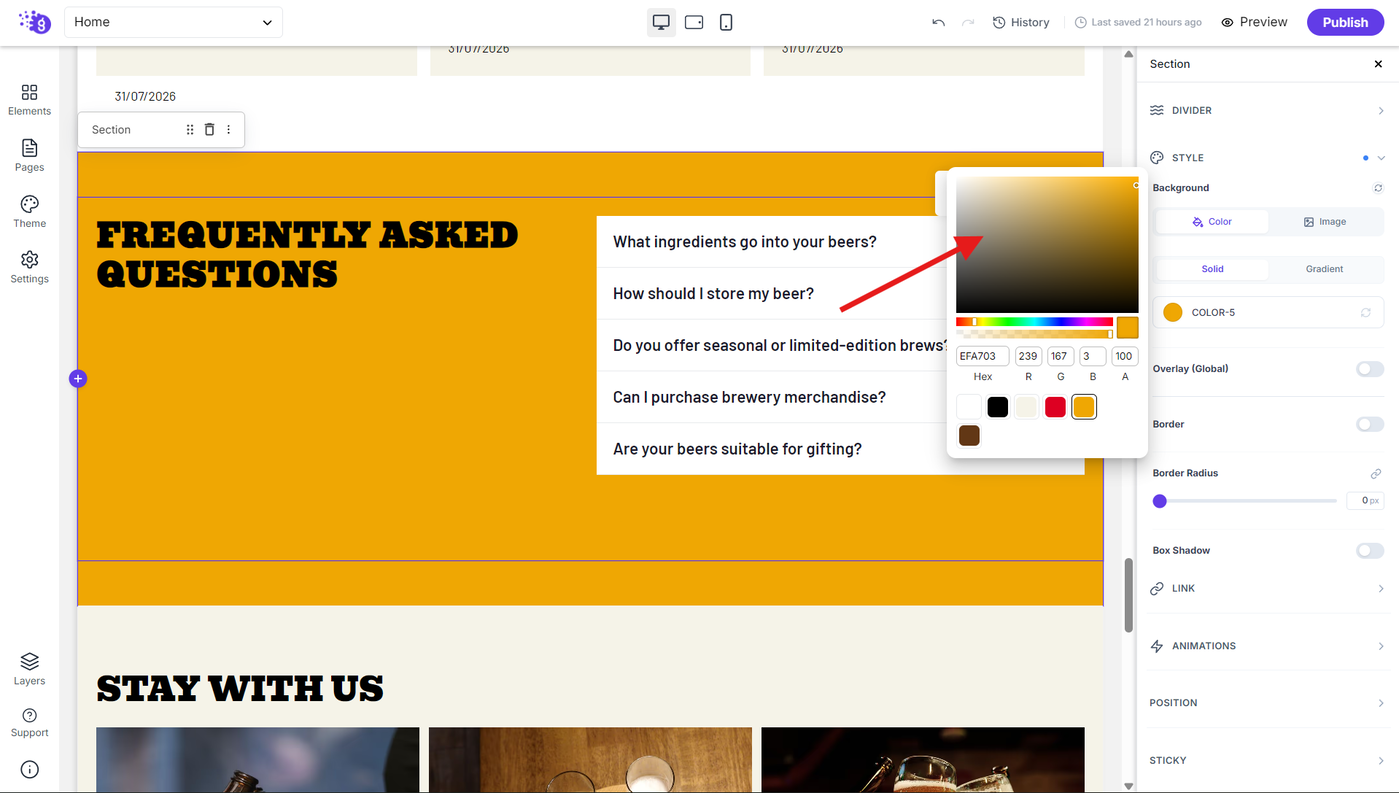
Click the color picker to choose your desired color. You can select a custom color or choose from the available project colors to keep your design consistent with the rest of your website.
By following these steps, you can easily customize the background colors of your Grigora website to create a visually appealing and professional design.