

Ready to start selling products through your Grigora website? This guide will show you how to create a product in Grigora Commerce, from adding the basic product information to configuring delivery, checkout, and product-page details. Grigora's guided product setup keeps everything organized so you can prepare and publish your products without unnecessary complexity.
Opening the Product Creation Workflow
Open the Grigora dashboard and select Commerce from the left panel. Then select Products to access your product management area.
Start the product creation process to open the guided product setup.
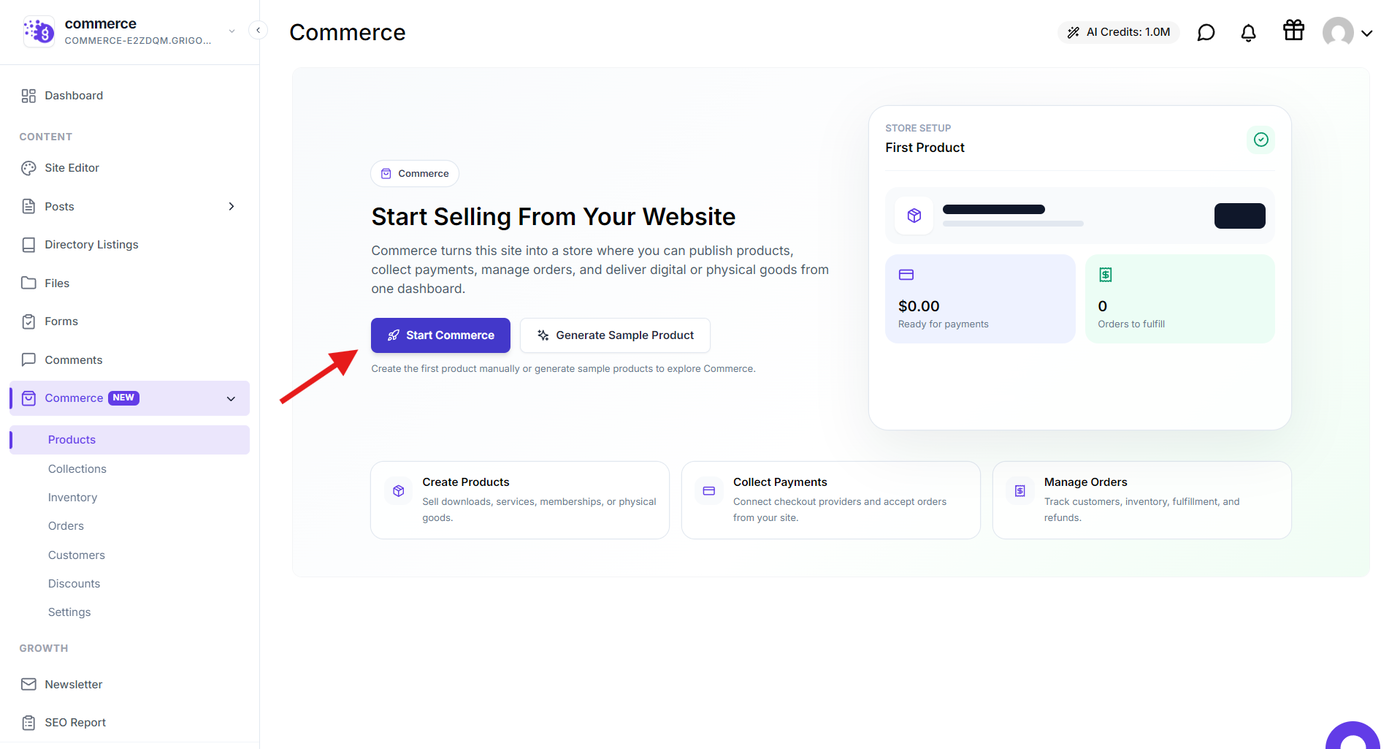
Grigora organizes product creation into four stages:
Describe — Add the basic information about your product.
Delivery — Configure pricing, media, and how customers receive the product.
Checkout — Configure the payment provider for the product.
Polish — Add highlights, FAQs, and product-page SEO details.
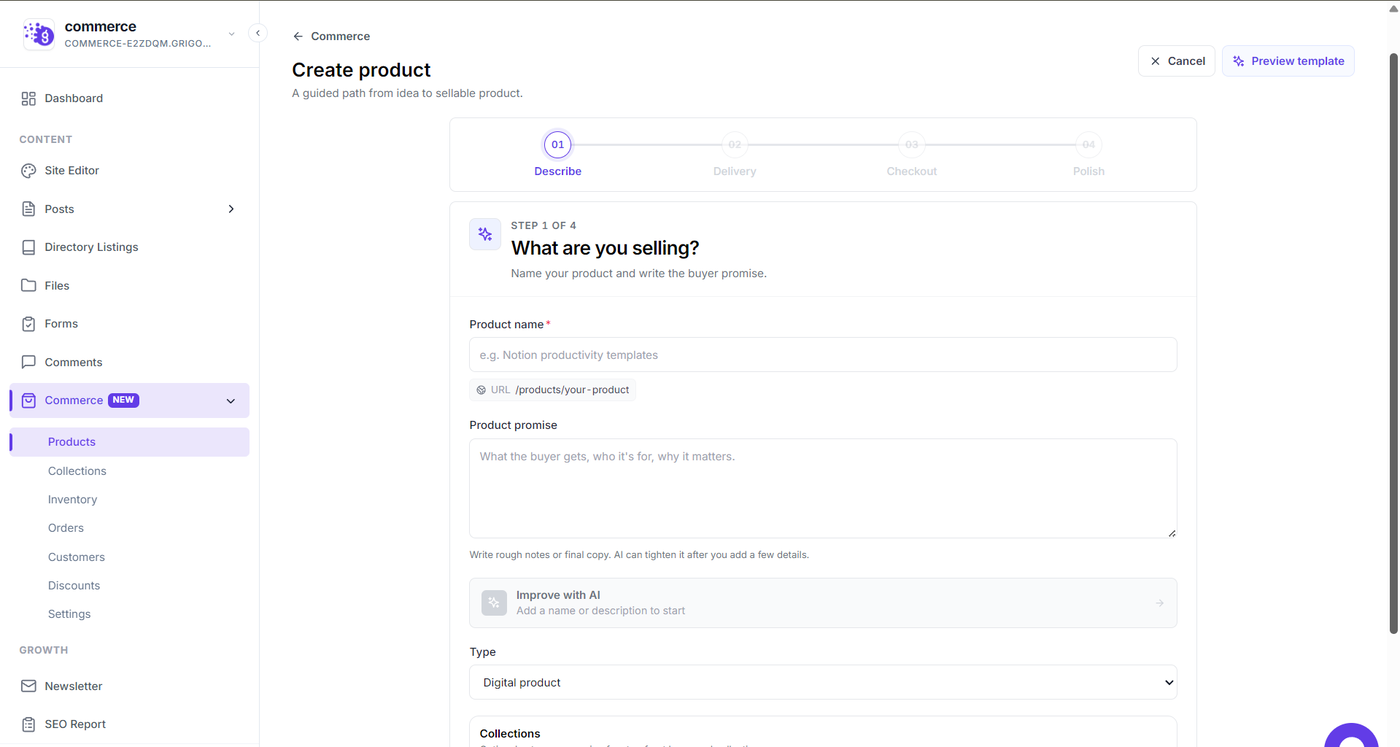
Adding Product Details
The Describe section is where you enter the basic information about your product.
Add the Product name and enter a Product promise that explains what customers receive, who the product is for, and why they should purchase it.
Grigora also provides an Improve with AI option that you can use to refine your product content if needed.
You can also select the appropriate Product type and assign the product to an existing Collection.
If you don't have a collection yet, you can create one directly from this section using Add new collection.
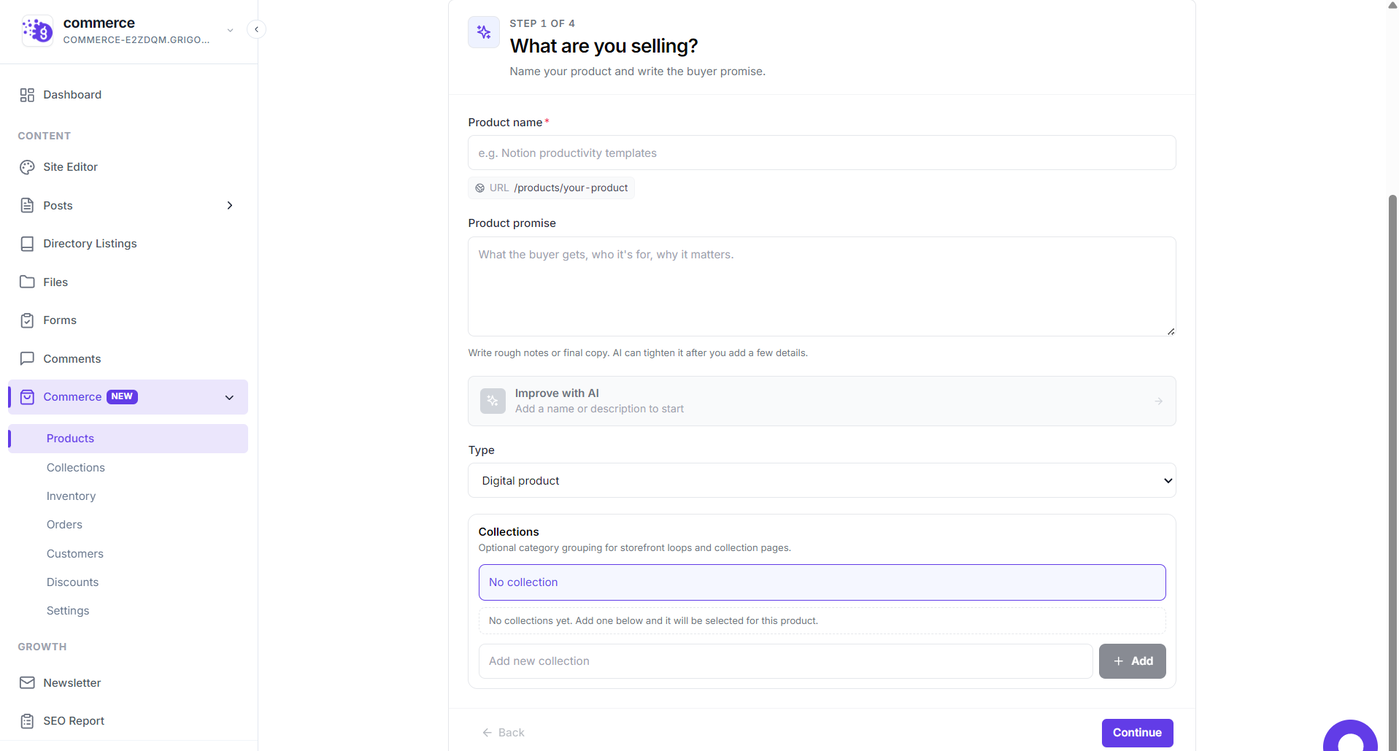
Once the product details are complete, select Continue to move to the Delivery section.
Configuring Price, Media, and Delivery
The Delivery section lets you configure the product's price, currency, media, and delivery method.
Enter the Price and select the appropriate Currency for your product.
You can also add product photos and videos. Grigora allows up to 8 photos or videos, and the first media item is used as the main product image.
Supported media formats shown in the interface include JPG, PNG, and MP4.
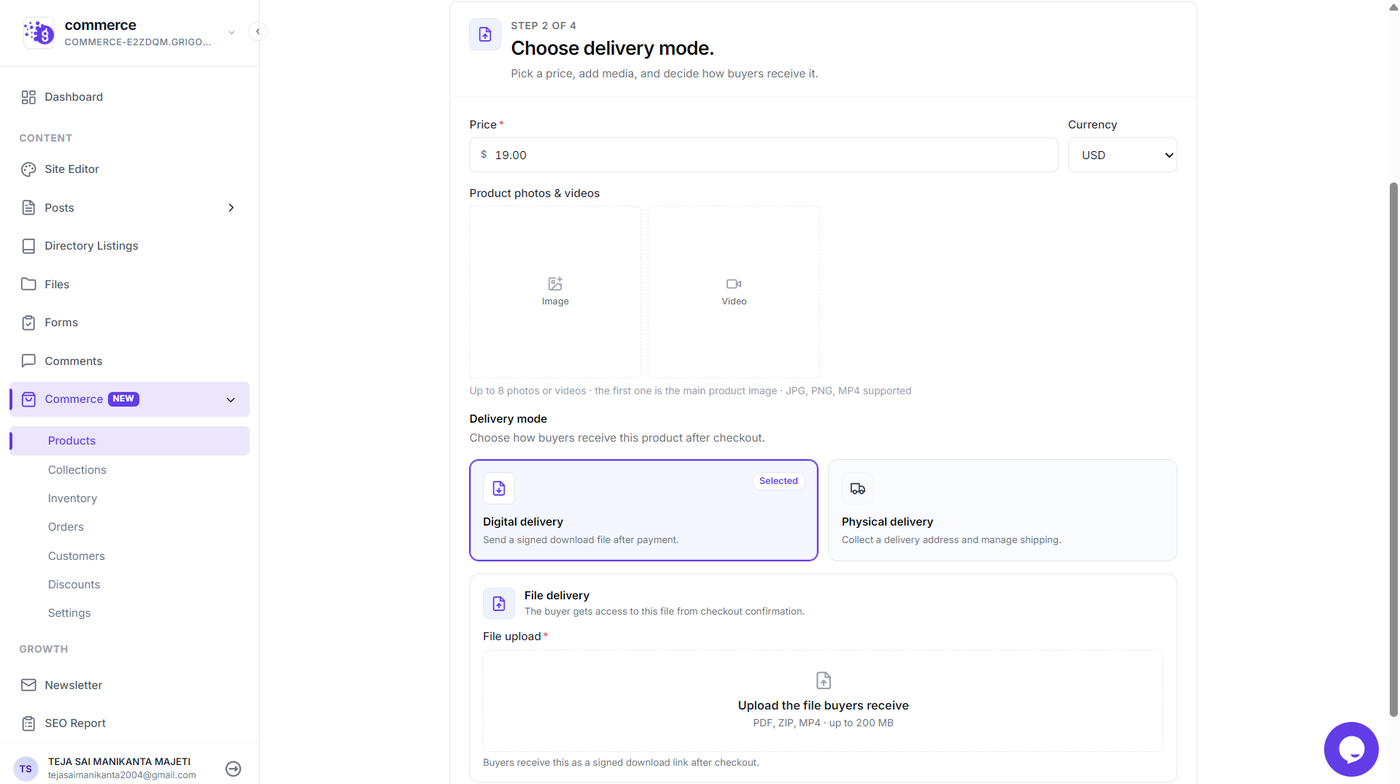
Choose the appropriate delivery method based on what you are selling.
Digital Delivery
Select Digital delivery when customers should receive a downloadable file after completing their purchase.
Upload the file customers should receive. The interface supports formats such as PDF, ZIP, and MP4, with a maximum file size of 200 MB.
Customers receive the digital product through a signed download link after checkout.
Physical Delivery
Select Physical delivery when the product needs to be shipped to the customer.
This option allows Grigora to collect the customer's delivery address and use your configured shipping settings during checkout.
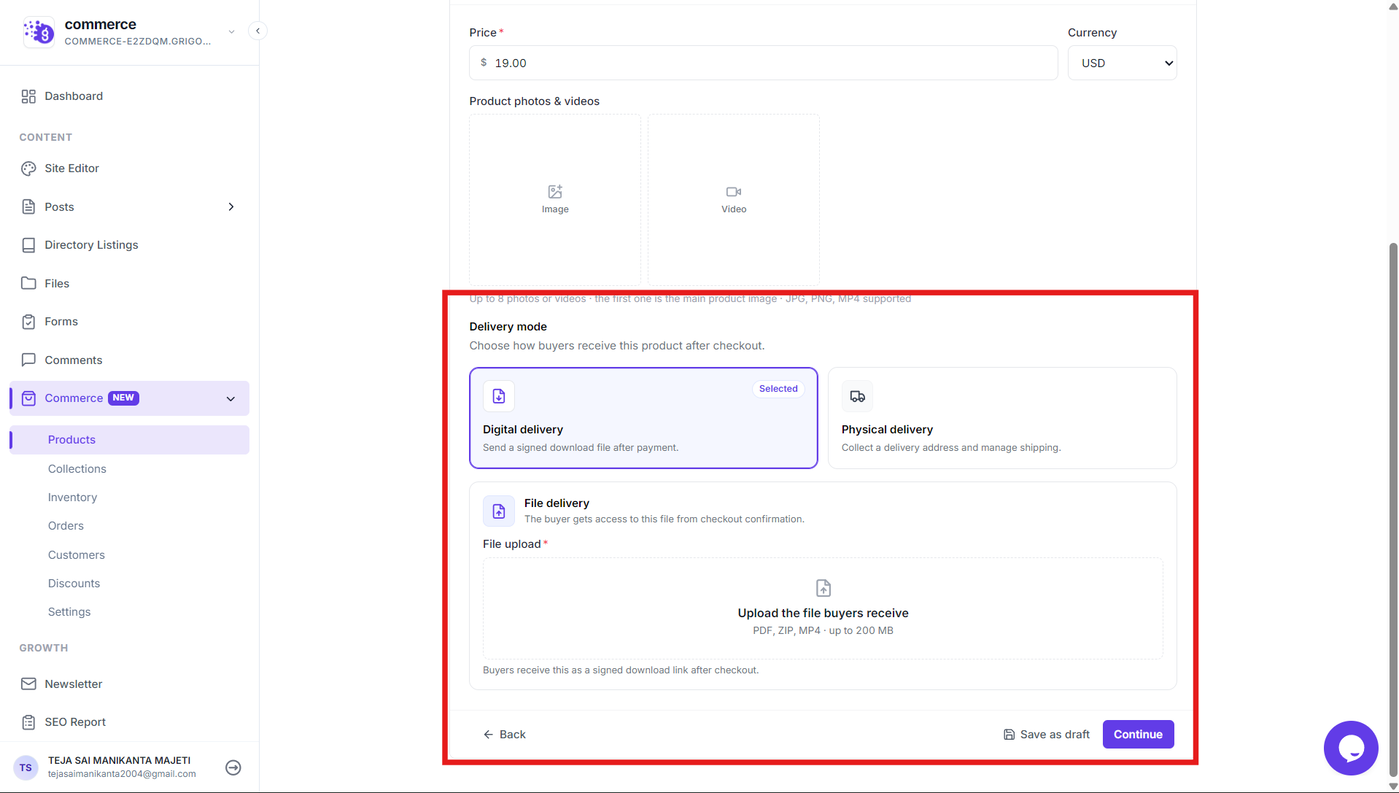
After configuring delivery, select Continue to move to Checkout.
Configuring Checkout
The Checkout section allows you to configure how customers pay for the product.
Grigora supports:
Stripe
Razorpay
PayPal
Paddle
Select the payment provider you want to use for the product. If you have not configured a provider yet, you can set one up from the available options or configure it later from Commerce settings.
You can also select Skip for now if you want to complete the payment configuration later.
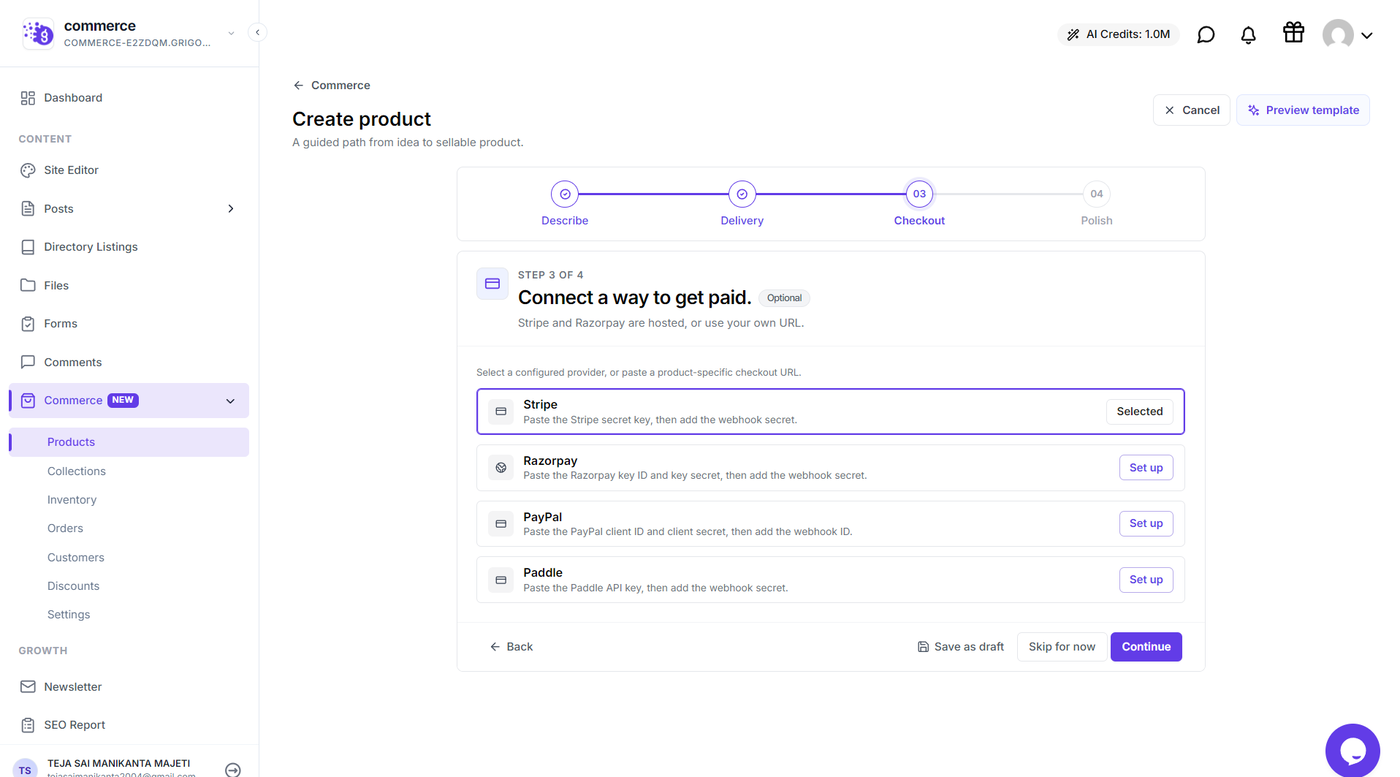
Once checkout is configured, select Continue to move to the final Polish section.
Adding Product Page Content
The Polish section lets you add additional information that helps customers understand your product before purchasing.
Use Highlights to add short points describing what customers receive or the main benefits of the product.
You can also add FAQs to answer common questions about topics such as product access, refunds, usage rights, or delivery.
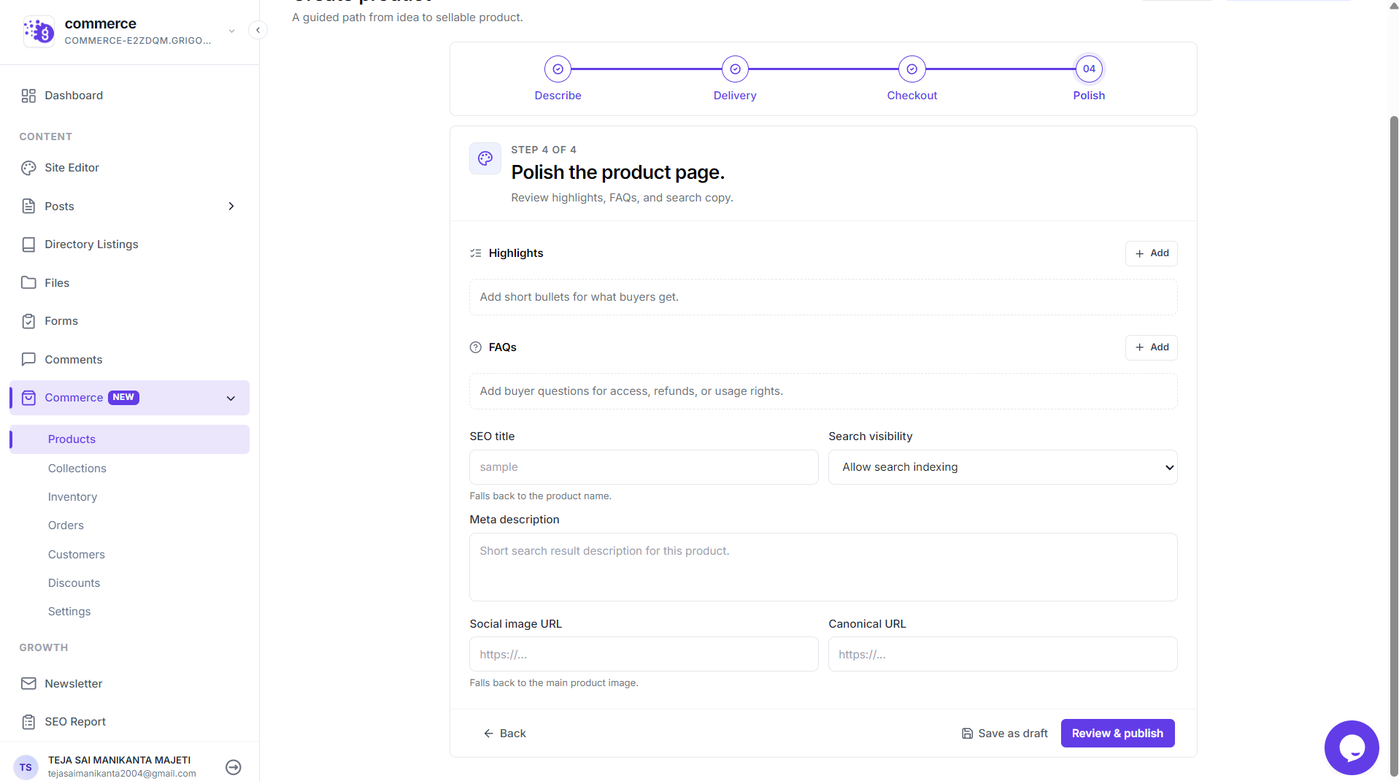
Keep these details concise and focused on information that can help customers make a purchase decision.
Configuring Product SEO Details
The Polish section also includes SEO and search visibility settings for the product page.
You can configure the:
SEO title
Search visibility
Meta description
Social image URL
Canonical URL
Use the Search visibility option to control whether search engines can index the product page.
The SEO title can be customized for search results, while the meta description provides additional information about the product. You can also specify a social image and canonical URL when required.
These settings are optional, but configuring them can help you control how your product page appears in search engines and when shared on social platforms.
Reviewing and Publishing the Product
Once all product information has been configured, you can choose Save as draft if you want to continue working on the product later.
When the product is ready, select Review & publish to review the information before publishing it.
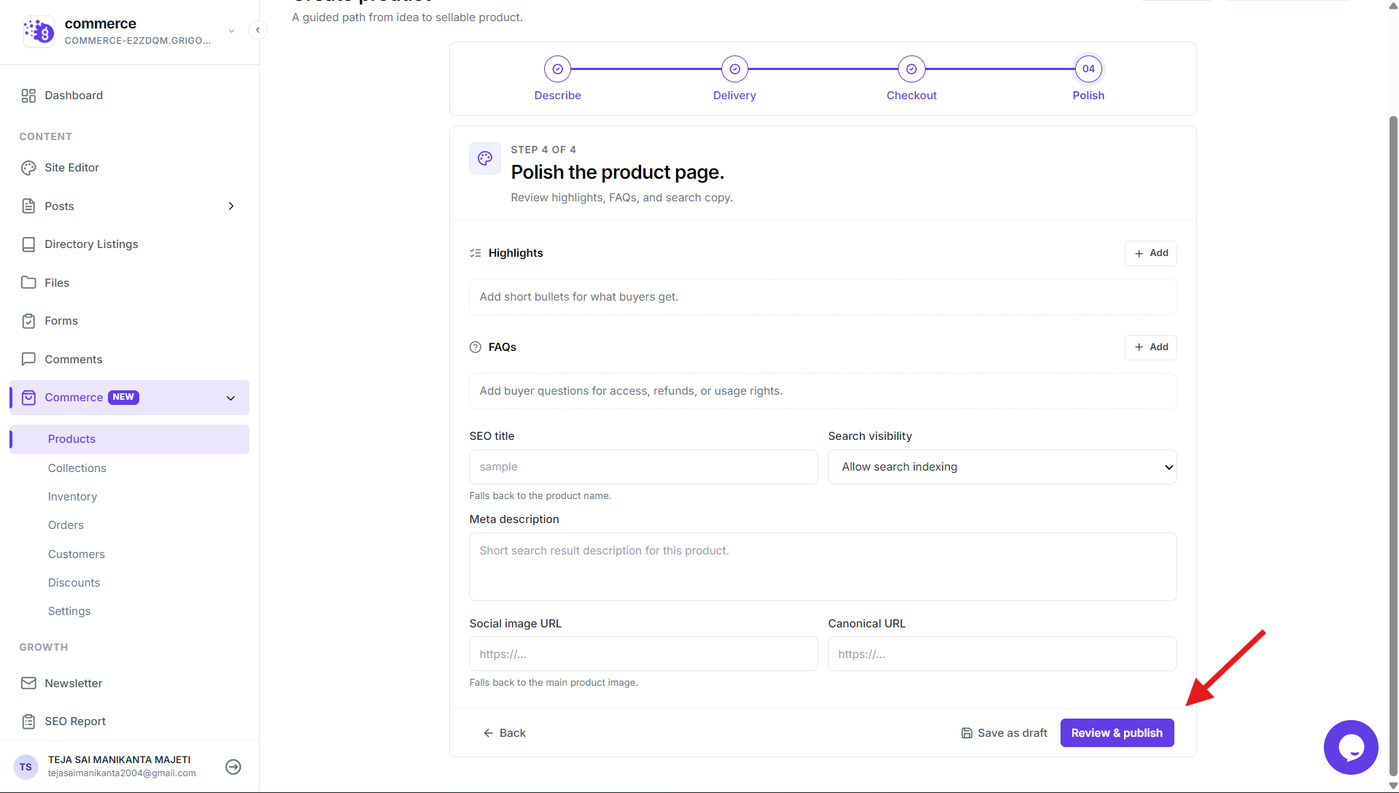
After publishing, your product will be available through its Grigora Commerce product page.
Creating Products Professionally
The product creation workflow gives you a straightforward way to prepare products for your online store. Use it to:
Add clear product information and descriptions.
Organize products into collections.
Set prices and currencies.
Add product images and videos.
Configure digital or physical delivery.
Upload files for digital products.
Connect supported payment providers.
Add product highlights and FAQs.
Configure product-level SEO settings.
Save unfinished products as drafts.
Review and publish completed products.