

Never miss a lead or an inquiry from your website visitors. You can configure Grigora to automatically send an email notification to one or multiple recipients whenever any form is submitted on your site.
You can manage your lead notification settings from two convenient places in your dashboard:
Directly from the Leads Dashboard (Recommended): Configure notifications right where you review incoming inquiries and customer submissions.
From Website Settings (Integrations): Configure form email confirmations alongside other site integrations such as Google Analytics and webhooks.
Both methods control the exact same site-wide notification settings in real time.
Method 1: Configure Notifications Directly in Leads (Recommended)
Manage your notification recipients directly from your leads inbox without navigating away from your form responses:
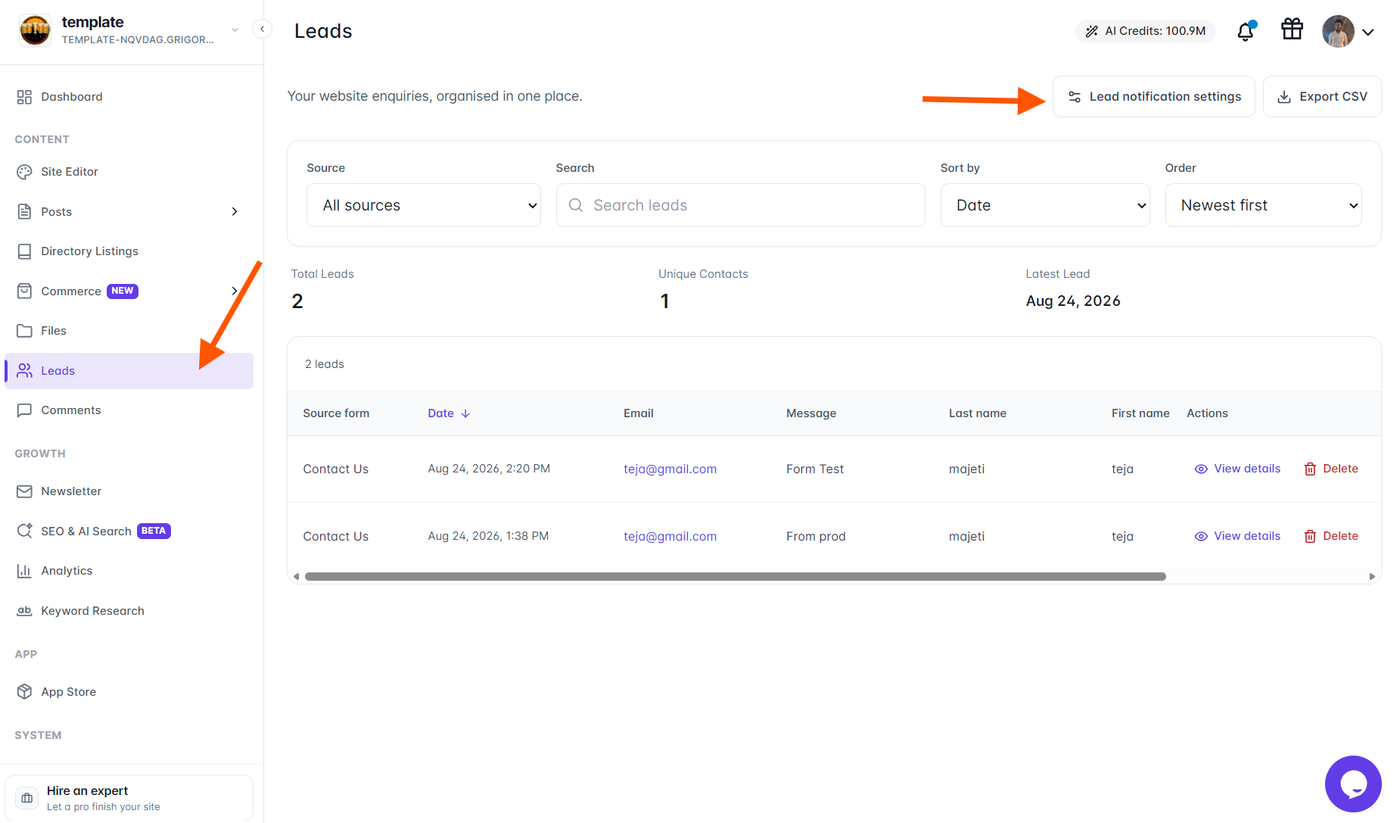
In the left main navigation sidebar, click Leads (located under the CONTENT section).
In the top-right action area of the Leads screen, click the Lead notification settings button (slider controls icon, next to Export CSV).
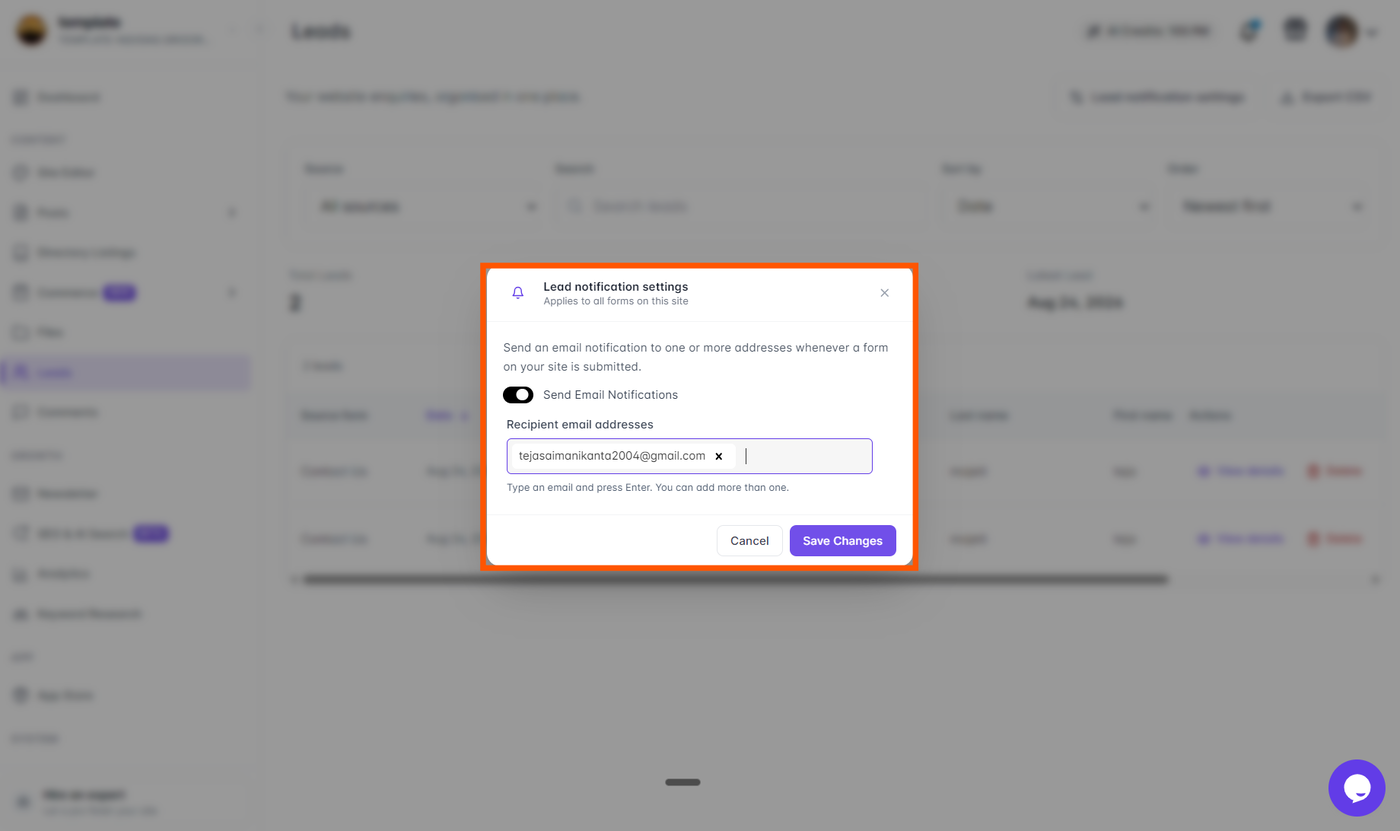
The Lead notification settings modal opens on screen with the subtitle "Applies to all forms on this site".
Turn on the Send Email Notifications toggle switch (it turns black when enabled).
Under Recipient email addresses, type the destination email address and press Enter to add it as a recipient pill.
You can add multiple email addresses to notify your entire team.
To remove an address, click the small ✕ on the recipient pill.
Click Save Changes. A green confirmation toast confirms: "Settings saved successfully".
Method 2: Configure via Website Settings (Integrations)
You can also access the same notification configuration from your site's global settings:
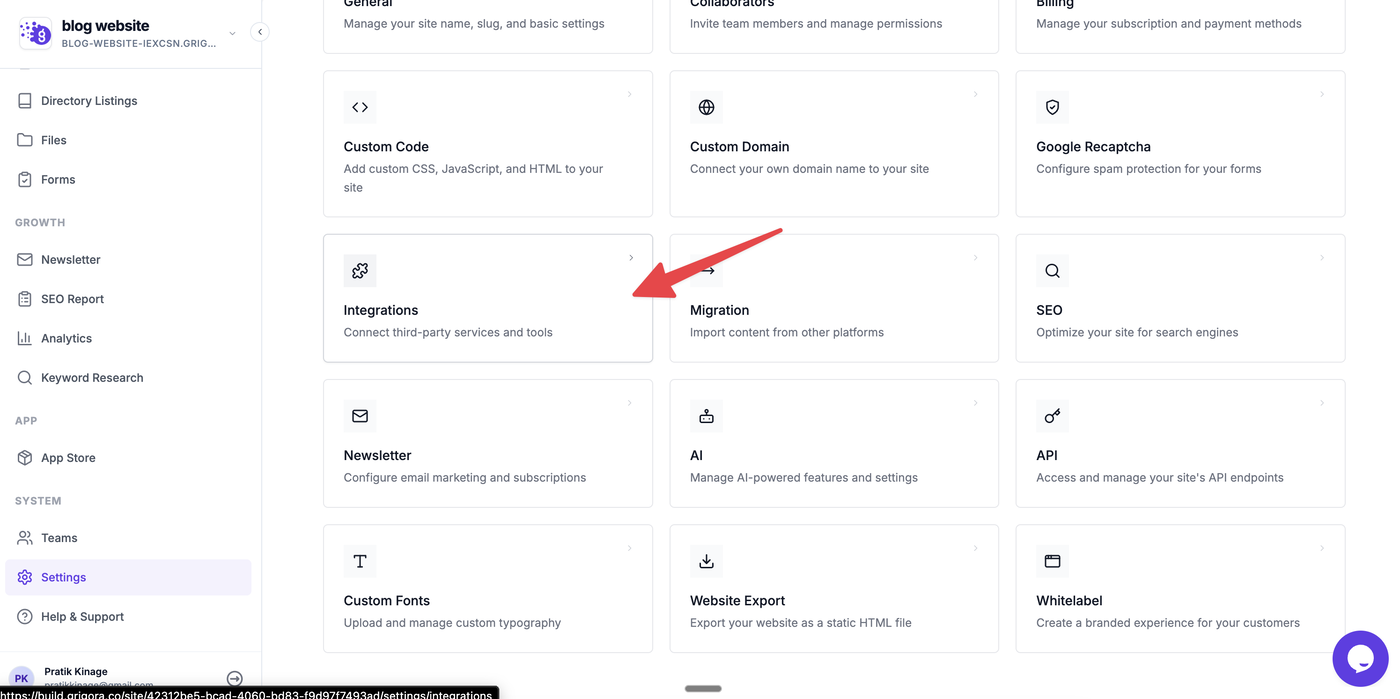
From the left main navigation sidebar, scroll down to the SYSTEM section and click Settings.
Select Integrations.
Scroll down to the Form Settings card (labeled Email Confirmation · Form notifications).
Toggle on Send Email Notifications.
Enter one or more recipient email addresses in the Recipient email addresses field (type each email and press Enter).
Click the Save button at the bottom of the page.
What Is Included in Each Notification Email?
Whenever a visitor submits a form on your website, Grigora automatically formats and sends an alert email containing:
Form Name / Source: Identifies the exact form used (e.g., Contact Us, Newsletter Signup, or a custom form).
Submitted Fields & Data: A clean, complete breakdown of every field submitted by the visitor (e.g., First Name, Last Name, Email, Phone, and Message).
Timestamp: The precise date and time the form was submitted.
Direct Lead Link: Instant access to review the full entry in your Grigora Leads database.
Pro Tips for Reliable Delivery
Keep Multiple Stakeholders Notified: Add your sales, support, and administrative email addresses so inquiries are addressed immediately.
Custom Domain Sender: If you use the White Label feature or a custom sending domain, ensure your DNS records (SPF, DKIM) are verified so notifications land directly in your inbox without being flagged by spam filters.
Exporting Leads: All submissions sent to your email are simultaneously recorded in your Leads table, where you can filter by source and click Export CSV at any time.