

Learn how to efficiently store and handle your client or team details using Grigora Mail’s contact management system. This guide will show you how to create new contact entries and manage existing ones with options to edit, delete, or send emails directly.
Creating a New Contact
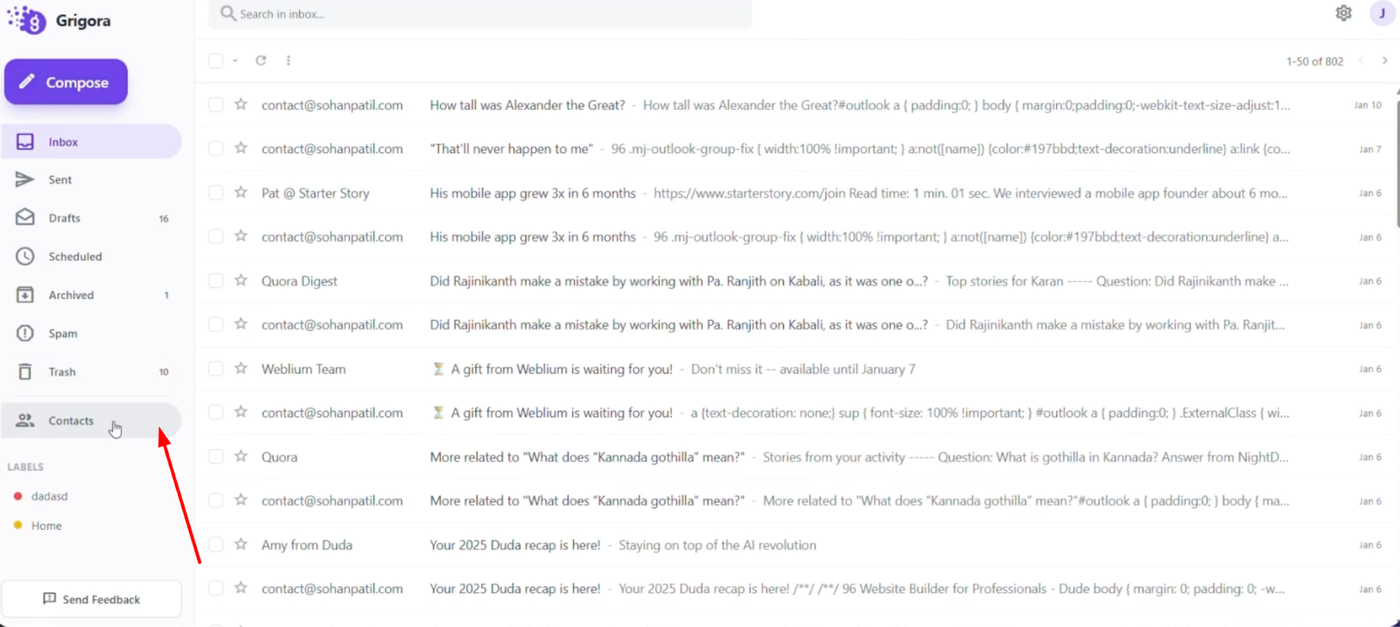
Go to Grigora Mail and click on "Contacts" at the bottom of the left sidebar to view your list.
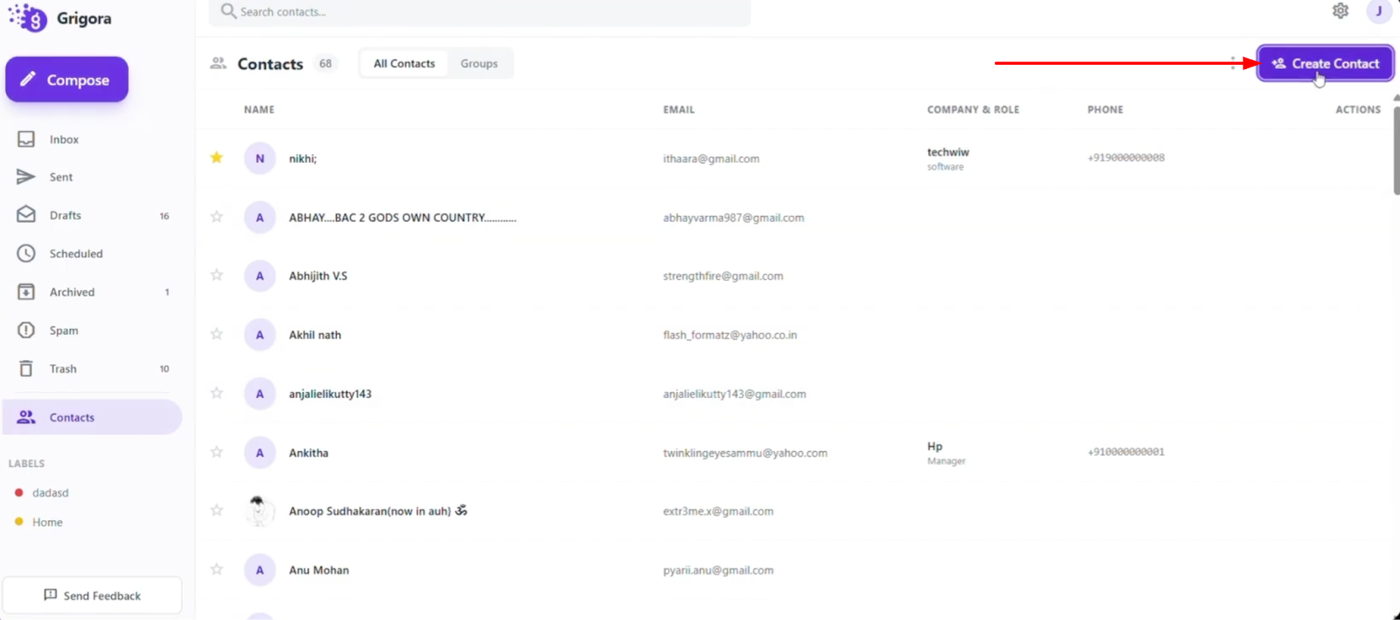
To add a new person, click the "Create contact" button at the top right.
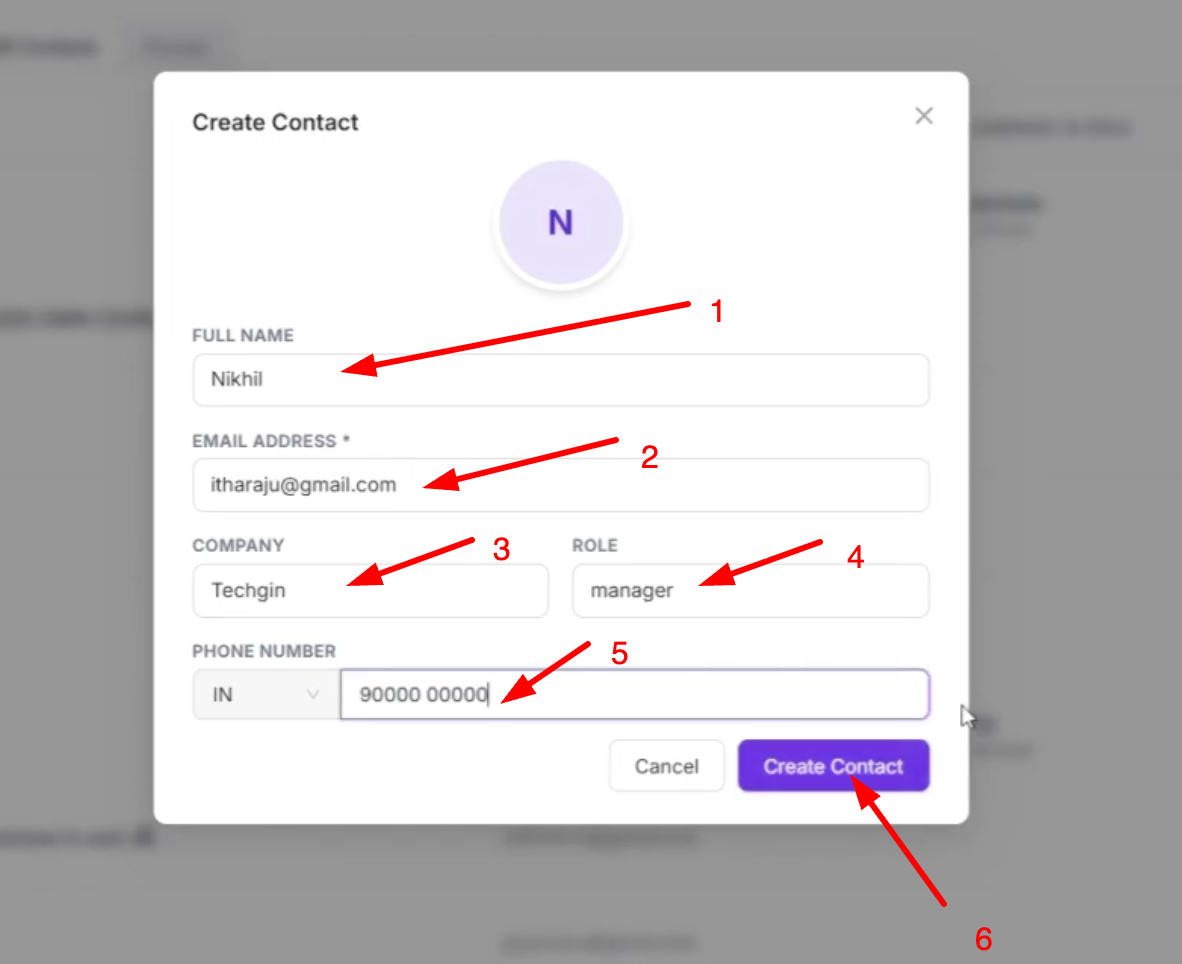
A pop-up form will appear where you can fill in details such as name, email, company, role, country code, and contact number. Once you have entered the information, click "Create contact" at the bottom to save the entry to your list.
Managing Existing Contacts
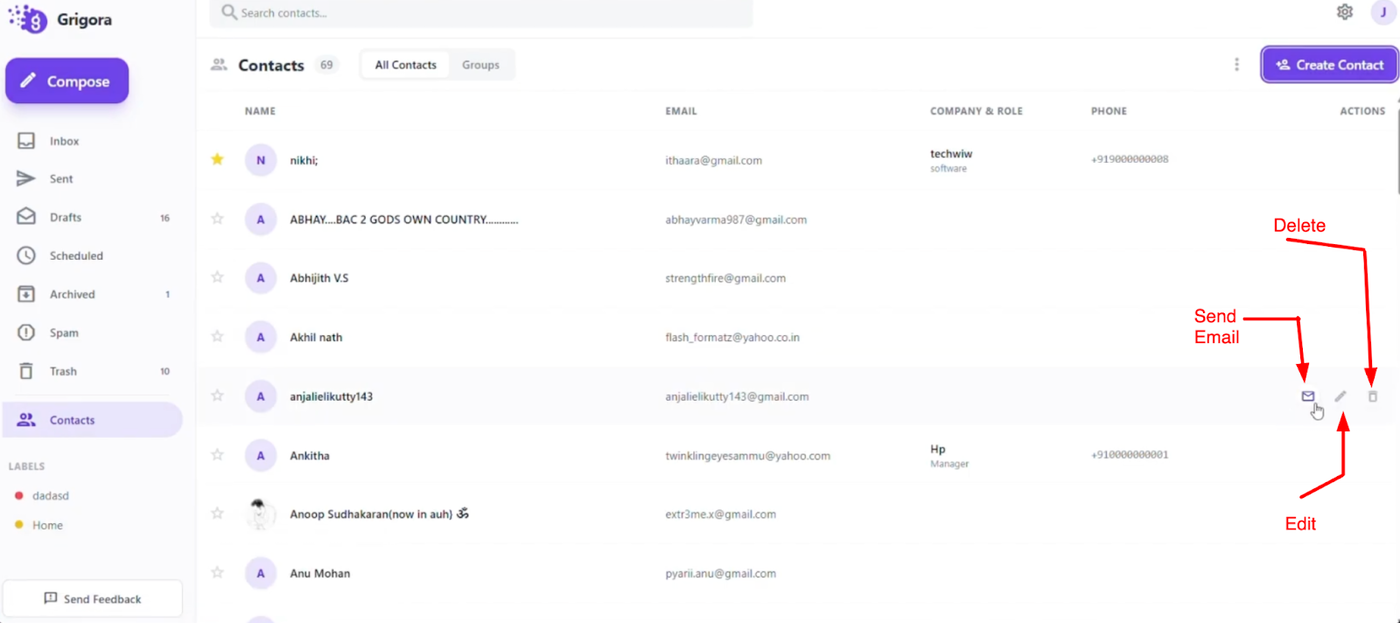
To manage your saved contacts, locate the entry in your list and look for the three options on the right side: "Send email," "Edit," and "Delete."
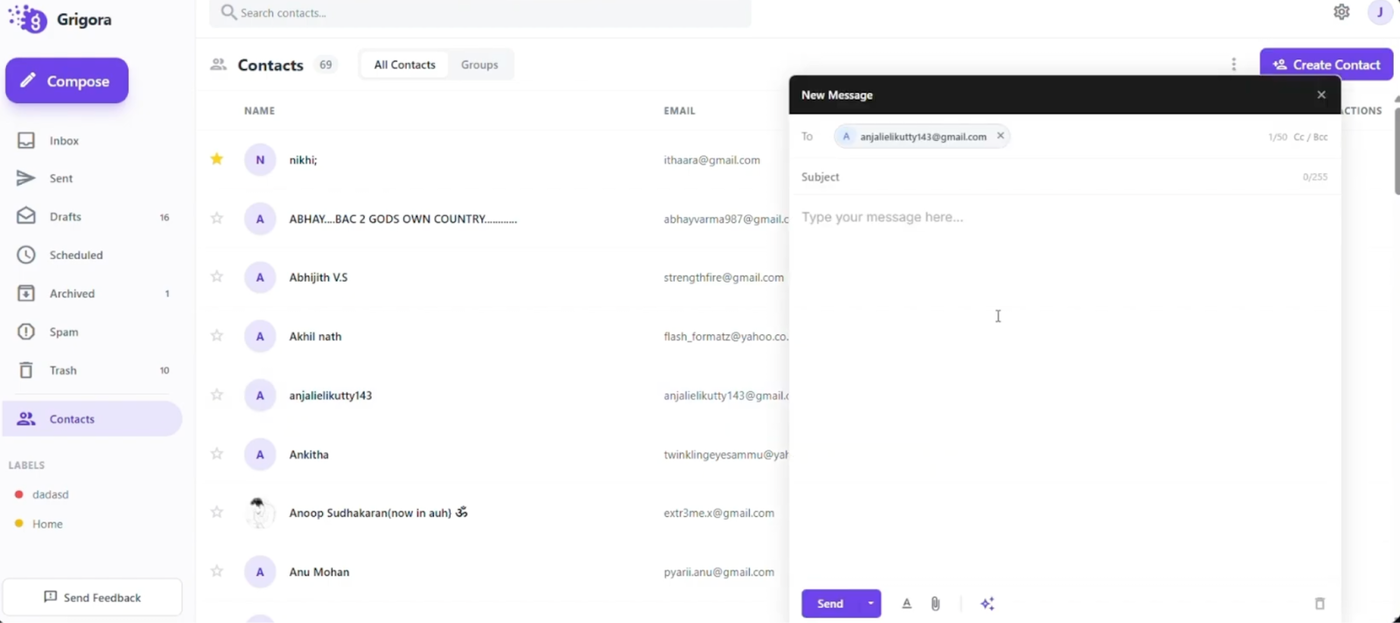
Click "Send email" to compose a message directly to that person.
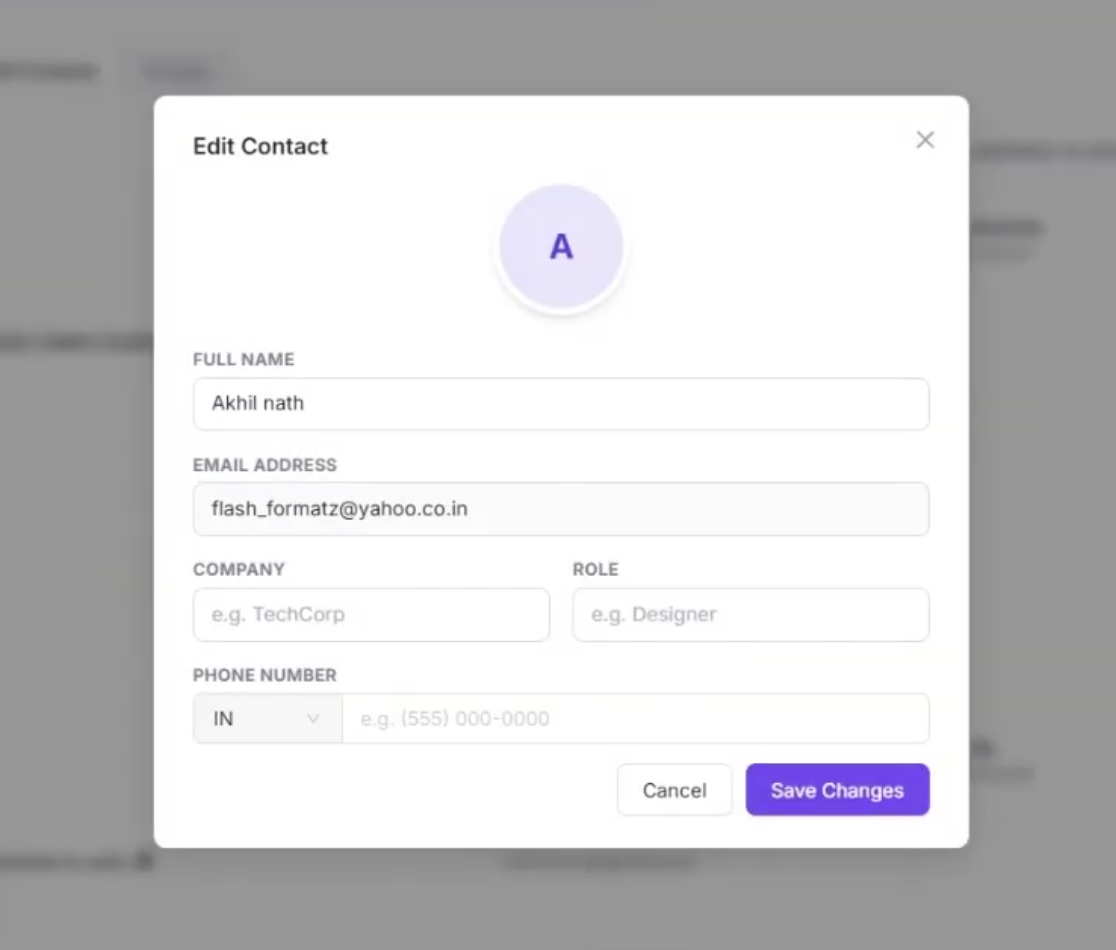
If you need to update their information, choose "Edit," make your changes, and click "Save changes."
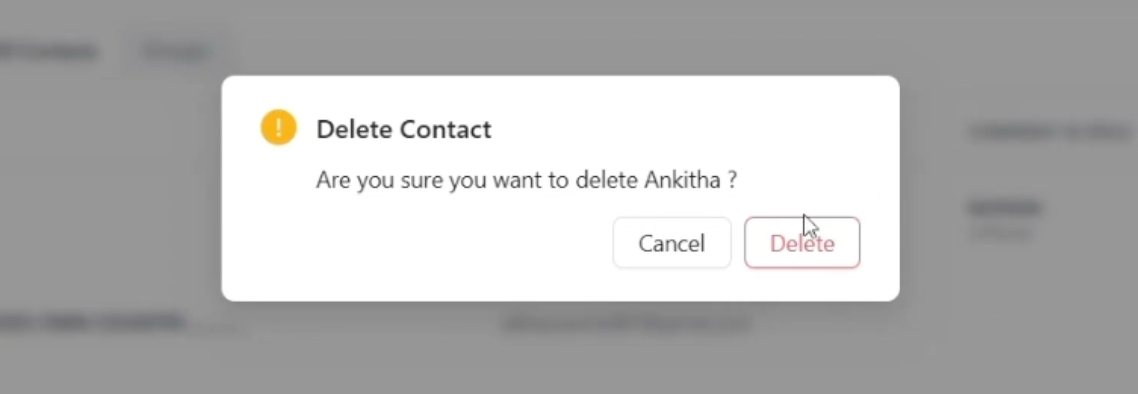
To remove a contact entirely, click the delete icon and confirm your choice in the pop-up window.