

Learn how to instantly adjust the tone of your email responses using Grigora Mail's AI tools. This guide will show you how to generate replies and switch between professional, polite, or casual styles without rewriting the text yourself.
Generating an AI Reply
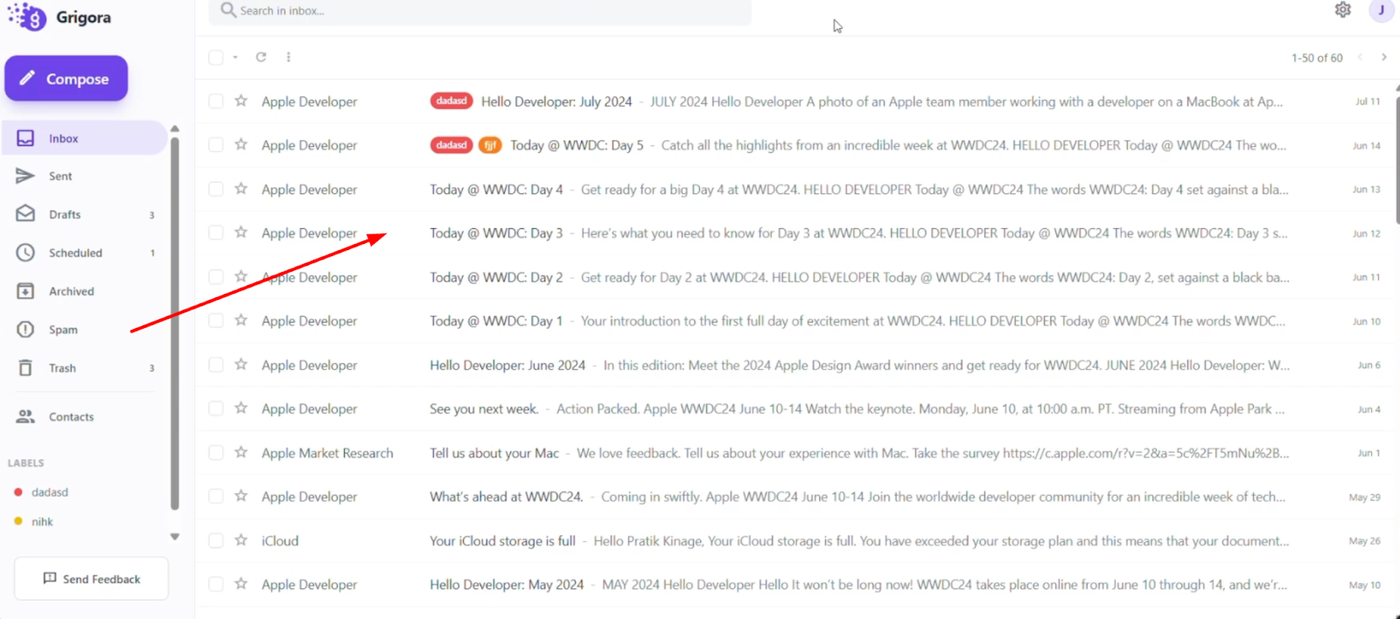
Open Grigora Mail and select an email from your inbox that you want to answer.
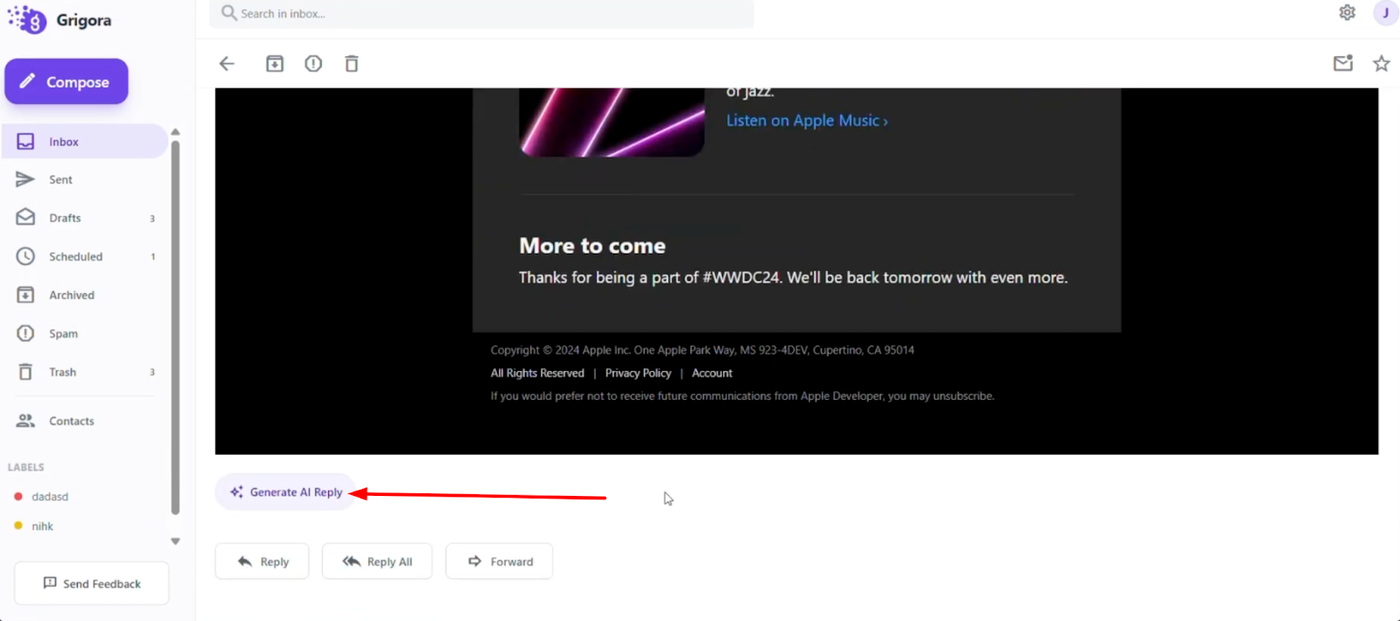
Scroll to the bottom of the page and click the "Generate AI Reply" button on the left side.
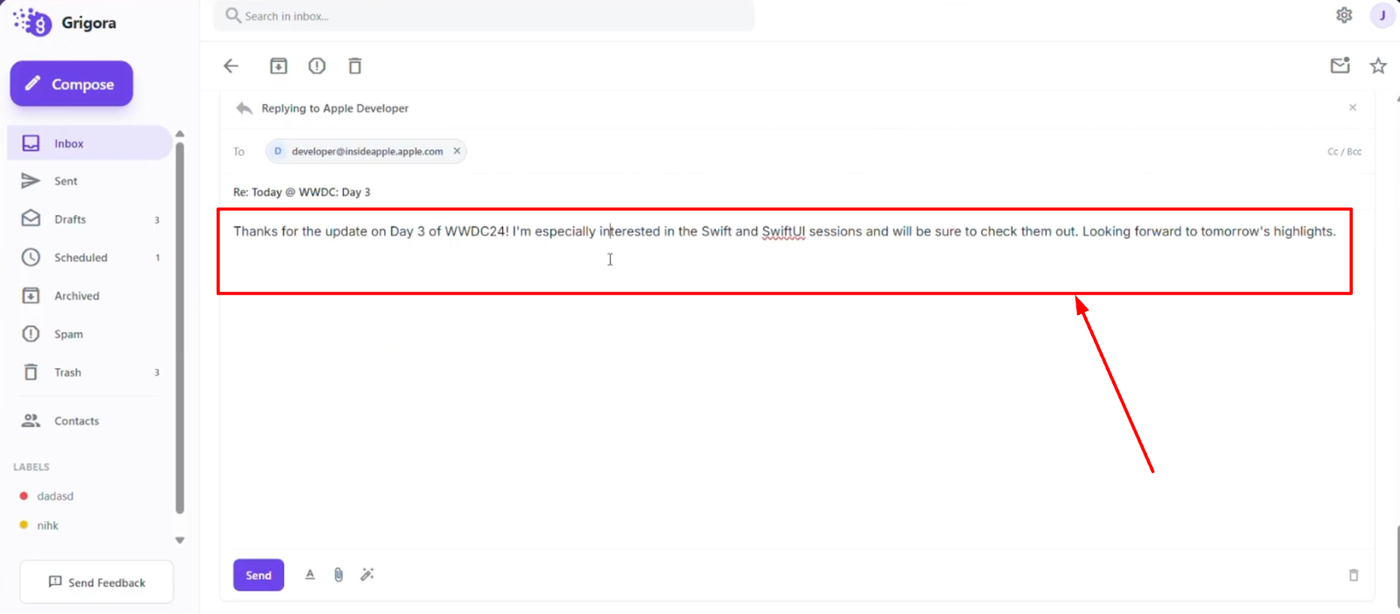
A reply box will appear with a pre-filled draft. This text serves as the base for your response, which you can then refine using the built-in AI settings.
Adjusting the Tone
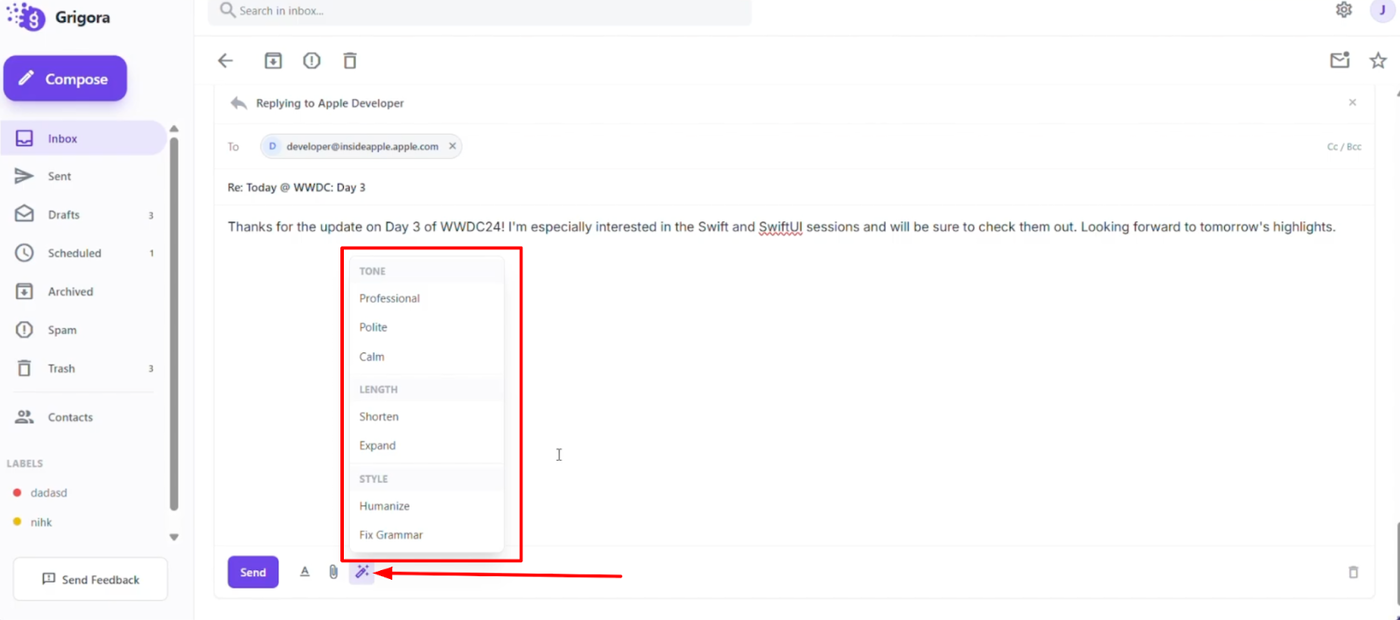
Inside the reply box, click on the AI tool option on the left side to open the settings for tone, length, and style. Under the "Tone" section, choose from options like "Professional," "Polite," or "Calm" to best fit your message. The AI will instantly regenerate the reply in your chosen style. You can switch tones multiple times to compare versions, manually edit the text to perfection.
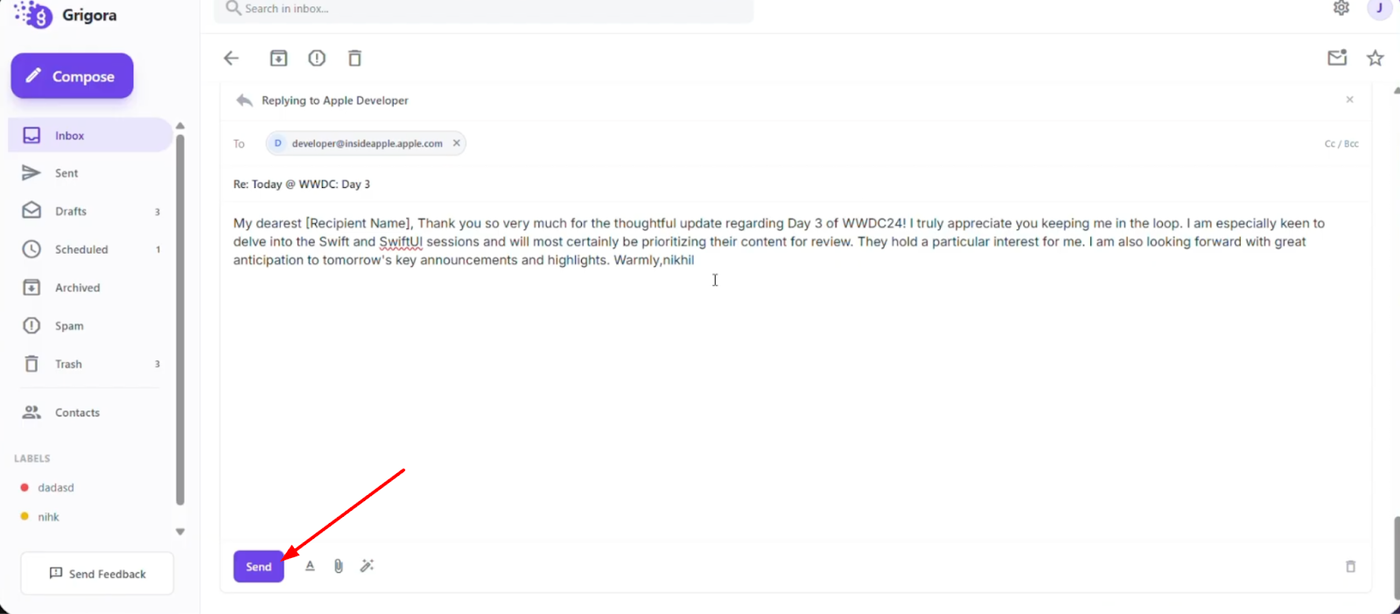
Once satisfied, click "Send" once you are satisfied with the result.