

Learn how to integrate your Grigora Mail account with popular email clients like Gmail, Outlook, or Apple Mail. This guide demonstrates the process using Gmail as an example, allowing you to manage your messages directly from the app you use every day.
Retrieving Configuration Details
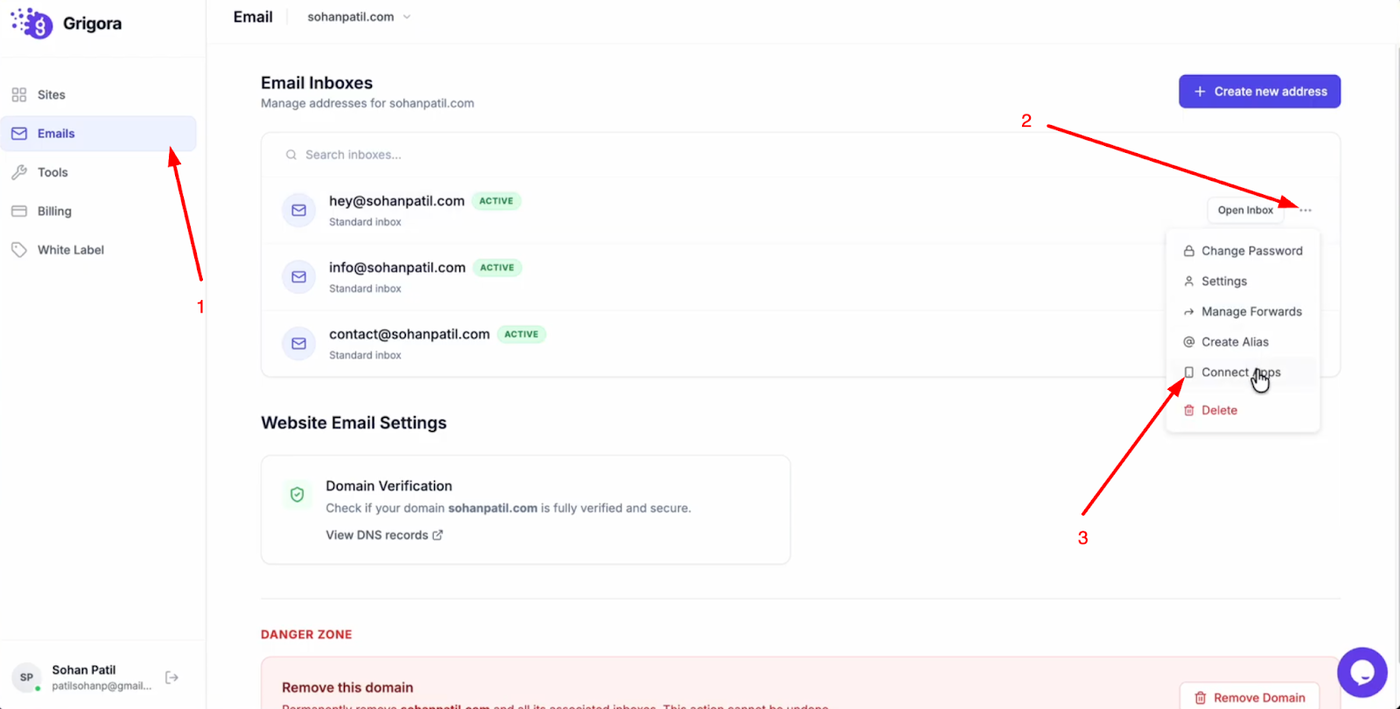
Log into your Grigora account and open the "Emails" page. Find the email address you want to connect, click the three dots icon next to it, and select "Connect Apps."
Choose "Gmail" (or your preferred app) from the list to reveal the specific configuration details you will need, such as username, password, server, and port settings. Keep this tab open for reference.
Configuring Gmail (Example)
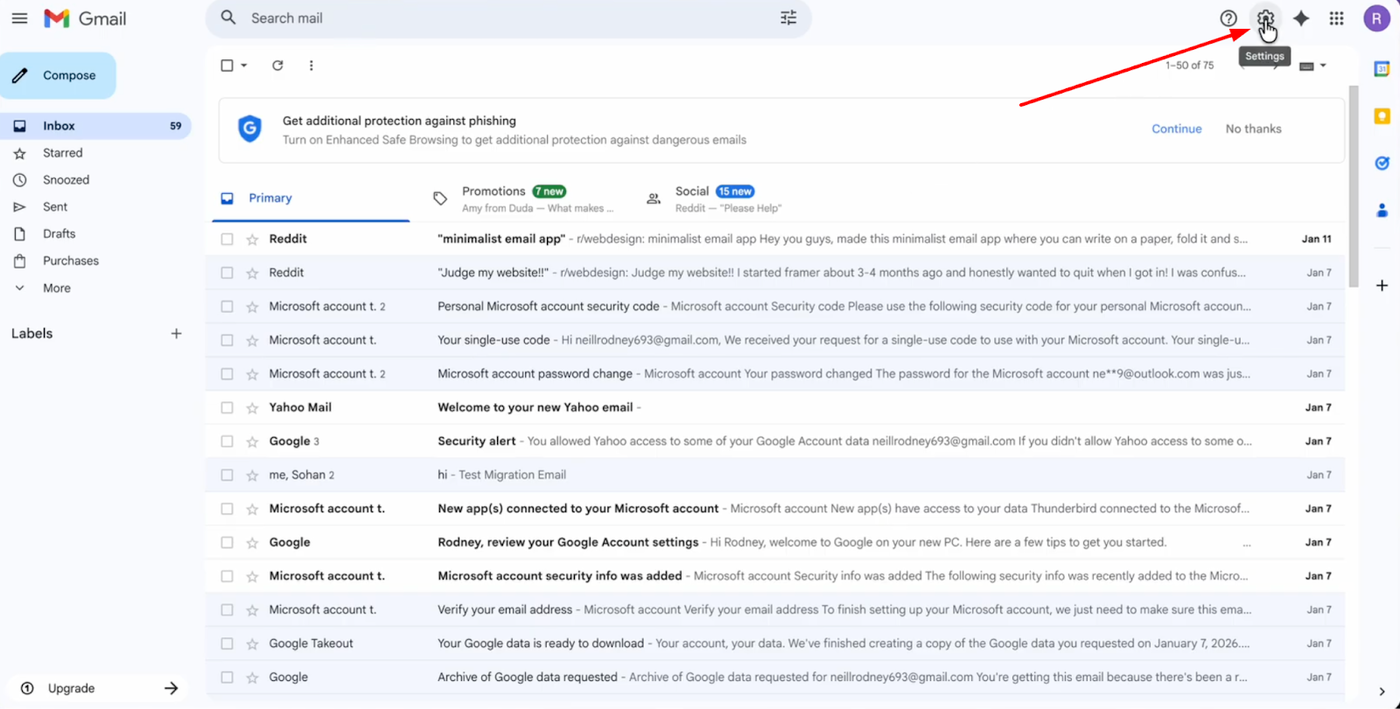
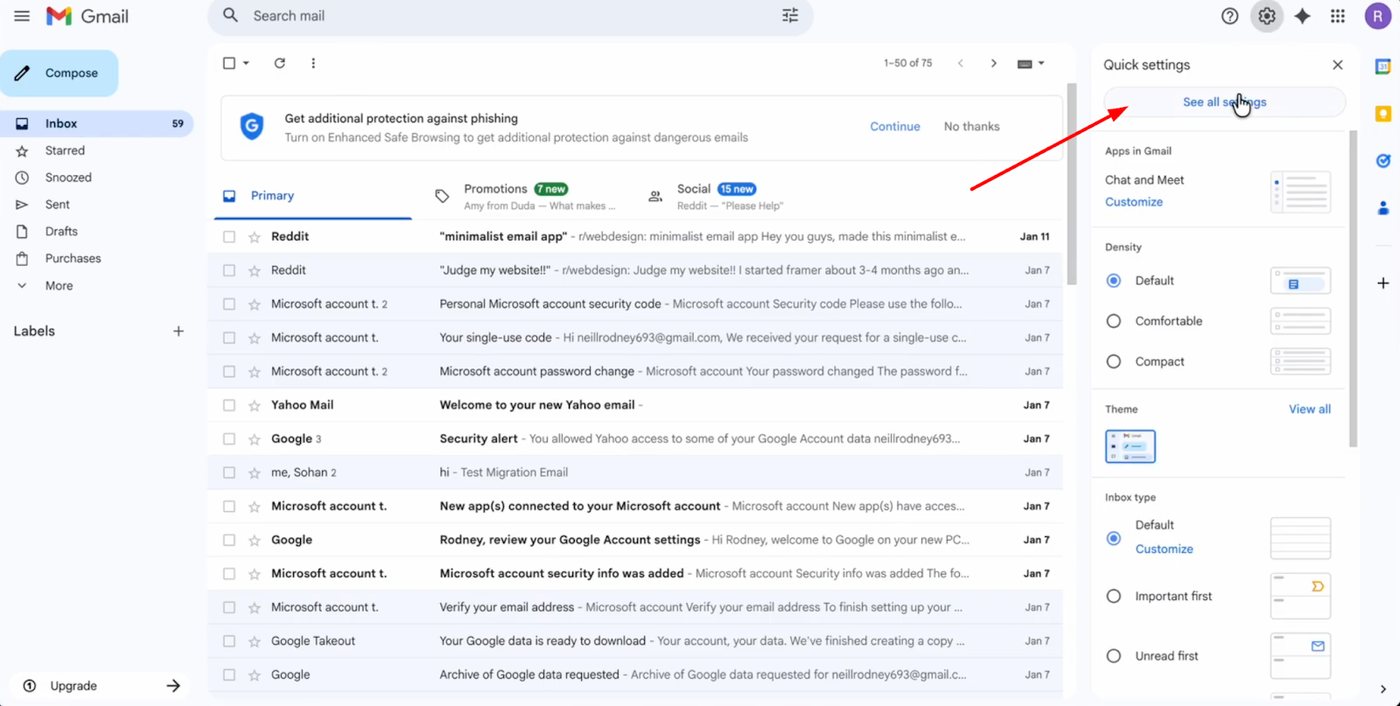
Open your Gmail account, click the settings icon, and select "See All Settings."
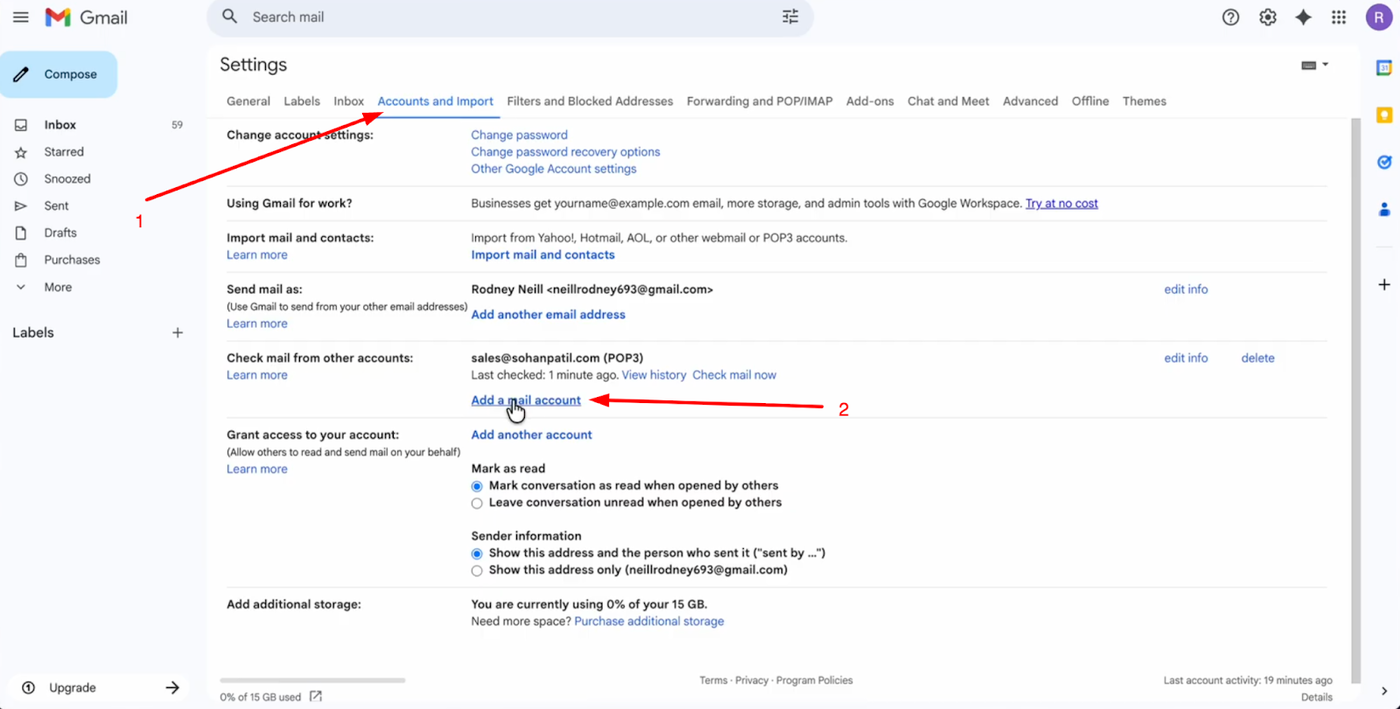
Navigate to the "Accounts and Import" tab and find the "Check mail from other accounts" section. Click "Add a mail account" to open the setup pop-up.
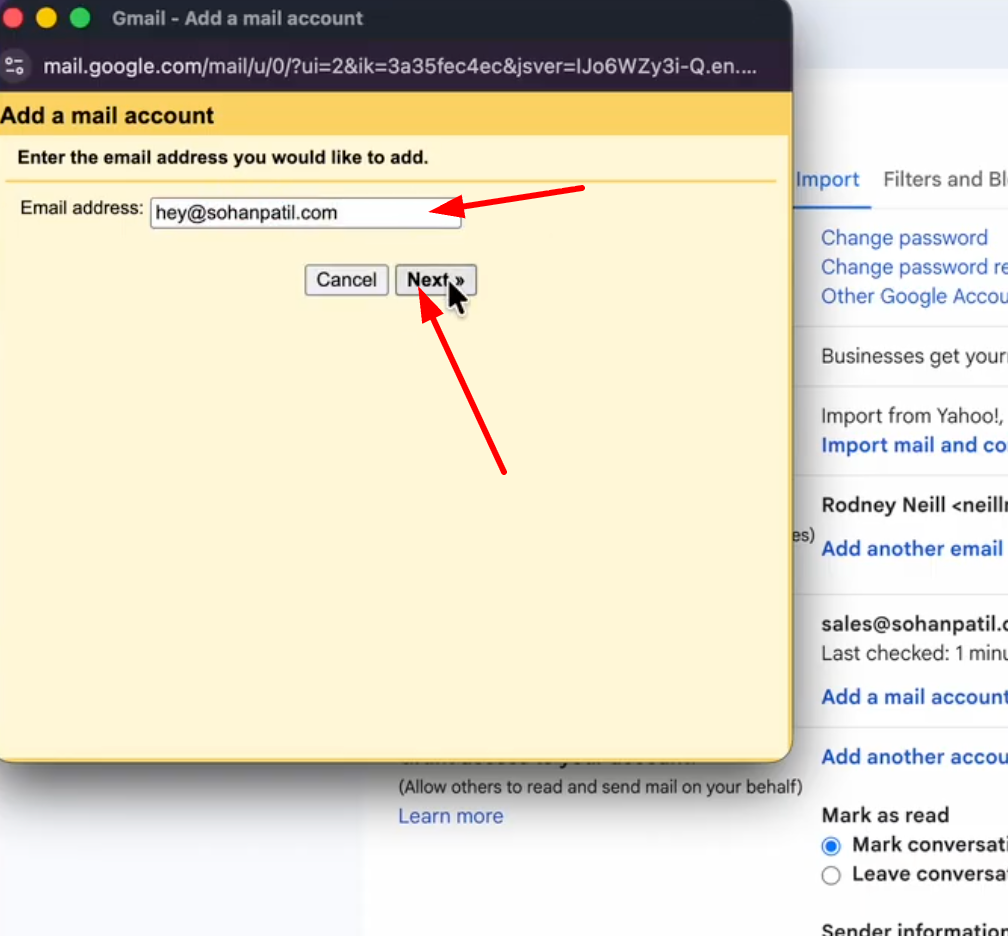
Enter your Grigora email address.
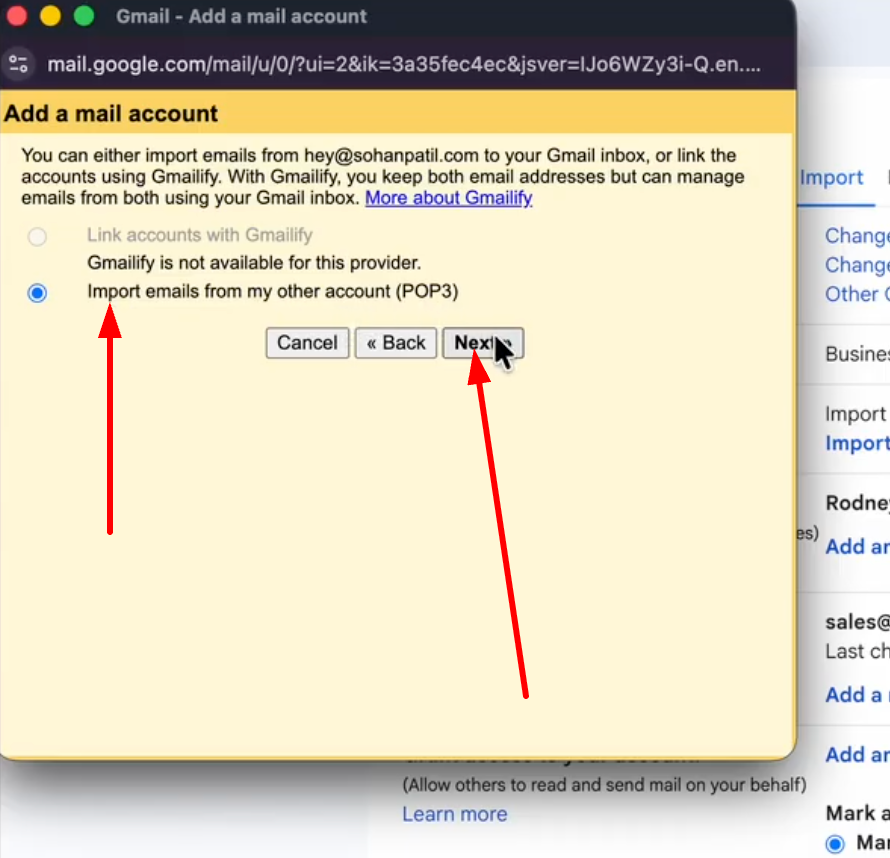
Select "Import emails from my other account (POP3)".
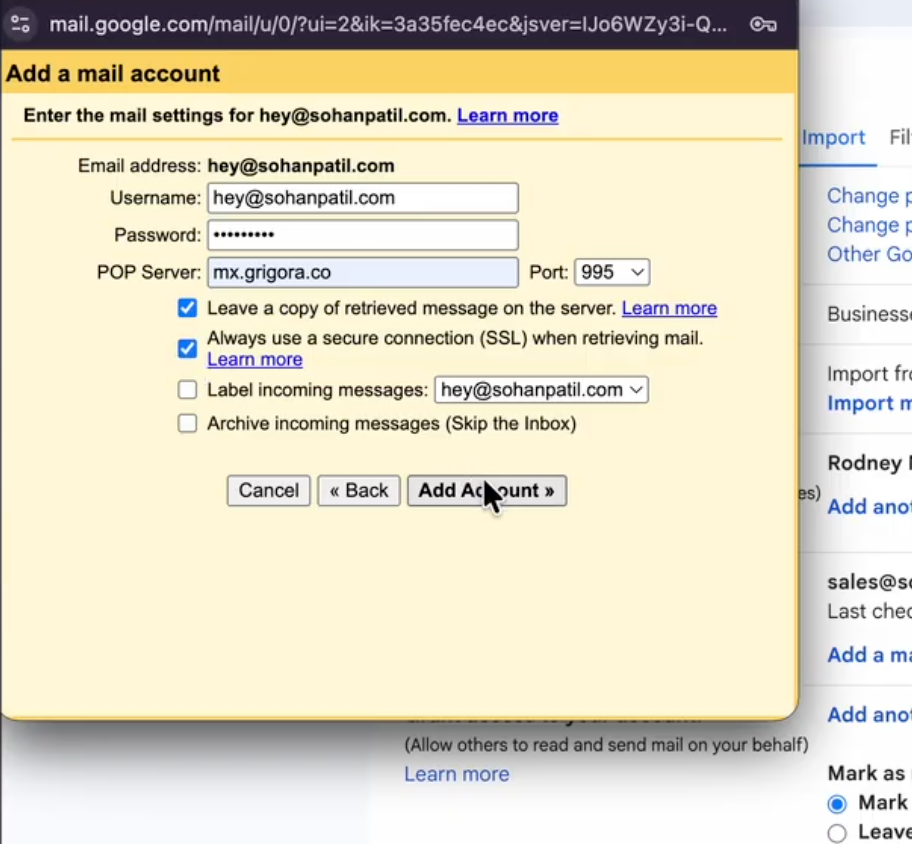
Fill in the details from your Grigora dashboard:
Username: Your full Grigora email address
Password: Your Grigora email password
POP Server: mx.grigora.co
Port: 995
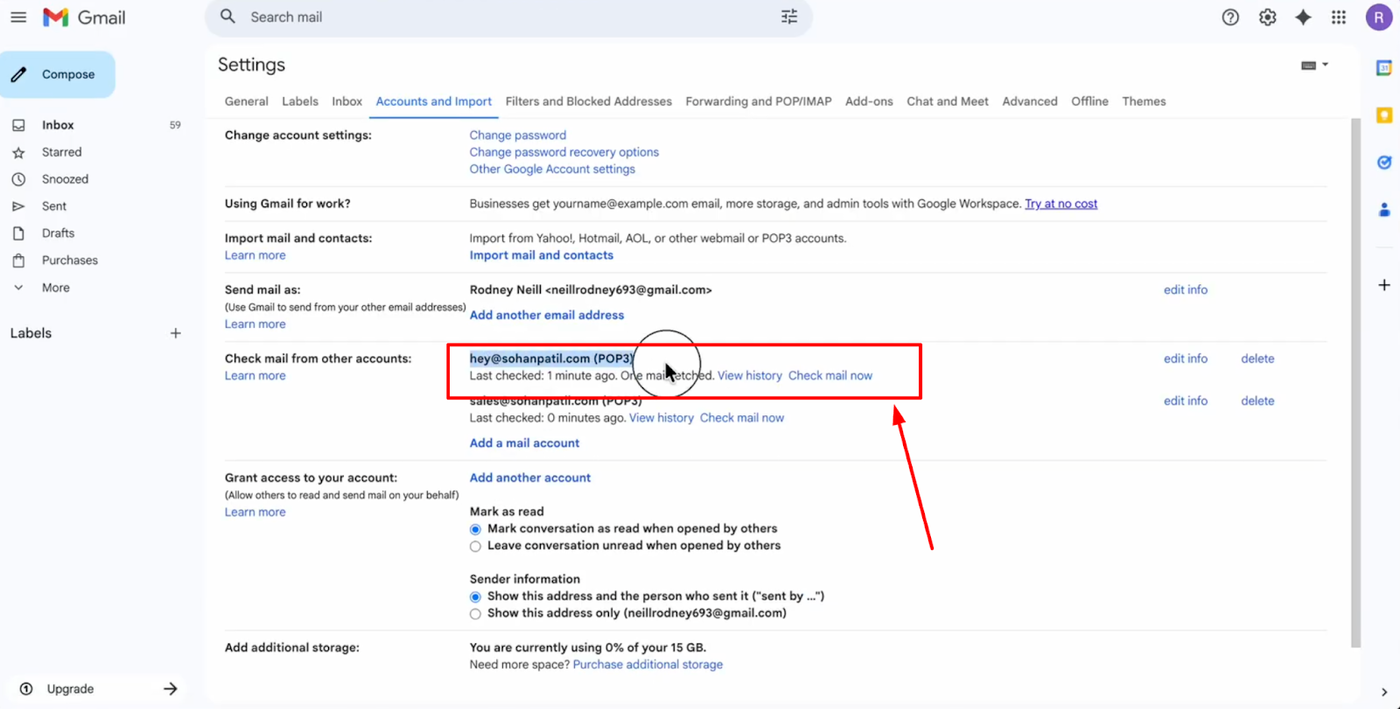
Ensure you check the boxes for "Leave a copy of retrieved message on the server" and "Always use a secure connection (SSL)." Click "Add Account" to finish the setup. (Note: Gmail web supports POP3 for receiving; sending may require separate SMTP configuration).
Connecting Other Apps
If you use Outlook, Apple Mail, or other clients, the process is similar. You can find specific step-by-step instructions for each application by clicking on its name in the "Connect Apps" menu on your Grigora dashboard.