

Learn how to create an email alias to manage different identities or purposes from a single inbox. This guide will show you how to add and delete aliases directly from your Grigora dashboard.
Adding a New Alias
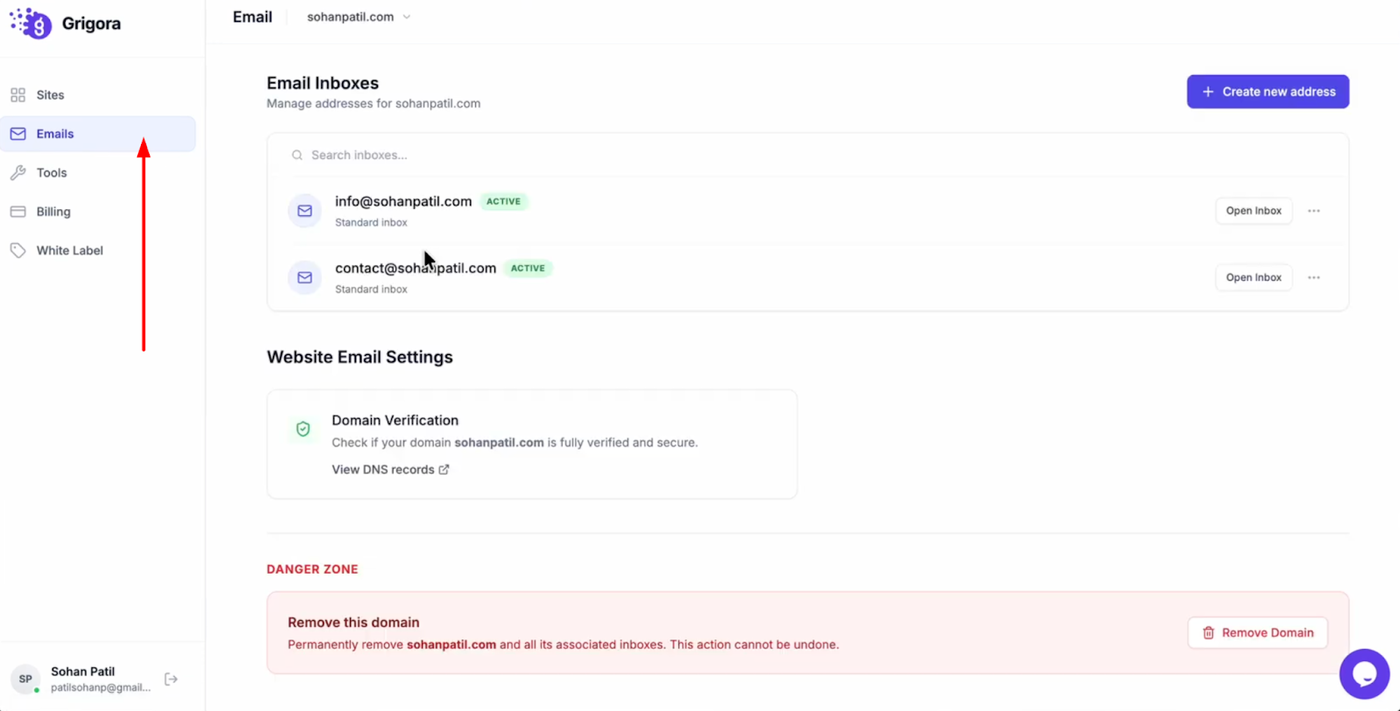
Log into your Grigora account and click on the "Emails" section to view your list of addresses.
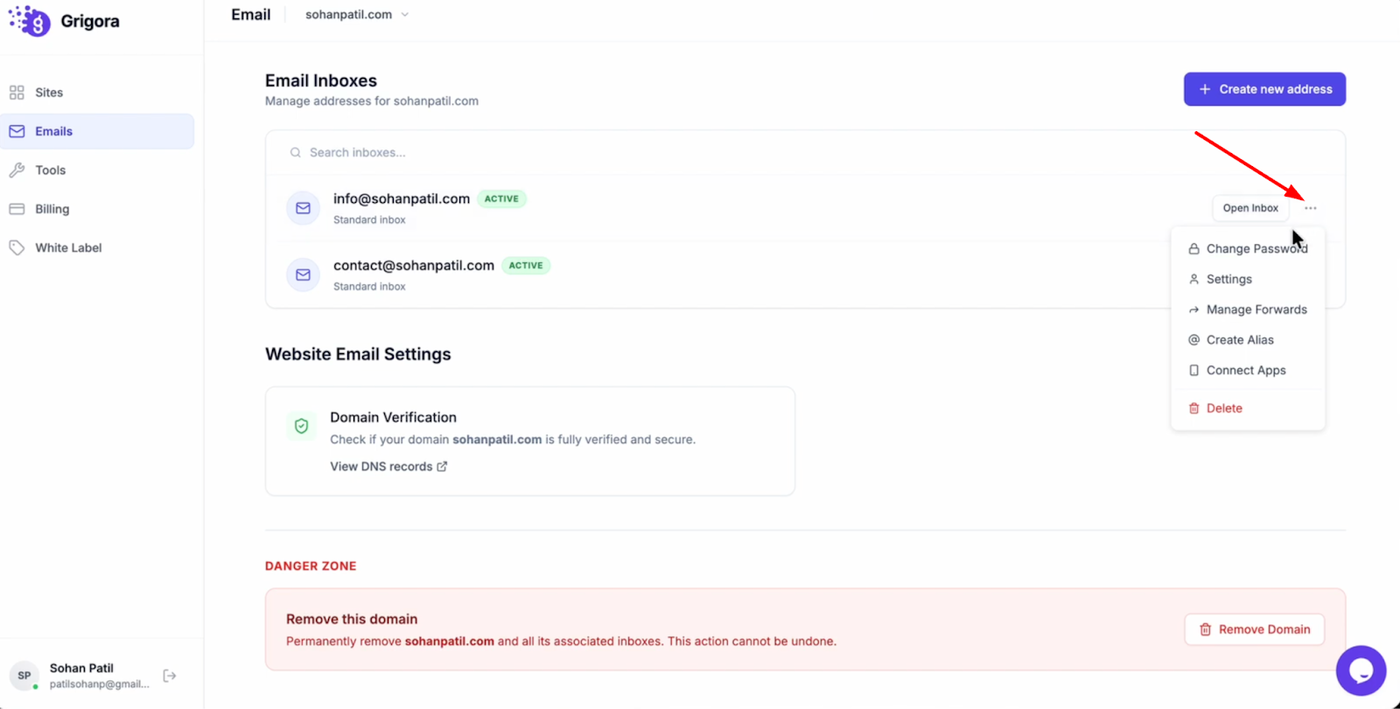
Find the specific email where you want to add an alias and click the three dots icon next to it.
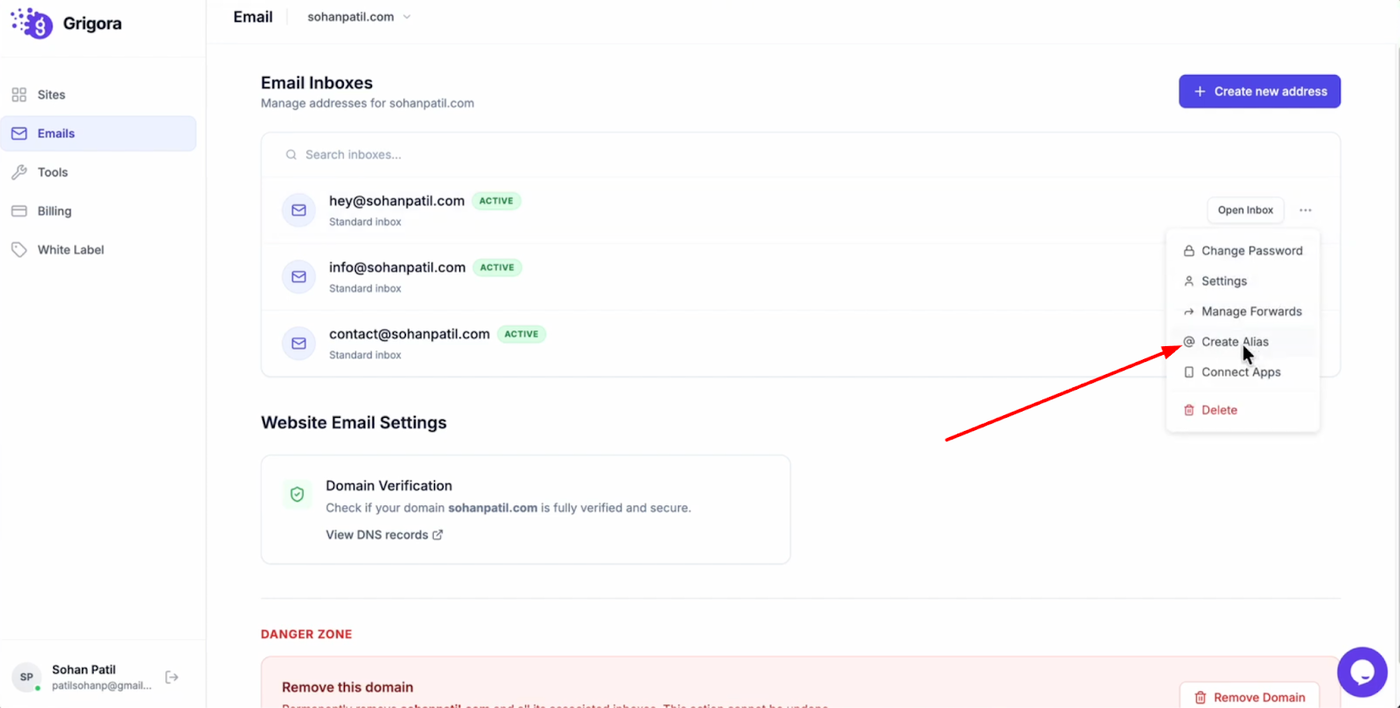
From the menu, select "Create alias."
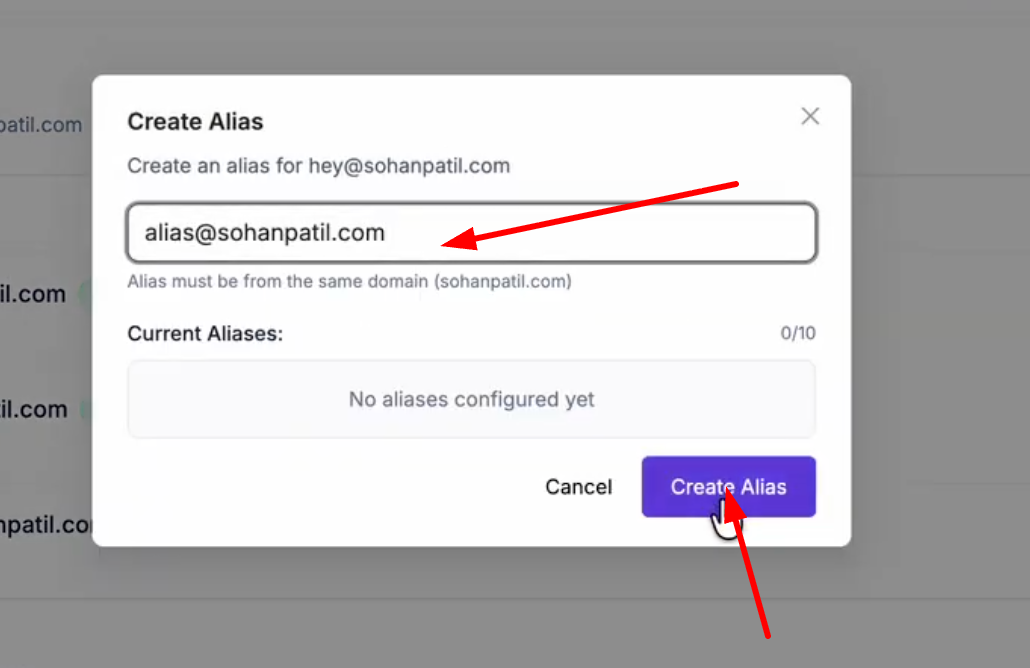
A pop-up will appear with an input field; type in the alias name you want to use and click the "Create alias" button to activate it immediately.
Removing an Alias
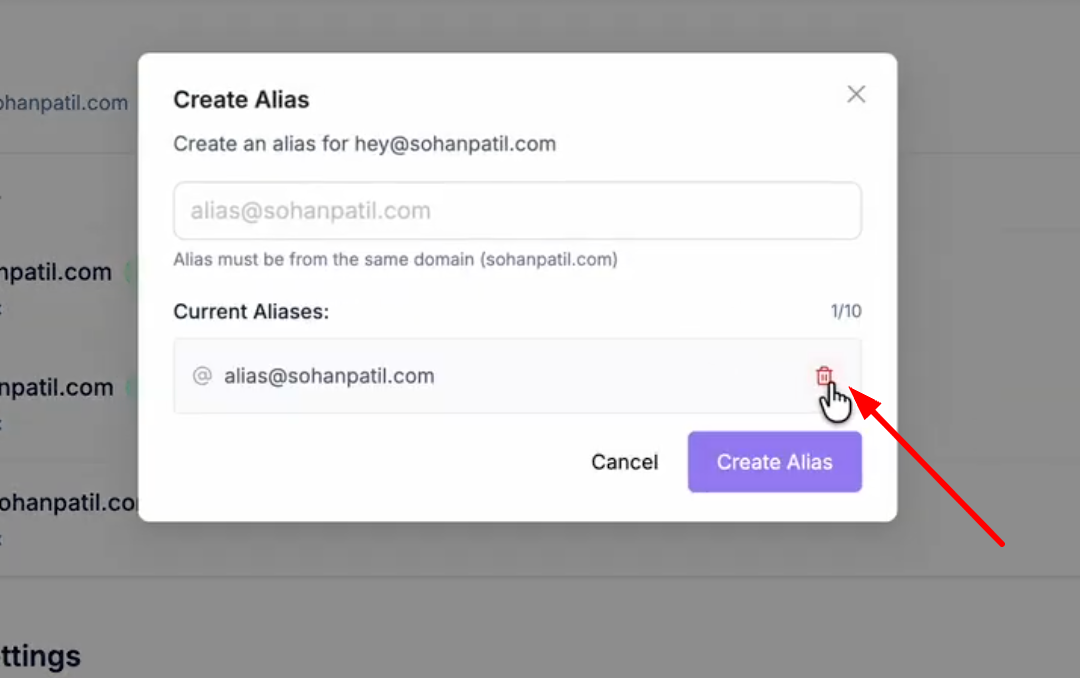
If you need to delete an alias later, navigate back to the same email address and open the menu again. This time, locate the alias in the list and simply click the delete button next to it to remove it from your account.