

Learn how to automatically redirect incoming emails to another address using forwarders. This guide will show you how to set up forwarding rules and manage your preferences, including options to keep copies in your original inbox.
Setting Up a New Forwarder
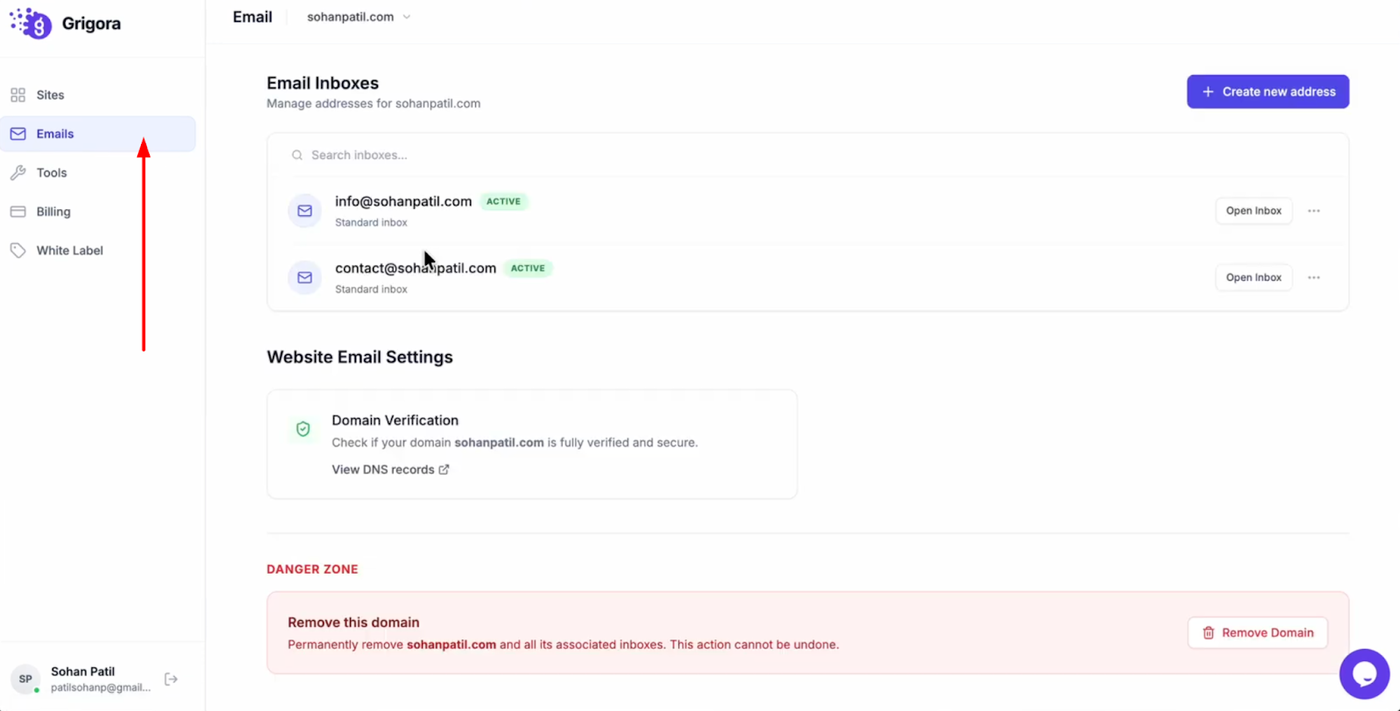
Log into your Grigora account and click on "Emails" from the dashboard to view your list of addresses.
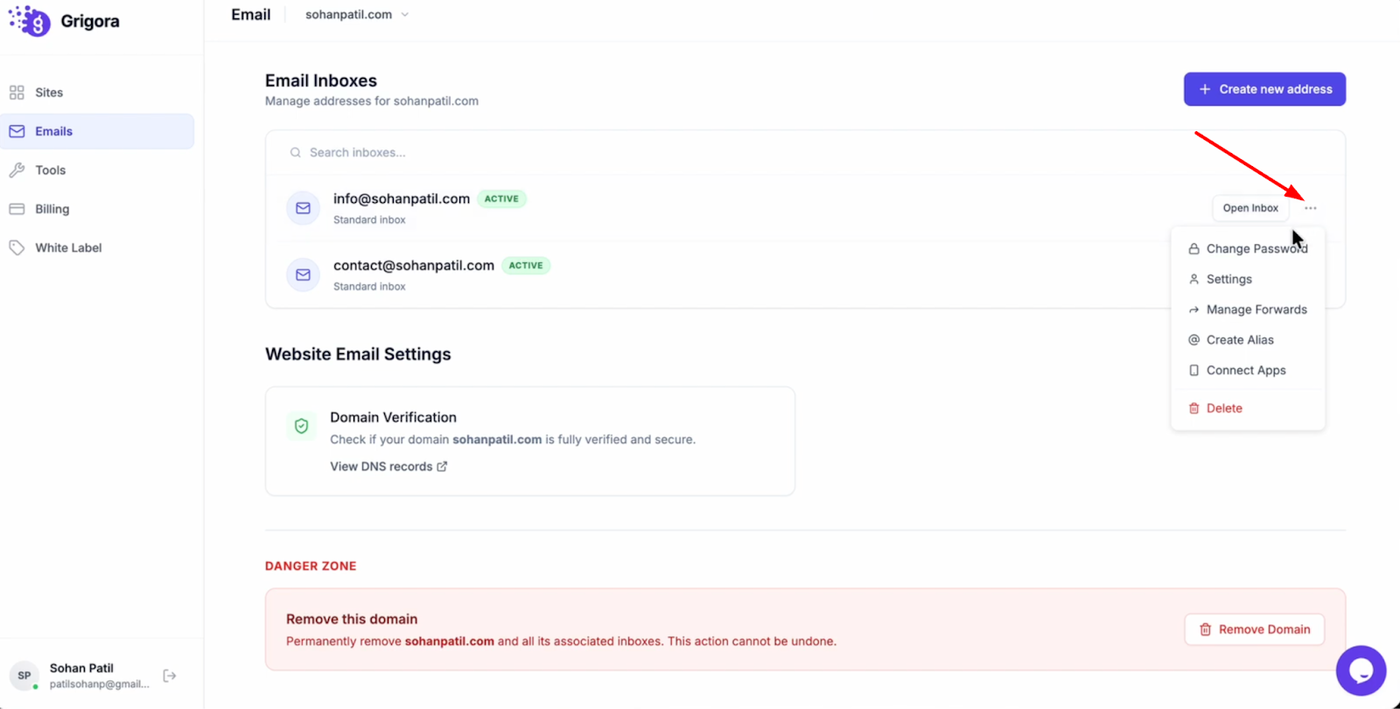
Find the specific email you want to modify and click the three dots icon next to it.
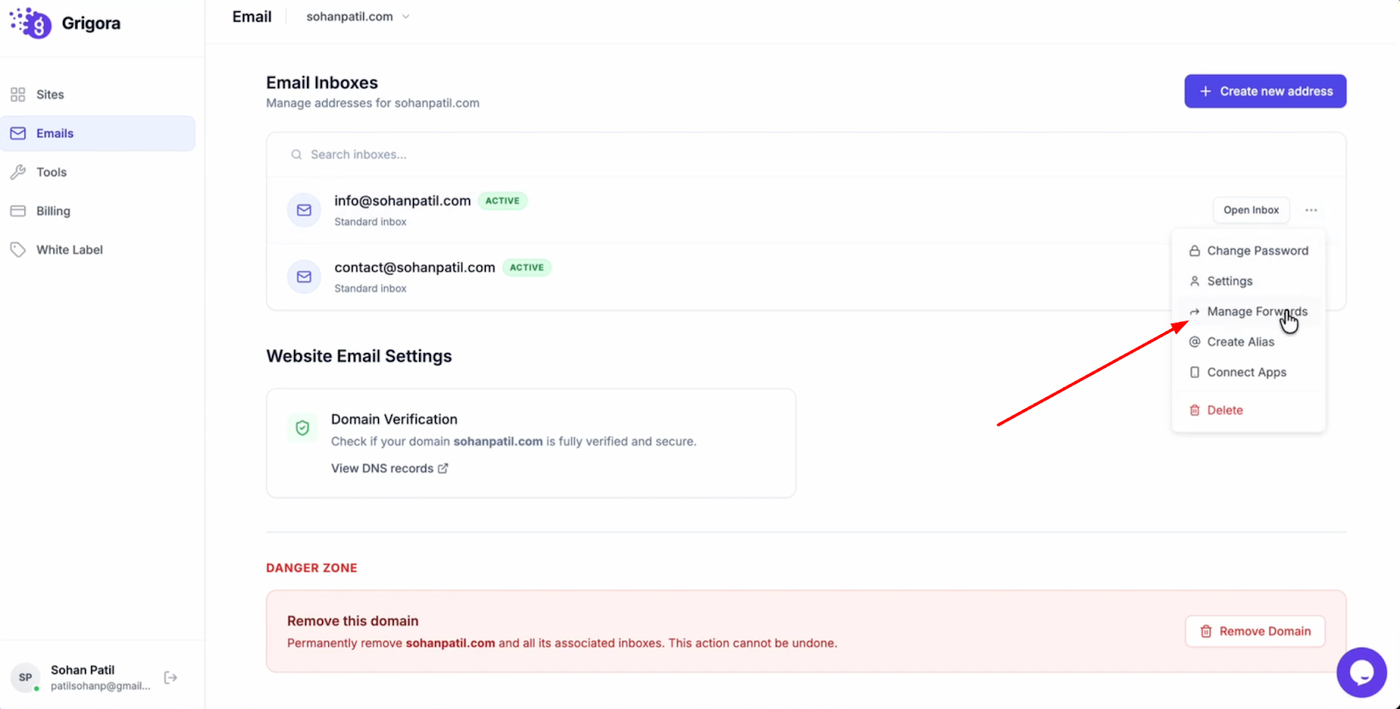
Select "Manage Forwarders" from the menu.
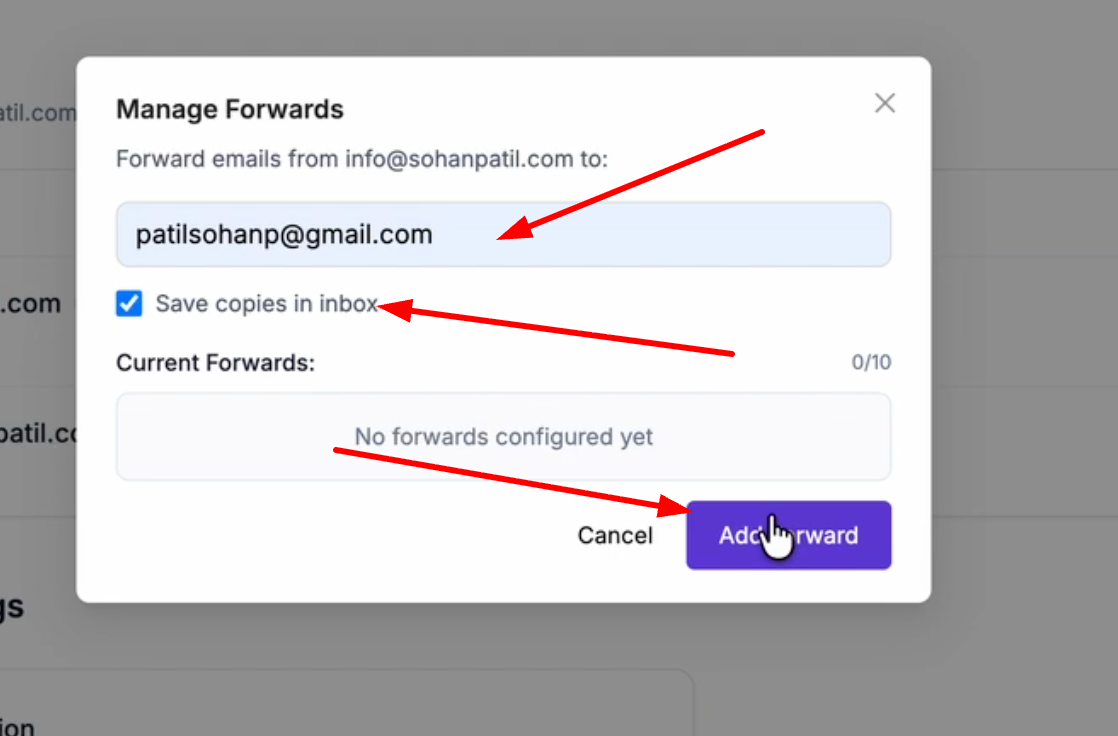
In the input field, enter the destination email address where you want messages to be sent. You can also check the "Save Copies in Inbox" box if you wish to retain a copy in your original Grigora inbox. Click "Add Forwarder" to activate the rule.
Managing and Deleting Forwarders
You can add multiple forwarders depending on your plan.
If you need to remove one later, simply return to the "Manage Forwarders" menu for that email address.
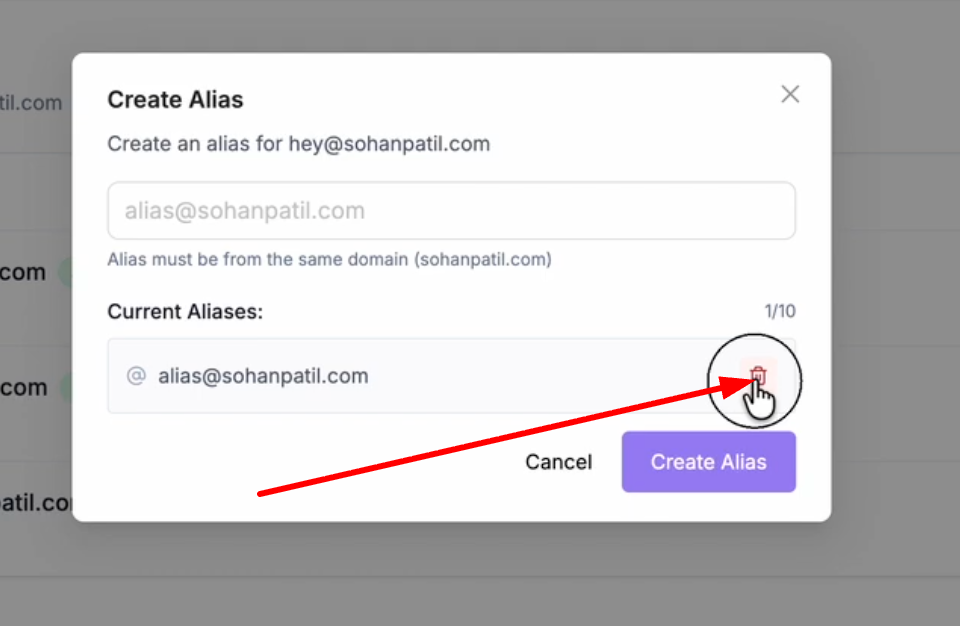
Locate the specific forwarder you want to remove from the list and click the delete button next to it to stop the redirection.