

Learn how to update your existing contact groups by renaming lists or modifying membership. This guide will show you how to easily add or remove contacts from a group to keep your communication lists current.
Accessing Group Settings
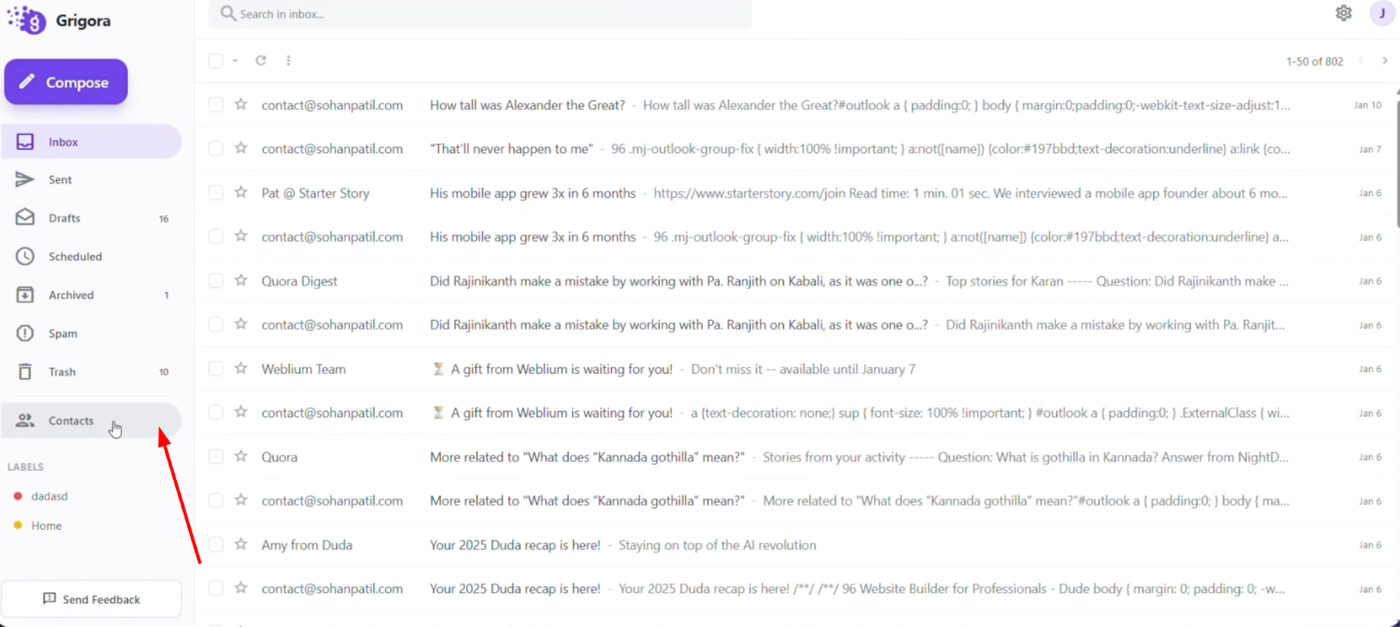
Log into your Grigora Mail account and navigate to the "Contact" section from the left sidebar.
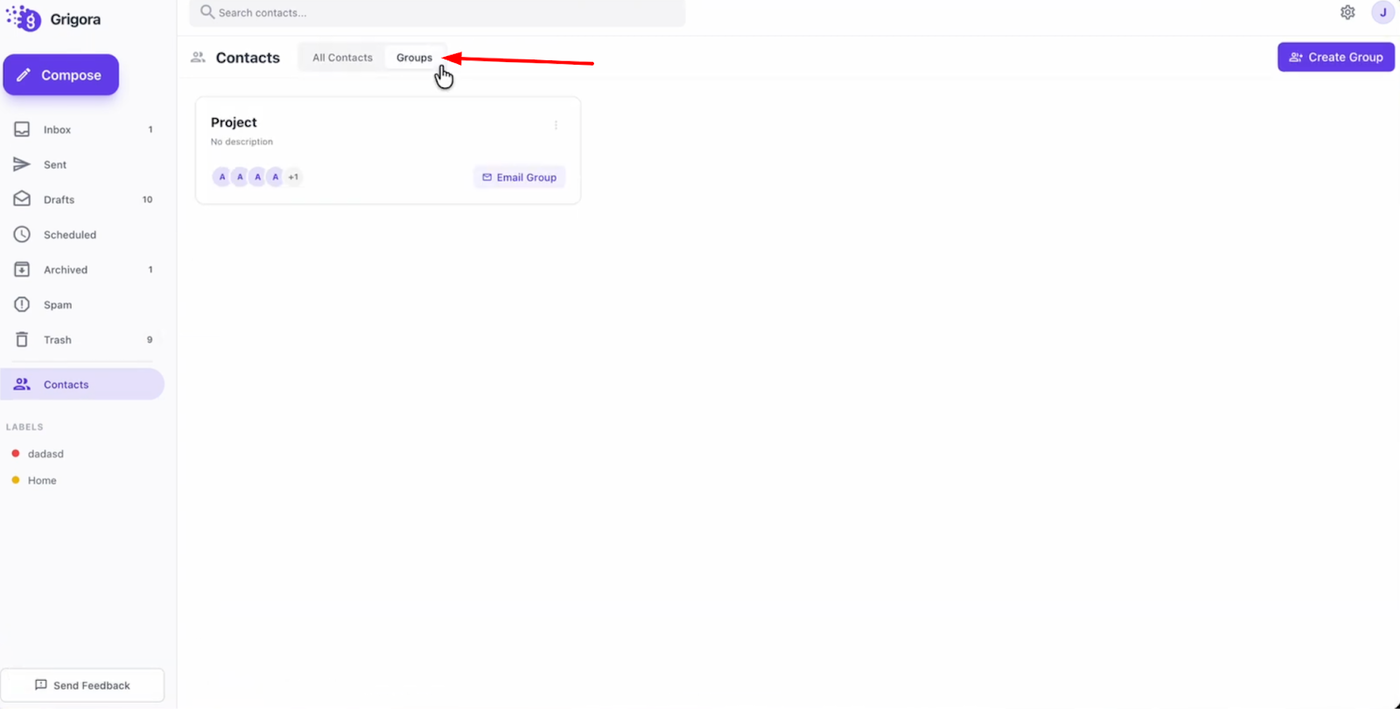
Switch to the "Groups" tab to view all your created contact lists.
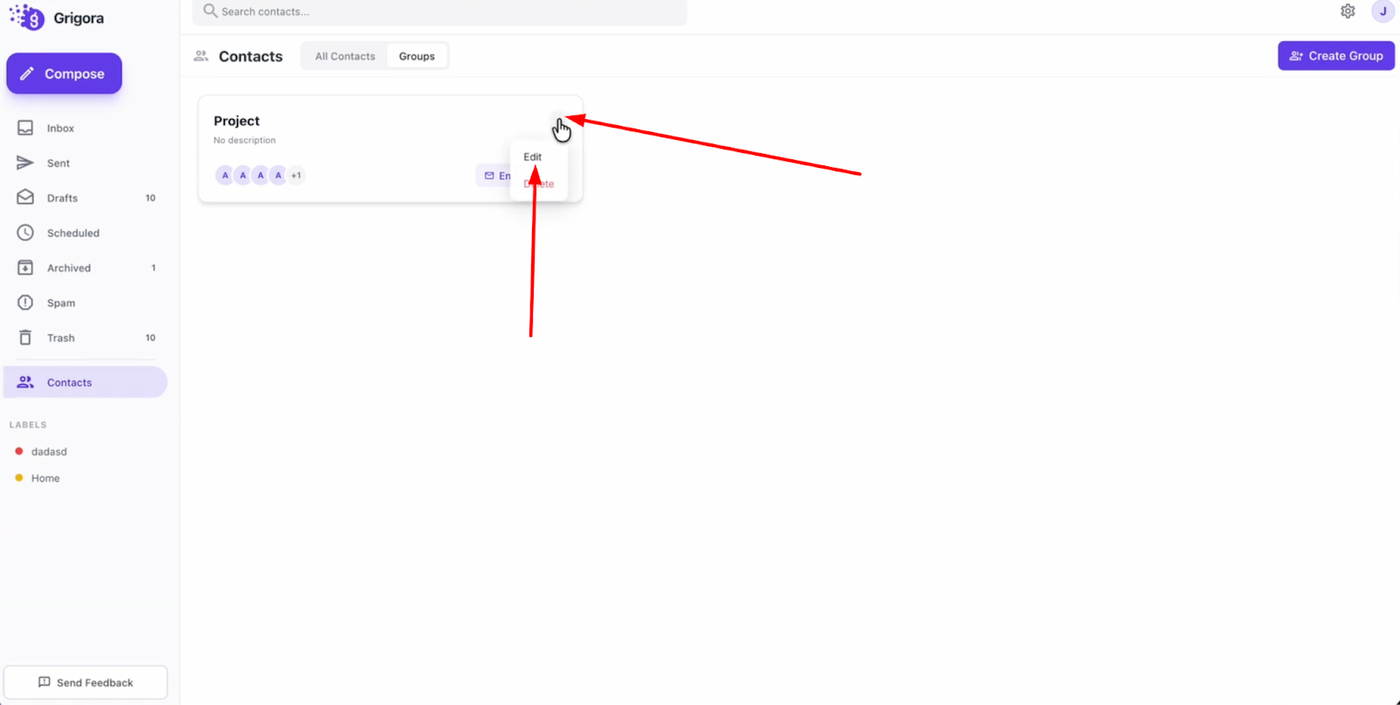
Locate the group you wish to modify, click on the three dots icon associated with it, and select "Edit" to open the group settings.
Managing Group Details and Members
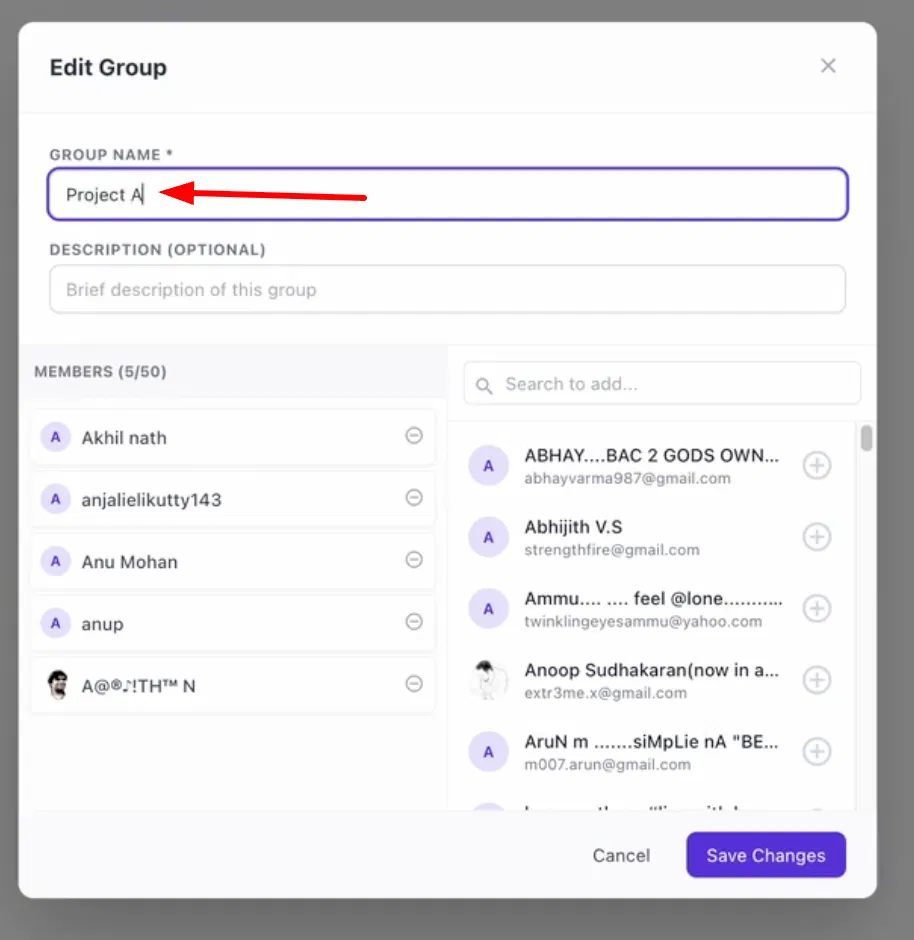
In the settings window, you can rename the group if needed.
To manage membership, look at the contact lists provided.
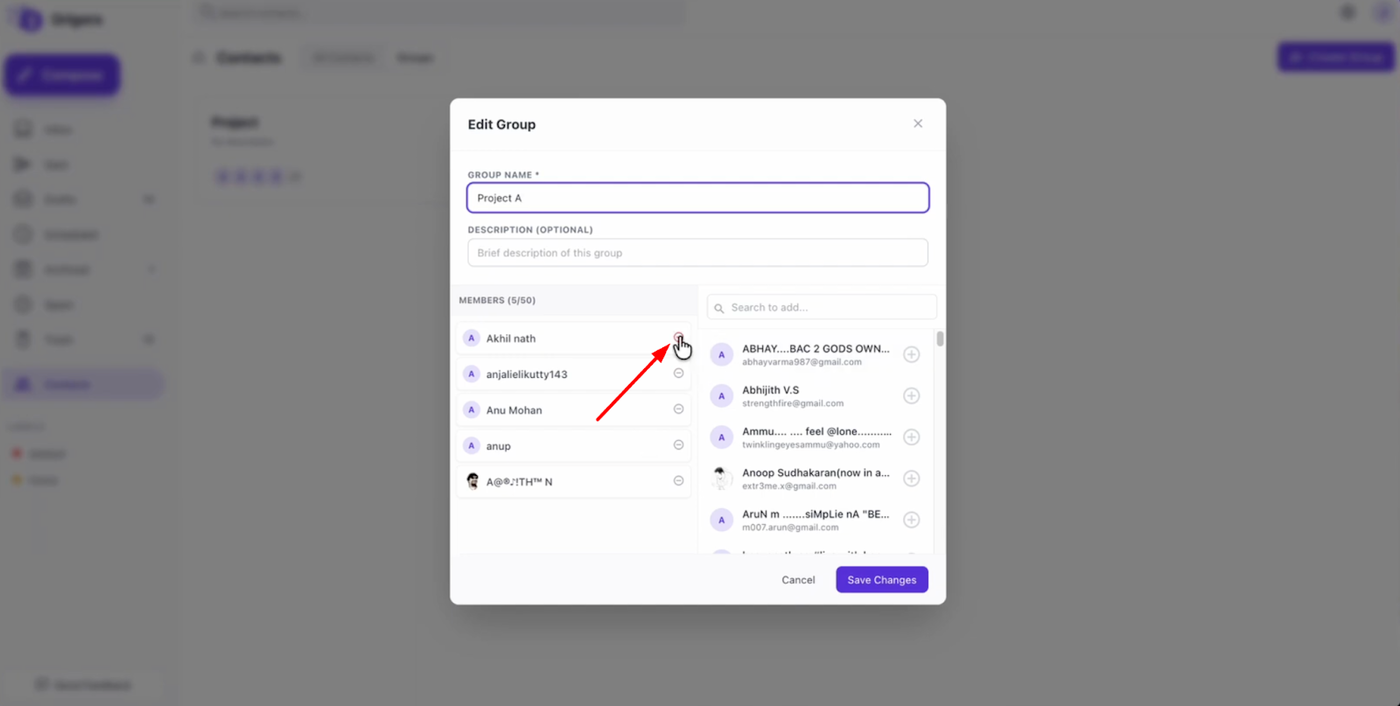
To remove a member, find their name in the current list and click the minus sign next to it.
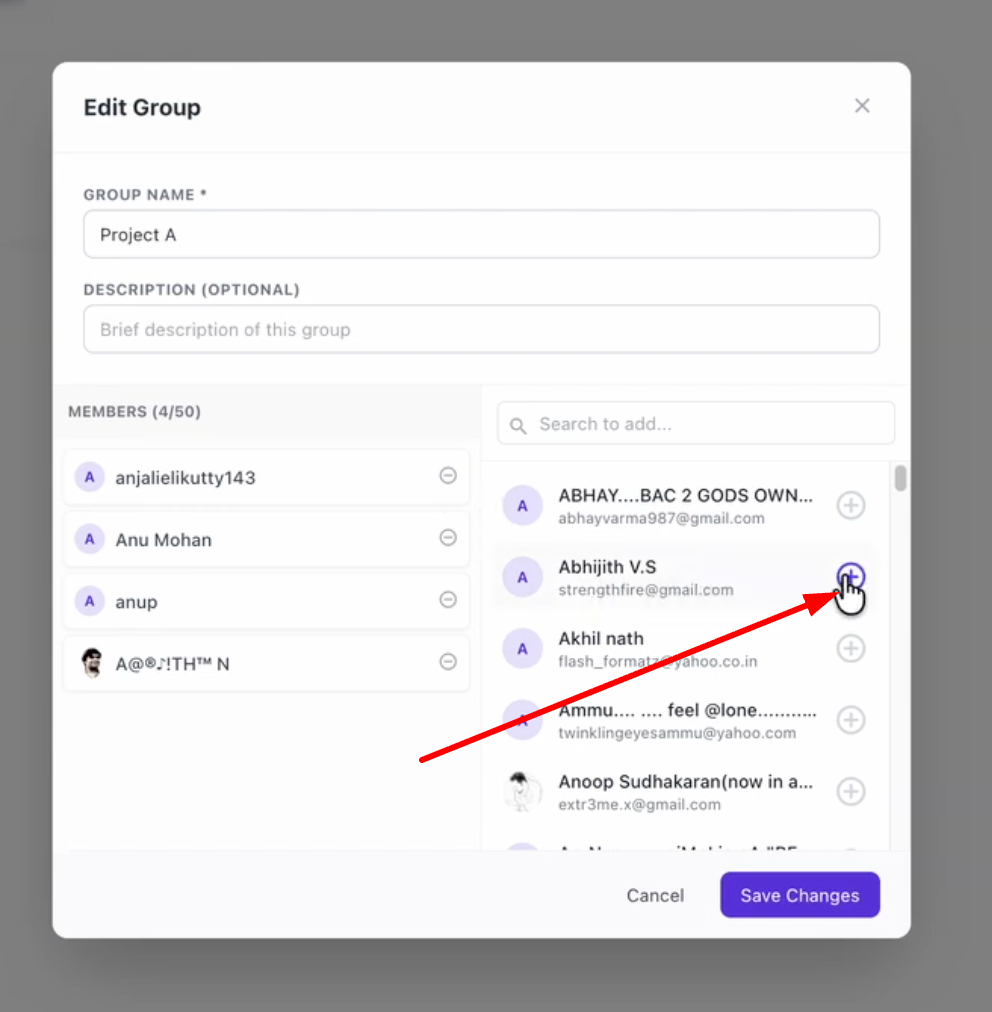
To add a new member, find the contact in the list on the right side and click the "Add" button.
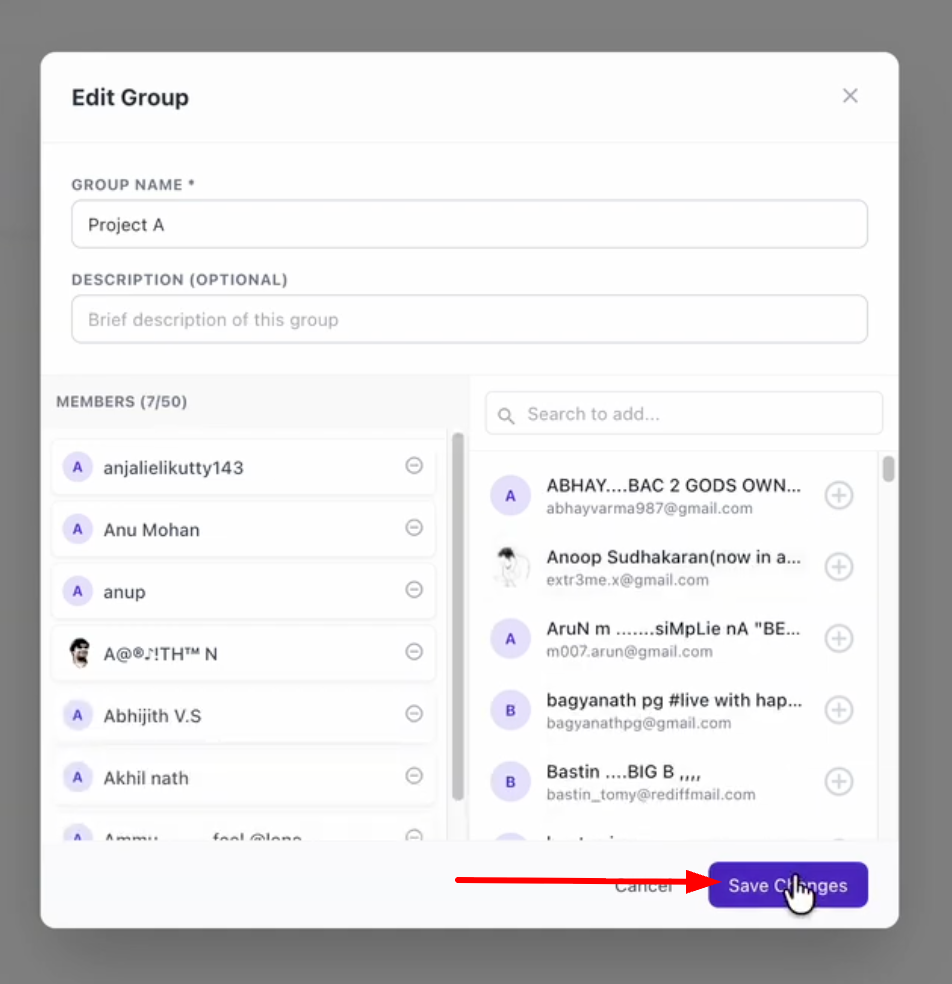
Once you have made all your updates, click "Save changes" to apply them.