

Learn how to maintain a clutter-free inbox using Grigora Mail's automatic filtering and manual management tools. This guide will show you how to handle spam effectively, delete unwanted messages, and restore important emails if needed, ensuring your primary workspace remains organized.
Managing Spam and Unwanted Emails
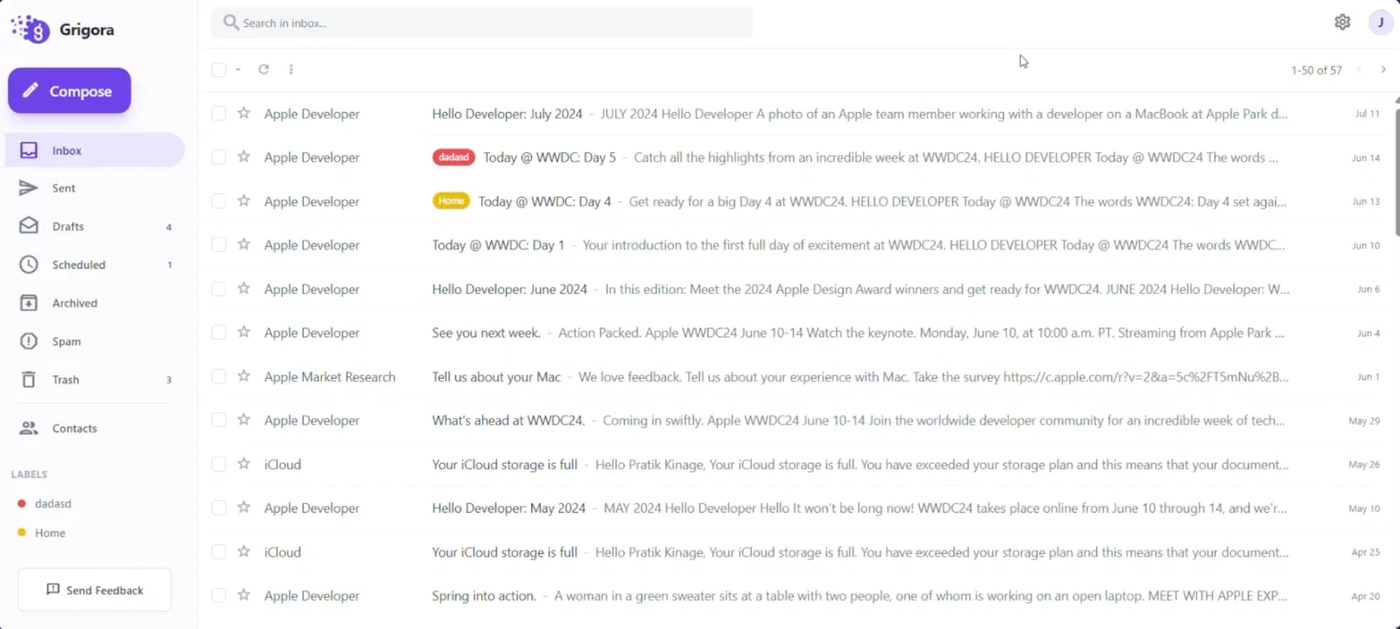
Open Grigora Mail to view your messages. While most unnecessary emails are automatically filtered into the spam section, you can manually address any that slip through.
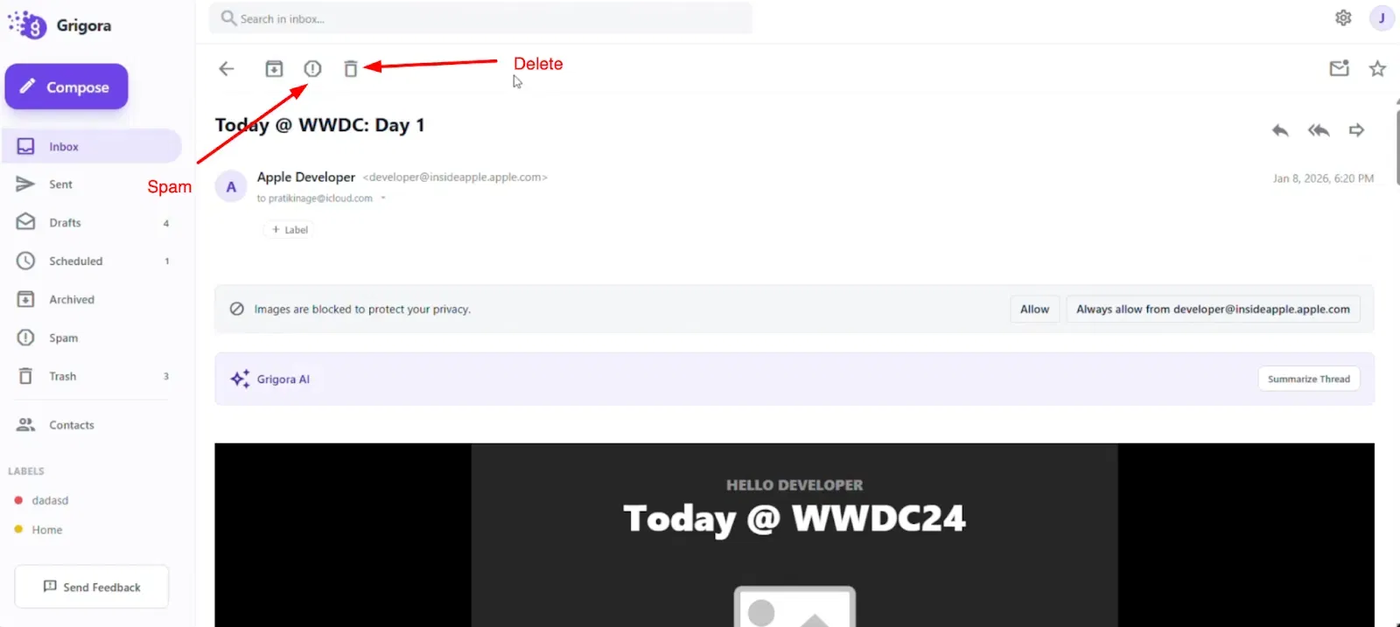
If an unwanted email appears in your inbox, open it and look for the "Spam" and "Delete" options at the top left.
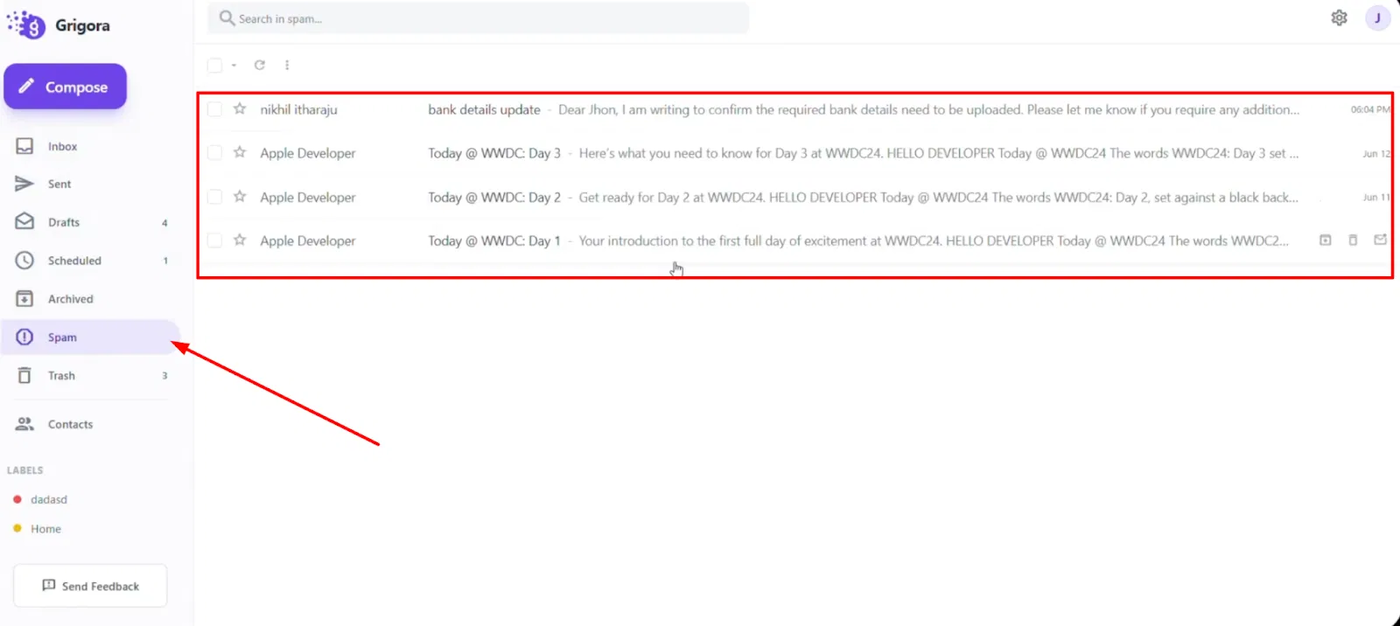
Clicking "Spam" moves the email to the spam folder and ensures that future messages from the same sender are automatically marked as spam, keeping your main inbox clean.
Clearing and Recovering Messages
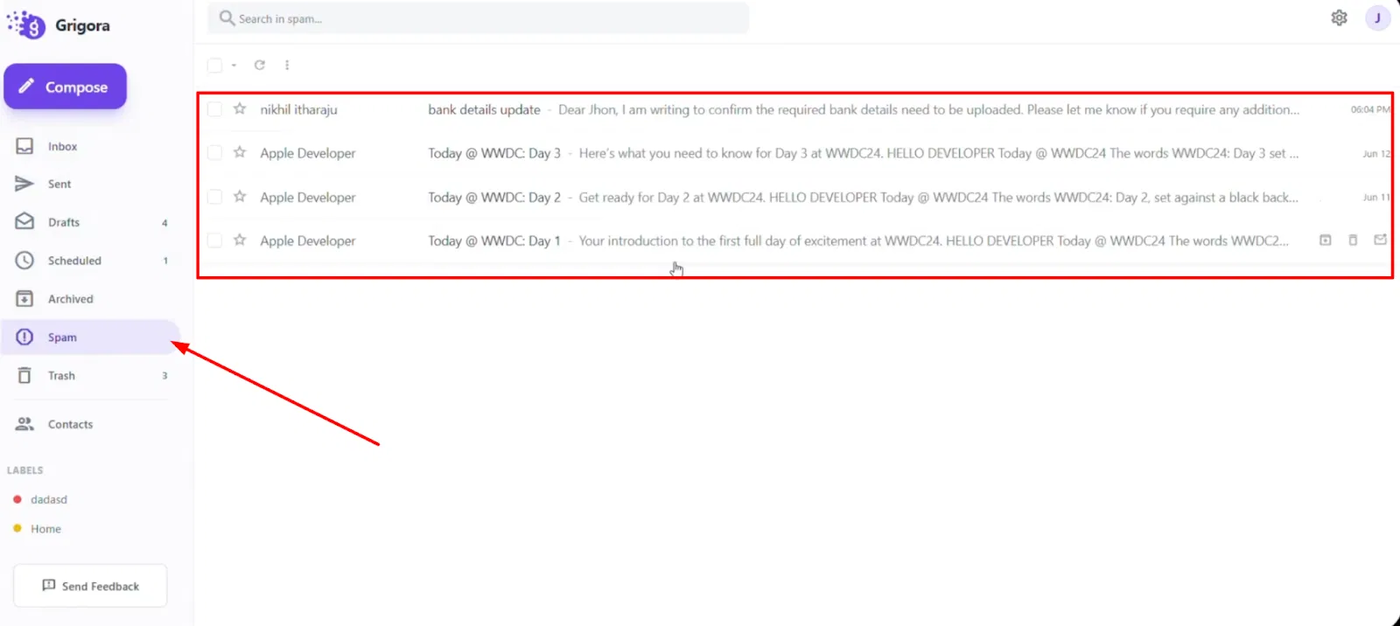
Navigate to the "Spam" section to review and clear out accumulated junk mail.

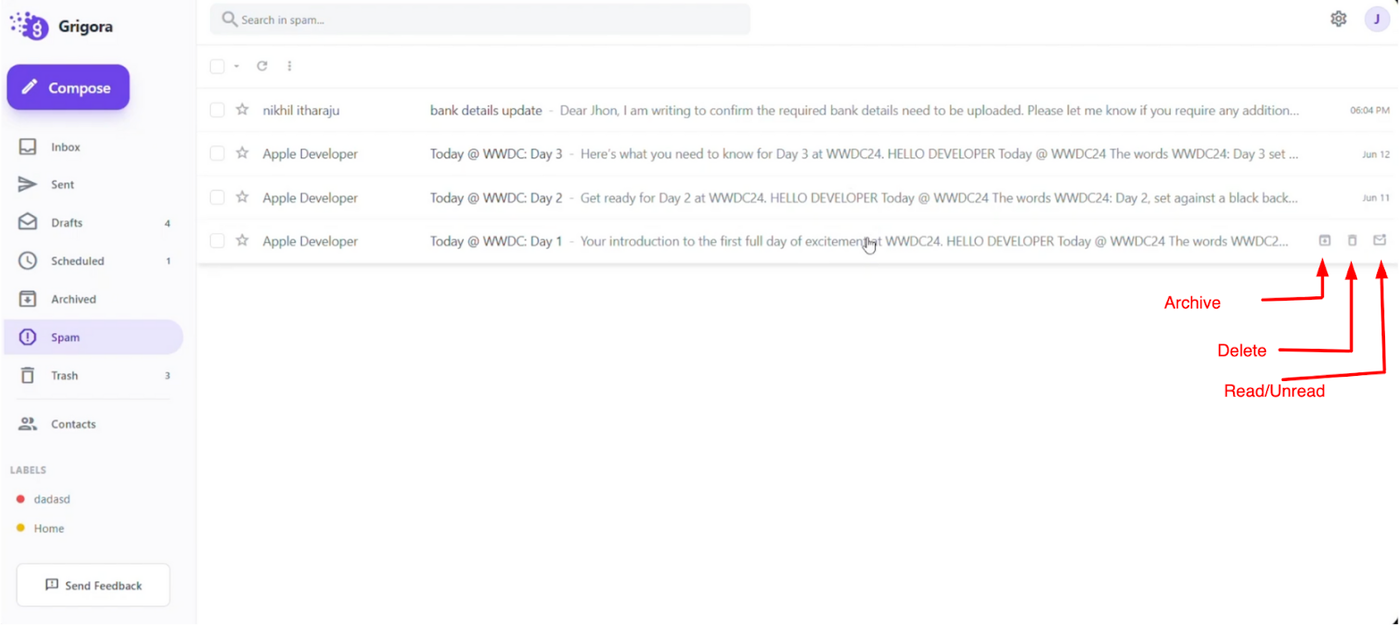
For individual emails in any folder, you can hover over a message to reveal options on the right side, such as "Delete," "Archive," or "Mark as read/unread."

Click "Delete" to move unwanted items to the trash. If you accidentally delete something important, you can easily go to the "Trash" folder and restore the email to its original location.