How to Migrate From Gmail to Grigora Mail

Move away from cluttered inboxes while keeping your email history intact. This guide will show you how to safely migrate your emails from Gmail to Grigora Mail without losing any data.

Export Data from Gmail
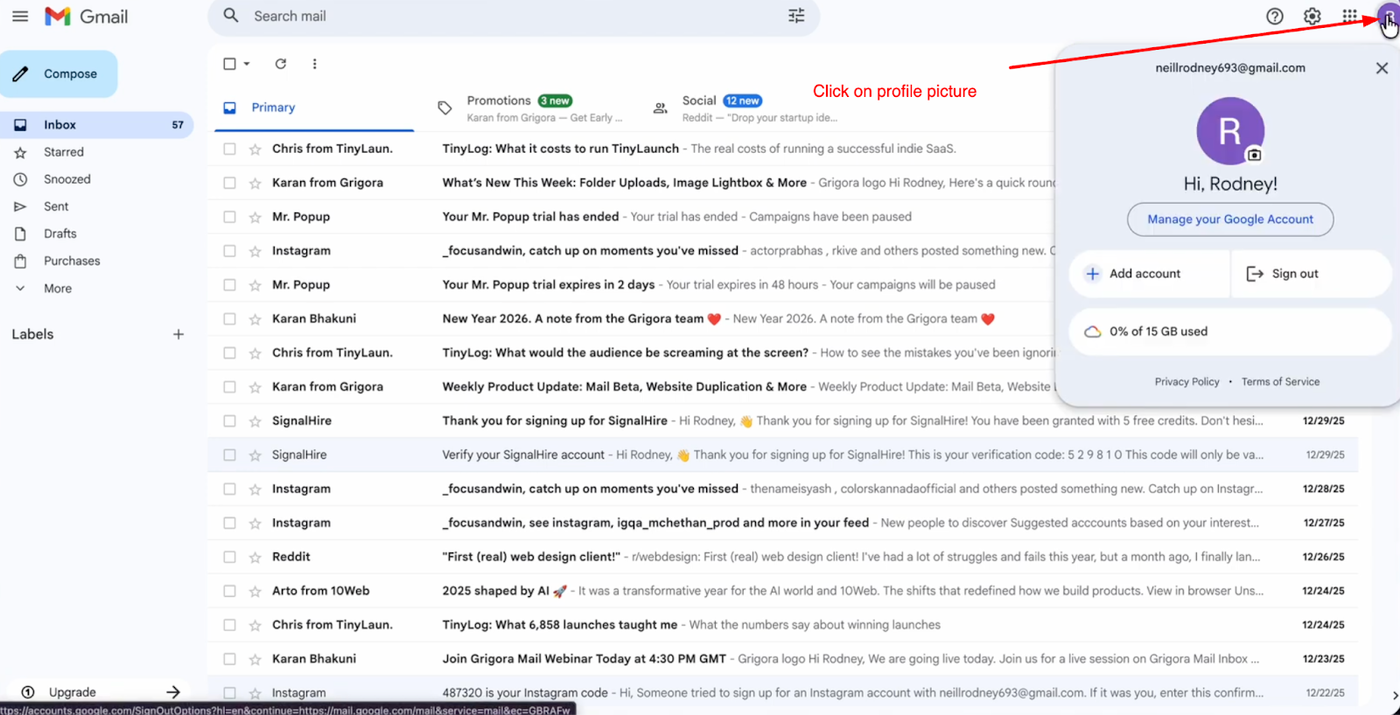
Gmail inbox interface with a profile dropdown menu open, showing account details and options.

Open the Gmail account you want to migrate and click on your profile picture. 
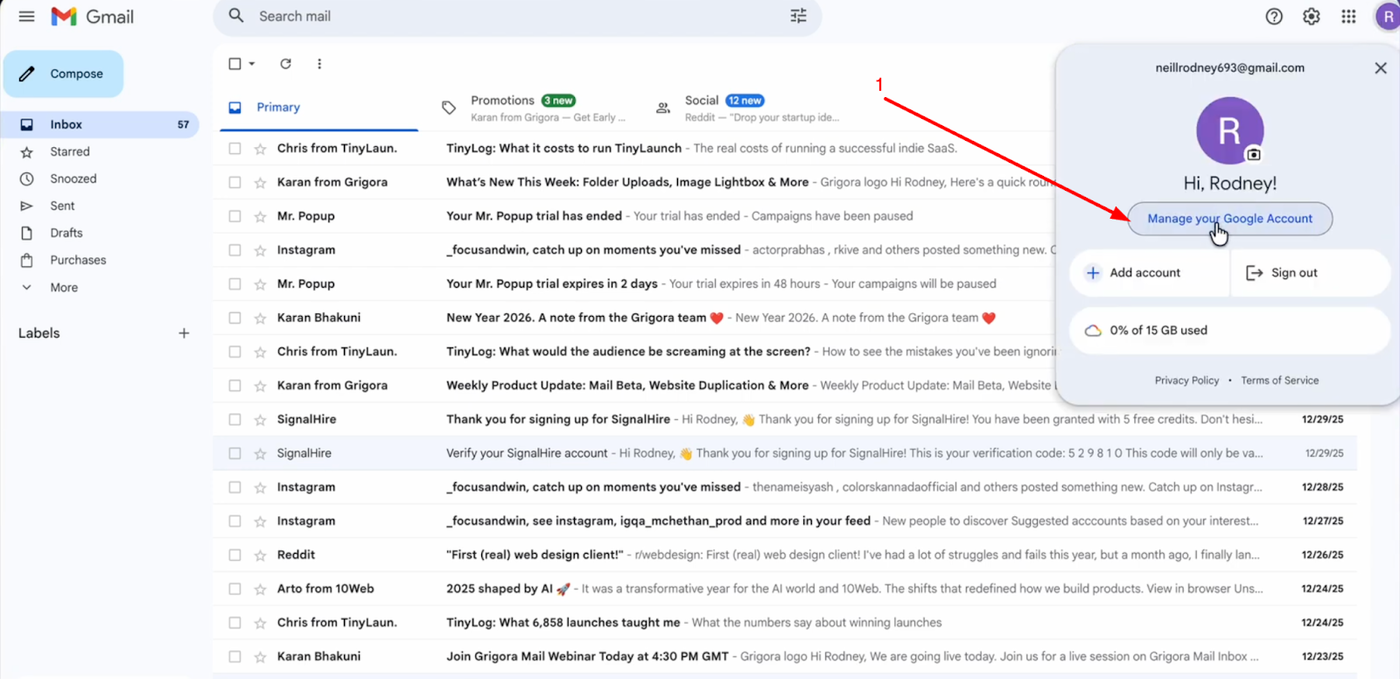
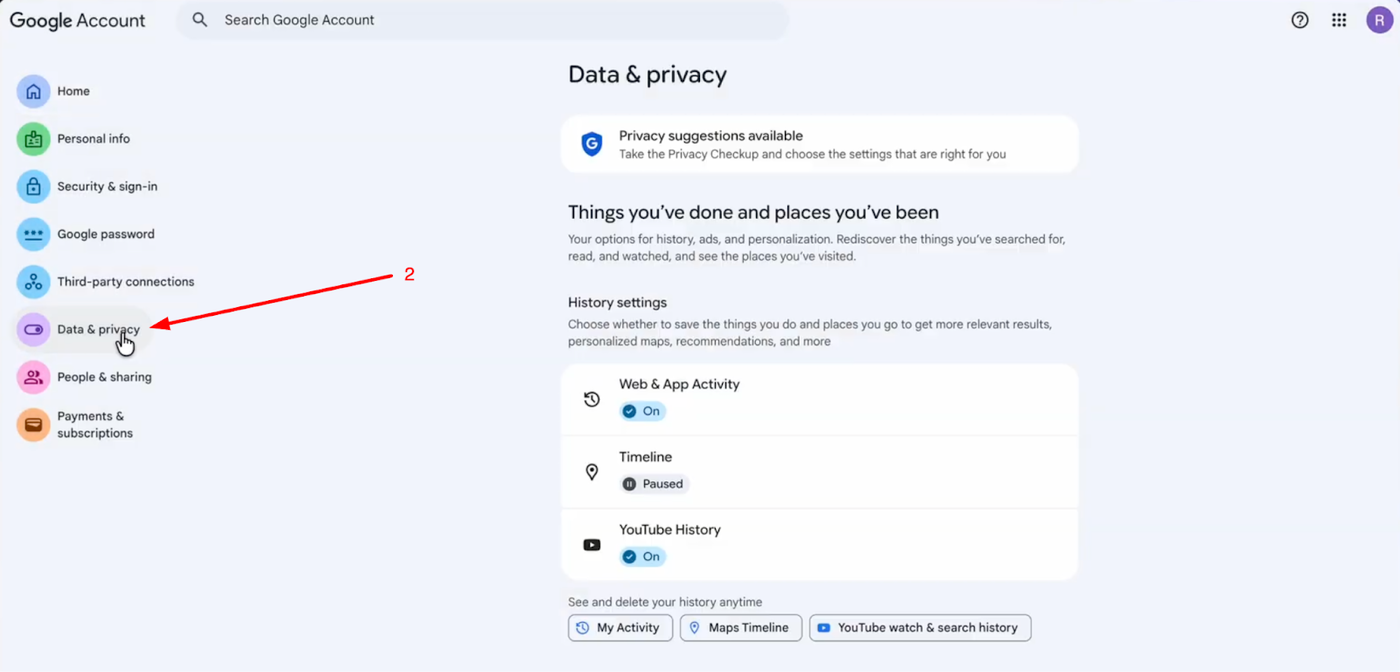
Gmail inbox screen with an open Google account popup for user, showing a user clicking 'Manage your Google Account'.Screenshot of Google Account 'Data & privacy' settings with a red arrow pointing to the menu item.

Select "Manage your Google Account" and navigate to the "Data & privacy" tab. 
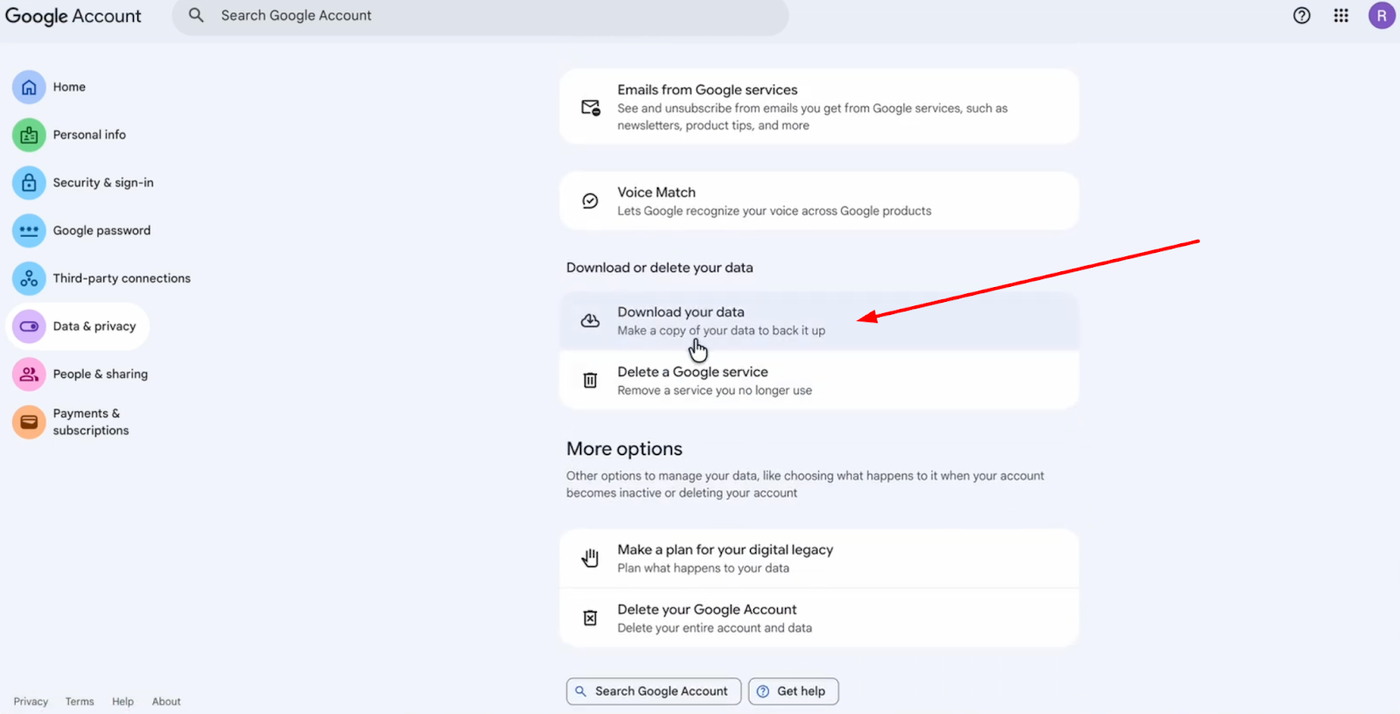
Screenshot of Google Account 'Data & privacy' settings with 'Download your data' highlighted by a red arrow.

Scroll down to the "Download or delete your data" section and click on "Download your data" to open Google Takeout.
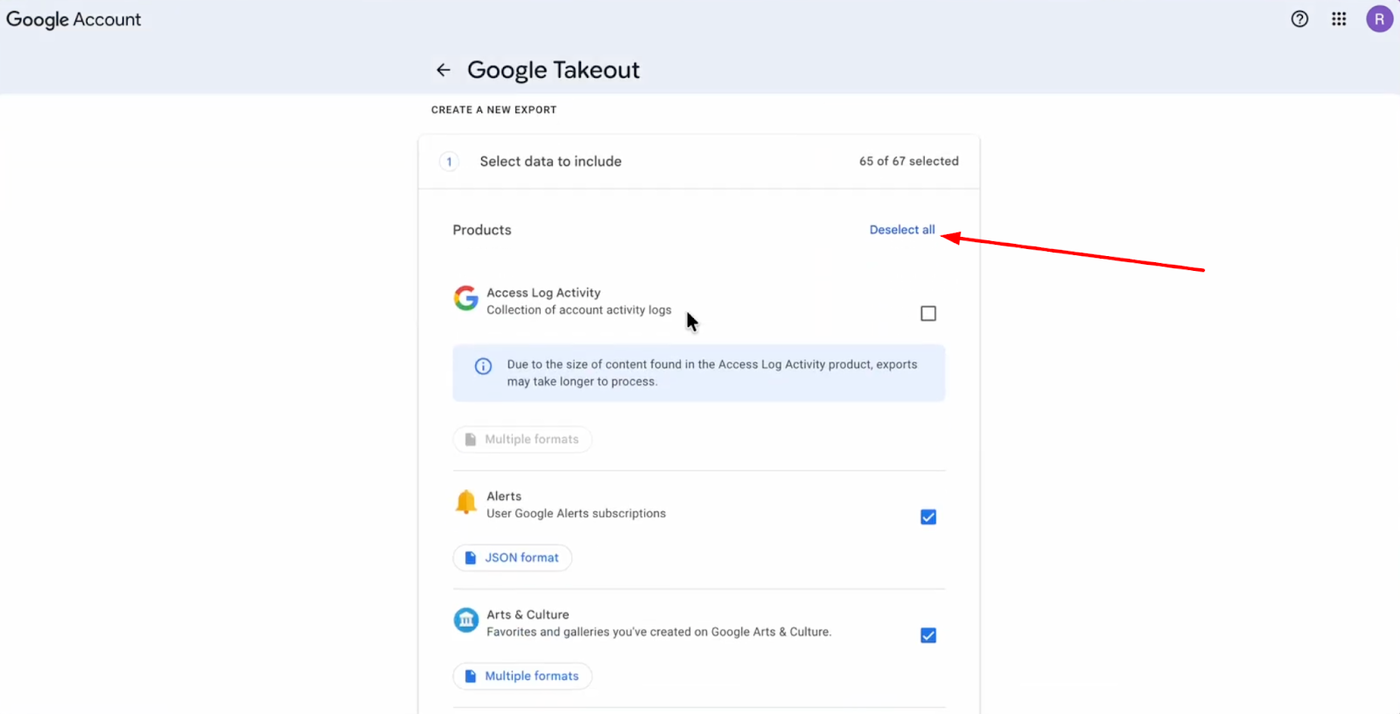
Screenshot of Google Takeout 'Select data to include' page, showing product selection for data export with a red arrow pointing to 'Deselect all'.

By default, all services are selected, so click "Deselect all". 

Scroll down to find "Mail", select it, and choose to include all mail data.
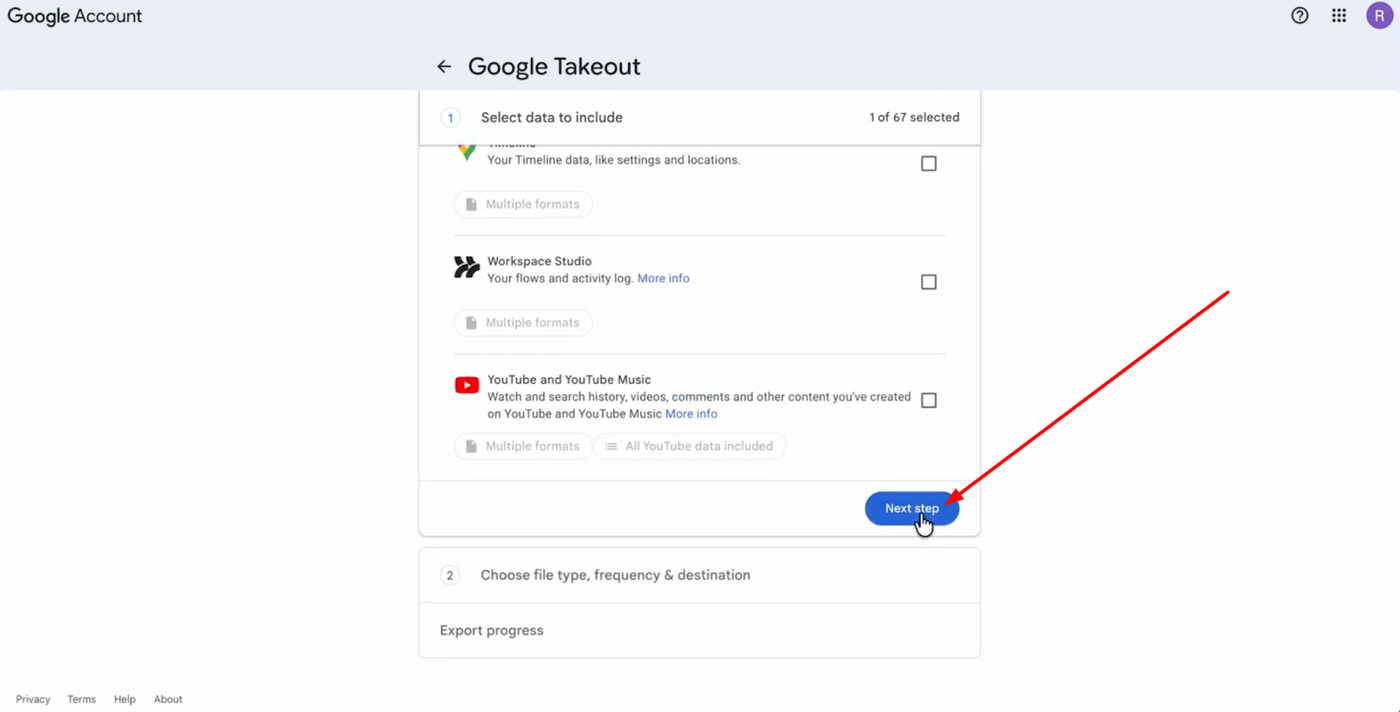
Screenshot of Google Takeout data selection screen, with a red arrow pointing to the blue 'Next step' button.

Scroll to the bottom of the page and click "Next step".

Customize and Download Export
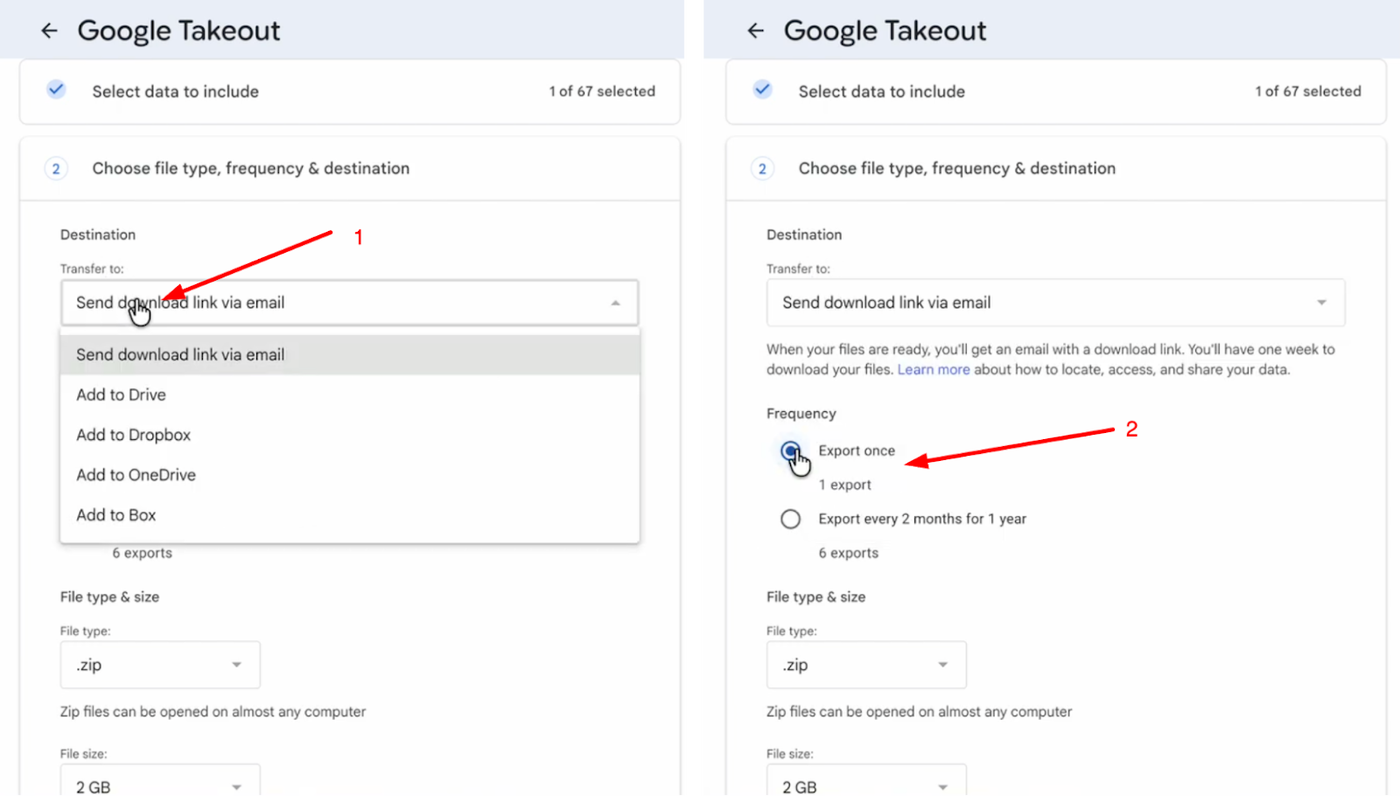
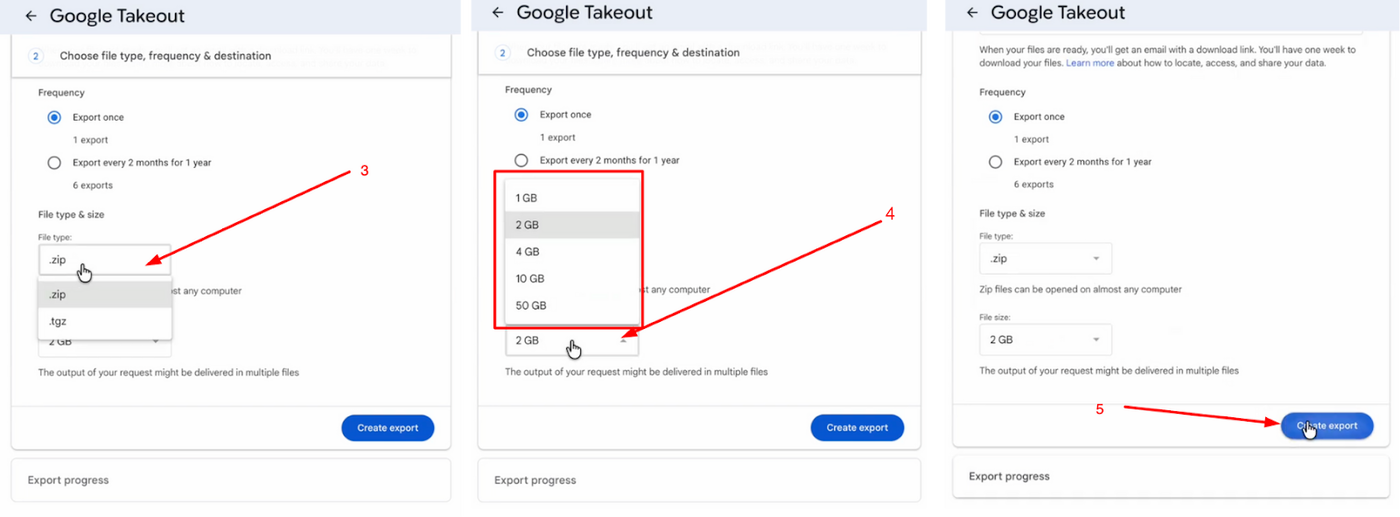
Google Takeout export settings showing 'Send download link via email' and 'Export once' selected.Screenshots showing to select file type, size, and create an export.

Choose "Send download link via email" as the destination and select "Export once" for the frequency. Set the file type to ".zip", select the appropriate file size, and click "Create export". 
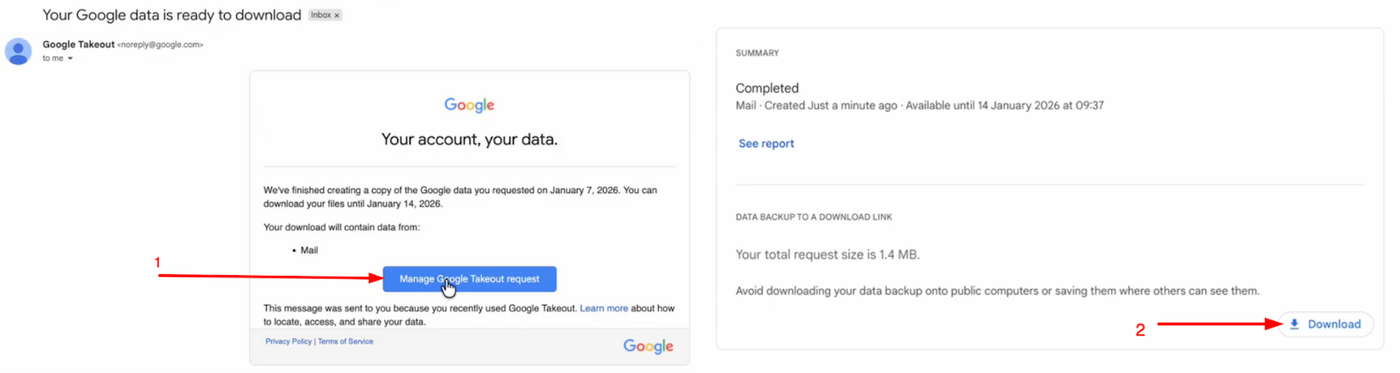
Screenshots showing how to download Google data: 'Manage Google Takeout request' button in an email and a 'Download' button.

Once Google prepares your export, you will receive an email with a download link. Open email and click on "Manage Google Takeout Request", now click "Download", and extract the downloaded .zip file to access your .mbox data file.

Setting Up Your Grigora Mailbox
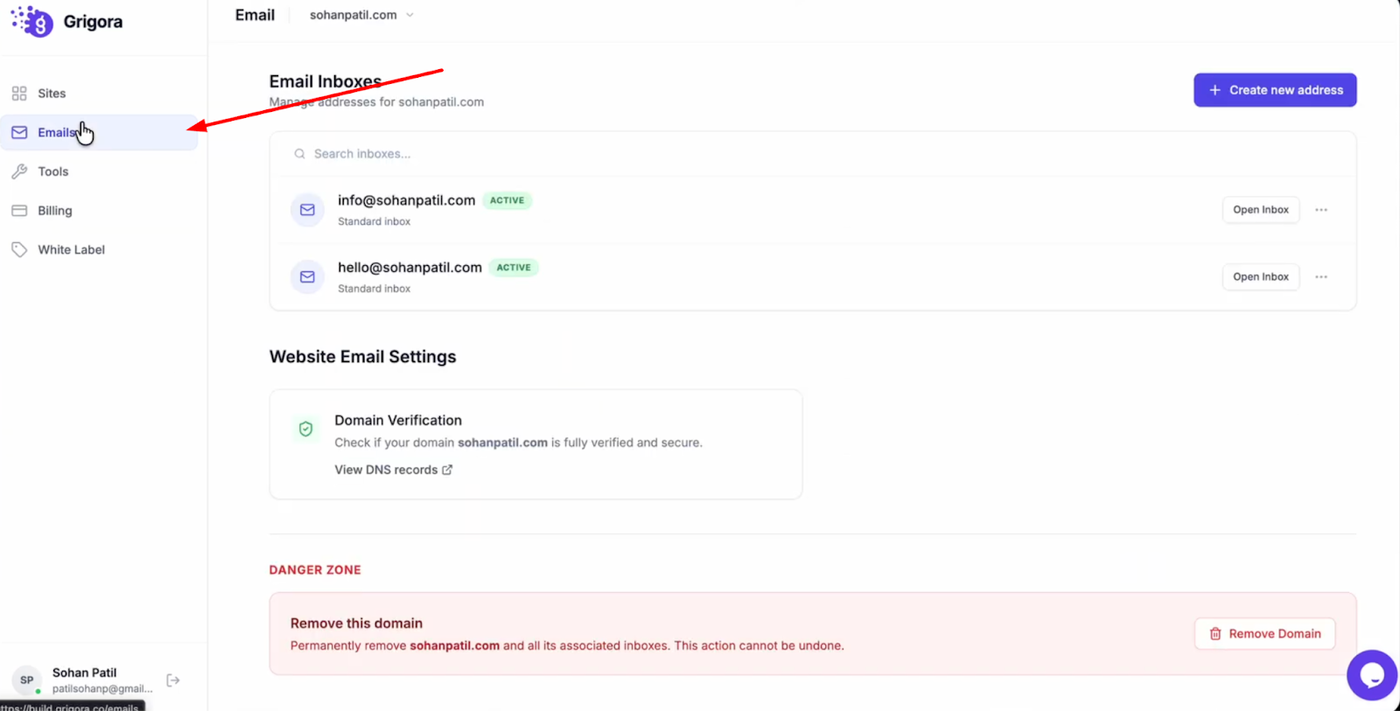
Grigora dashboard showing 'Email Inboxes' for user, including all addresses. Domain verification is active.

Navigate to the Grigora dashboard and click on "Mails". 
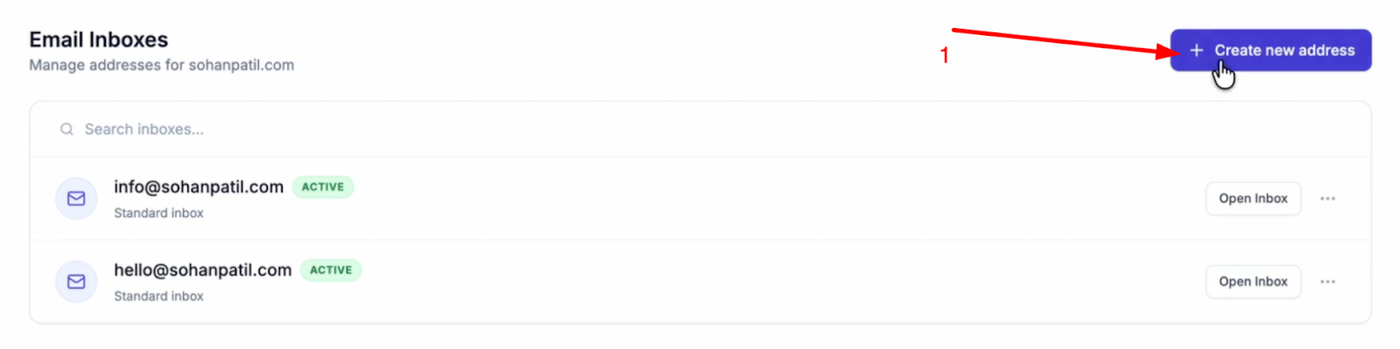
Screenshot of an email inbox management interface with a red arrow pointing to a 'Create new address' button.

Select "Create New Address".

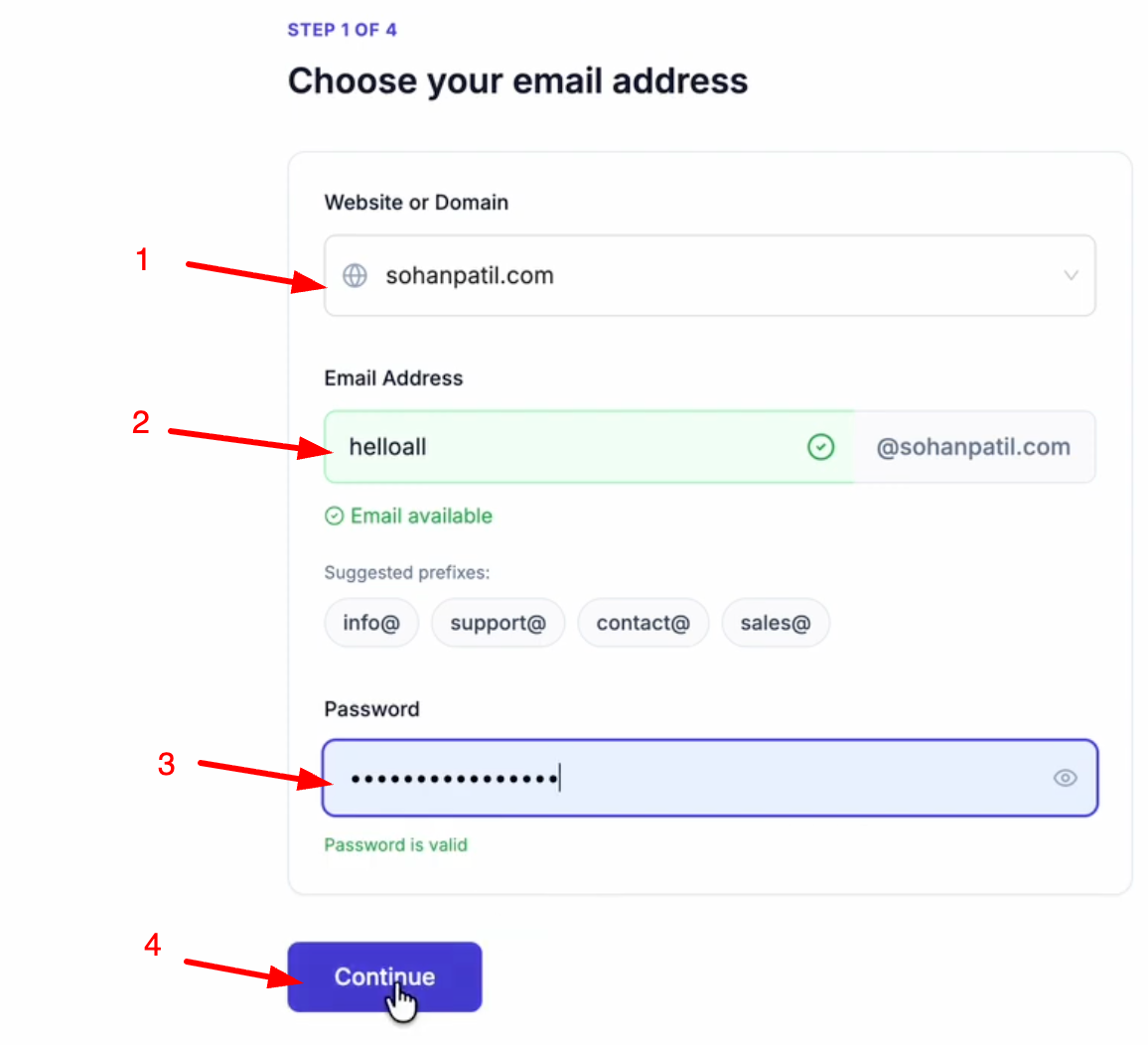
Email account creation form with domain, email prefix, password, and 'Continue' button.

Choose your domain (add it by clicking Add a Website or Domain), and enter your desired email prefix. Create a password for the account and click "Continue".
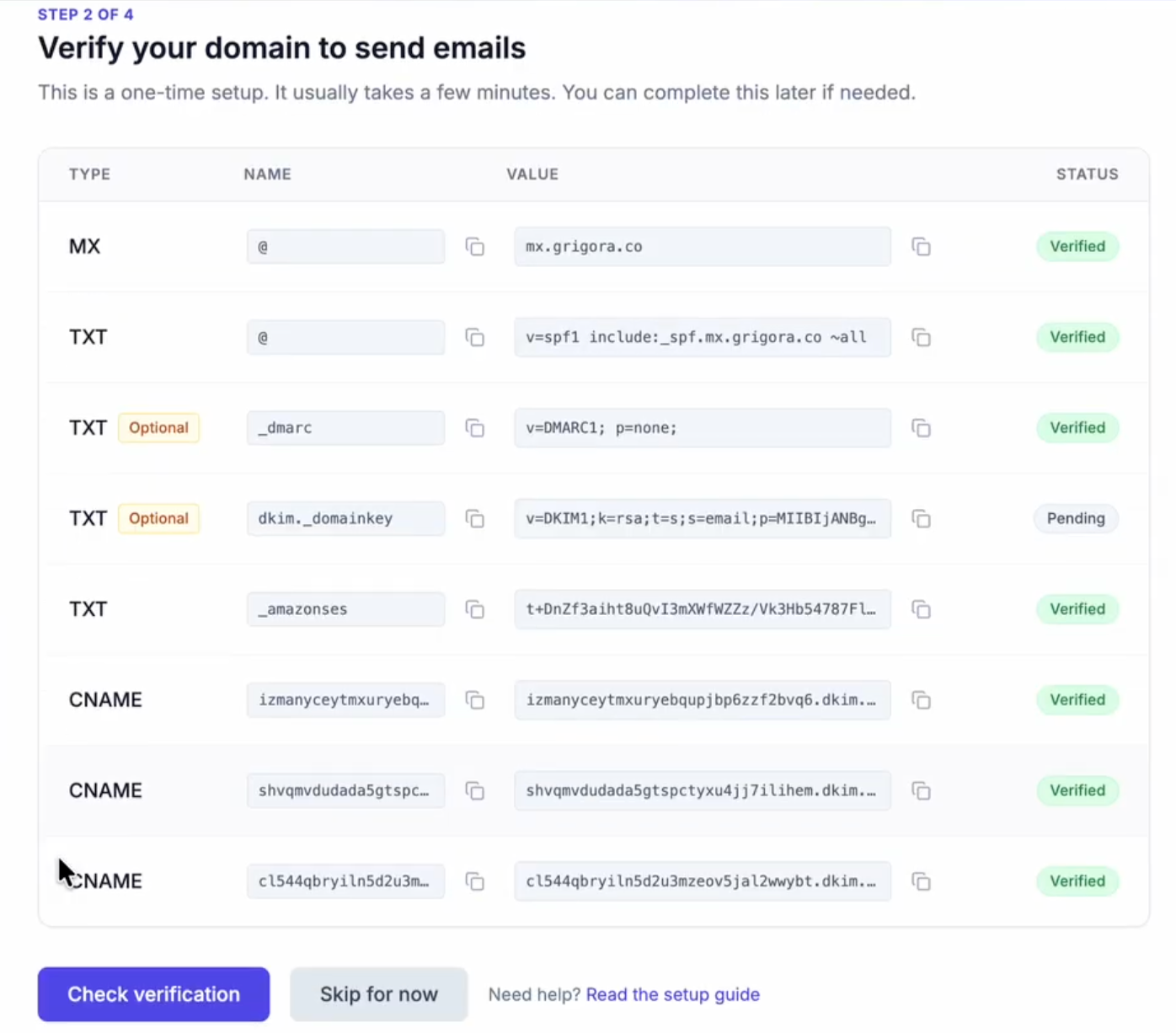
Screenshot of a domain verification page showing DNS records (MX, TXT, CNAME) and their verification statuses.

Ensure you have added the required DNS records to your domain manager. 
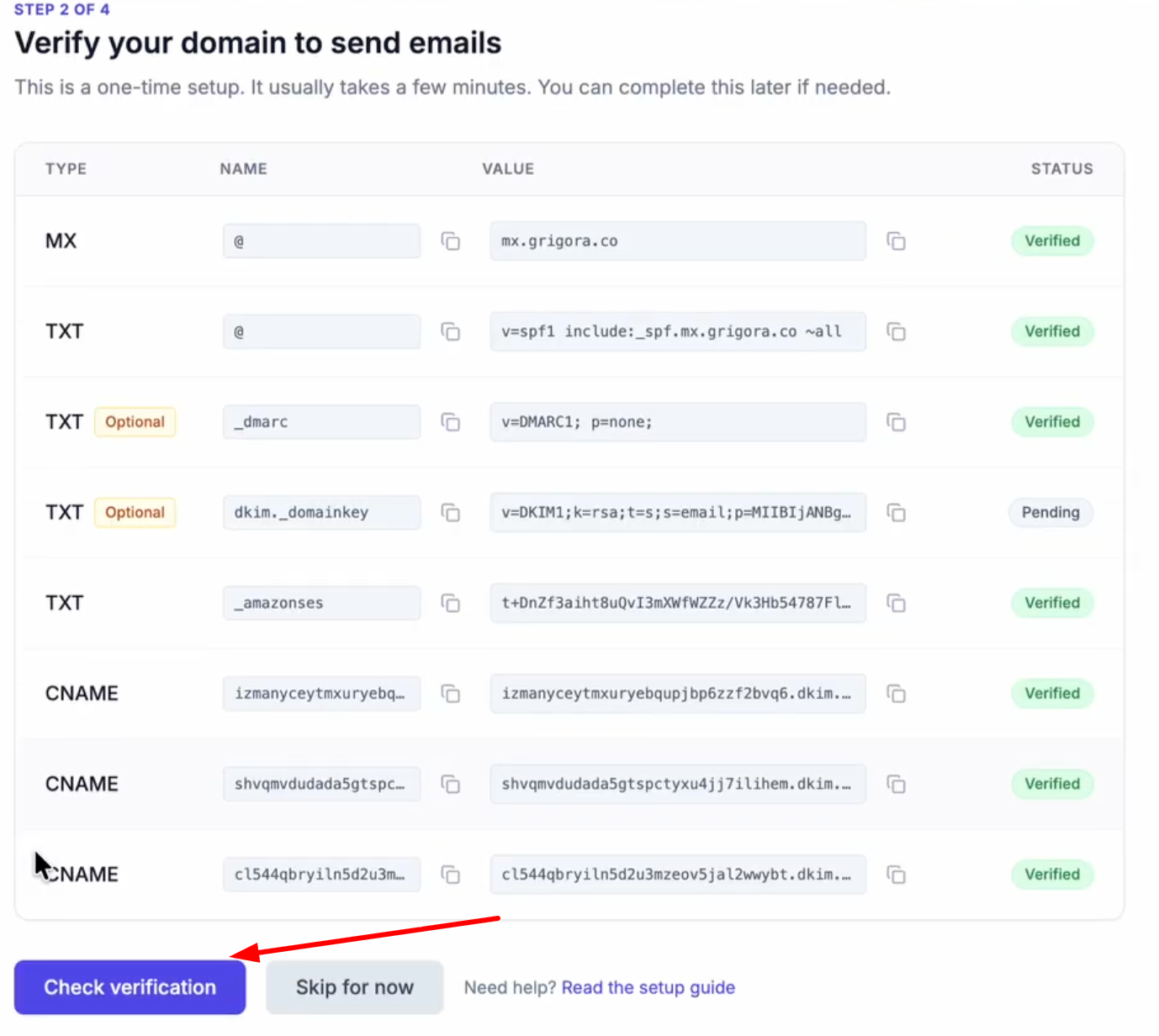
Screenshot of a web interface for domain verification with various DNS record types, names, values, and verification statuses.

After adding, click Check Verification.
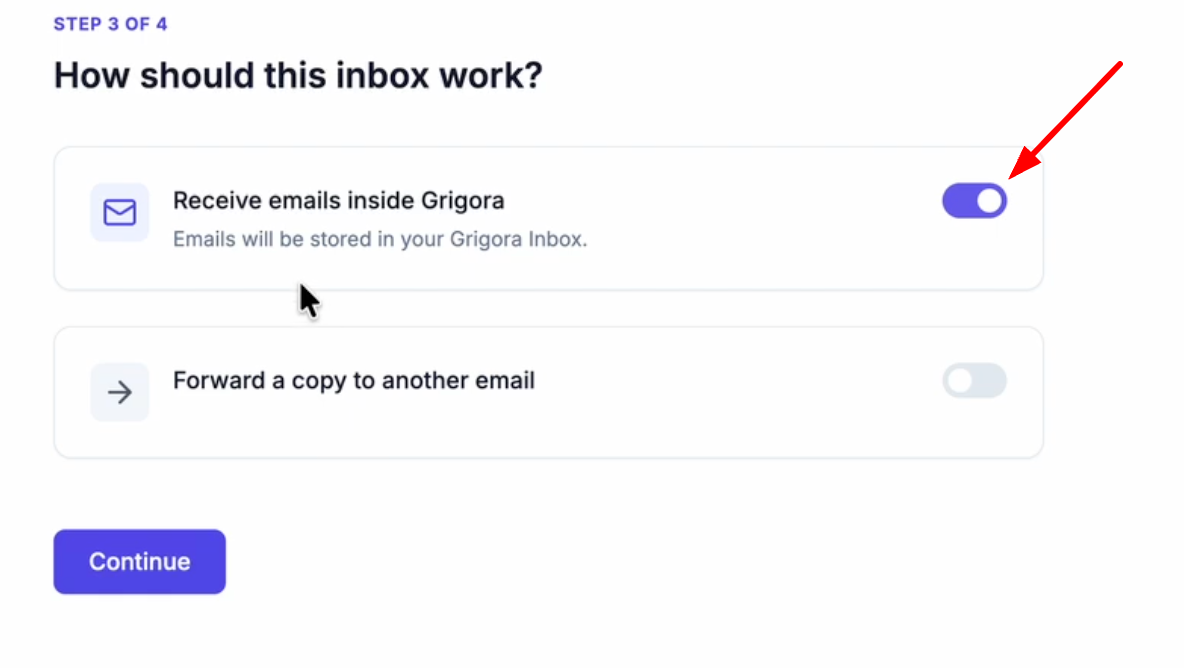
A screenshot of a user interface for configuring an inbox. A purple toggle switch is turned on to receive emails inside Grigora Inbox.

Verify that the "Receive emails inside Grigora" toggle is turned on so emails are stored in your inbox. 
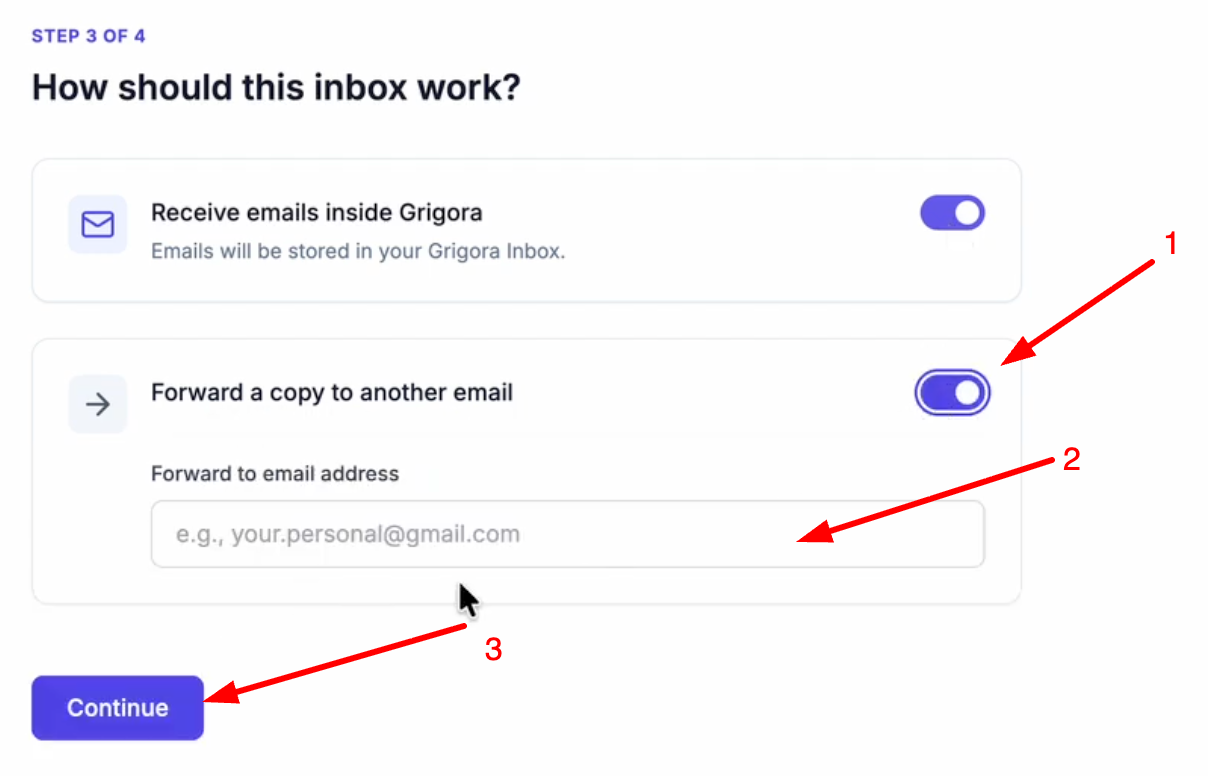
Grigora inbox settings screen with options for receiving emails, forwarding, and an email input field.

To forward a copy to another email, turn on the toggle, enter the email address and click continue
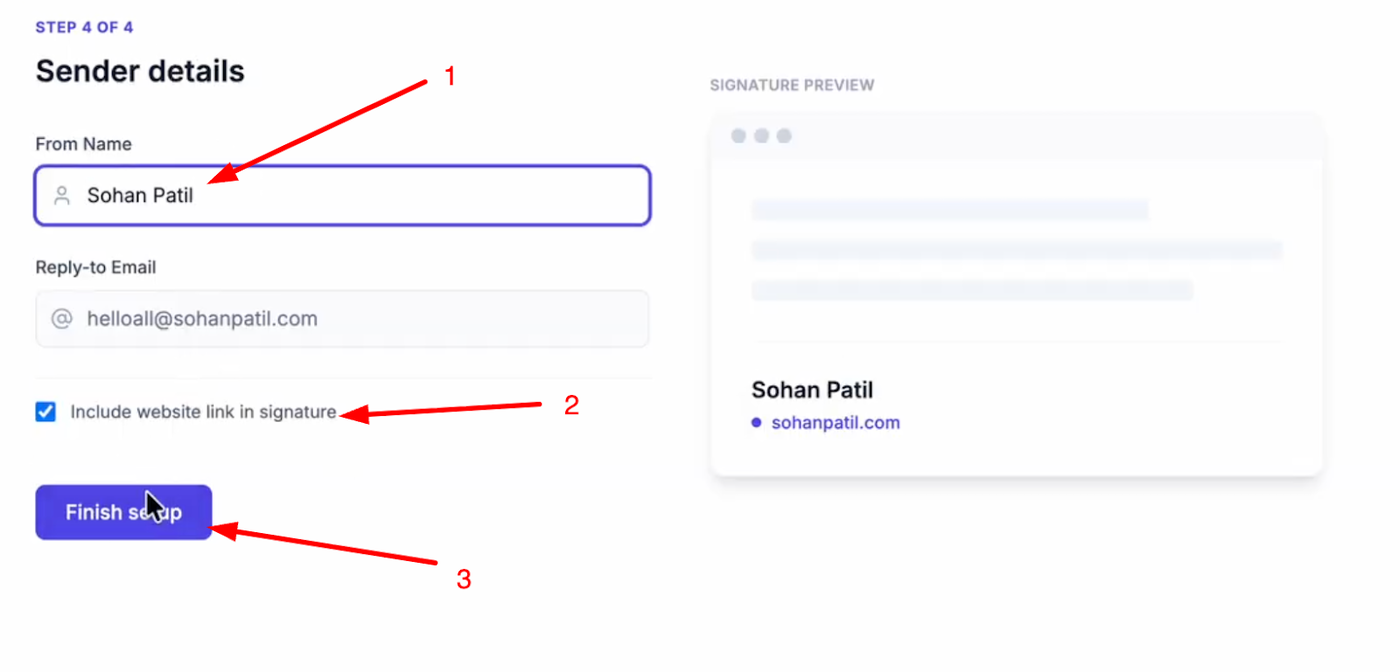
Sender details form with name as sender, email , and a checkbox to include website link in the signature. A signature preview is shown next to it, with next step button

Enter a name for your email account, check if you want to include a website link in your signature, and click "Finish Setup".

Import Data to Grigora
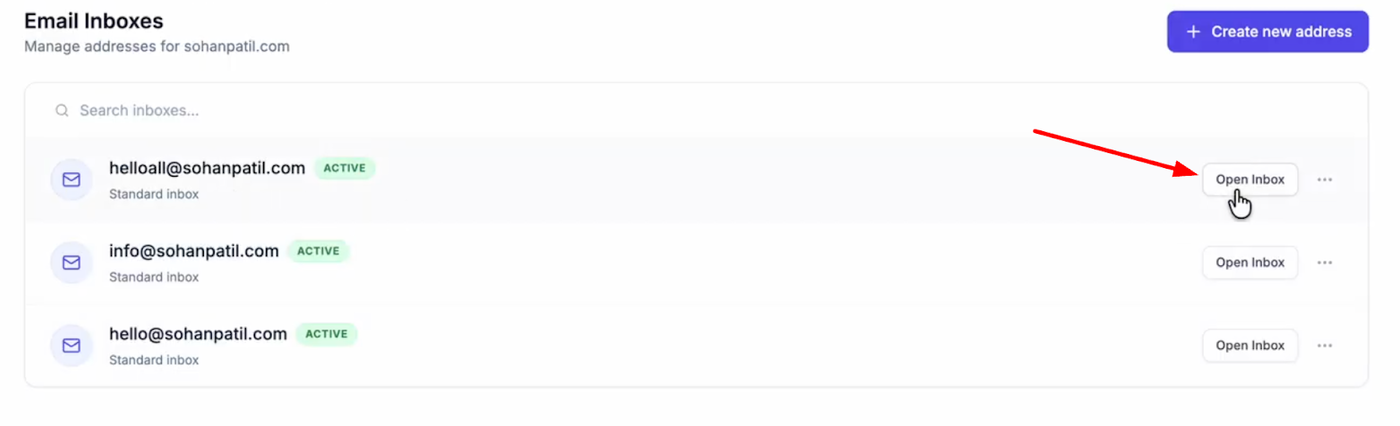
Screenshot of an email inbox management interface with a red arrow pointing to the "Open Inbox" button.

Open your new inbox and log in with your credentials. 
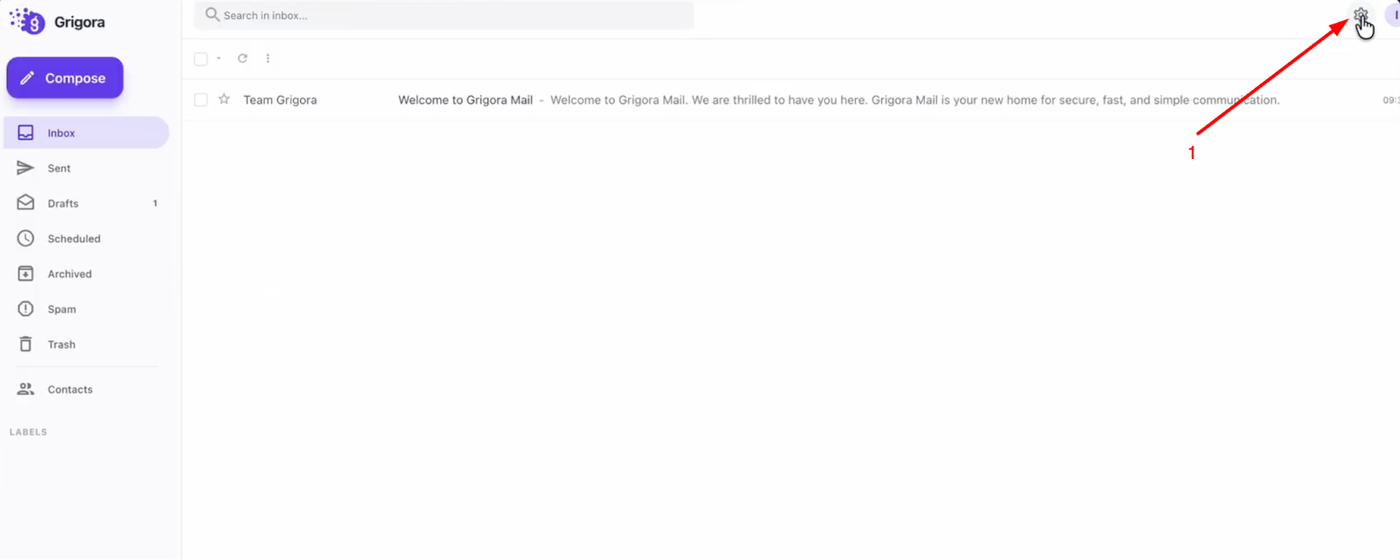
Grigora Mail inbox screenshot with a welcome message and a red arrow pointing to the settings icon.

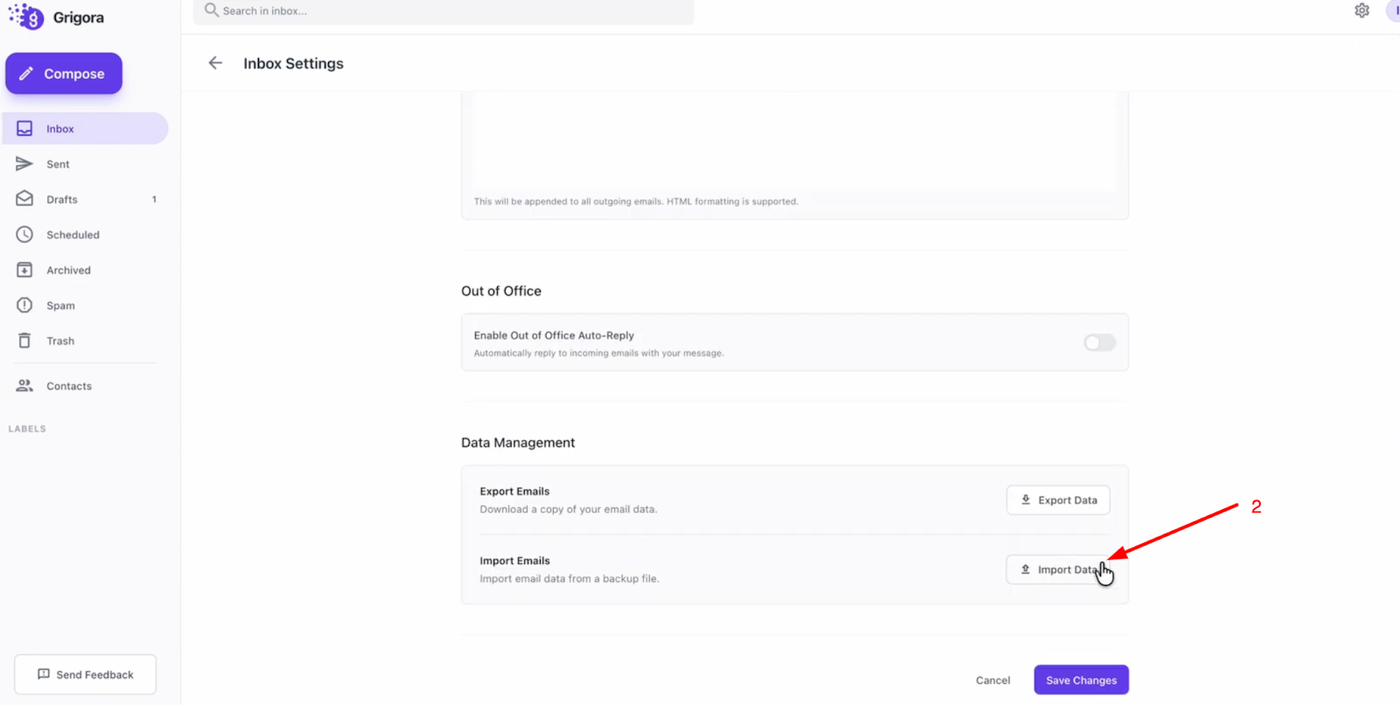
Screenshot of email inbox settings showing 'Import Data' button for emails in the Data Management section.

Go to "Settings" and on the settings page, click on "Import data".

Click "Choose File", select the .mbox file you extracted earlier, and click next.
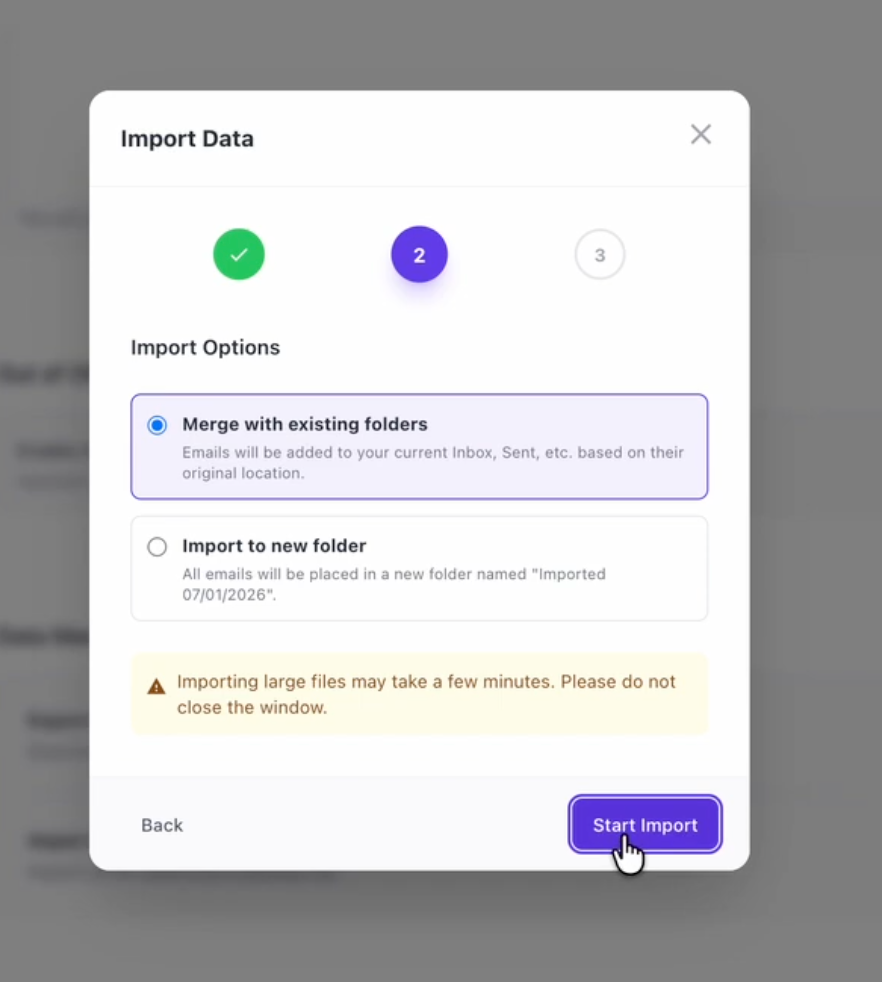
An 'Import Data' modal with options to merge with existing folders or import to a new folder, and a 'Start Import' button.

You can choose to "Merge with existing folders" or "Import to new folder". Select your preference and click "Start Import". 
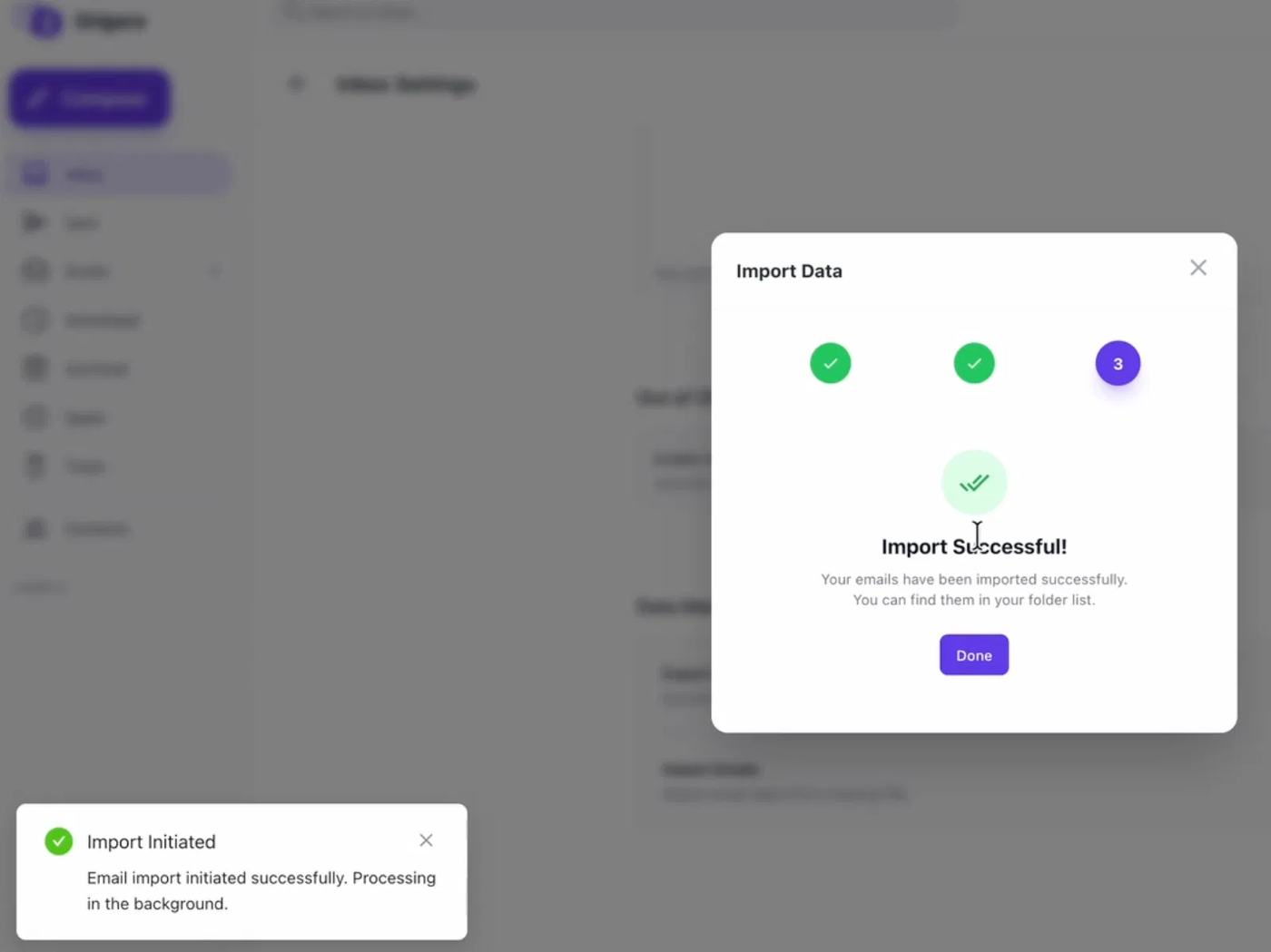
An 'Import Data' modal showing 'Import Successful' with green checkmarks, and an 'Import Initiated' notification.

Once the process is complete, you will see a success message.

You have successfully migrated your emails! You can now manage your entire email history directly from your Grigora Mail inbox.


Was this article helpful?