

Need to move your emails from Hostinger to a more modern platform? This guide will show you how to migrate to Grigora Mail without losing any of your important history. You will learn how to export your data using Hostinger's legacy tools and import it directly into your new inbox for a seamless transition.
Exporting Your Hostinger Emails
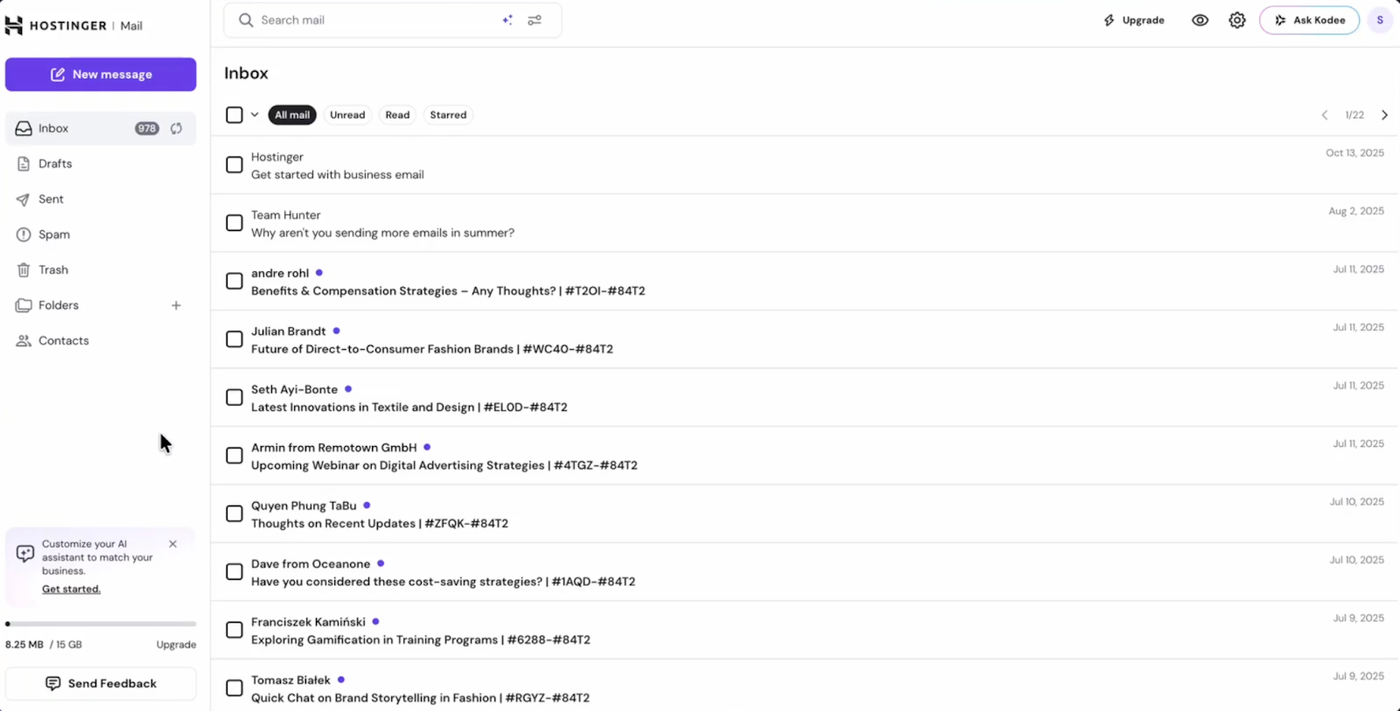
Start by logging into your Hostinger email account.
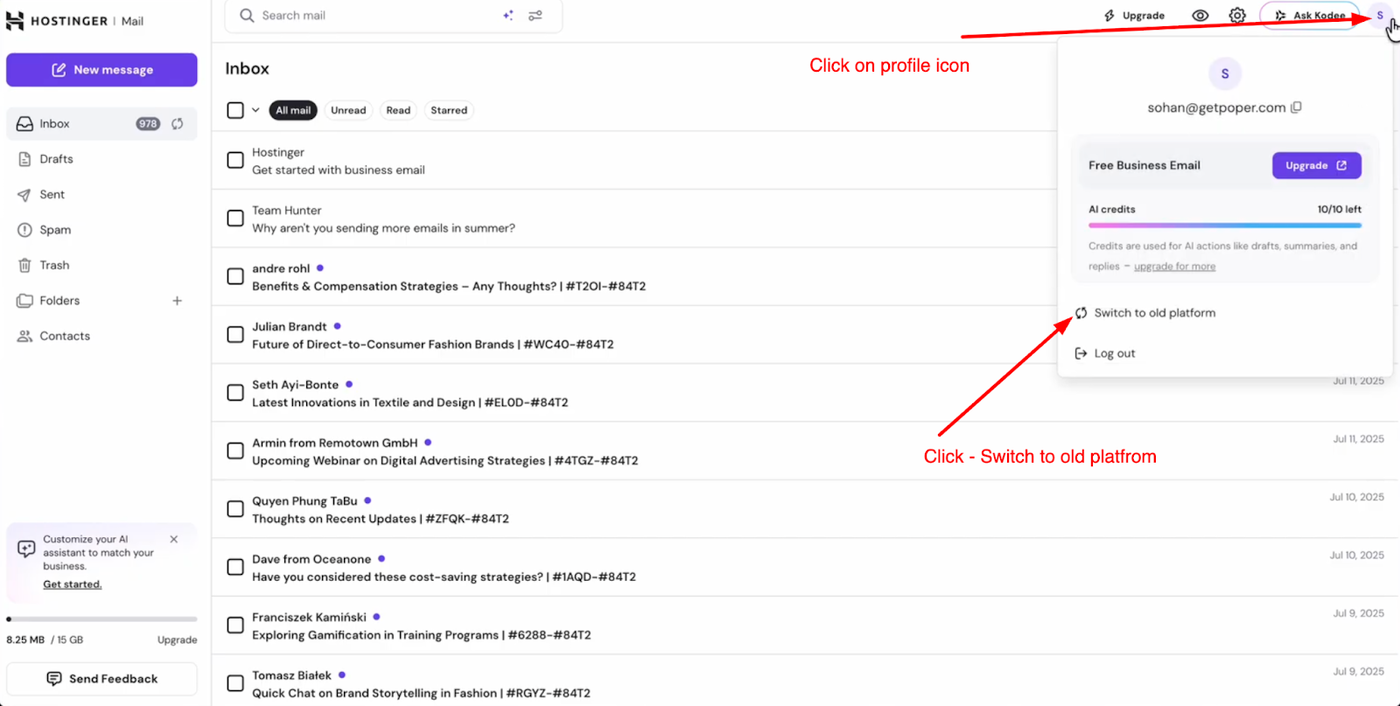
If you are using Hostinger's new email layout, you must first switch to the previous version to access the export features. Look for the option labeled "Switch to old platform" and click it to change your view.
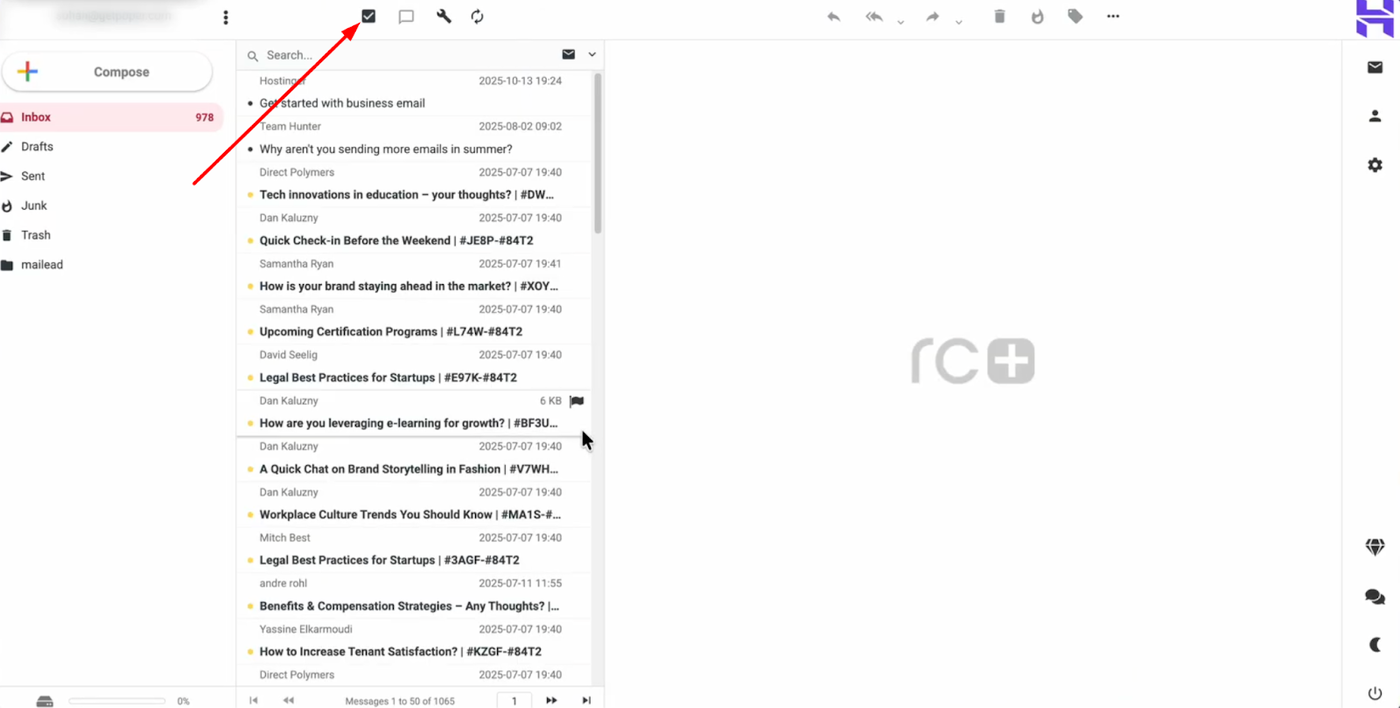
Once you are on the old platform, you will see a selection option for your messages.
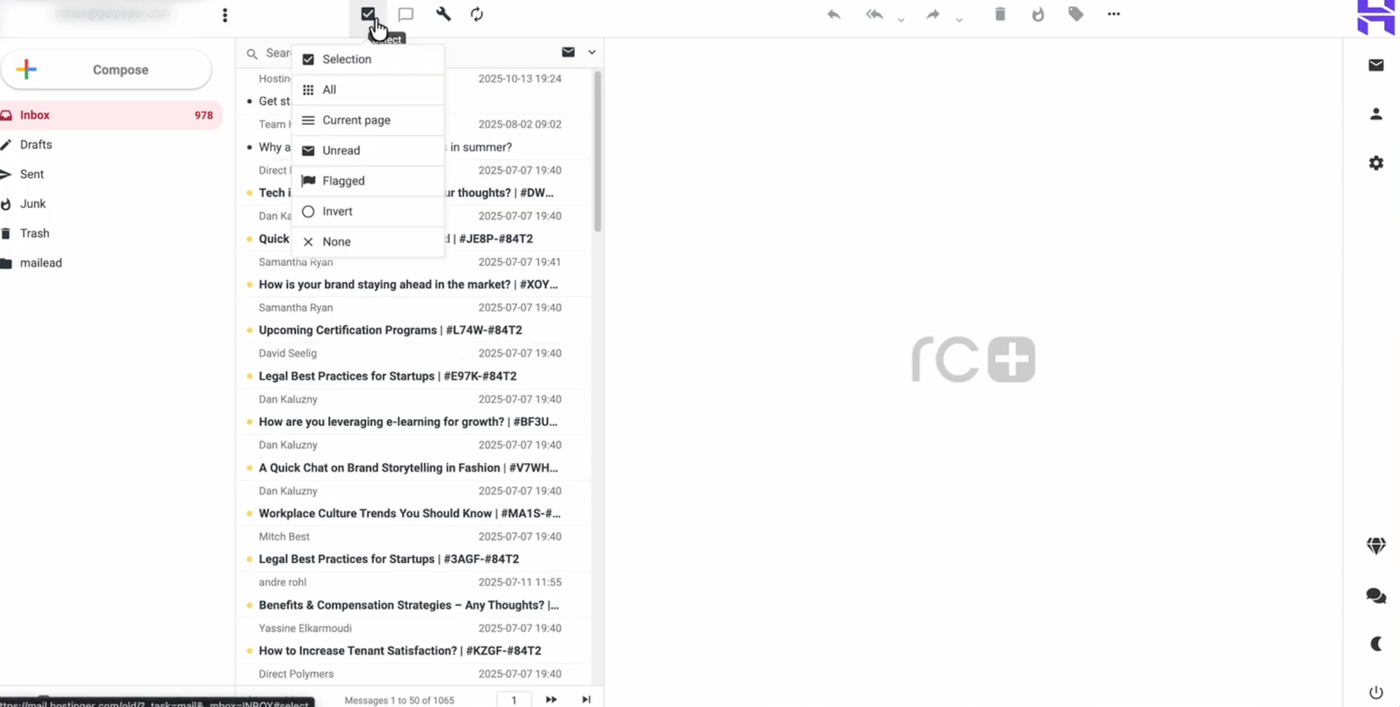
You can choose to "Select all" emails to migrate everything or manually check specific emails you want to export.
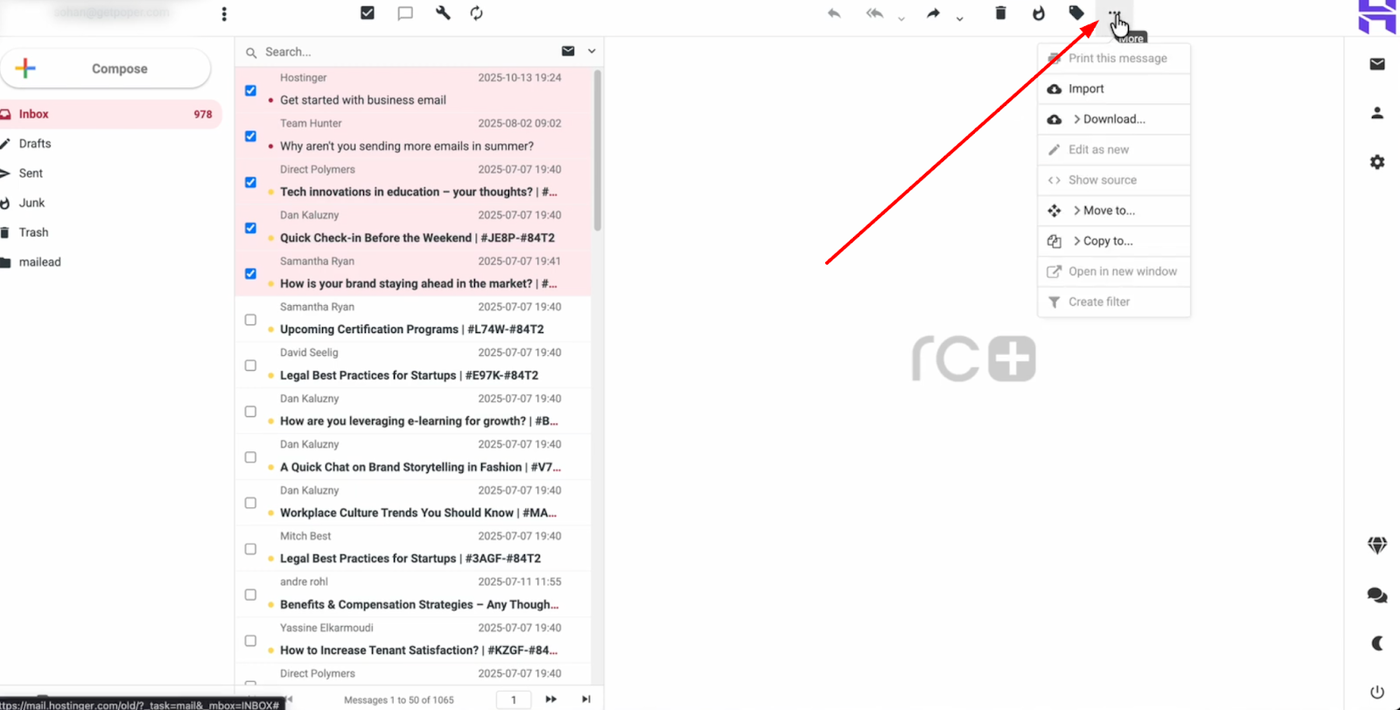
After making your selection, click the three dots icon in the top right corner.

From the dropdown menu, select "Download" and choose the Mbox format. This will save your selected emails as a file to your computer.
Setting Up Your Grigora Mailbox
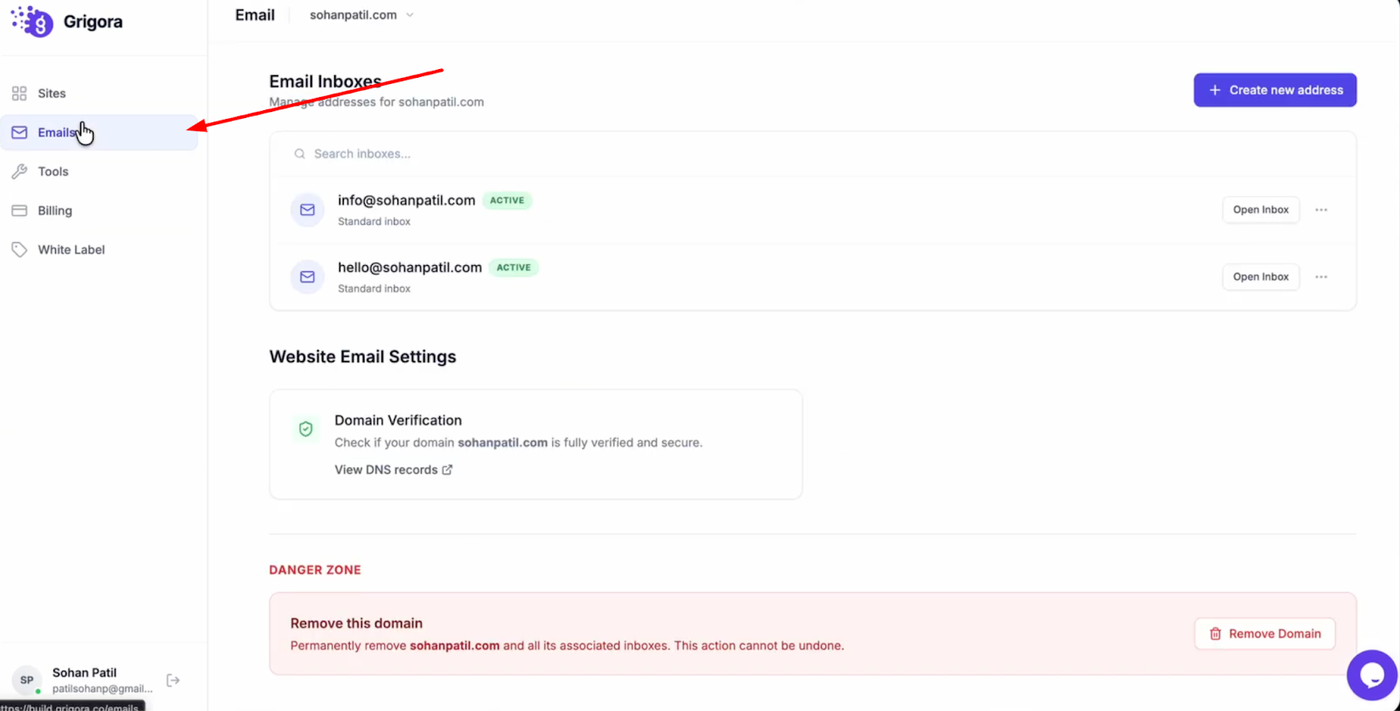
Navigate to the Grigora dashboard and click on "Mails".
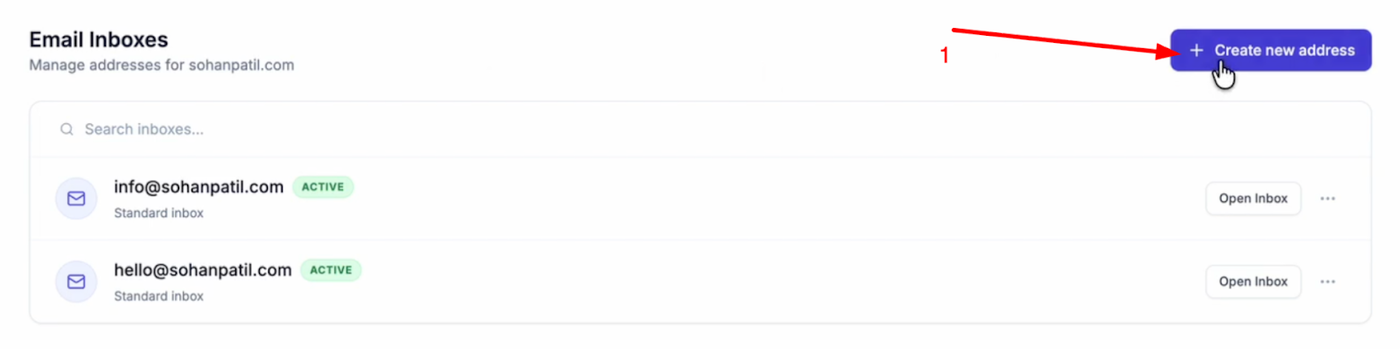
Select "Create New Address".
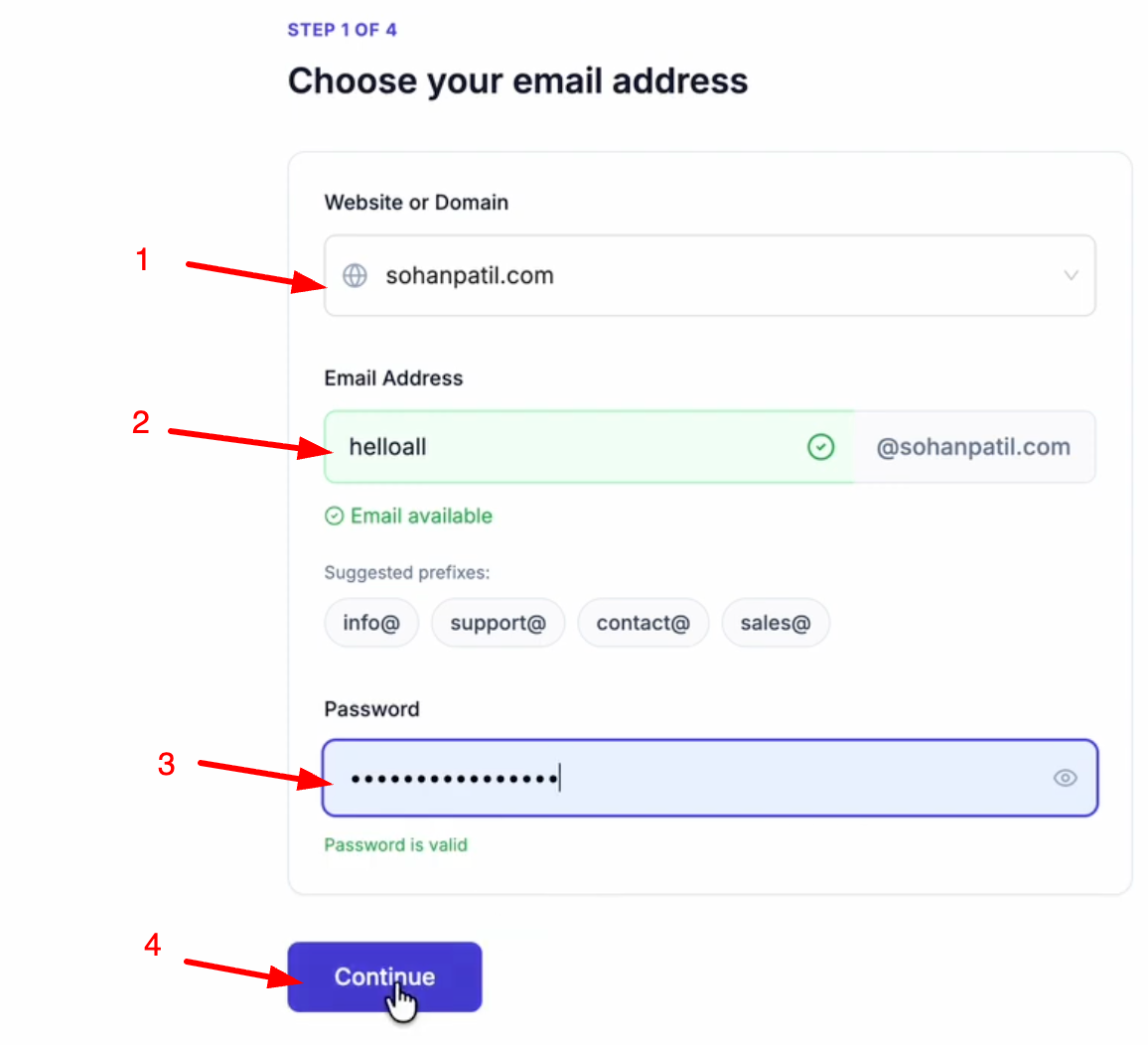
Choose your domain (add it by clicking Add a Website or Domain), and enter your desired email prefix. Create a password for the account and click "Continue".
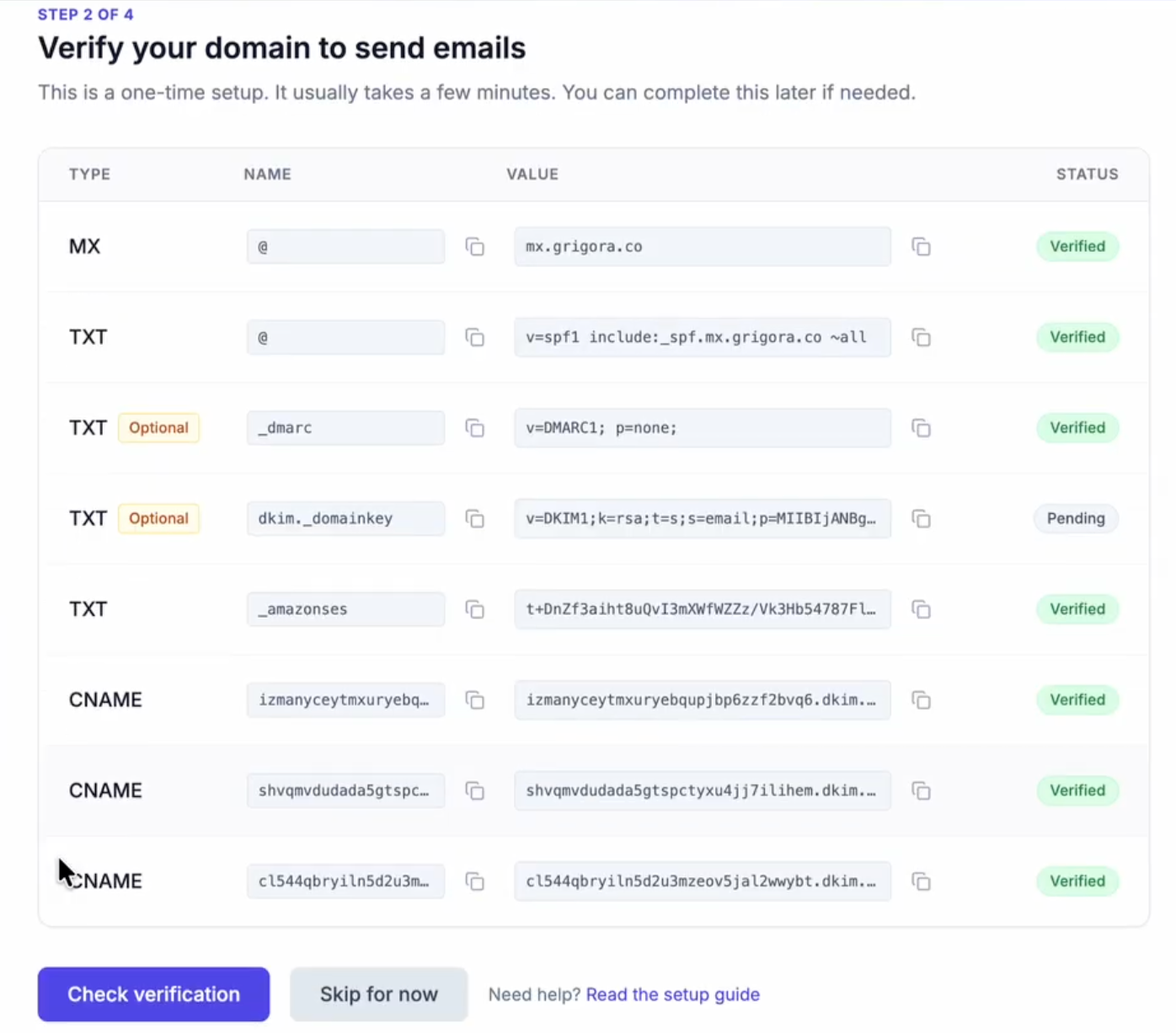
Ensure you have added the required DNS records to your domain manager.

After adding, click Check Verification.
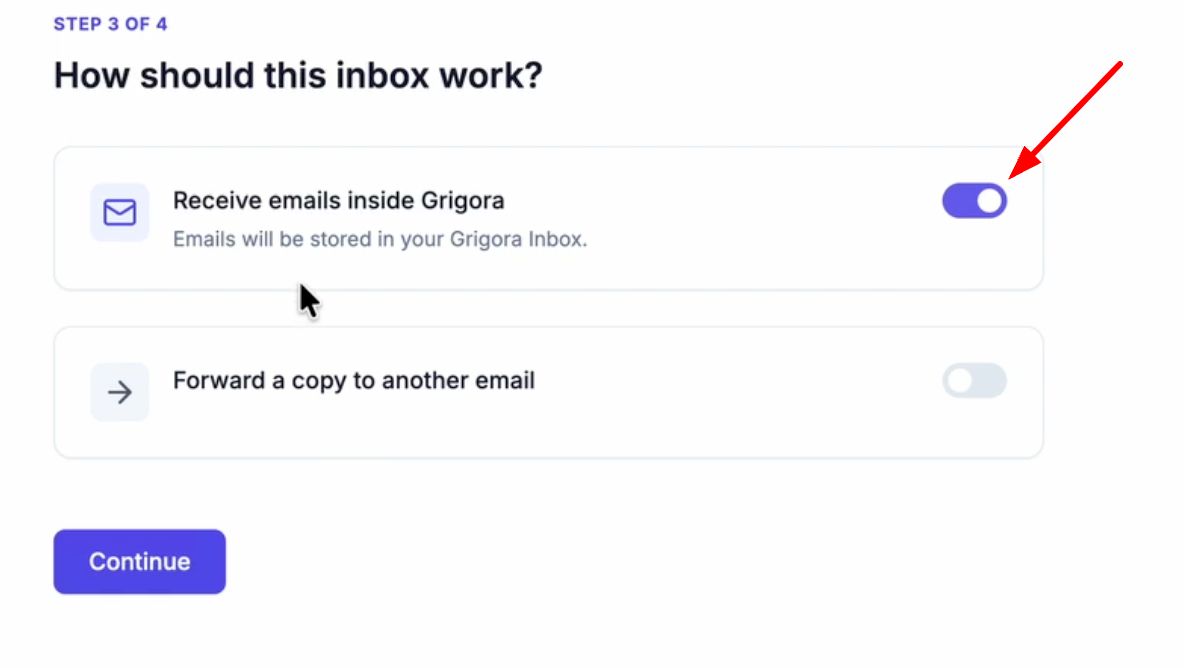
Verify that the "Receive emails inside Grigora" toggle is turned on so emails are stored in your inbox.
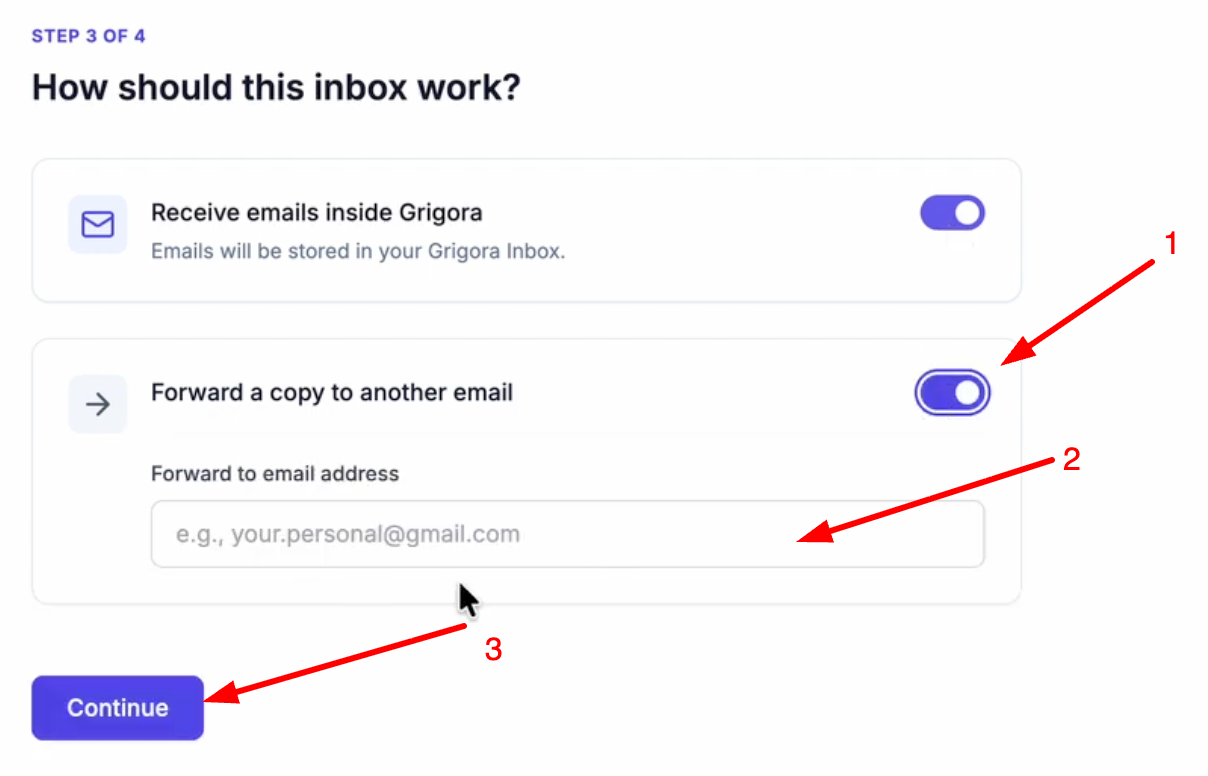
If you want to forward a copy to another email, turn on the toggle, enter the email address(optional) and click continue
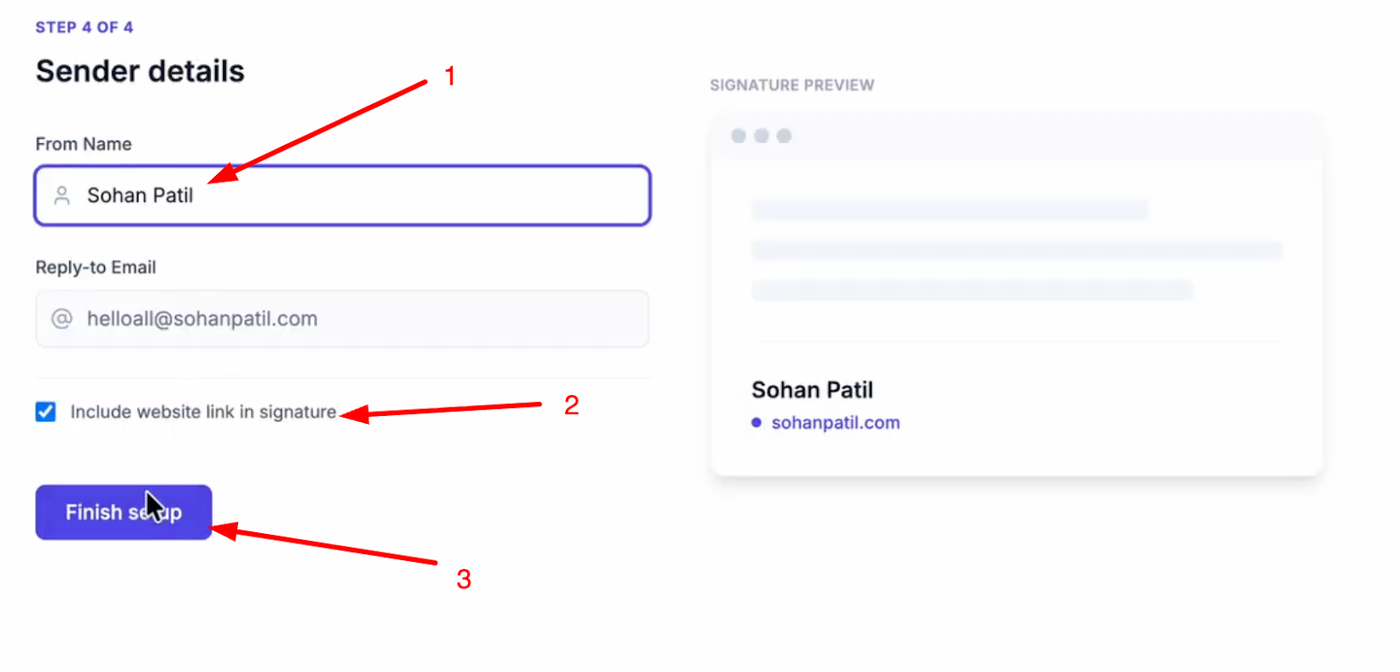
Enter a name for your email account, check if you want to include a website link in your signature, and click "Finish Setup".
Import Data to Grigora
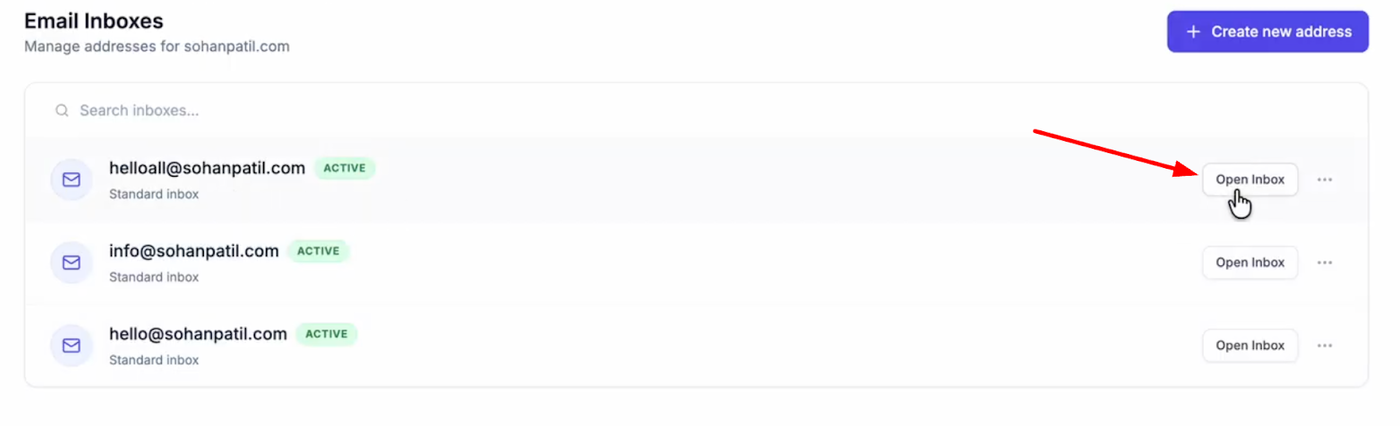
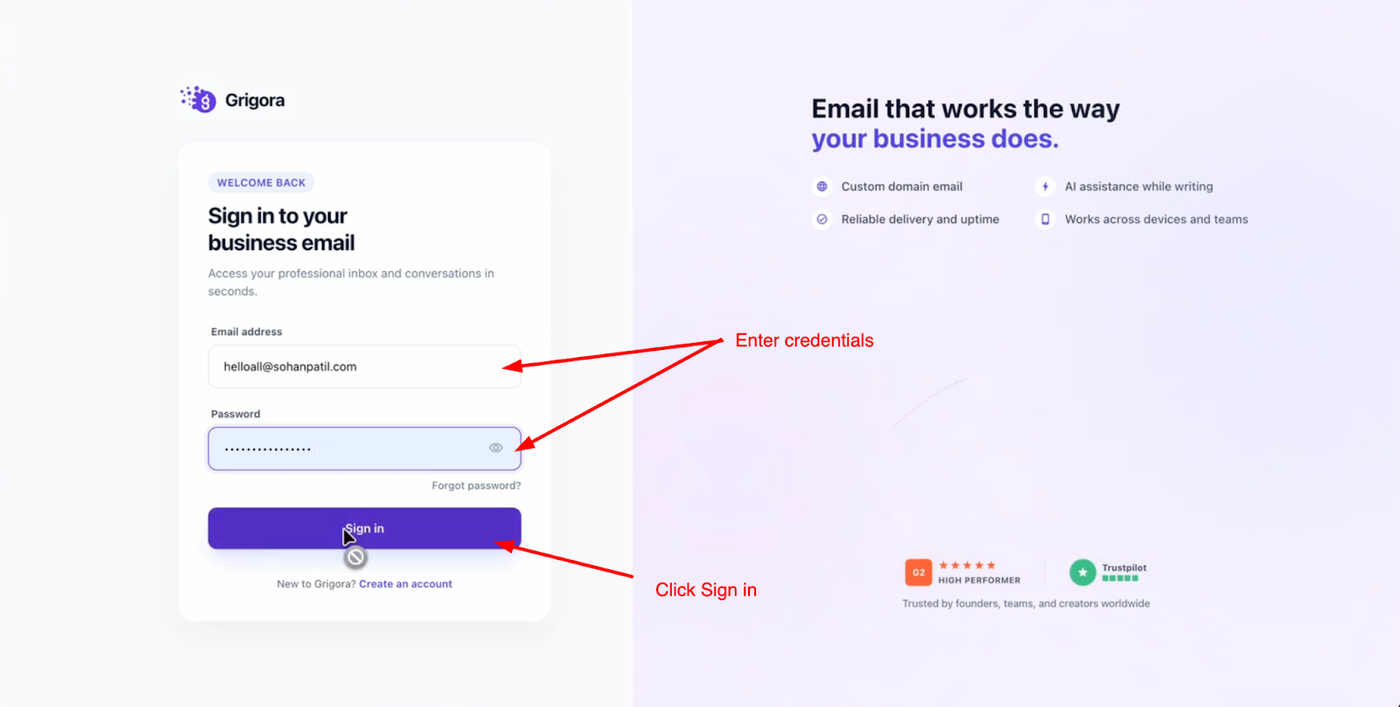
Open your new inbox and log in with your credentials.
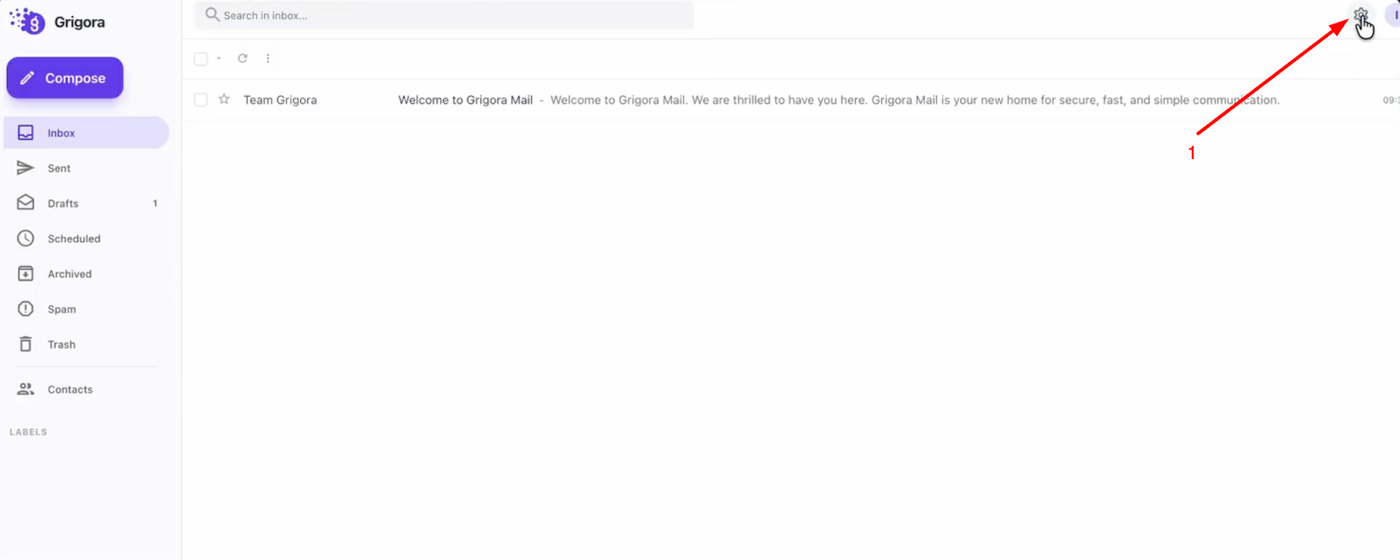
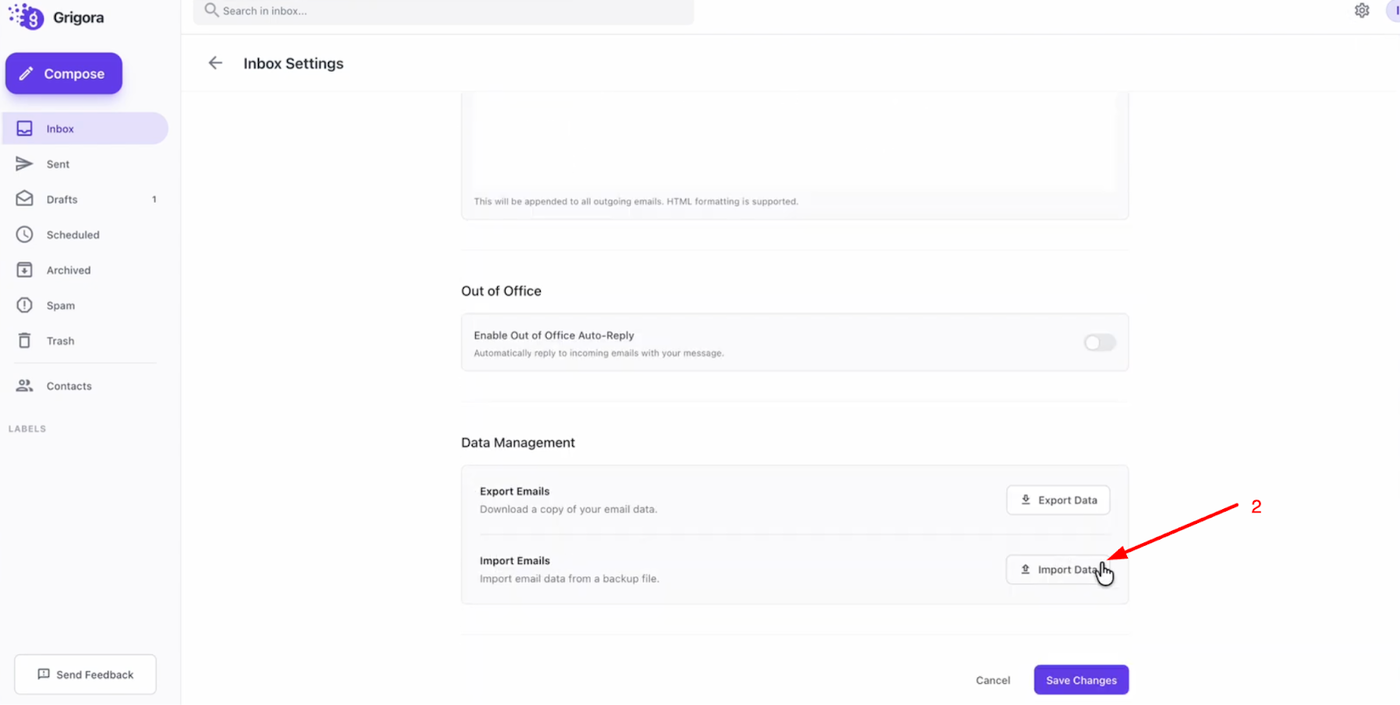
Go to "Settings" and on the settings page, click on "Import data".
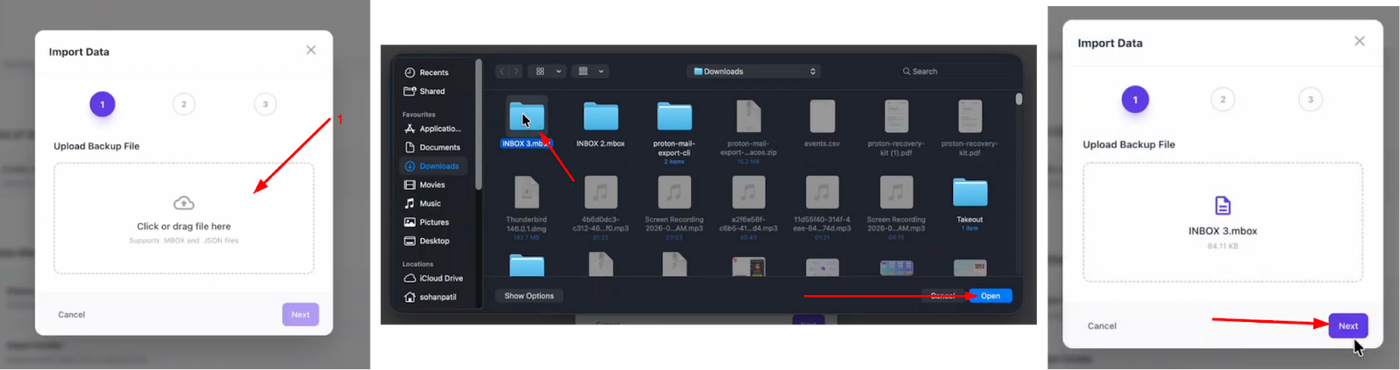
Click "Choose File", select the .mbox file you extracted earlier, and click next.
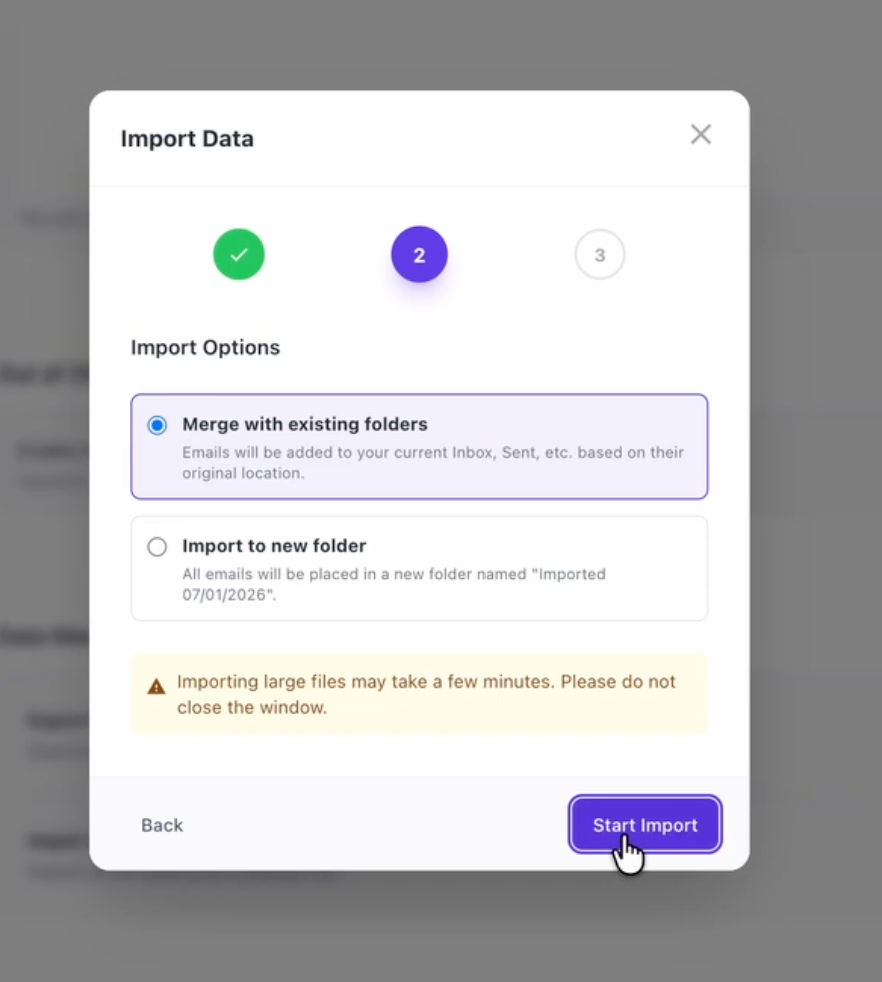
You can choose to "Merge with existing folders" or "Import to new folder". Select your preference and click "Start Import".
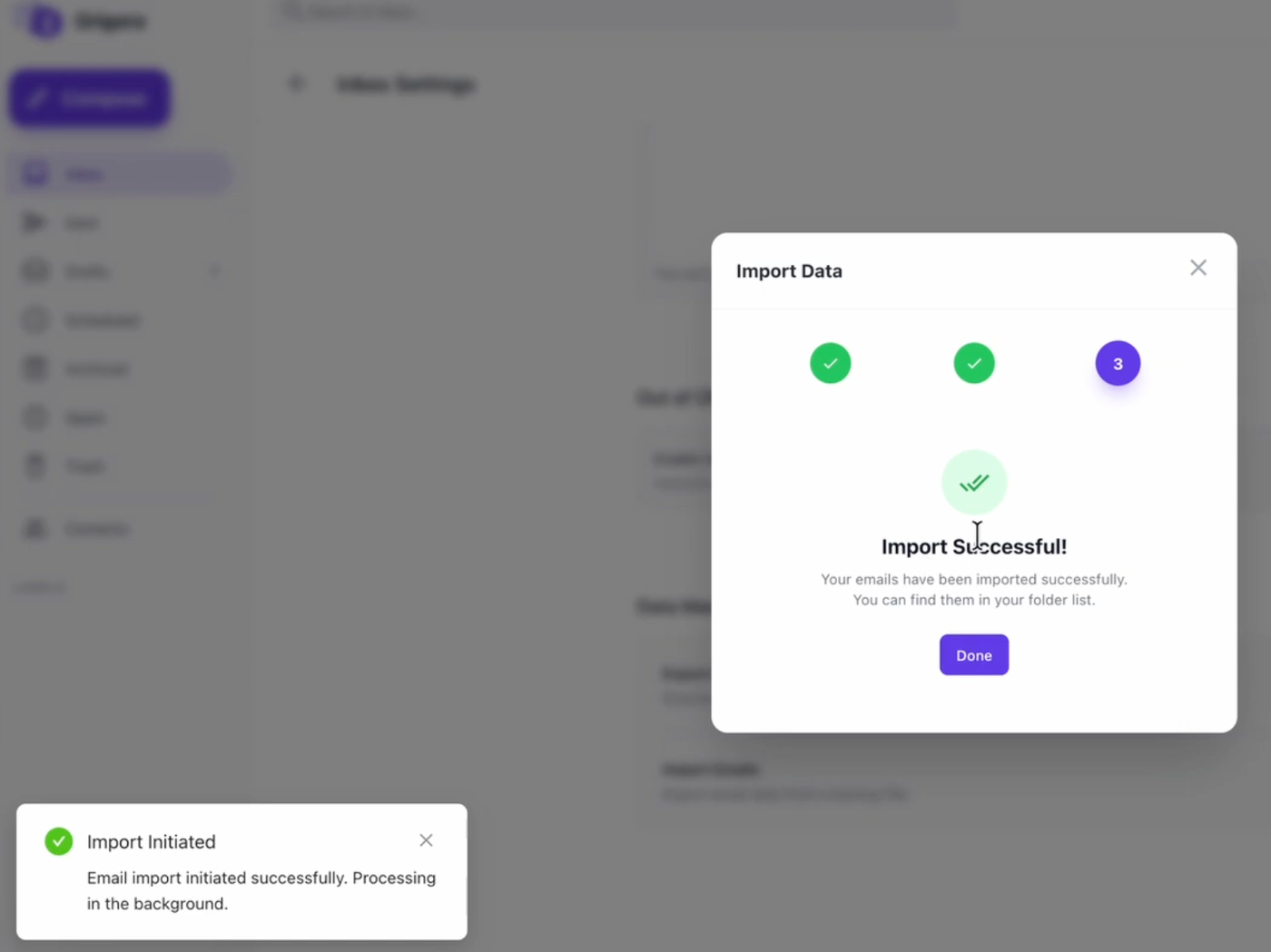
Once the process is complete, you will see a success message.
Your Hostinger emails are now fully available within Grigora Mail, allowing you to pick up exactly where you left off.