How to Migrate From Outlook to Grigora Mail

This guide shows how to migrate from Outlook to Grigora Mail without losing your existing emails.​

You’ll export your Outlook folders using Thunderbird, then import the exported file into your Grigora Mail inbox.​

Enable POP + IMAP in Outlook

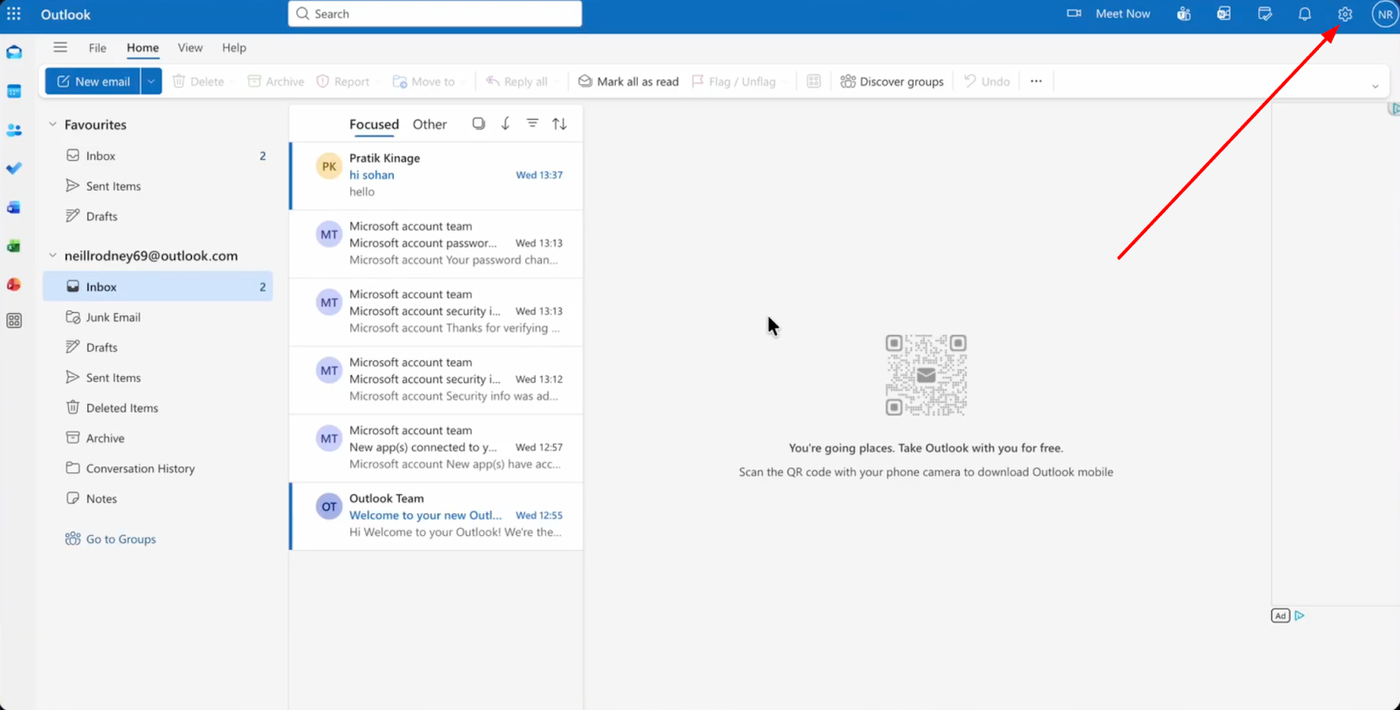
Outlook web interface with inbox selected and an arrow pointing to the settings icon.

Log in to your Outlook account, click the settings icon.
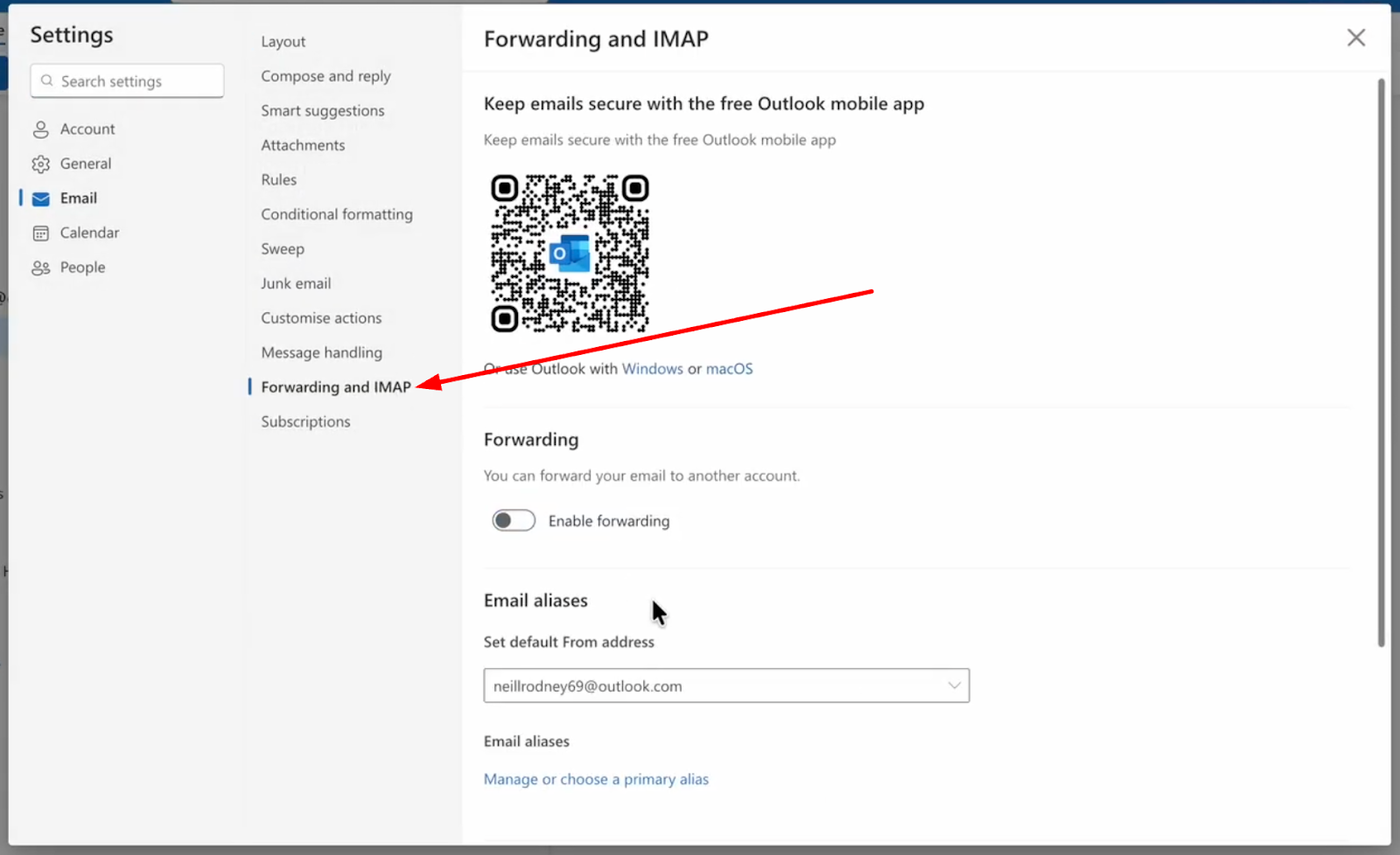
Outlook settings displaying the 'Forwarding and IMAP' section with options for email forwarding and aliases.

Now, go to "Forwarding and IMAP".​

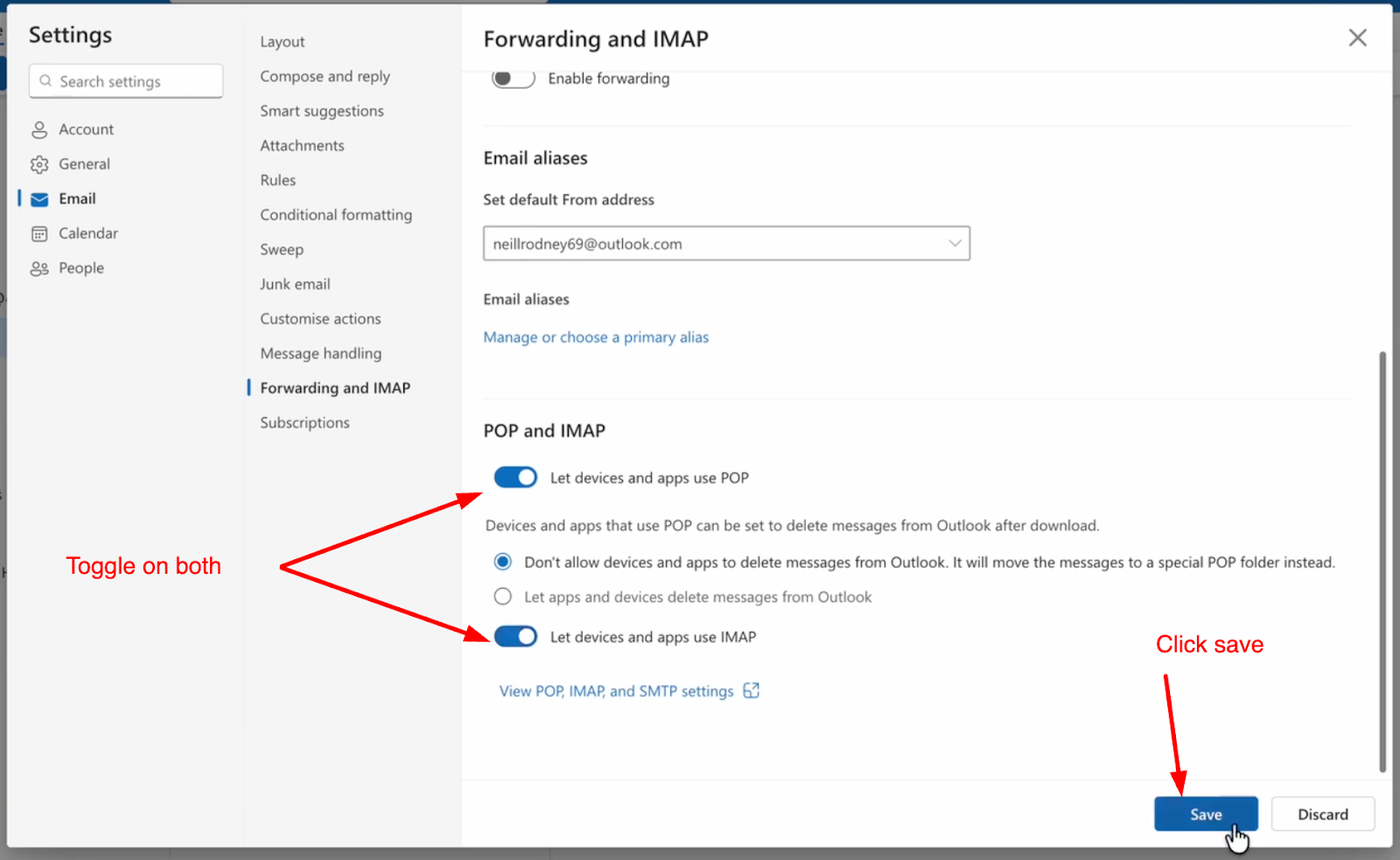
Outlook settings screen showing 'Forwarding and IMAP' with 'POP and IMAP' toggles enabled, and a 'Save' button.

Turn on "Let devices and apps use POP" and "Let devices and apps use IMAP", then click "Save".​

Install Thunderbird + add-on

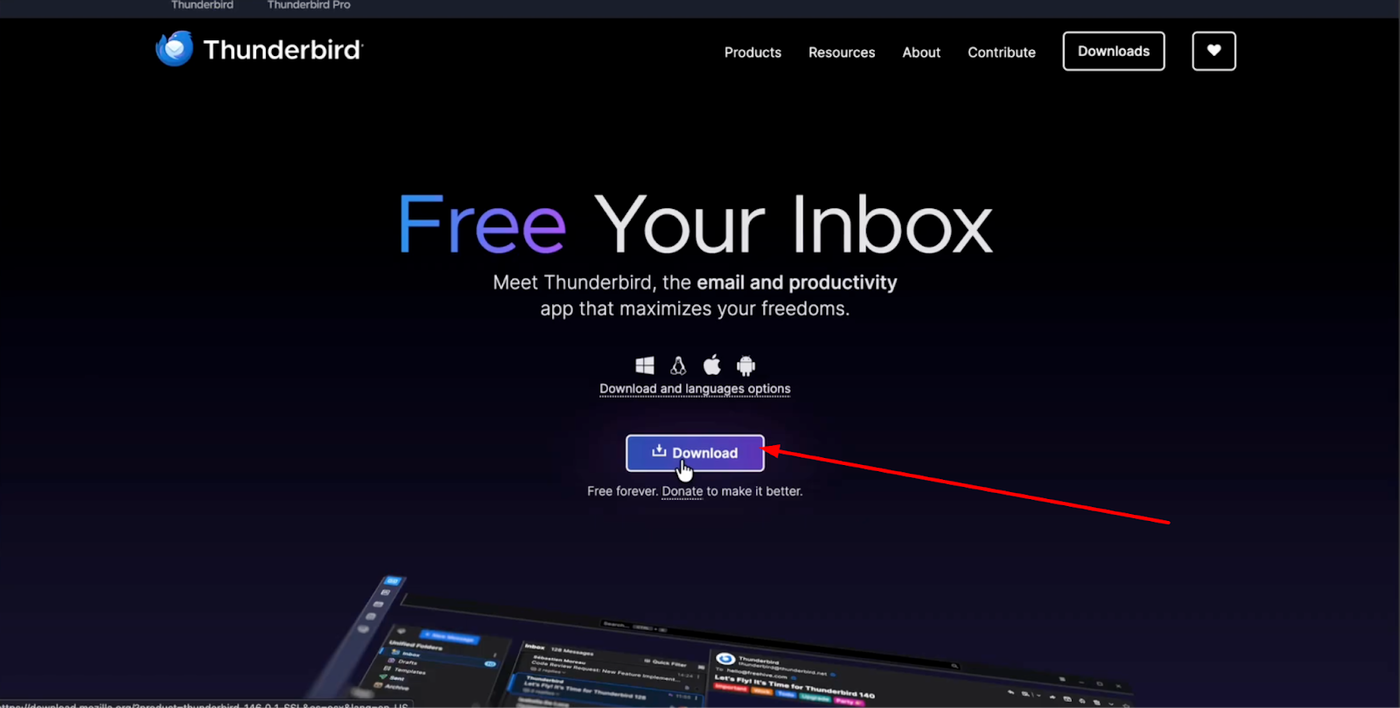
Thunderbird website with 'Free Your Inbox' headline, a download button, and a red arrow pointing to it.

Download and install the Thunderbird desktop app on your computer.
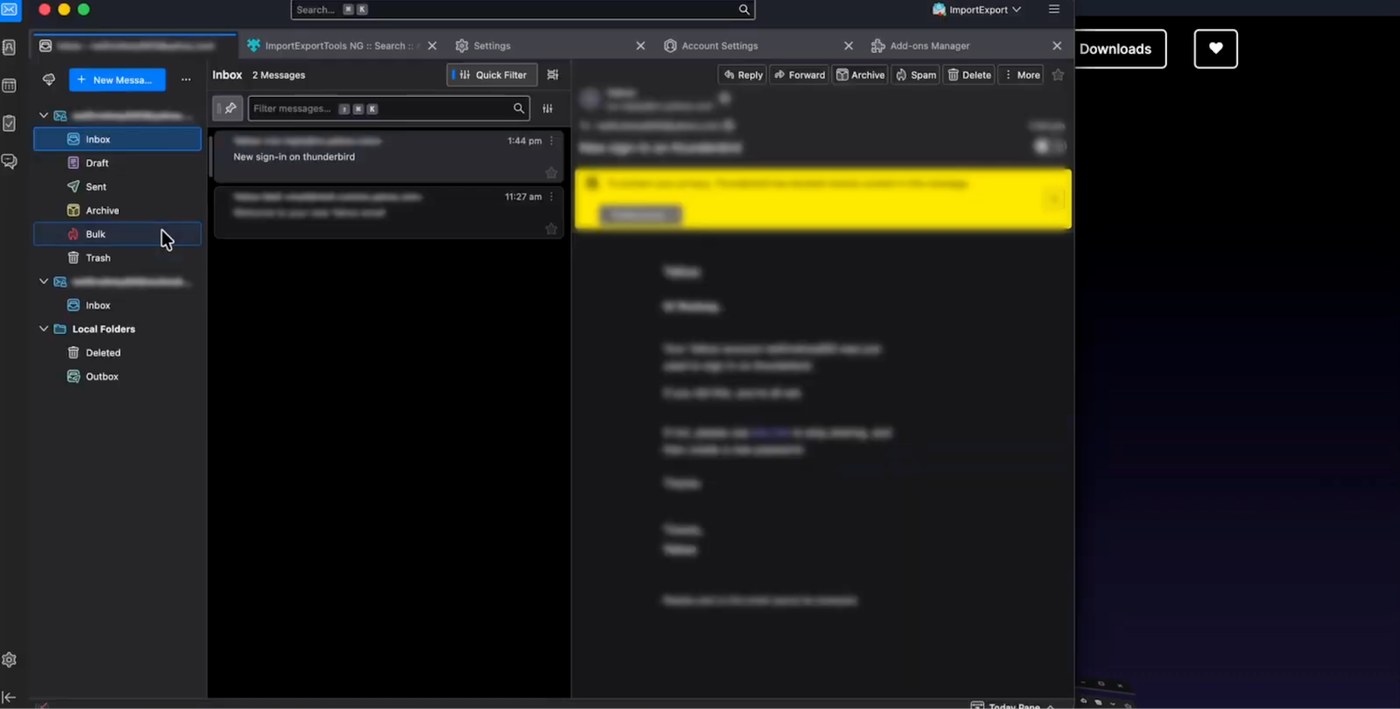
Thunderbird email client interface in dark mode, showing the 'Bulk' folder selected and an unread email.

In Thunderbird,  sign in using your Outlook email account. 
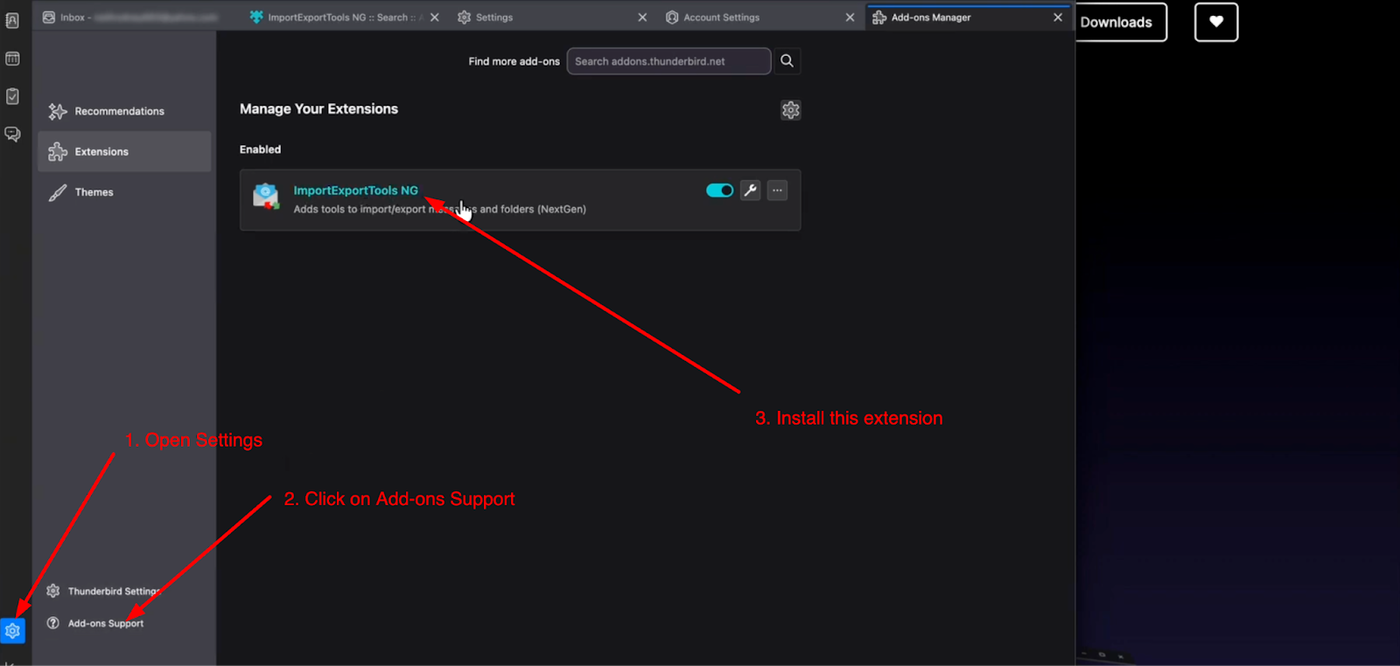
Screenshot showing how to install the 'ImportExportTools NG' extension in Thunderbird via the Add-ons Manager.

Now navigate to settings, open "Add-ons and Themes", search for "ImportExportTools NG", and install it so you can export mail folders mbox-style file.​

Export Outlook emails (via Thunderbird)
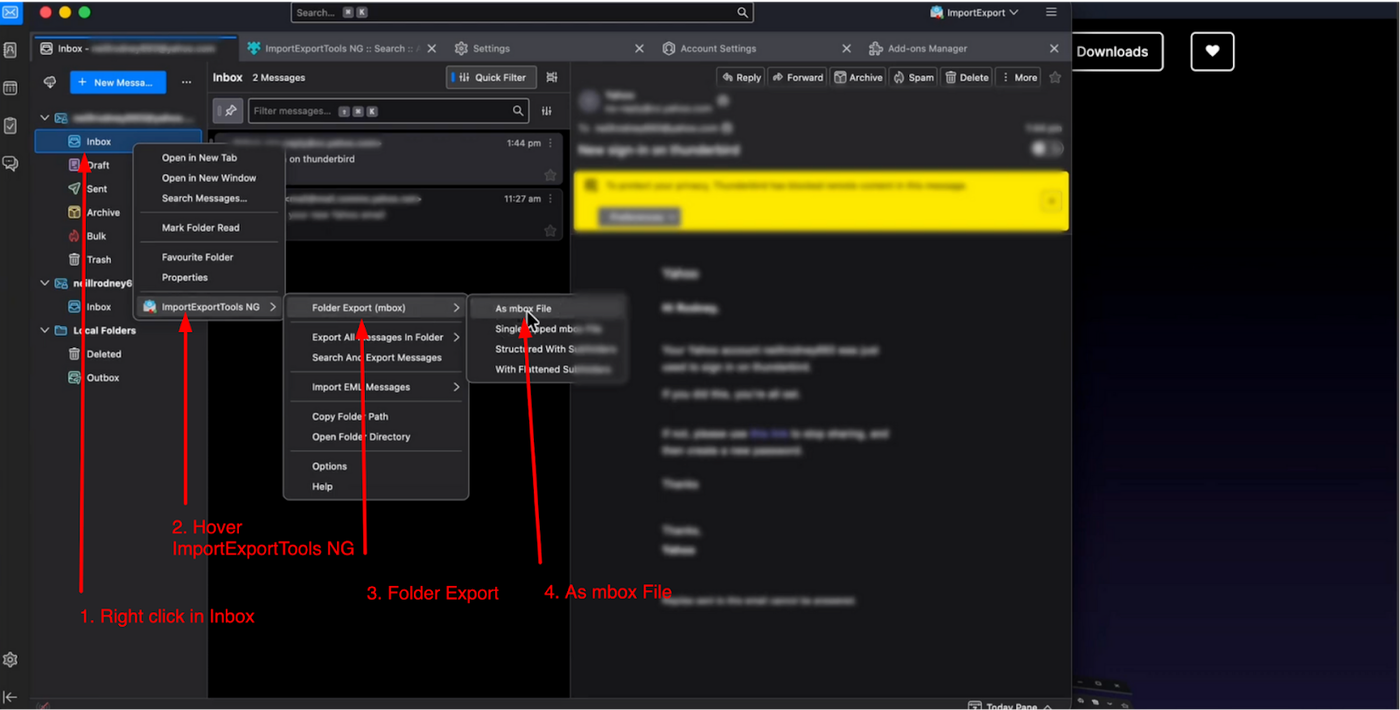
Screenshot showing how to export an inbox as an MBOX file using ImportExportTools NG in Thunderbird.

From the folder list, right-click the folder you want to migrate, choose "ImportExportTools NG" → "Export folder as inbox file", and save the exported file to your computer.​

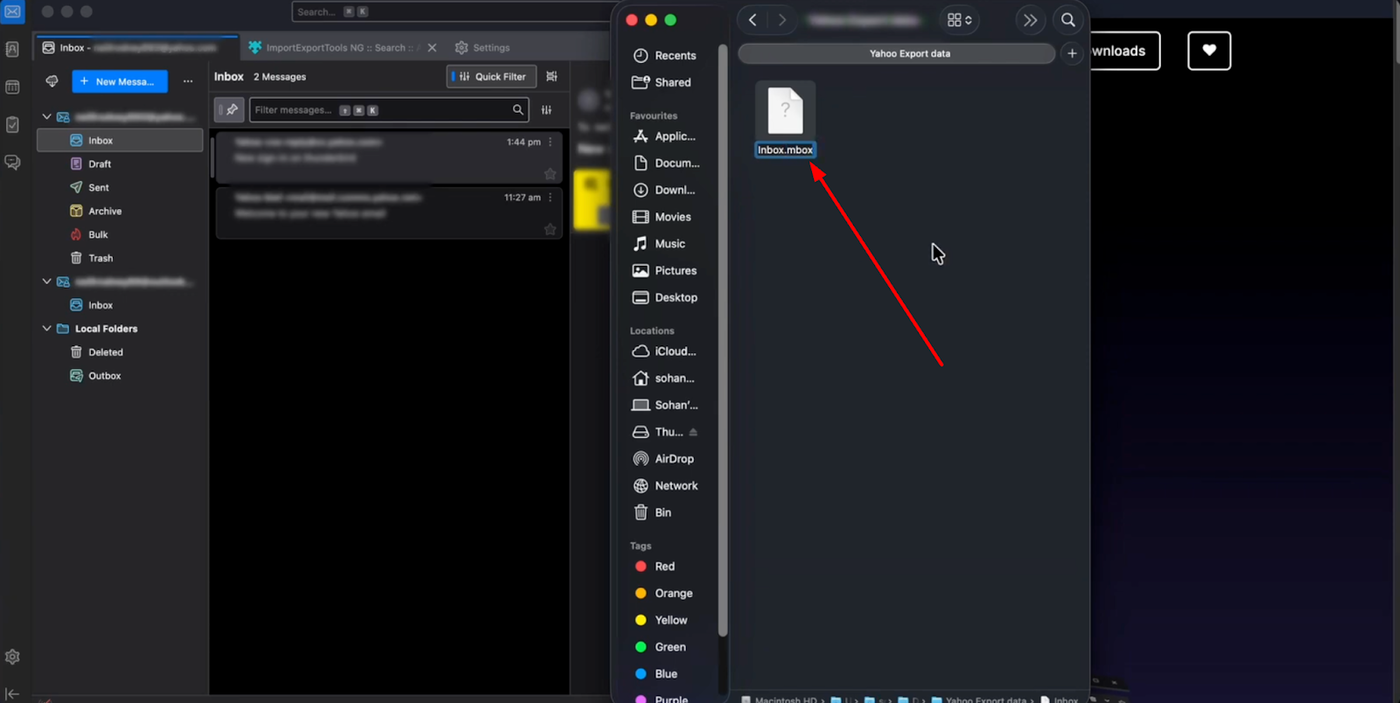
Screenshot showing 'Inbox.mbox' file

If the saved file has no extension, rename it and add ".mbox" at the end of the filename 

Setting Up Your Grigora Mailbox
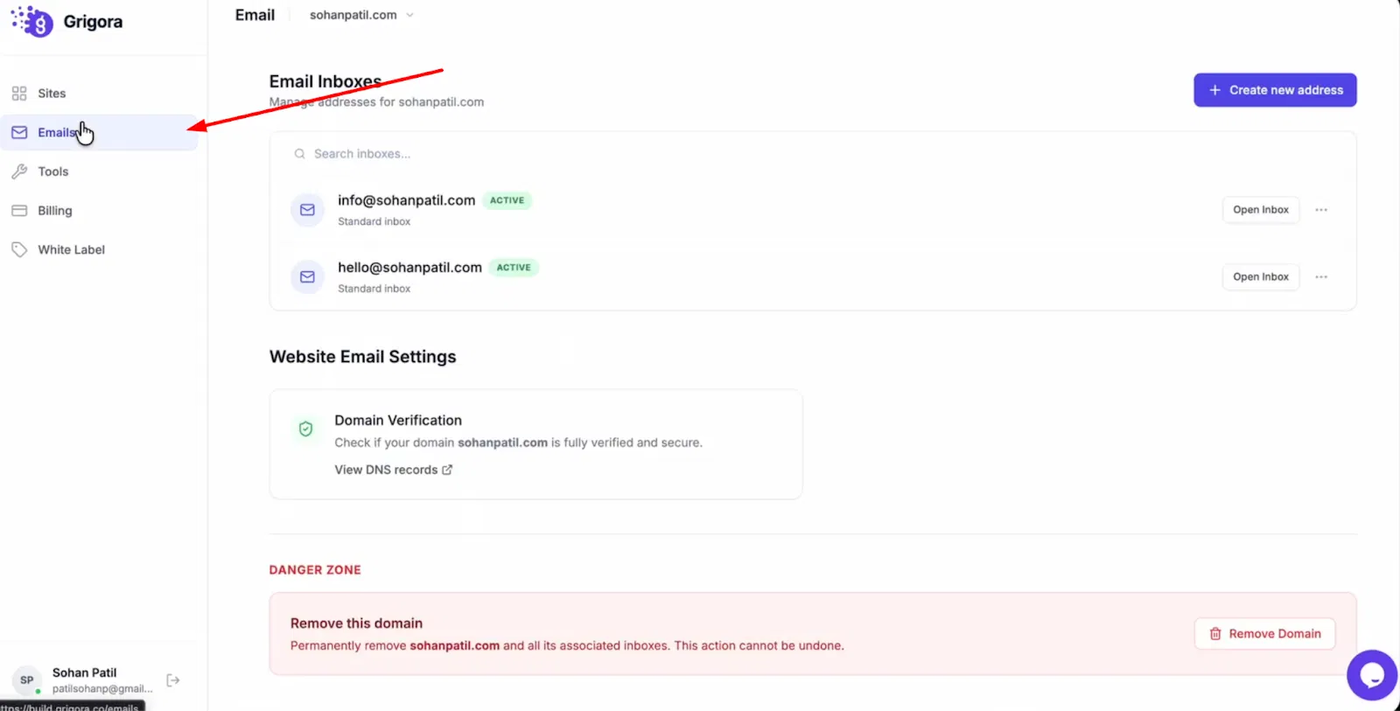
Click on "Mails". 

Navigate to the Grigora dashboard and click on "Mails". 
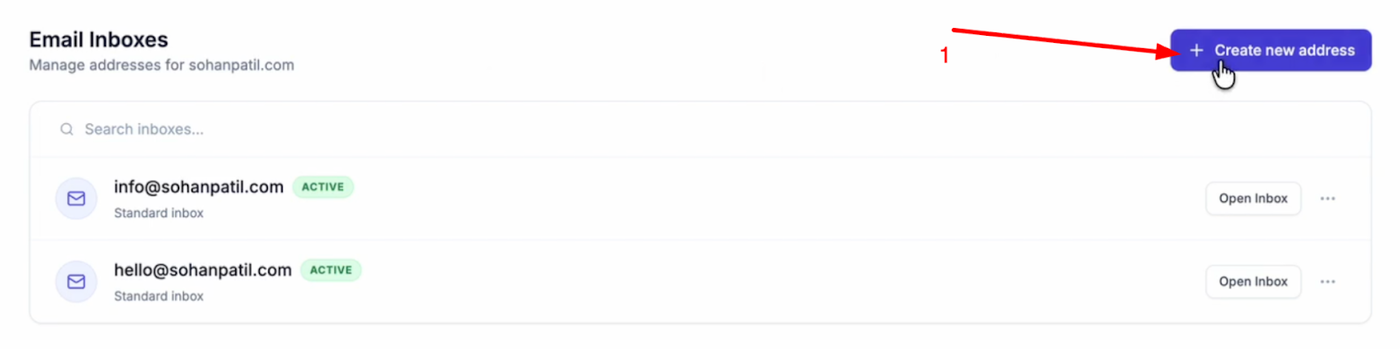
Email Inboxes screen showing existing email addresses and a 'Create new address' button with a red arrow pointing to it.

Select "Create New Address".

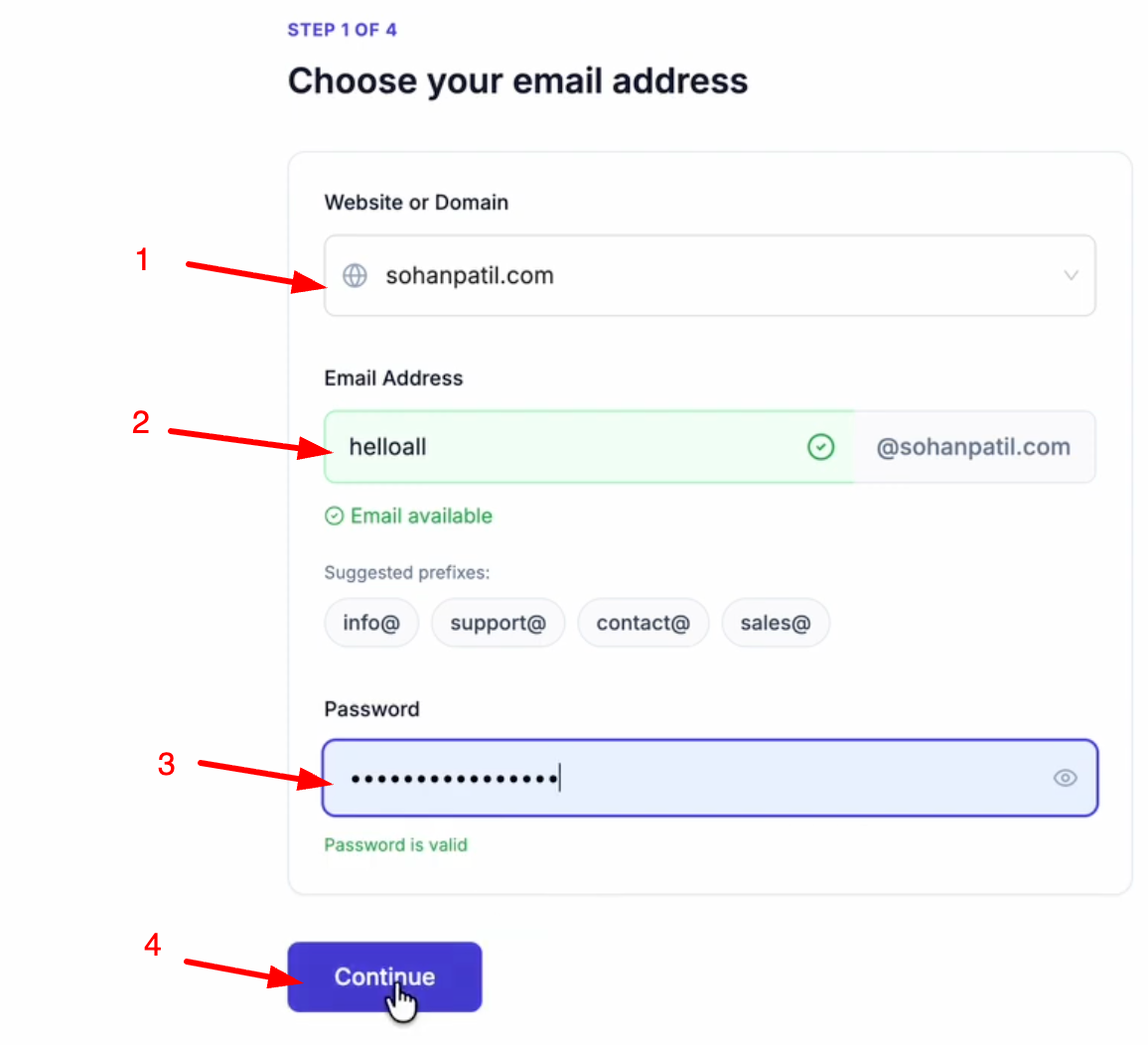
Email address creation form with fields for domain, email prefix, password, and a 'Continue' button.

Choose your domain (add it by clicking Add a Website or Domain), and enter your desired email prefix. Create a password for the account and click "Continue".

Ensure you have added the required DNS records to your domain manager. 
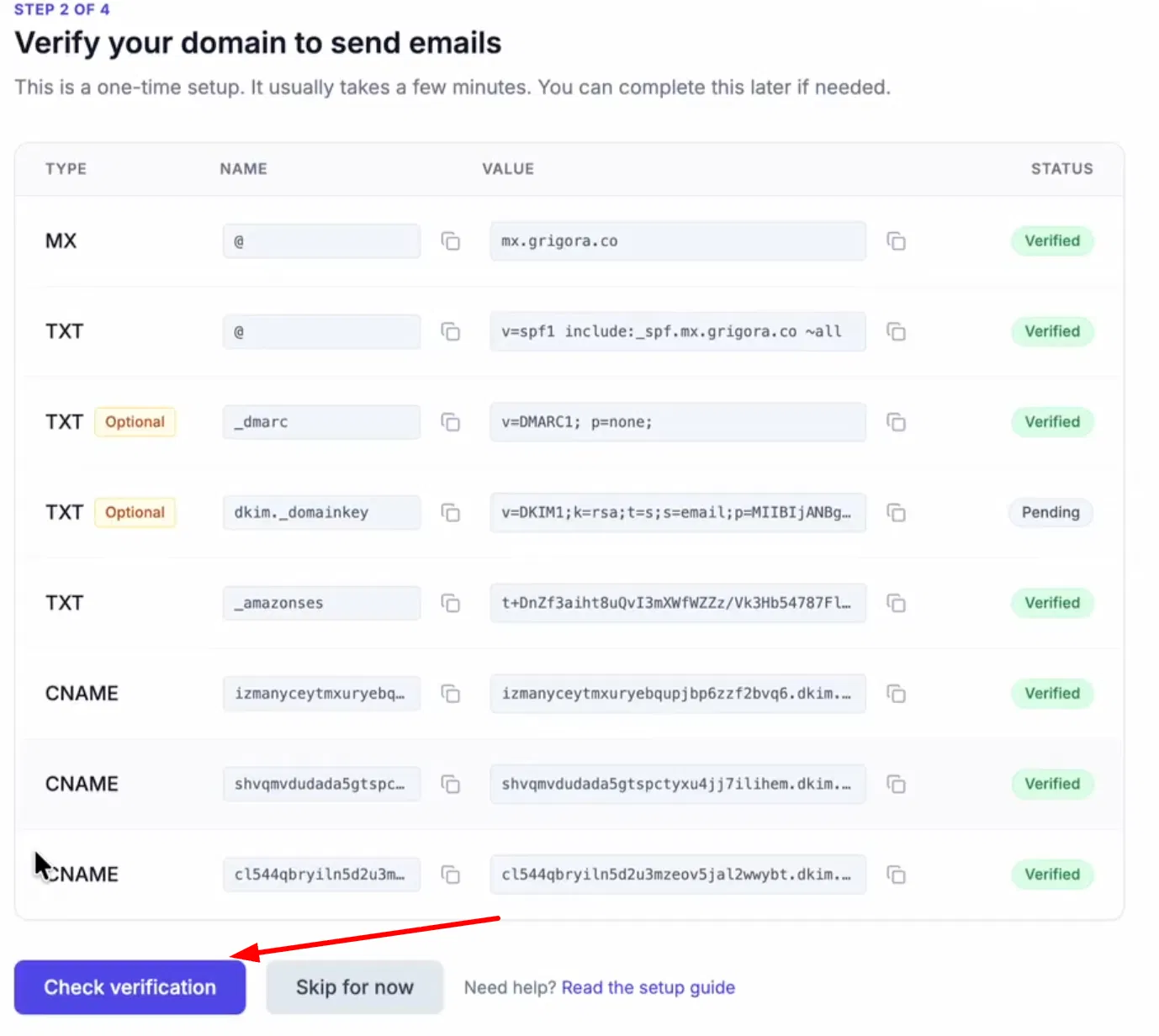
Click "check verification"

After adding, click Check Verification.
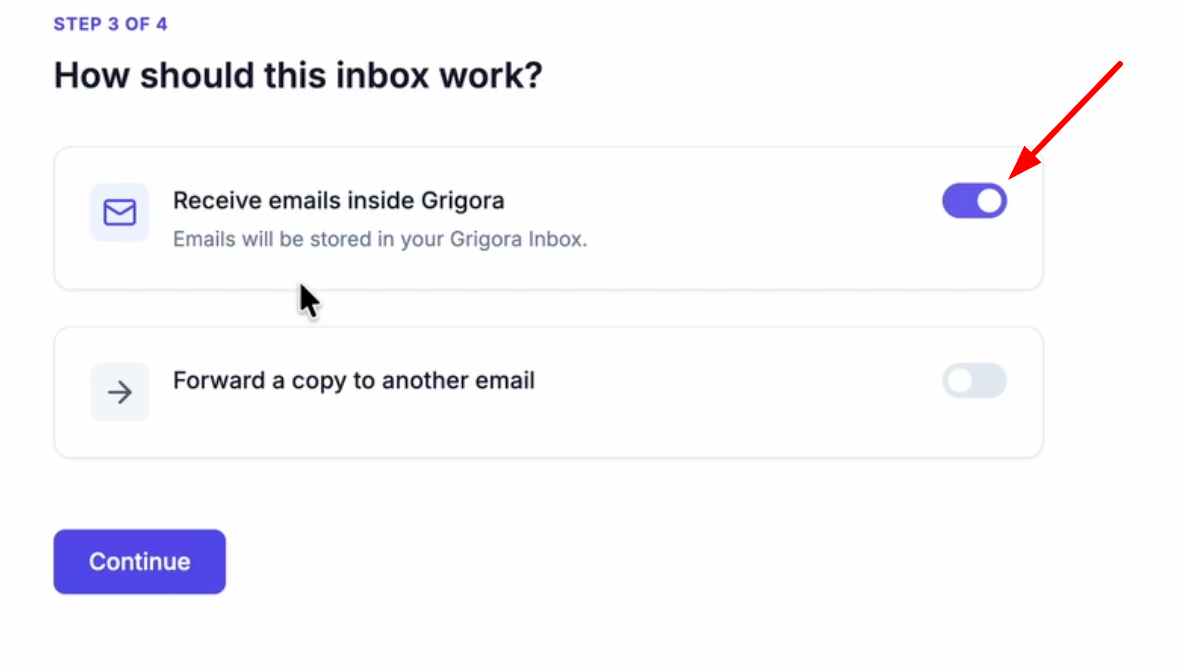
Grigora inbox settings screen with 'Receive emails inside Grigora' toggled on and 'Forward a copy' toggled off.

Verify that the "Receive emails inside Grigora" toggle is turned on so emails are stored in your inbox. 
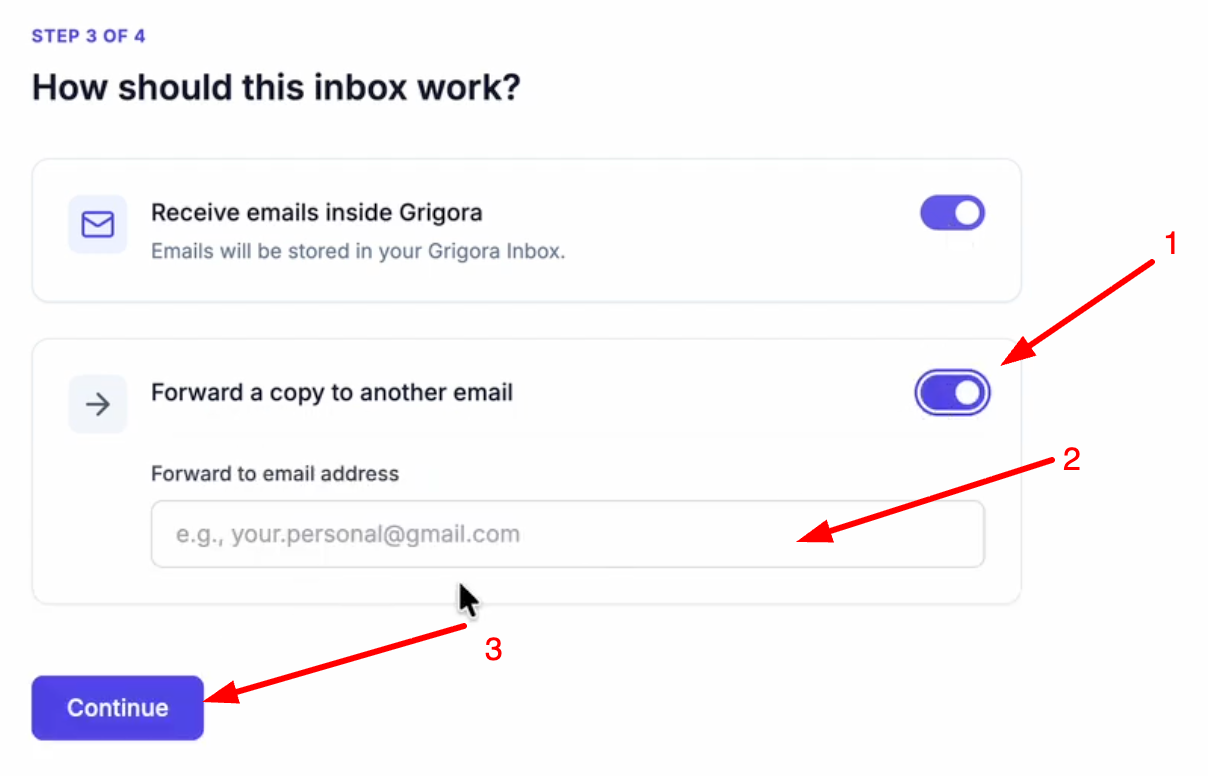
Grigora email inbox settings page. Options to receive emails inside Grigora or forward a copy to another email, with continue button.

To forward a copy to another email, turn on the toggle, enter the email address and click continue
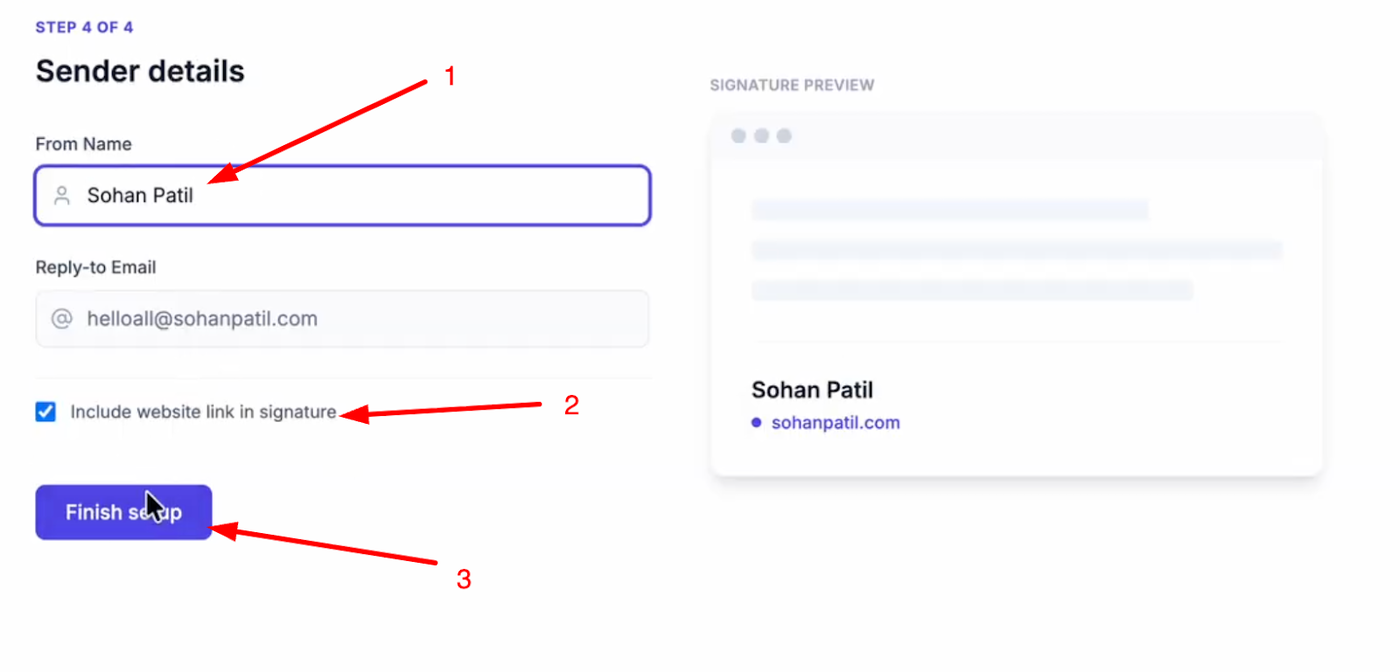
Sender details form for email signature setup, showing name' and a 'Finish setup' button.

Enter a name for your email account, check if you want to include a website link in your signature, and click "Finish Setup".

Import Data to Grigora
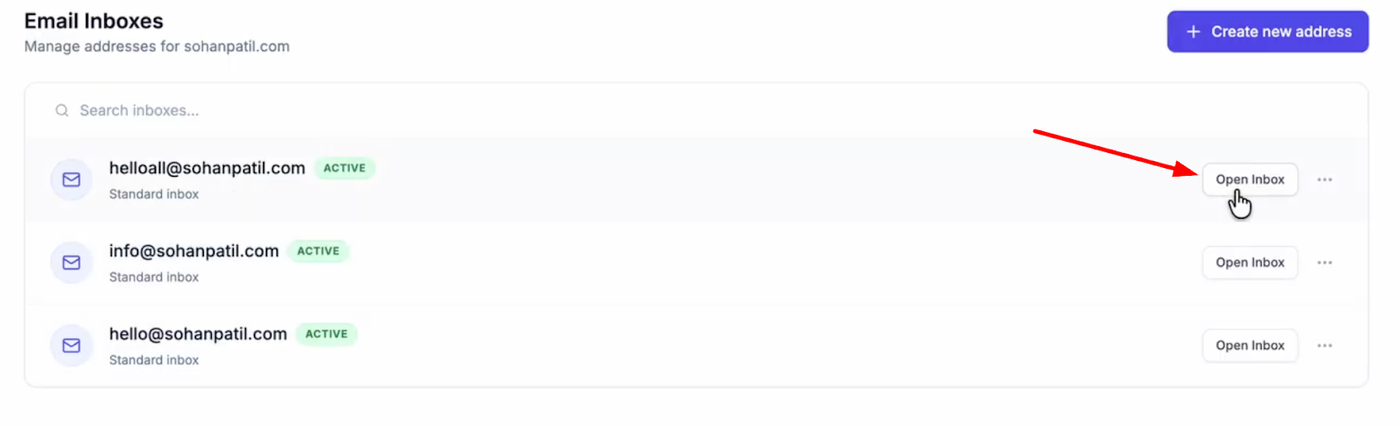
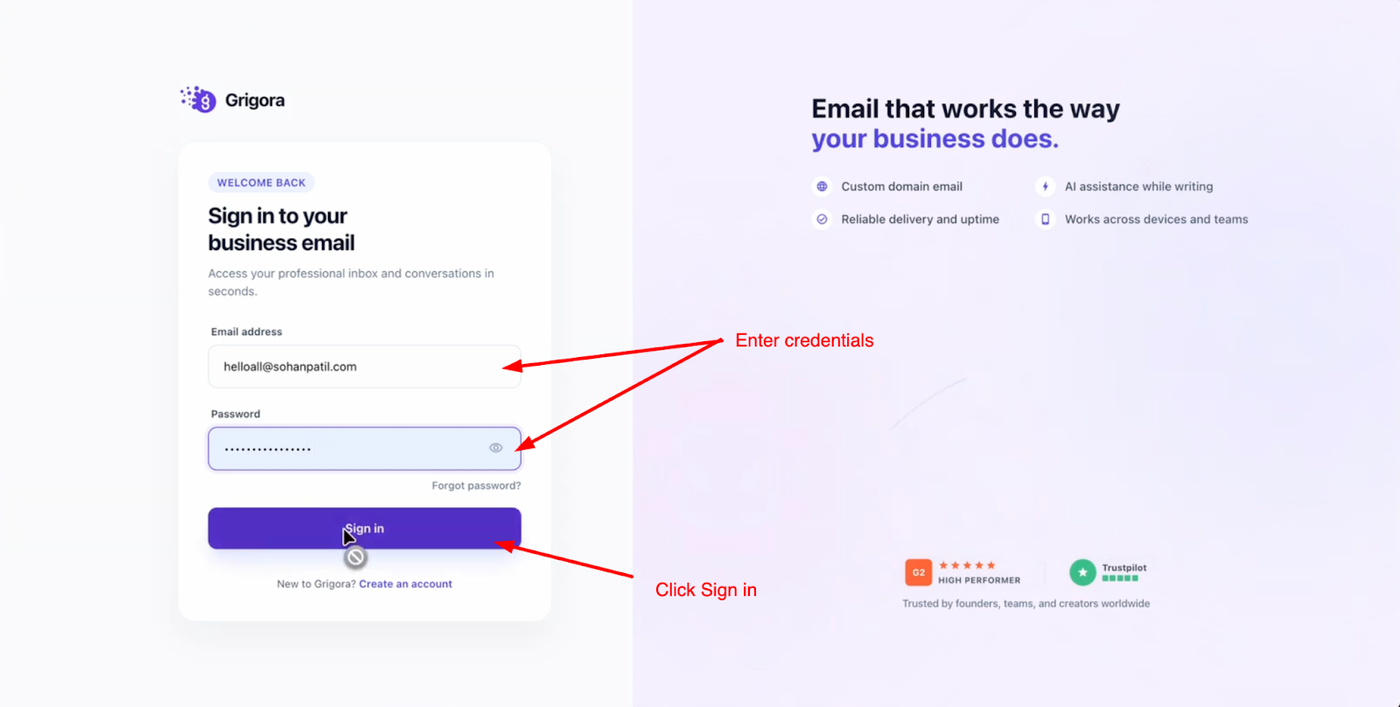
Screenshot of an email inbox management interface with a red arrow pointing to the 'Open Inbox' button.Grigora business email sign-in page with fields for email and password, and a 'Sign in' button.

Open your new inbox and log in with your credentials. 
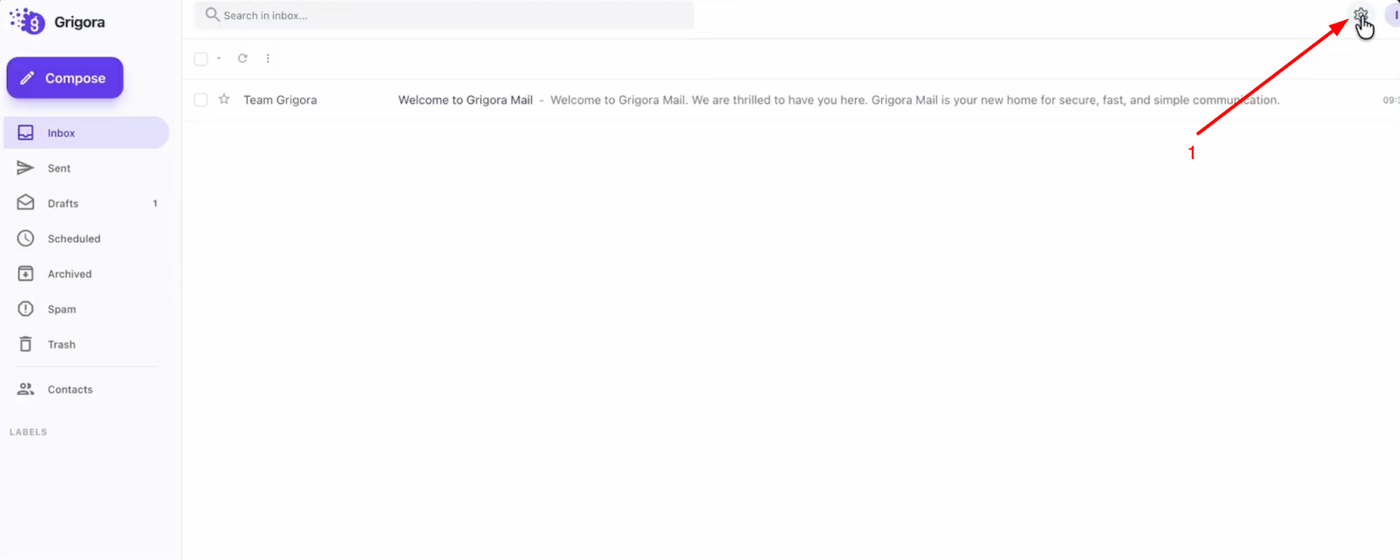
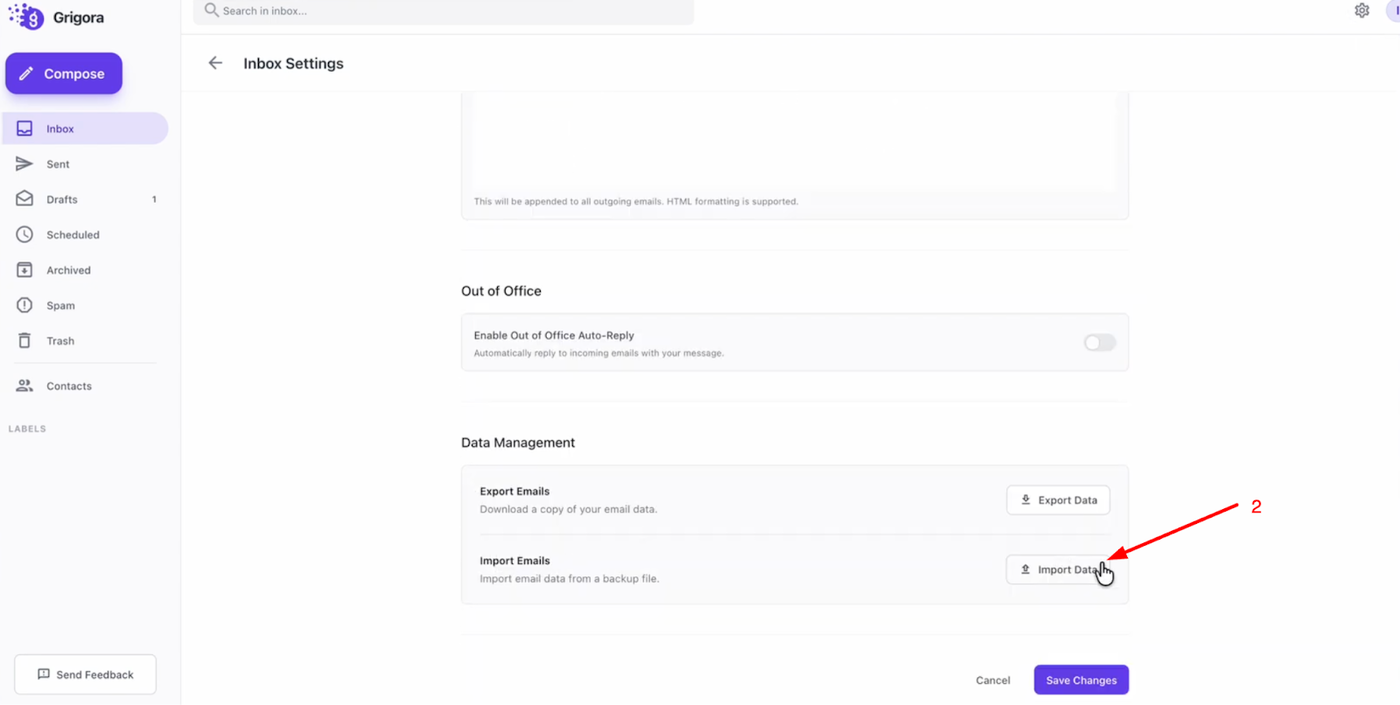
Grigora Mail interface with inbox and navigation. An arrow points to the settings icon in the top right.Screenshot of Grigora's Inbox Settings, highlighting the 'Import Data' button under 'Data Management'.

Go to "Settings" and on the settings page, click on "Import data".
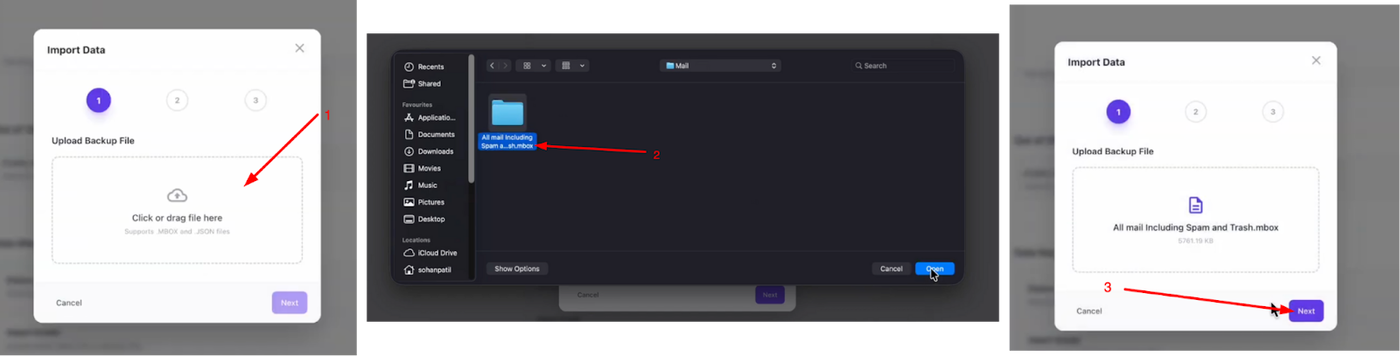
Steps to import data: a dialog box to upload backup file, then selecting an .mbox file from a file explorer, and finally confirming the uploaded file.

Click "Choose File", select the .mbox file you extracted earlier, and click next.
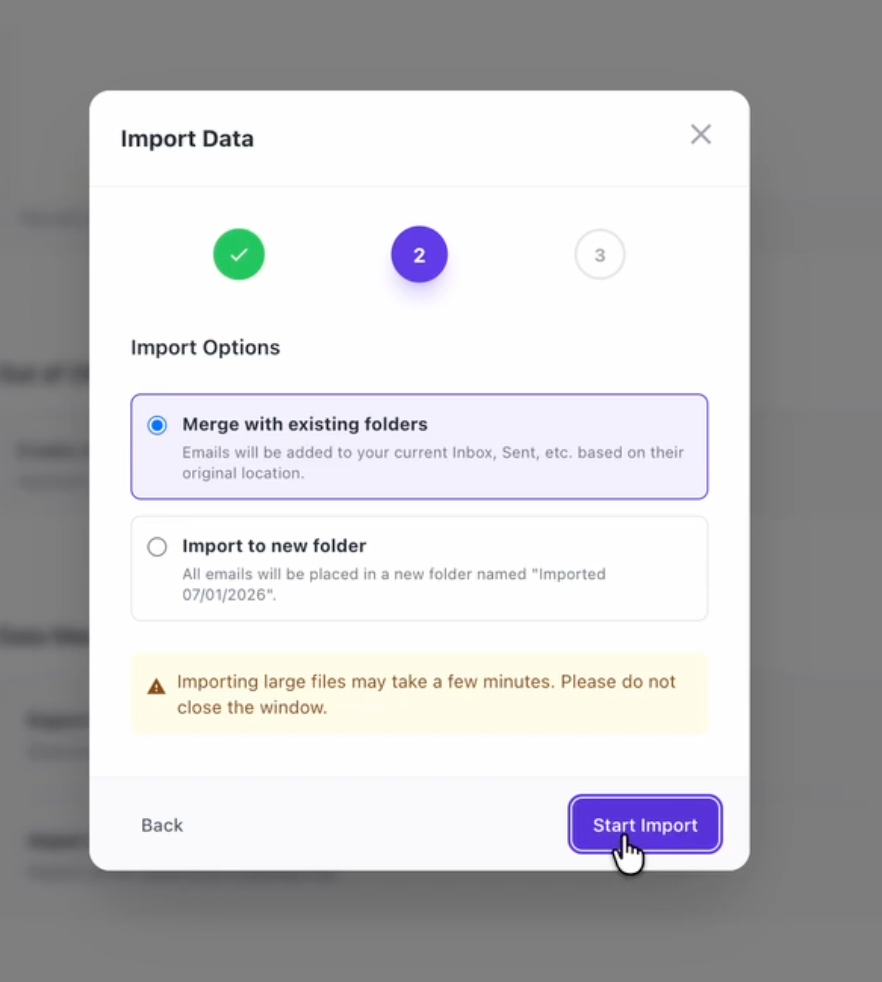
Import Data pop-up with options to merge with existing folders or import to a new folder, and a 'Start Import' button.

You can choose to "Merge with existing folders" or "Import to new folder". Select your preference and click "Start Import". 
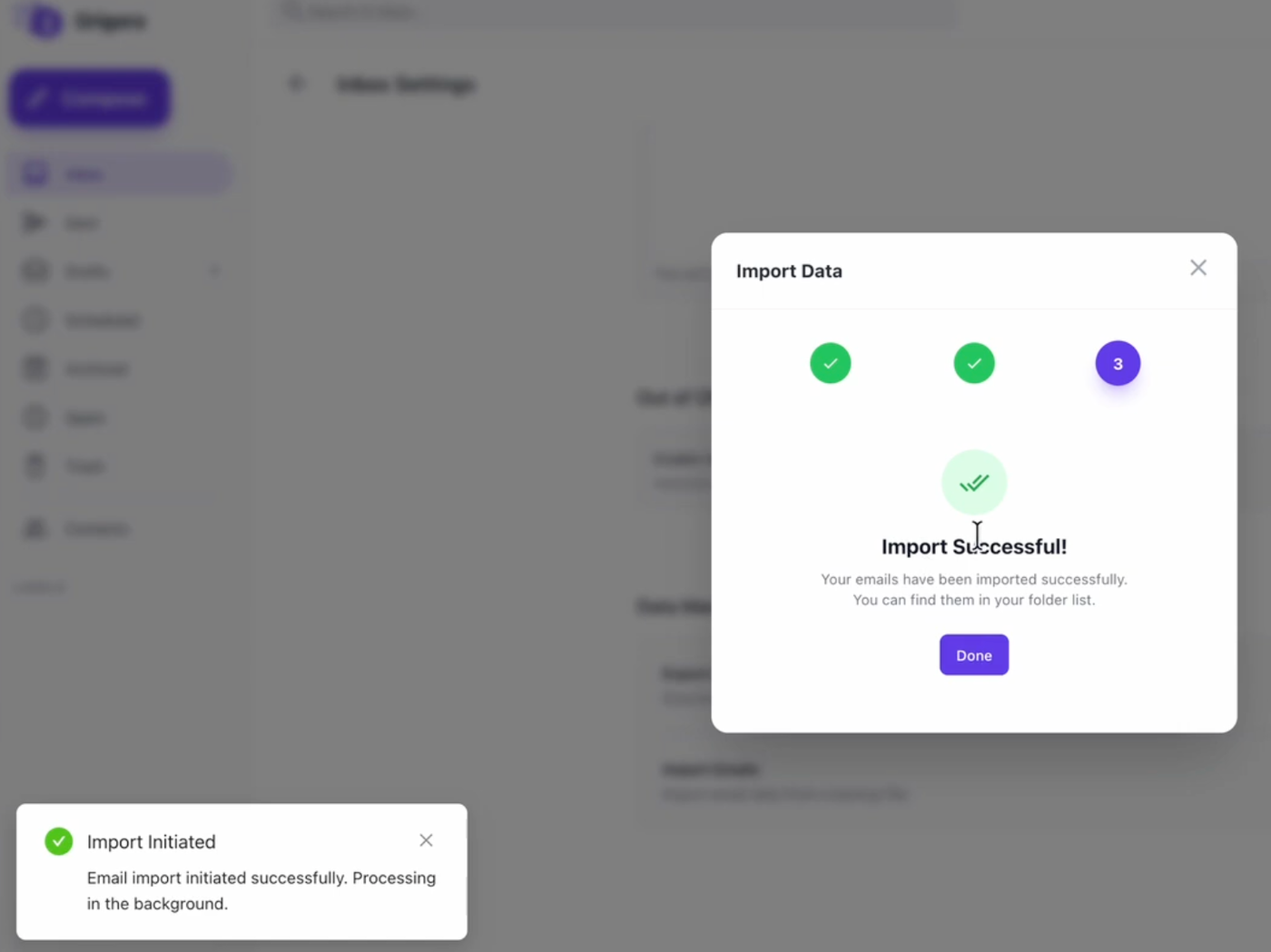
An 'Import Data' modal showing 'Import Successful' with a checkmark, and a 'Done' button. Email import initiated.

Once the process is complete, you will see a success message.

That’s it, you’ve successfully migrated your emails from Outlook to Grigora Mail.


Was this article helpful?