

Learn how to efficiently communicate with multiple contacts at once by sending emails to your created groups. This guide will show you two simple methods to dispatch messages to an entire list directly from your Grigora Mail interface.
Method 1: Using the Compose Window
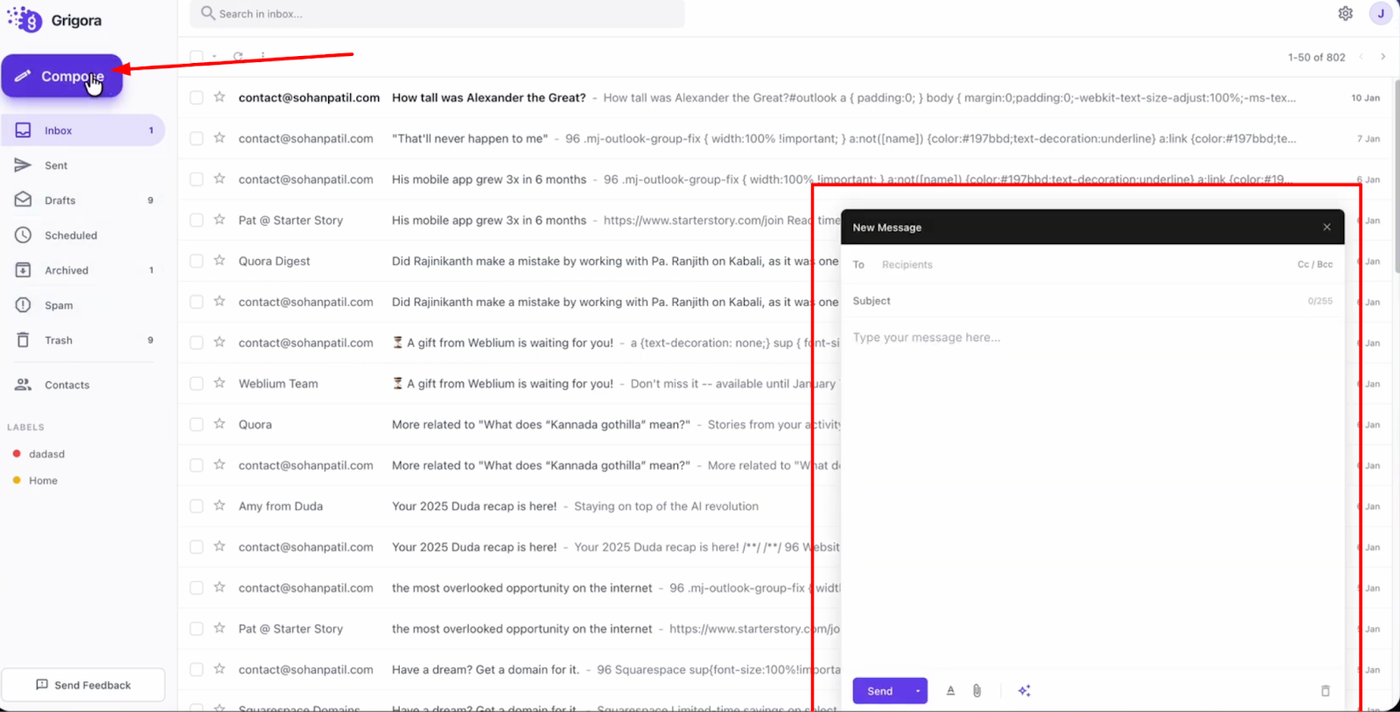
Log into Grigora Mail and click on the "Compose" button in the left sidebar to start a new message.
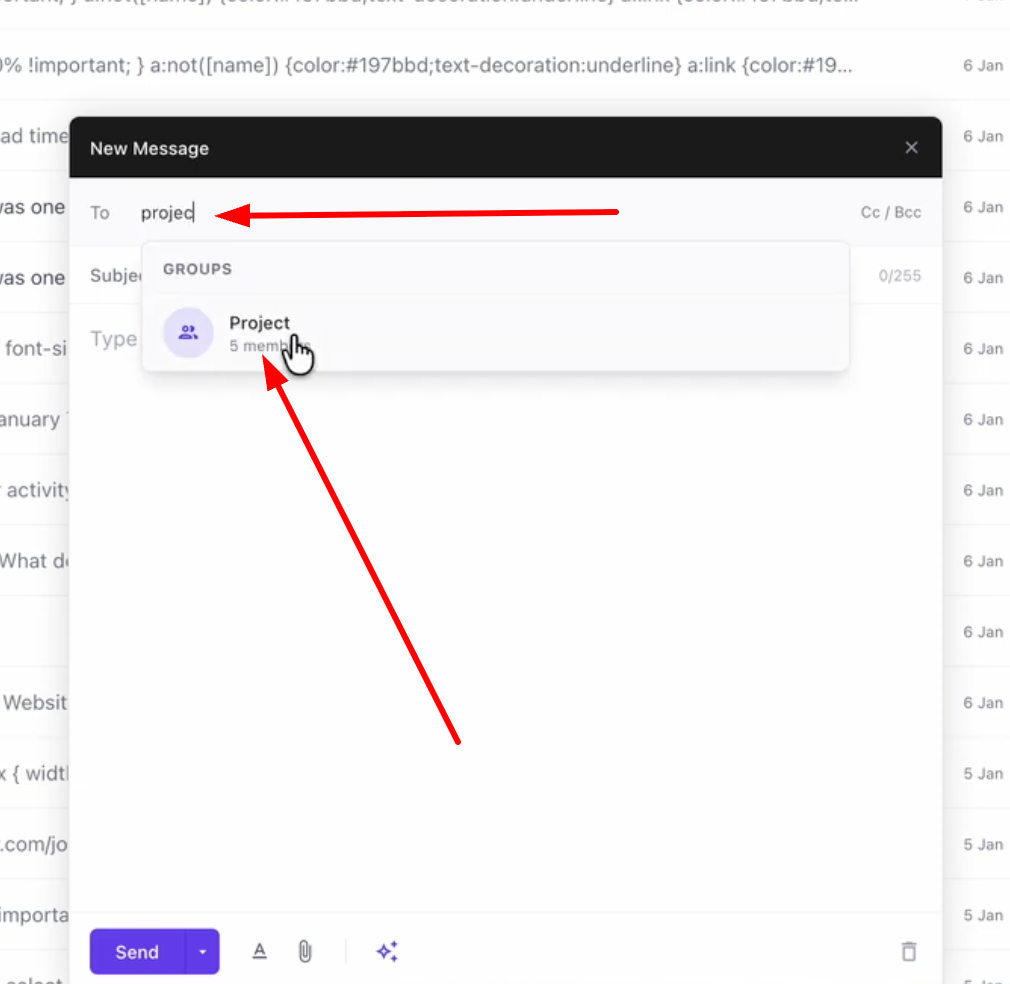
In the recipient field, simply start typing the name of your group.
Your created group will appear in the suggestions list; select it to automatically add all group members as recipients for your email.
Method 2: Sending from Contacts
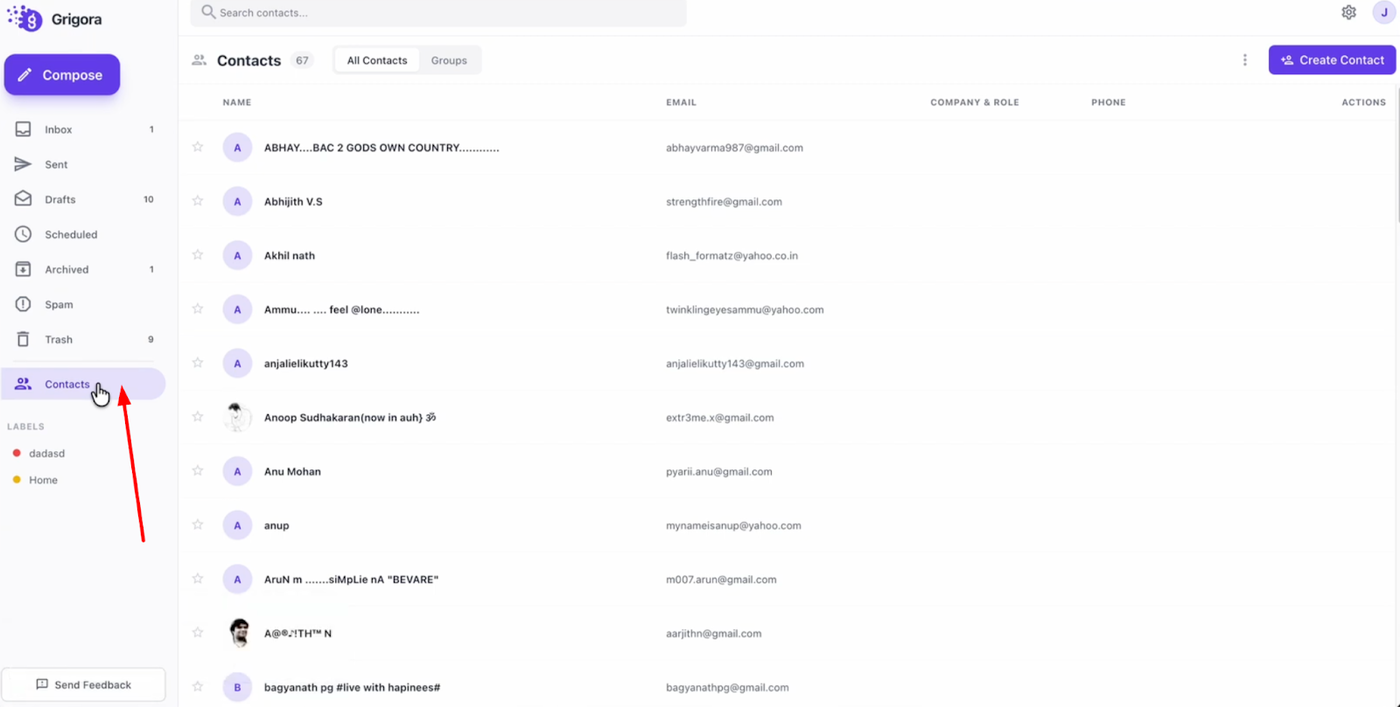
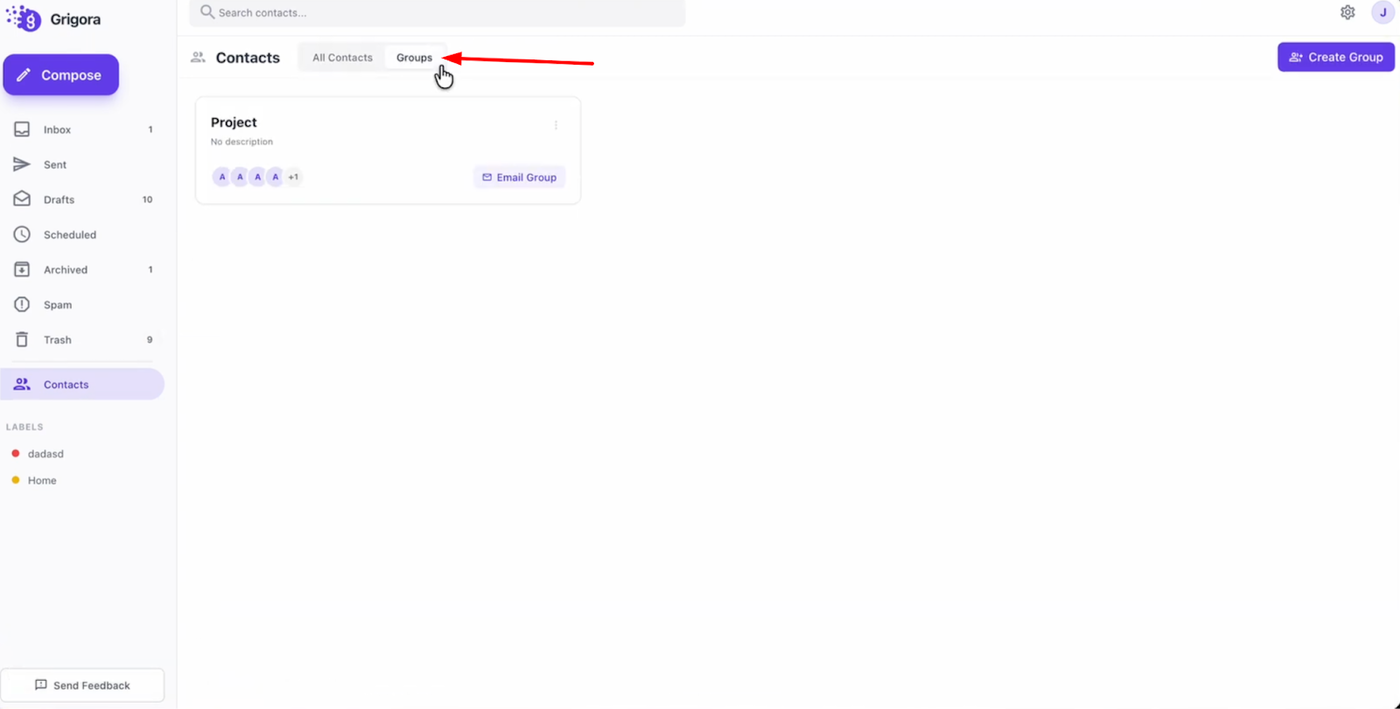
Navigate to the "Contacts" section and switch to the "Groups" tab.
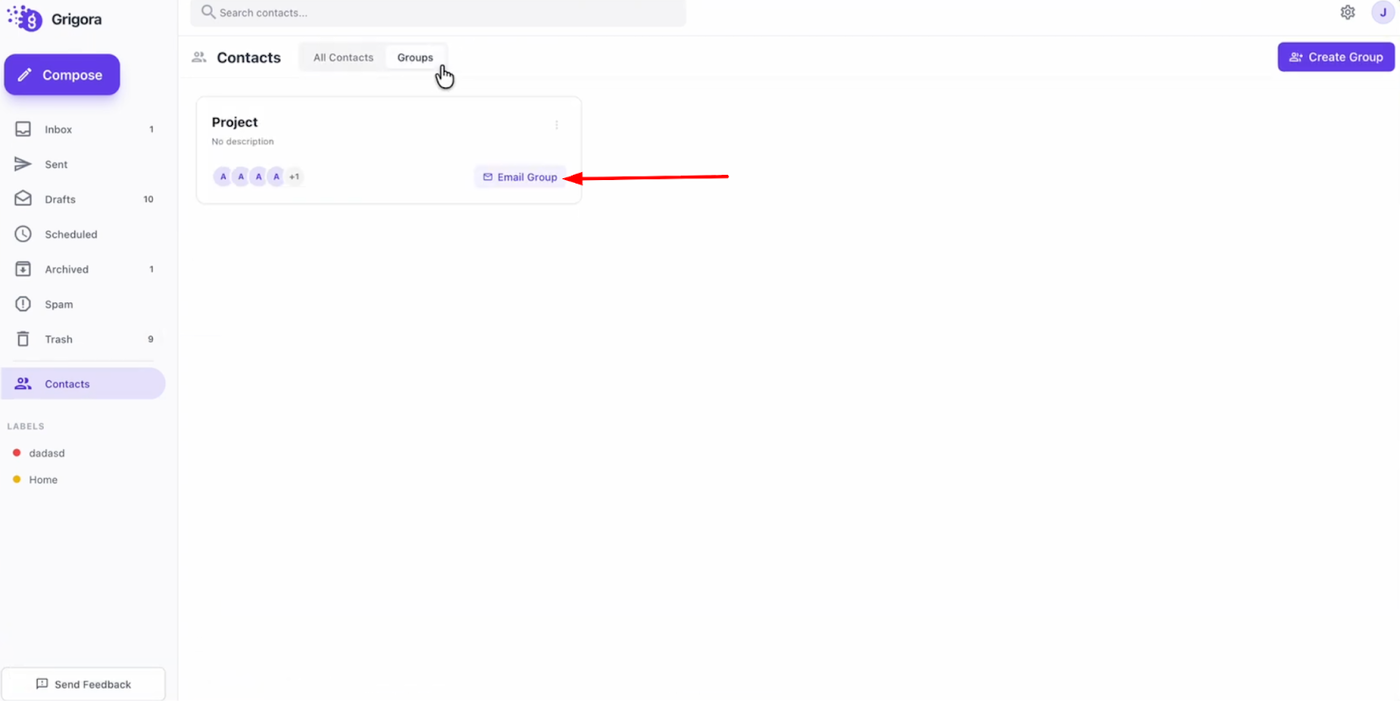
Locate the specific group you wish to contact and find the "Email group" button next to it.
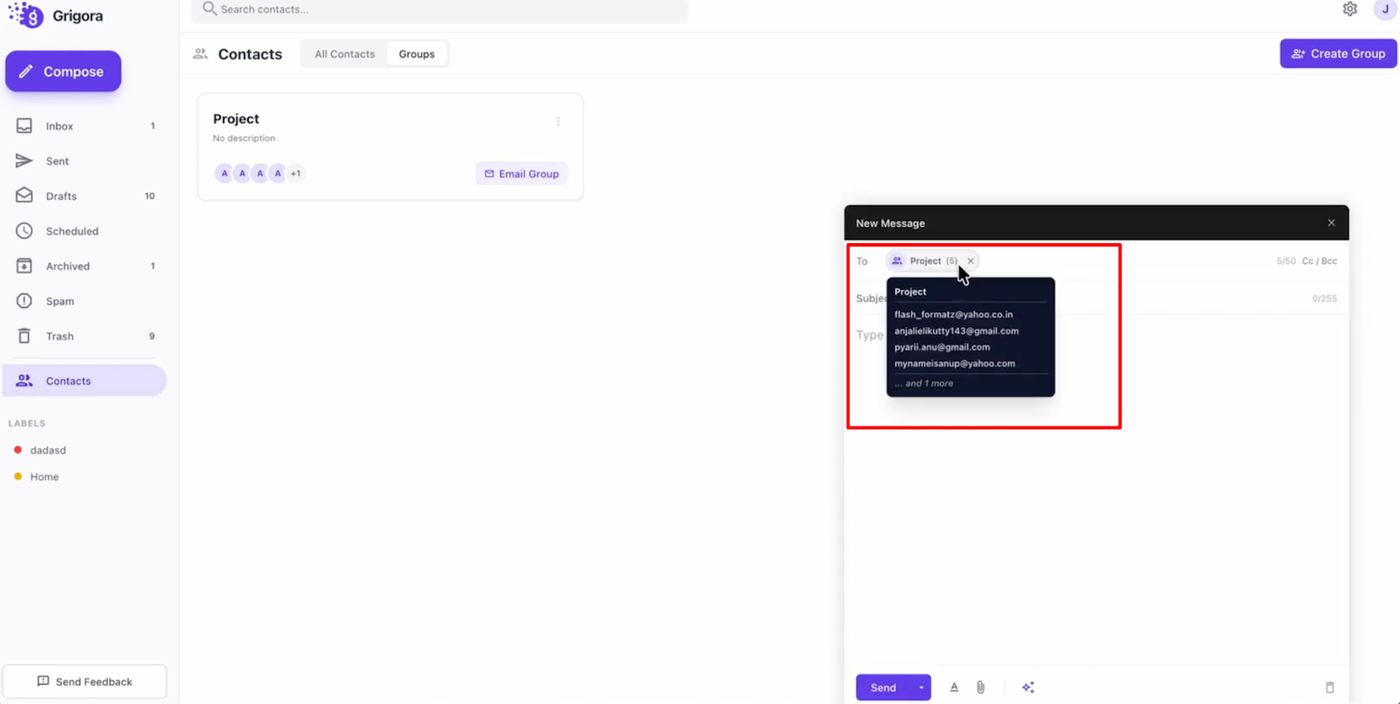
Clicking this button will instantly open a new compose window with that group already selected as the recipient. You can then enter your subject, type your message content, and hit "Send" to dispatch your email to the entire list.