

Learn how to compose and send professional emails directly from your Grigora Mail interface. This guide shows you how to access your inbox, utilize AI tools for subject lines and drafting, and send polished communications effortlessly.
Accessing Your Inbox
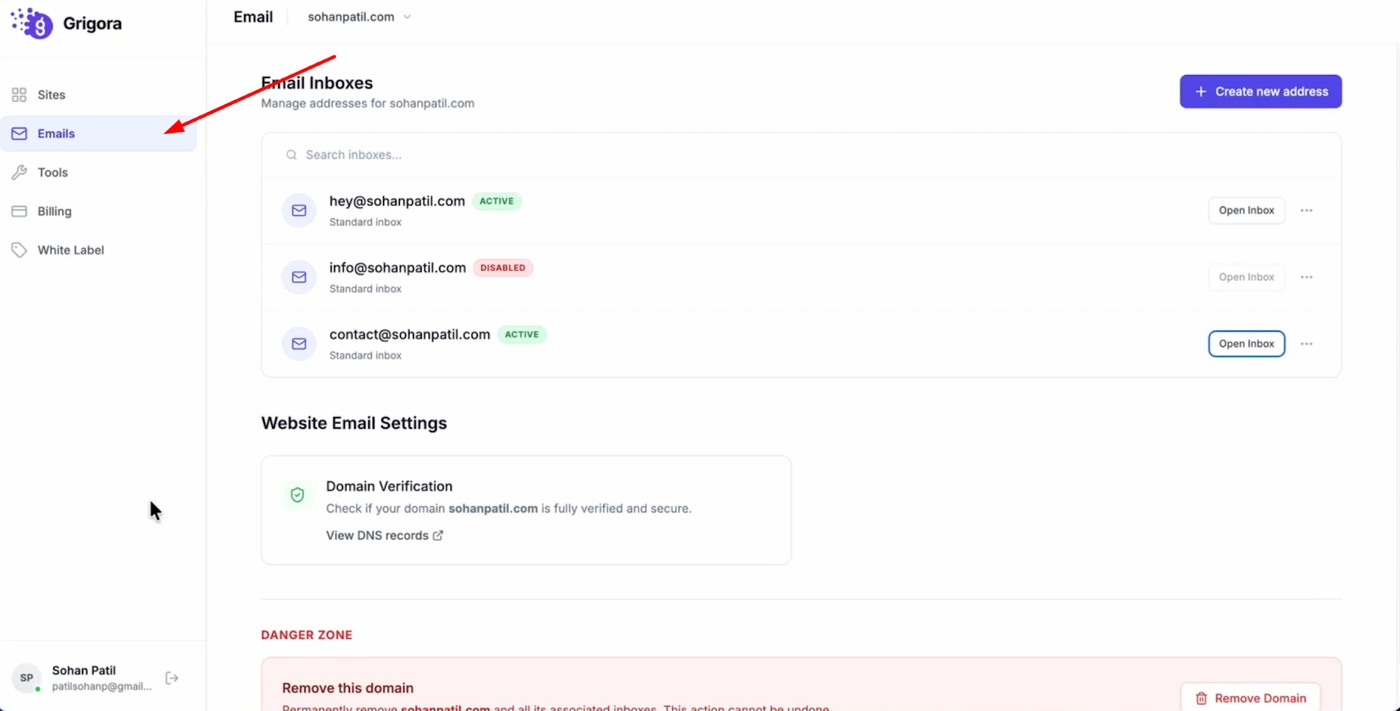
Log into your Grigora account and click on the "Emails" section from the dashboard.
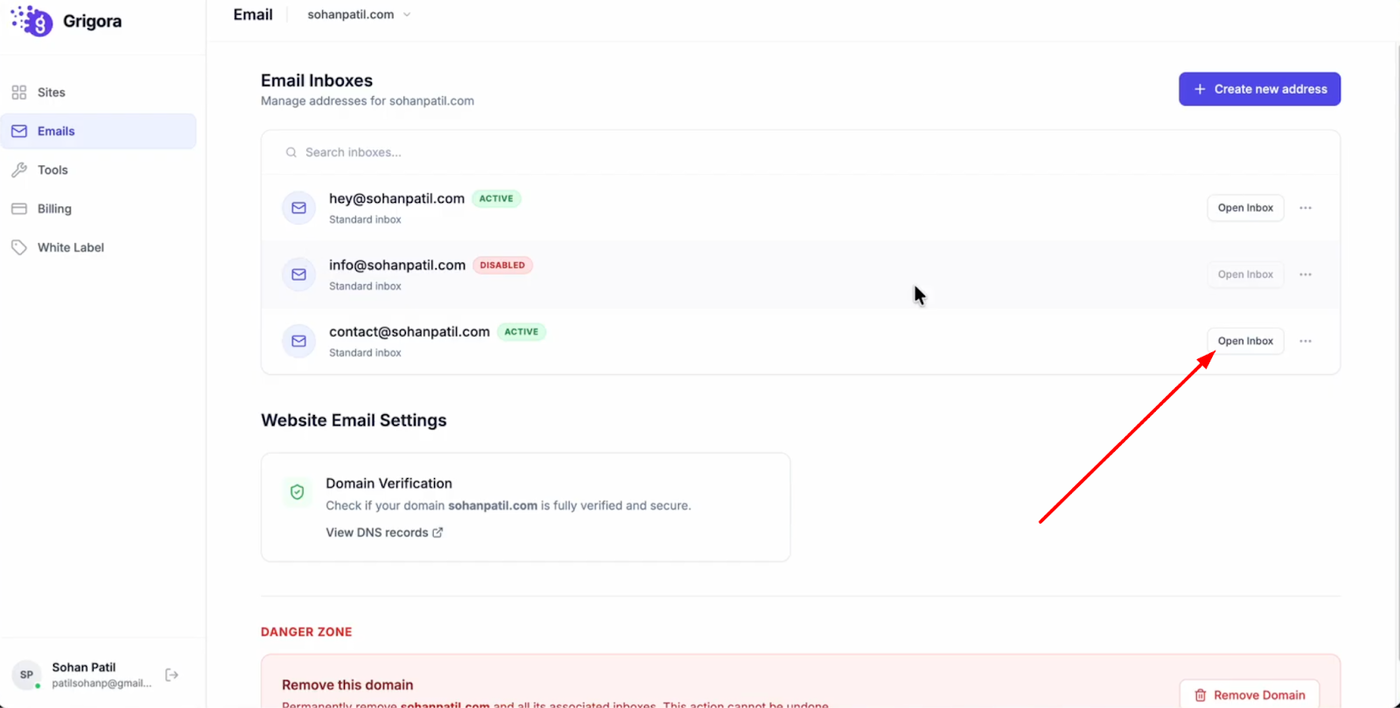
You will see a list of your created inboxes; select the one you wish to use and click "Open inbox" to launch the Grigora Mail interface and login with your credentials.
Composing Your Message
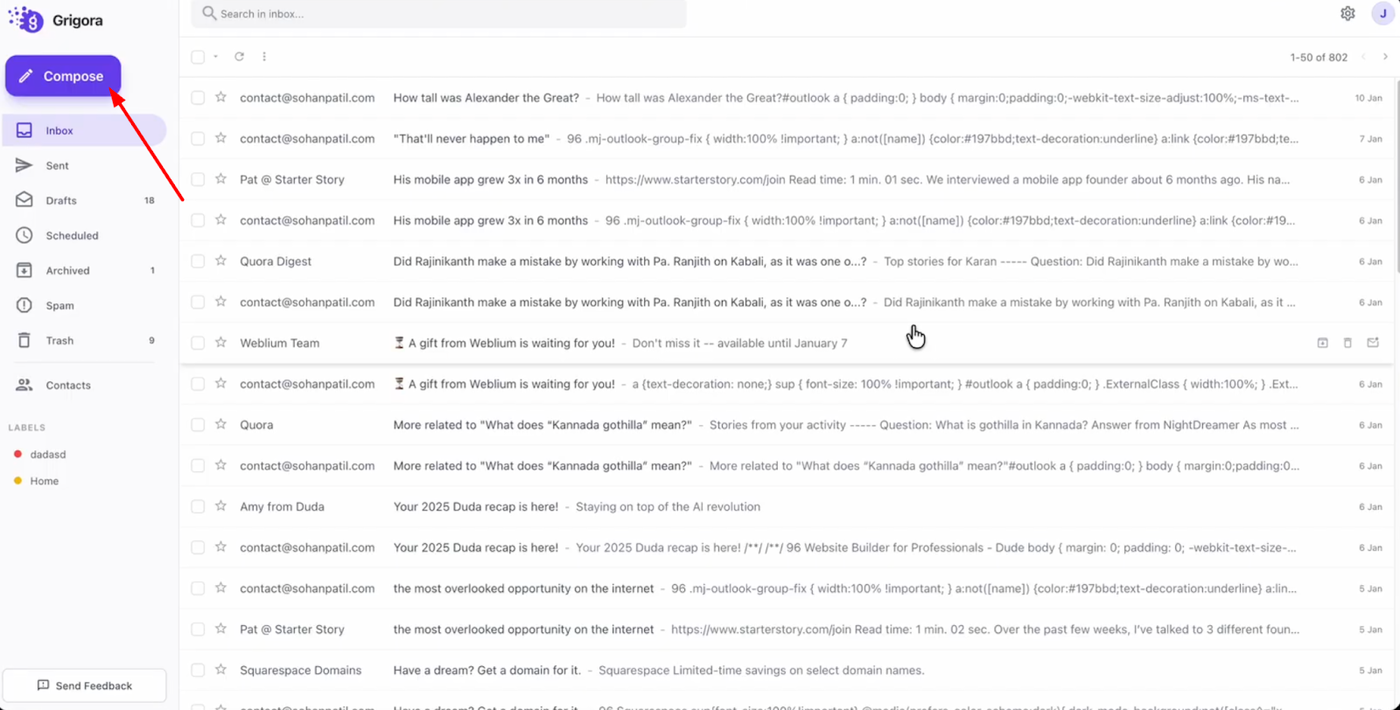
Click the "Compose" button located in the left sidebar to start a new email.
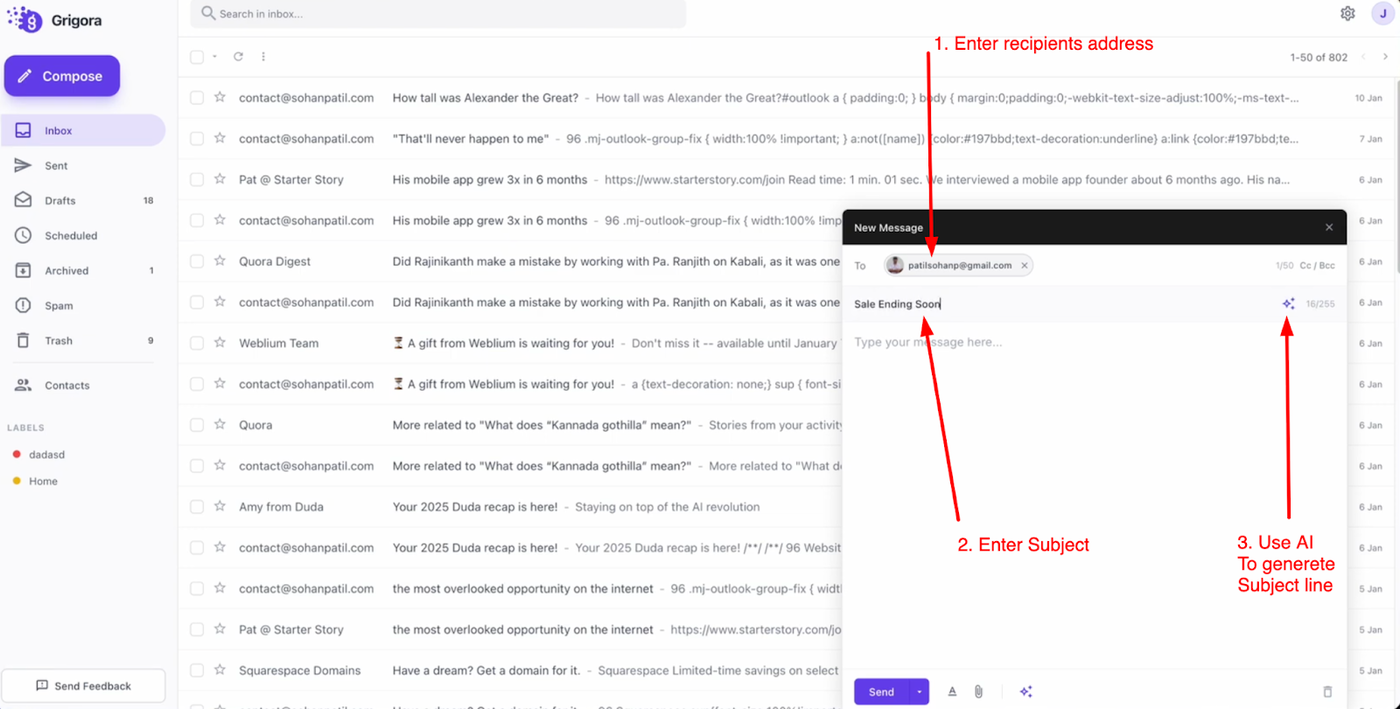
Enter the recipient's email address in the "To" field. For the subject line, you can type one manually or use the AI option to automatically generate a subject line for you.
Using AI Writing Tools and Sending
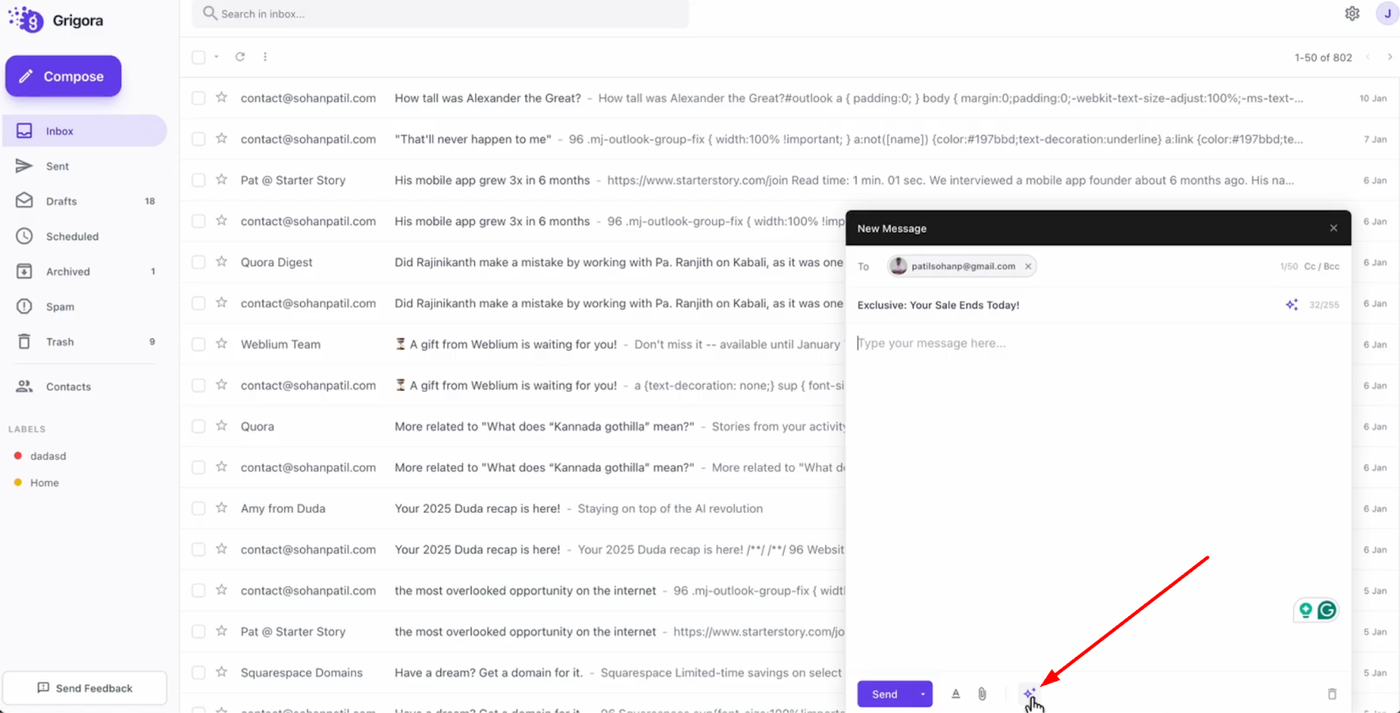
To write your message, click the AI button at the bottom of the email editor.
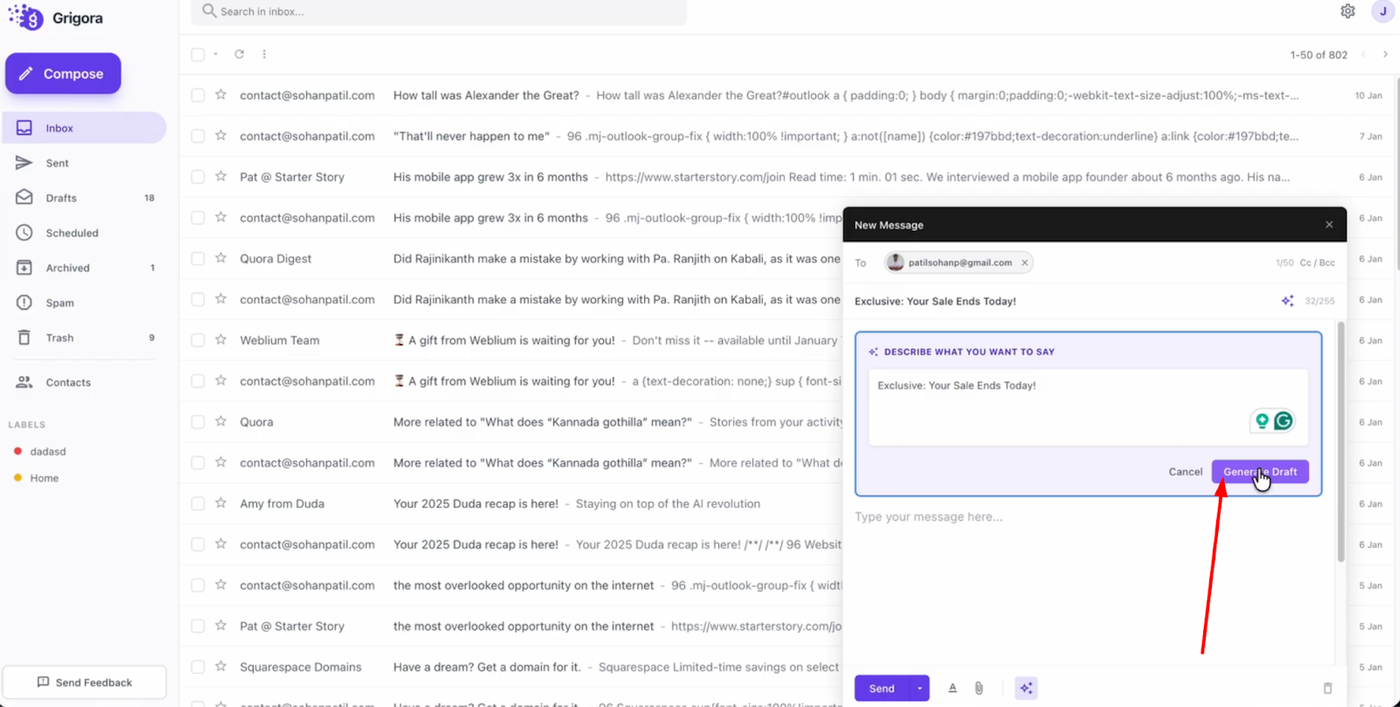
Describe what you want to communicate, click "Generate draft," and the AI will create the email content for you.
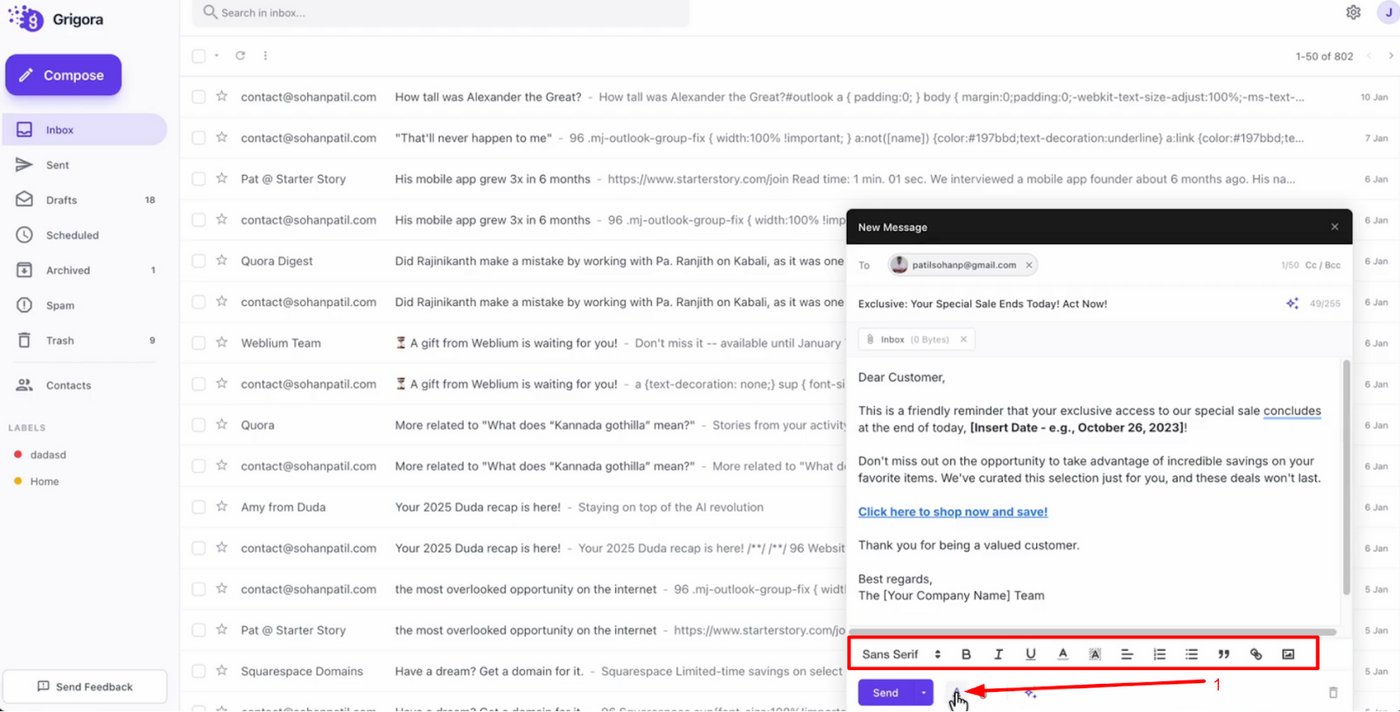
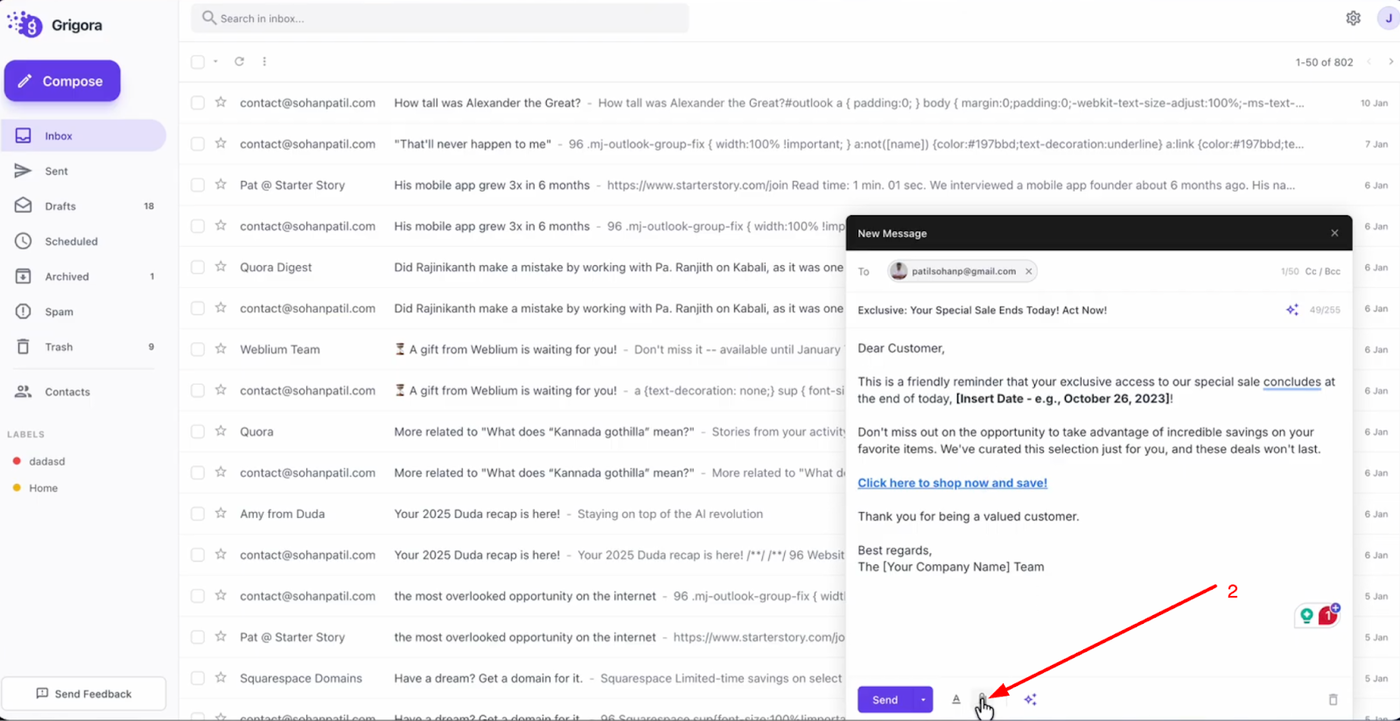
You can style your text using the formatting options next to the send button (such as bold or italics) and attach files by clicking the attachment icon.

Once your email is ready, simply click "Send" to send your message.