

Learn how to automatically respond to incoming emails when you are unavailable. This guide will show you how to enable and configure your out-of-office auto-reply, ensuring senders are informed of your absence and return date without you needing to manually check your inbox.
Enabling Auto-Reply
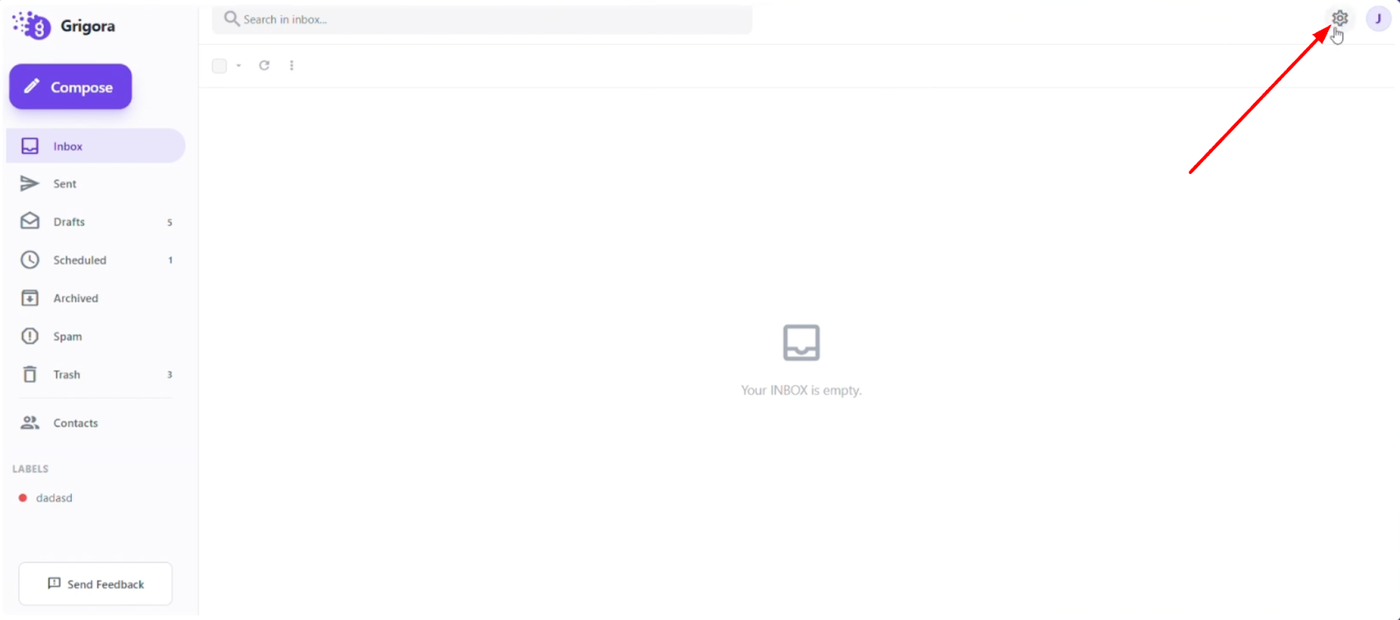
Click the "Settings" icon located at the top of your Grigora email page.
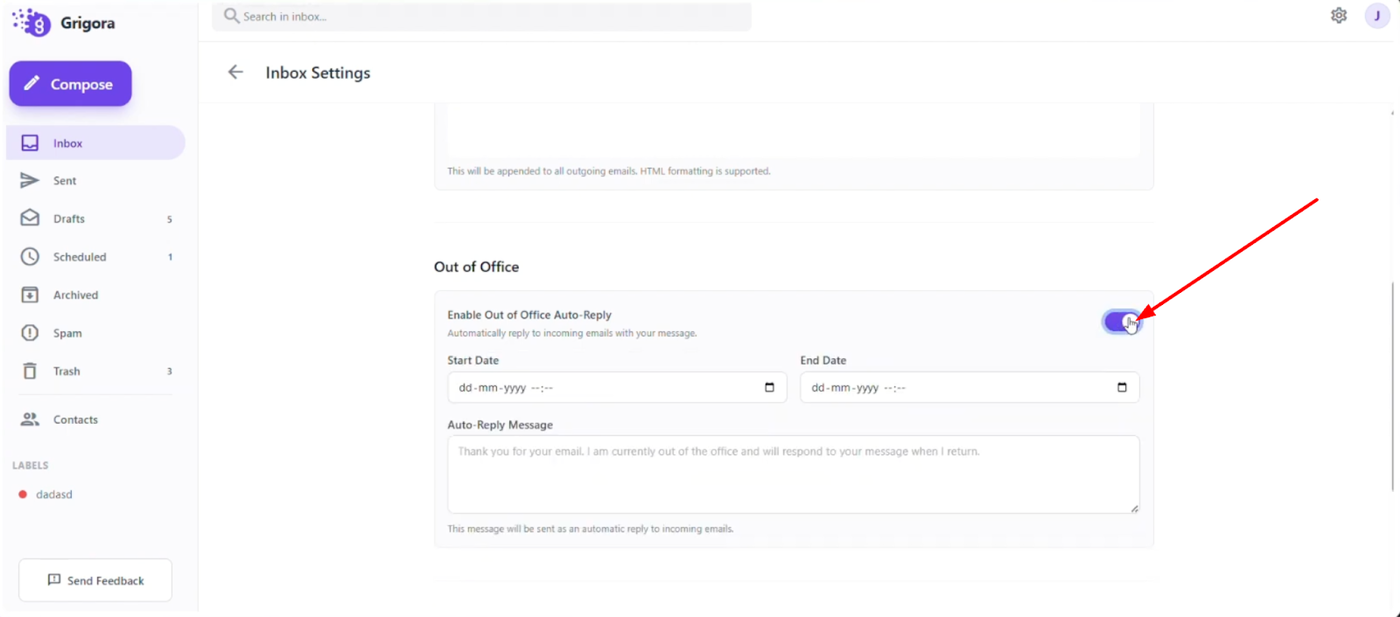
Scroll down the settings menu until you find the "Enable out of office auto reply" toggle. Switch this toggle on to activate the feature.
Configuring Date and Time
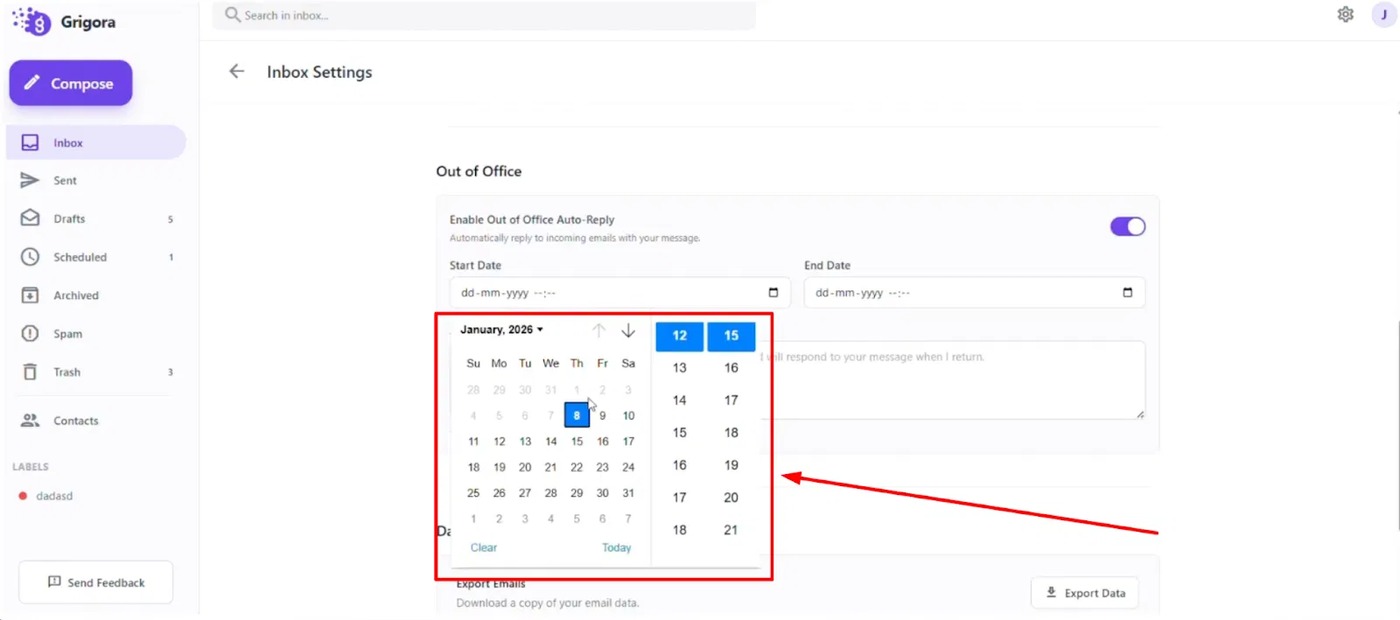
Set your "Start date" to define when the auto-reply should begin.
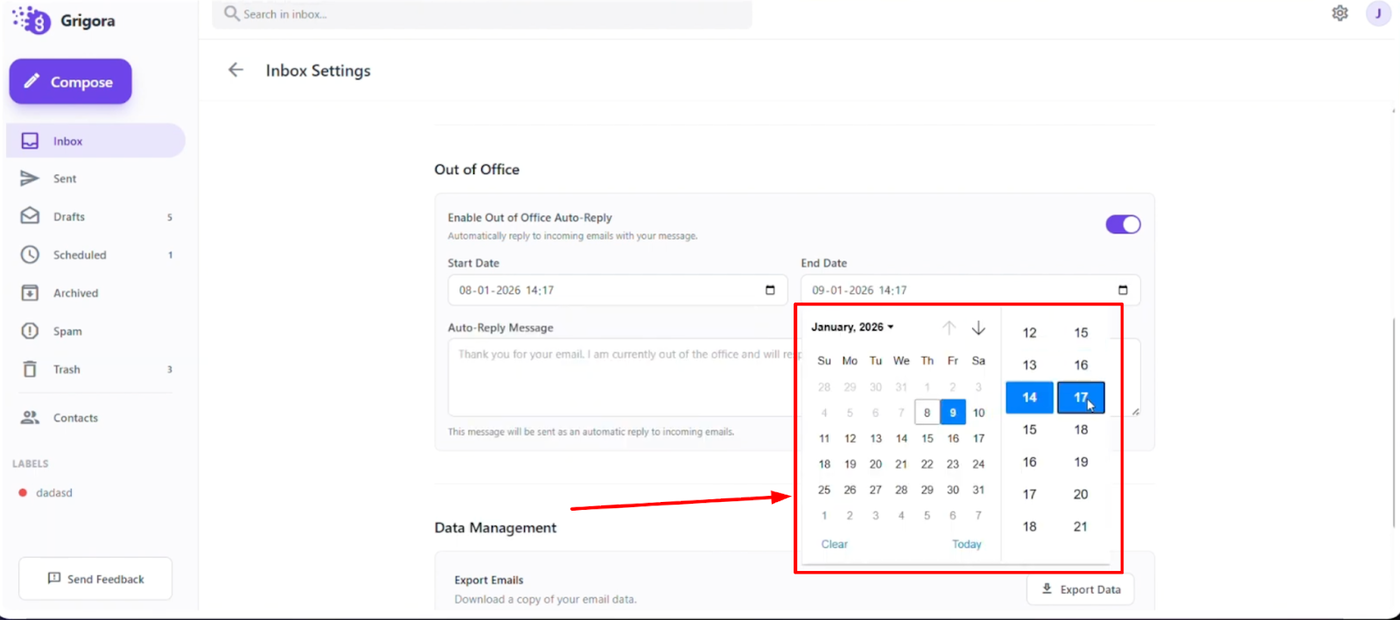
Then, set the "End date" to determine when the auto-reply will automatically stop sending.
Creating Your Message
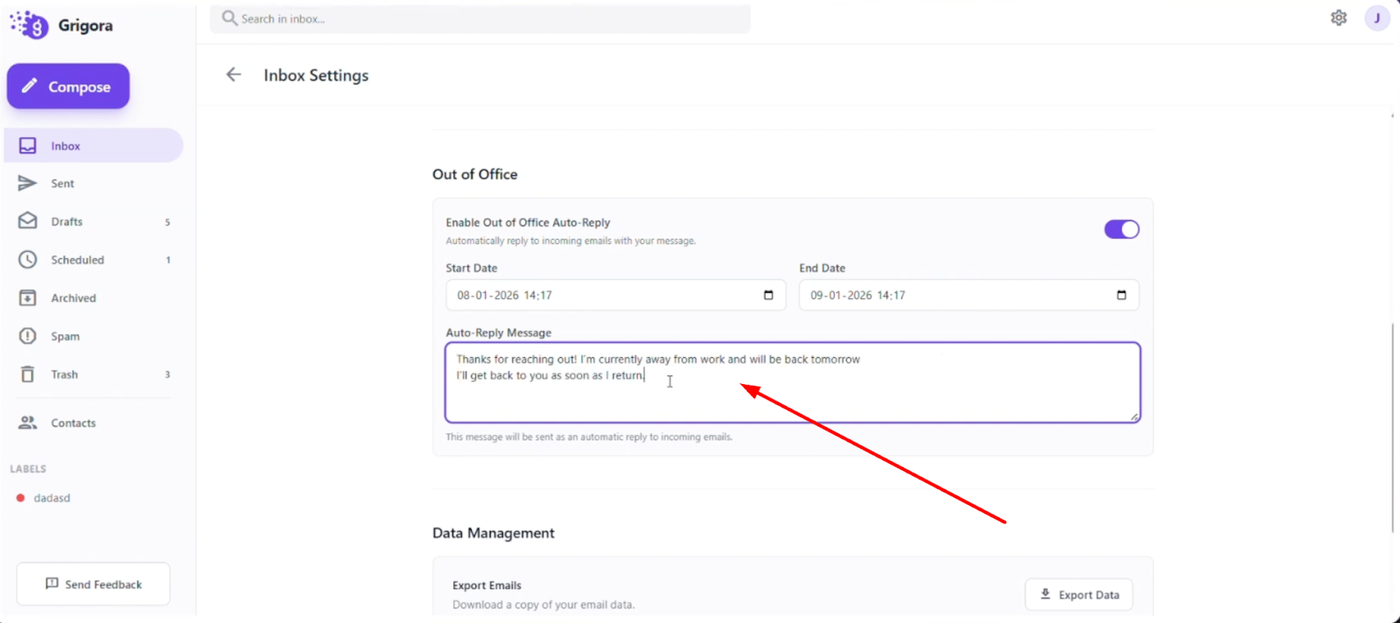
In the "Auto reply message" field, type your custom response.
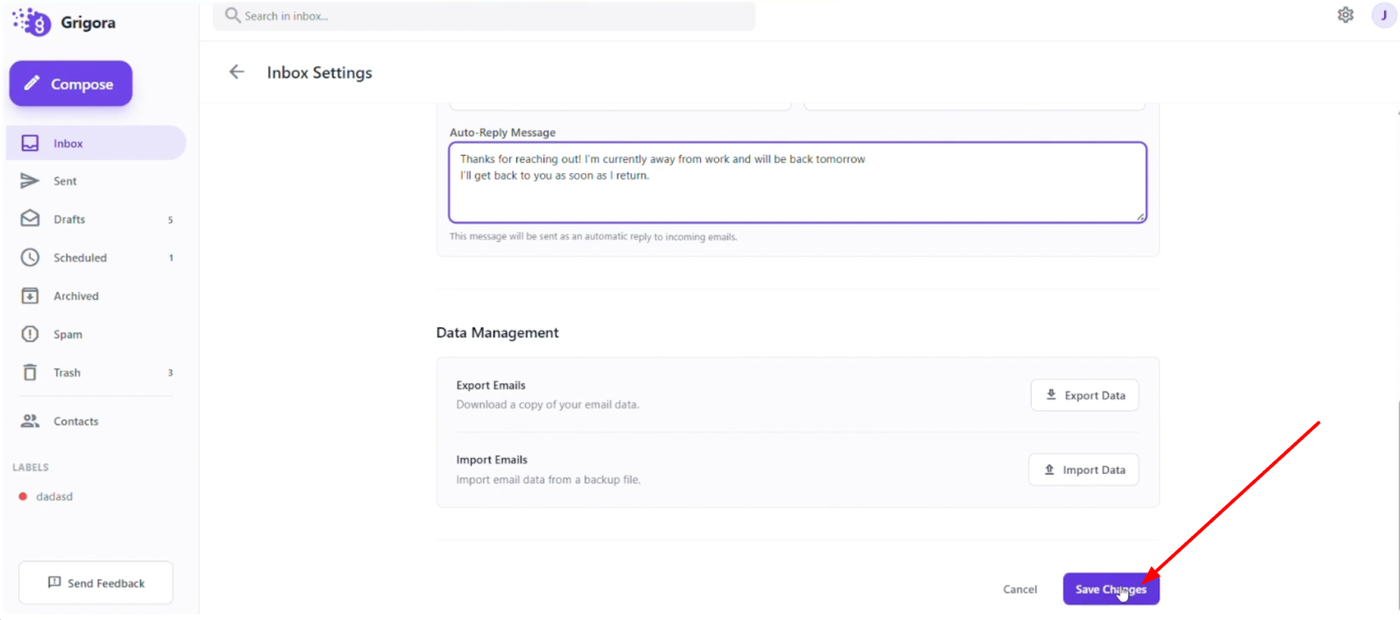
Once you have crafted your message, click "Save changes" at the bottom of the page to finalize your setup. Any emails received during your specified period will now automatically receive this reply.