

Learn how to leverage AI to instantly draft professional and contextual email responses. This guide shows you how to generate replies based on incoming messages, refine the tone and style, and edit the final draft before sending, saving you time and effort.
Generating an AI Draft
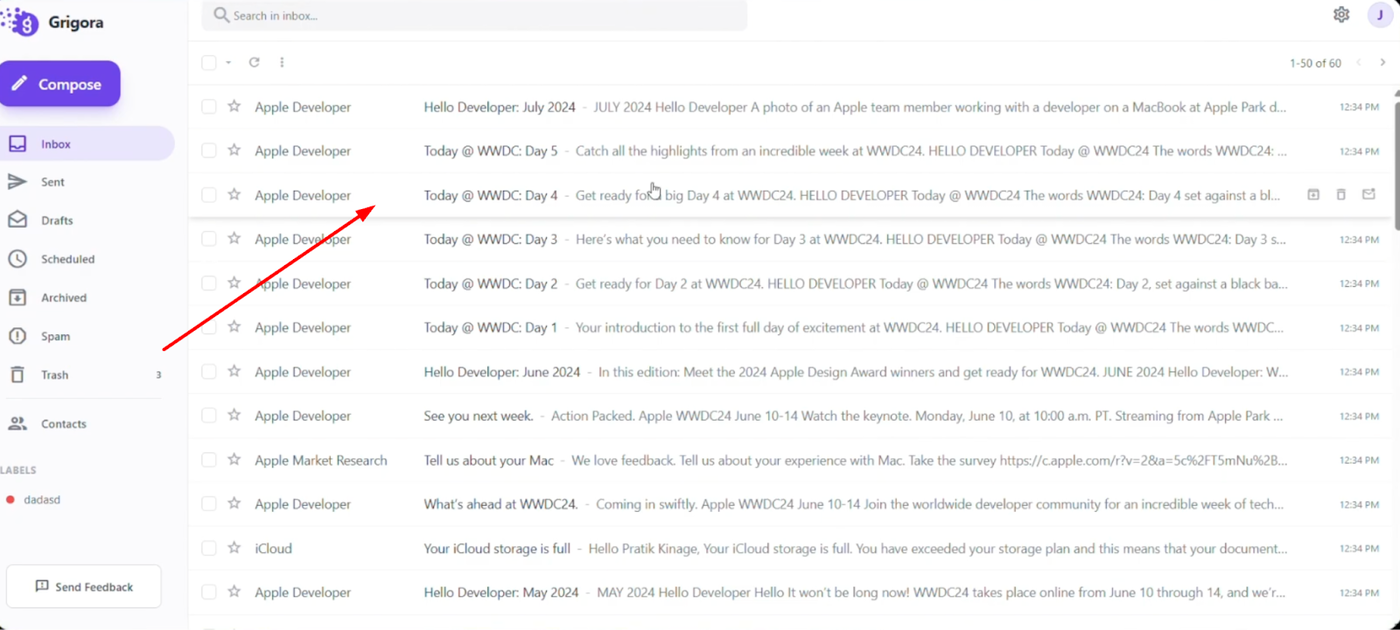
Open your inbox and select the email you wish to reply to.
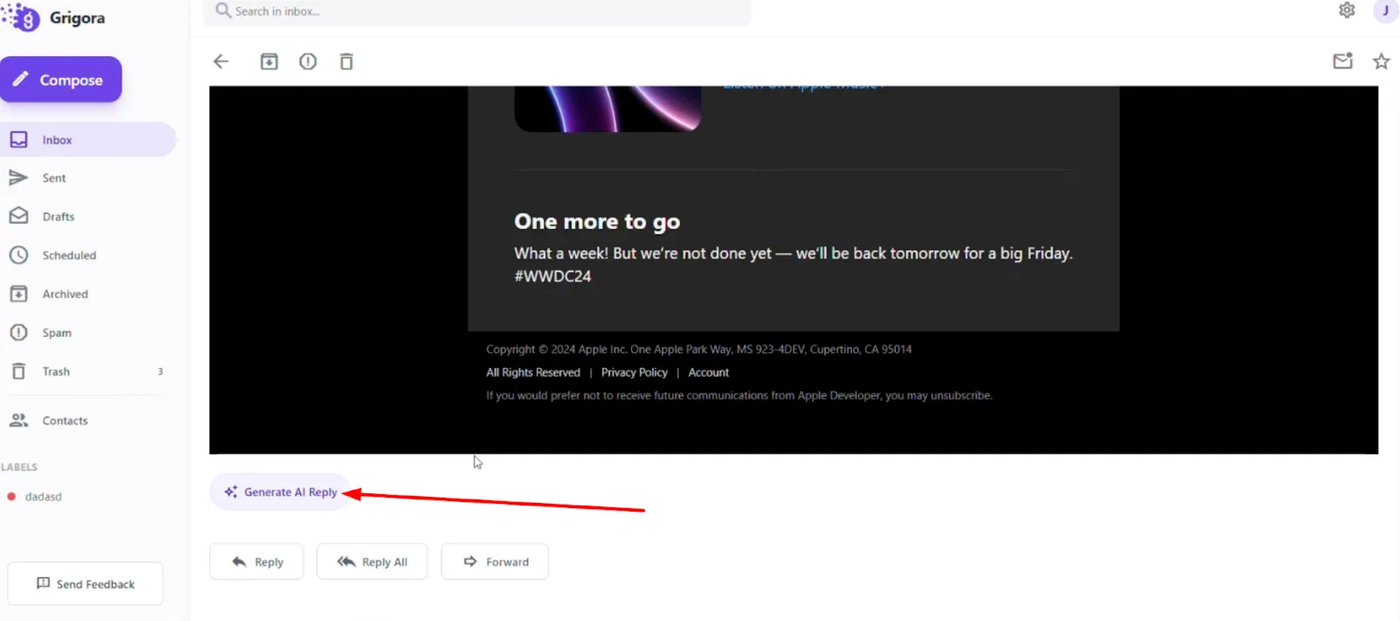
At the bottom of the email, click the "Generate AI reply" button.
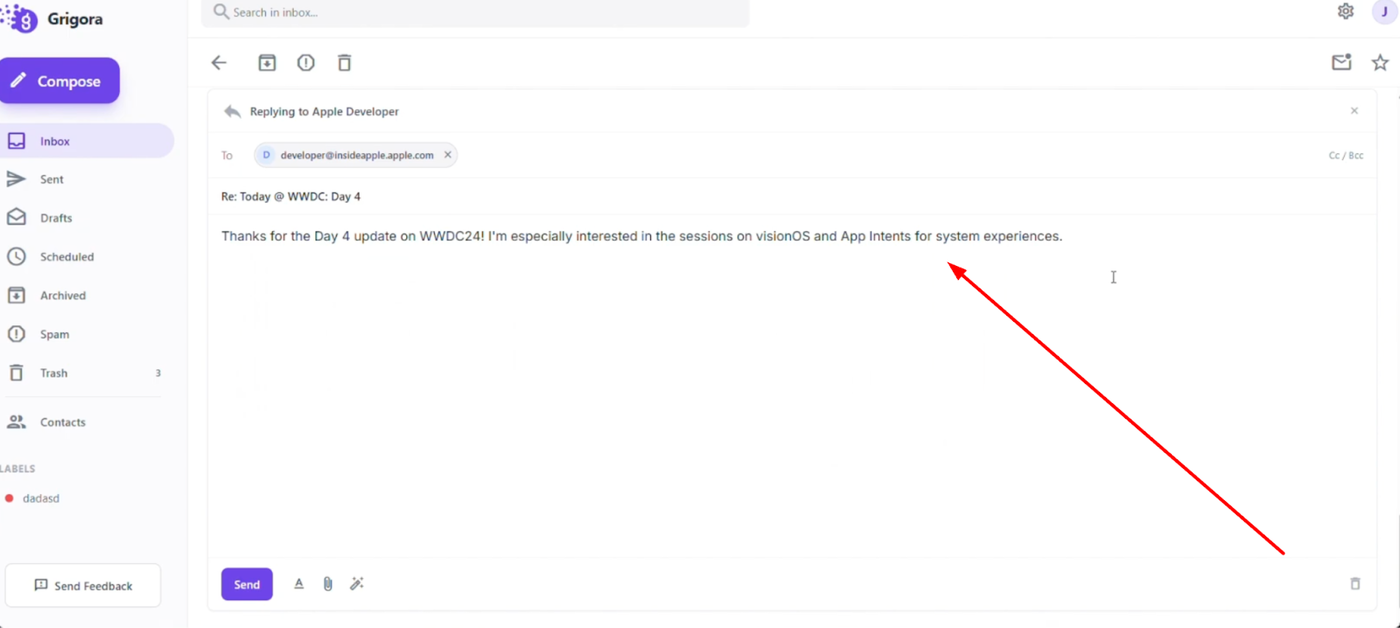
The system will analyze the email content and instantly create a customized draft response for you.
Refining and Editing
Review the generated text directly in the editor to make any necessary changes to wording or details.
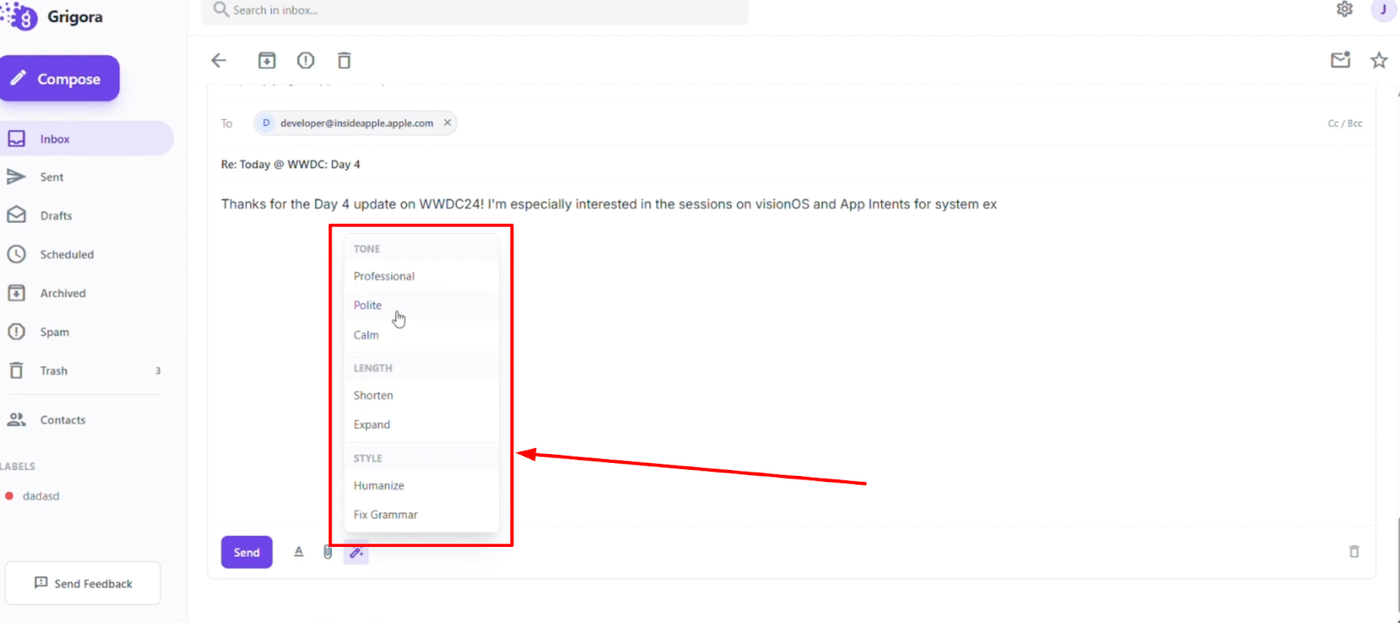
You can use the "AI" option to regenerate the response in different tones (such as formal or casual) or lengths (short, medium, or long).
Preview the different versions until you find the one that fits your needs.
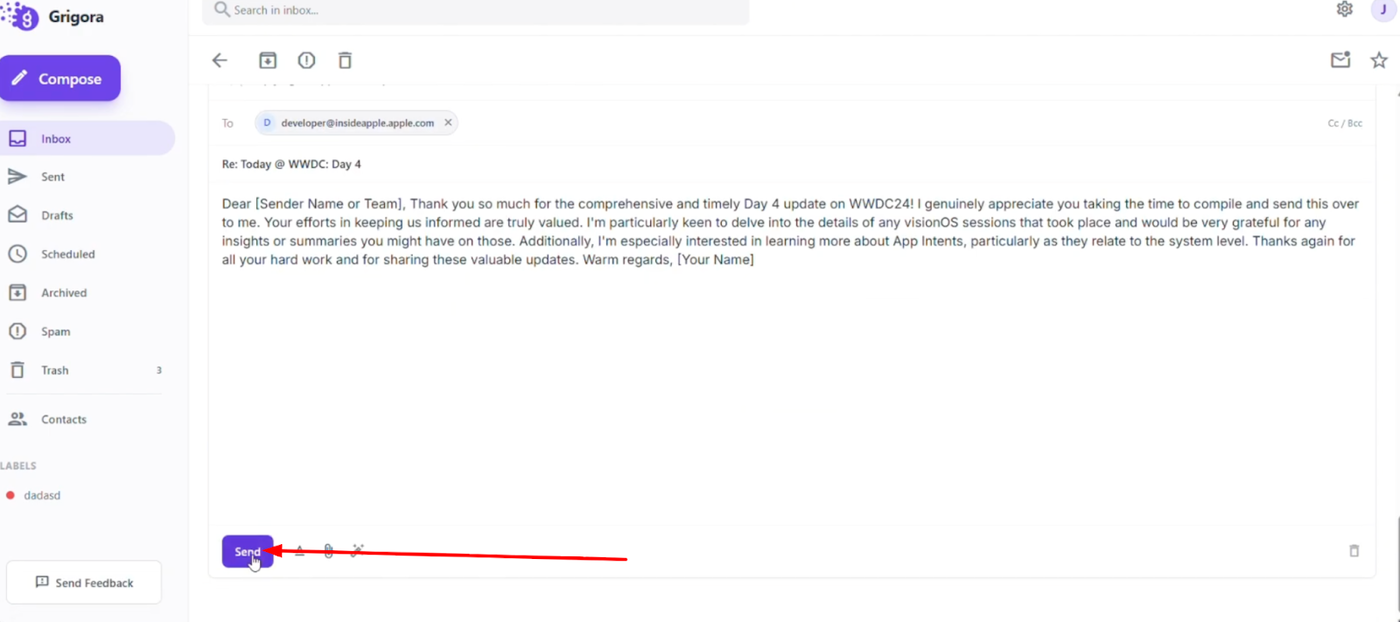
Once you are satisfied with the message, manually click "Send" to dispatch your AI-assisted reply.