

Grigora's Keyword Research Tool helps you discover keyword opportunities using search volume, competition, CPC, and opportunity data. You can research keywords for a specific location and language, explore the results through visual insights and detailed tables, save promising keywords, and use them to create blog outlines or complete posts with AI. (Grigora)
Access the Keyword Research Tool
Step 1: Open Keyword Research
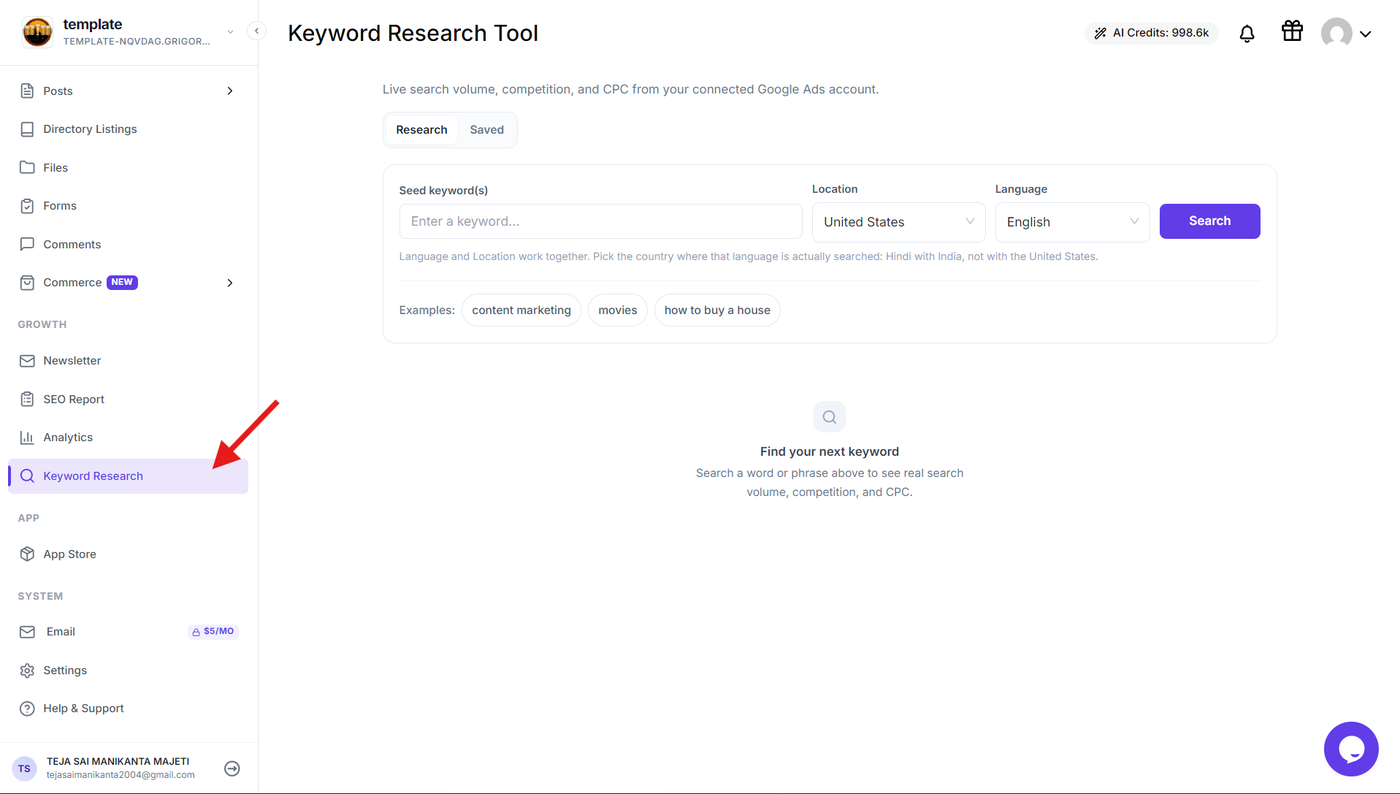
From your Grigora dashboard, click Keyword Research from the sidebar.
The tool opens with two tabs: Research for discovering new keywords and Saved for managing keywords you have previously saved.
Search for Keywords
Step 2: Enter your seed keyword
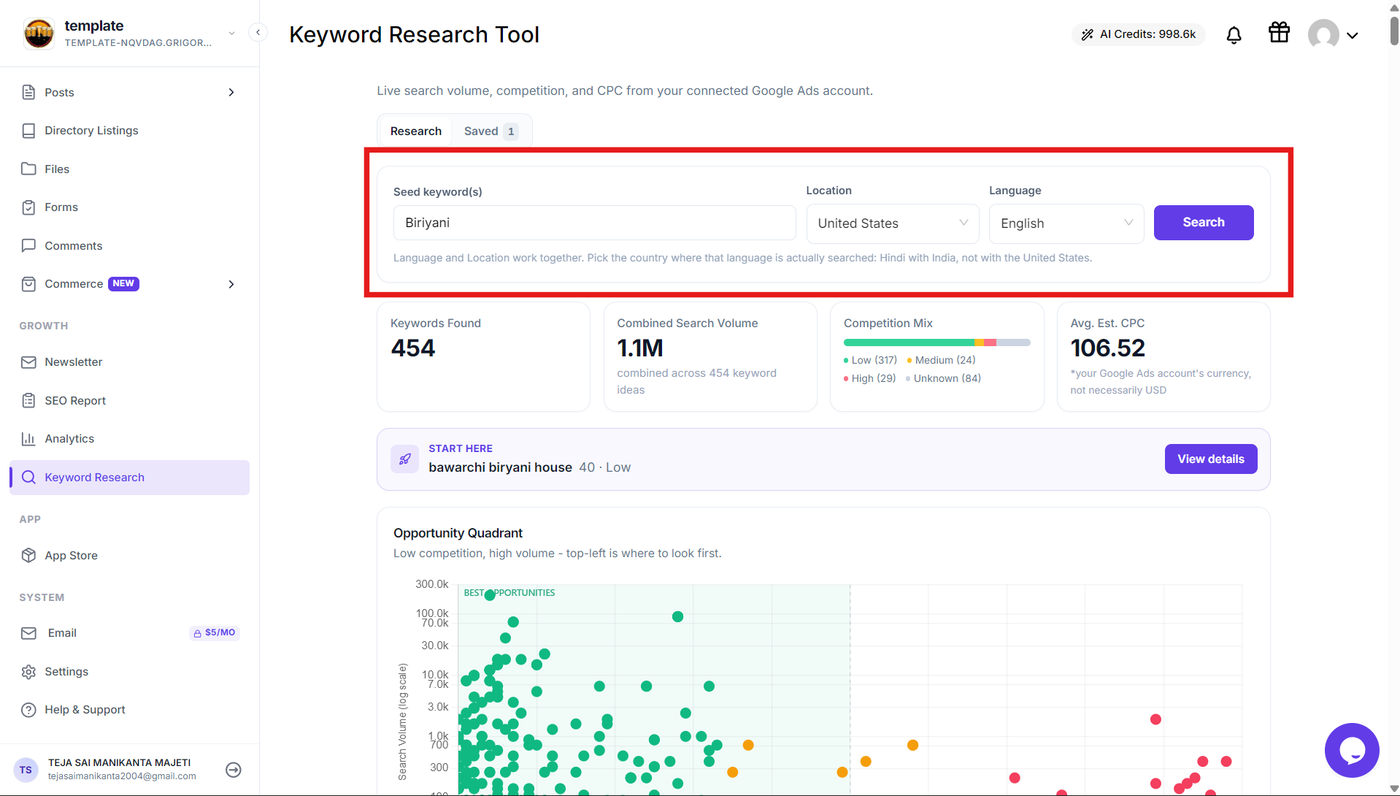
Enter your main topic or seed keyword in the Seed keyword(s) field.
For example, enter Biryani to discover related search terms.
Select the Location where you want to research search behavior and choose the appropriate Language.
Note: The selected language and location work together. Choose the country where the selected language is actually searched to get relevant keyword data.
Click Search to generate the keyword research results.
Understand the Keyword Overview
Step 3: Review the keyword overview
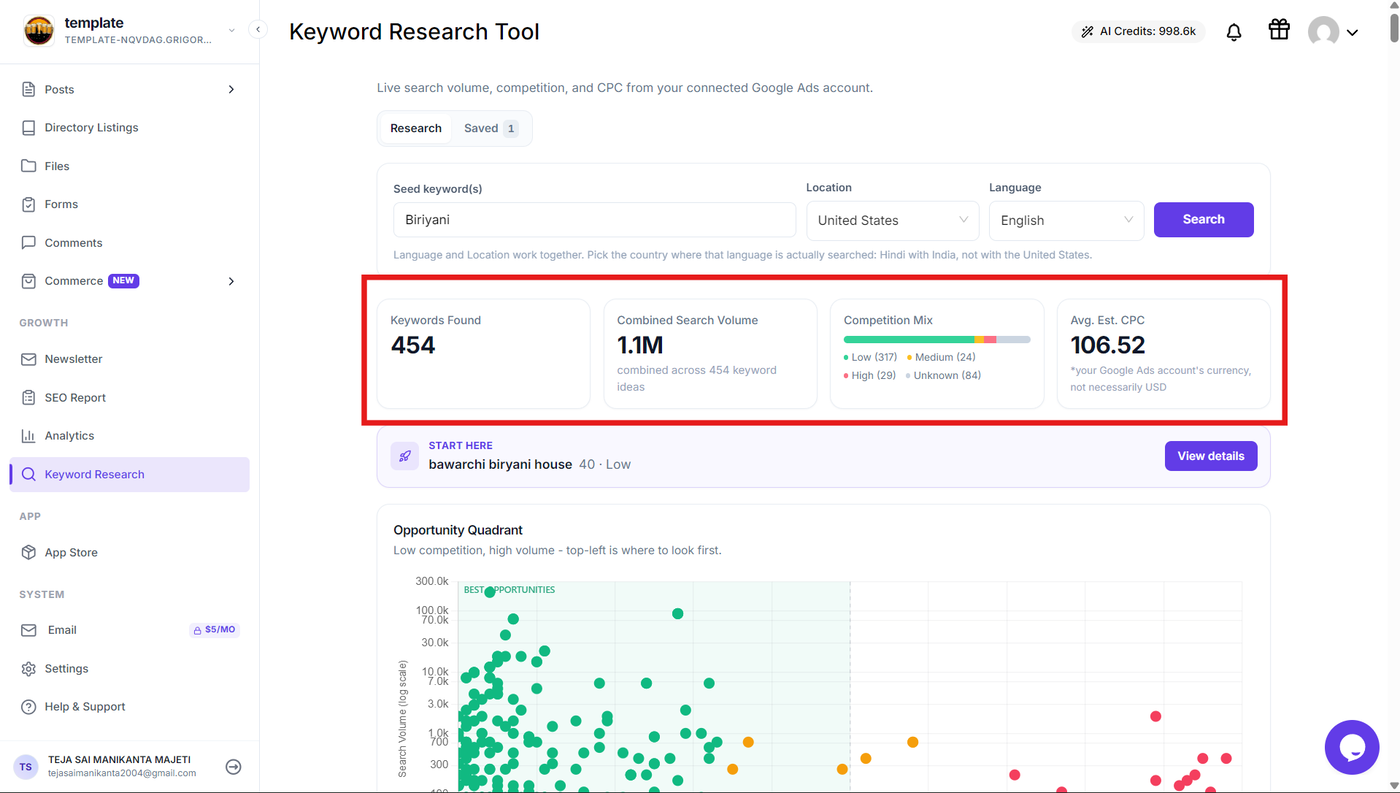
After the search is completed, Grigora displays an overview of the research results.
Review the key metrics shown at the top:
Keywords Found – Total number of keyword ideas discovered.
Combined Search Volume – Combined search volume across the discovered keywords.
Competition Mix – Distribution of keywords across low, medium, high, and unknown competition.
Avg. Est. CPC – Average estimated cost per click based on the connected Google Ads account and its currency.
These metrics give you a quick understanding of the overall search opportunity for your seed keyword.
Explore Keyword Opportunities
Step 4: Analyze the Opportunity Quadrant
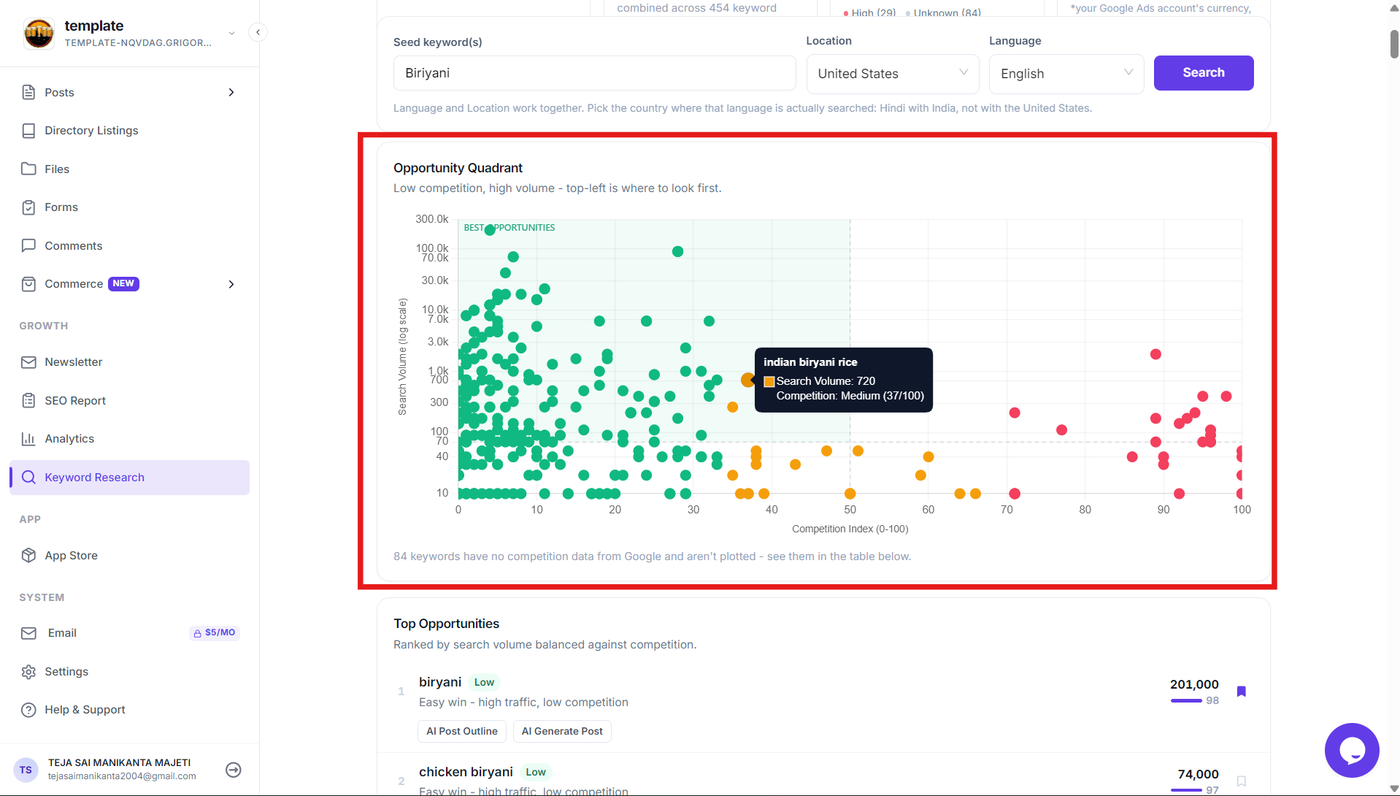
Scroll to the Opportunity Quadrant to visualize the discovered keywords based on search volume and competition.
The graph helps you identify keywords that combine higher search volume with lower competition, making them potential opportunities for your content strategy.
Use the graph to quickly identify promising keywords before reviewing the detailed keyword list.
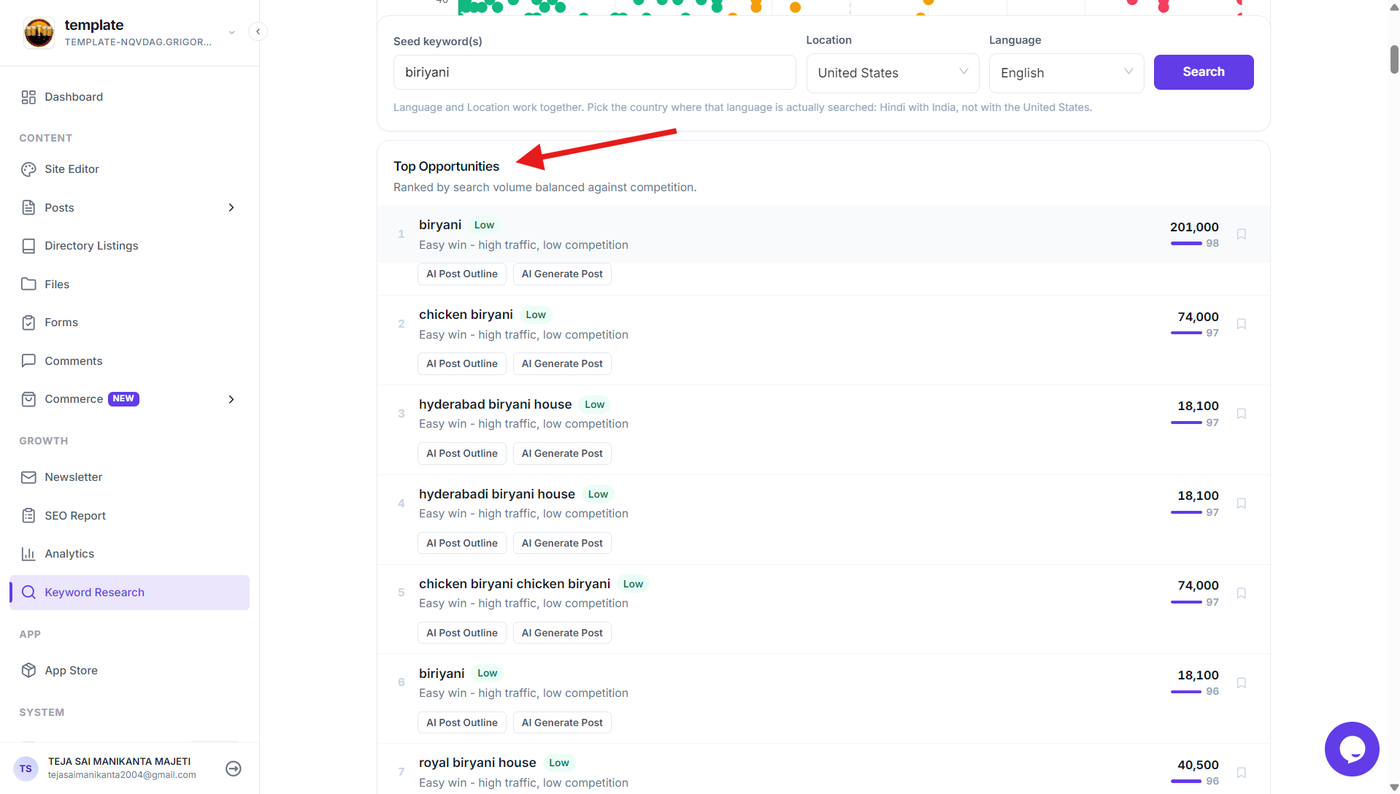
Step 5: Review Top Opportunities
Below the graph, review the Top Opportunities section.
Keywords are ranked based on their search volume and competition. Each keyword displays its competition level and search volume, helping you identify keywords that may offer strong opportunities.
You can also use the available AI Post Outline and AI Generate Post actions directly for a keyword.
Review Detailed Keyword Data
Step 6: Explore all keyword results
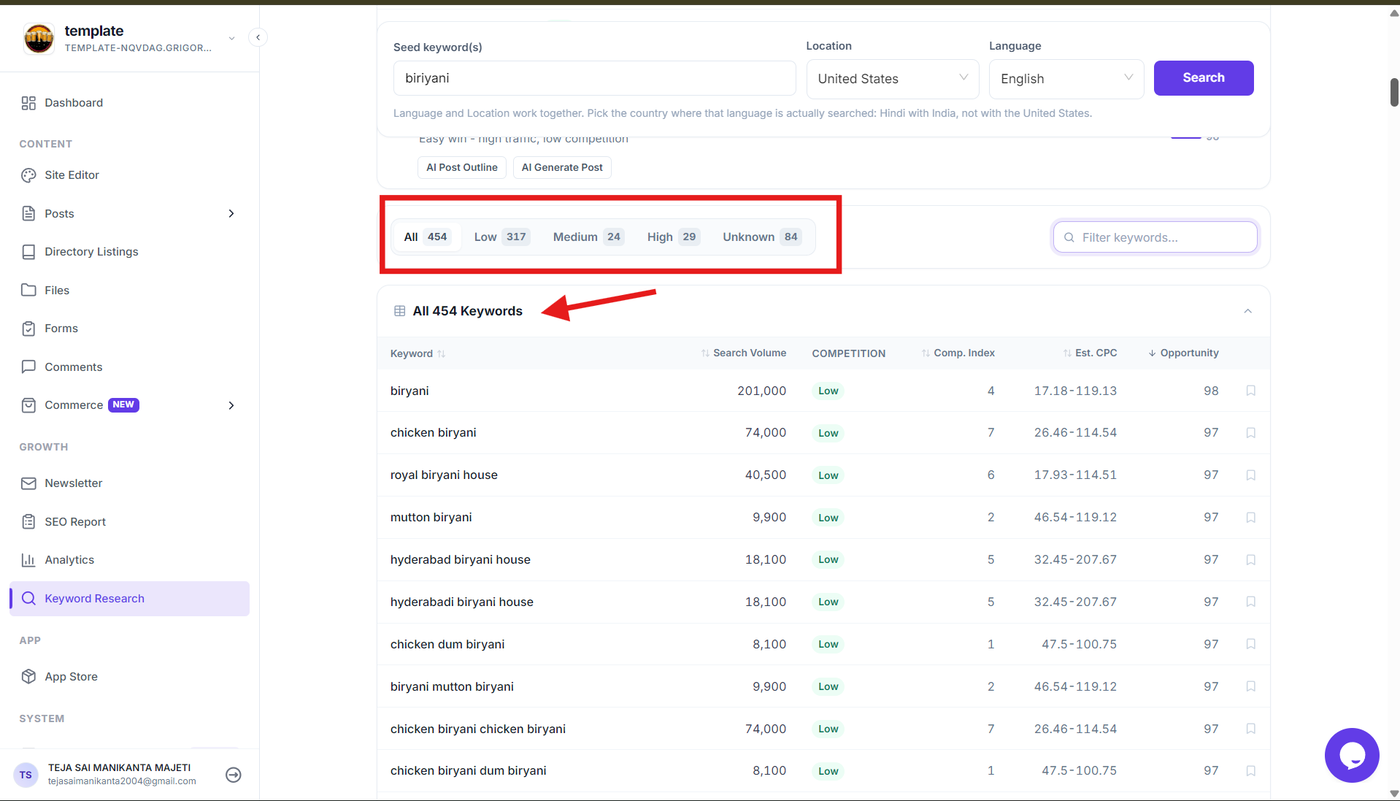
Scroll to the All Keywords section to view the complete set of keyword ideas.
The table provides detailed information such as:
Keyword
Search Volume
Competition
Competition Index
Estimated CPC
Opportunity
Use the tabs to narrow the results by All, Low, Medium, High, or Unknown competition.
You can also use Filter keywords to quickly find a specific keyword within the results.
View Keyword Details
Step 7: View detailed keyword insights
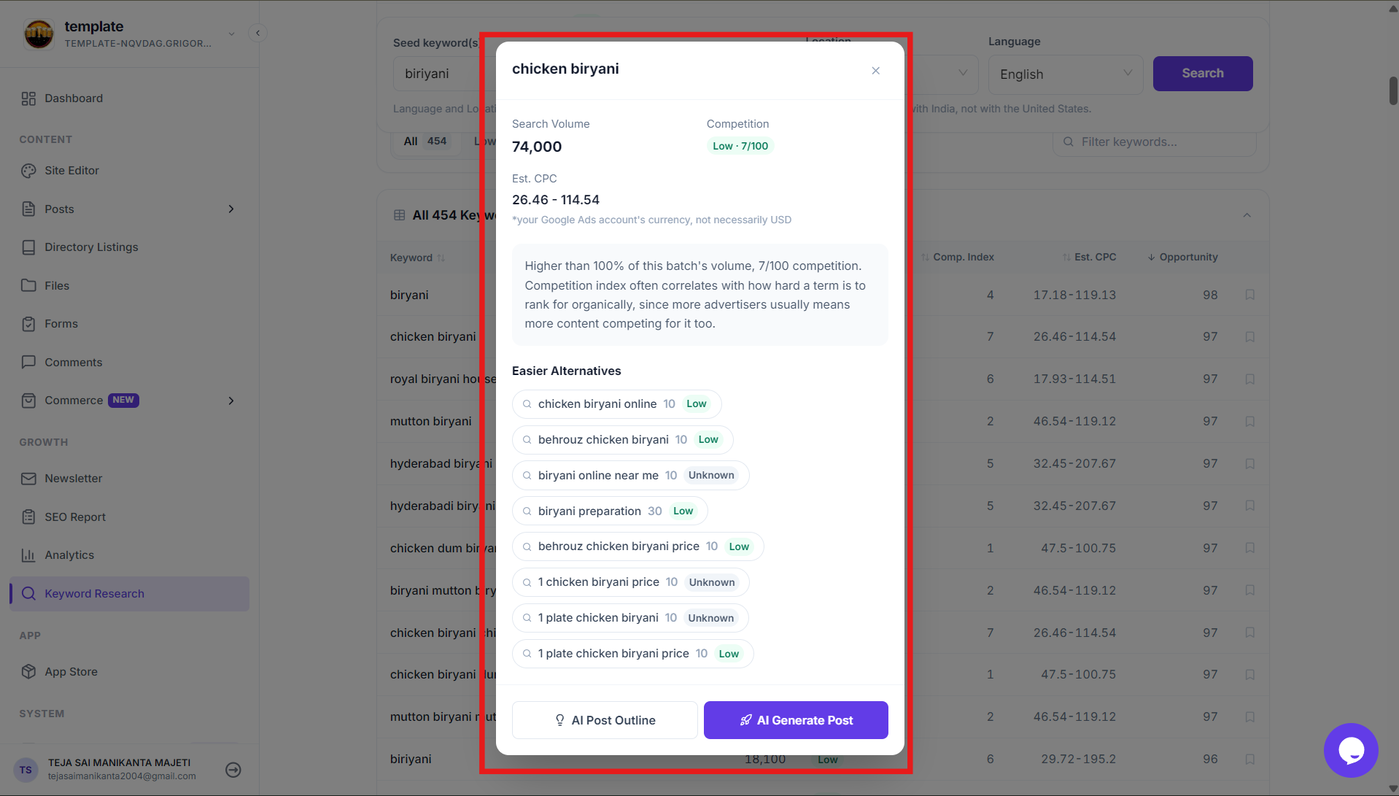
Click a keyword or use the available keyword details action to open its detailed view.
The details provide the keyword's Search Volume and Competition, along with additional information such as easier alternatives when available.
From this view, you can directly start creating content using AI Post Outline or AI Generate Post.
Save Keywords for Later
Step 8: Save a keyword
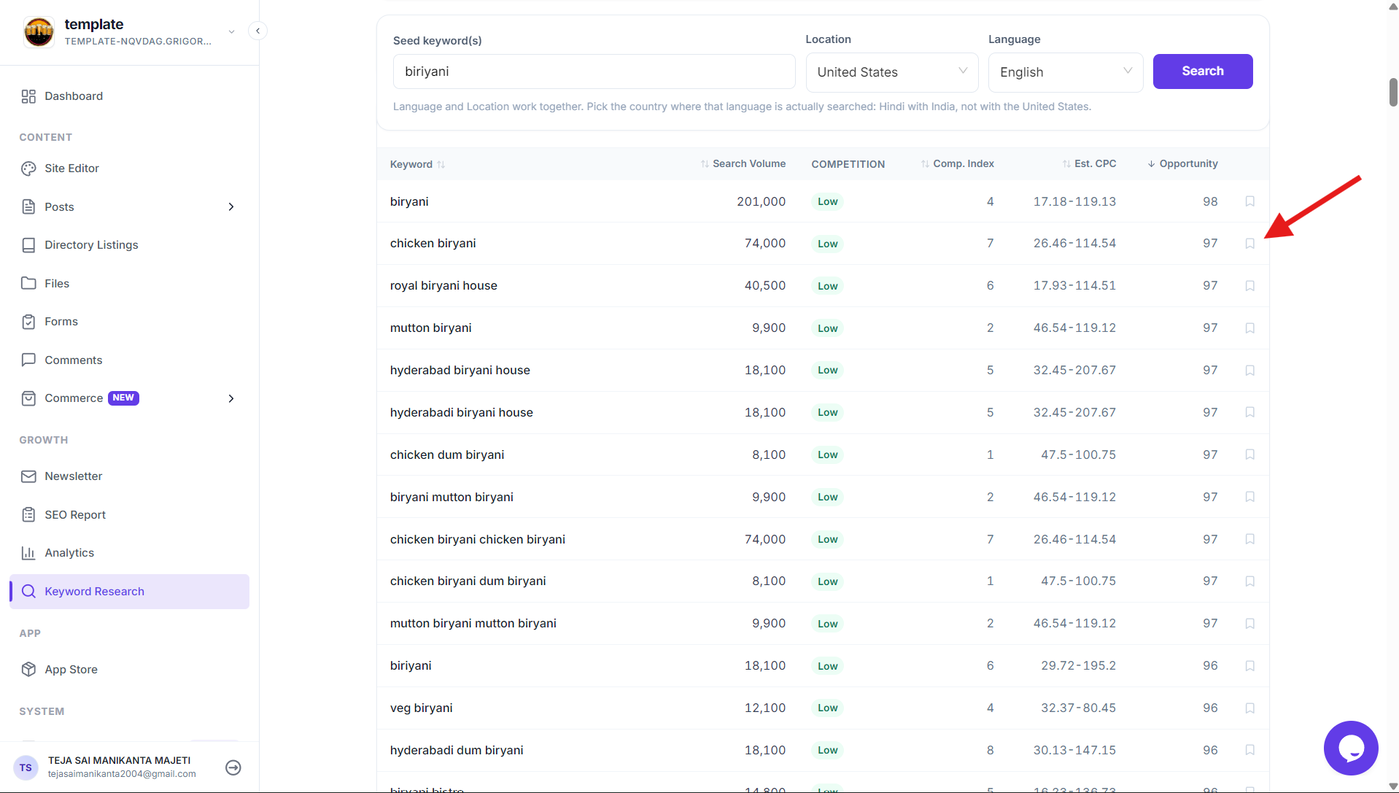
When you find a keyword you want to work on later, click the bookmark icon associated with that keyword.
The saved keyword is added to the Saved tab so you can return to it without performing the research again.
Manage Saved Keywords
Step 9: Open Saved keywords
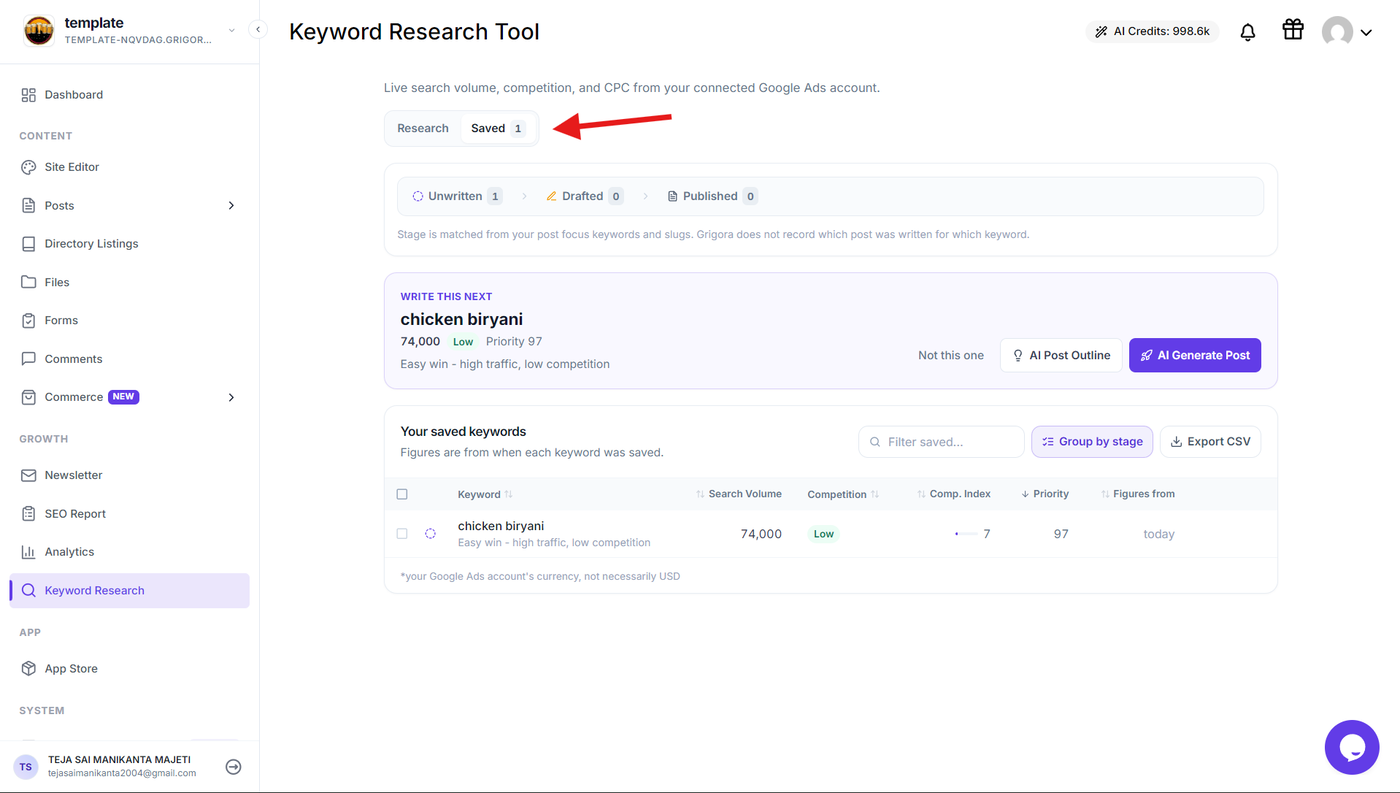
Click the Saved tab at the top of the Keyword Research Tool.
Saved keywords are organized based on their content stage, such as Unwritten, Drafted, and Published.
The Saved view also shows information such as search volume, competition, competition index, priority, and when the keyword data was collected.
Use the available Filter saved, Group by stage, and Export CSV options to manage your saved keywords.
Create Content From a Keyword
Step 10: Generate an AI post outline or blog post
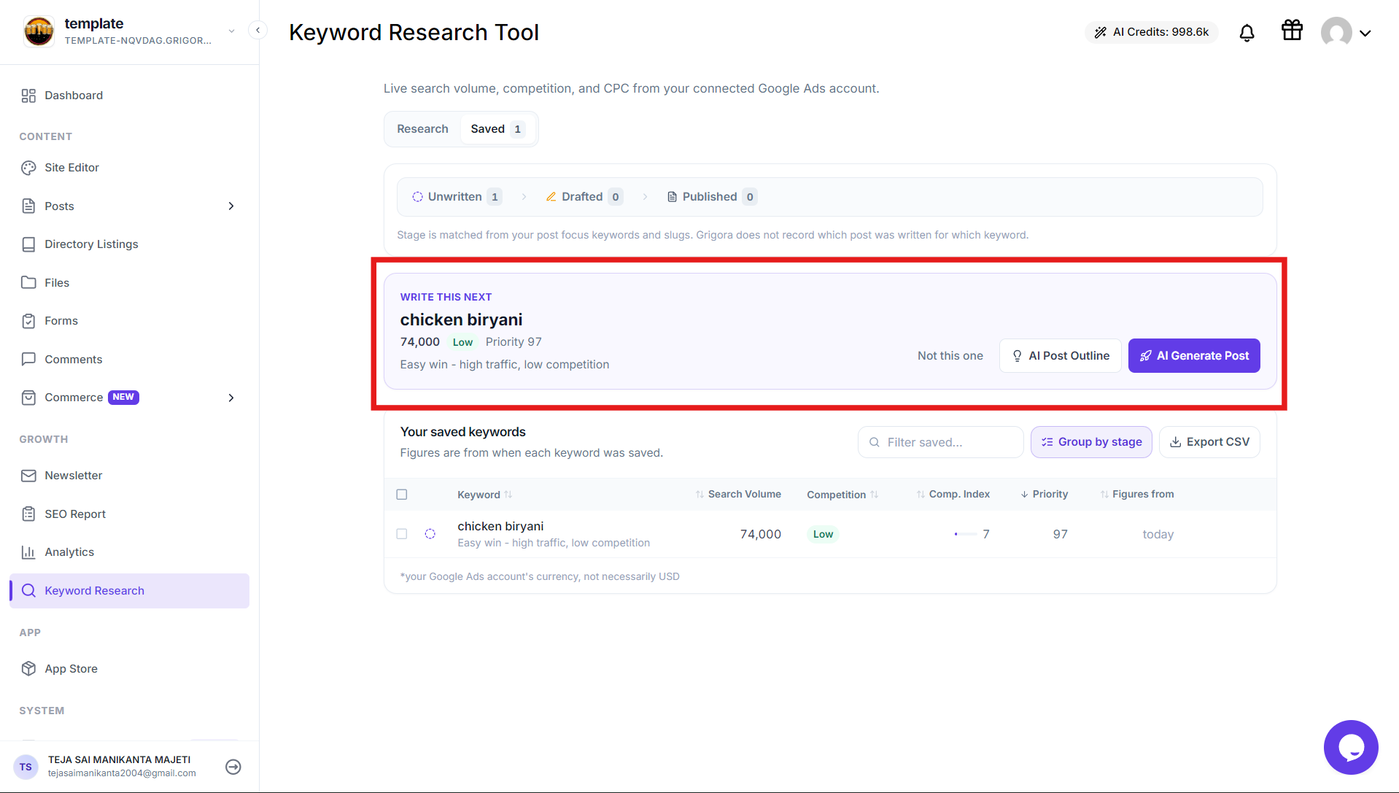
From the keyword results or Saved section, choose a keyword and select one of the available content actions:
AI Post Outline – Generates a structured outline that you can use as the foundation for a blog post.
AI Generate Post – Generates a complete blog post based on the selected keyword.
Choose the option that matches your content creation workflow and continue editing the generated content as required.
Track Keyword Progress
Step 11: Track the content stage
Use the stages in the Saved tab to track your keyword's content progress.
Keywords can move through stages such as:
Unwritten → Drafted → Published
This makes the Saved section useful for keeping track of which keyword opportunities still need content and which ones have already been developed.
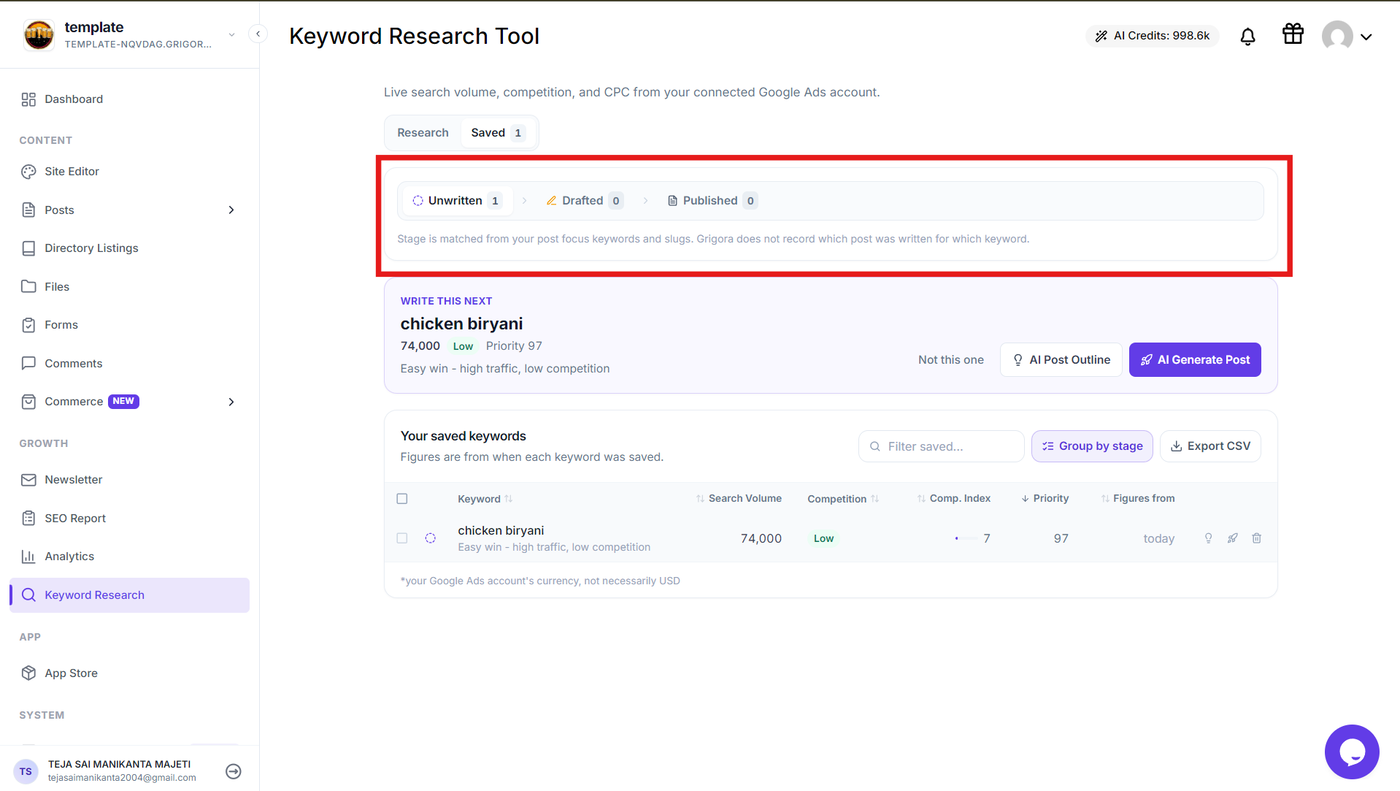
Note: The keyword stage is matched based on your post focus keywords and slugs. Grigora does not record which specific post was written for which keyword.
With the Keyword Research Tool, you can move from keyword discovery → opportunity analysis → keyword selection → content creation → content tracking without switching between separate SEO tools.