

When designing a website using Grigora's new AI editor, every major change made by a prompt is automatically saved as a distinct version snapshot. This built-in versioning system allows you to experiment freely with new designs, copy, and layouts without worrying about losing previous work. In this guide, you will learn how version control works, how to preview earlier iterations, and how to safely restore a previous snapshot.
How Versioning Works in Grigora
Unlike traditional editors that require manual file backups, Grigora tracks your site's evolution automatically:
Automatic Snapshots: Whenever you send a prompt that updates your website, the AI creates a numbered version (for example, Version 1, Version 2, Version 3).
Non-Destructive Iteration: Older versions remain preserved in your history. You can explore new design concepts, color palettes, or layout structures knowing you can return to an earlier snapshot at any moment.
Accessing the Version History Menu
To view all saved iterations of your website:
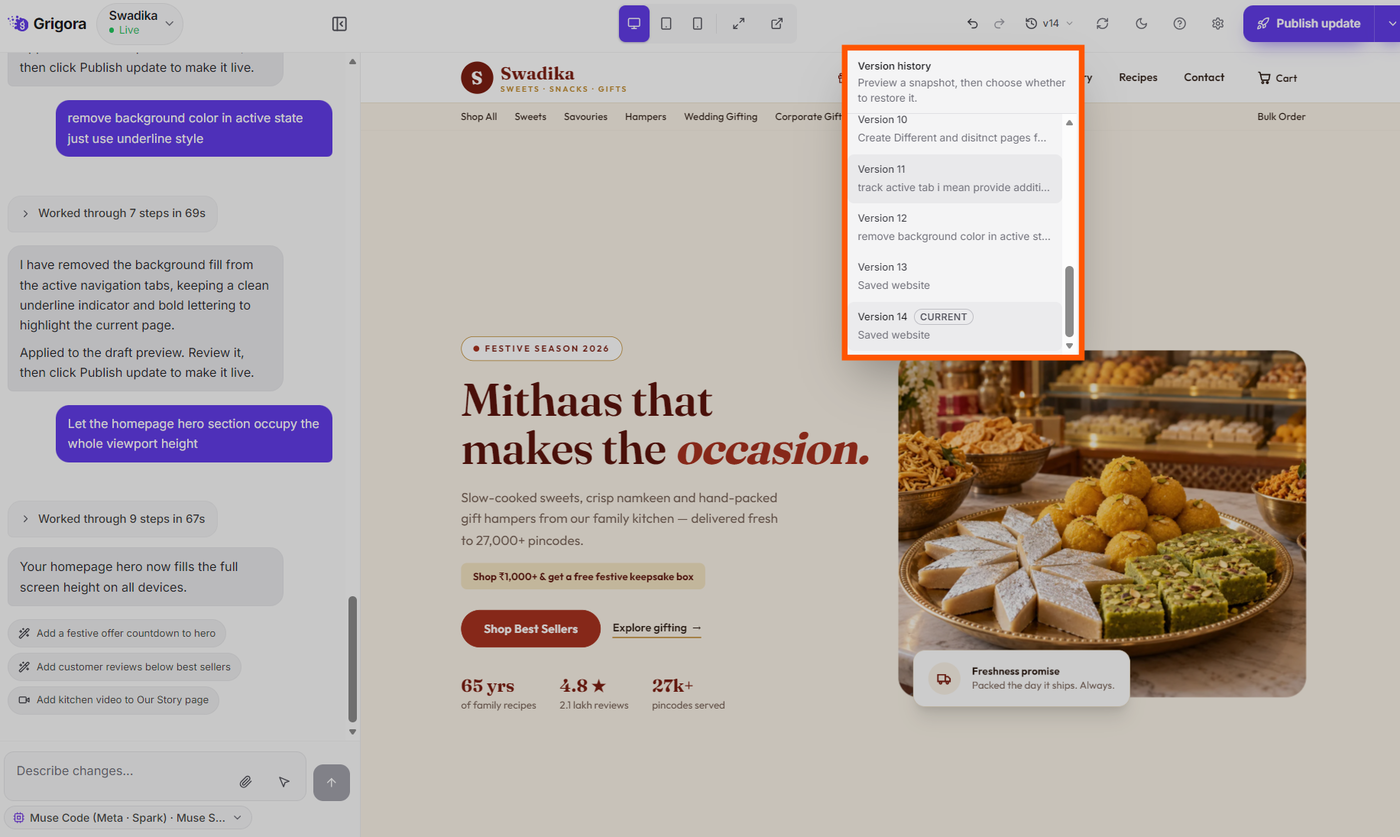
Locate the Version button in the top navigation bar (identified by the clock/history icon and a label like v3).
Click the button to open the Version history dropdown menu.
Visual Output: The dropdown displays a chronological list of all saved versions:
Current Version: Labeled with a distinct CURRENT badge, indicating the version you are currently editing.
Historical Versions: Each entry displays the version number along with a summary of the prompt or changes applied in that iteration.
Previewing an Earlier Version
Before rolling back or restoring an earlier design, you can inspect it in read-only preview mode:
Open the Version history dropdown and click on the previous version you wish to inspect.
The topbar label changes to indicate Previewing version {number}.
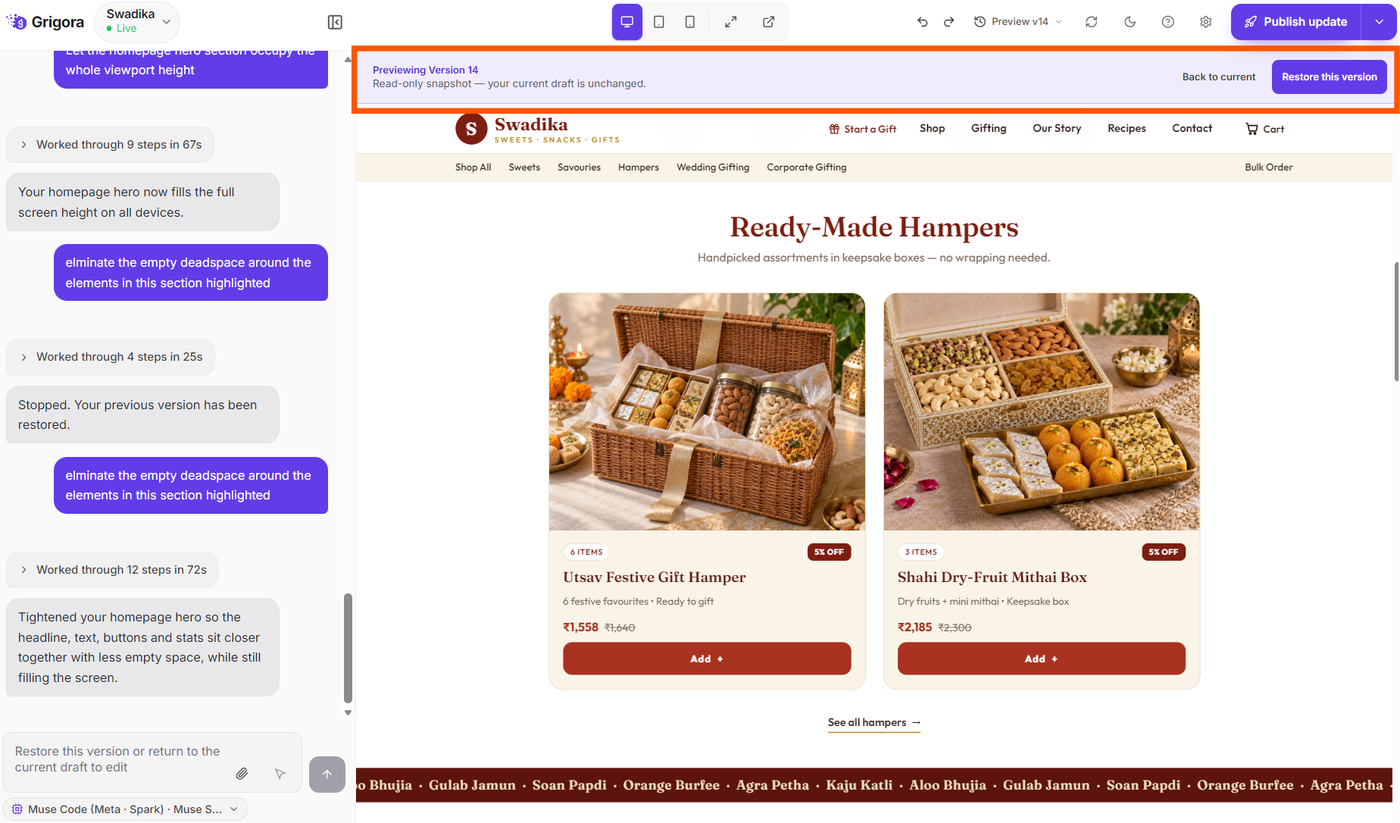
Visual Output: A prominent status banner appears directly above the preview canvas:
Banner Title: "Previewing Version {N}"
Status Note: "Read-only snapshot — your current draft is unchanged."
Action Buttons: Two buttons appear on the right side of the banner: Back to current and Restore this version.
While previewing, the live canvas renders the exact design, copy, images, and structure of that historical version. You can browse through pages and test viewports to verify if this is the version you want.
What Happens When You Click Each Action Button
While in historical preview mode, you have two clear choices:
1. Clicking "Back to current"
If you decide you do not want to restore the historical version:
Click the Back to current button in the preview banner.
The read-only preview closes immediately and returns you to your latest active draft.
No changes are made to your website, and you can continue prompting from where you left off.
2. Clicking "Restore this version"
If you want to roll back your website to the selected snapshot:
Click the primary Restore this version button.
Grigora restores the exact state of that historical version as your active working draft.
The preview banner disappears, and the editor returns to full interactive editing mode.
You can now continue chatting with the AI to make further updates starting from this restored point.
Quick Navigation: Undo and Redo
In addition to full version restoration, the top navigation bar includes Undo and Redo arrow buttons:
[Image Placeholder: Undo and Redo Controls in Topbar]
Undo (Left Arrow): Quickly steps back your most recent prompt change without opening the version history dropdown.
Redo (Right Arrow): Reapplies a change if you reversed it by mistake.
Best Practice: Use Undo/Redo for quick, minor prompt tweaks. Use the Version history menu when you want to review and jump back across multiple iterations or major design milestones.
Next Steps
To continue mastering the AI website editor, explore these related guides:
AI Website Editor Walkthrough: Interface Controls & Tools Explained — Overview of every toolbar button and control in the workspace.
How to Preview and Review Your Built Website in Grigora — Learn how to inspect desktop, tablet, and mobile layouts and test live interactivity.
How to Create a Website Using the AI Website Editor — Step-by-step instructions for launching your first AI-built website.