

Publishing your website in Grigora takes your design from the private AI builder and makes it instantly available to visitors around the globe. When you publish a website for the first time, Grigora guides you through a dedicated two-stage launch flow: an automated Launch Sequence modal that builds and secures your site, followed by a Launch Complete modal where you can access your live link, open your site, and configure post-launch options.
Initiating the First-Time Launch
To take your website live:
Ensure you have reviewed your pages and content in the editor canvas.
In the top-right header action bar, click the primary purple Publish button (featuring a rocket icon).
Grigora immediately opens the first-time publishing overlay. The background dims, focusing attention on the launch progress dialog.
Modal 1: The Launch Sequence Modal
As soon as you click Publish, the Publishing your website modal appears. This modal keeps you informed in real time as Grigora packages, compiles, and deploys your website onto global edge servers.
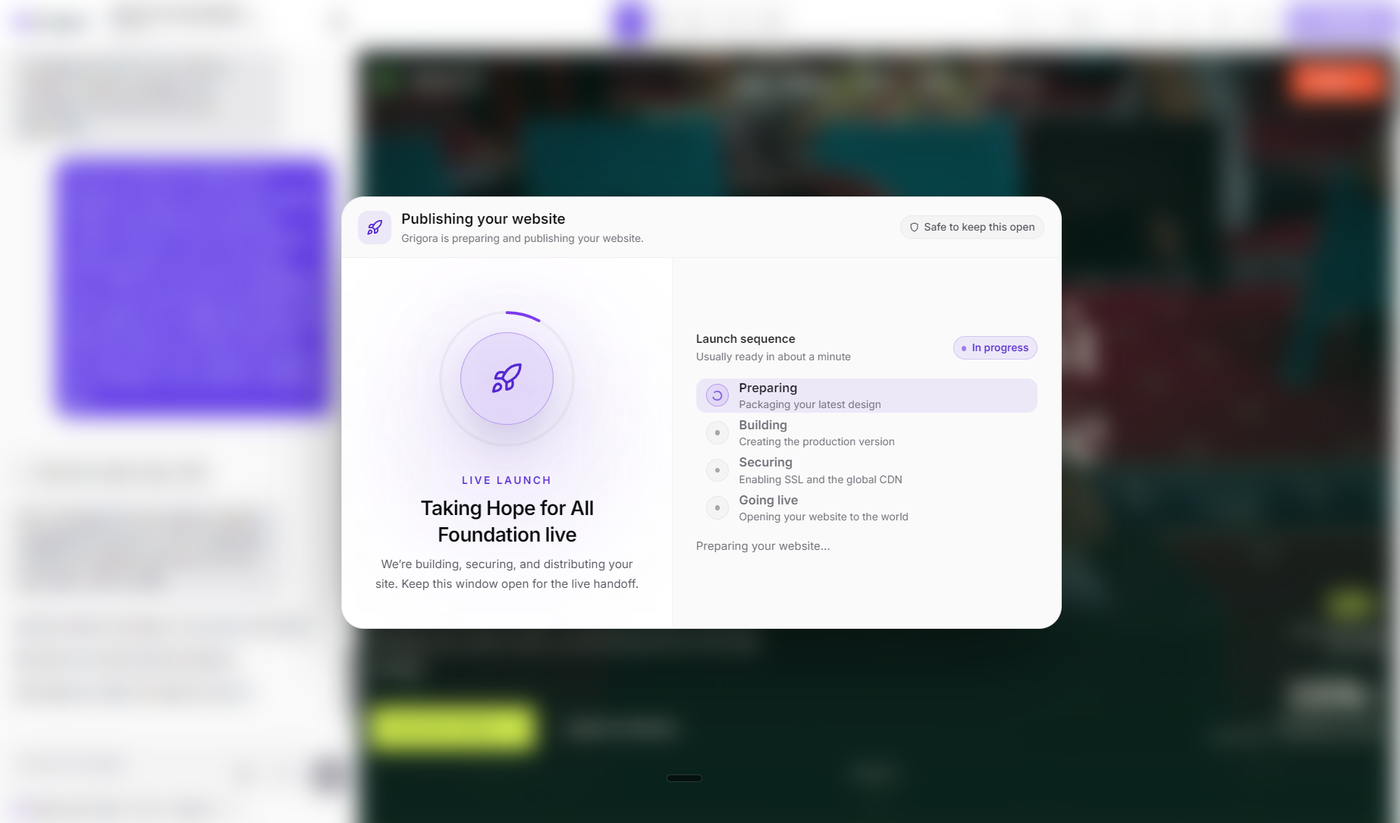
Left Panel: Live Launch Status
Launch Orb: A central glowing orb featuring an animated rocket icon that moves gently as publishing proceeds.
Heading: Displays "LIVE LAUNCH" and "Taking [Your Project Name] live".
Guidance Note: "We're building, securing, and distributing your site. Keep this window open for the live handoff."
Right Panel: The 4-Phase Launch Sequence
At the top of the right panel, you will see the header Launch sequence with the note "Usually ready in about a minute", alongside an active In progress badge with a pulsing dot indicator.
Directly beneath, Grigora displays four sequential phases. Each step transitions from a pending state to an active spinner, and finally to a green checkmark as it finishes:
Preparing — Packaging your latest design: Verifies your layout components, responsive structure, and media assets.
Building — Creating the production version: Compiles optimized, high-performance web pages for visitors.
Securing — Enabling SSL and the global CDN: Provisions automated HTTPS encryption and links your pages to high-speed global delivery networks.
Going live — Opening your website to the world: Completes routing and publishes your site to your assigned live web address.
A status readout at the bottom displays real-time system status (such as "Preparing your website…"). You do not need to configure any server settings—the sequence completes automatically in approximately 30 to 60 seconds.
Modal 2: The Launch Complete Modal
When the fourth phase finishes, the dialog smoothly transitions to the Launch complete modal. This screen confirms that your website is officially published and provides direct actions to inspect and promote your new site.
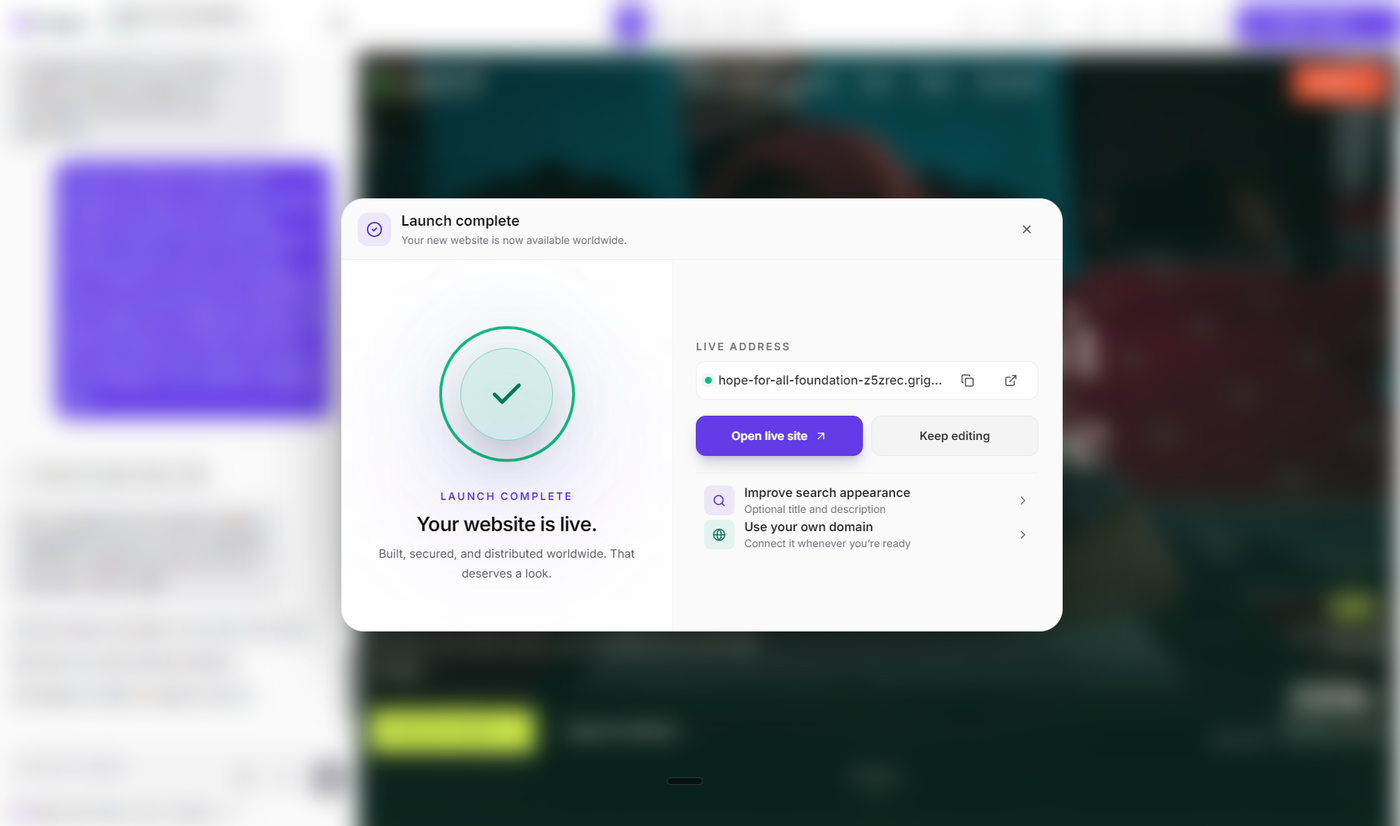
Left Panel: Launch Complete Confirmation
Celebration Orb: The central orb transforms into an emerald circle with a crisp checkmark, accompanied by animated celebration confetti particles.
Heading: Displays "LAUNCH COMPLETE" and "Your website is live."
Description: "Built, secured, and distributed worldwide. That deserves a look."
Right Panel: Live Address and Next Actions
The right panel equips you with everything needed to share and continue managing your site:
1. Live Address Bar
Displays your published website address (e.g.,
your-site.grigora.app) with an active green status indicator dot.Copy Address Button: Click the copy icon to copy your live URL to your clipboard. A green "Address copied" confirmation message appears beneath the bar.
Open in New Tab Icon: Click the external link icon to launch the live URL directly.
2. Primary Action Buttons
Open live site (Primary purple button with arrow up-right icon): Opens your live website in a new browser tab so you can experience it exactly as your visitors will.
Keep editing: Closes the launch window and returns you to the AI editor so you can continue making updates or generating additional content.
3. Post-Launch Action Cards
Below the primary buttons, two dedicated action cards allow you to fine-tune your new site:
Improve search appearance ("Optional title and description"): Opens the search optimization drawer to define how your site looks on search engines like Google.
Use your own domain ("Connect it whenever you're ready"): Opens the domain connection drawer so you can connect your own custom domain (such as
www.yourbrand.com).
Post-Launch Step 1: Improve Search Appearance
Clicking Improve search appearance opens a dedicated drawer where you can customize how your website appears in search engine results and social previews.
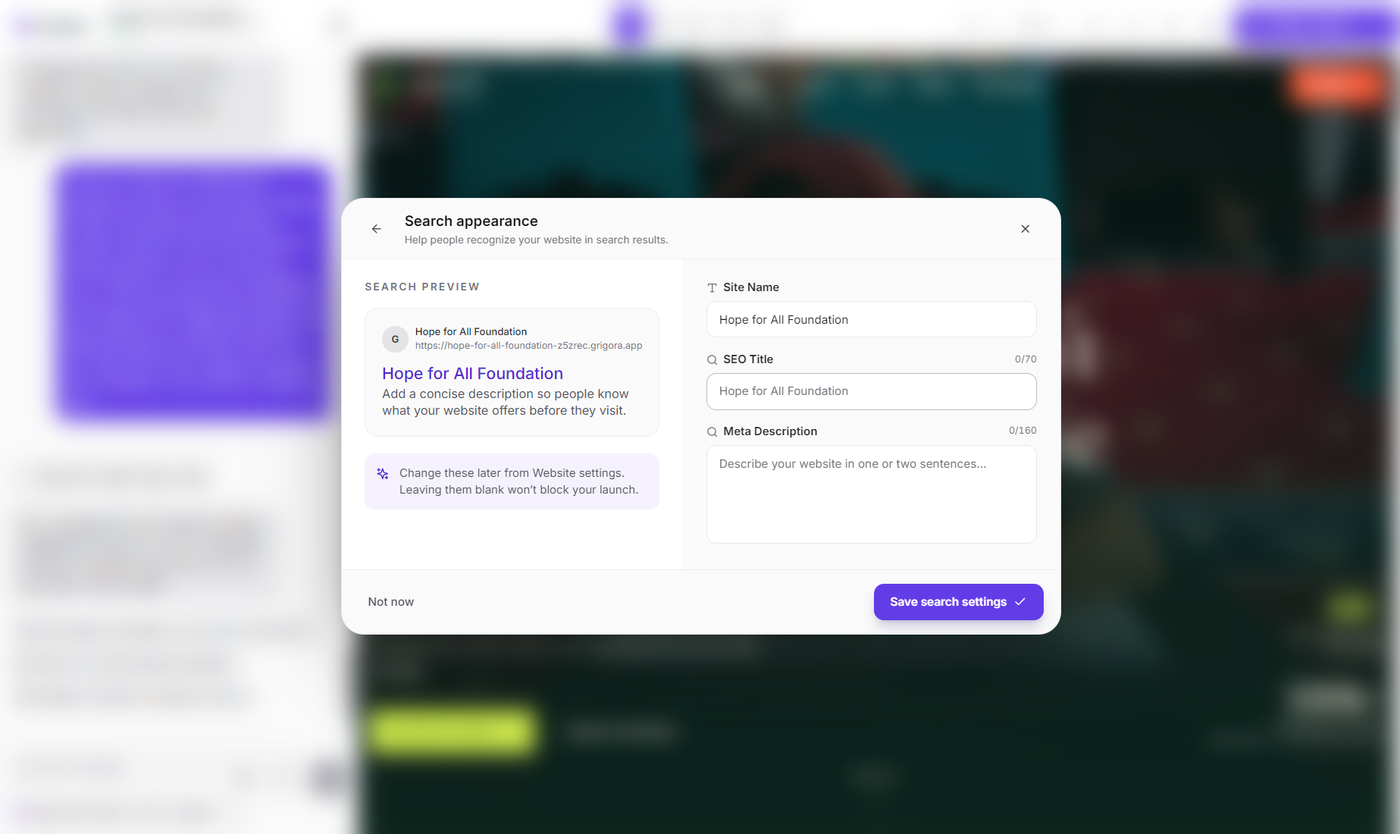
Search Preview Card
The left side presents a simulated search engine snippet, showing in real time how your website will appear to people searching online, including your site icon, site name, live address, SEO title, and meta description.
Editable Fields
Site Name: The public name of your website or business (e.g., "Acme Creative Studio").
SEO Title: The clickable headline displayed in search results. A counter tracks length up to the recommended maximum of 70 characters.
Meta Description: A concise 1 to 2 sentence summary describing what your website offers. A counter tracks length up to the recommended maximum of 160 characters.
You can adjust these settings at any time or leave them for later; leaving them blank does not affect your live website.
Post-Launch Step 2: Use Your Own Domain
Clicking Use your own domain guides you through custom domain connectivity while confirming your existing Grigora address.
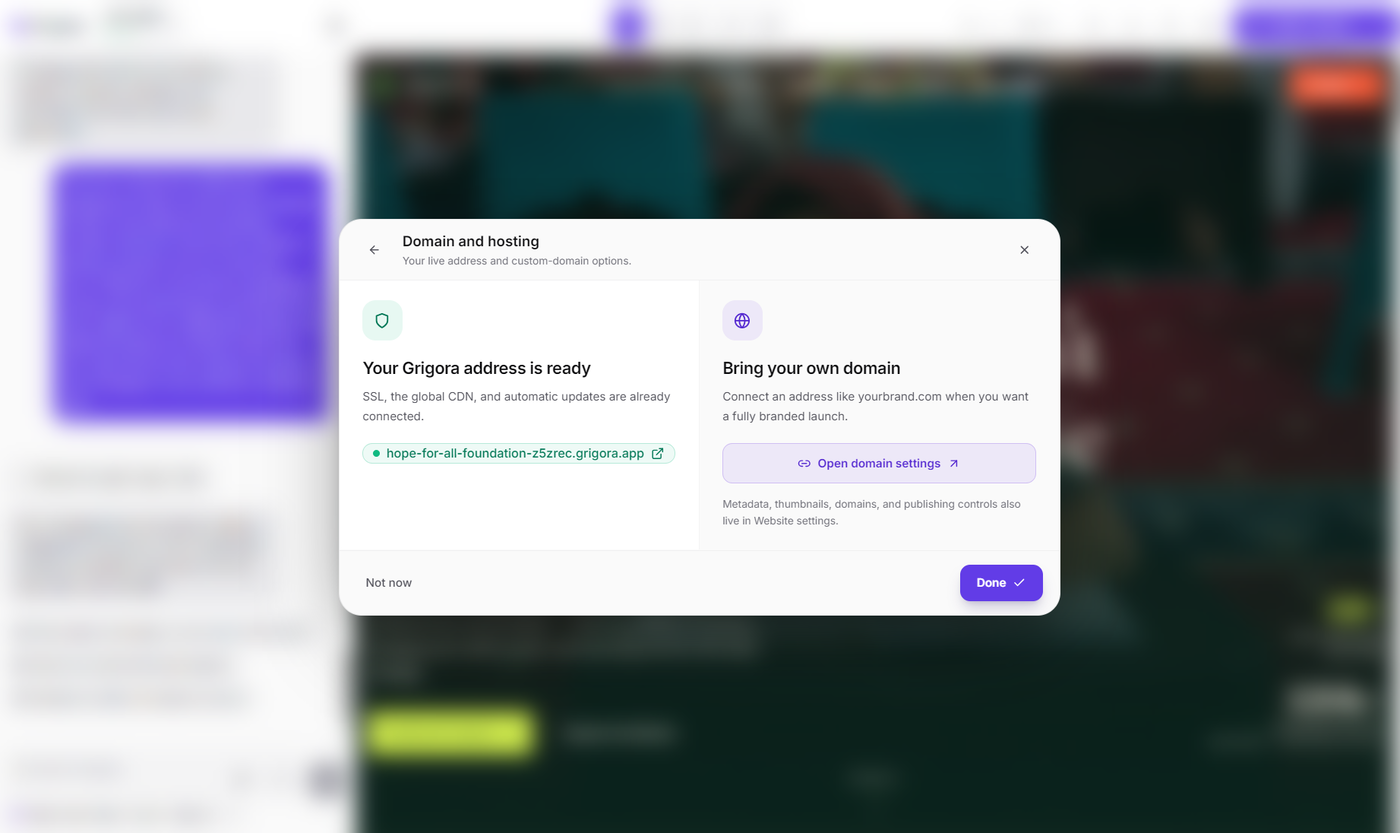
Active Grigora Address: Confirms that your free Grigora address is active, complete with automated SSL security, global CDN caching, and automatic updates.
Custom Domain Connection: Whenever you are ready to use your own domain (e.g.,
yourcompany.com), follow the on-screen DNS guidance to link your domain while keeping all Grigora hosting benefits intact.
Next Steps
Explore related guides to make the most of the Grigora AI Website Builder:
AI Website Editor Walkthrough: Interface Controls & Tools Explained — Get a full walkthrough of every button and toolbar in the editor interface.
How to Select Elements and Annotate Pages in the AI Editor — Learn how to highlight elements for targeted edits and draw visual markups directly on the canvas.
How to Preview and Review Your Built Website in Grigora — Review your site across mobile, tablet, and desktop views, or in a full new tab before publishing updates.
How to Manage Website Versions in Grigora — Learn how version history works, how versions are automatically captured, and how to revert to prior revisions.