

In this comprehensive guide, we'll walk you through how to connect Grigora MCP with Claude. We'll show you how to add Grigora as a custom connector, authenticate your Grigora account, authorize access, and verify that the connection is working.
Note: Grigora is connected to Claude as a remote MCP server, so you don't need to install or run anything locally. Claude connects to the MCP server through Anthropic's infrastructure. (Claude Help Center)
Prerequisites
Before you begin, make sure you have:
A Claude account.
A Grigora account with access to at least one site.
An active internet connection.
Step 1: Open Connector Settings
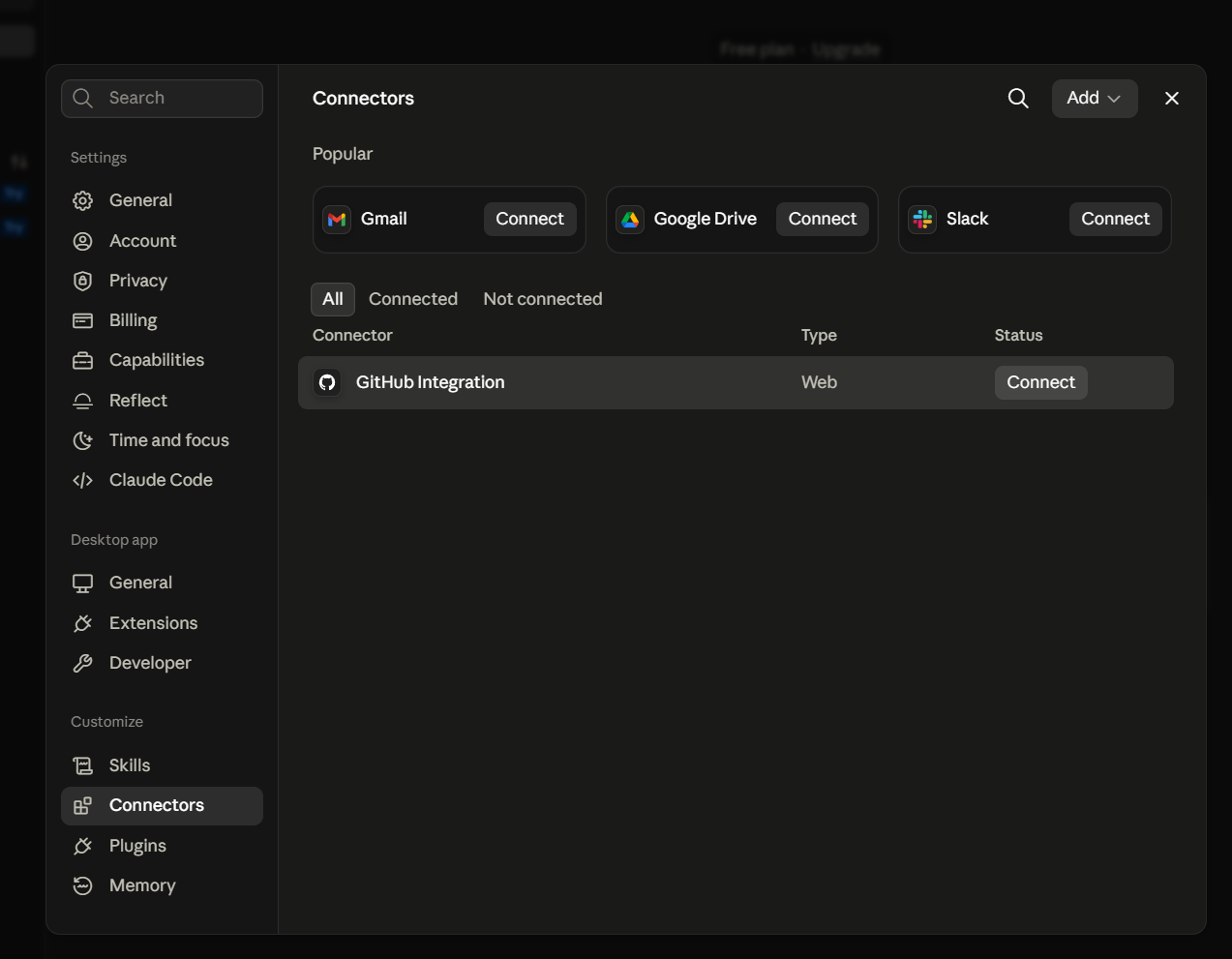
Open Claude and navigate to Customize → Connectors.
This is where you can manage the services connected to your Claude account.
Step 2: Add a Custom Connector
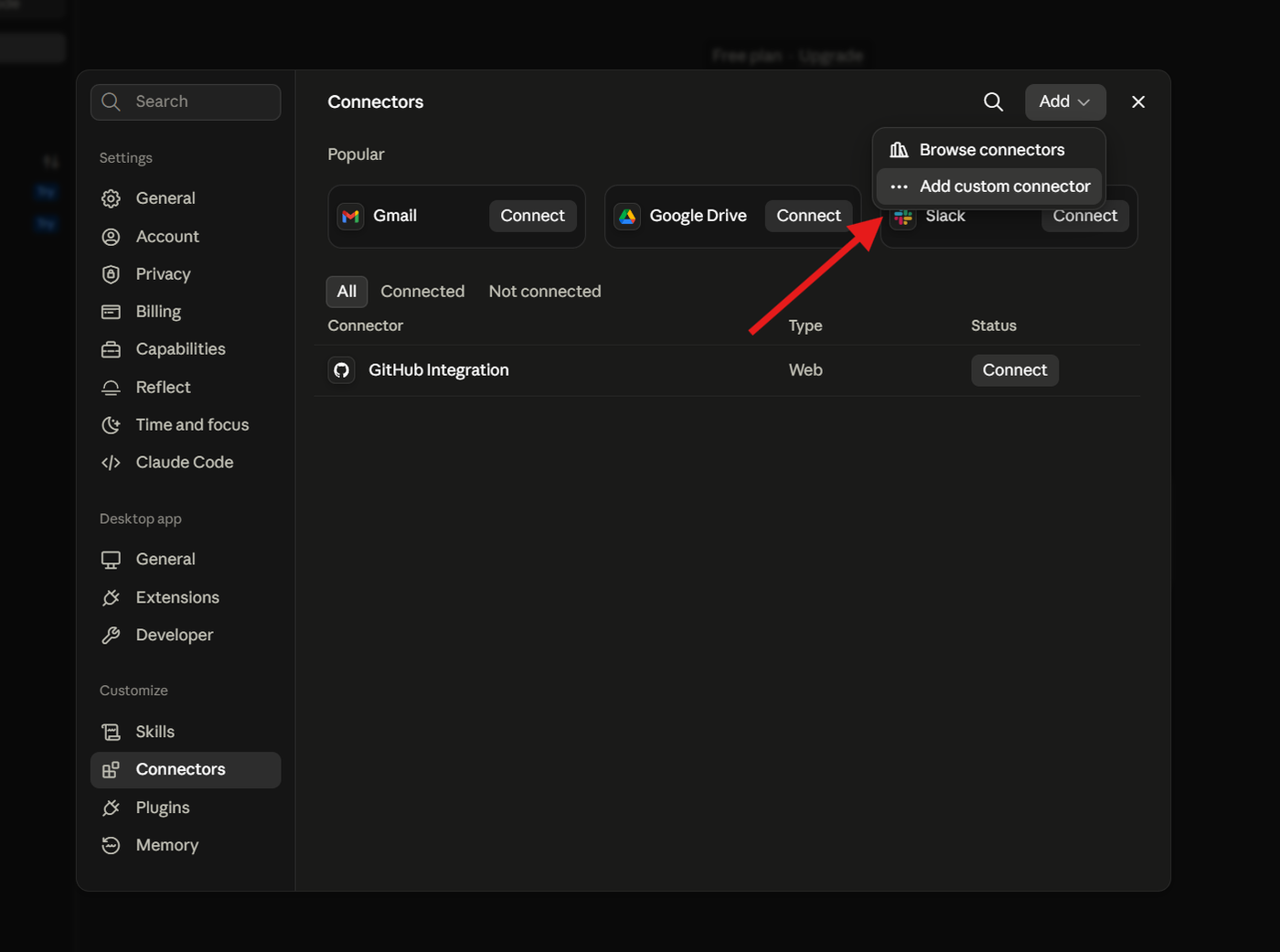
In the Connectors section, click the + button next to Connectors.
From the available options, select Add custom connector.
Step 3: Enter the Grigora MCP URL
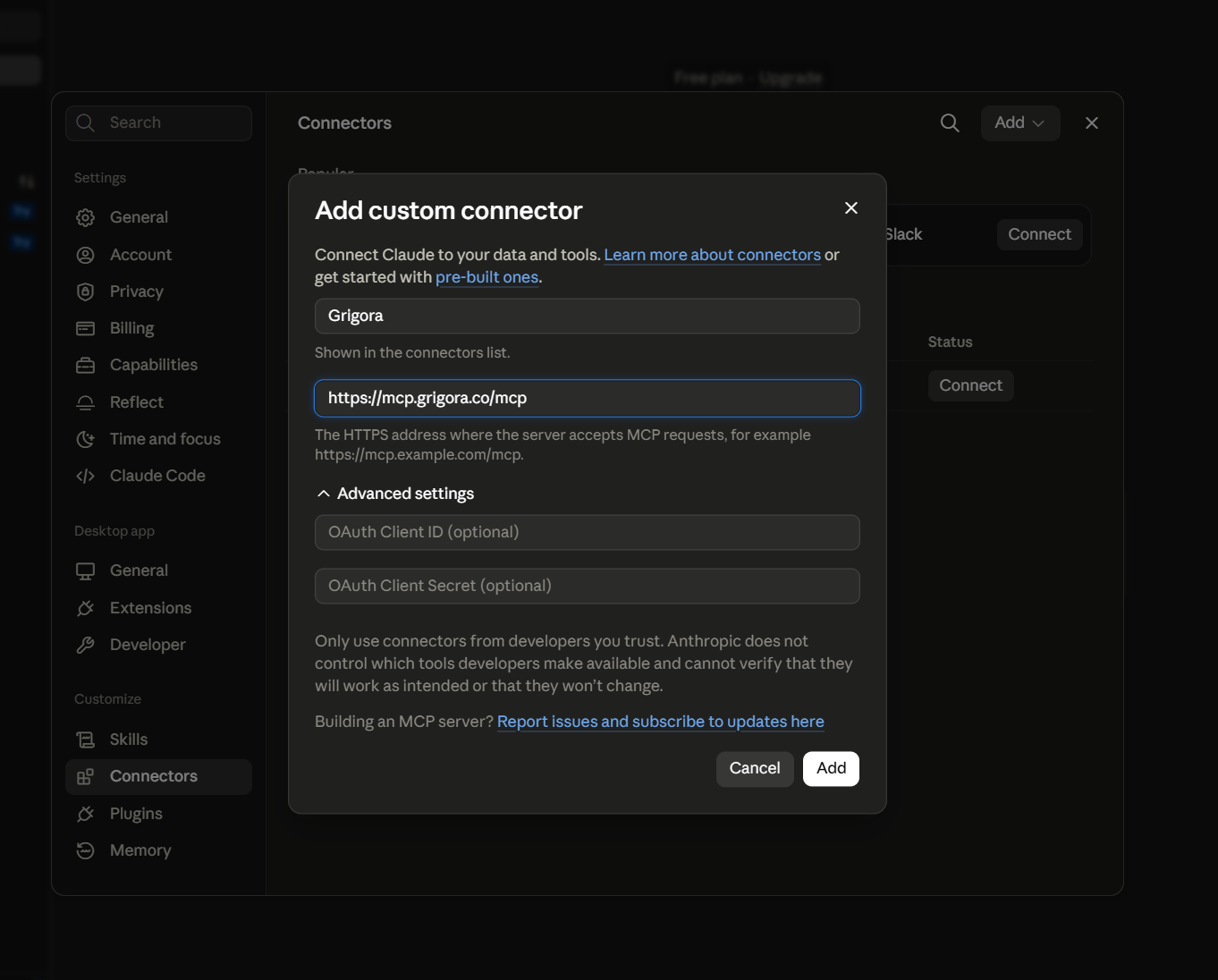
Enter the Grigora MCP server URL:
https://mcp.grigora.co/mcpYou can use Grigora as the connector name when prompted.
Claude supports adding remote MCP servers by providing their server URL. (Claude Help Center)
Step 4: Add the Connector
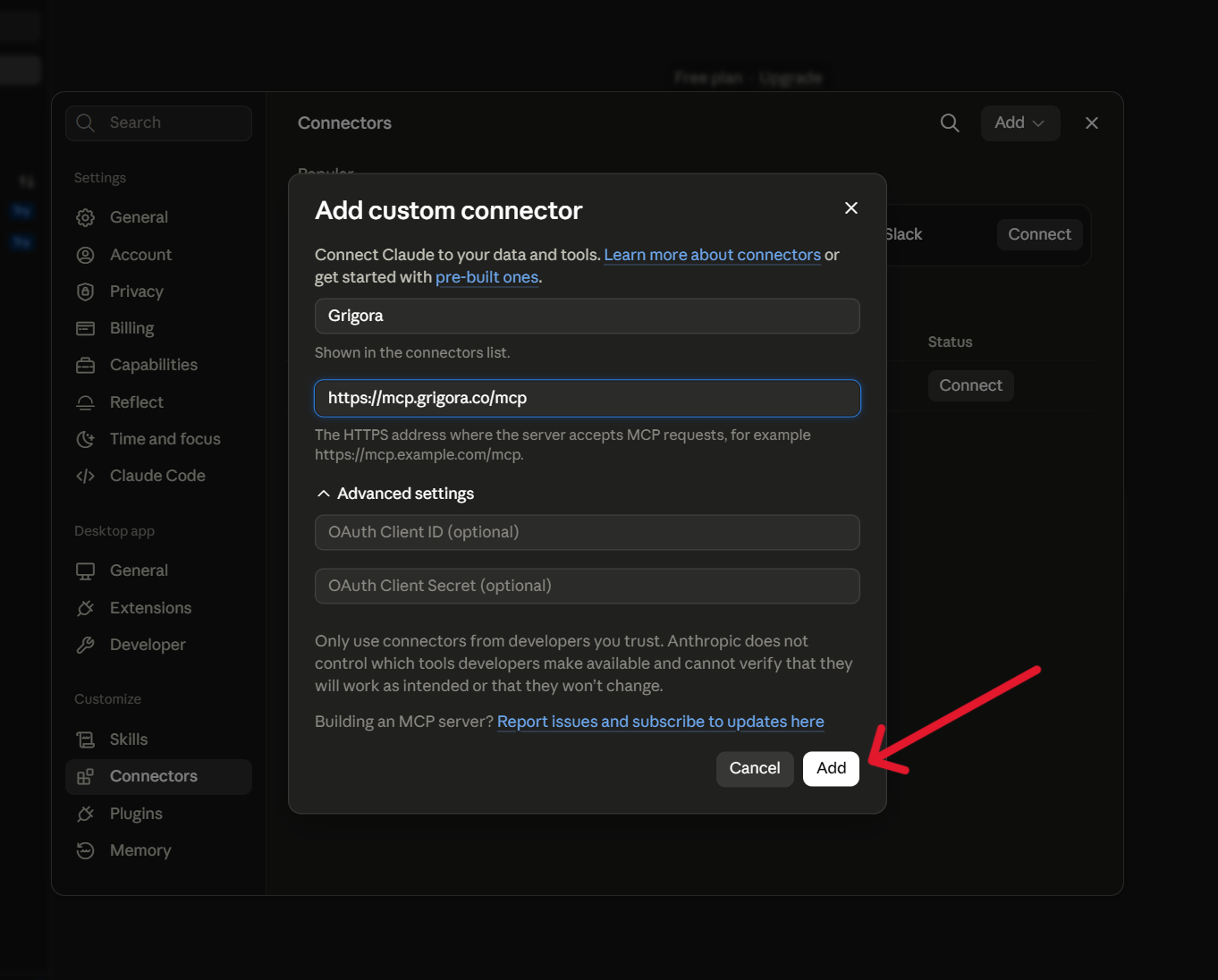
Review the connector details and click Add.
Claude will add Grigora to your list of custom connectors.
Step 5: Connect to Grigora
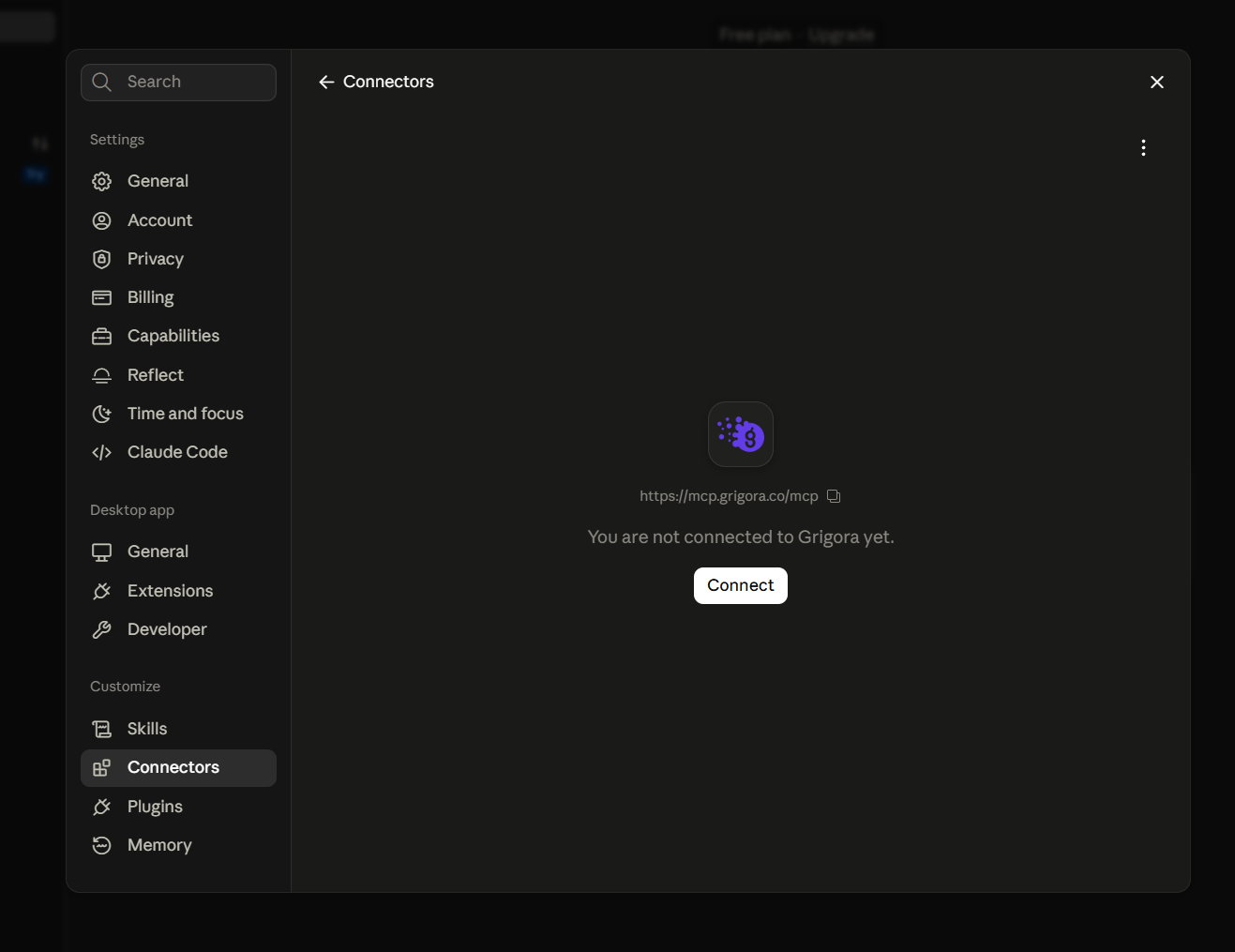
Once Grigora has been added, locate it under Connectors and click Connect.
This starts the authentication process for your Grigora account. (Claude Help Center)
Step 6: Authenticate with Grigora
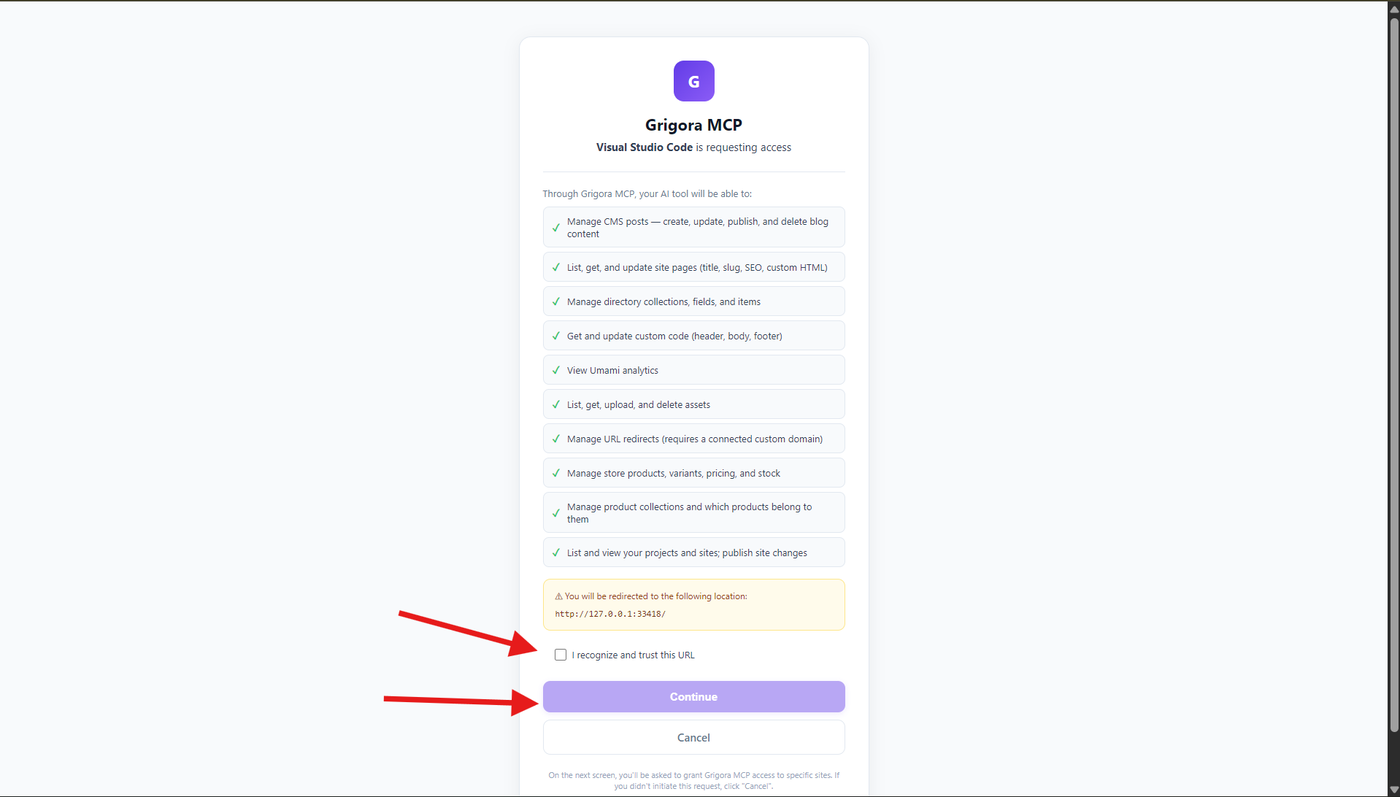
Continue with the authentication process to connect your Grigora account
Step 7: Select the Site to Authorize
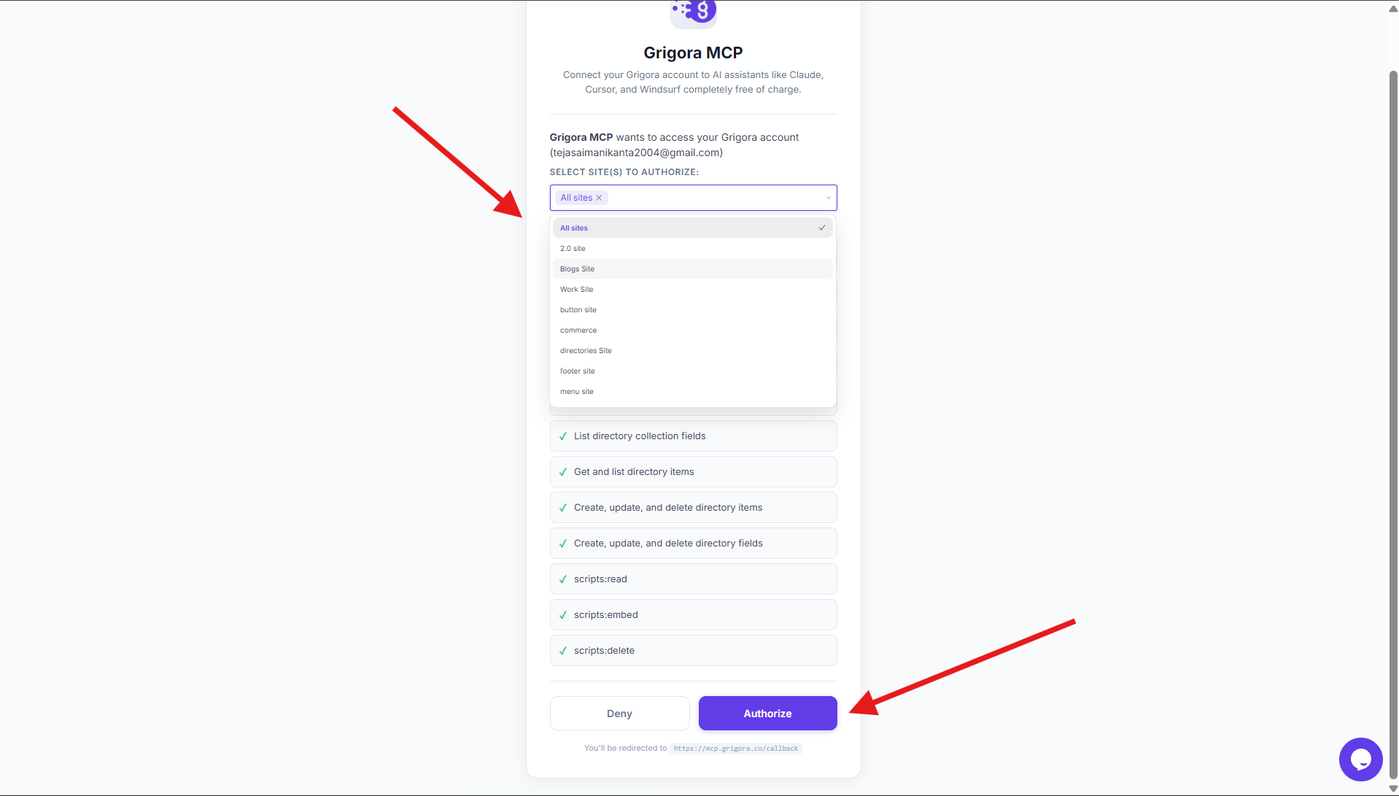
After signing in, select the site(s) you want to authorize for Grigora MCP access.
Review the permissions requested by the connector before continuing.
Step 9: Confirm the Connection
After authorization is complete, you'll be redirected back to Claude.
Return to Customize → Connectors and verify that Grigora is connected.
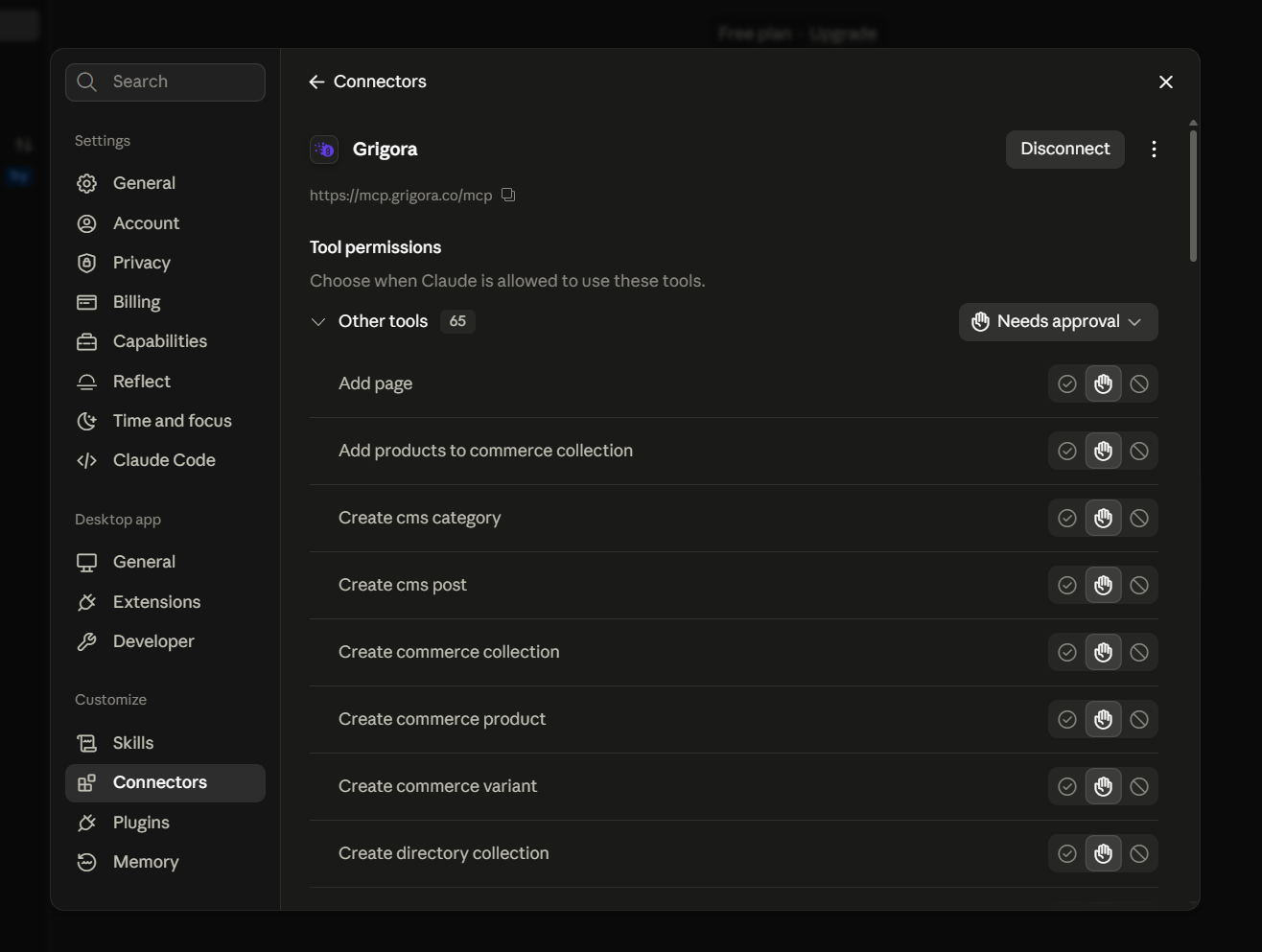
This confirms that Grigora MCP has been successfully connected to Claude.
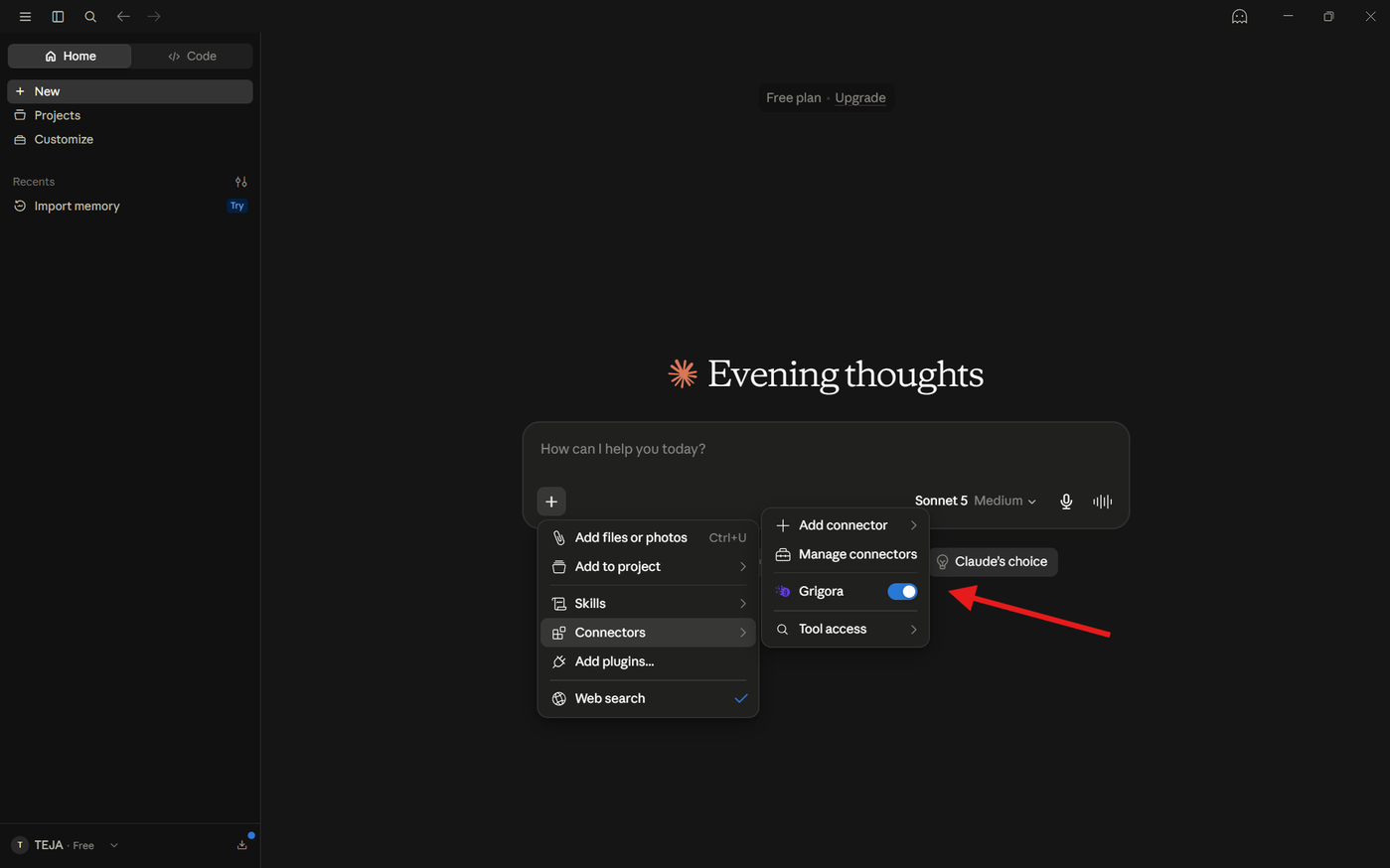
Step 10: Enable Grigora in a Conversation
Open a new Claude conversation.
Click the + button in the lower-left corner of the chat, hover over Connectors, and make sure Grigora is enabled for the conversation. Claude allows connectors to be enabled or disabled on a per-conversation basis. (Claude Help Center)
Step 11: Test Grigora MCP
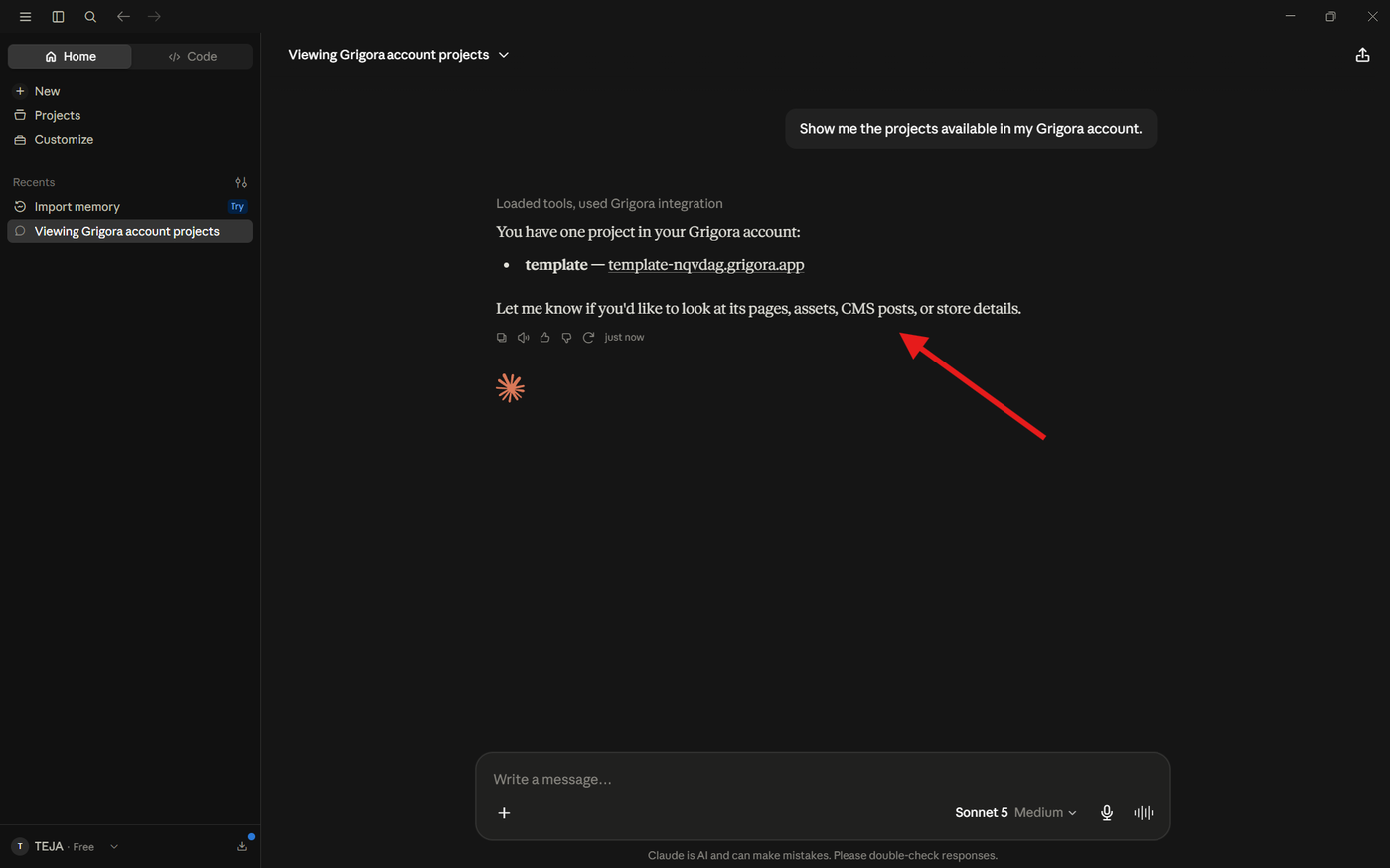
Send a prompt that requires access to your Grigora account.
For example:
Show me the projects available in my Grigora account.
Claude should use the connected Grigora MCP tools to retrieve the requested information.
Troubleshooting
If Grigora doesn't connect or its tools aren't available:
Verify that the MCP URL is exactly
https://mcp.grigora.co/mcp.Go to Customize → Connectors and check that Grigora is connected.
If authentication fails, disconnect and reconnect Grigora. Anthropic specifically recommends reconnecting from Customize → Connectors when authentication fails. (Claude Help Center)
Make sure you authorized the correct Grigora site.
Check that Grigora is enabled for the current conversation.
If Grigora is connected but Claude doesn't automatically use it, open + → Connectors and enable it manually.
Reload Claude and retry if the connector doesn't appear immediately.
If the issue persists, close and reopen Claude and reconnect Grigora.
Note: Because this is a remote MCP connector, Claude connects to Grigora from Anthropic's cloud infrastructure rather than from your local computer. The MCP server therefore needs to be publicly reachable. (Claude Help Center)