

Discount codes allow you to offer customers promotional discounts during checkout. In Grigora Commerce, you can create discount codes, define the discount they provide, configure the conditions under which they can be used, and manage existing codes from the Discounts section.
Open Discount Management
Step 1: Open Discounts
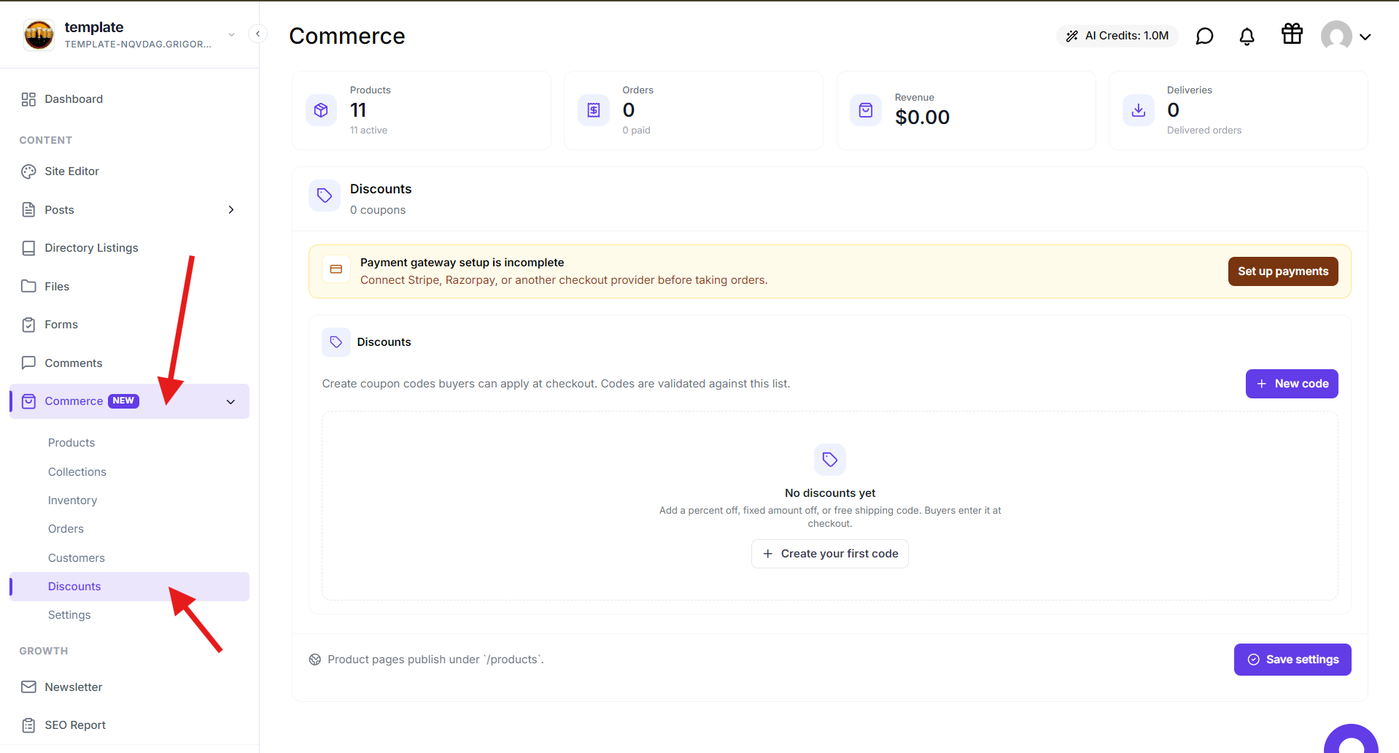
From the Grigora dashboard, expand Commerce in the sidebar and select Discounts.
The Discounts section provides a centralized view of the discount codes available in your store. From here, you can create new codes and manage existing discounts.
Create a Discount Code
Step 2: Create a new discount
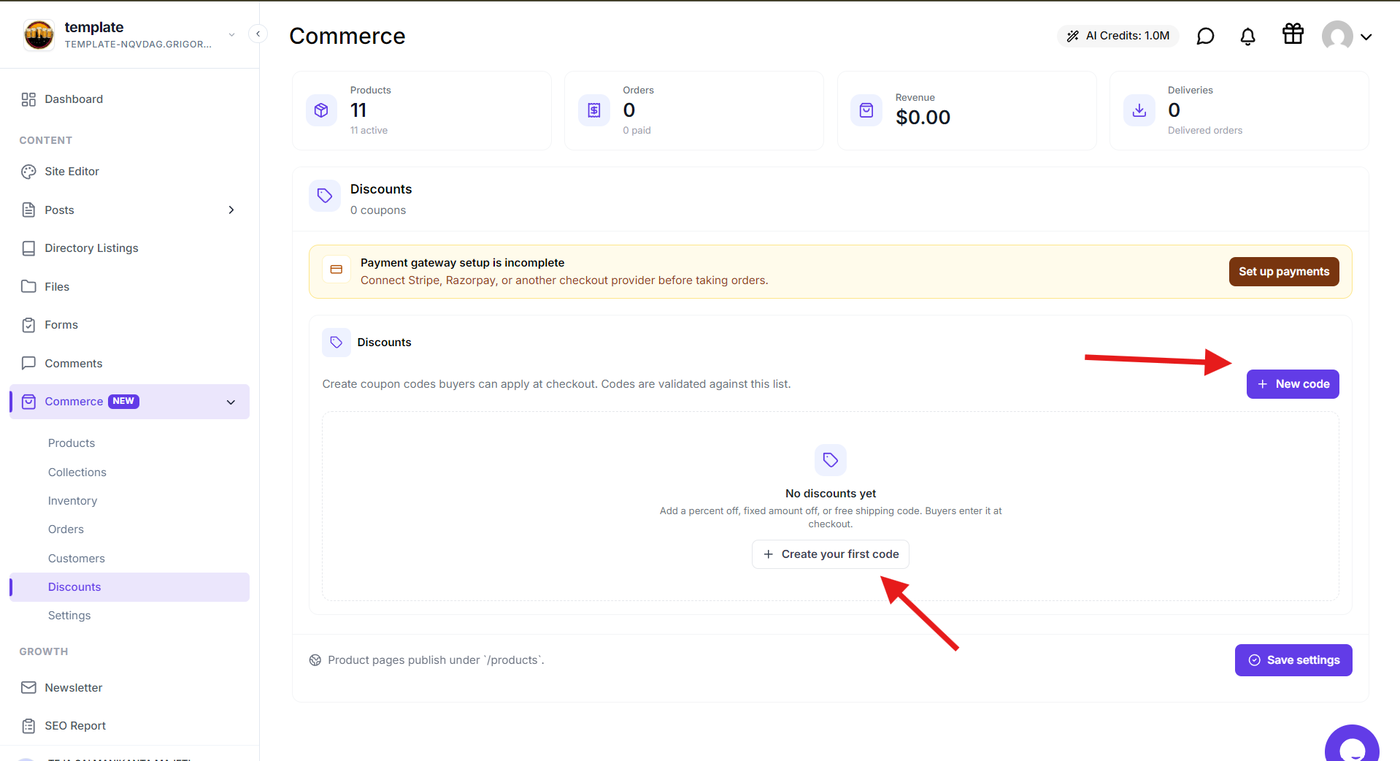
Click the option “New Code“ or “Create Your First Code“ to create a new discount code. Enter the code that customers will use during checkout and configure the available discount settings.
Use a clear and easy-to-remember code, especially when creating codes for specific campaigns or promotions.
Step 3: Configure the discount
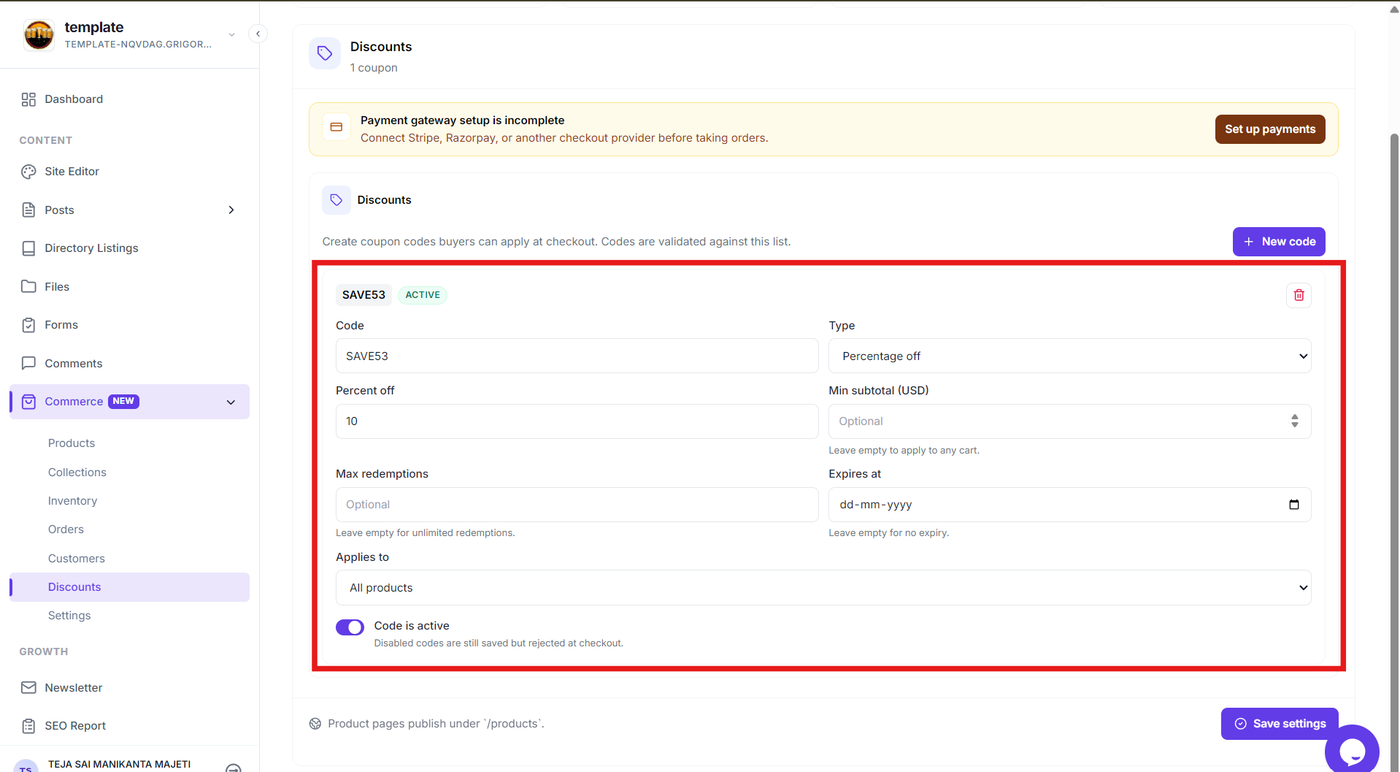
Set the discount details using the available fields:
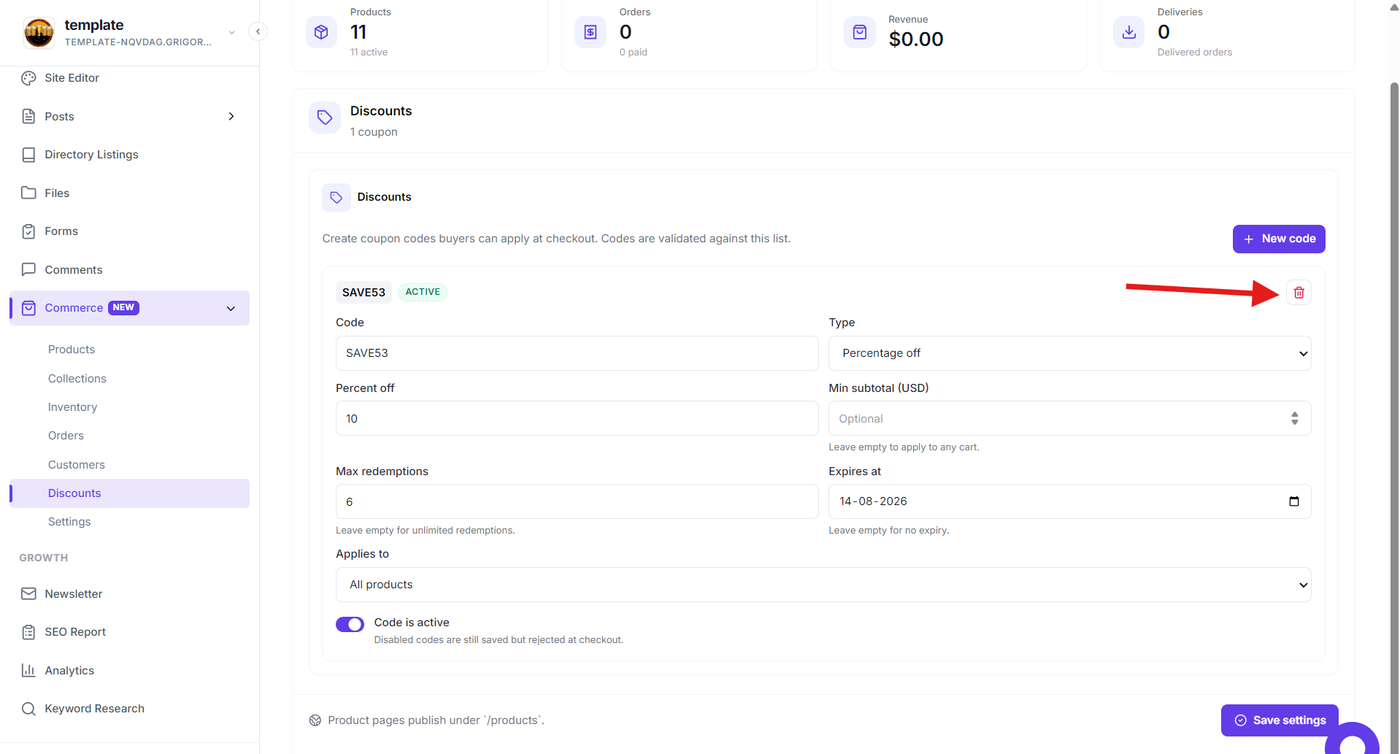
Code: Enter the coupon code customers will use at checkout (for example,
SAVE53).Type: Select the discount type, such as Percentage off.
Percent off: Enter the percentage to discount, such as 10%.
Min subtotal (USD): Enter the minimum cart subtotal required for the discount, or leave it empty to apply the discount to any cart.
Max redemptions: Enter the maximum number of times the code can be redeemed, or leave it empty for unlimited redemptions.
Expires at: Set an expiration date using the dd-mm-yyyy format, or leave it empty if the code should not expire.
Applies to: Select whether the discount applies to All products or another available product scope.
Code is active: Keep the toggle enabled to allow customers to use the discount. Disable it to save the code without accepting it at checkout.
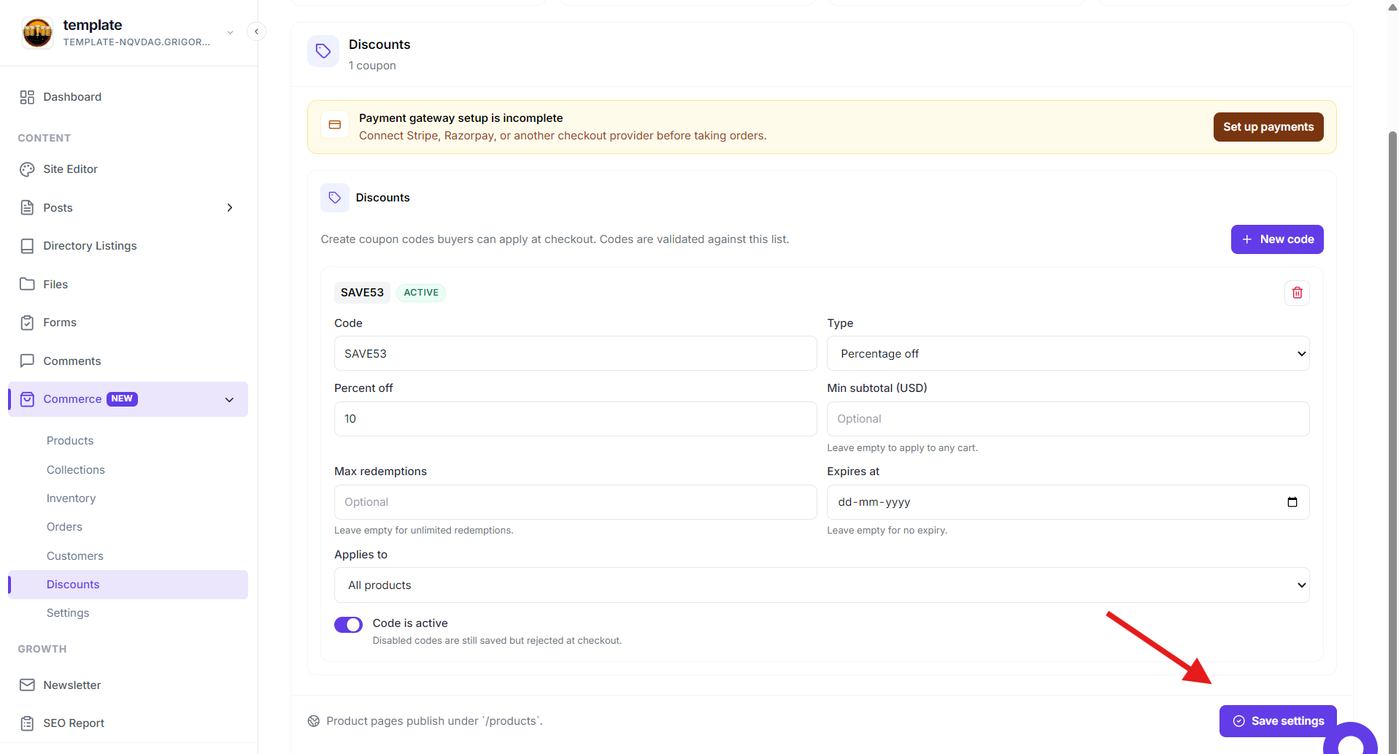
Review all settings, then click Save settings to apply the discount configuration.
Step 4: Save the discount code
After completing the discount configuration, save the discount code by clicking on Save Settings.
The newly created discount will be added to the Discounts section and can be managed from the discount list.
Remove an Unused Discount Code
Step 8: Delete a discount code
When a discount code is no longer required, open its available actions and select the delete option.
Review the confirmation prompt and confirm the deletion only when you are sure the discount code should no longer be available.
Verify the Discount
After creating or modifying a discount code, review it from the Discounts list to confirm that the code and its current configuration are correct.
If the discount is intended for customer use, test the code during checkout to verify that the expected discount is applied under the configured conditions.