

In Grigora, Lists and Tags provide static structural organization for your audience. Lists allow you to group subscribers by their publication interests (such as a Weekly Newsletter, Product Updates, or VIP Deals), while Tags offer flexible labels for specific user behaviors or acquisition sources.
This guide explains how to create new subscriber lists, configure opt-in modes, designate your default list, manage tags, and archive lists when no longer in use.
Navigating to Lists & Tags
In your Grigora project dashboard, select Newsletter from the left sidebar.
In the top tab bar, click on Lists & tags.
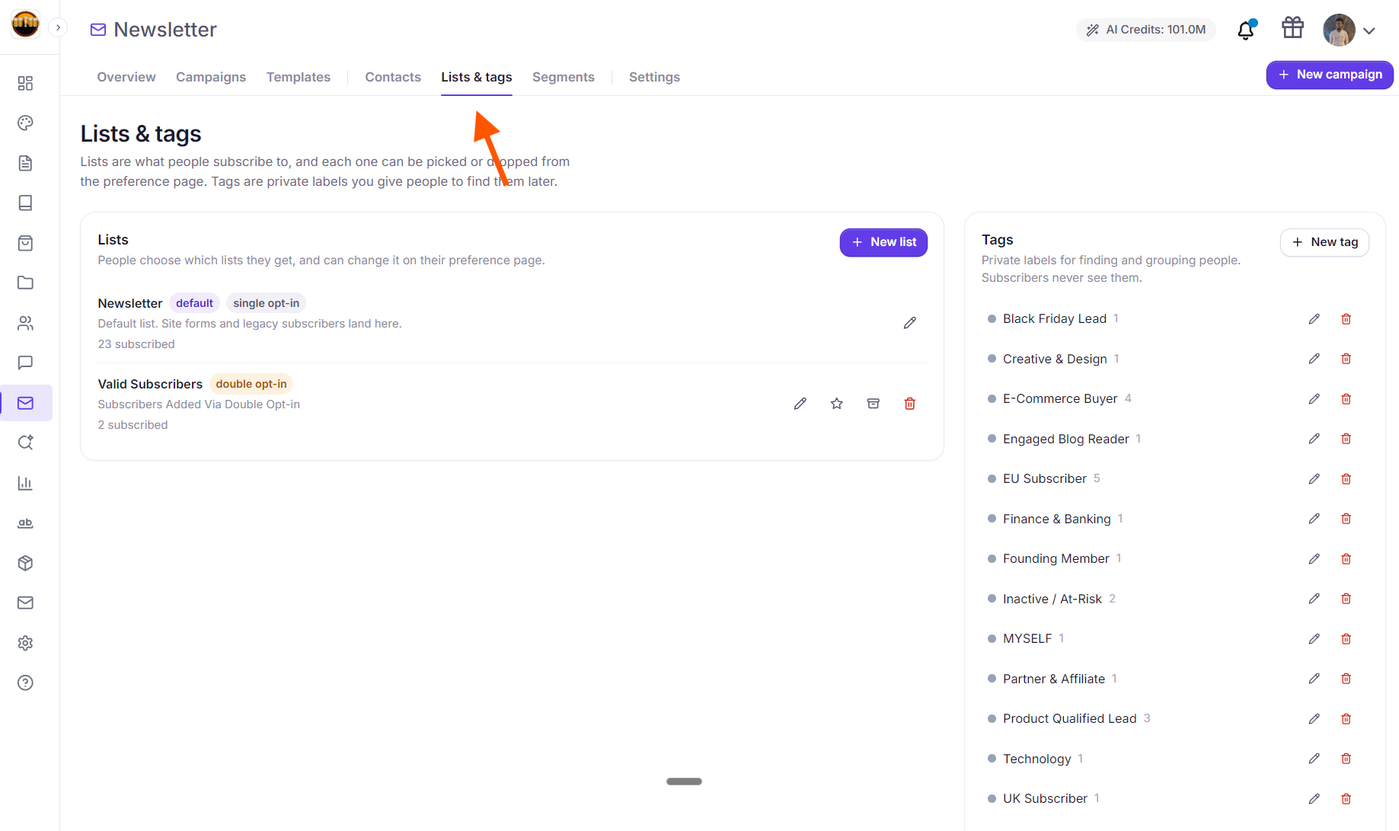
Here you will see your primary Lists table alongside the Tags management card.
Creating a New Subscriber List
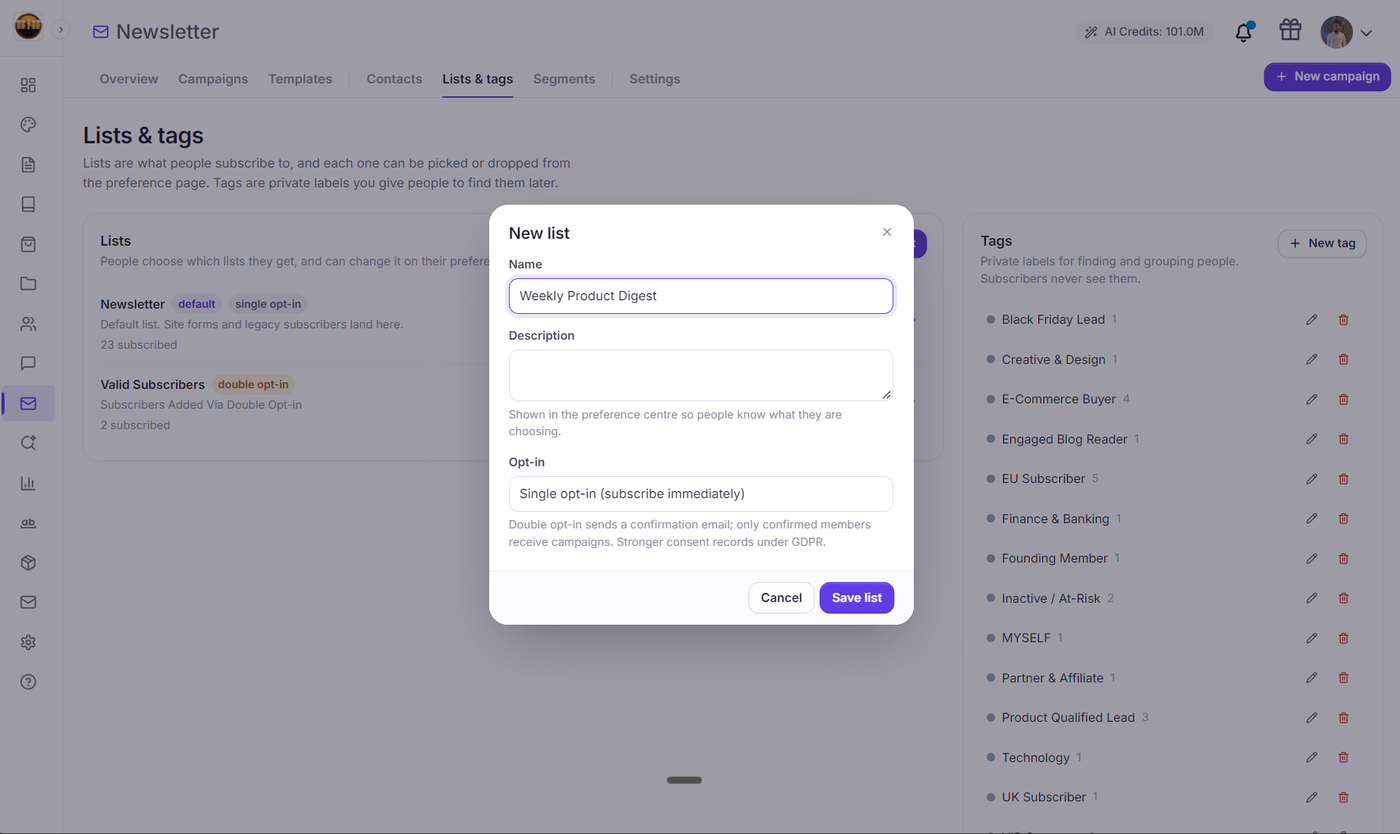
Click the New list button at the top of the Lists card.
Fill in the list configuration fields:
Name: A recognizable title (e.g., Monthly Tech Dispatch or Early Adopters).
Description: An optional internal note explaining who belongs to this list.
Opt-in Mode: Choose between Single opt-in (contacts are subscribed immediately) and Double opt-in (contacts must confirm via an automated verification email).
If you select Double opt-in, customize your Confirmation subject and Confirmation message.
Click Save list.
Understanding Your Default List
Every Grigora website includes one primary Default List (indicated by a purple default badge in the table).
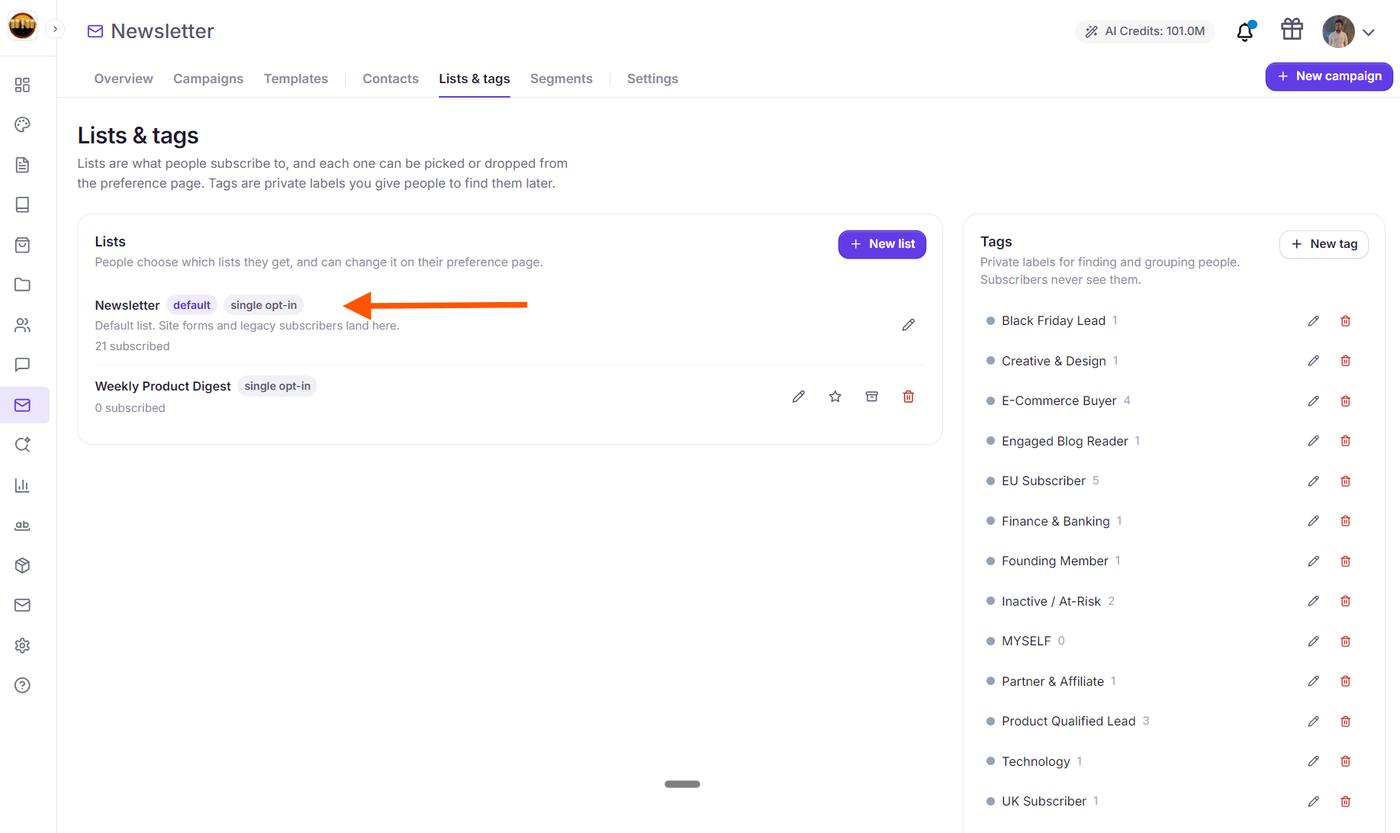
Whenever a visitor submits a standard newsletter signup form on your website without a specific list assigned, they are automatically placed into your Default List.
Legacy subscribers and imported contacts without explicit list designations also land in this default group.
Managing Tags
While lists represent broader publications, Tags are lightweight labels designed for quick filtering and targeting.
Common Use Cases for Tags:
Acquisition Source:
lead-magnet-ebook,webinar-attendee,blog-popup.Customer Tier:
paying-customer,free-trial,wholesale.Interest:
design,development,marketing.
Creating and Editing Tags:
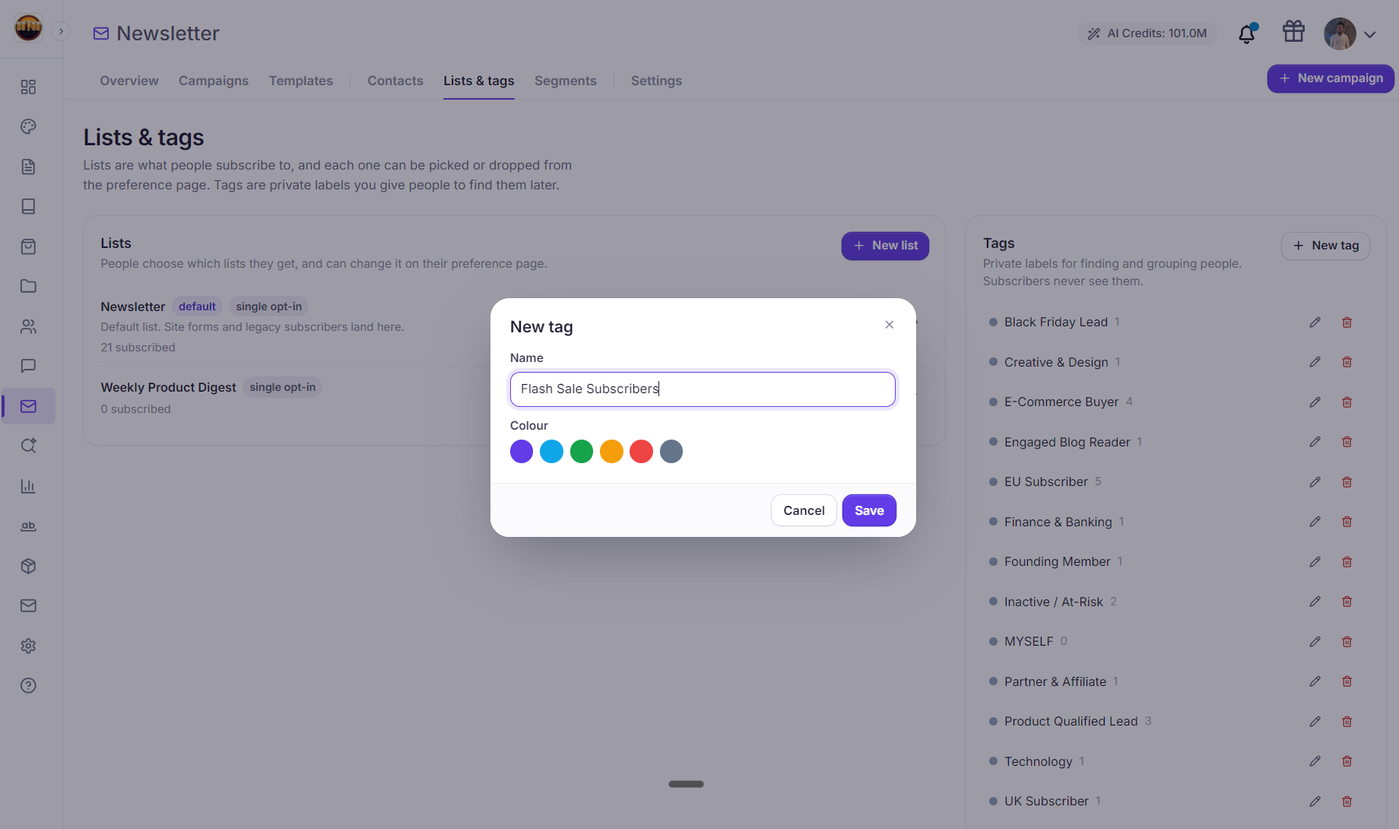
In the Tags section, click New tag.
Enter a tag name (e.g.,
summit-2026) and save.You can apply these tags when importing contacts via CSV or directly inside the contact profile drawer.
Archiving vs. Deleting Lists
When an audience list is no longer active (such as a seasonal campaign list):
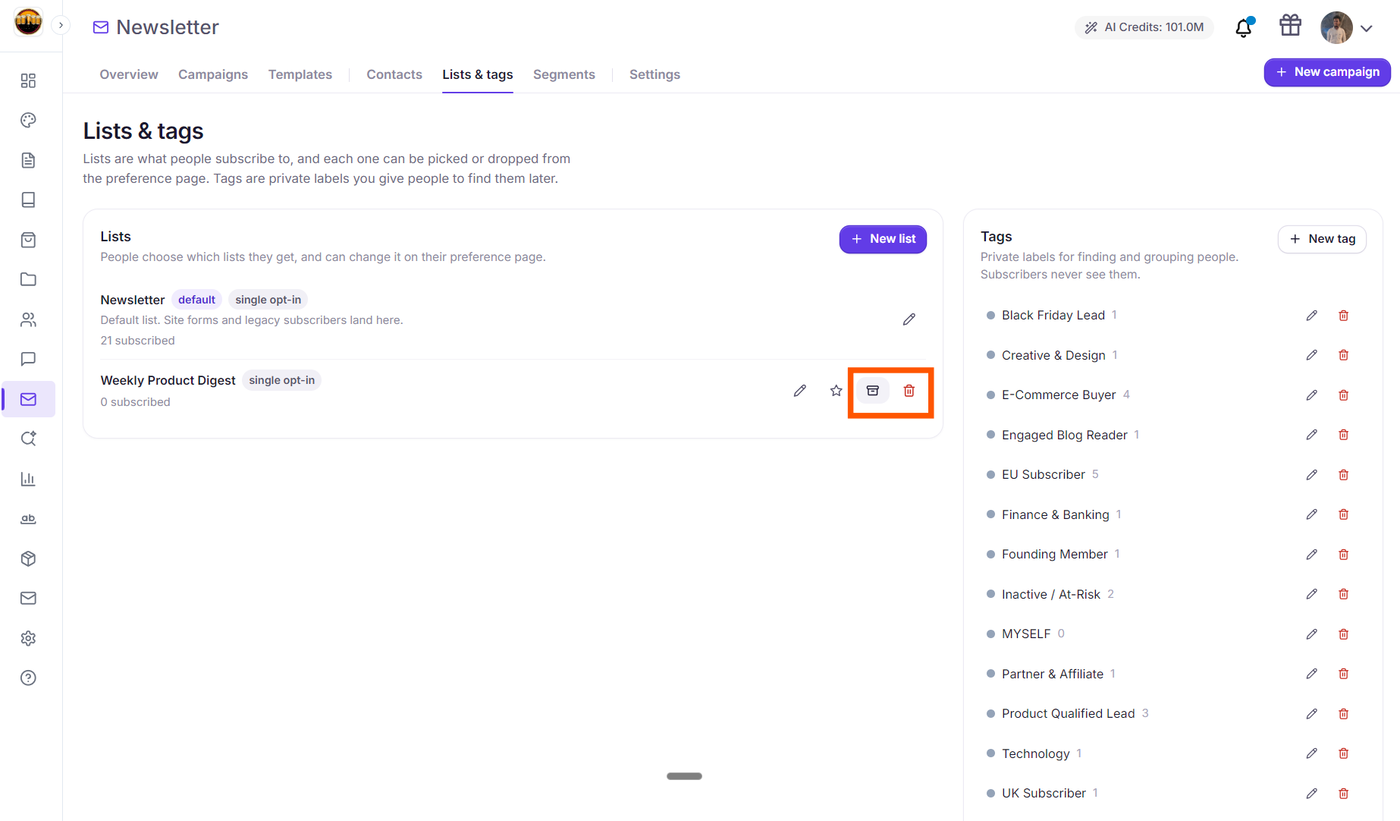
Archive List: Archiving removes the list from campaign audience dropdowns and signup forms, but preserves all subscriber contact records and engagement history. You can restore an archived list at any time.
Delete List: Permanently deletes the list structure. Existing contacts remain in your main database unless explicitly deleted.
Next Steps
Single Opt-in vs. Double Opt-in: How to Configure Confirmation Emails
How to Target the Right Audience: Including and Excluding Lists, Tags, and Segments
How to Build Targeted Audience Segments with Multi-Condition Rules