

Promoting products directly to your subscribers is one of the most effective ways to drive e-commerce sales. In Grigora, you can craft beautiful, high-converting product showcases and multi-item grids using modular design blocks (Columns, Image, Heading, Text, and Button) or generate complete product campaign layouts with the AI designer.
This guide explains how to design product spotlights, build responsive multi-item grids, and link items directly to your store checkout.
How Product Showcases Work in Grigora
Grigora uses a flexible, modular design approach. Rather than restricting you to a rigid template, you build customized product cards that perfectly match your brand by combining core blocks:
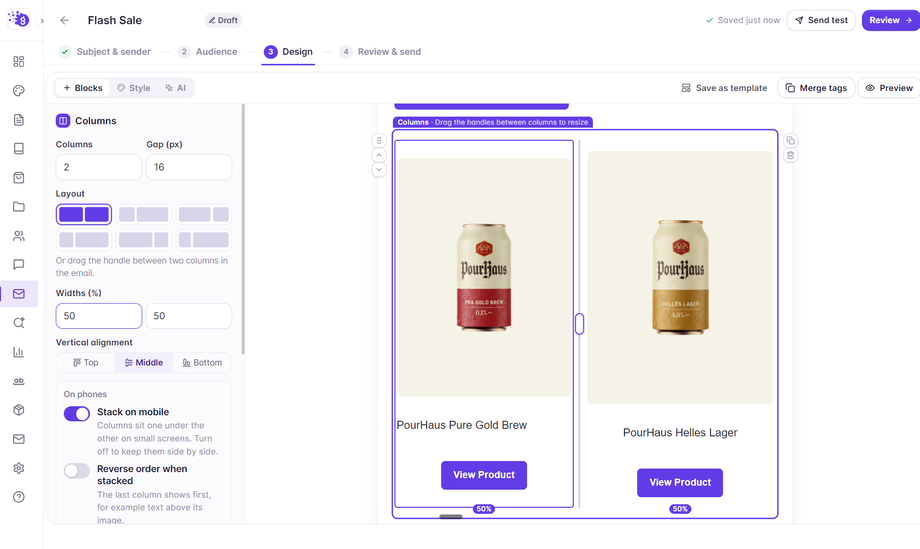
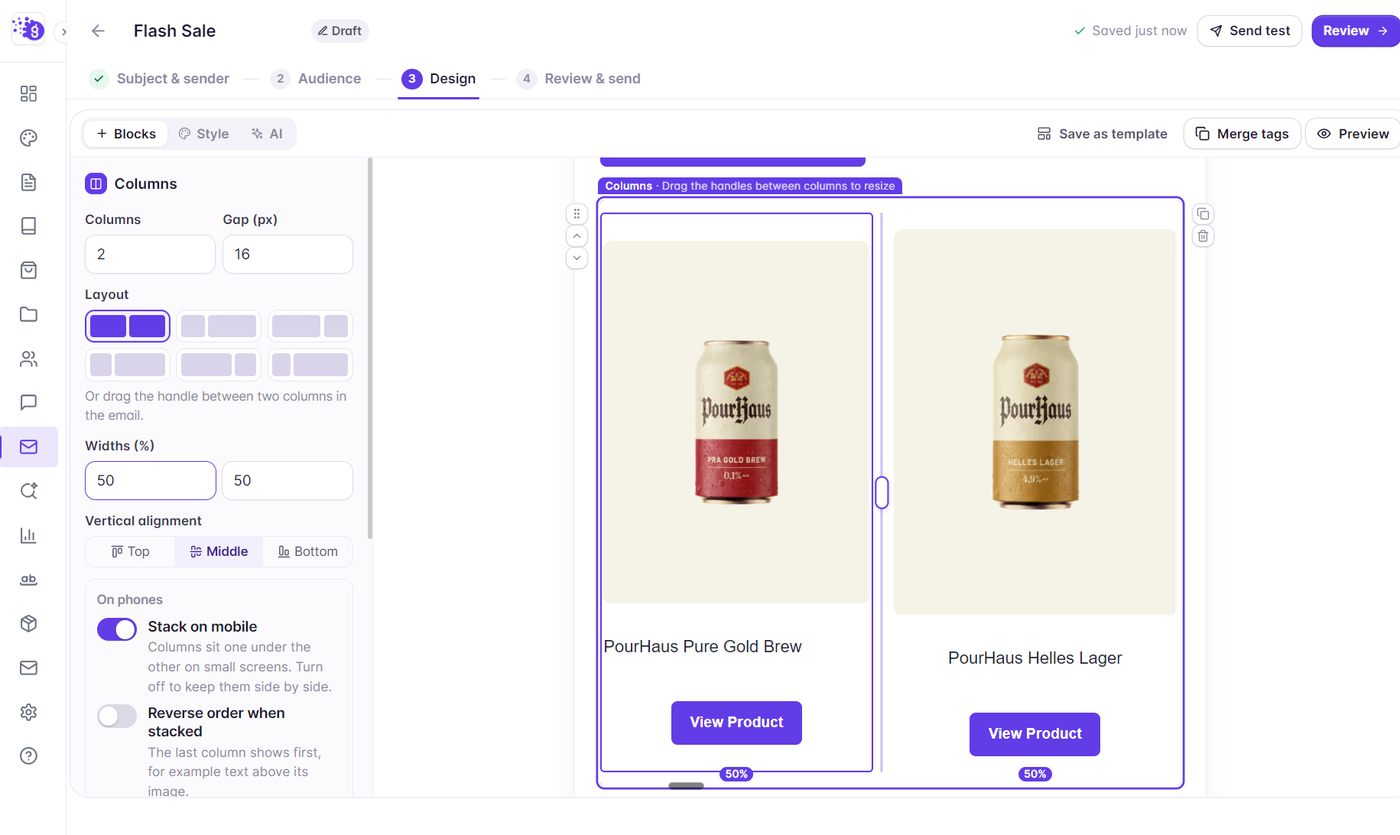
Columns block: Creates a side-by-side grid (2 or 3 columns) to display multiple products neatly.
Image block: Displays high-resolution product photography with a clickable link to your store.
Heading & Text blocks: Displays the product title, key features, and price tags.
Button block: Provides a prominent, high-converting Call-to-Action (e.g., "Shop Now", "Buy Now", "Claim 20% Off") linking directly to your product page or cart.
Step-by-Step: Building a Single Featured Product Spotlight
To spotlight a hero product or new arrival in your newsletter:
Open your campaign in Step 3 (Design).
Under the Blocks tab (
+ Blocks) in the left side panel, drag an Image block onto the canvas.Double-click the placeholder on the canvas to open the image picker and upload or select your product photo.
In the left side panel under Link, enter the direct URL to your product page so clicking the image takes shoppers directly to the item.
Drag a Heading block below the image, double-click to type the product name, and set its heading level (e.g., H2).
Drag a Text block below the heading to write a short product description and highlight the price (e.g., $49.00).
Drag a Button block below the text, double-click to label it (e.g., "Shop Now"), and set its destination URL to your product or checkout page in the left side panel.
Building Multi-Column Product Grids
To feature a collection of products side-by-side (such as seasonal bestsellers or gift guides):
From the + Blocks tab, drag a Columns block onto the canvas.
In the left side panel, select 2 or 3 columns from the dropdown and set your desired spacing (Gap).
Drag an Image block into each column and add your product photos and product URLs.
Drag a Heading block into each column for the item names.
Drag a Text block into each column for the price and brief description.
Drag a Button block into each column with direct links to purchase each item.
Ensuring Responsive Mobile Stacking
Most subscribers read emails on mobile devices. When you build a multi-column product showcase, Grigora automatically optimizes the layout for phones:
Stack on mobile: By default, columns automatically collapse vertically on mobile screens so shoppers see large product photos and thumb-friendly buttons without horizontal scrolling.
Previewing: Click the Preview button in the top toolbar and switch to the Phone tab to verify how your product grid stacks on mobile.
Drafting Product Campaigns with AI
You can also use Grigora’s AI designer to draft entire product promotional emails in seconds:
In the email composer (Step 3: Design), click the AI tab (
✨ AI) at the top of the left sidebar.In the prompt box, describe the products you want to feature (e.g., "Promote our new organic coffee collection to previous buyers. Spotlight 3 seasonal blends with tasting notes, price tags, and 'Shop Now' buttons. Offer 15% off with code FALL15.").
Select your preferred tone (such as Friendly, Bold, or Professional).
Click Draft the email. Grigora will automatically lay out images, headlines, copy, and buttons styled in your brand colors.