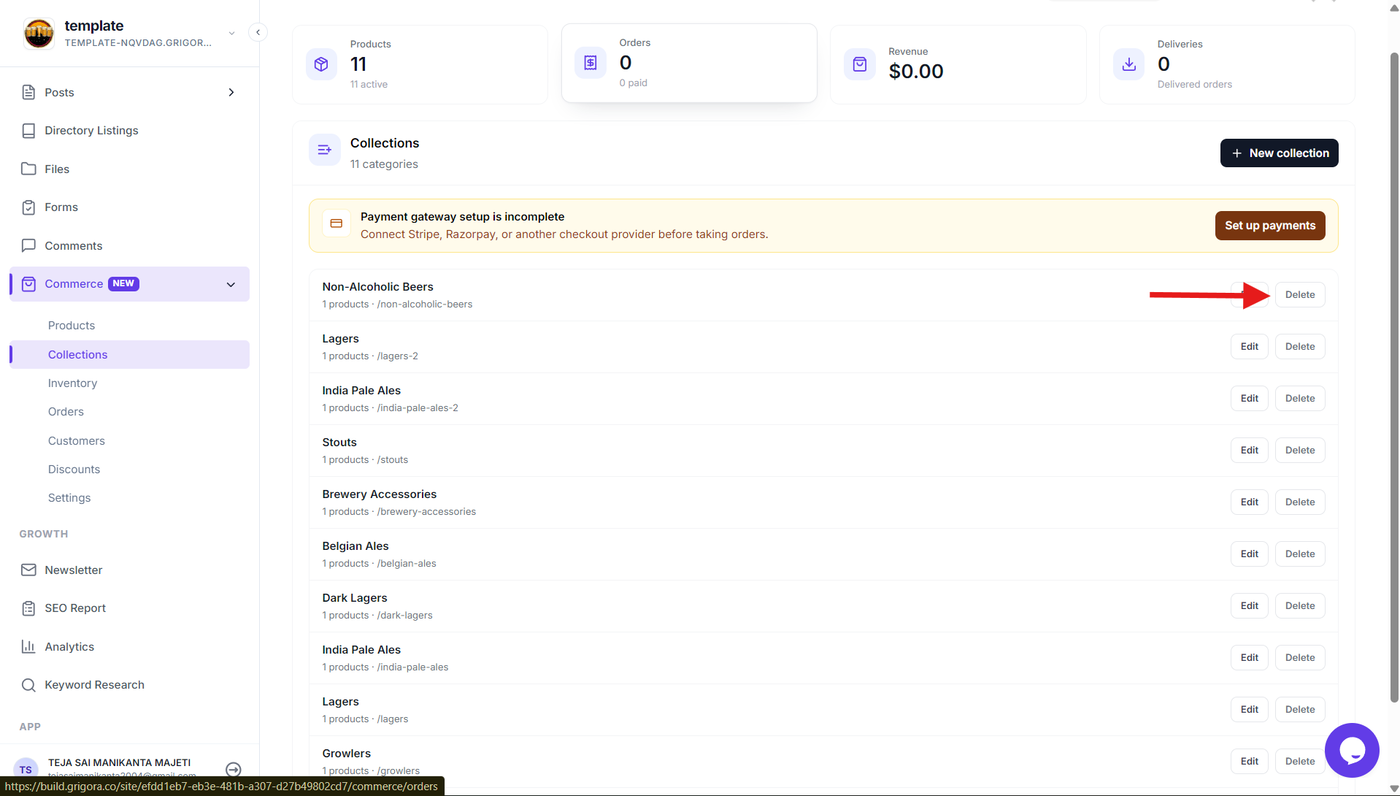
Product collections help you organize related products into groups, making it easier for customers to browse products by category, type, campaign, or any other grouping you need. In Grigora Commerce, you can create collections, add products to them, update collection details, and manage the products included in each collection.
Step 1: Open Product Collections
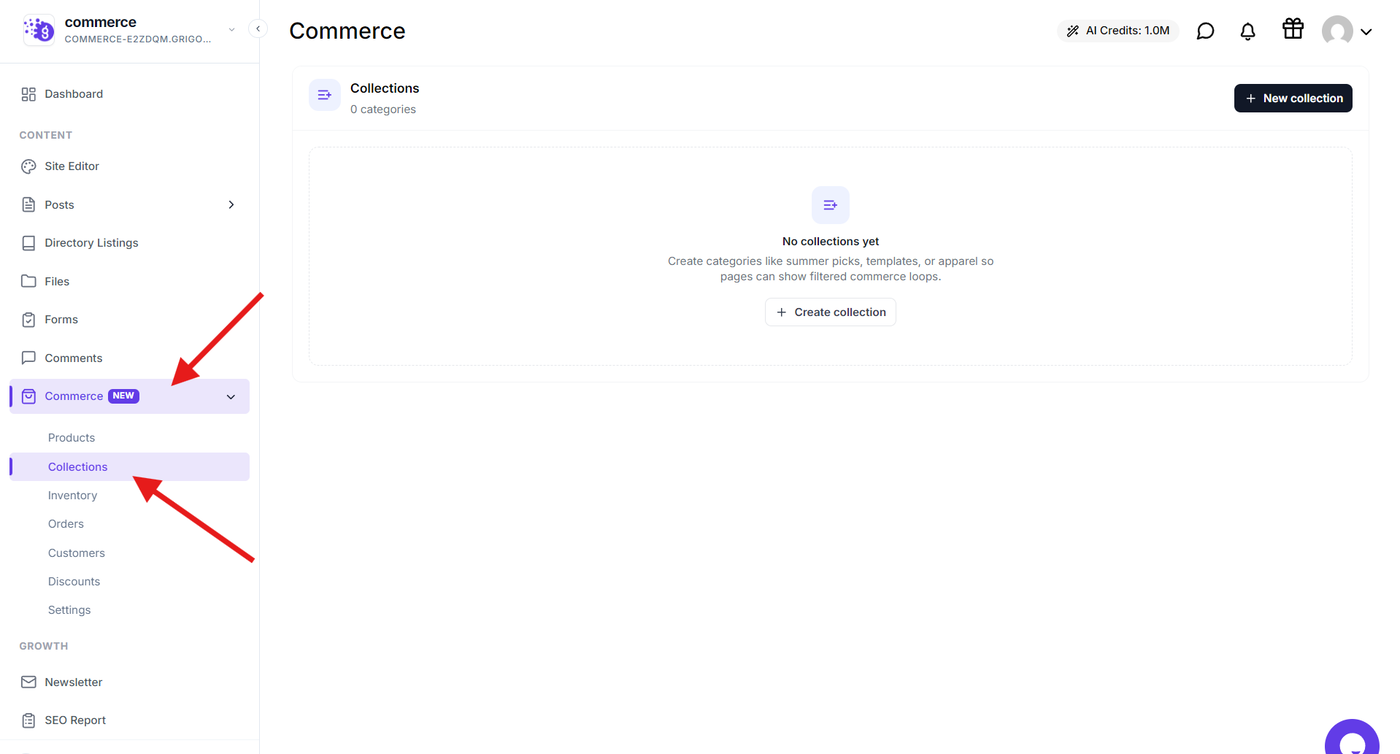
From the Grigora Commerce dashboard, navigate to Products and open Collections to view the existing product collections.
Step 2: Create a new collection
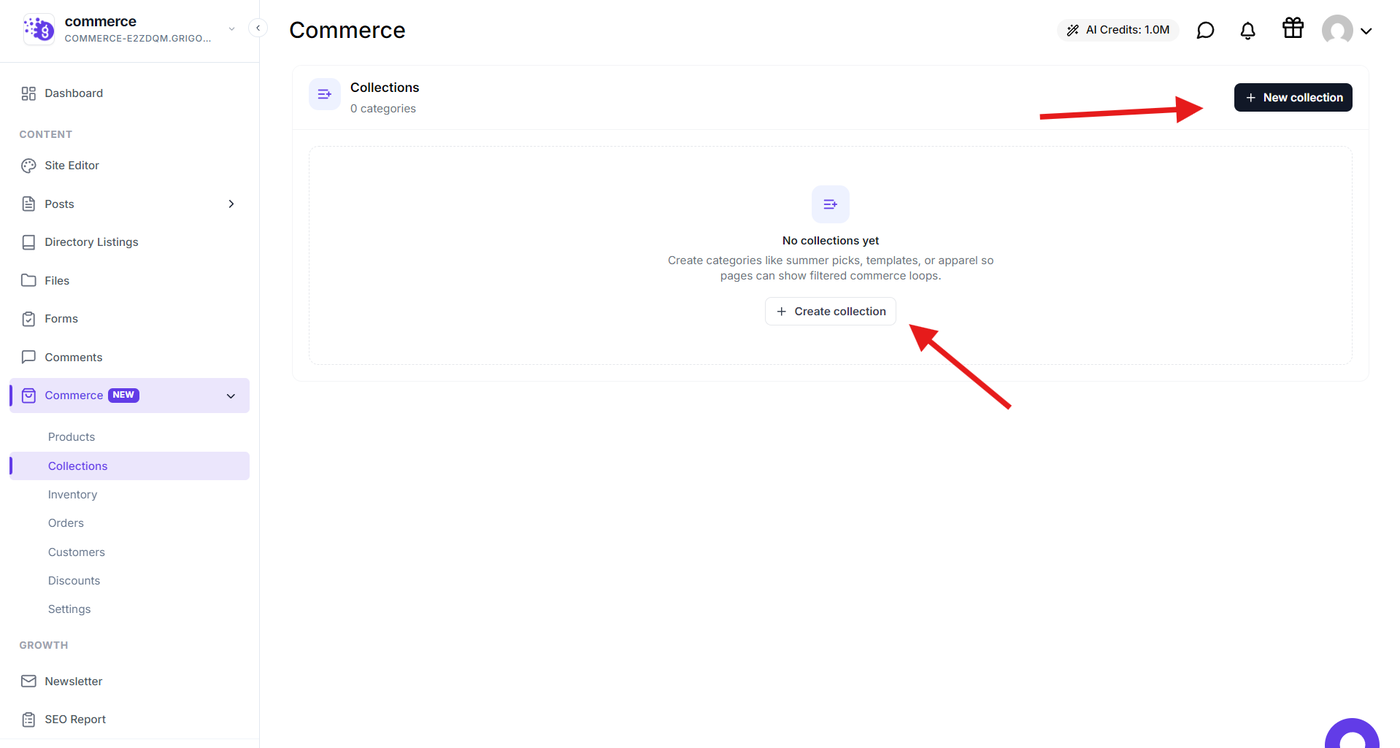
Click Add Collection to create a new product collection. Enter the collection name and provide the required details for the collection.
Use a clear and descriptive name so customers can easily understand which products belong to the collection.
Step 3: Configure Collection
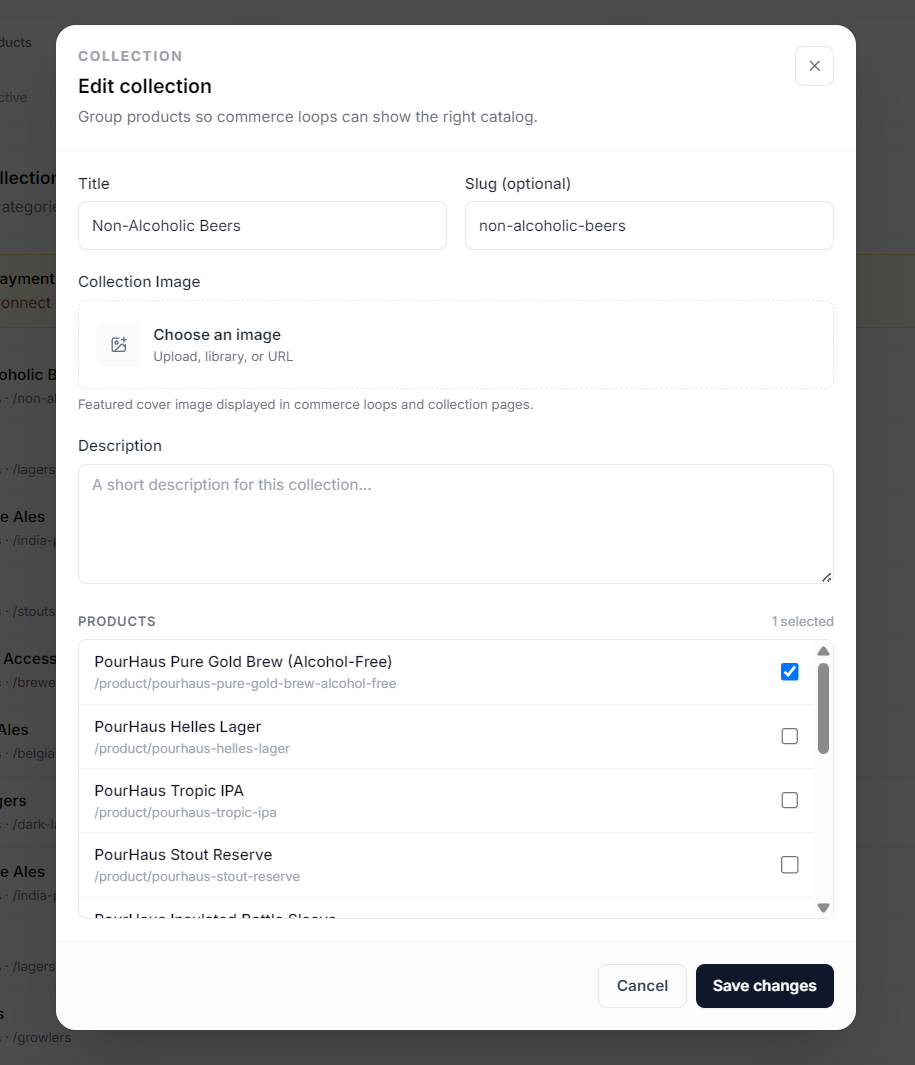
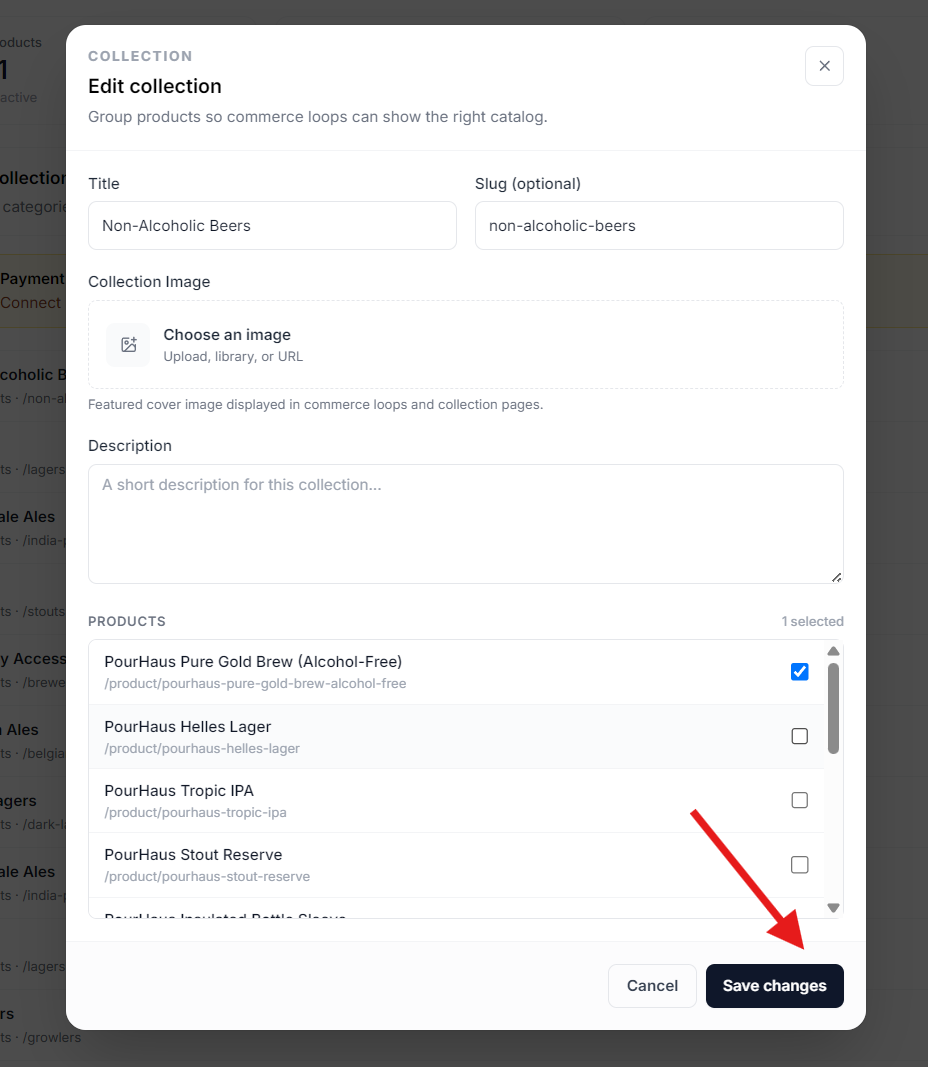
Fill in the collection details, including the title, slug, image, and description, then add the desired products by clicking the checkboxes on the right and save the changes.
Step 3: Save the collection
After entering the collection details, save the collection. The new collection will be added to your product collections and can then be managed or assigned products.
Manage an Existing Collection
Step 4: Edit collection details
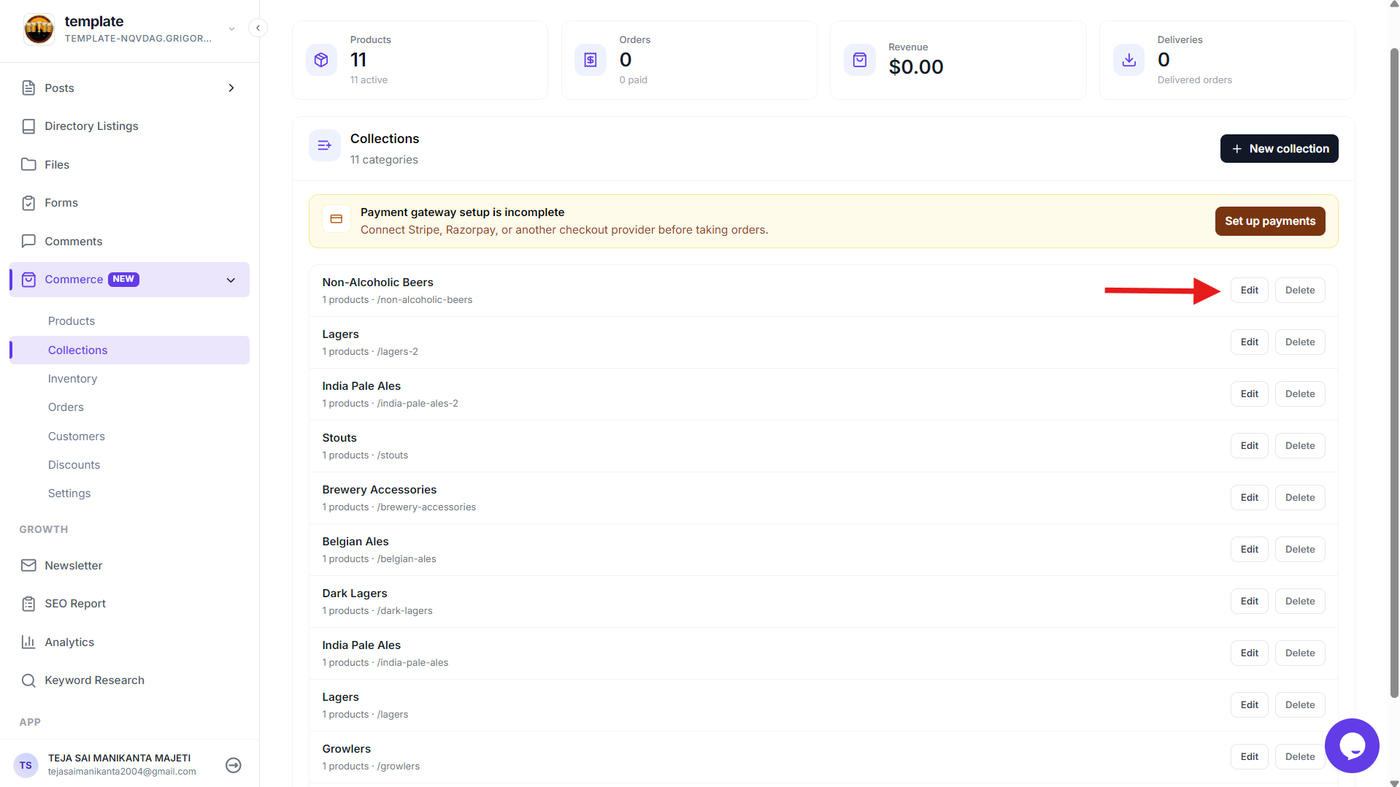
Open an existing collection to update its information. Modify the collection name or other available details as needed, then save the changes.
This allows you to keep collection information accurate without creating a new collection.
Delete a Product Collection
Step 5: Delete an unused collection
If a collection is no longer required, use the available delete option for that collection. Review the confirmation prompt and confirm the deletion.
Deleting a collection removes the collection itself, so make sure it is no longer needed before confirming the action.