

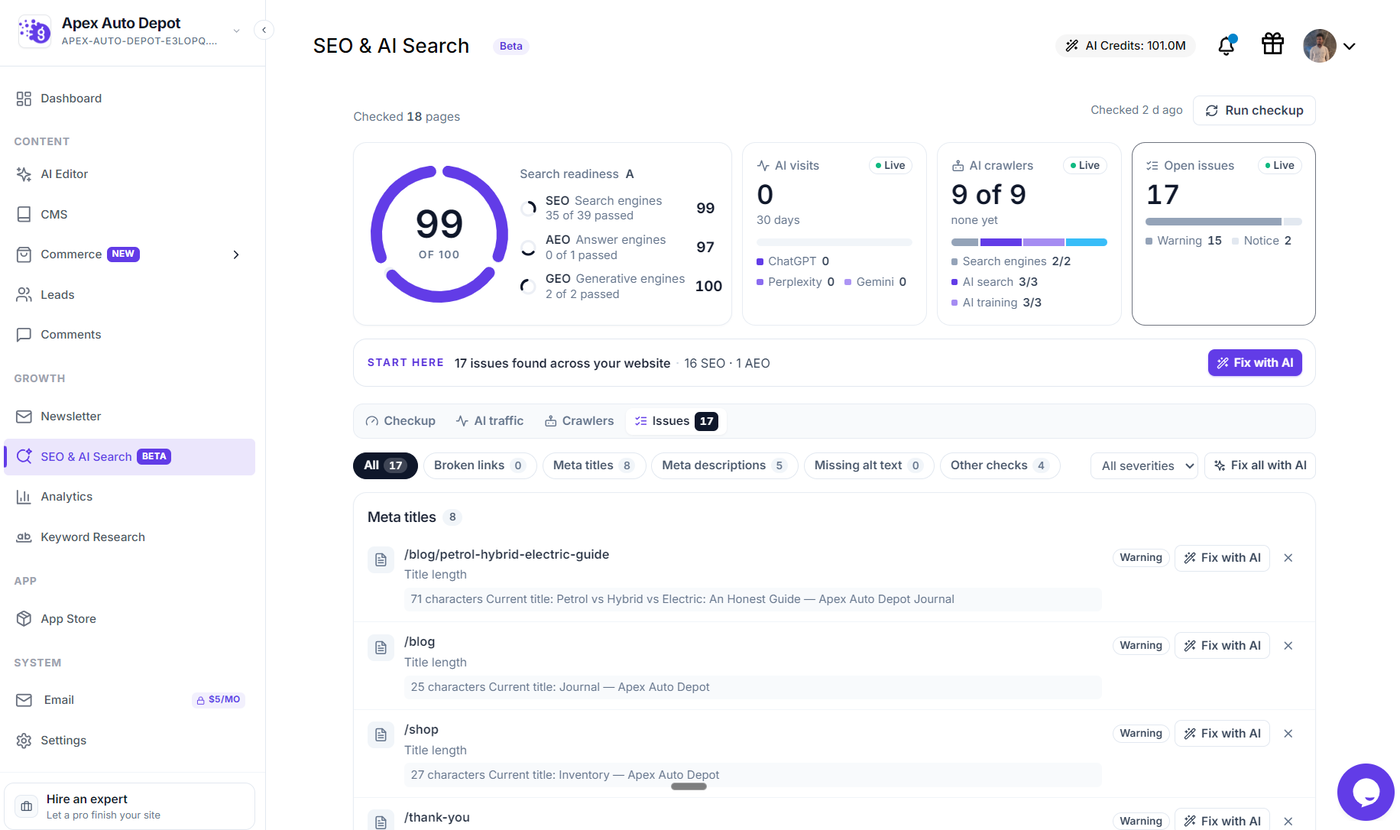
Grigora provides a built-in SEO & AI Search audit that evaluates your website across three modern discovery lenses: traditional search engines, direct answer engines, and generative AI assistants. It checks your published pages for metadata, accessibility, crawler rules, and structured elements, turning every finding into an actionable improvement.
Understanding the 3 Discovery Pillars
Unlike classic SEO tools that only measure standard search results, Grigora evaluates your site across three pillars:
SEO (Search engines): How search engines like Google and Bing discover, crawl, and display your pages in classic web results.
AEO (Answer engines): How effectively search engines can extract concise answers from your content for featured snippets, People Also Ask boxes, and voice search.
GEO (Generative engines): How generative AI assistants such as ChatGPT, Perplexity, Google Gemini, Claude, and Copilot index and cite your website when answering user prompts.
Accessing SEO & AI Search
To access the audit:
Open your website dashboard in Grigora.
In the left sidebar, click SEO & AI Search (marked with a purple Beta badge) under the Growth section.
Note: SEO and AI Search audits evaluate live, published websites. If your site has not been published yet, Grigora displays a notice asking you to publish your website first, along with a direct button to Open editor to publish.
Running Your Checkup
When you open SEO & AI Search for the first time on a published site, you will see an introductory card explaining the three lenses.
Click Run your first checkup.
A progress screen appears with the status Checking your site. The audit runs through three sequential stages:
Reading crawler permissions: Verifies access rules in your
robots.txtfile.Discovering and checking published pages: Crawls your pages, blog posts, store products, and directory listings.
Saving search, answer and generative readiness: Calculates your readiness score and compiles issue findings.
The checkup runs in the background. You can safely browse other areas of your dashboard or leave the page while it finishes.
To run a new checkup at any time after making site updates, click Run checkup in the top-right corner of the dashboard.
Reading Your Readiness Score and the TriArc
Once the audit completes, the top section of the page presents your overall search readiness score and summary tiles:
The TriArc Score Ring
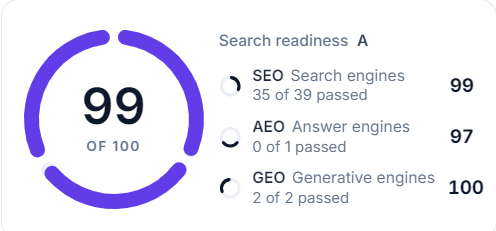
The TriArc is a circular three-part gauge that visualizes your website's performance:
Overall Score: A number from 0 to 100 displayed in the center of the ring.
Readiness Letter Grade: Positioned above the pillar list:
A: Score 90–100
B: Score 75–89
C: Score 60–74
D: Score 40–59
E: Score below 40
Pillar Arcs: Each of the three arcs represents one pillar (SEO, AEO, and GEO). The arc fills proportionally to that pillar's score. Checks that require external scanning appear as dashed tracks rather than empty tracks, so unmeasured items are never confused with a zero score.
Pillar Breakdown: The legend next to the TriArc shows each pillar's name, individual score, and how many checks passed (for example, 35 of 39 passed).
Summary Metric Tiles
To the right of the TriArc, three summary tiles provide quick insights into your site's health:
AI visits: The total number of visitors referred by AI assistants over the last 30 days, accompanied by a breakdown of contributing platforms. Clicking this tile opens the AI traffic tab.
AI crawlers: The count of active and allowed AI bots observed on your site. Clicking this tile opens the Crawlers tab.
Open issues: The number of actionable items that need attention across your site, categorized by severity (such as Warning and Notice). Clicking this tile opens the Issues tab.
The "Start here" Recommendation Bar
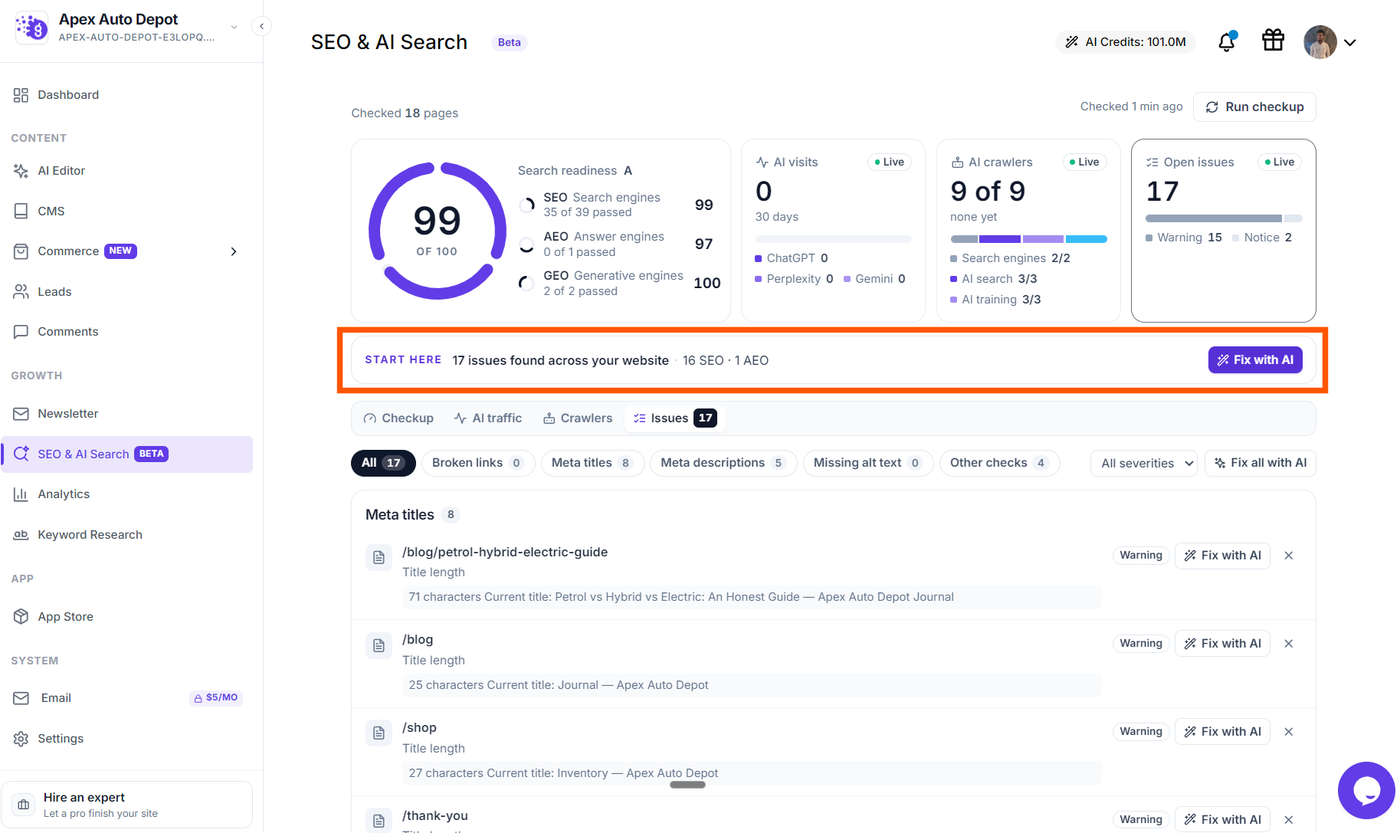
Below the summary tiles, a Start here banner highlights the total number of issues identified across your website, categorized by pillar (for example, 17 issues found across your website · 16 SEO · 1 AEO). On websites created with the AI Website Builder, this banner includes a primary solid purple Fix with AI button to resolve issues in bulk.
Using the Checkup Tab
The Checkup tab displays every individual test evaluated during the audit. Use the segmented filter at the top to view All checks, or narrow the list by SEO, AEO, or GEO.
Check Status Results
Each check displays an icon indicating the evaluation result:
Passed: Represented by a checkmark icon, indicating that the item meets all recommended criteria.
Warning: Represented by an alert triangle icon, indicating that the item requires review (such as a meta description that is slightly outside optimal length).
Failed: Represented by a circled X icon, indicating that the item is missing or violates recommended standards (such as a missing meta title or broken link).
Checked — missing (optional): Represented by an info icon, indicating informational or advisory items (such as an optional
llms.txtfile) that do not deduct points from your score.Needs scan / Unavailable: Represented by a dashed circle icon, indicating checks that require additional verification and are excluded from score calculations.
Key Checks Performed
The Checkup tab audits fundamental aspects of your content and configuration:
Page titles under 60 characters: Verifies that every page has a distinct title that avoids getting truncated in search engine result pages.
Page descriptions, 50 to 160 characters: Confirms that search snippets provide clear summaries within optimal display lengths.
Blog post, product, and listing titles & descriptions: Checks dynamic content across your CMS, Commerce store, and Directory collections.
Featured images with alt text: Verifies that thumbnail and featured images include descriptive alternative text for search accessibility.
Site published & HTTPS: Confirms that your site is live and served over secure HTTPS encryption.
Post summaries for answer boxes: Checks whether articles include concise summary paragraphs suitable for snippet extraction.
External links audit: Inspects outgoing links on your pages. You can expand the check to review destinations, source pages, link text, and link attributes.
Navigating from Checks to Issues
When a check identifies failing or warning items, the row displays an issue counter badge (such as 3 issues). Clicking the row opens the Issues tab with the filter pre-set to that specific finding type so you can review individual page URLs and diagnostic details.
Tip: If your website content changes after a checkup has run, Grigora displays a notice stating: "Your site has changed since this report. Run Checkup to update it." Click Run checkup in the top-right corner to refresh your audit results.