

Every successful email campaign starts with credibility. When your newsletter arrives in a subscriber's inbox, the first things they see are your From Name, From Address, and Subject Line. If your sender details look unfamiliar or unconfigured, subscribers may ignore your message or mark it as spam.
In Grigora, you can configure your Sender Defaults once, and they will automatically apply across all your future campaigns, drafts, and automated emails. This guide walks you through setting up your From Name, custom prefix on the shared sending domain, monitored Reply-To address, legal postal address, and default consent text.
Accessing Newsletter Settings
To configure your sender profile in Grigora:
Log in to your Grigora dashboard and select your website project.
In the left sidebar, click on Newsletter.
In the top sub-navigation bar, click on the Settings tab.
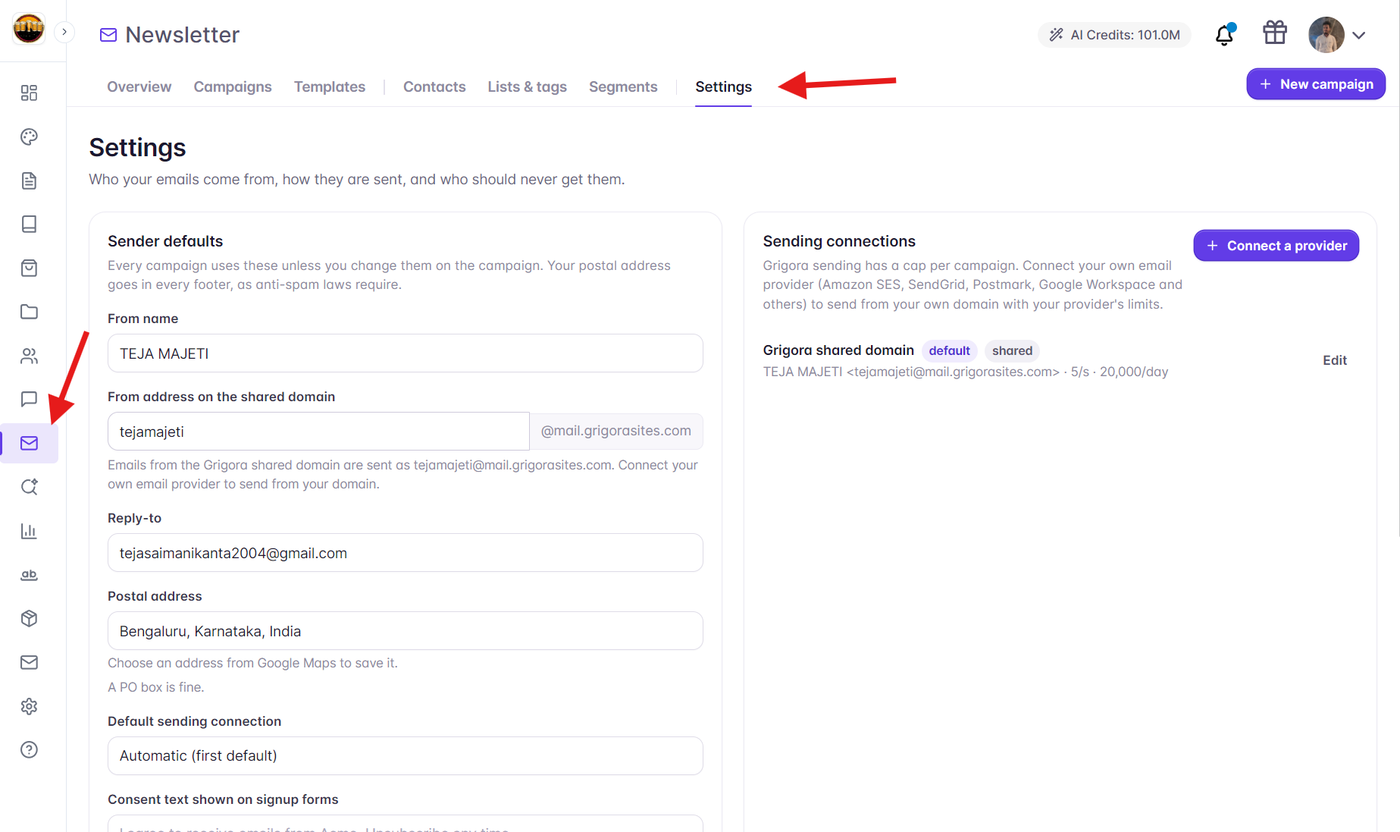
On the Settings page, the first section you will see is the Sender defaults card. This contains all baseline identity fields used across your email marketing campaigns.
1. Setting Your 'From Name'
The From Name is the display name that appears prominently in the subscriber's email inbox preview.
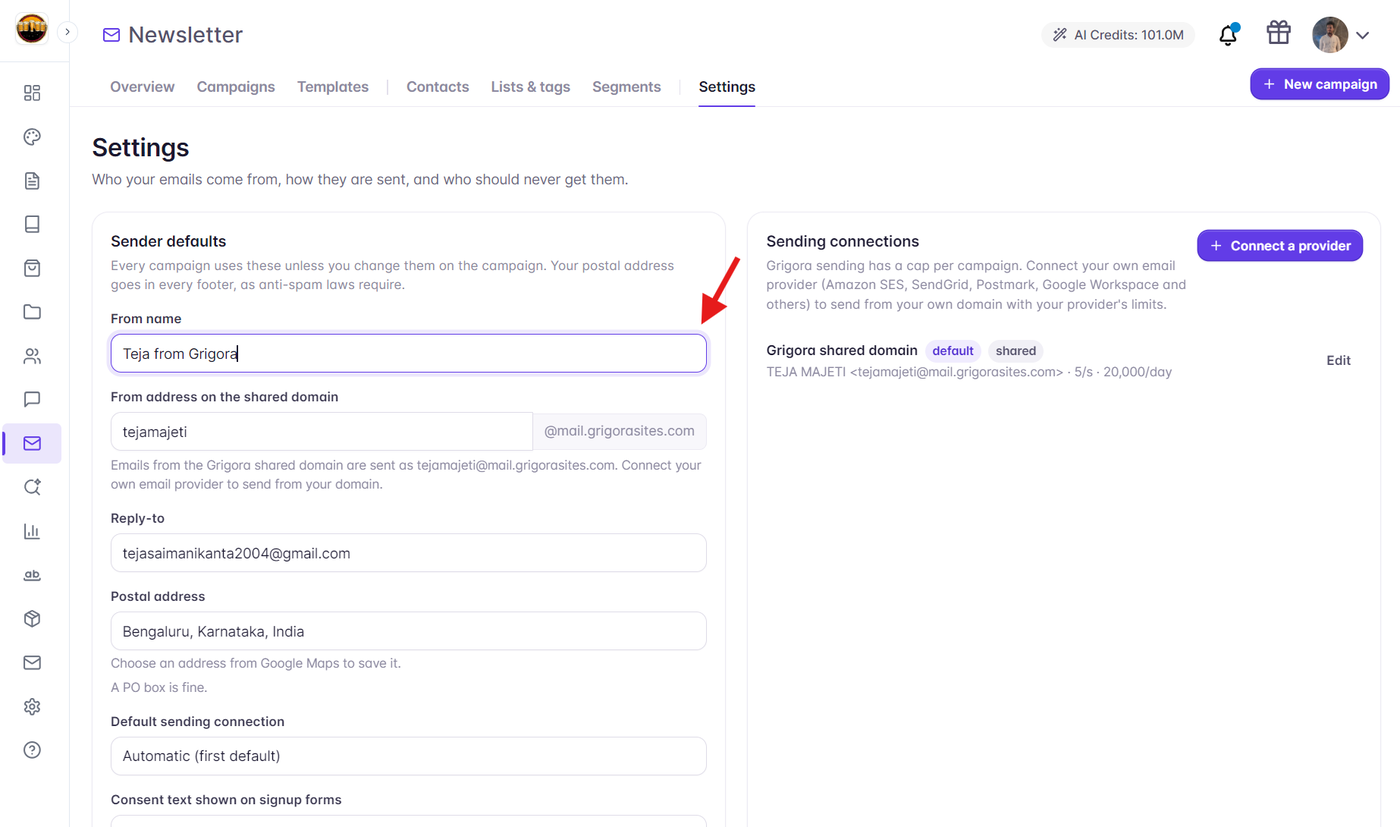
Best Practices for From Names:
Company or Brand Name: e.g., Acme Weekly or Grigora Studio. Best for corporate or multi-author newsletters.
Person + Company: e.g., Sarah from Acme or Alex | Design Digest. Personal names often drive higher open rates because they feel human and authentic.
Consistency: Keep your From Name consistent across sends so subscribers instantly recognize your emails in a crowded inbox.
2. Setting Your 'From Address' on the Shared Domain
Grigora lets you begin sending newsletters immediately without requiring DNS configuration or domain verification by providing a pre-authenticated shared sending domain (mail.grigorasites.com).
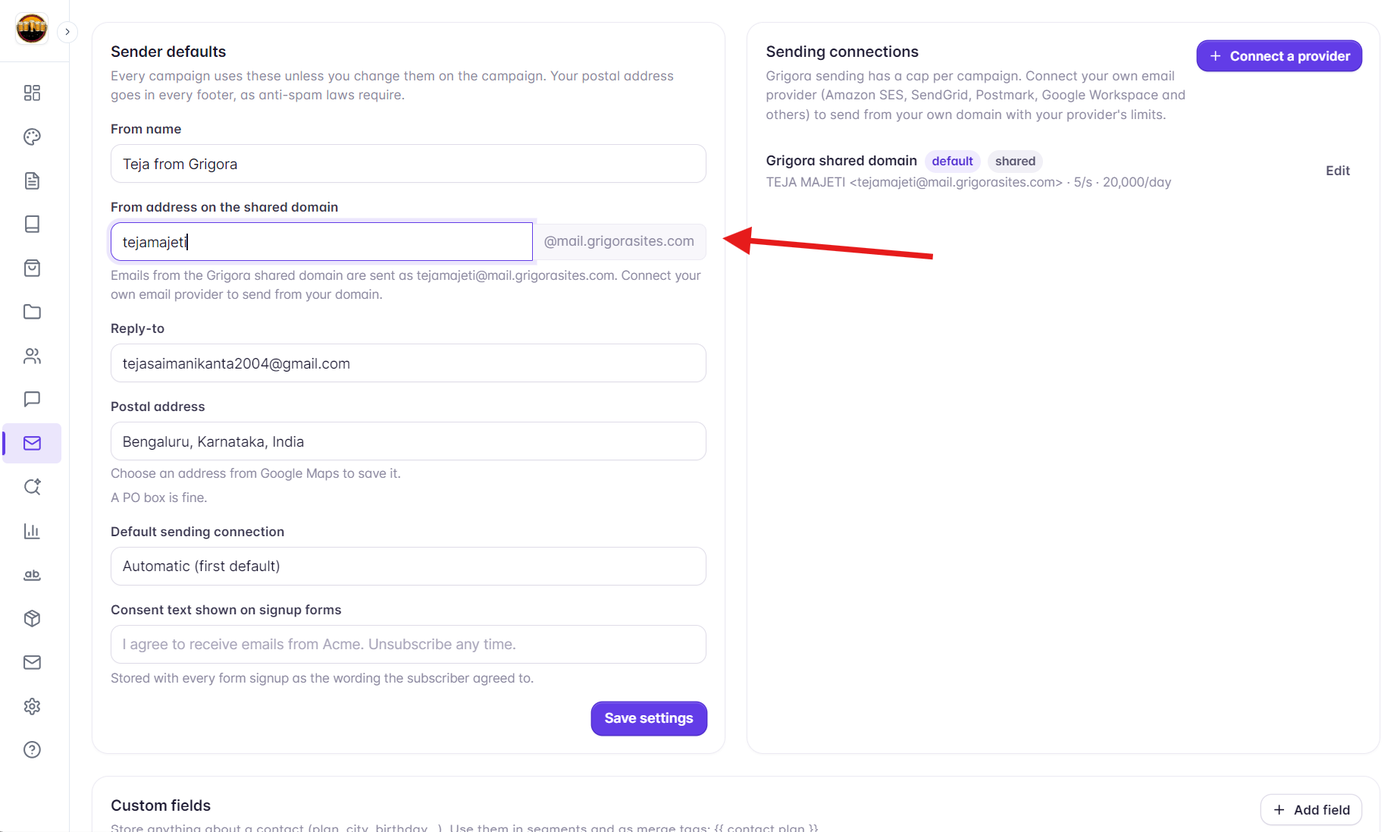
Locate the From address on the shared domain field.
Enter your desired email prefix in the input box (for example,
hello,updates, orteam).Grigora automatically strips invalid characters (only lowercase letters, numbers, dots, dashes, and underscores are allowed) and combines your prefix with the shared domain:
hello@mail.grigorasites.com.
Note for Custom Domain Sending: Emails sent from the shared domain are capped at 1,000 recipients per campaign. If you want to send emails from your own domain (e.g.,
newsletter@yourdomain.com) with custom domain reputation, you can connect your own email provider via Custom SMTP (such as Gmail or Google Workspace) under the Sending connections card.
3. Configuring Your 'Reply-To' Address
While marketing emails are often sent from automated mailboxes, your subscribers should always have a direct way to respond, ask questions, or provide feedback.
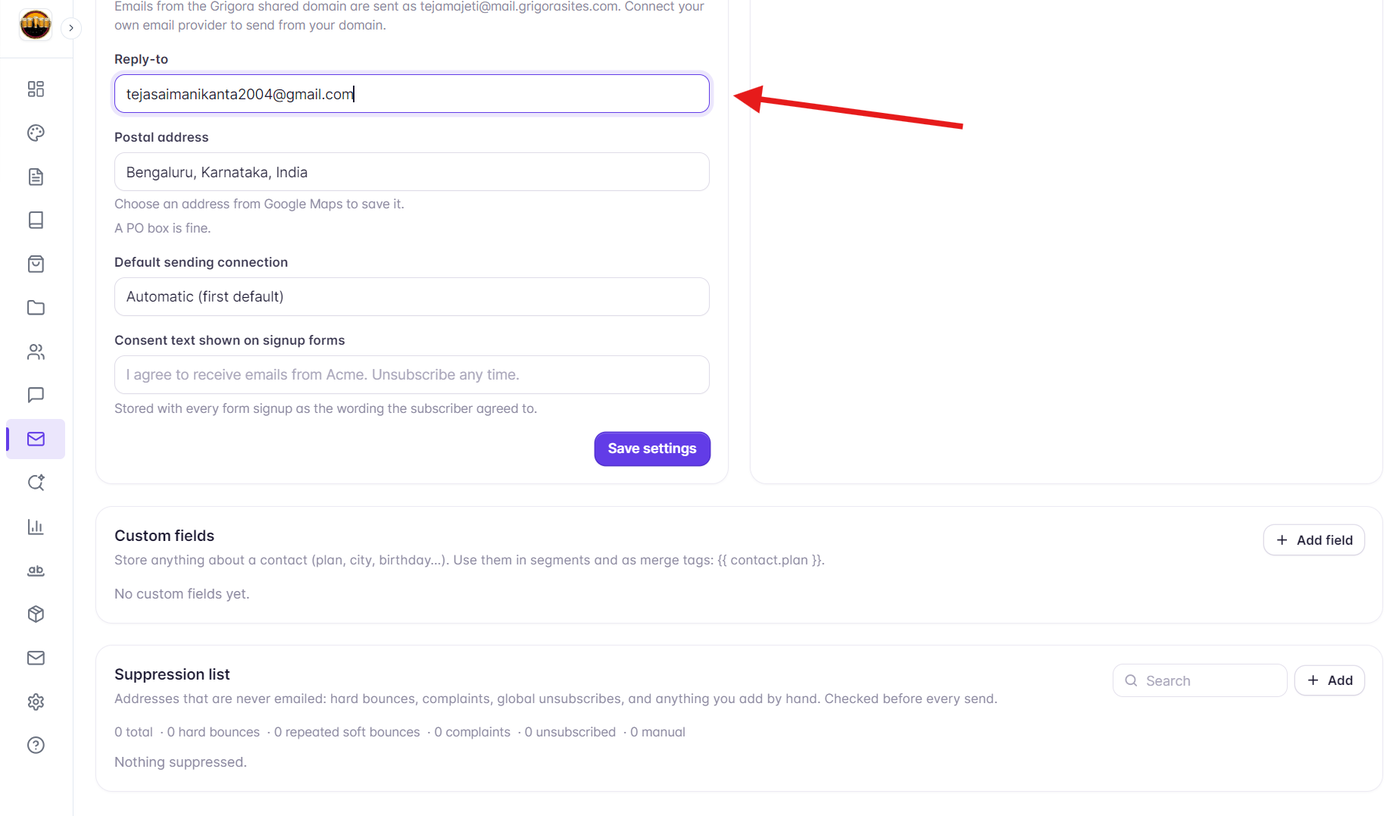
In the Reply-to field, enter an email address that you actively monitor (e.g.,
support@yourbrand.comorhello@yourbrand.com).When a recipient clicks the "Reply" button in their email client (Gmail, Apple Mail, Outlook), their message will be directed to this address instead of the sending server.
Ensure this email address is spelled correctly and accepts incoming mail.
4. Adding a Verified Postal Address (Anti-Spam Requirement)
Under international anti-spam laws—including the U.S. CAN-SPAM Act, Europe's GDPR, and Canada's CASL—every commercial email must include a valid, physical postal address or registered PO Box in the footer.
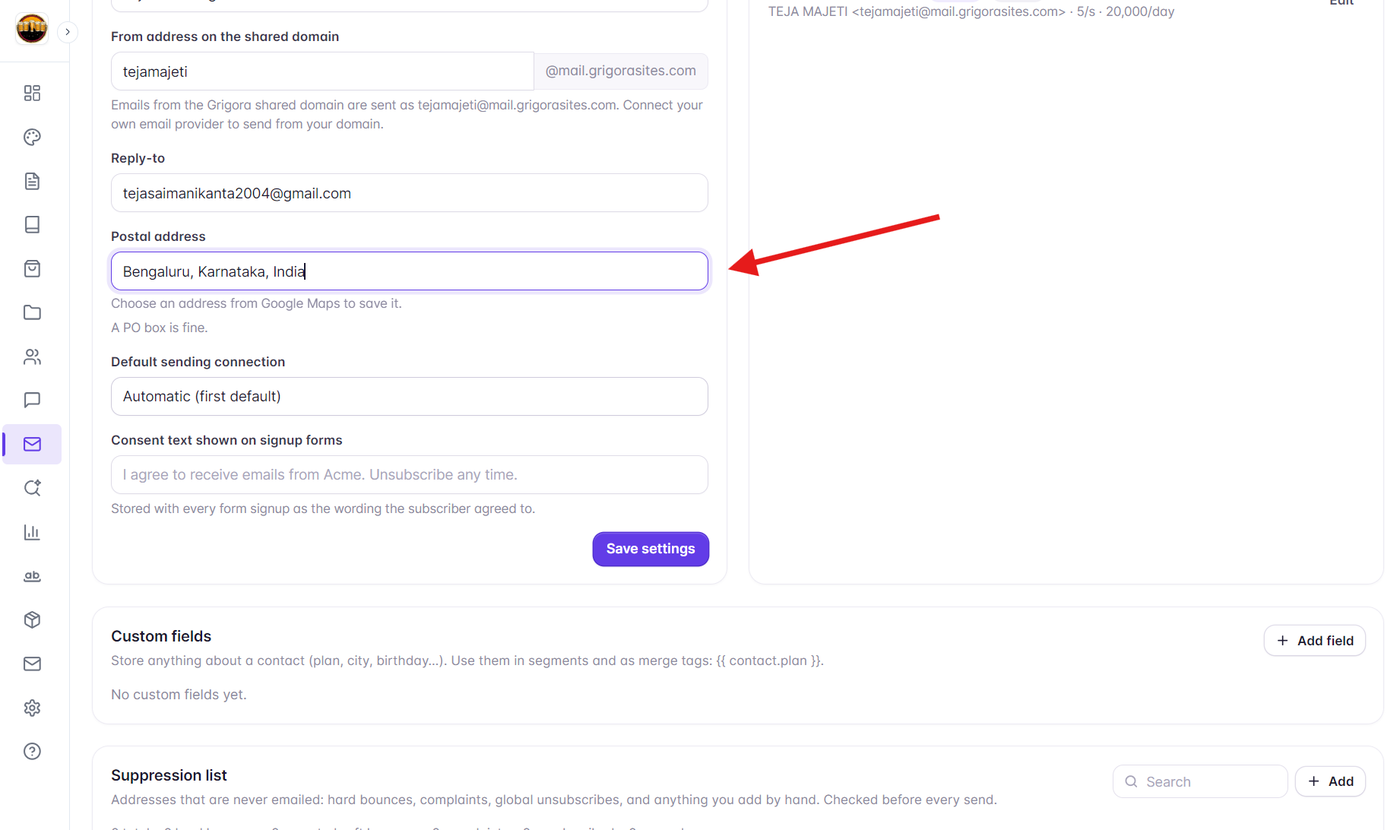
To make compliance effortless, Grigora integrates directly with Google Maps and Google Places:
In the Postal address field, start typing your business address, street location, or PO Box.
A dropdown menu of verified addresses from Google Maps will appear in real time.
Click on your verified address from the list to select it.
Grigora will store the verified place record and automatically format it into the required footer block of every email campaign you send.
Important: You cannot send or schedule campaigns without a verified postal address configured. If you work from home and do not want to disclose your residential address, use a registered PO Box, virtual office address, or co-working space address.
5. Configuring Consent Text for Signup Forms
Whenever visitors sign up for your newsletter through forms on your website, privacy laws require clear disclosure of what they are agreeing to.
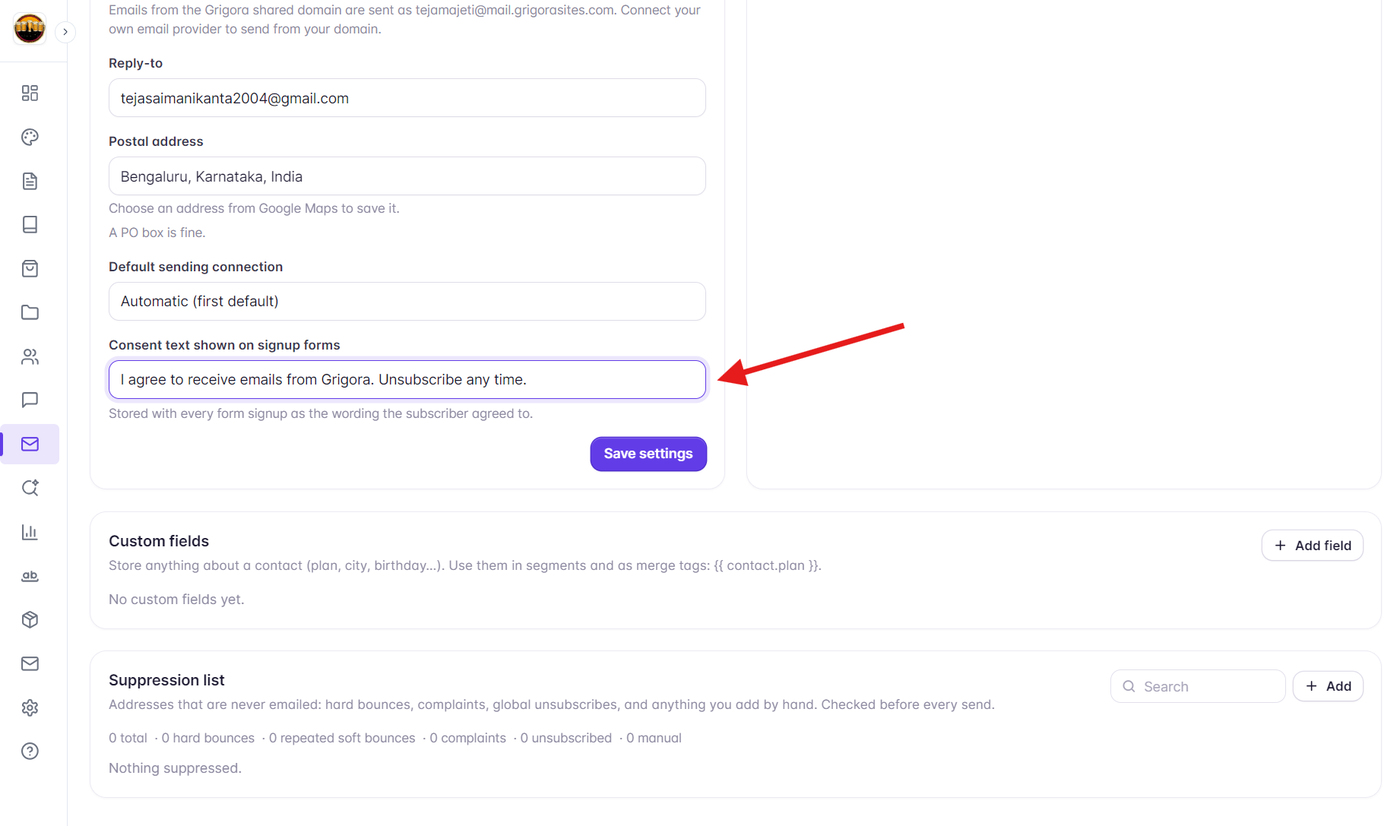
Find the Consent text shown on signup forms field.
Customize the disclosure statement according to your brand voice.
Default recommendation:
I agree to receive emails from Acme. Unsubscribe any time.This wording is permanently recorded with each subscriber's signup timestamp in your contact database to provide proof of consent during compliance audits.
6. Setting Your Default Sending Connection
If you have connected multiple email providers or SMTP servers to Grigora, you can choose which service handles outgoing mail by default:
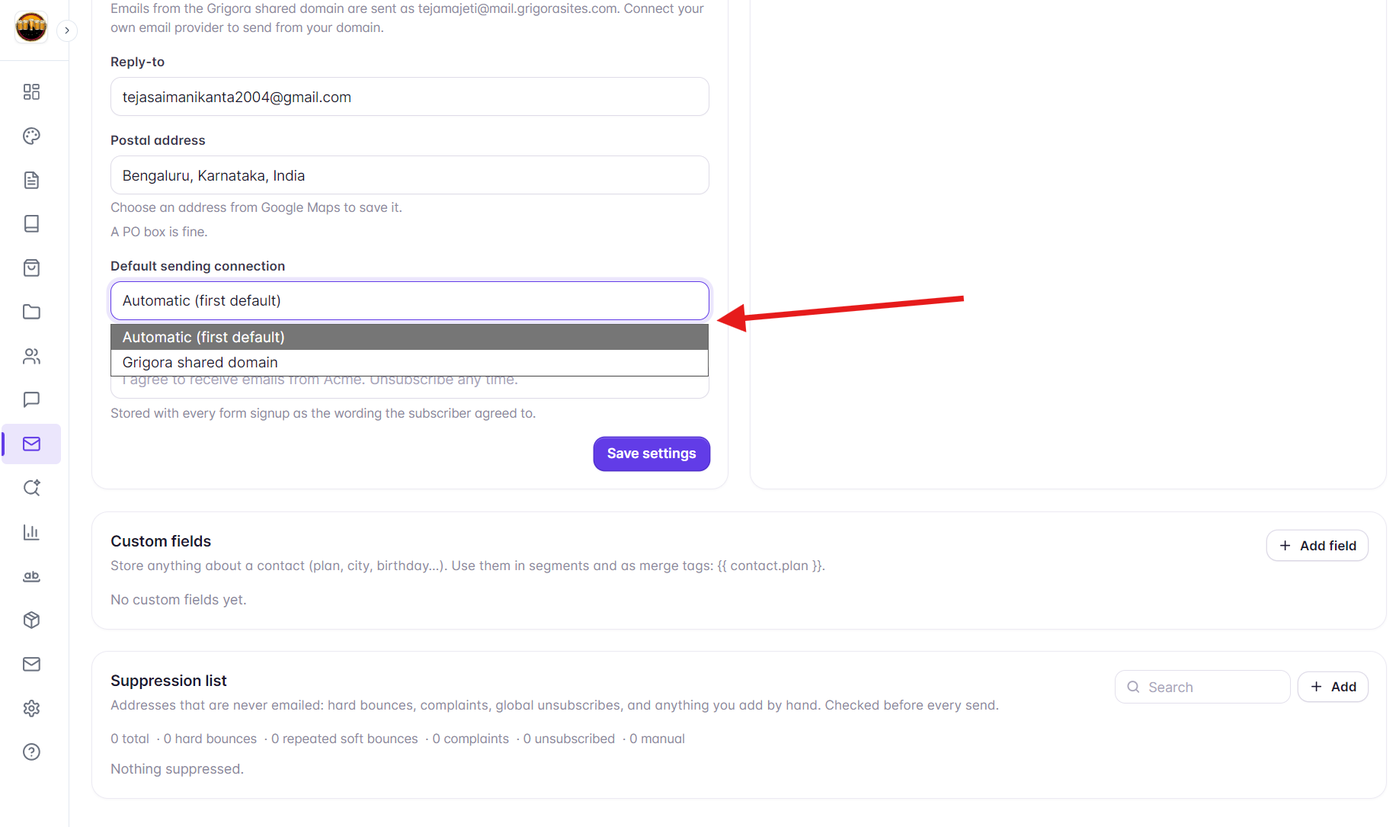
Automatic (first default): Grigora will route messages through your primary default connection.
Specific Connection: Select a dedicated provider (such as your custom Gmail SMTP connection) from the dropdown list.
7. Saving and Validating Your Settings
Once you have filled out your sender profile:
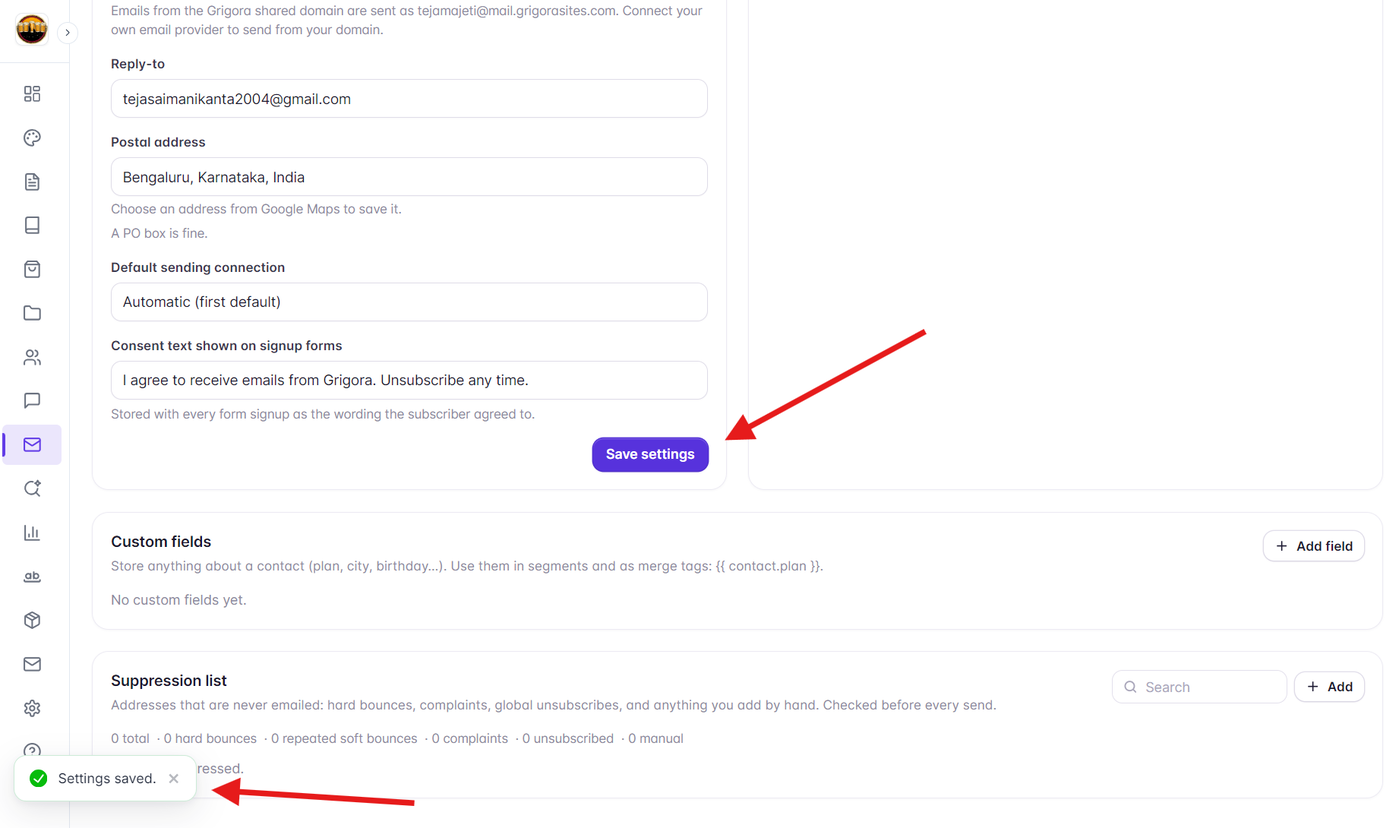
Click the purple Save settings button at the bottom-right of the card.
You will see a green success notification: "Settings saved."
To preview how your sender details appear, navigate to Newsletter > Campaigns > New campaign. On Step 1 (Setup), you will see your From Name and From Email rendered inside the live mobile and desktop inbox preview simulator.
Next Steps
Now that your sender profile is configured and legally compliant, you are ready to expand your email infrastructure:
How to Connect Custom SMTP for Newsletter in Grigora
How to Set Up Webhooks in Grigora to Automatically Track Bounces and Spam Complaints
How to Import Contacts into Grigora Using the CSV Import Wizard