

Visual imagery captures reader attention and reinforces your brand identity. In Grigora, you can insert brand logos, high-resolution hero banners, and inline photos using the dedicated Image and Logo blocks.
This guide explains how to upload graphics, configure sizing and alignment, set destination links, and follow best practices for email client rendering.
Image Block vs. Logo Block
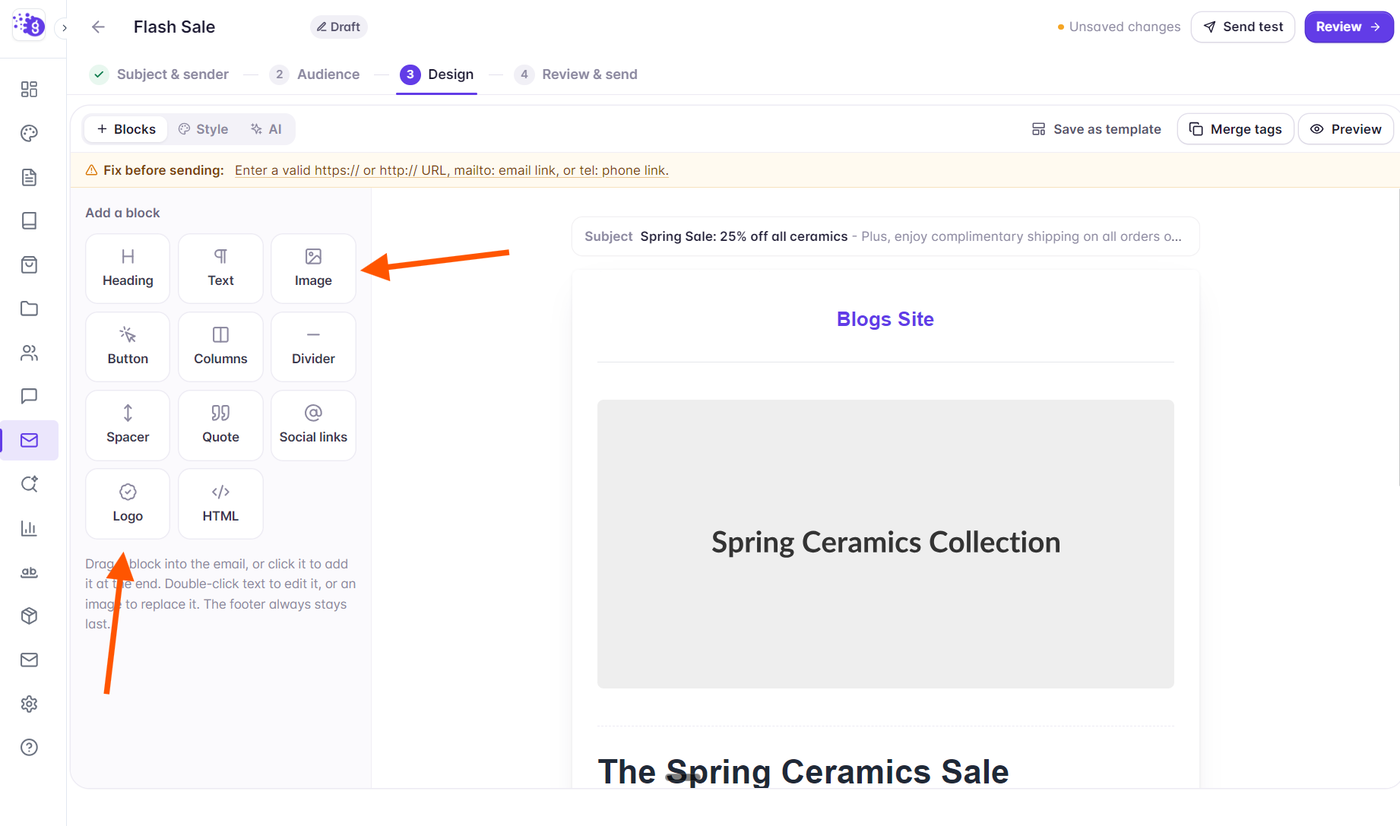
Grigora provides two specialized image blocks designed for distinct roles:
Logo Block: Specifically tuned for your brand header. It maintains compact dimensions, centers or aligns to the header, and defaults to linking back to your project homepage.
Image Block: General-purpose block suitable for full-width hero graphics, feature illustrations, photo galleries, or infographics.
Adding and Uploading Images
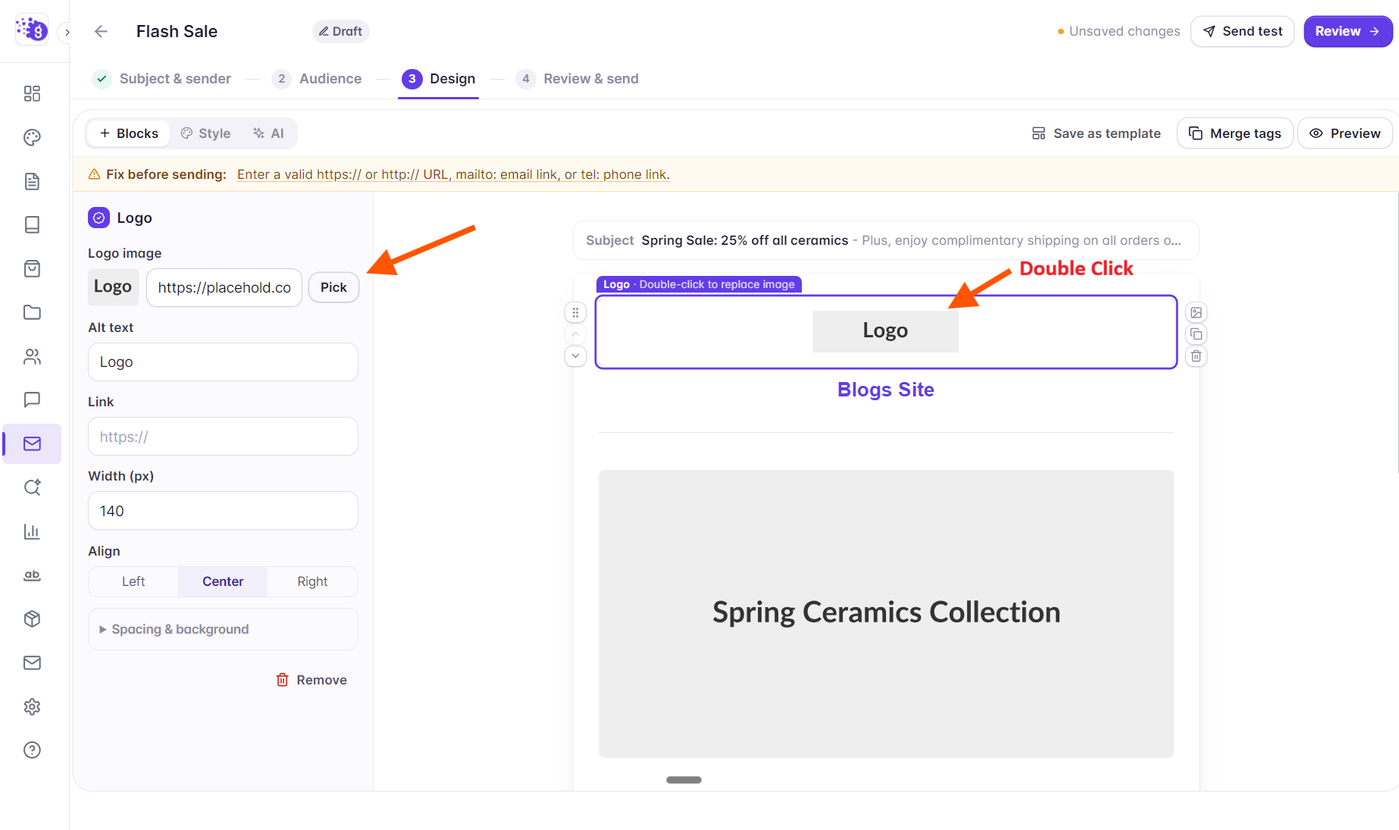
To add an image to your newsletter:
Drag the Image or Logo block onto your canvas.
Double-click the placeholder on the canvas, or click Pick in the left side panel.
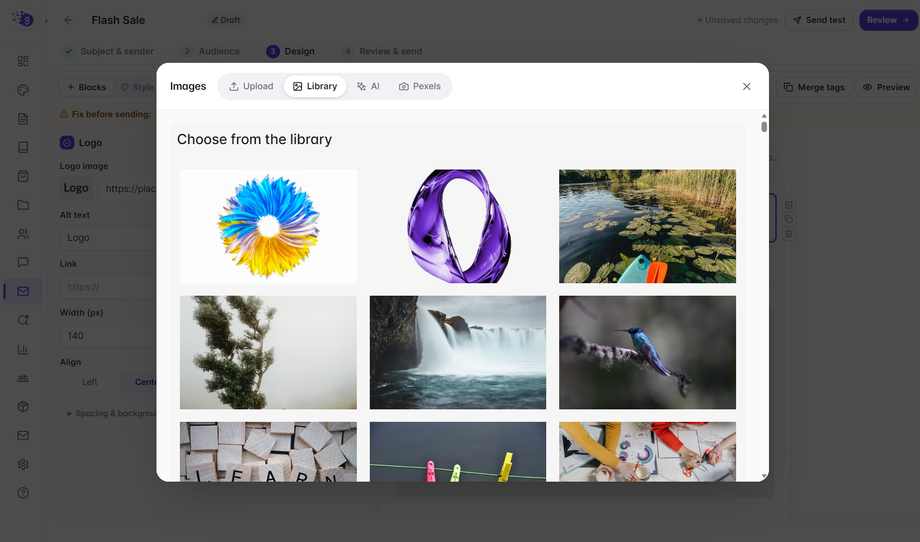
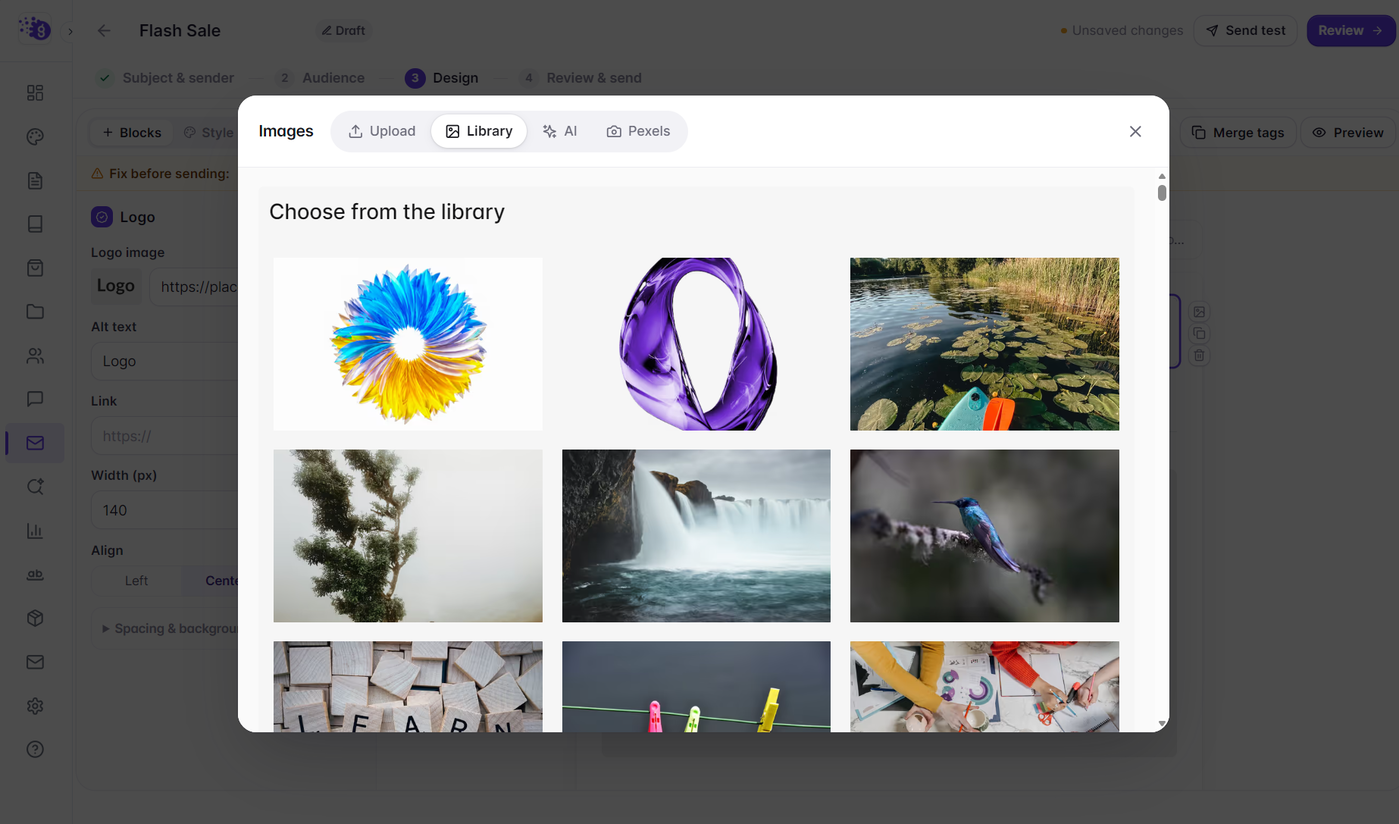
The Grigora Image Picker modal will open, offering three options:
Project Media: Select any image previously uploaded to your website assets.
Upload New: Drag and drop a PNG, JPG, or WebP file from your computer.
External URL: Paste a direct image link from an external source.
Select your image to insert it instantly into the email canvas.
Configuring Dimensions and Alignment
Use the property panel in the left sidebar to fine-tune image display:
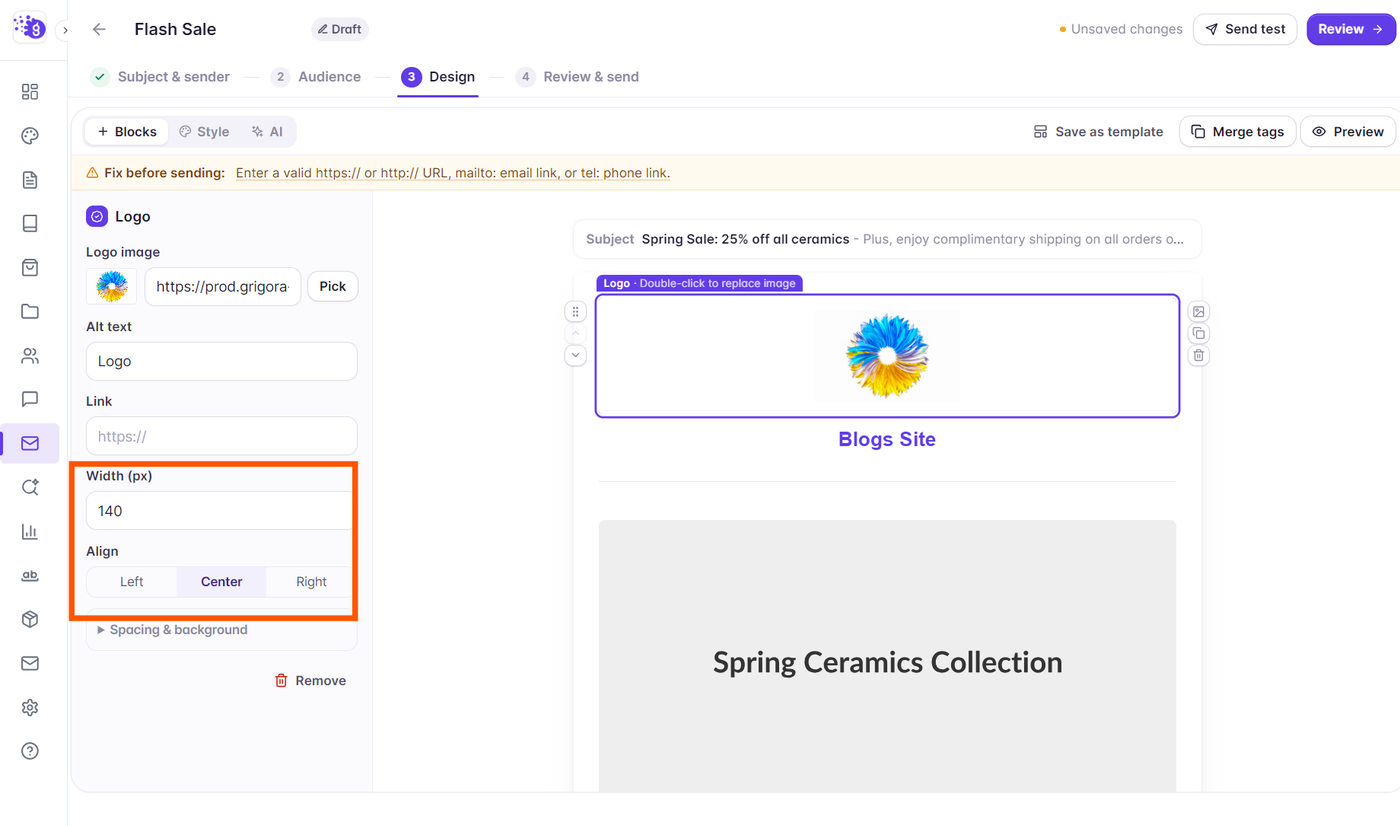
Width: Adjust image width as a percentage (e.g., 100% for full-bleed hero banners) or set a maximum pixel width (e.g., 200px for brand logos).
Alignment: Align your graphic to the Left, Center, or Right of the email canvas.
Border Radius: Round image corners (e.g., 8px or 16px) to match your website aesthetic.
Adding Click-Through Links and Alt Text
Destination URL: In the left side panel, add a URL under Link. When recipients click the image in their inbox, it will open this web address. Grigora tracks these image clicks in your campaign analytics report.
Alt Text: Always fill in descriptive alternative text (e.g., "Autumn Collection launch sweater"). This text displays if an email client blocks images by default and is read aloud by screen readers for accessibility.
Image Best Practices for Email Deliverability
Tips for Optimal Email Images:
File Size: Keep image files under 1MB (ideally under 300KB) to ensure rapid loading on cellular connections and prevent clipped messages in Gmail.
Dimensions: Standard email container width is 600px. Upload hero images at 1200px width (2x retina) so they appear crisp on high-DPI displays.
Text vs. Image Balance: Avoid sending single-image emails. Maintaining a healthy ratio of HTML text to images prevents spam filters from flagging your newsletter.