

Tax settings in Grigora Commerce let you configure how taxes are applied to orders in your store. By setting up the appropriate tax configuration, you can ensure that the tax amount is calculated correctly during checkout based on your store's requirements.
Open Tax Settings
Step 1: Open Commerce Settings
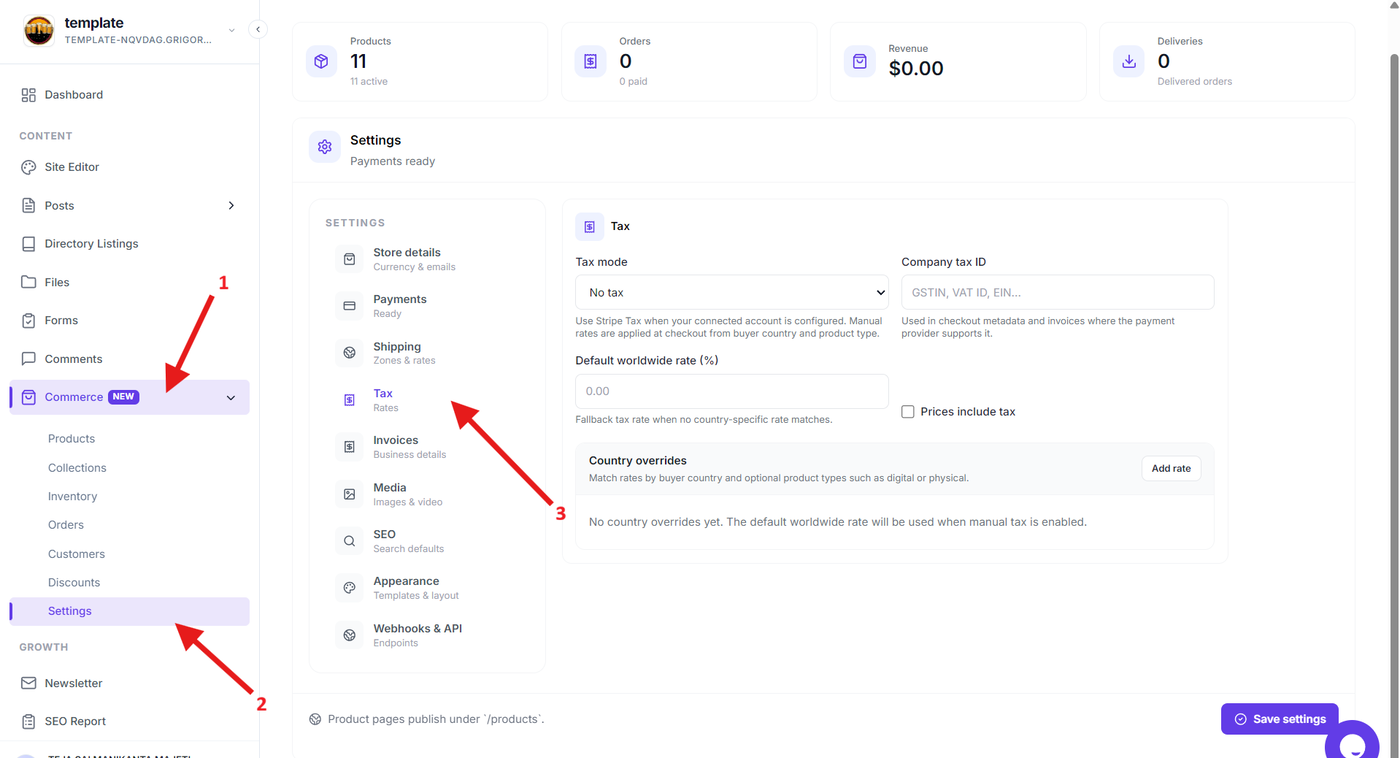
From the Grigora dashboard, expand Commerce in the sidebar and select Settings.
Open the tax configuration section to access the settings used to manage taxes for your store.
Configure Tax Settings
Step 2: Choose Appropriate Tax Mode
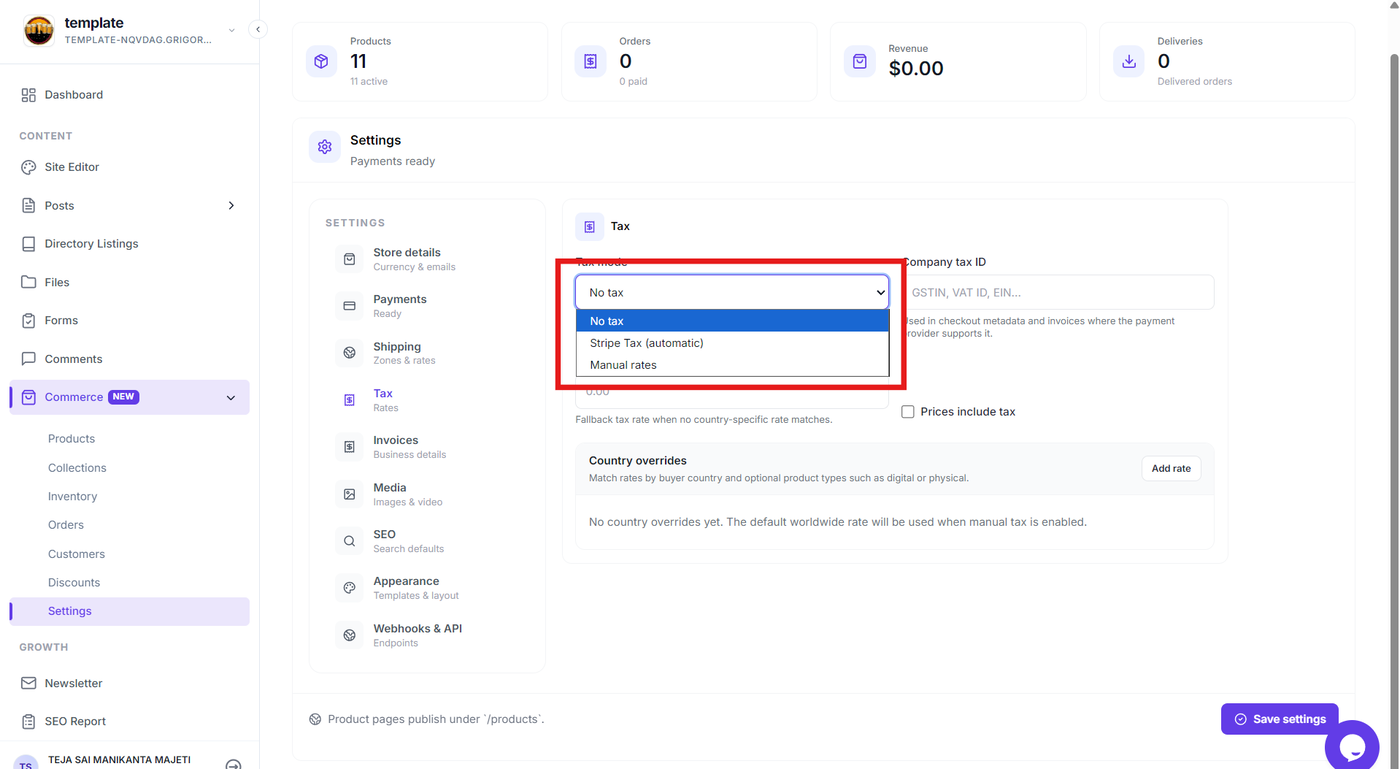
Select the appropriate option from the Tax mode dropdown to configure how taxes are handled in Grigora Commerce.
Available options include:
No tax – Taxes are not applied to orders.
Stripe Tax (automatic) – Uses Stripe Tax to calculate taxes automatically.
Manual rates – Allows you to configure tax rates manually..
Step 3: Configure the tax rate
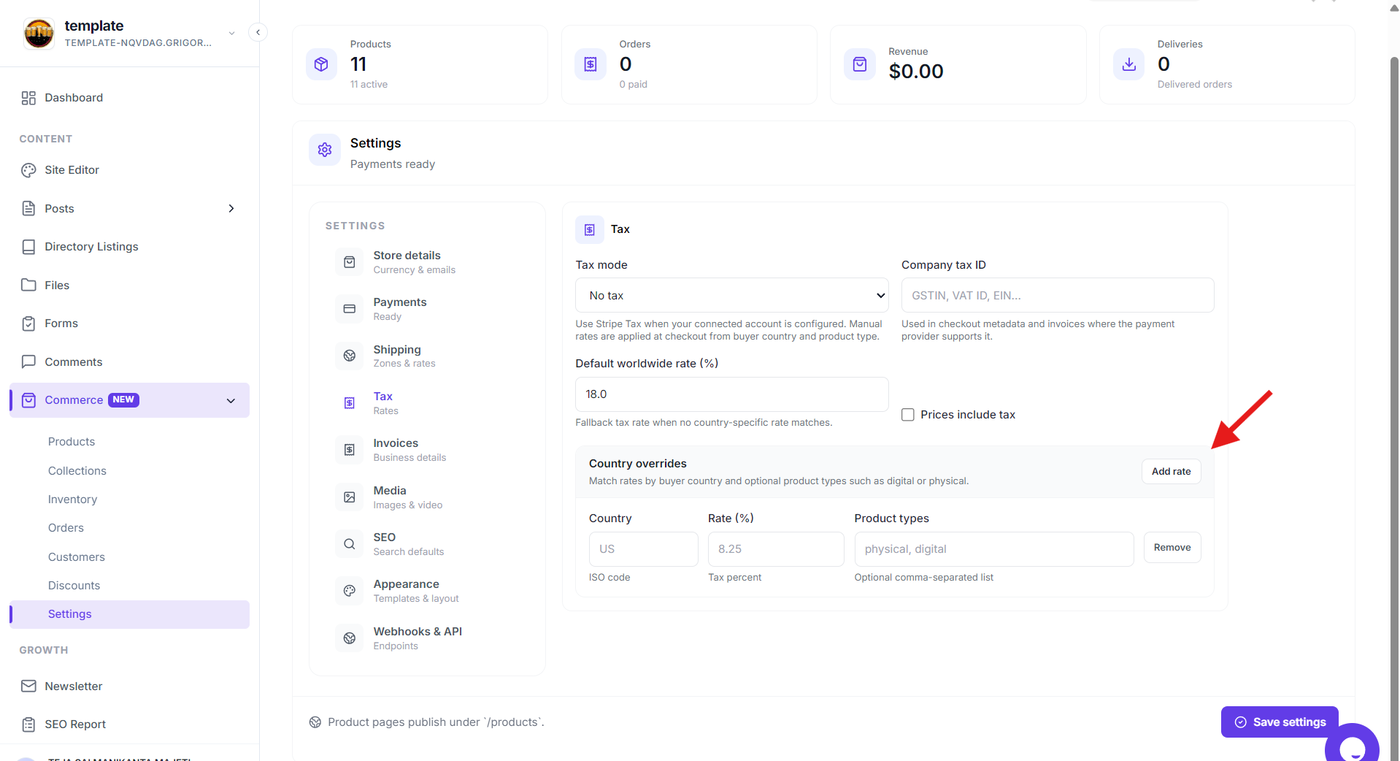
Enter the applicable tax rate in the Tax rate field as a percentage.
For example, if the tax rate is 18%, enter 18. Make sure the value matches the tax rate you want to apply to eligible orders.
Country-specific rates: Use the Add rate option under Country overrides to add a tax rate for a specific country. Enter the country's ISO code, the applicable Rate (%), and optionally specify the Product types the rate applies to.
Save the Tax Configuration
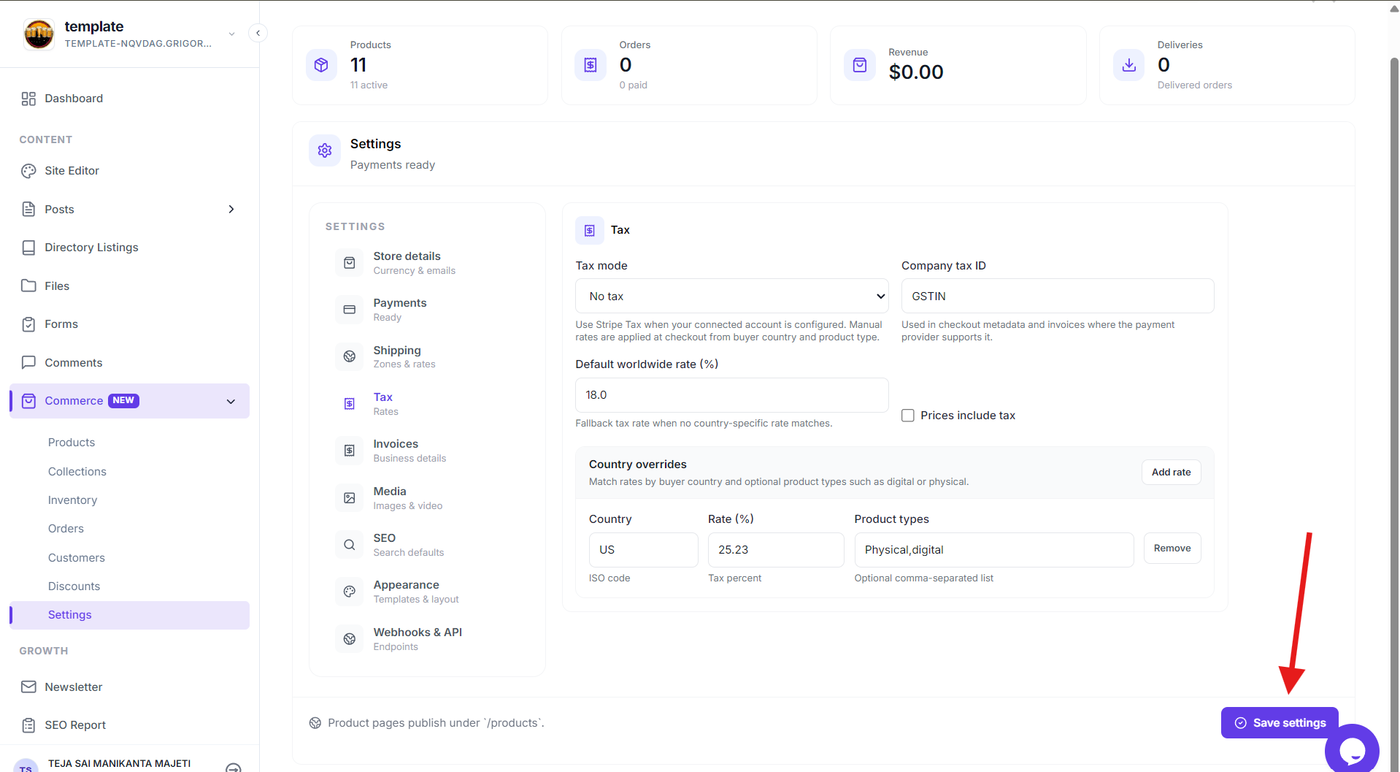
Step 4: Save the tax settings
After configuring the required tax options and rate, save the changes.
The updated tax configuration will be applied to the Commerce checkout when taxes are applicable.
Verify Tax Calculation
Step 5: Verify the tax at checkout
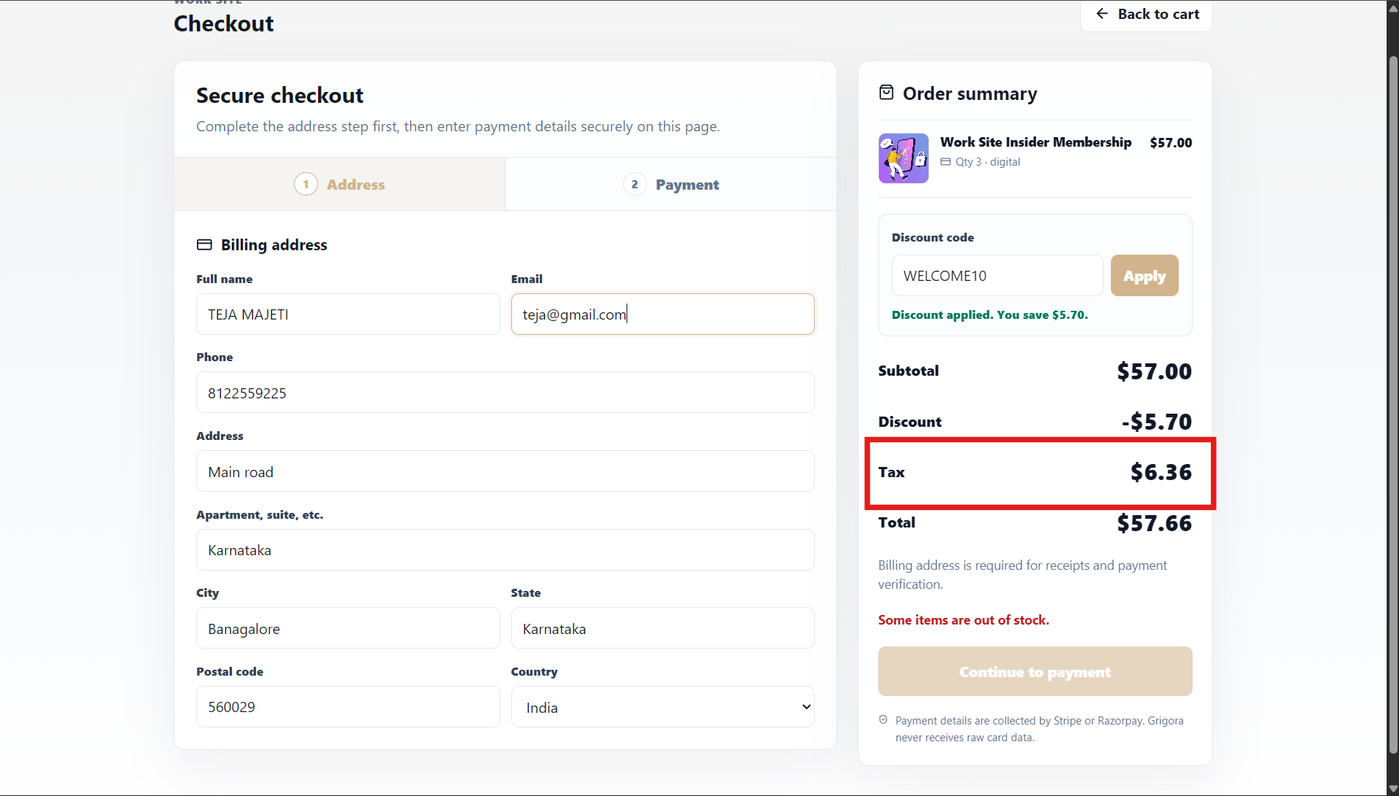
Open your store's checkout and add a product to the cart. Proceed to checkout and review the order summary.
Verify that the tax amount is displayed correctly and that the final order total includes the configured tax.
If the calculated amount is incorrect, return to the tax settings and review the configured tax rate before testing the checkout again.
Note: Configure the tax settings according to the tax rules applicable to your business and the locations where you sell. Grigora's Commerce platform supports tax-related configuration as part of its e-commerce capabilities.