

When an SEO & AI Search audit discovers missing metadata, oversized titles, or uncaptioned images on your website, Grigora enables you to resolve them quickly using integrated AI assistance. You can review diagnostic details for every finding, provide custom wording instructions, and apply proposed fixes directly into the website editor without risking unwanted changes to your live site.
Navigating the Issues Tab
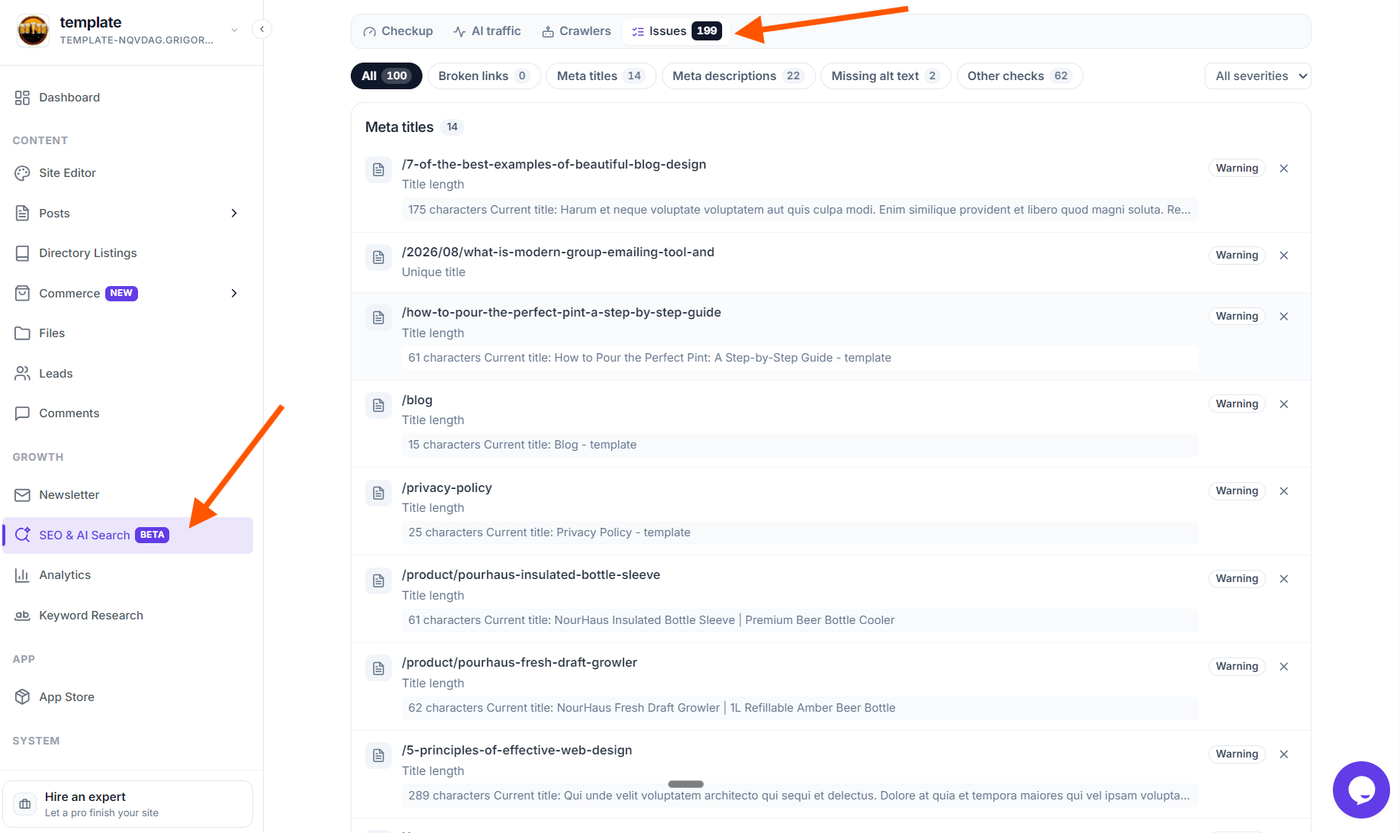
To inspect your website's active findings:
From your Grigora dashboard, click SEO & AI Search under the Growth section in the left sidebar.
Click the Issues tab in the top tab strip to view the full list of detected issues.
Filtering Findings by Category and Severity
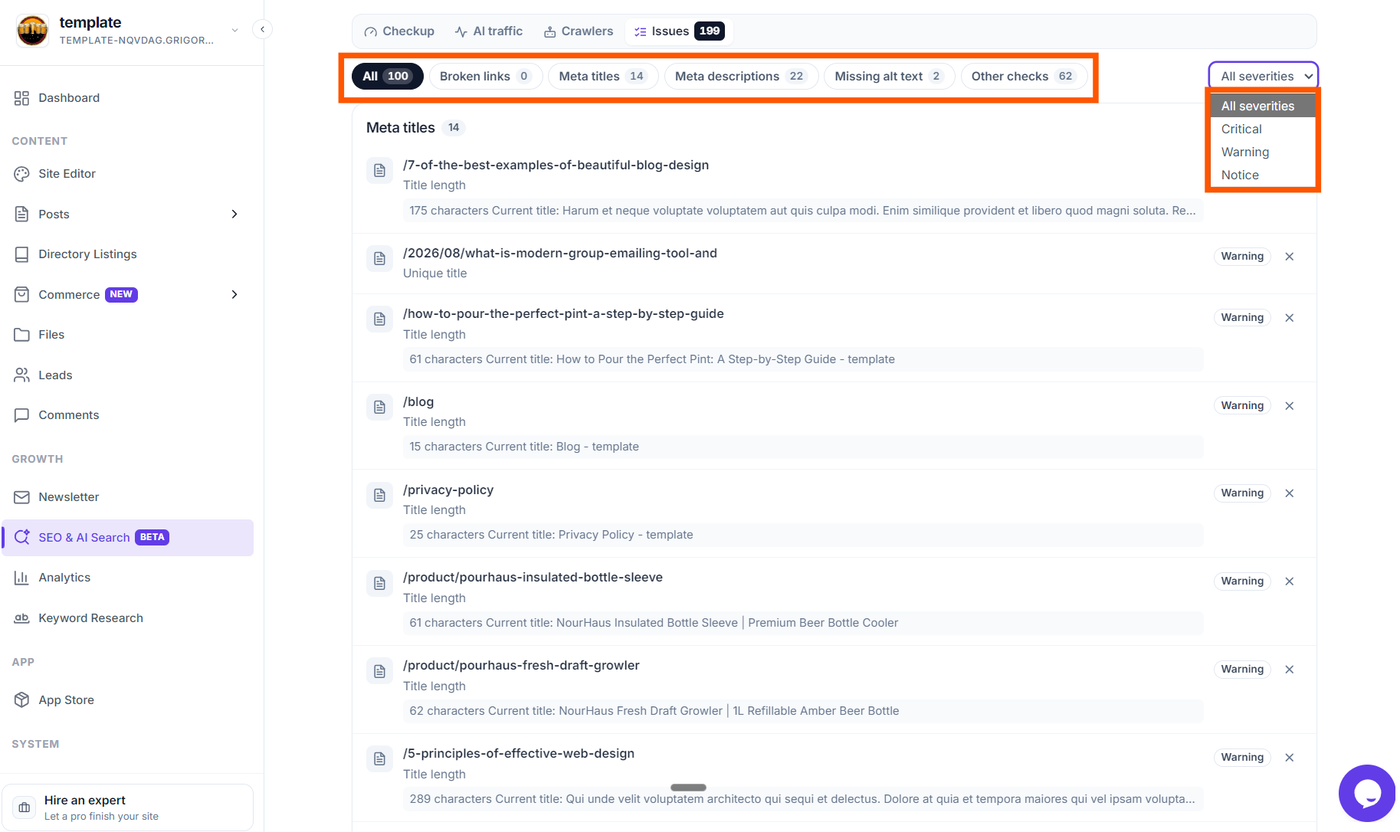
Above the issue list, you can filter findings to focus on specific tasks:
Category Filter Chips: Click a chip to view only that issue group. Each chip displays a badge count showing how many items need attention:
All: Displays every unresolved finding across your website.
Broken links: Links pointing to unreachable URLs.
Meta titles: Missing page titles or titles that exceed the recommended character limit.
Meta descriptions: Missing descriptions or descriptions outside the optimal length range.
Missing alt text: Images and post thumbnails that lack accessible descriptive text.
Other checks: Additional configuration and content recommendations.
Severity Dropdown: Filter your view by impact level:
Critical: Urgent omissions that severely harm search ranking and discoverability.
Warning: Suboptimal elements such as long descriptions, heading hierarchy skips, or missing alt text.
Notice: Minor suggestions and optional enhancements.
Reviewing Issue Details
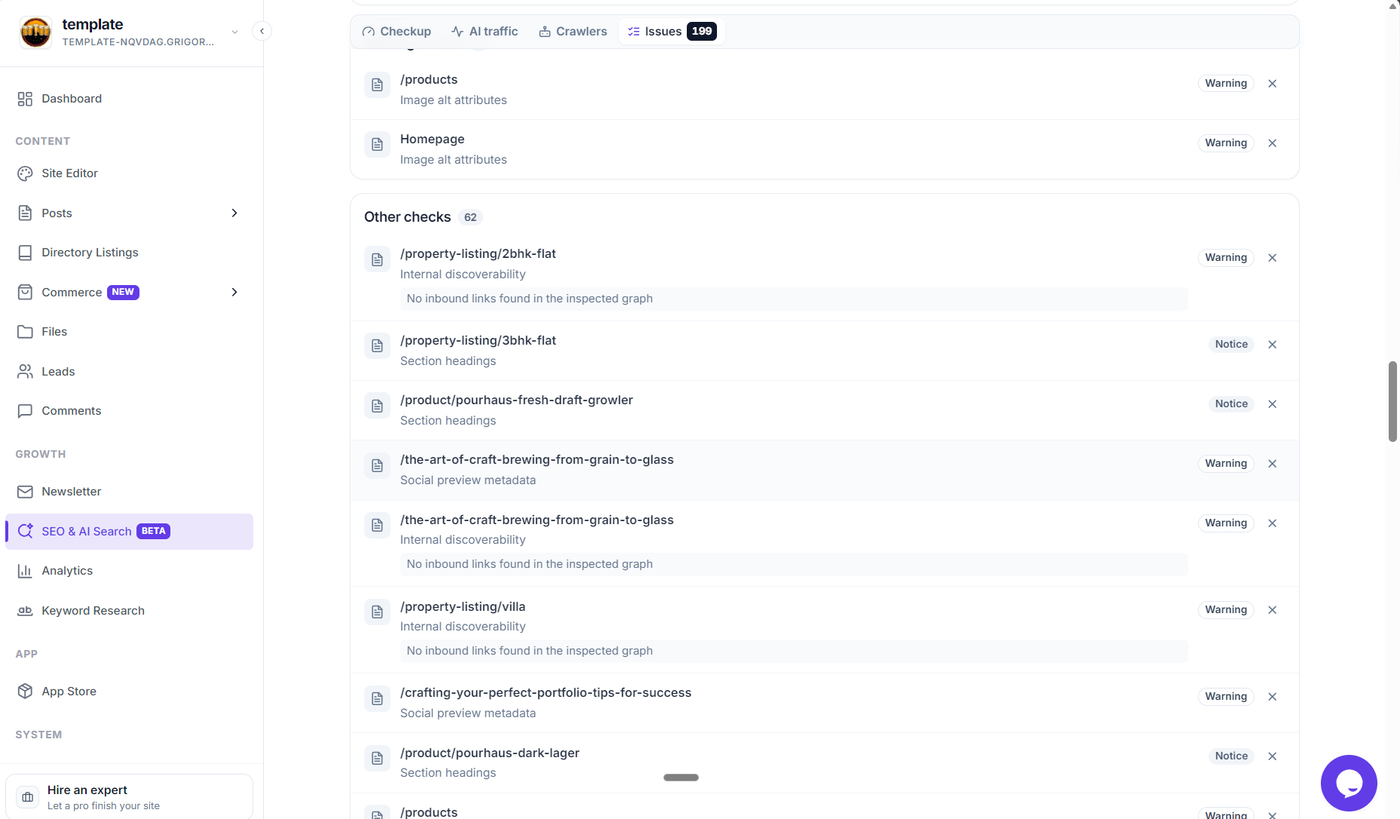
Each row in the Issues tab contains detailed diagnostic information:
Content Type Icon: Visual glyph indicating whether the item is a static page, blog post, store product, or directory listing.
Target URL / Name: The published route and title of the affected page, post, or item.
Diagnosis Rule: A clear, plain-language explanation of the rule violated (for example, Title length or Unique title).
Observed Content: A shaded text block displaying the exact character count and live content currently published on your site.
Severity Pill: A tag indicating whether the issue is classified as Critical, Warning, or Notice.
Dismiss Button (✕): Allows you to dismiss the finding if it is intentional or not relevant to your current design.
Fixing Issues with AI
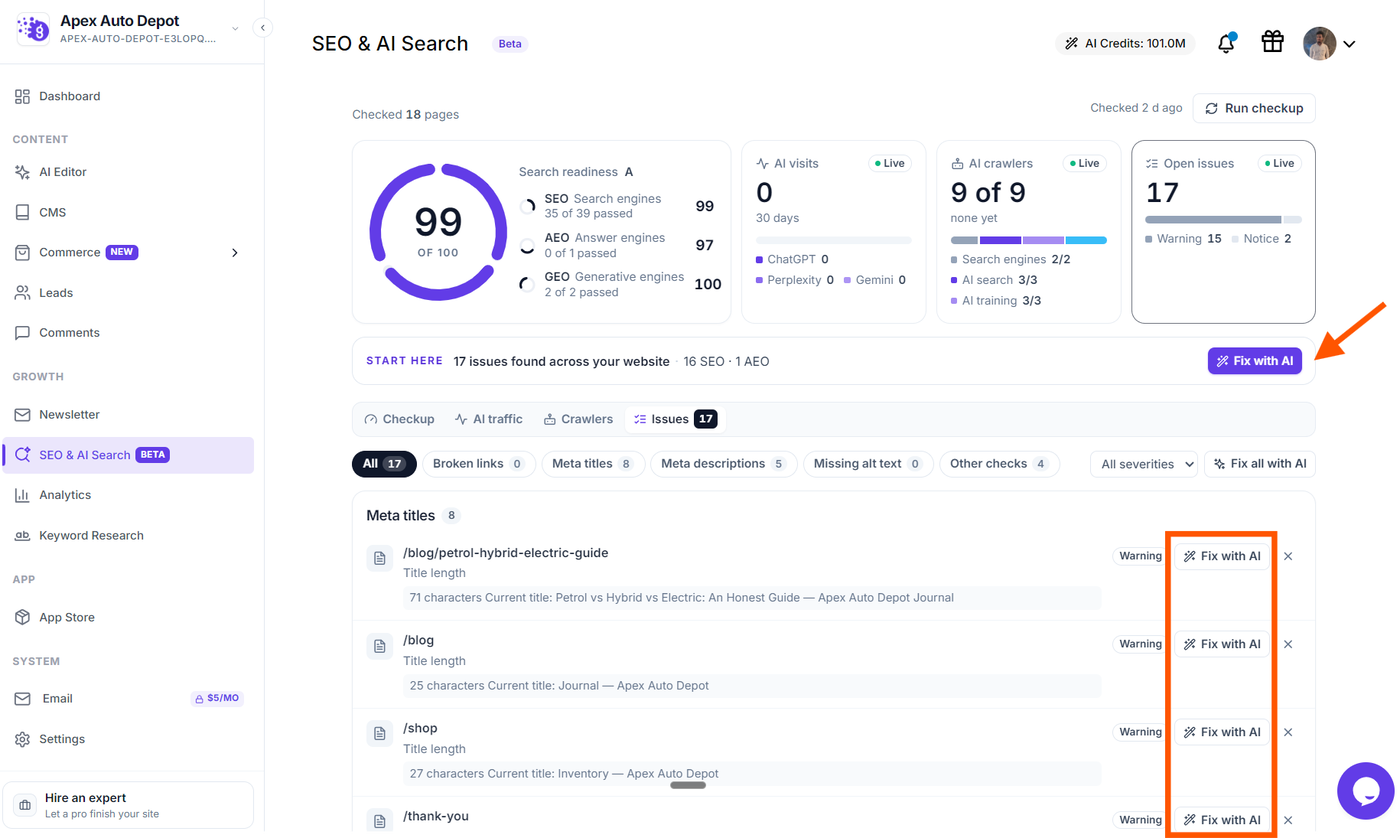
Note for AI Editor Websites: The Fix with AI and Fix all with AI automated remediation buttons are available exclusively for websites created using Grigora's AI Website Builder (AI Editor). For classic or standard template websites, issue rows display full diagnostic details so you can update them manually in the Site Editor, and the AI fix buttons are omitted.
On AI-built websites, Grigora offers three convenient ways to launch AI remediation:
Fixing a Single Issue: Click the secondary Fix with AI button directly on any individual issue row (or click the row itself).
Fixing File Rules: In the Crawlers or Checkup tab, click Fix with AI next to file notices (such as generating a missing
llms.txtfile).Fixing Everything in Bulk: Click the secondary Fix all with AI button next to the severity dropdown in the Issues tab, or click the primary solid purple Fix with AI button in the START HERE recommendation banner at the top of the report.
Using the "Fix with AI" Overlay Drawer
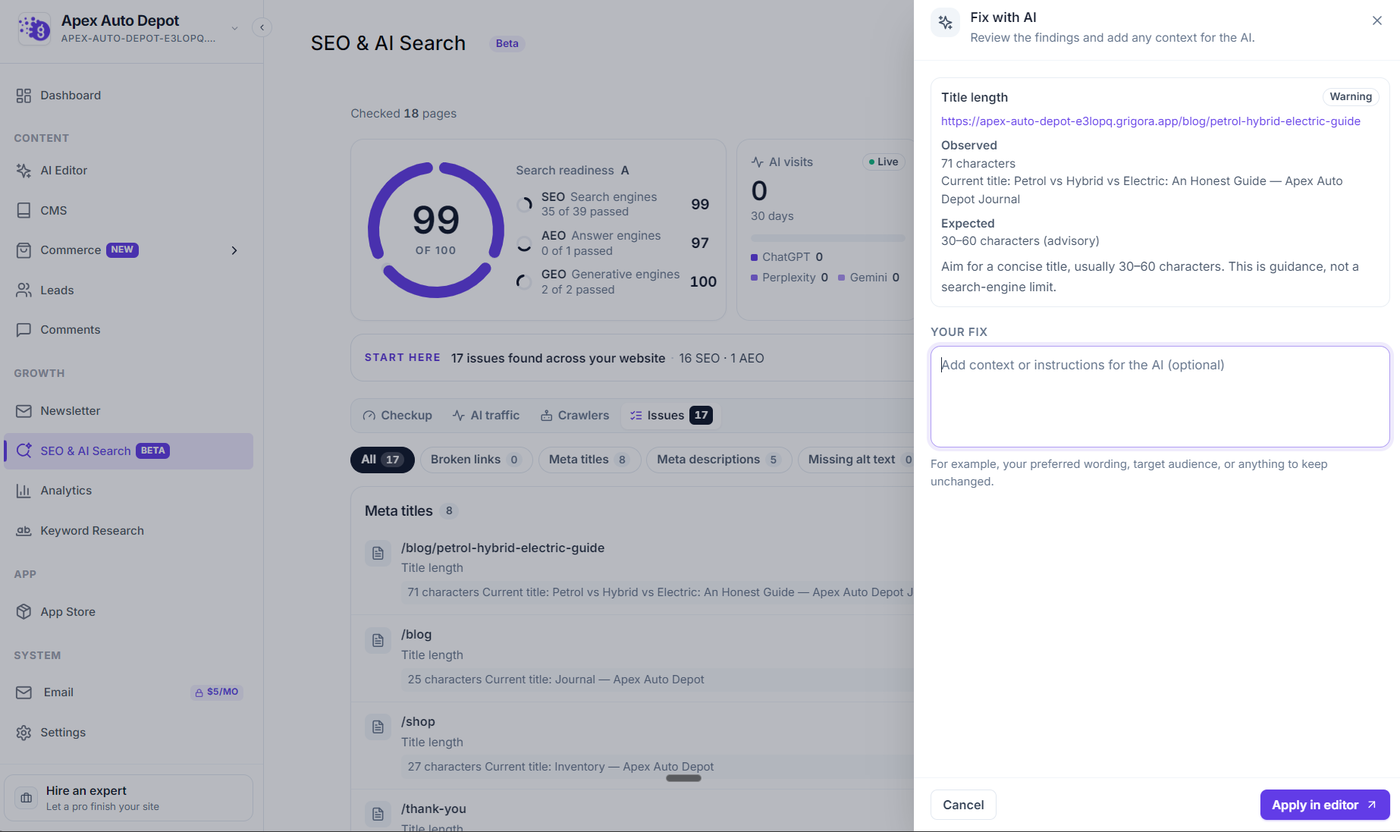
When you click Fix with AI, an overlay drawer slides in smoothly from the right side of the screen over your report.
1. Review the Findings
The top of the drawer displays the active finding details:
Rule & Severity: The check being fixed (e.g., Title length) accompanied by its severity badge.
Affected URL: A direct link to the affected page on your site.
Observed: The live character count and current content found on your page.
Expected: The recommended SEO target criteria (e.g., 30–60 characters advisory) and guidance for optimal search visibility.
2. Provide Custom Instructions (Optional)
Under the YOUR FIX section, an interactive text area allows you to provide custom guidance to the AI:
Context Textarea: "Add context or instructions for the AI (optional)".
Custom Guidance Examples: You can specify target keywords you want included, brand tone preferences (e.g., professional, friendly), target audience details, or specific phrases to keep unchanged.
Leaving It Blank: If you do not enter custom instructions, the AI automatically generates an optimized fix adhering to standard SEO best practices.
3. Apply in Editor
At the bottom of the drawer, two action controls are available:
Cancel: Closes the overlay drawer without making any changes.
Apply in editor ↗: Solid purple button that sends the selected SEO findings and your optional instructions directly to the AI Website Editor.
Applying Fixes Safely in the Website Editor
Clicking Apply in editor ↗ seamlessly transitions you to the Grigora AI Website Editor with your selected audit findings pre-loaded into the AI assistant:
The AI editor reviews the affected pages and prepares the necessary metadata updates, heading adjustments, or content revisions.
All suggested changes are placed directly into your working draft so you can review them in context.
Important Safety Guarantee: Grigora never publishes changes automatically to your live site. Every update generated by the AI remains in your draft until you review the edits, verify your design, and click Publish.
Dismissing and Restoring Findings
If an identified issue is intentional or does not require changes (such as a deliberately brief title for a minimal contact page):
Click the ✕ (Dismiss) button on the right side of the issue row. The issue is immediately removed from your active list, and your open issues count updates.
To review dismissed items later, scroll to the bottom of the Issues tab to see the total dismissed count (e.g., 3 dismissed).
Click the Restore link to return all dismissed issues to your active audit view.