

Sending relevant emails starts with reaching the right subscribers. In Grigora, you never have to send every email to your entire database. During Step 2: Audience of the Campaign Builder, you have complete control over who receives your message using flexible inclusion and exclusion controls across your Lists, Segments, and Tags.
This guide walks you through navigating the Audience step, using the Send and Skip controls, understanding live recipient calculations, and leveraging automatic deduplication and suppression protections.
The "Who gets this email" Overview Card
At the top of Step 2, the primary Who gets this email card gives you a real-time summary of your target audience:
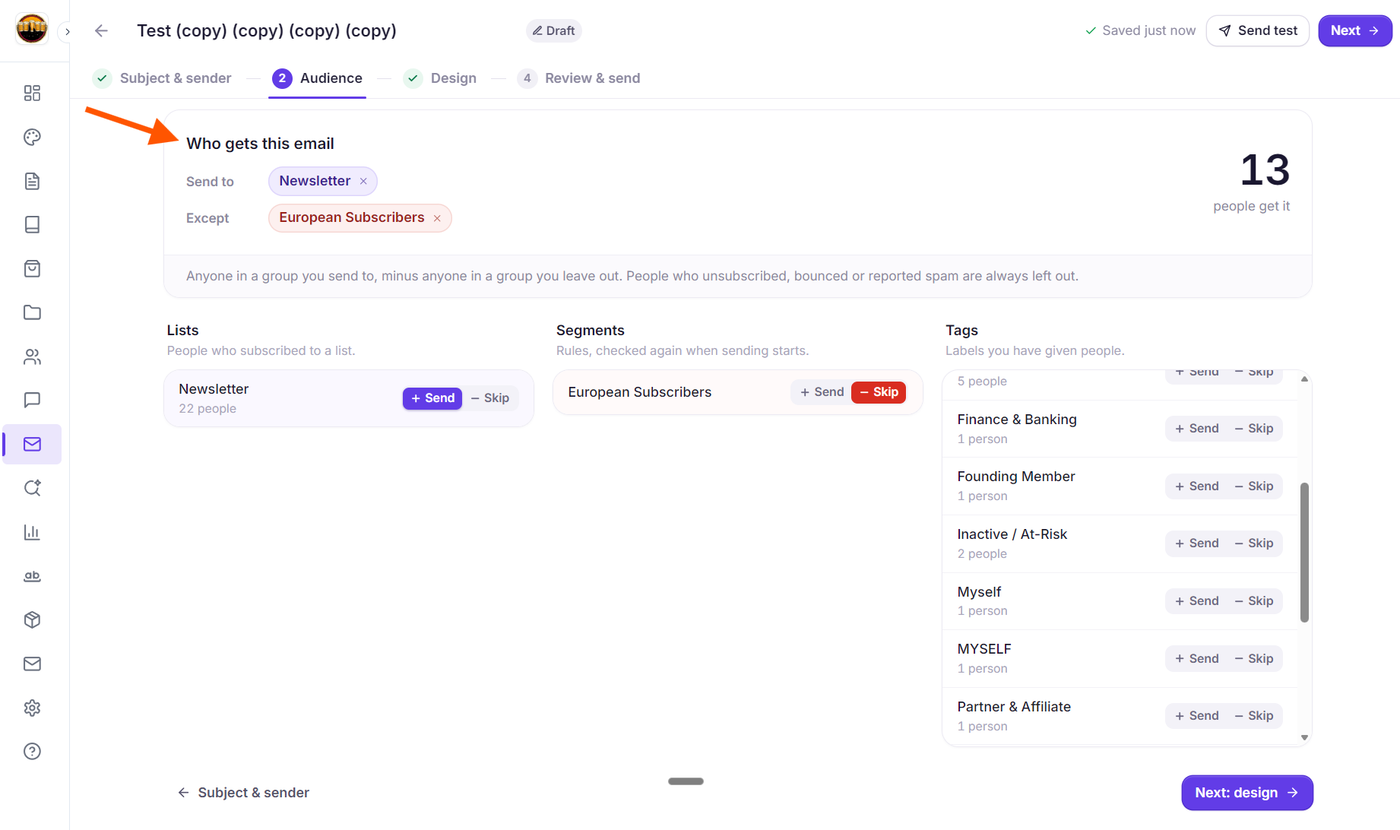
Send to (Inclusions): Shows every list, segment, or tag you have marked to receive this email as purple badge chips. When no groups are selected, it displays: "Nobody yet. Pick a list, segment or tag below."
Except (Exclusions): When you exclude one or more groups, an Except row appears immediately below Send to, showing the excluded groups as soft red badge chips.
Quick Remove (✕): Every badge in the Send to and Except rows features an ✕ button. Clicking it removes that group from your audience selection immediately.
Live Recipient Counter: On the right side of the card, Grigora displays a large number showing the exact count of contacts who will receive your email, accompanied by person gets it or people get it. This count recalculates dynamically whenever you select or deselect groups.
Audience Rule Notice: A banner at the bottom of the card reminds you of the core delivery logic: "Anyone in a group you send to, minus anyone in a group you leave out. People who unsubscribed, bounced or reported spam are always left out."
The 3 Audience Categories: Lists, Segments, and Tags
Directly beneath the overview card, Grigora arranges your subscribers into three side-by-side columns:
Lists: "People who subscribed to a list." Displays all active subscriber lists in your project alongside the total number of subscribed members (e.g., 450 people).
Segments: "Rules, checked again when sending starts." Displays dynamic segments created from subscriber filters. Grigora automatically re-evaluates segment conditions at dispatch time, ensuring contacts who recently matched or left the segment are accurately reflected.
Tags: "Labels you have given people." Displays specific tags you have attached to contacts (e.g.,
vip-customerorwebinar-attendee) and shows how many contacts have each tag.
How to Include and Exclude Groups: The "Send" and "Skip" Buttons
Inside each category column, every list, segment, and tag is displayed as a clean row with a two-button toggle switch on the right:
1. Including a Group (+ Send)
How to select: Click the + Send button on any list, segment, or tag row.
Visual output:
The + Send button highlights in vibrant purple.
The entire row turns a soft lavender background.
A purple badge with the group's name appears under Send to in the top card.
The live recipient counter updates instantly to reflect newly eligible subscribers.
How to deselect: Click the purple + Send button again, or click the ✕ icon on its chip in the Send to header. The row returns to its neutral state.
2. Excluding a Group (- Skip)
How to select: Click the - Skip button on any list, segment, or tag row.
Visual output:
The - Skip button highlights in solid red.
The row turns a soft red background.
The Except row appears in the top card displaying the group in a soft red badge.
The live recipient counter instantly subtracts any matching contacts who belong to this skipped group.
How to deselect: Click the red - Skip button again, or click the ✕ icon on its chip in the Except row. The exclusion is cleared.
Audience Calculation Rules: How Grigora Protects Your Sends
Grigora applies three automatic safeguards when computing your recipient list:
1. Exclusions Always Override Inclusions
If a subscriber belongs to an included group (such as your Main Newsletter list) but also belongs to a group marked Skip (such as the recent-buyer tag or an Inactive segment), Grigora strictly excludes them. They will not receive the email.
2. Automatic Contact Deduplication
If a subscriber is a member of multiple included lists, tags, or segments (for example, they appear on both the Weekly Digest list and have the vip-member tag), Grigora automatically deduplicates their address. They will only receive a single email, preventing duplicate deliveries.
3. Automatic Suppression Filtering
Grigora automatically excludes anyone who has unsubscribed, suffered a hard bounce, reported spam, or been added to your project's Suppression List. These contacts are never counted in the live recipient tally and cannot be emailed.
Shared Domain Sending Cap (1,000 Recipients)
If your project is sending campaigns using Grigora's shared domain, campaigns are subject to a limit of 1,000 recipients per broadcast.
Visual Warning: If your selected audience exceeds 1,000 contacts while on the shared domain, an amber banner immediately appears below the overview card:
Grigora sending goes to at most 1,000 people per campaign
"This audience has [count]. Narrow it down, or connect your own email domain to send to everyone."Action: Click the Connect your domain link inside the banner to navigate to Newsletter Settings and configure a custom email domain or SMTP connection to remove the 1,000 recipient cap.
Practical Audience Targeting Examples
Promotional Discount with Recent Buyer Exclusion:
Under Lists, click + Send on General Subscribers.
Under Tags, click - Skip on
purchased-last-14-days.Result: Your promo reaches prospective customers without bothering recent buyers.
VIP Announcement to High-Value Segments:
Under Segments, click + Send on High Lifetime Value.
Under Tags, click + Send on
early-adopter.Result: Both groups are merged and deduplicated for an exclusive announcement.
Re-engagement Campaign:
Under Segments, click + Send on Inactive Subscribers (>60 days).
Under Tags, click - Skip on
support-ticket-open.Result: Reaches quiet subscribers while respecting active customer support conversations.
Next Steps
How to Create an Email Campaign in Grigora: The Complete 4-Step Walkthrough
Getting Started with the Grigora Drag-and-Drop Email Composer
How to Manage Suppressed Contacts, Spam Complaints, and Hard Bounces
Understanding Campaign Statuses in Grigora: Drafts, Scheduled, Sending, Paused, and Sent