

Managing your email marketing effectively requires knowing the exact state of every broadcast. In Grigora, every campaign moves through a transparent status lifecycle—giving you full control to edit drafts, adjust scheduled deliveries, pause in-flight dispatches, and review completed reports.
This guide explains what each campaign status means, how campaigns are organized and grouped across dashboard tabs, and how to use the Pause and Resume controls during live sends.
The Campaign Status Lifecycle at a Glance
Status | Visual Badge | Editable? | What It Means |
|---|---|---|---|
Draft | Slate Pill (Pencil icon) | Yes | Work in progress. Content, subject line, and audience settings autosave continuously. Drafts can be edited, tested, duplicated, or deleted. |
Scheduled | Purple Pill (Clock icon) | Yes | Locked in the delivery queue waiting for its specified future date and time. Clicking a scheduled campaign reopens the editor to adjust design, change send time, or cancel the schedule. |
Sending | Purple Pill (Pulsing live dot) | No (Opens Report) | Actively dispatching emails to recipients through your configured email connection. You can pause the dispatch at any time. |
Paused | Amber Pill (Pause icon) | No (Opens Report) | Sending temporarily halted by an administrator or auto-paused due to connection errors. Displays: "Paused. Nobody else gets it until you resume." Remaining recipients wait in queue. |
Sent | Green Pill (Checkmark icon) | No (Opens Report) | Completed dispatch. All qualifying recipients have been processed, and complete engagement and link analytics are generated. |
Failed | Red Pill (Alert icon) | No (Opens Report) | Encountered a critical provider error during dispatch. You can inspect delivery error notes in the report and click Retry failed to requeue. |
Cancelled | Slate Pill (Ban icon) | No (Opens Report) | Sending was permanently stopped before or during dispatch. |
Navigating Campaign Tabs and Automatic Grouping
In Newsletter > Campaigns, campaigns are filtered into four primary tabs across the top:
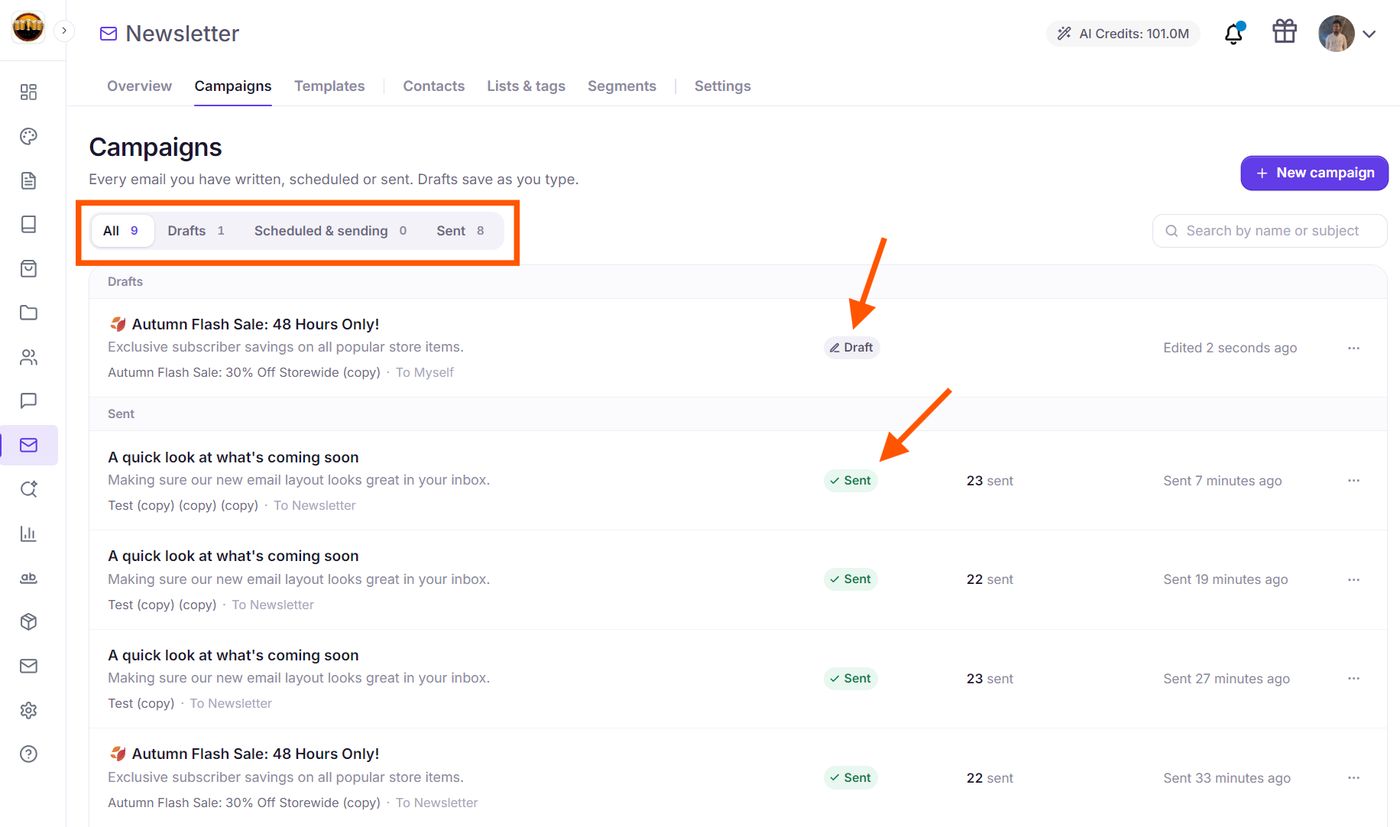
All: Displays all campaigns in your project with their total count. Within this view, Grigora automatically groups campaigns into four chronological sections:
Sending now: Active campaigns that are currently
SendingorPaused.Scheduled: Upcoming broadcasts waiting for their designated send time.
Drafts: In-progress campaigns not yet scheduled or sent.
Sent: Completed, failed, or cancelled campaigns.
Drafts: Filters exclusively to in-progress drafts that you can open and edit.
Scheduled & sending: Filters to active broadcasts—combining all future scheduled broadcasts and live dispatches.
Sent: Filters to finished broadcasts (
Sent,Failed, andCancelled) with links directly to their analytics reports.
Pausing and Resuming a Live Send
If you need to halt delivery while a campaign is actively sending (for instance, to fix a destination URL on your site, update inventory, or resolve an external issue):
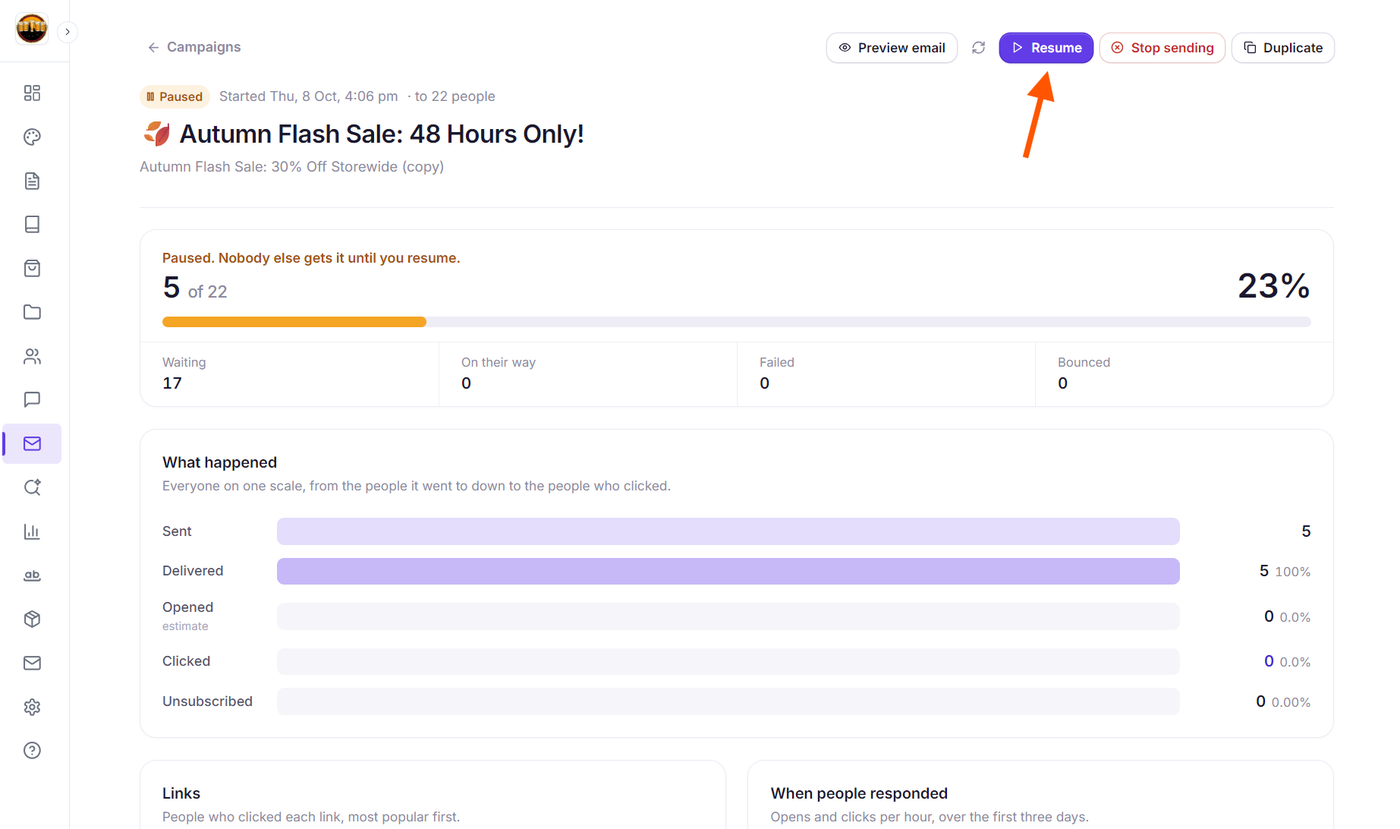
Open the active broadcast from the Scheduled & sending tab or the All tab.
In the top header action bar of the Campaign Report, click the Pause button (you can also select Pause from the three-dot menu on the campaign row in the list view).
Grigora immediately freezes the dispatch queue and displays a confirmation notification: "Paused. Nobody else gets it until you resume."
While paused, the progress card shows your current delivery counts:
Sent / Total count & percentage: (e.g., 5 of 22 · 23%) with an amber progress bar.
Waiting: Number of remaining recipients held safely in the queue.
On their way: Dispatches currently in transit.
Failed: Recipients that encountered temporary provider errors.
Bounced: Invalid addresses rejected by receiving mail servers.
When ready to proceed, click the purple Resume button (with the play icon
▷ Resume) in the top header. Grigora immediately resumes delivering to the remaining waiting recipients without duplicating sends.If you decide not to continue the send at all, click the red Stop sending button next to Resume to permanently cancel the remaining queue.
Managing Scheduled Broadcasts
To modify or cancel a scheduled campaign before its scheduled dispatch time arrives:
Navigate to the Scheduled & sending tab (or the Scheduled group in the All tab).
Click directly on the scheduled campaign row, or open the three-dot action menu (
...).Selecting Edit or opening the campaign allows you to adjust the subject line, modify design blocks in Step 3, or choose a new dispatch date and time in Step 4.
Selecting Cancel schedule returns the campaign to Draft status, completely safely taking it out of the delivery queue.
Next Steps
How to Duplicate, Edit, and Archive Newsletter Campaigns in Grigora
How to Read and Analyze Campaign Reports in Grigora
How to Pause In-Flight Campaigns and Retry Failed Recipients in Grigora