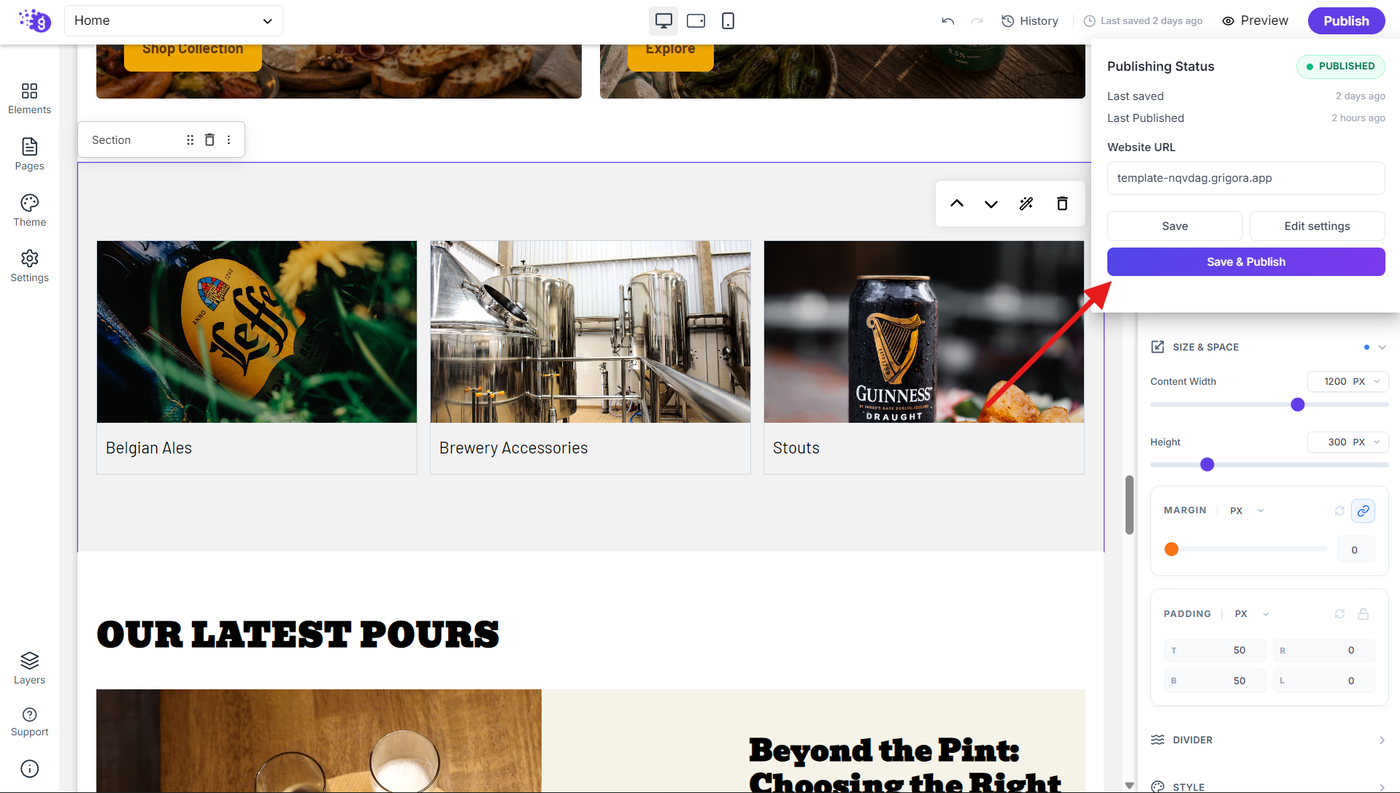
The Commerce Collection List block lets you dynamically display product collections from your Grigora Commerce store inside a section. Instead of creating individual collection cards manually, you can design one collection layout and let the loop populate it with your available Commerce collections.
Note: Before creating a Commerce Collection loop, make sure you have created the collections you want to display from Commerce → Collections. The loop uses your existing Commerce collection data to populate the section dynamically.
Add the Commerce Collection List Block
Step 1: Open the Site Editor
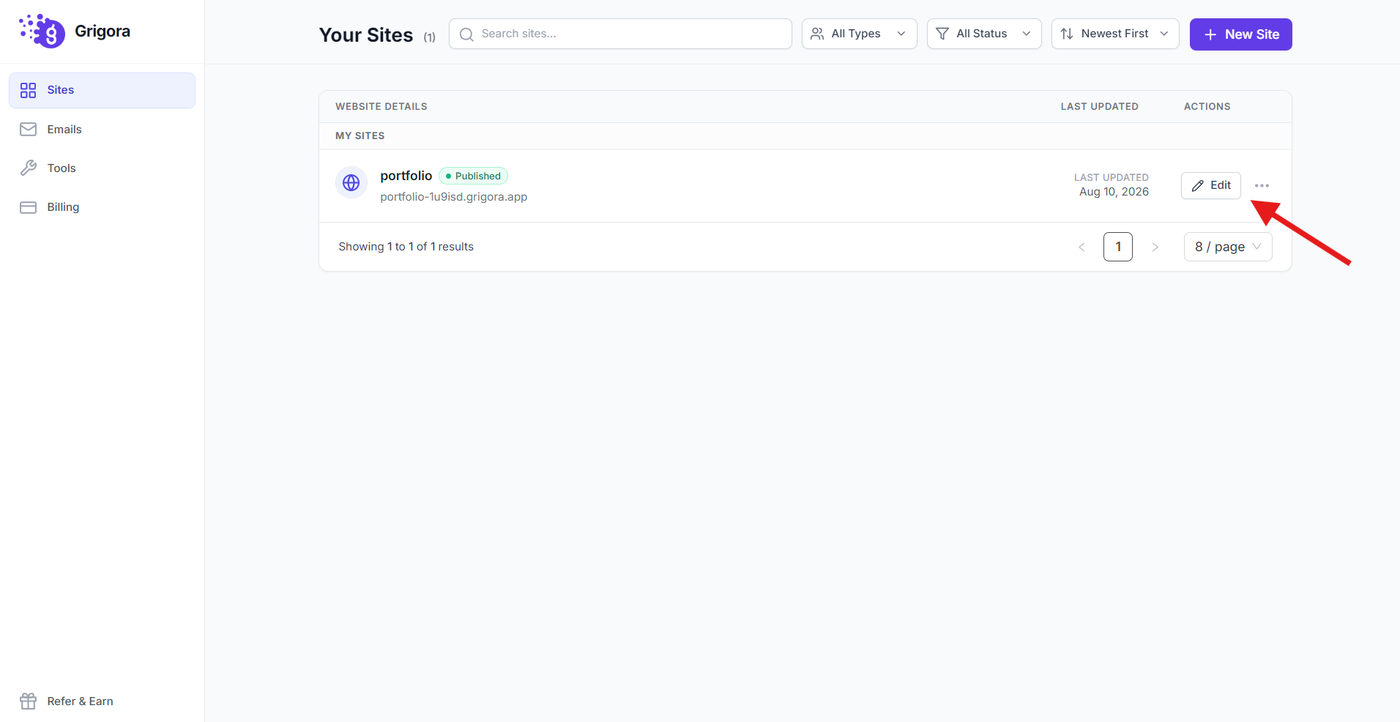
From your Grigora dashboard, select the project where you want to create the collection loop.
Click Site Editor to open the website editor.
Step 2: Open Elements
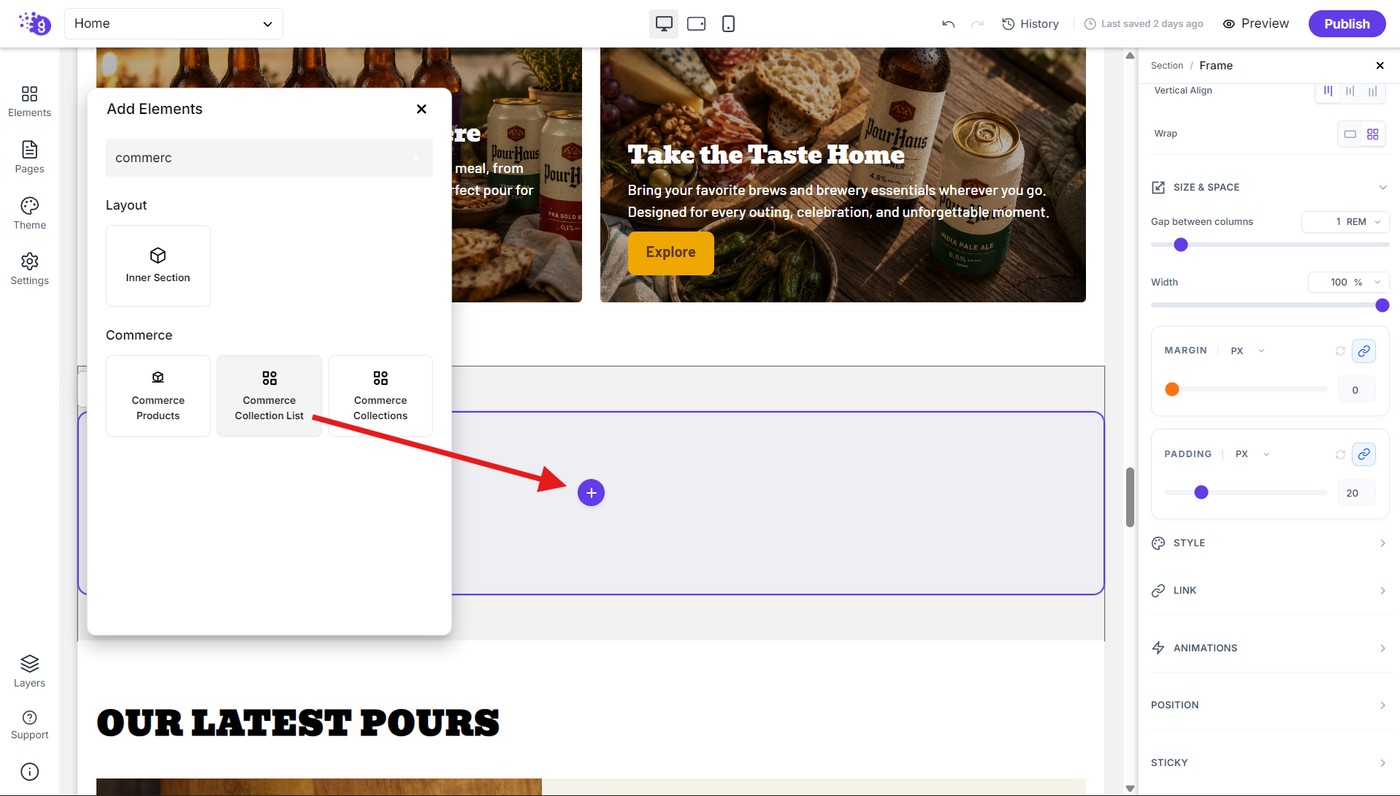
In the Site Editor, open Elements to view the available blocks.
Search for Commerce Collection List and add it to the section where you want to display your collections.
Configure the Commerce Collection Loop
Step 3: Configure Commerce Collection List settings
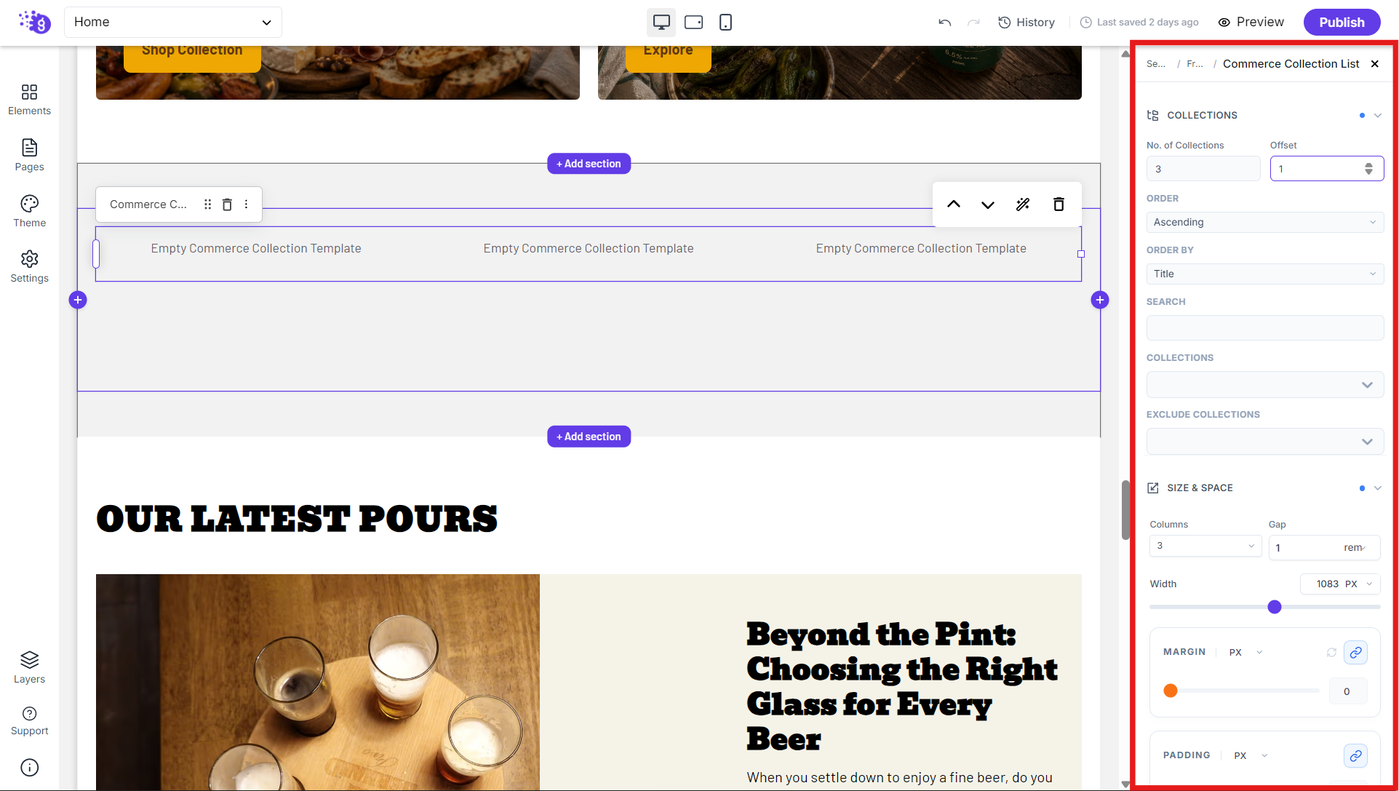
Select the Commerce Collection List block and configure its available settings.
Set the number of collections you want to display and use the available offset, order, order by, and filter options to control which collections appear in the loop and how they are arranged.
Build the Collection Card
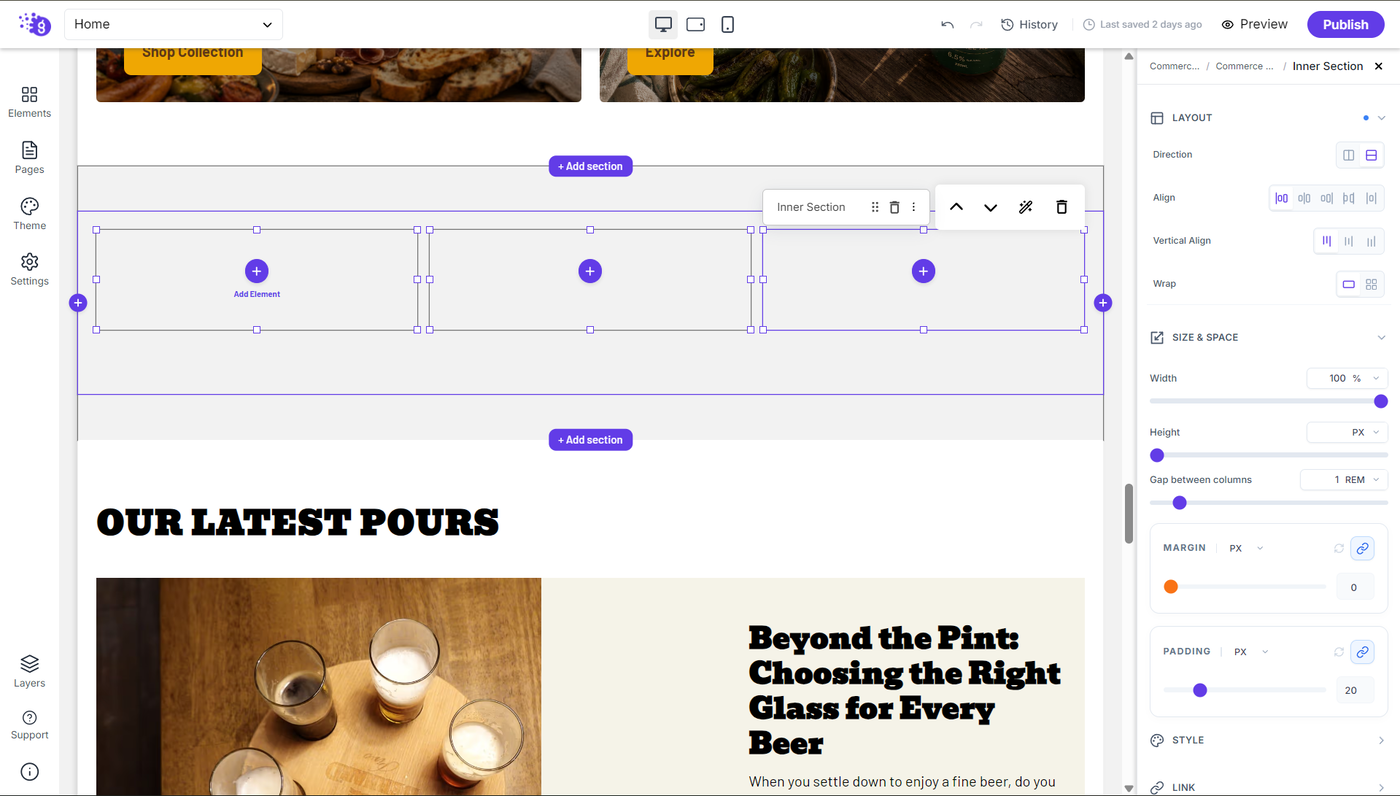
Step 4: Add an Inner Section
Open Elements, add an Inner Section, and place it inside the Commerce Collection List block.
The Inner Section acts as the container for the individual collection card. The elements added inside it will be repeated for each collection in the loop.
Step 5: Link the collection card dynamically
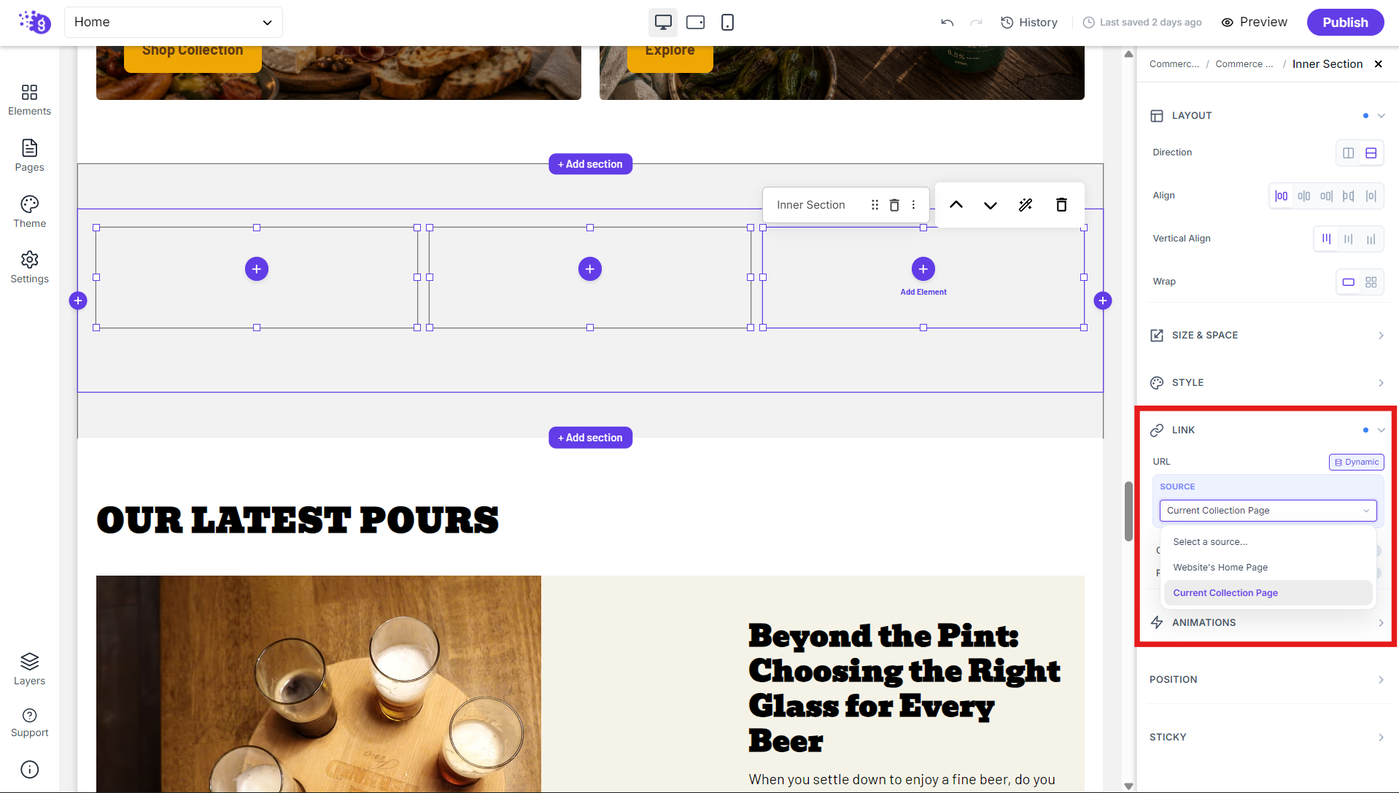
Select the Inner Section and open its Links settings.
Enable the dynamic link option and select the available Commerce collection source so that each collection card links to its corresponding collection page.
Add Dynamic Collection Information
Step 6: Add the collection image
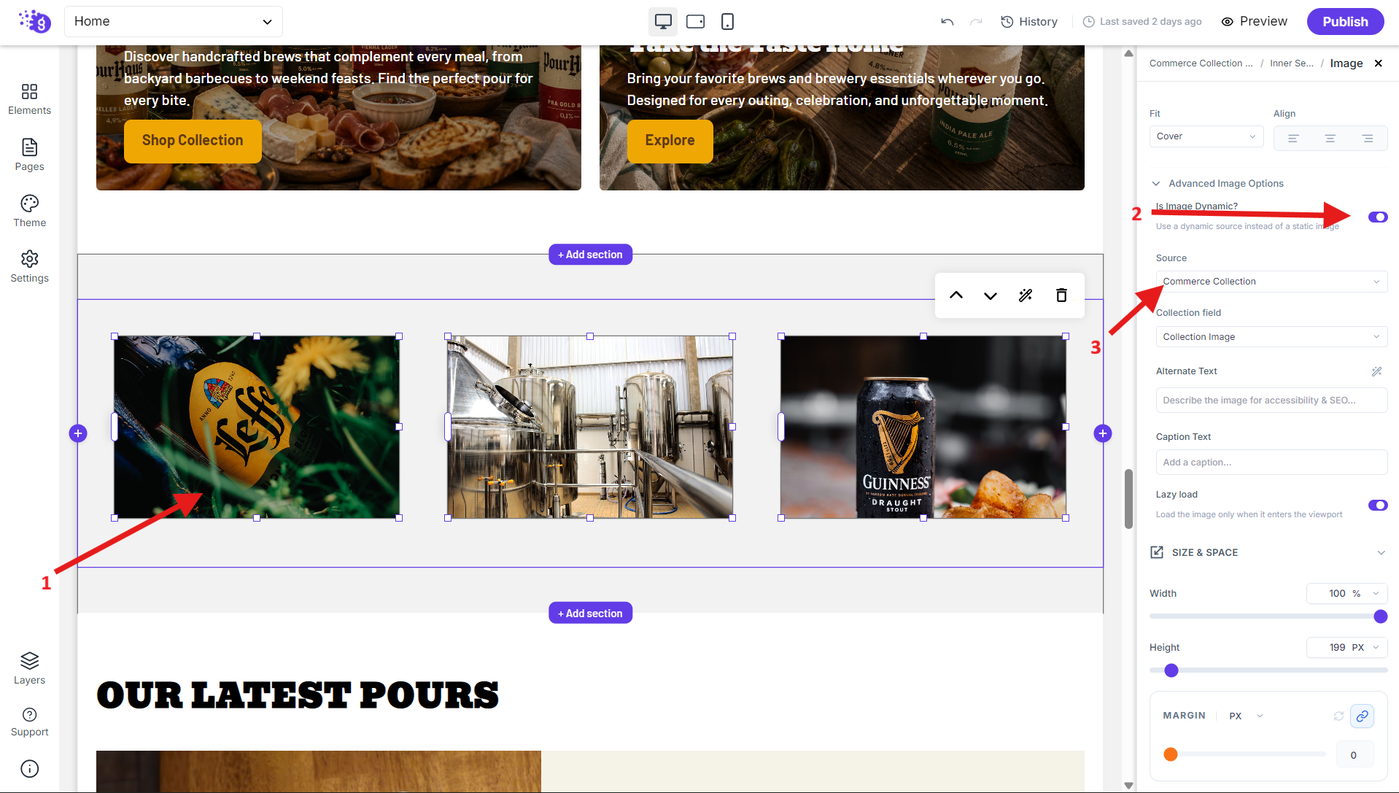
Add an Image block inside the Inner Section.
Enable the available dynamic option in the image settings and select the Commerce collection image as the dynamic source.
The image will automatically change based on the collection currently being displayed in the loop.
Step 7: Add the collection title
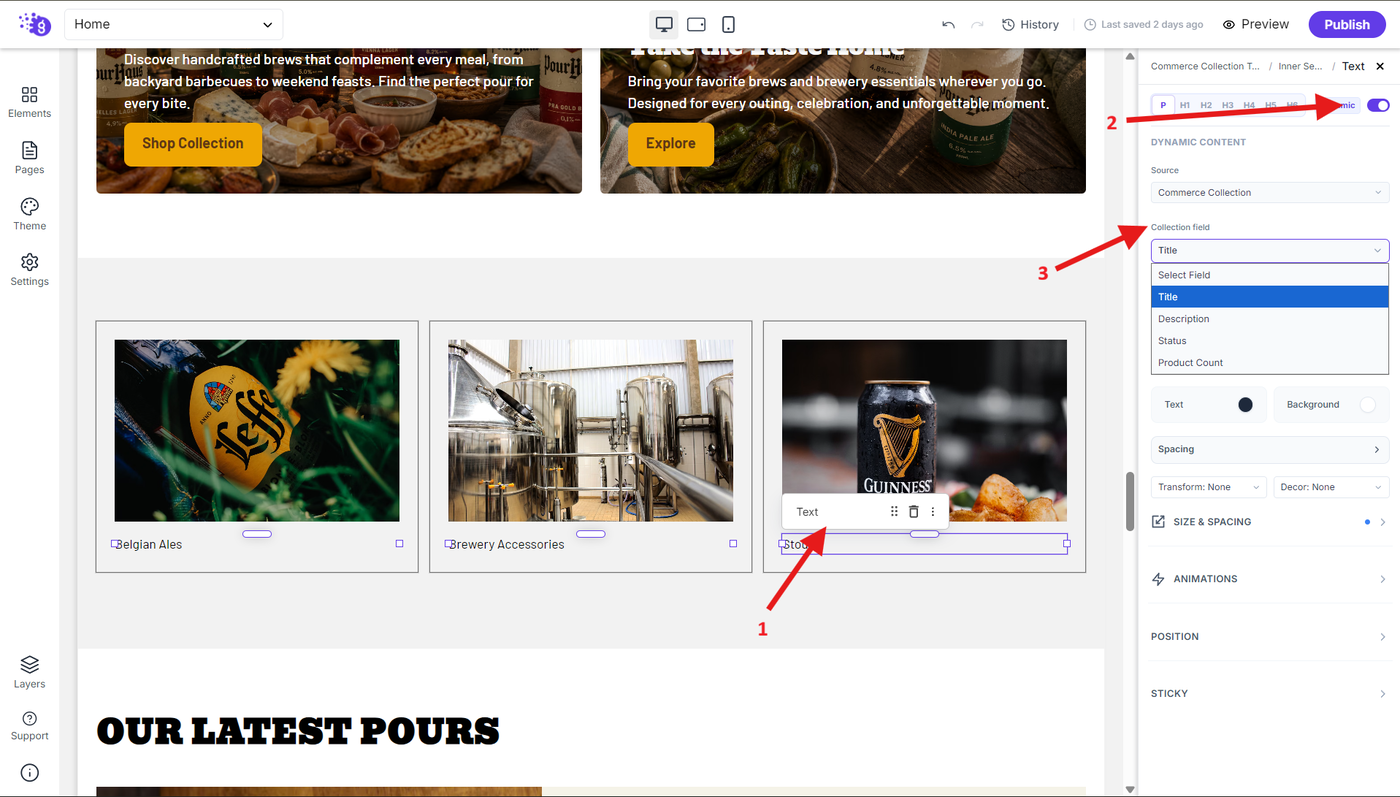
Add a Text block below the collection image.
Enable the Dynamic option and select the Commerce collection title as the source. Each collection card will then display the corresponding collection name automatically.
Customize the Collection Card
Step 8: Style the collection card
Customize the Inner Section and its elements to create the desired collection card design.
Adjust the available spacing, typography, alignment, borders, backgrounds, and other styling properties to match your website design.
The same card design will automatically be applied to every collection generated by the loop.
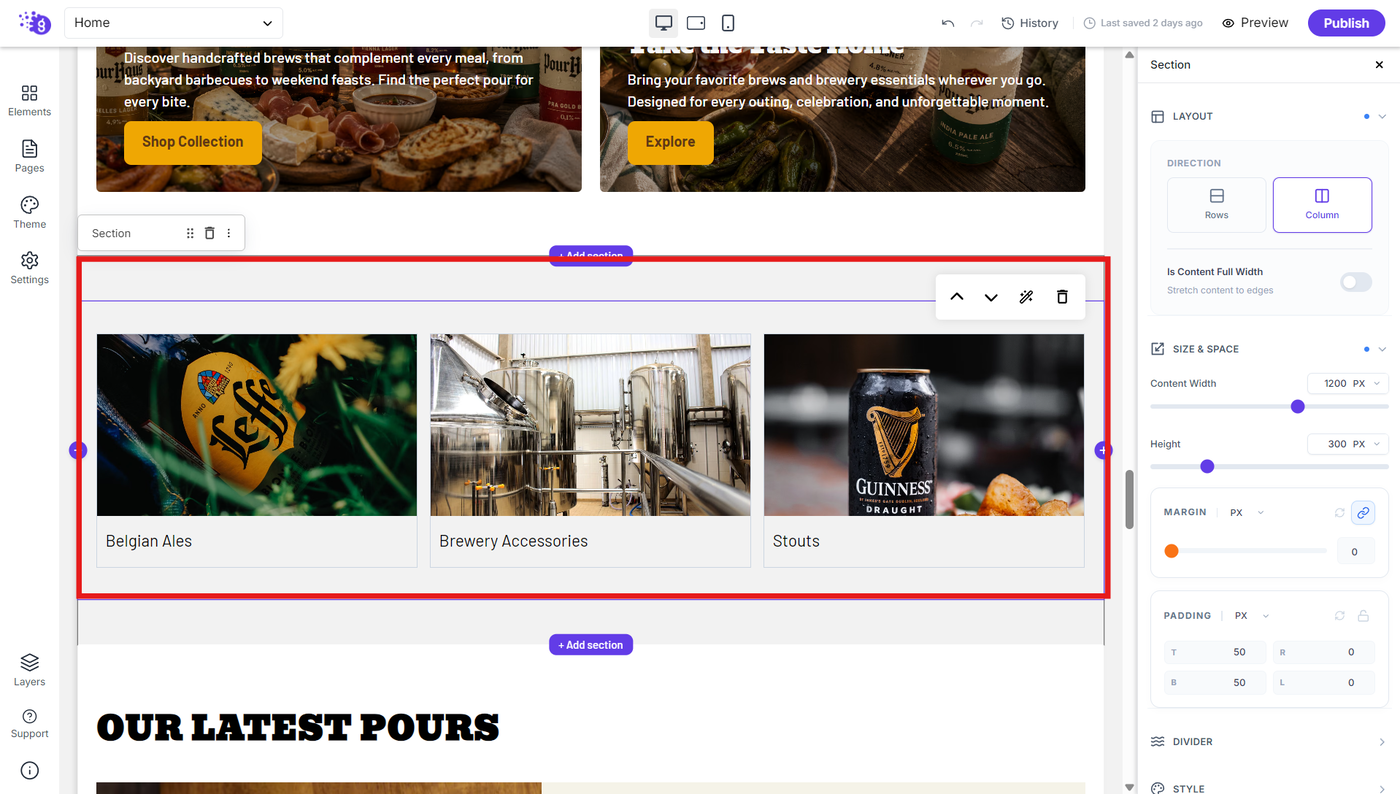
Save and Publish Site
After reviewing the changes, click Save and Publish to make the changes live on your site.