

Clear, compelling typography is the backbone of effective email communication. Grigora features a distraction-free, in-place rich text editing experience that lets you write and format your copy directly on the email canvas without having to navigate side panels.
This guide explains how to edit text blocks, format content using the Quill bubble toolbar, structure headings, and style callout quotes.
In-Place Editing Workflow
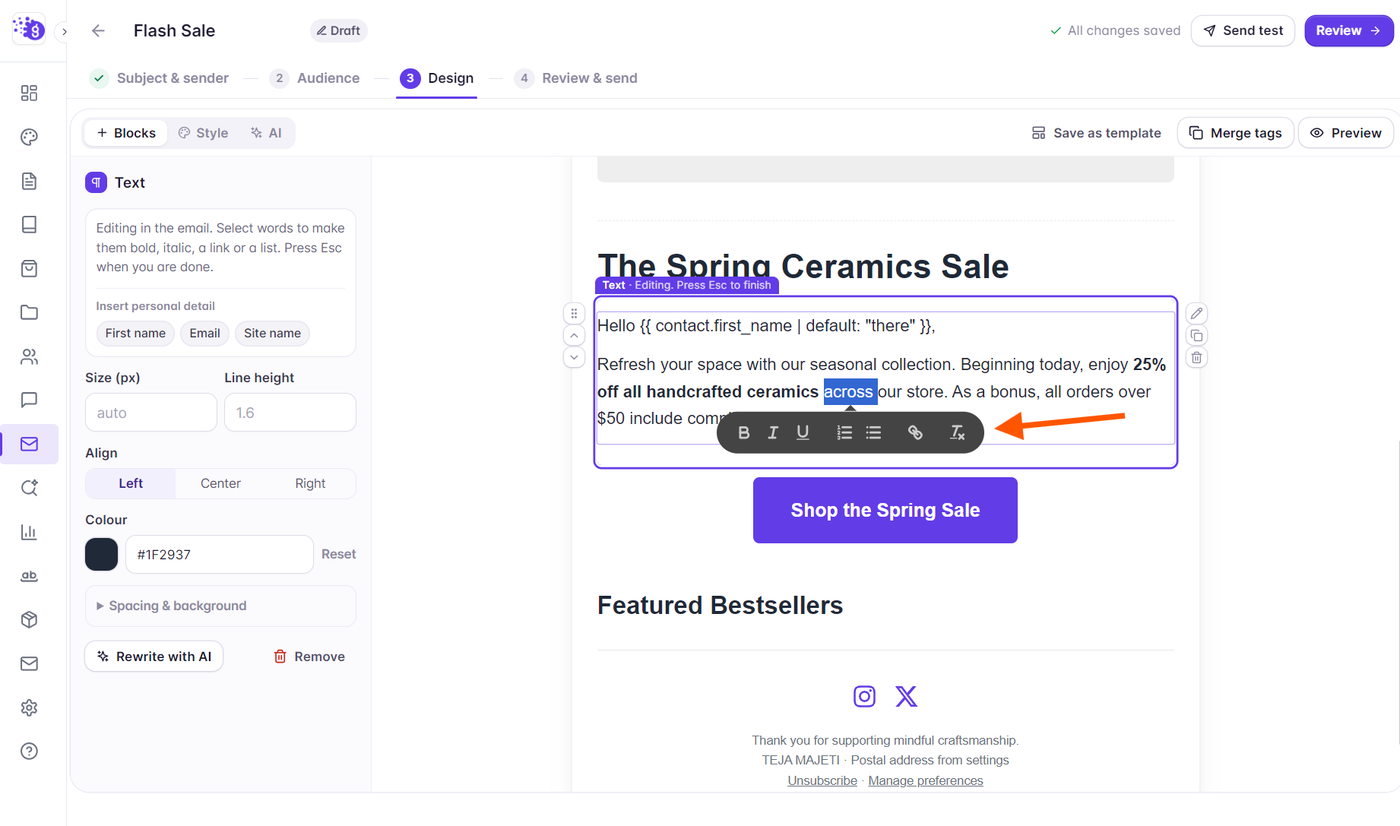
To edit any text element in your email:
Double-click directly on the text or heading block on the canvas.
The block enters active editing mode with a highlighted border and blinking cursor.
Type or edit your copy directly.
To finish editing, press Esc or click anywhere outside the block. Your changes are saved automatically to your campaign draft.
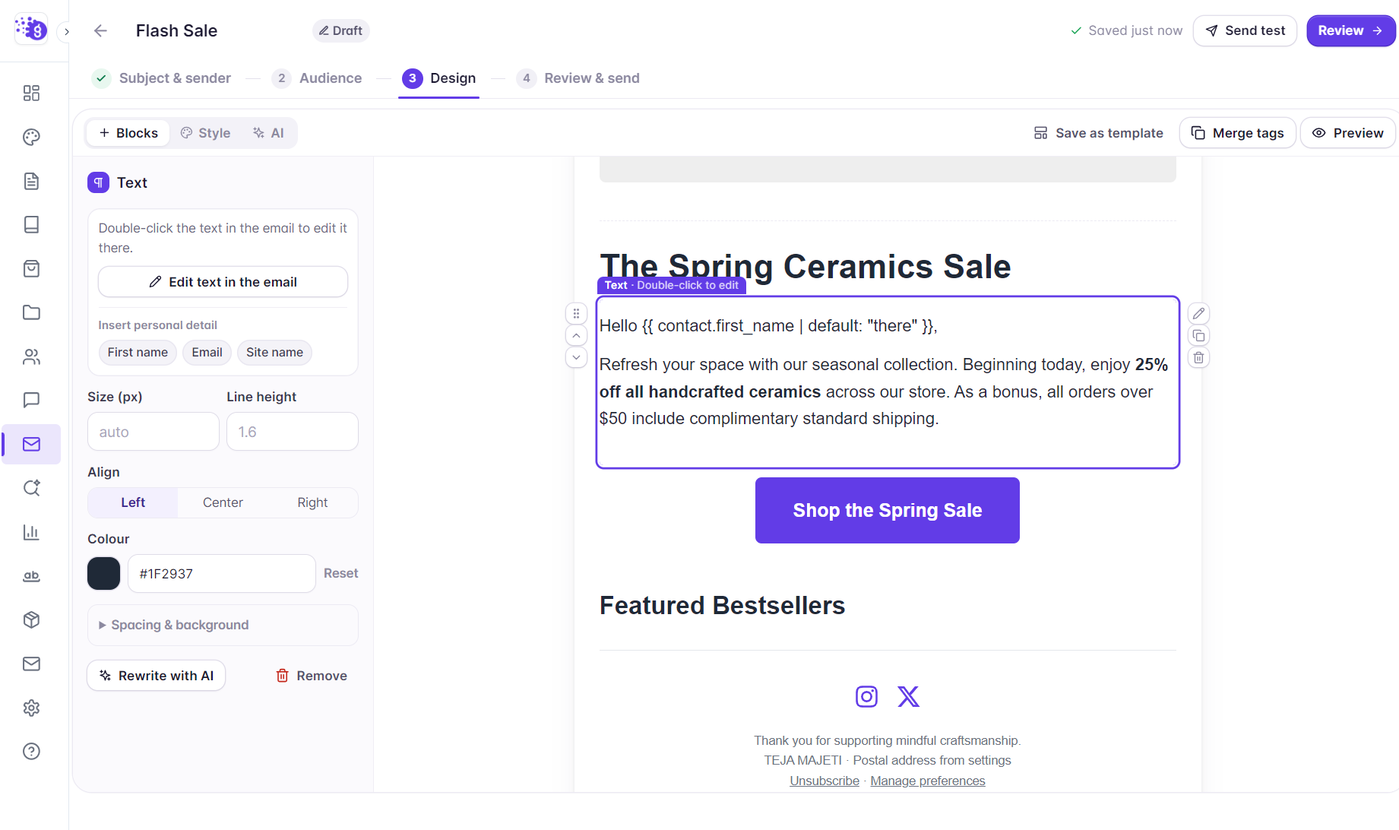
Formatting Text with the Quill Bubble Toolbar
When editing a Text or Footer block, highlighting any word or sentence automatically triggers the floating Quill bubble toolbar:
Bold (Ctrl+B / &cmd;+B): Emphasize key takeaways.
Italic (Ctrl+I / &cmd;+I): Stylize quotes, publications, or secondary notes.
Underline (Ctrl+U / &cmd;+U): Emphasize specific phrases.
Lists: Convert paragraphs into bulleted lists or numbered ordered steps.
Hyperlinks: Turn highlighted text into a clickable link. Enter the destination URL in the prompt.
Clean Formatting: Strip all applied inline styles and reset to default text.
Styling Headings (H1, H2, H3)
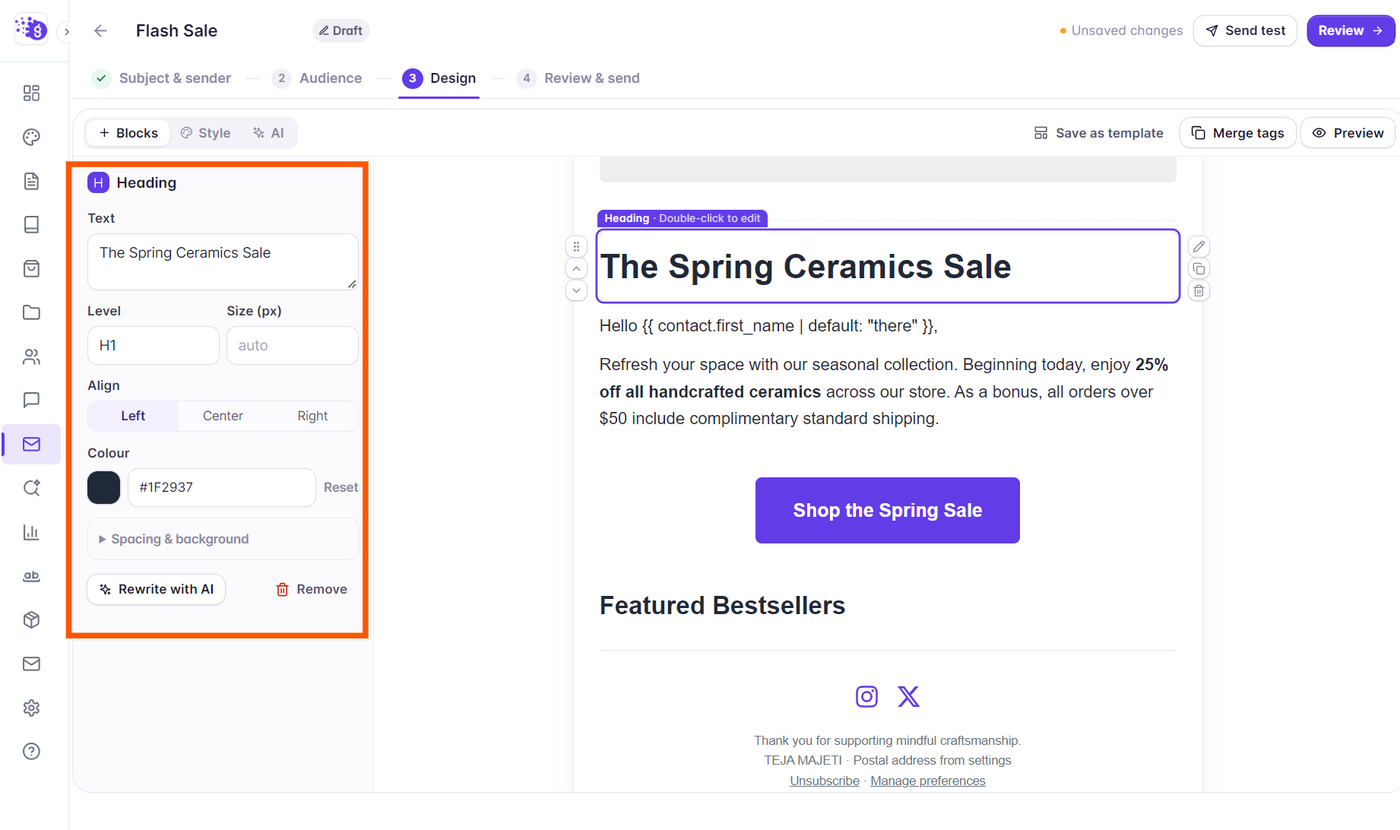
The Heading block establishes visual hierarchy in your newsletter:
Click on a Heading block to open its styling controls in the left side panel.
Choose the semantic heading level: H1 (Main headline), H2 (Section title), or H3 (Sub-section title).
Select alignment: Left, Center, or Right.
Customize the text color using the hex color picker or select from brand palette presets.
Adding and Styling Quotes
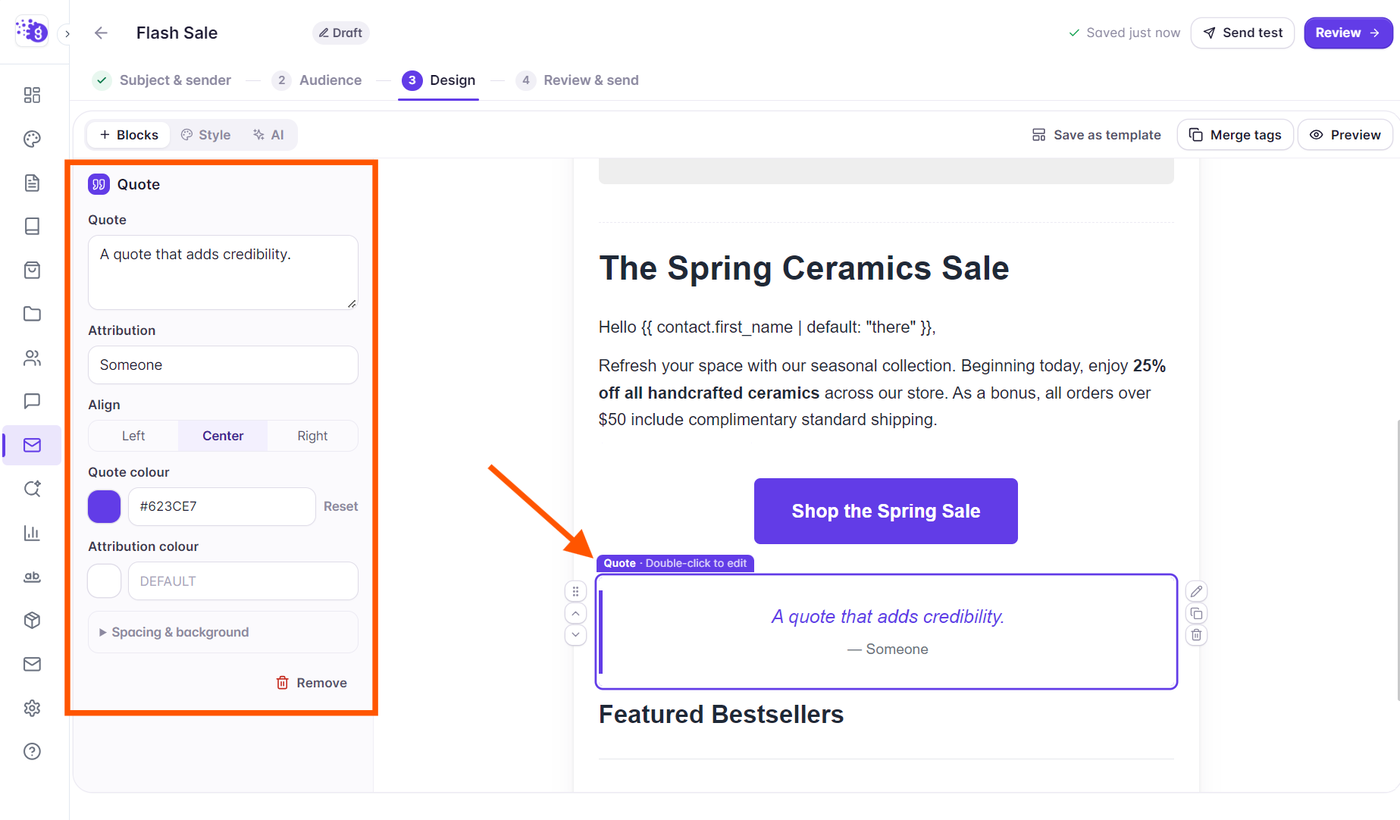
The Quote block is ideal for customer testimonials, editorial commentary, or prominent soundbites:
Double-click the quote text to type your quote copy in place.
Double-click the author attribution field below to add the speaker or source name.
Use the left side panel to adjust the quote text size, quote color, author color, and padding.
Inserting Personalization Merge Tags
You can personalize your copy by inserting dynamic merge tags directly into your text blocks (e.g., {{first_name}}):
Click the Merge tags button in the top toolbar to view and copy available contact fields.
Click any tag to insert it at your cursor position, or type tags manually using double curly braces (e.g.
{{first_name | fallback: "Friend"}}).