

Starting an email from a blank canvas can be time-consuming. Grigora includes an intelligent AI Email Designer built directly into the email composer. Whether you need an announcement for a new product, a weekly content roundup, or a seasonal promotional campaign, the AI designer drafts complete, responsive layouts tailored to your brand in seconds.
This guide explains how to launch the AI designer, prompt for layout generation, adjust tone, and polish generated sections.
Launching the AI Email Designer
You can access the AI designer in two ways:
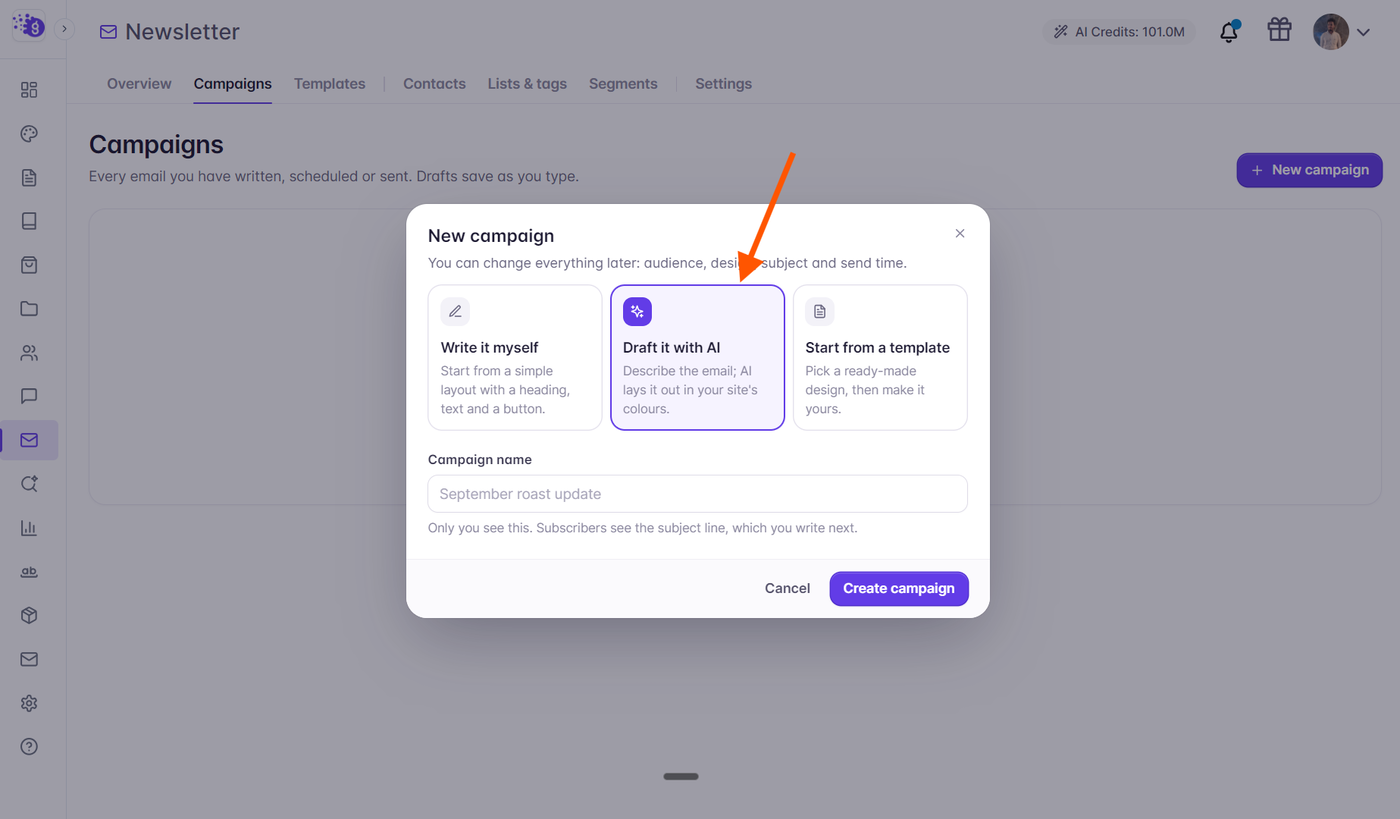
When Creating a Campaign: On the Campaigns page, click New campaign and select the Draft with AI option.
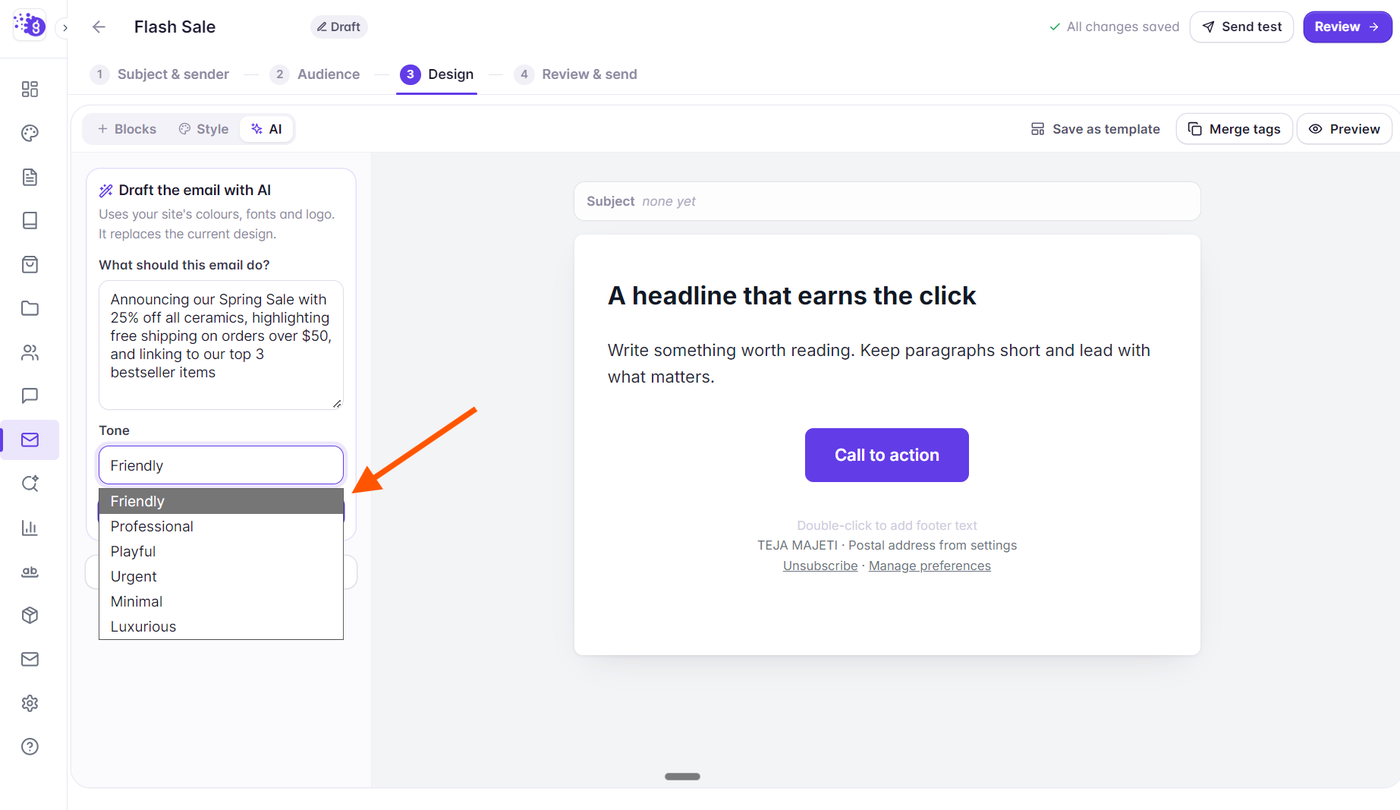
Inside the Email Composer: In Step 3 (Design), click the AI tab (
✨ AI) at the top of the left sidebar.
Prompting the AI Designer
In the AI panel in the left sidebar, enter details about what your email should do:
Campaign Goal / Topic: Describe what you want to communicate (e.g., "Announcing our Spring Sale with 25% off all ceramics, highlighting free shipping on orders over $50, and linking to our top 3 bestseller items").
Select Brand Tone: Choose the voice that best fits your audience:
Friendly & Welcoming: Great for community newsletters and onboarding emails.
Professional & Clear: Ideal for B2B updates, service changes, and corporate announcements.
Bold & Urgent: Best for limited-time flash sales and launch countdowns.
Casual & Conversational: Perfect for personal creator digests and blog spotlights.
Click Draft the email to initiate design generation.
Reviewing Generated Multi-Block Layouts
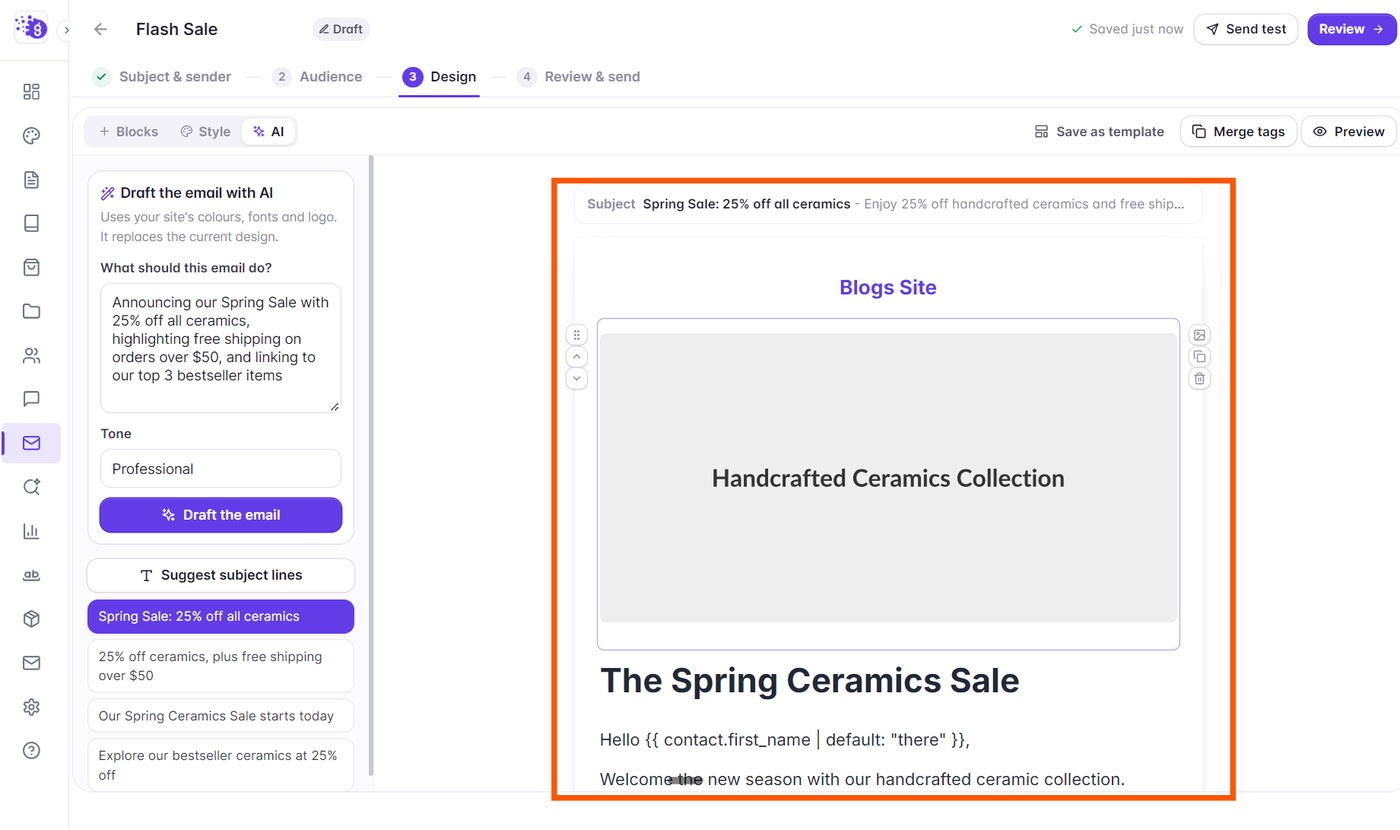
Grigora’s AI generates a complete, structured newsletter using native composer blocks:
Header & Headline: Engaging H1 titles and subheadings aligned with your topic.
Hero Section: Introductory copy with recommended image placeholders.
Content Blocks: Feature highlights, bulleted benefits, or product card layouts.
Call-to-Action Buttons: High-converting button labels styled in your brand colors.
Compliant Footer: Pre-wired with required unsubscribe and business address placeholders.
Restyling and Refining AI Drafts
The generated layout is fully editable using the standard drag-and-drop tools:
Refining Copy: Double-click any heading or paragraph on the canvas to personalize wording, add personal anecdotes, or insert customer names with merge tags (
{{first_name}}).Re-running AI on Specific Blocks: Highlight any text paragraph to ask the AI assistant to shorten the copy, make it more persuasive, or generate alternative subject lines.
Swapping Images: Double-click the generated image placeholders to choose graphics from your project media library.