

During a large email broadcast, unforeseen issues can occur—such as discovering a critical broken coupon link, hitting an SMTP provider hourly sending limit, or experiencing a server timeout. Grigora gives you full command over in-flight campaigns, allowing you to pause dispatches in real time and requeue failed deliveries without duplicating emails.
This guide explains how to pause live campaigns, inspect error banners, resume dispatches, and retry failed recipients.
How to Pause an In-Flight Campaign
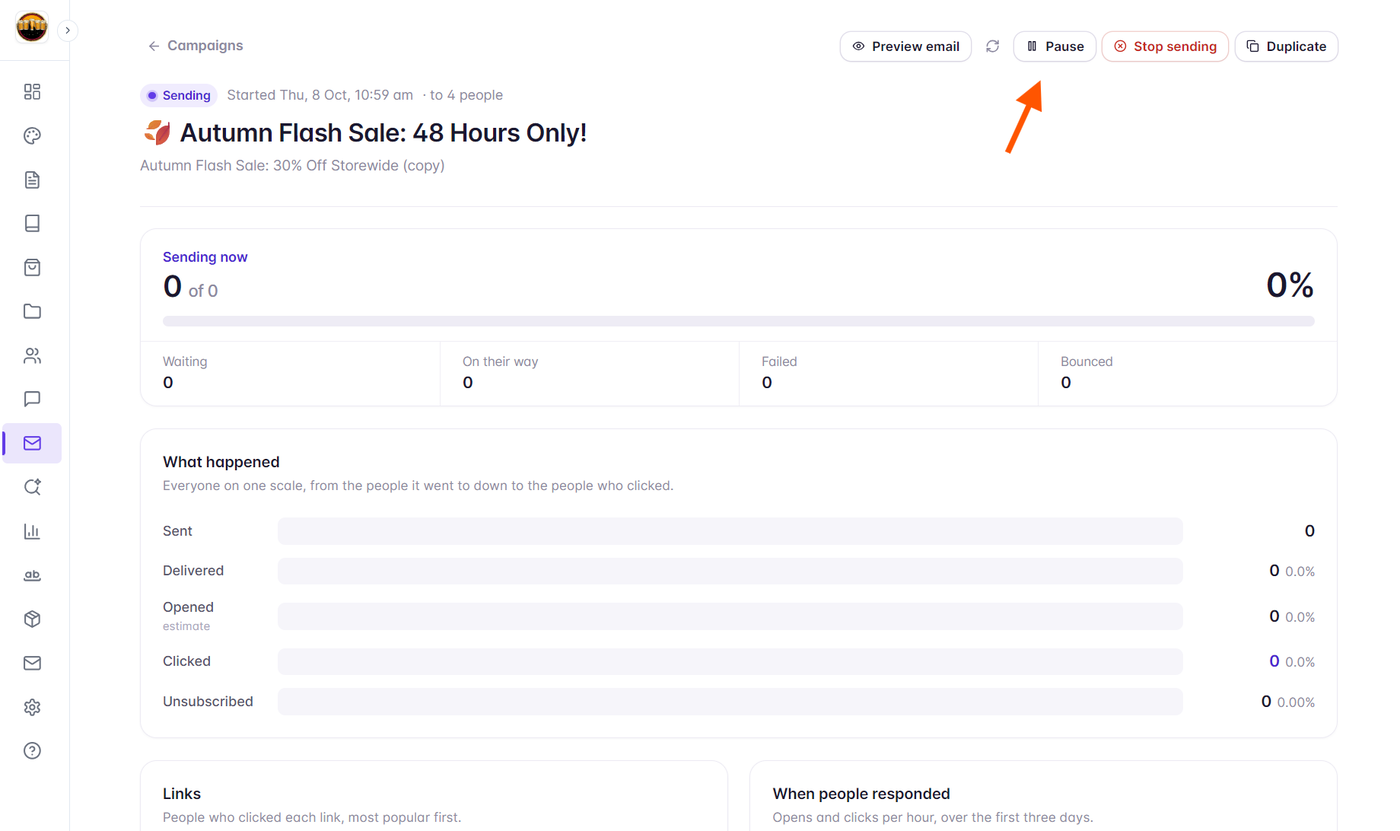
While a campaign is in the Sending status, you can pause dispatch at any time:
Navigate to Newsletter → Campaigns or open the active Campaign Report.
Click the Pause button in the top action bar (or select Pause from the campaign row action menu).
Grigora immediately halts active delivery attempts.
A confirmation toast confirms: "Paused. Nobody else gets it until you resume."
Emails already in transit or accepted by destination servers will complete delivery, while all remaining recipients remain safely queued.
Diagnosing Auto-Paused Campaigns and Error Messages
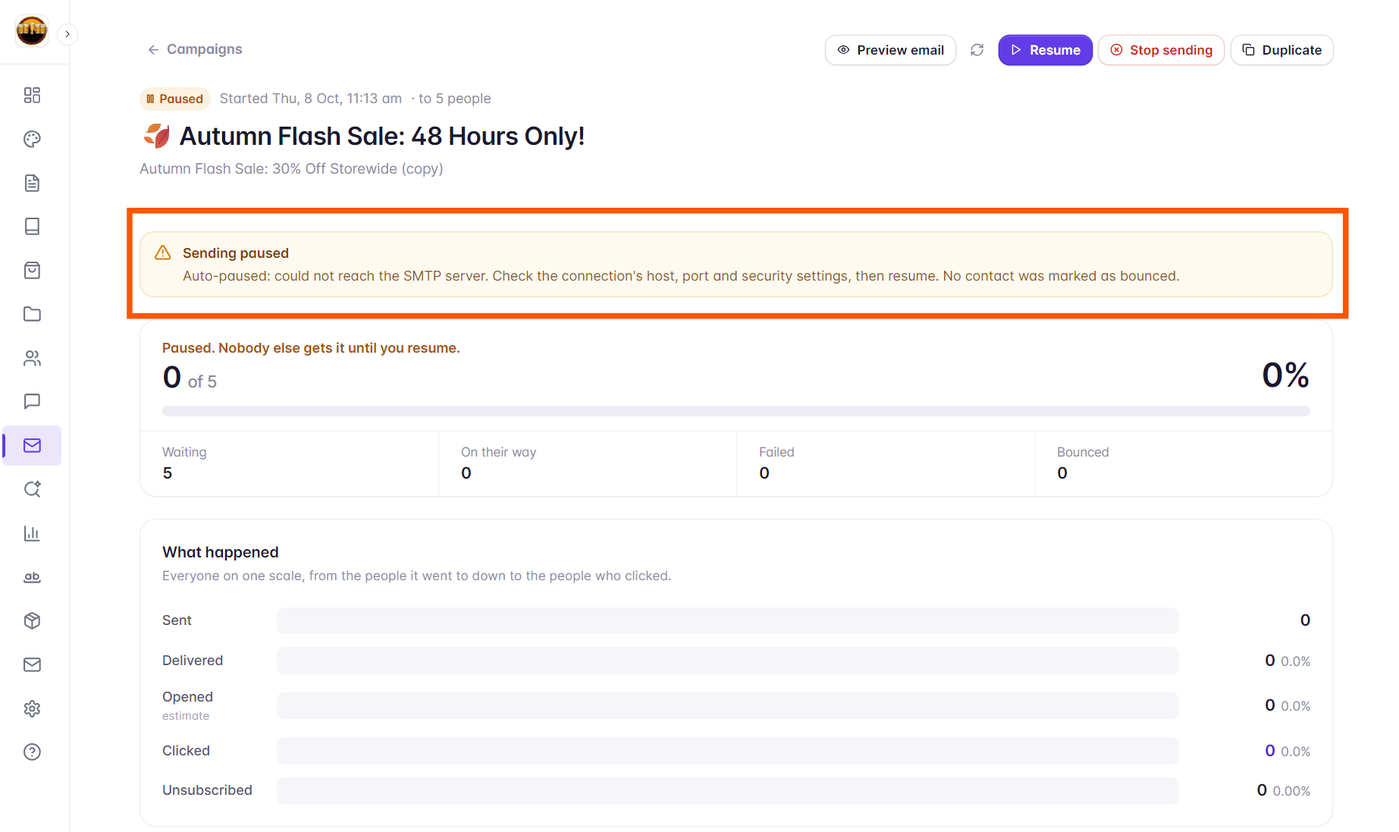
If your SMTP server fails or returns connection errors (such as authentication failure or rate limit exhaustion), Grigora automatically pauses the campaign to protect your dispatch:
The campaign enters the Paused status.
An alert banner appears at the top of the Campaign Report displaying the exact error message reported by your sending provider (e.g., "Auto-paused: could not reach the SMTP server" or "Auto-paused: authentication rejected").
Review the error message, update your credentials in Settings → Newsletter → Sending if needed, or wait for rate limits to reset.
Resuming a Paused Campaign
Once you are ready to continue sending:
Open the paused Campaign Report.
Click the Resume button in the top action bar.
The campaign status switches back to Sending, and delivery resumes from the exact point where it stopped. No recipient receives duplicate emails.
How Delivery Attempts and Failed Recipient Retries Work
When emails encounter temporary delivery or connection hiccups, Grigora manages retries systematically before marking them as failed:
Automatic In-Flight Retries
Initial State: When a transient delivery error occurs, the recipient remains in the Queued status badge.
Attempt Tracking: The Detail column displays the latest error reason or number of attempts (e.g., "2 attempts").
Up to 5 Attempts: Grigora automatically retries the delivery up to 5 times with an automatic delay between attempts.
Transition to Failed: If delivery still cannot be completed after all 5 attempts are exhausted, the recipient status officially changes from Queued to Failed, and the Failed metric counter increments.
Using the Retry Failed Button
Once failed recipients exist and the campaign is no longer actively sending:
Ensure the campaign is in Paused, Sent, or Failed status (click Pause if the campaign is currently sending).
When the Failed count is greater than zero, the Retry [X] failed button appears in the top action bar next to the Resume button.
Click Retry [X] failed.
Grigora resets the failed recipients back into the queue for a fresh delivery run and shows a confirmation toast: "[X] emails queued to try again."
Contacts who have already successfully received the email (marked as Sent) are completely untouched, preventing duplicate sends.