

Your email subject line and preview text (preheader) are the first—and often only—elements subscribers evaluate before deciding whether to open your message or send it to the trash.
In Grigora, you don't have to guess how your subject line will look on different screens. The Campaign Builder includes an interactive Live Inbox Preview that simulates real mobile and desktop email clients as you type. This guide explains how to craft high-converting subject lines and make the most of the live simulator.
Understanding Subject Lines vs. Preview Text
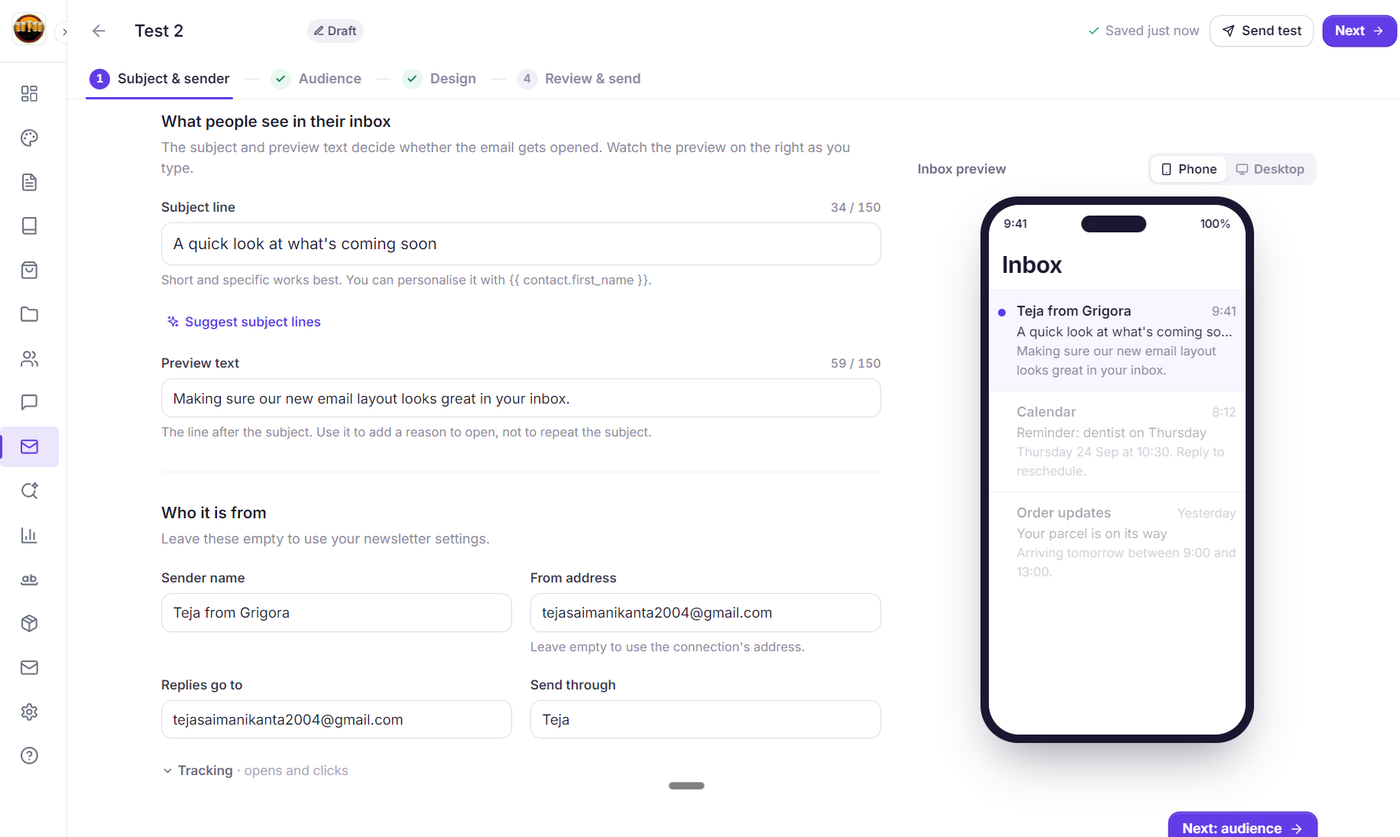
Subject Line: The primary bold headline displayed in the inbox. Its goal is to spark curiosity, communicate value, or announce news.
Preview Text (Preheader): The secondary line of text displayed alongside or beneath the subject line in modern clients (like Gmail, Apple Mail, and Outlook). If you leave this blank, email apps automatically pull random text from your email footer or header.
Using Grigora's Live Inbox Simulator
Inside Step 1: Setup of the Campaign Builder, the right-hand panel renders an interactive preview of your email in a simulated inbox:
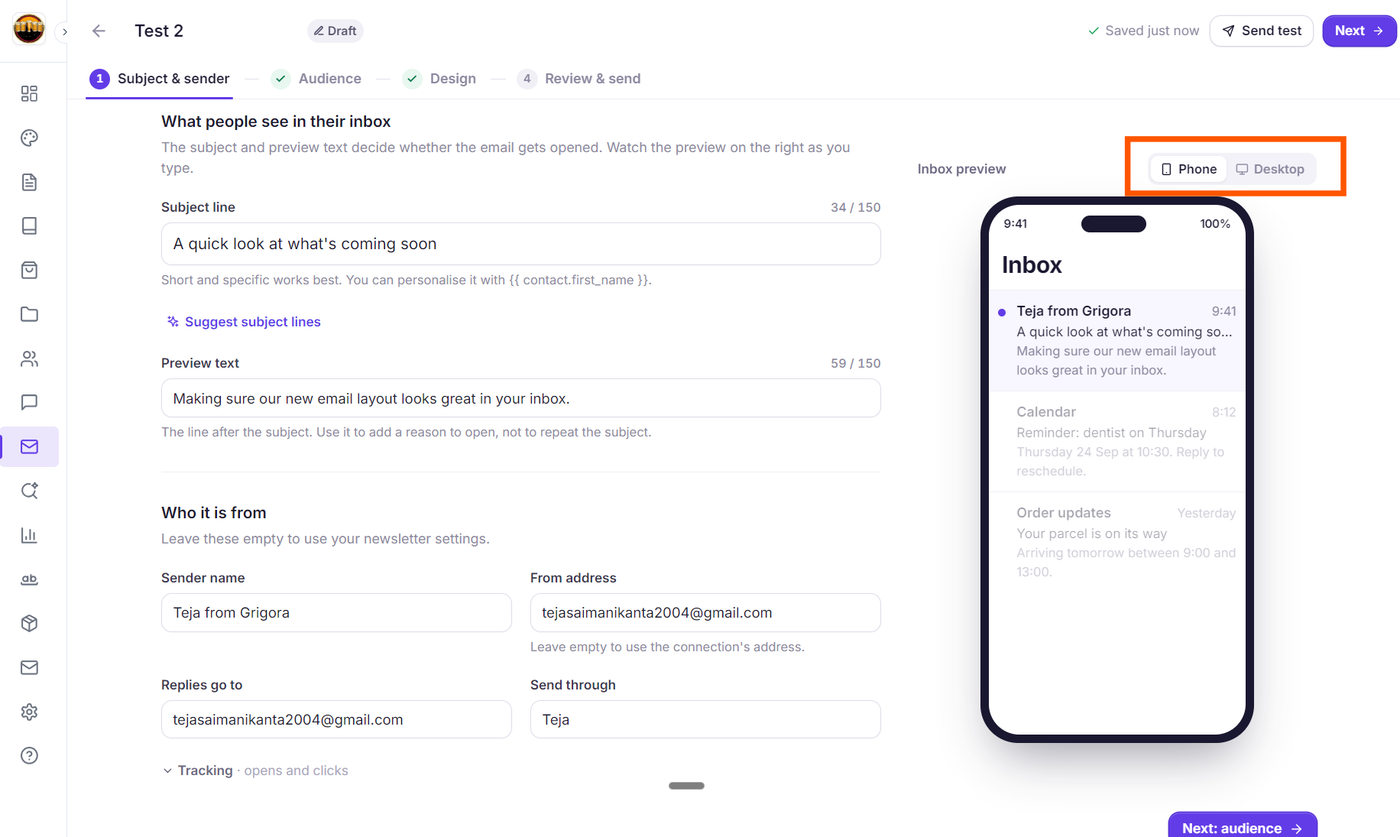
Desktop View (Monitor Icon): Simulates a wide desktop email client (such as Gmail in Chrome or Outlook on desktop). Desktop displays typically allow 60–70 characters of subject line text before cutting off.
Mobile View (Smartphone Icon): Simulates a mobile device screen (such as Apple Mail on iPhone). Mobile clients truncate subject lines much earlier—often at 35 to 45 characters.
Truncation Warning: As you type your subject line and preview text, Grigora shows you the exact character point where truncation occurs (
...). Always place your most compelling words and key value propositions at the beginning so mobile readers see them instantly.
Personalizing Subject Lines with Merge Tags
Adding a subscriber's first name to your subject line can significantly increase open rates:
You can use standard merge tags directly in the subject line input:
{{first_name}}, your exclusive access is ready
If a subscriber record does not have a first name populated, Grigora seamlessly falls back to your configured fallback text or leaves the greeting natural.
Best Practices for High Open Rates
Complement, Don't Repeat: Treat the subject line and preview text as a two-part headline. Use the subject line to grab attention and the preview text to deliver context.
Subject: "New design system launched 🎨"
Preview: "Explore 40+ responsive blocks, updated typography, and color tokens."Keep Mobile in Mind: Over 60% of emails are opened on mobile devices. Always check the Mobile view toggle in Grigora before proceeding to the next step.
Avoid Spam Triggers: Steer clear of ALL CAPS, excessive exclamation points (
!!!), and misleading clickbait promises that trigger spam filters.
Next Steps
How to Target the Right Audience: Including and Excluding Lists, Tags, and Segments
Getting Started with the Grigora Drag-and-Drop Email Composer
How to Use Merge Tags to Personalize Emails with Subscriber Data