

Ready to craft beautiful headlines, paragraphs, and callouts? This guide will show you how to add and style text blocks inside Grigora's fast website builder. No coding, no complexity — just drag, drop, and style. Perfect for bloggers, business owners, and creators who want clean, impactful content.
Adding Text Blocks to Your Page
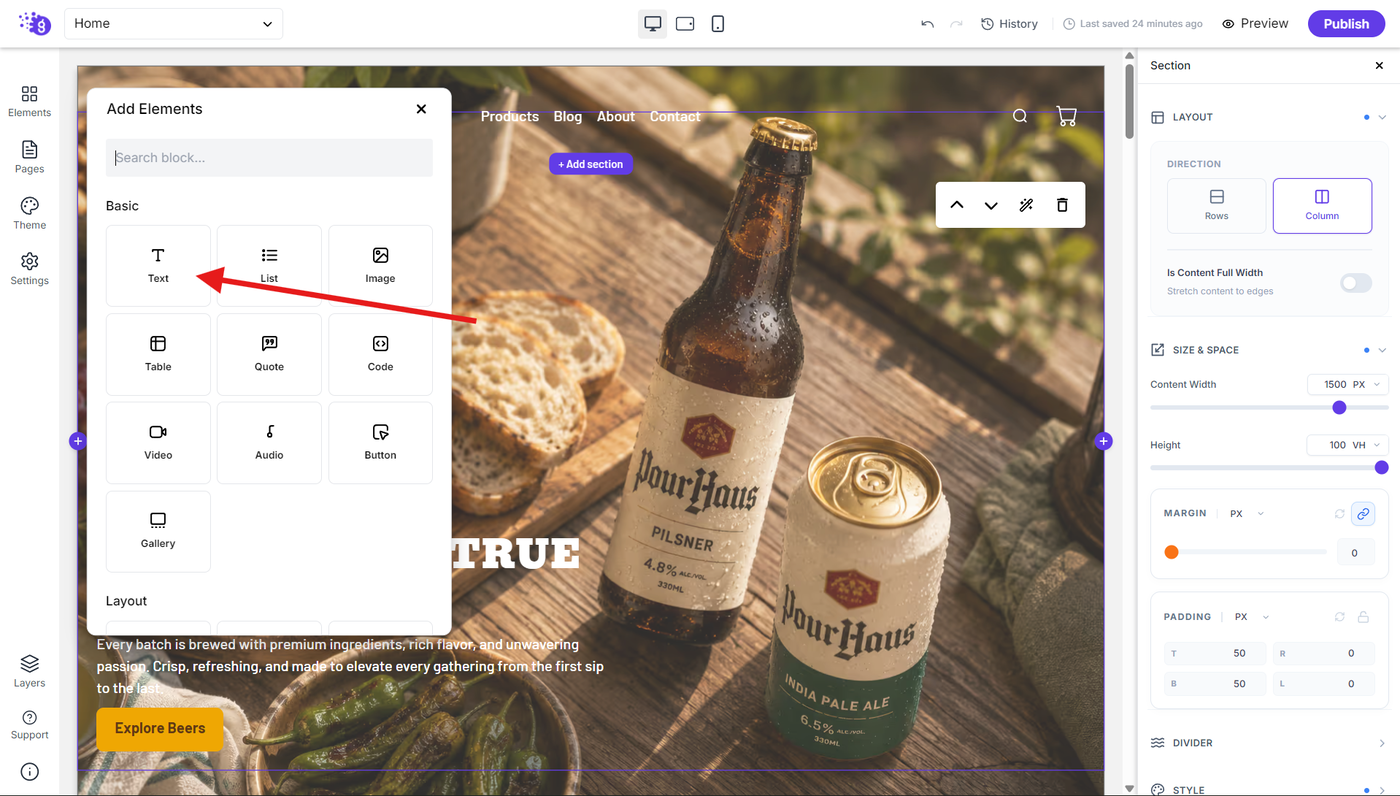
Open the Grigora editor and click on "Elements" in the left panel to access all available content blocks. You'll find the text block option in the elements list.
Click and drag the text block to wherever you want to place it in your editor. Once dropped, you can start typing your content directly into the text block, making content creation immediate and intuitive.
Accessing Text Styling Options
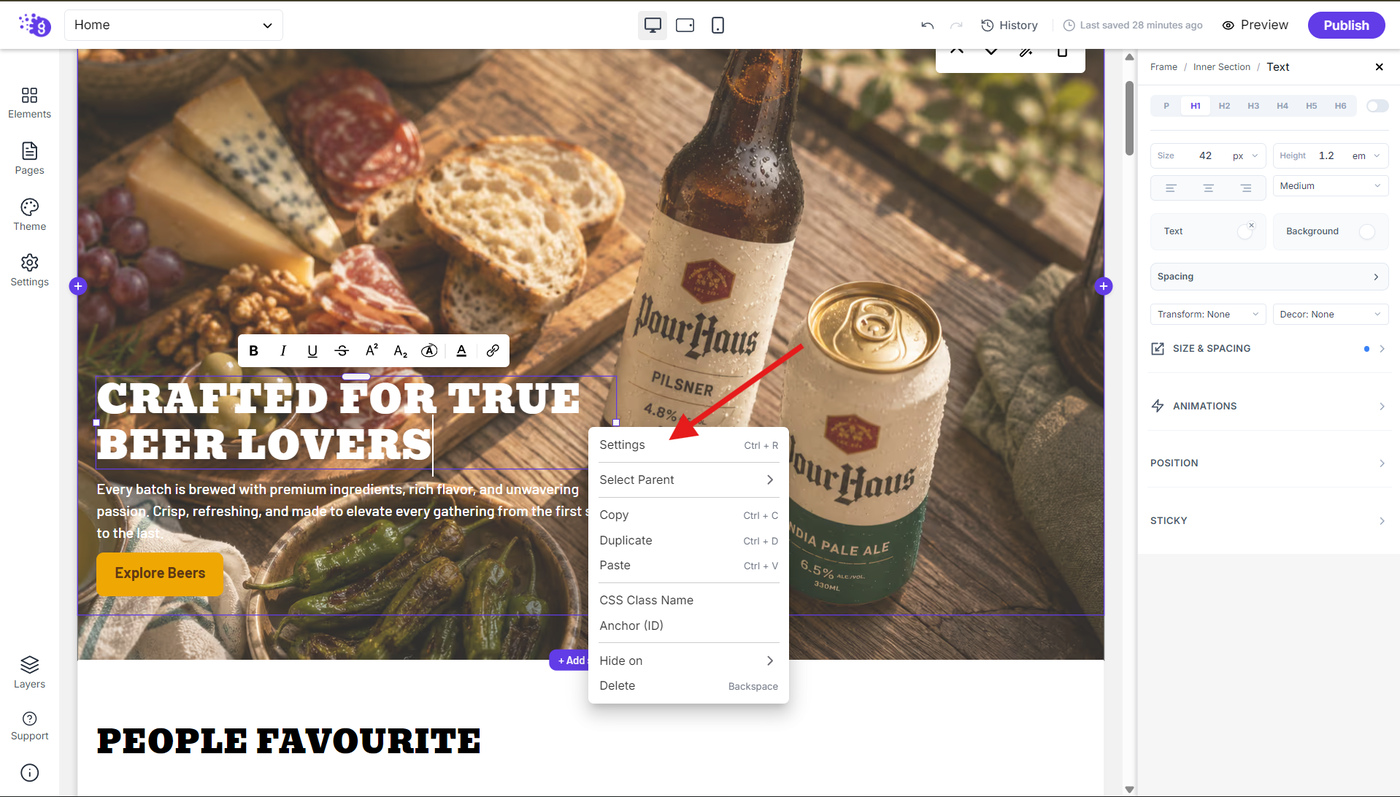
To access styling options, right-click on the text block and select "Settings". This opens the settings panel on the right side where you can control every aspect of your text's appearance and behavior.
General Text Configuration
Text Structure Control
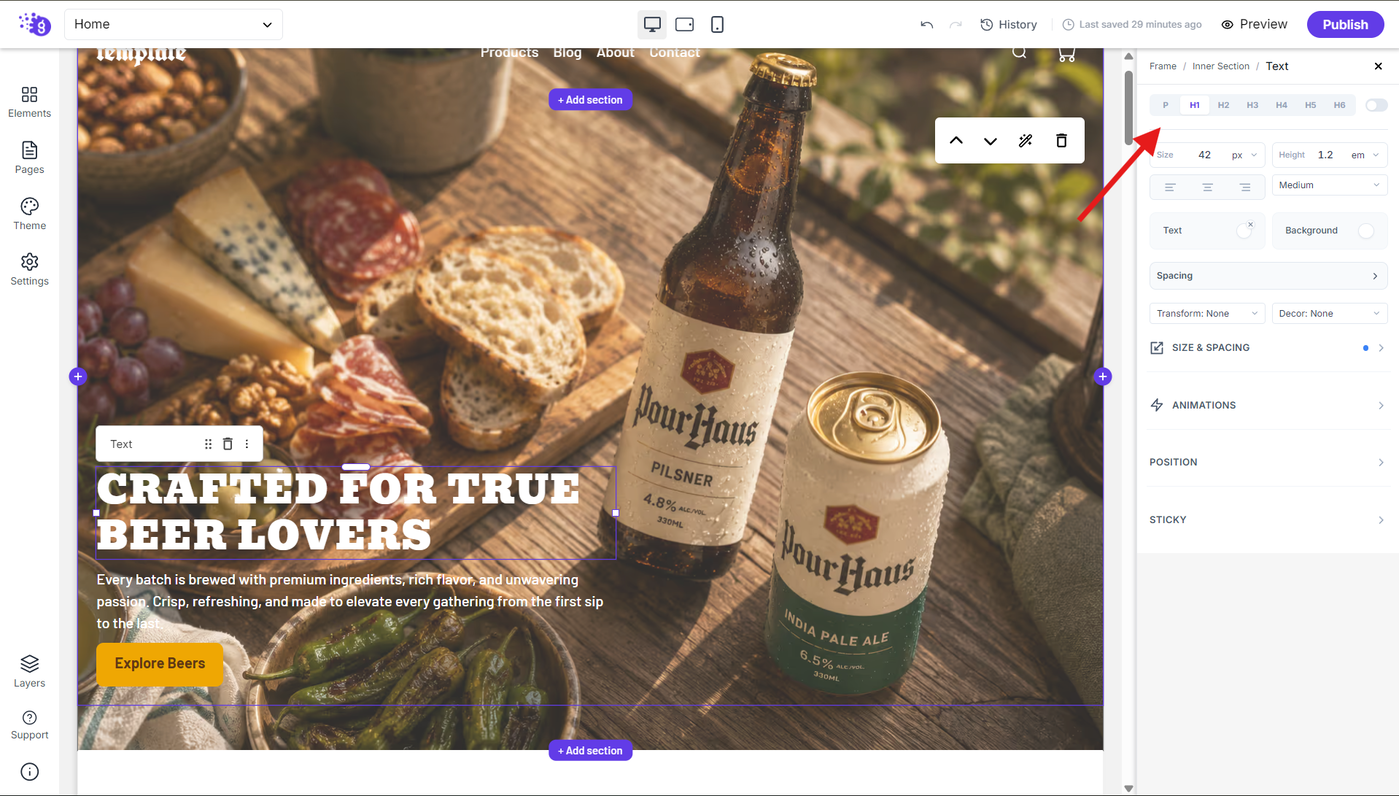
You can change the text tag for proper content hierarchy. Choose from paragraph, H1 to H6 headings elements depending on your content structure and SEO needs.
Text Alignment
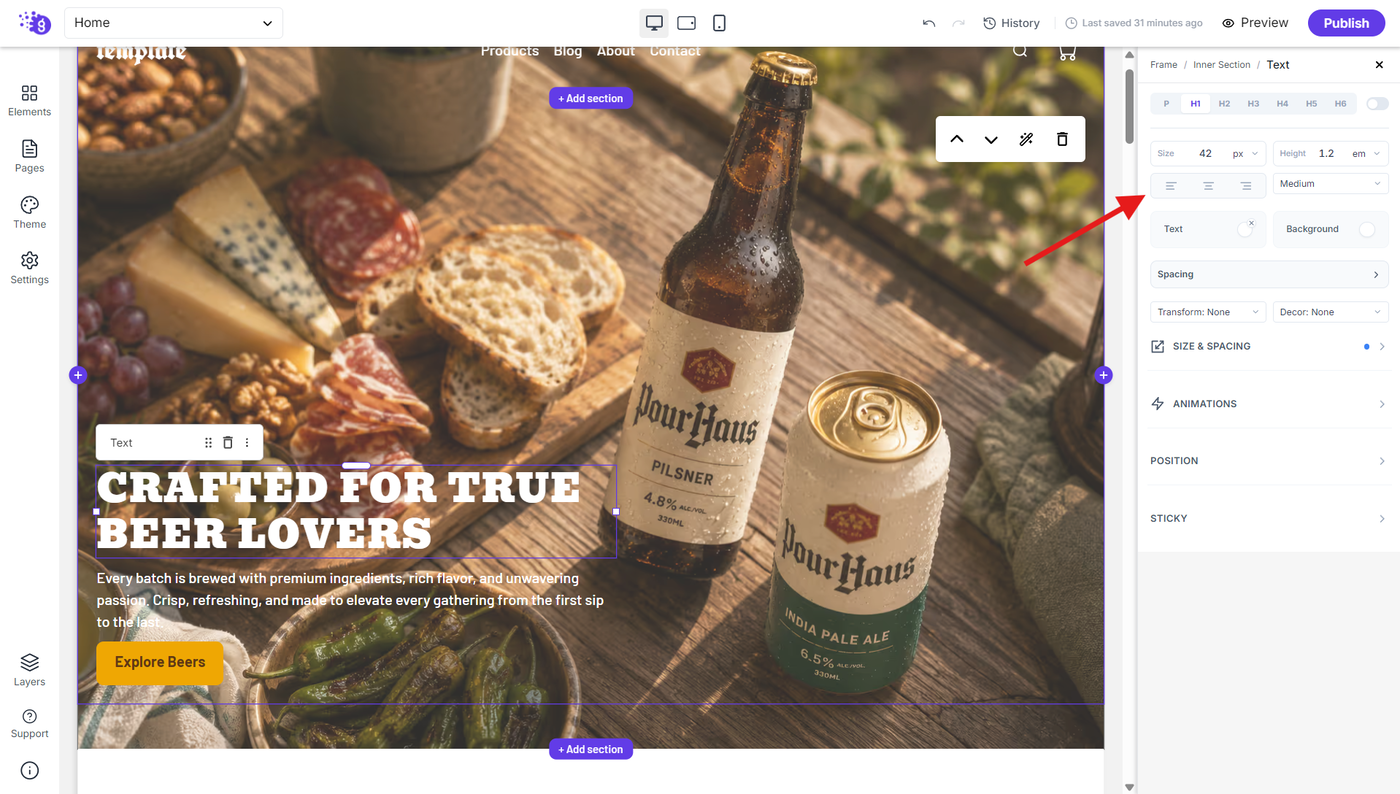
Adjust the alignment to left, right, or center to position your text as needed within your layout and design requirements.
Typography Customization
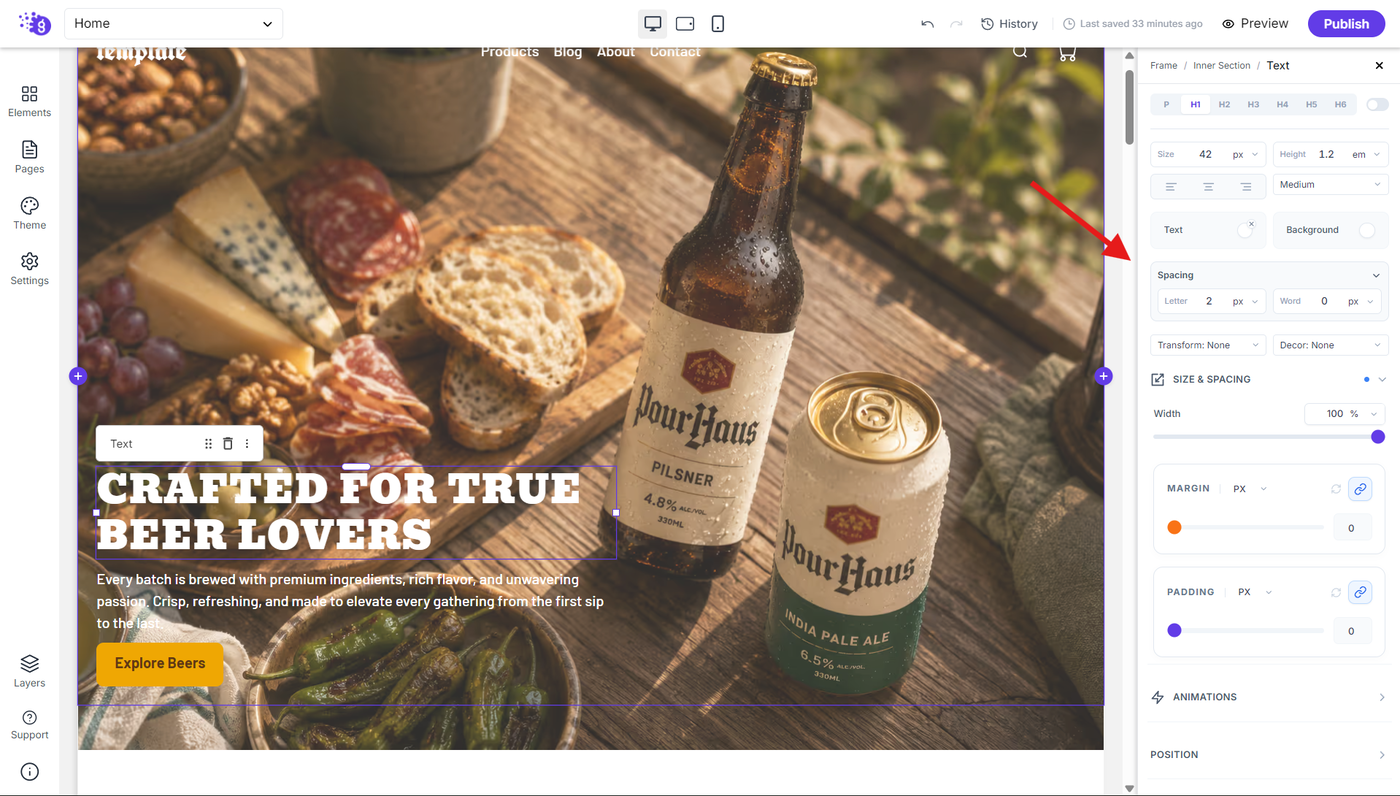
Use the text styling options to customize the appearance and formatting of your text:
Font Size: Adjust for optimal readability and visual impact
Line Height: Control spacing between lines for improved readability
Letter Spacing: Fine-tune character spacing for professional appearance
Word Spacing: Adjust space between words for better text flow
Font Weight: Choose from light to bold weights for emphasis and hierarchy
Text Transform: Control capitalization with uppercase, lowercase, or capitalize options
Text Decoration: Add underline, overline, or other decorative elements
Text Style: Choose between italic or normal styling for emphasis
Color and Background Styling
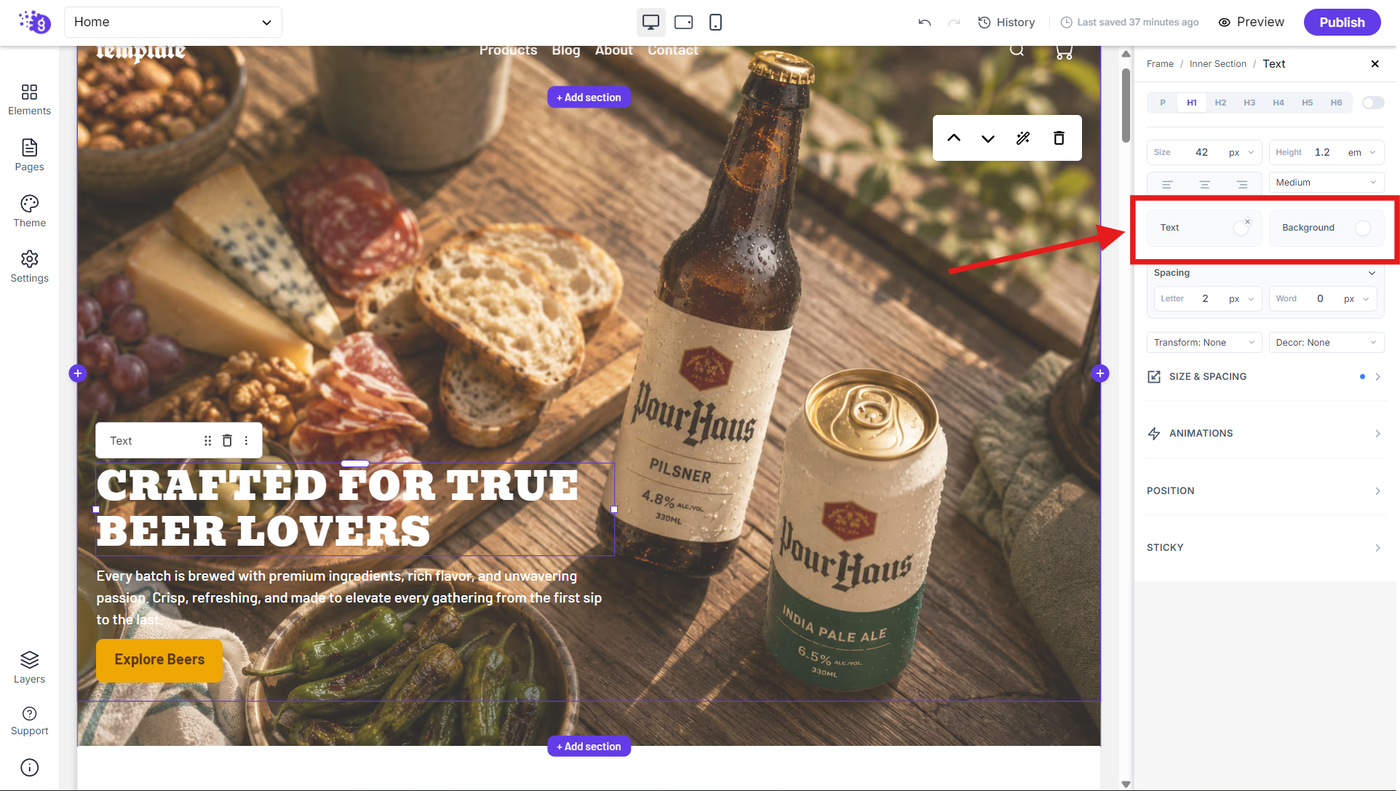
To change the overall colors, use the Text and Background options in the settings panel. You can adjust the text and background colors of the block to match your brand and overall design scheme.
Interactive Effects
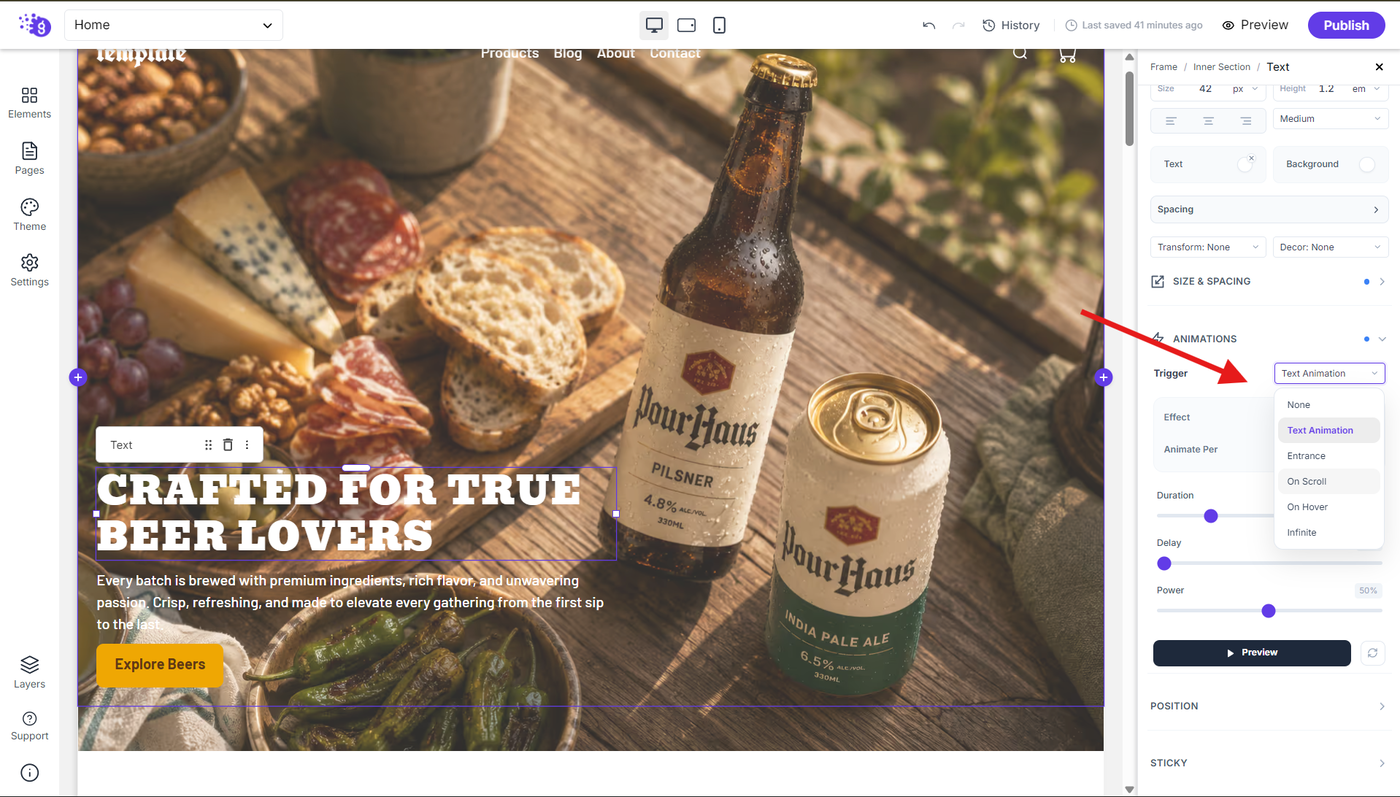
Choose from a variety of event-based animation triggers to add engaging motion to your text, including on scroll, on hover, and entrance animations. These options help create dynamic interactions and enhance the overall user experience
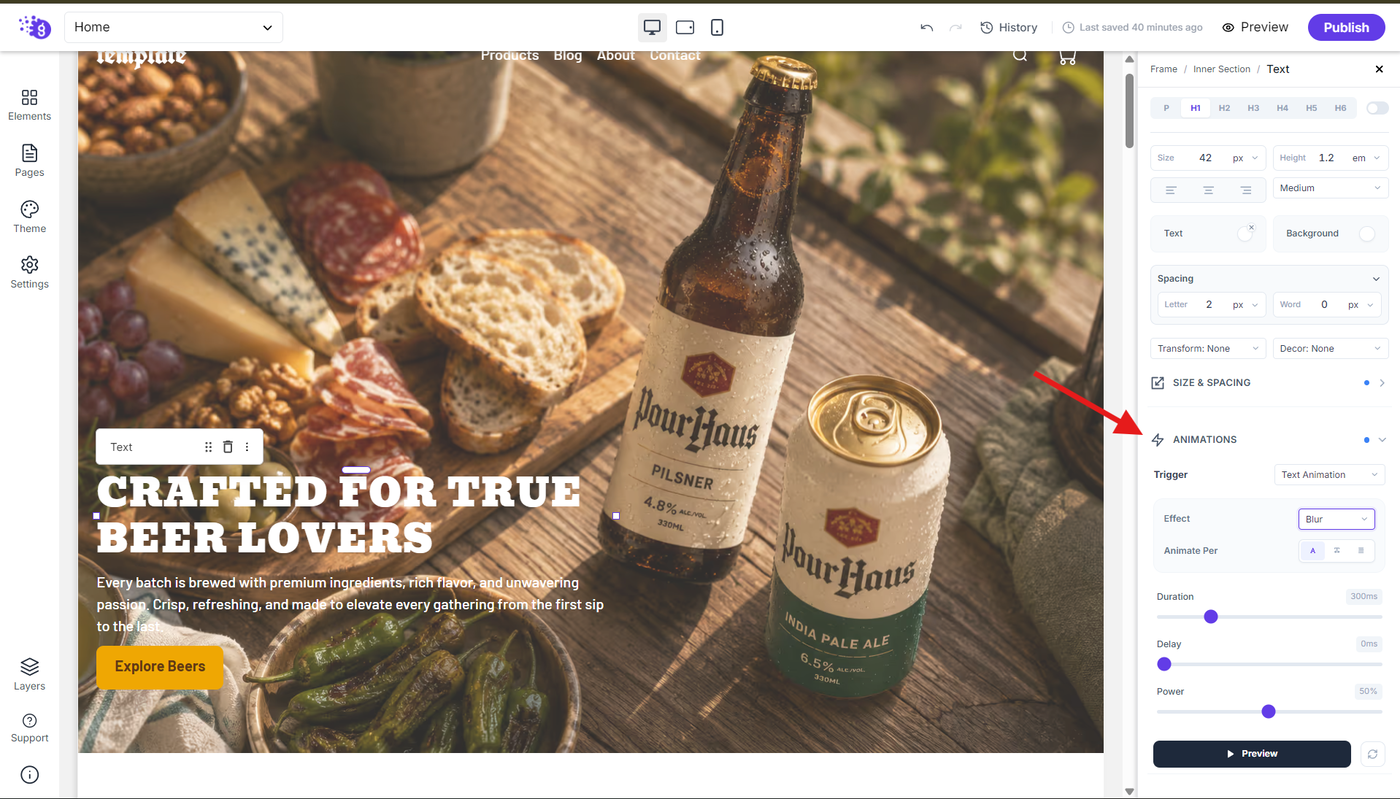
Fine-tune your animations using settings such as effect, animation timing, duration, delay, and power. You can also preview the animation directly in the editor to see how it looks and adjust it until you get the desired result.
Rich Text Formatting Options
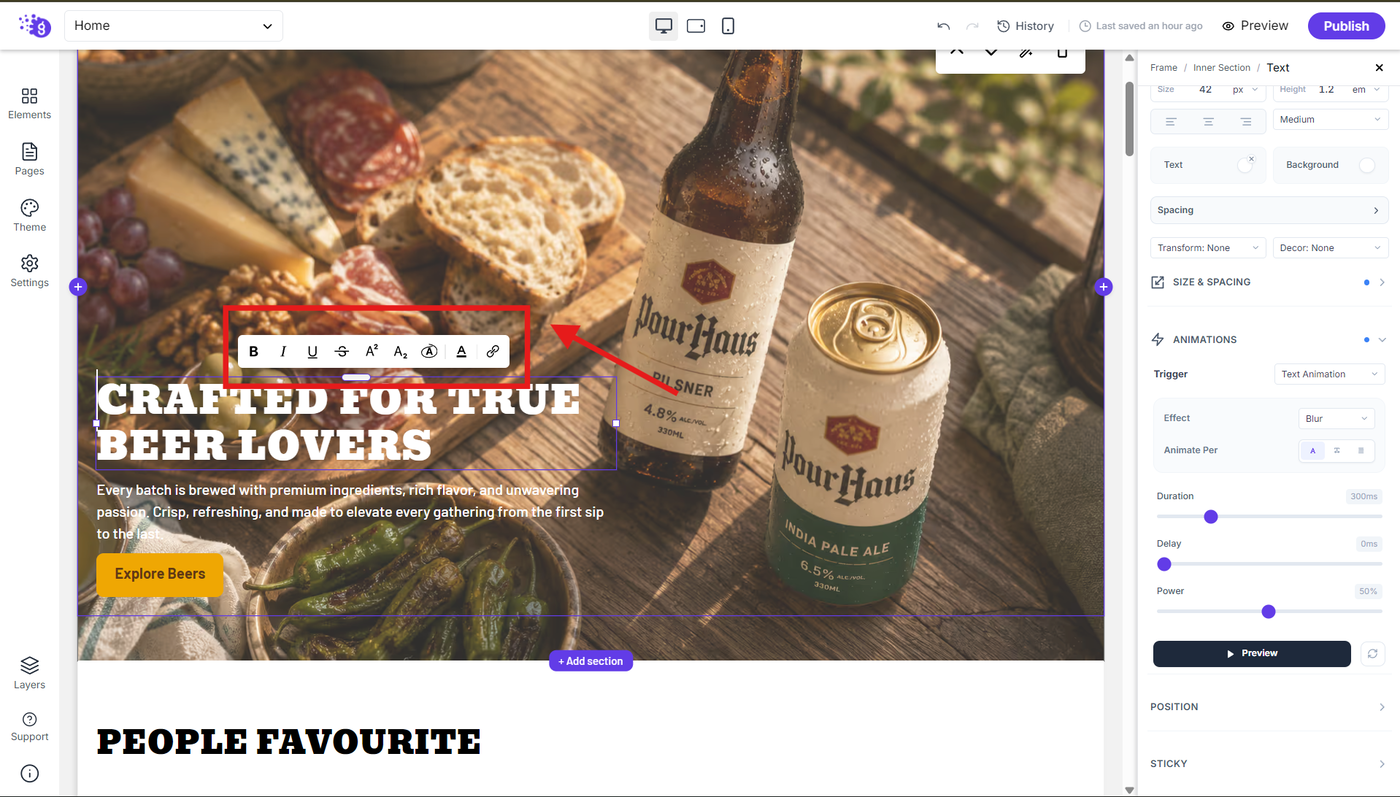
For rich text formatting, simply highlight the specific text you want to style within your text block. You can then apply:
Bold Formatting: For emphasis and visual hierarchy
Italic Styling: For subtle emphasis or stylistic variation
Underline Decoration: For highlighting important information
Strike Through Effects: For showing changes or crossed-out content
Color Changes: For specific text portions that need attention
Background Colors: For highlighted sections that need to stand out
Links: To make specific text clickable and connect to other pages or resources
SVG Text Highlights: Apply predefined SVG styles around specific text portions to create eye-catching, decorative highlights and emphasize important content.
Advanced Customization
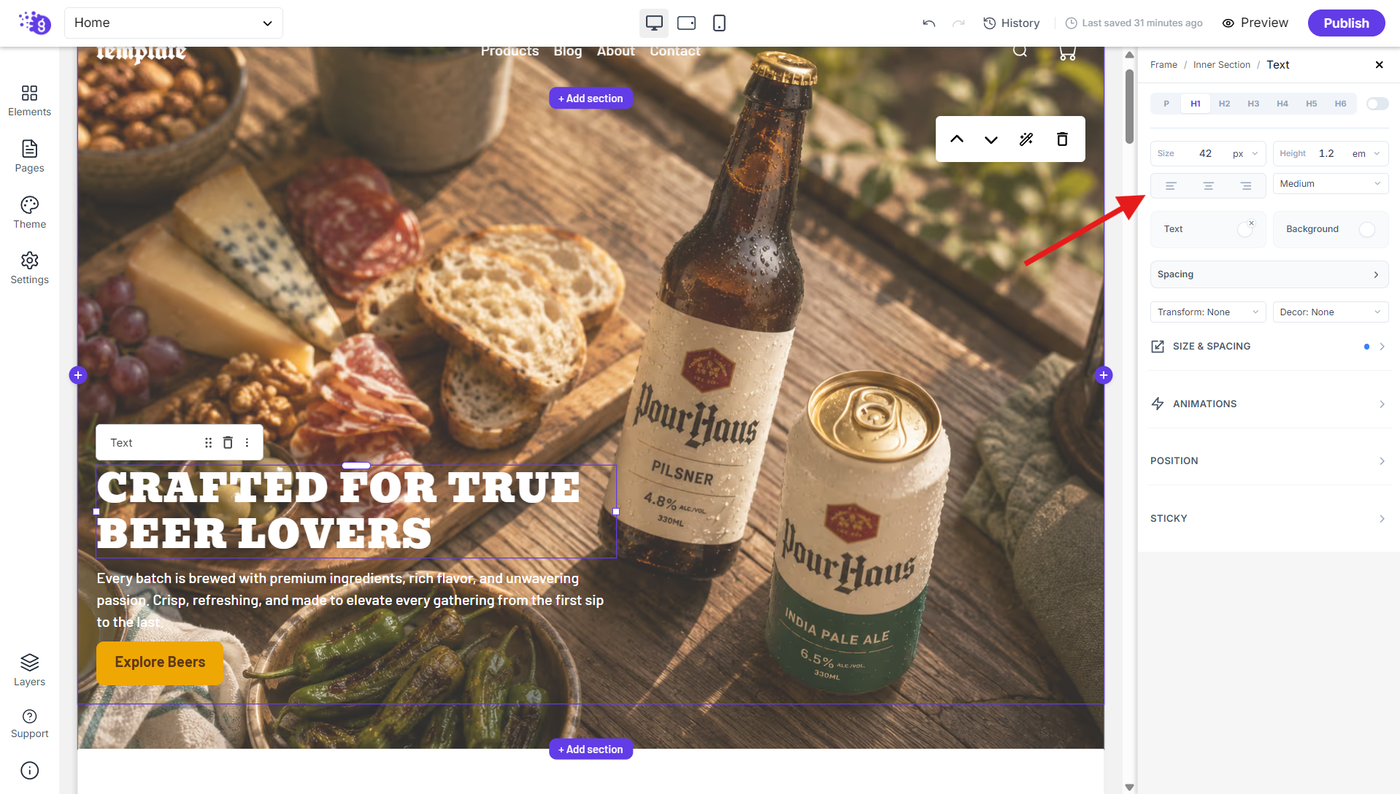
For more advanced customization, the settings are organized into clearly categorized panels, making it easy to find and adjust the options you need. Use panels such as Position and Sticky to control element placement, positioning, and scrolling behavior, along with other available settings for more precise control over your text presentation..
Professional Text Management
This comprehensive text system allows you to create everything from basic text insertion to rich text formatting and complete typography control. Use these text styling capabilities to:
Create a clear content hierarchy by using appropriate heading levels and structures.
Improve readability with well-balanced typography, spacing, and text styling.
Maintain brand consistency by using cohesive colors, fonts, and visual styles.
Increase user engagement with interactive animations and event-based effects.
Direct user attention through strategic formatting, emphasis, and visual highlights.