

High-level percentages are useful for summaries, but when troubleshooting delivery issues or answering subscriber inquiries (e.g., "Why didn't I receive your announcement?"), you need contact-level transparency. Grigora provides an itemized delivery log for every recipient targeted by your campaign.
This guide explains how to navigate recipient delivery logs, understand status indicators, and interpret bounce diagnostics.
Accessing Recipient Delivery Logs
Open your campaign report (Newsletter → Campaigns → View report).
Scroll to the Recipients section below the funnel charts.
Grigora displays a paginated table showing each subscriber’s email address, current dispatch status, timestamp, and delivery details.
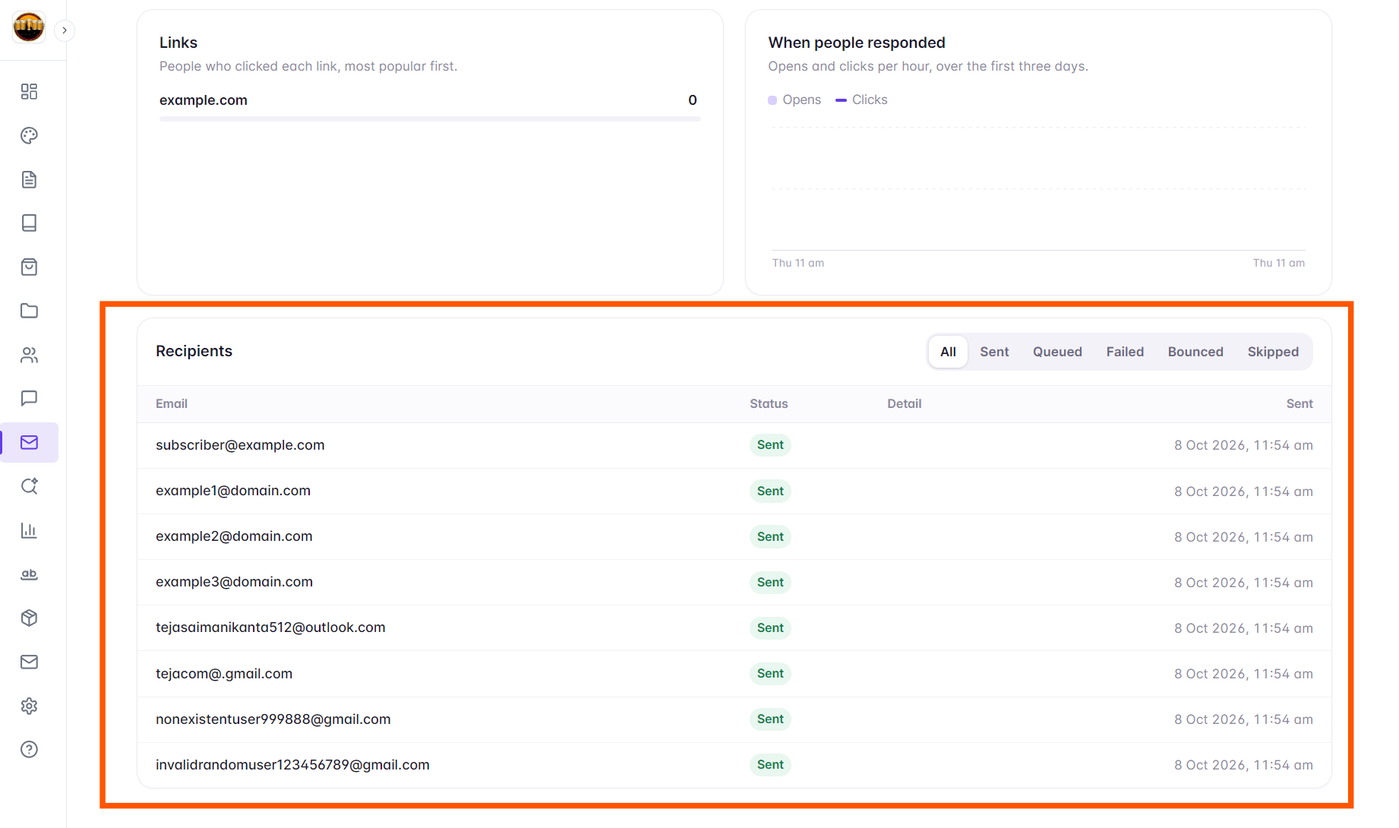
Recipient Status Definitions & Tones
Each recipient displays a color-coded status badge reflecting their exact state in the delivery queue:
Sent (Green): Successfully accepted and delivered to the recipient’s mailbox server.
Queued / Pending (Amber): Waiting in the queue for dispatch by the background worker.
Sending / Claimed (Amber): Currently being processed and handed off to the SMTP server.
Skipped (Slate): The contact was excluded at dispatch time (e.g., address was found on the global suppression list, marked unconfirmed under double opt-in, or unsubscribed since campaign creation).
Failed (Red): The SMTP server encountered a temporary or technical transmission error.
Bounced (Red): The receiving mailbox server rejected the email.
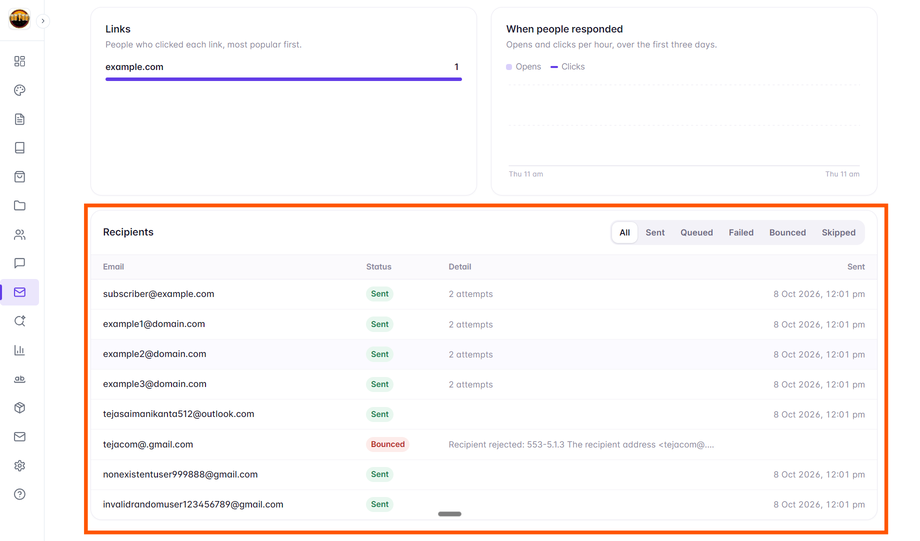
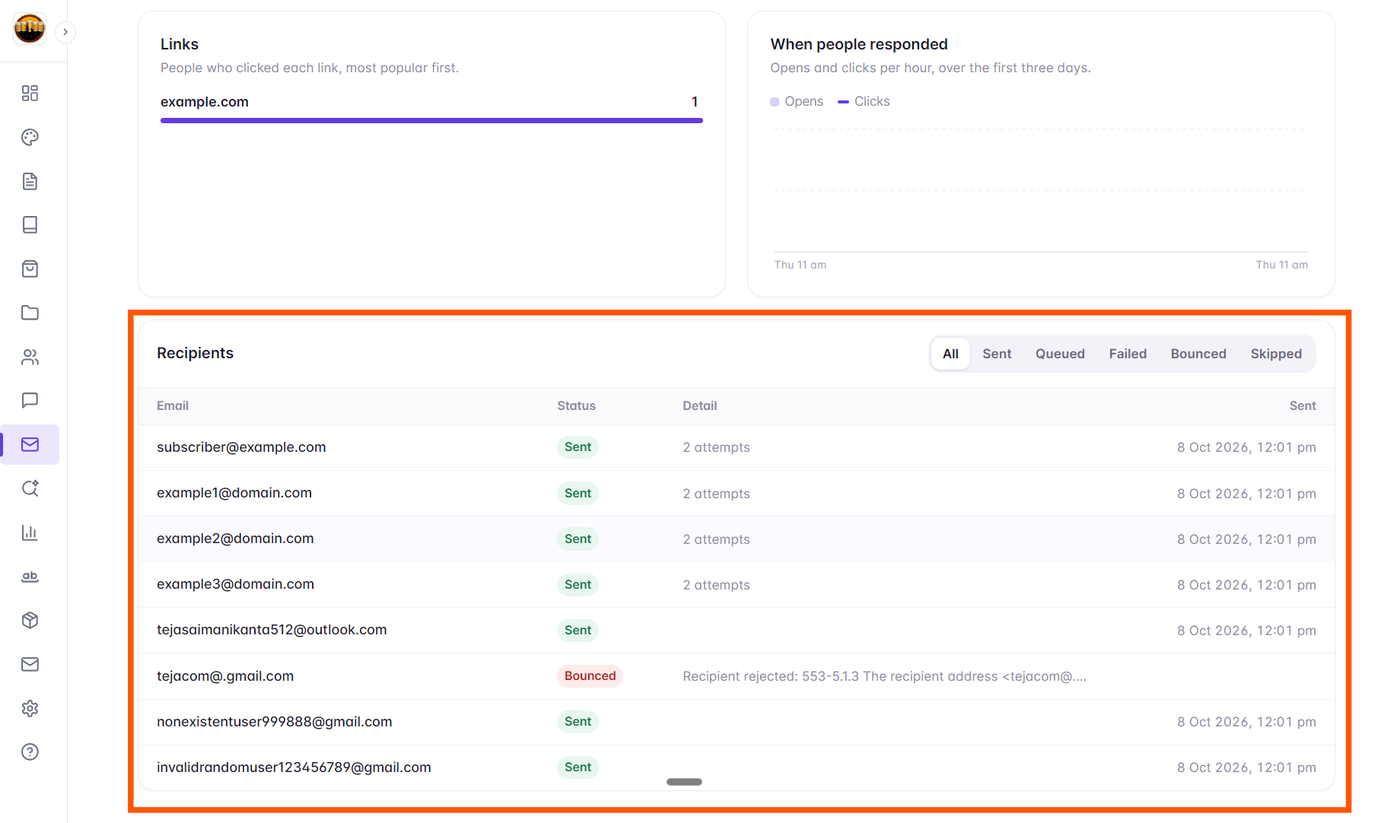
Filtering Recipients by Status
Use the status filter dropdown above the table to isolate specific cohorts:
Filter by Bounced to see all rejected email addresses.
Filter by Failed to identify contacts that encountered connection timeouts or rate limit issues.
Filter by Skipped to audit suppressed contacts.
Diagnosing Hard vs. Soft Bounces
Grigora distinguishes between two types of email bounces:
Hard Bounces: Permanent delivery failures (e.g., domain does not exist, mailbox is closed, typo in address like
@gmai.com). Grigora automatically adds hard bounces to the project suppression list to protect your sender reputation.Soft Bounces: Temporary delivery failures (e.g., recipient inbox is full, receiving server was temporarily unavailable). Grigora allows you to retry soft bounces or requeue failed recipients.
Reputation Protection: Never attempt to repeatedly send to hard-bounced addresses. Continuing to blast dead addresses results in mailbox providers blocking your sending IP domain.