

Personalized emails generate significantly higher open and click-through rates than generic broadcasts. In Grigora, you can personalize your subject lines, preview text, and email body copy using dynamic Merge Tags. When your campaign sends, Grigora automatically replaces each merge tag with the individual recipient's profile data.
This guide explains how to insert standard contact merge tags, configure custom fields, handle fallbacks, and use system links.
How Merge Tags Work
A merge tag is a placeholder wrapped in double curly braces (e.g., {{first_name}}). During dispatch, Grigora looks up the recipient in your audience database and swaps the tag with their corresponding information.
Standard Contact Merge Tags
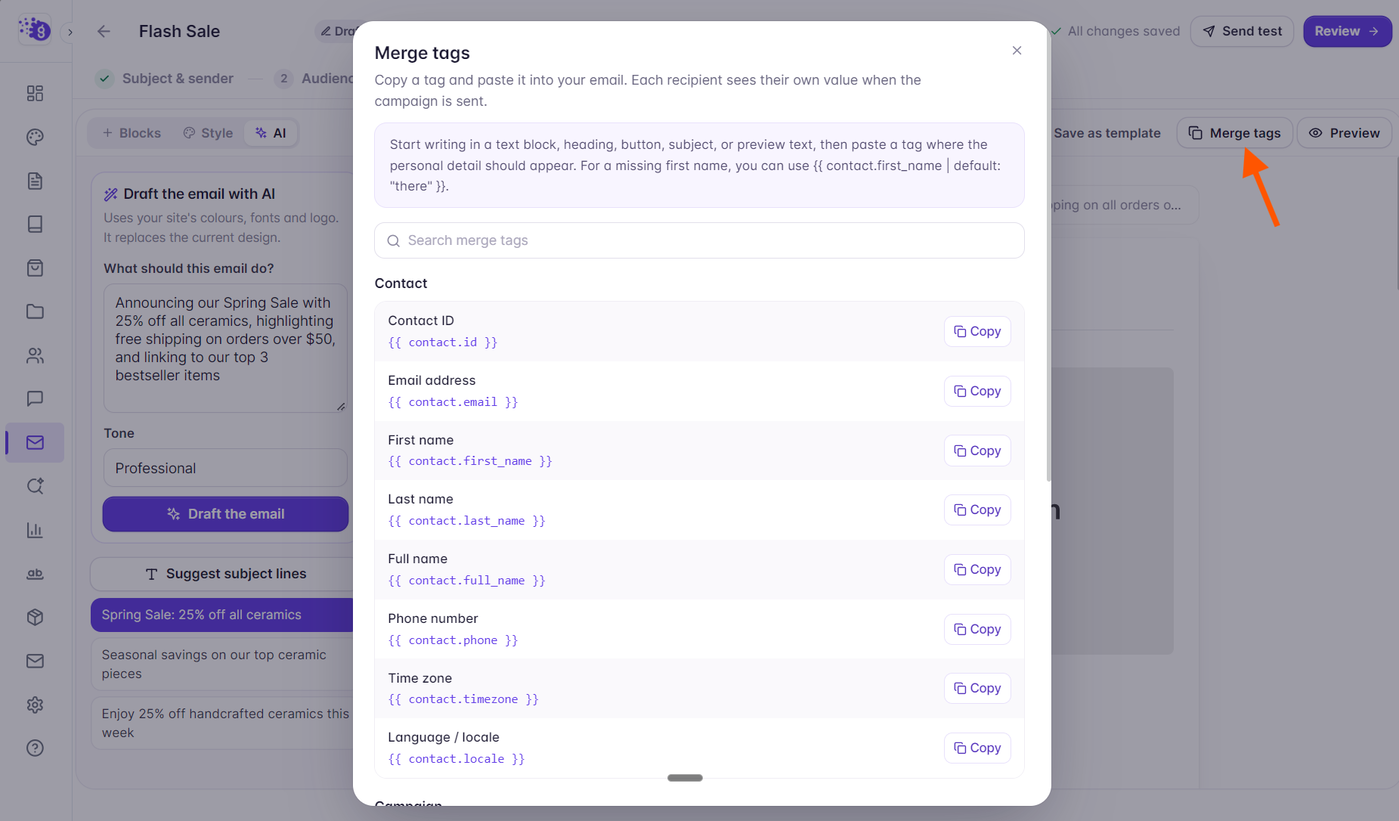
Grigora provides ready-to-use merge tags for standard subscriber profile fields:
{{first_name}}: Recipient's first name (e.g., "Sarah").{{last_name}}: Recipient's last name (e.g., "Connor").{{full_name}}: Recipient's combined first and last name.{{email}}: Recipient's email address.{{phone}}: Recipient's telephone number.{{city}}: Recipient's city.{{country}}: Recipient's country.
Custom Field Merge Tags
If you have created custom contact fields in Newsletter Settings → Custom Fields (such as Company Name, Loyalty Tier, or Pet Type), you can insert them using the cf. prefix:
{{cf.company_name}}: Inserts the subscriber's organization.{{cf.membership_tier}}: Inserts values like "Gold" or "VIP".{{cf.favorite_category}}: Tailors recommendations to subscriber preferences.
Configuring Fallbacks for Missing Data
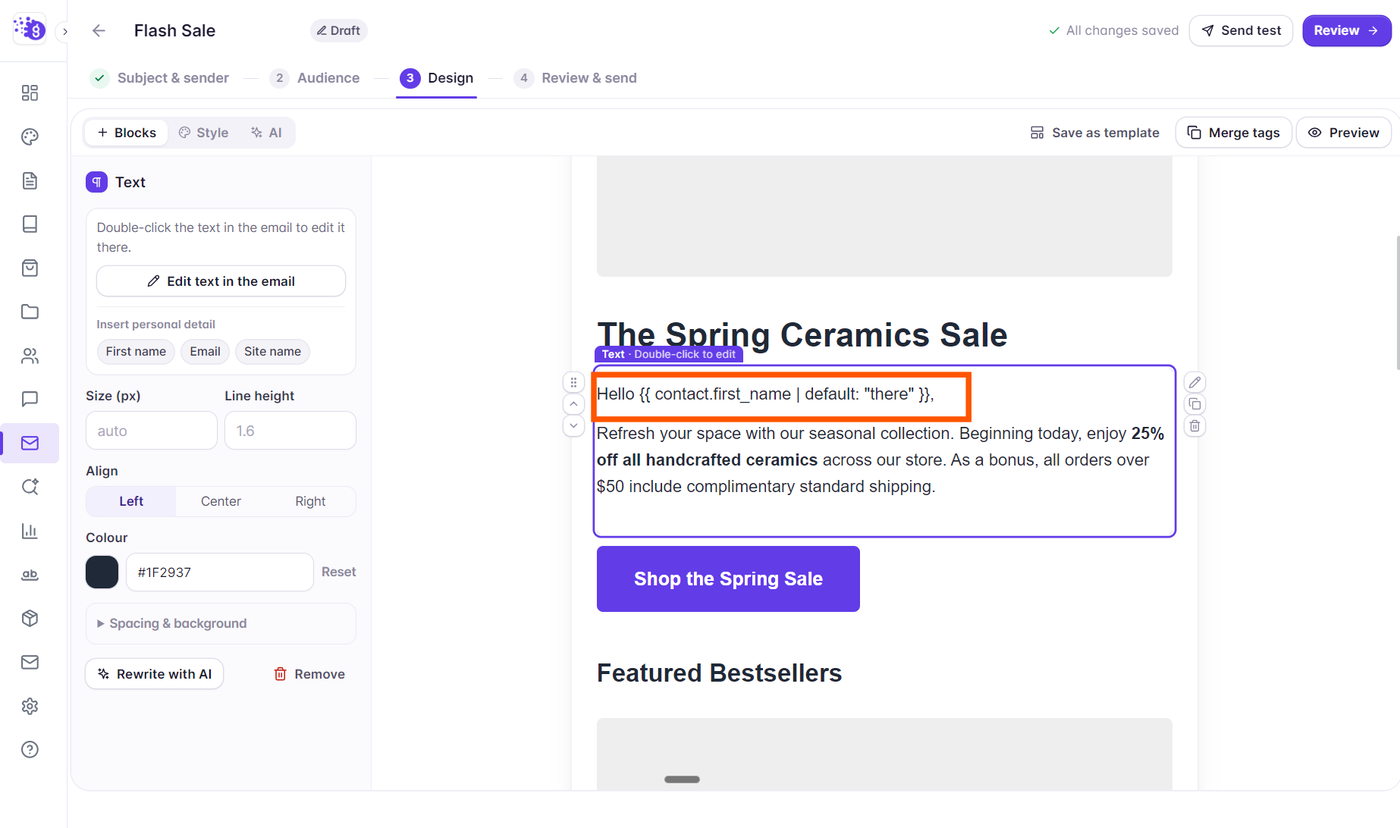
Subscribers may not always have every field filled out (for instance, a user who signed up with only an email address has no first name). To prevent awkward blank spaces or incomplete sentences, use the | fallback: modifier:
Hello {{first_name | fallback: "Friend"}},If the contact's first name is Alex, the email displays: "Hello Alex,".
If the contact has no first name on file, the email cleanly displays: "Hello Friend,".
Essential System Merge Tags
System merge tags generate unique, secure URLs for subscriber account management:
{{unsubscribe_url}}: The one-click unsubscribe link required in every commercial email footer.{{manage_preferences_url}}: Link allowing subscribers to update their list subscriptions and contact details.
How to Insert Merge Tags in the Composer
In the email composer, place your cursor inside any text, heading, or subject line field.
Click the Merge Tags icon (
@) in the top toolbar.Browse or search for the tag you need, then click to insert it.
You can also type merge tags manually directly into the text editor.
Testing Tip: When sending a test email to yourself via Send test, Grigora populates merge tags with your account's test profile values so you can verify tag formatting before broadcast.