

In this guide, learn how to format your blog content in Grigora's powerful editor using the built-in toolbar—just like you would in WordPress or Google Docs. These quick formatting tools will help you present your content professionally without plugins or complex setup.
Accessing the Text Formatting Toolbar
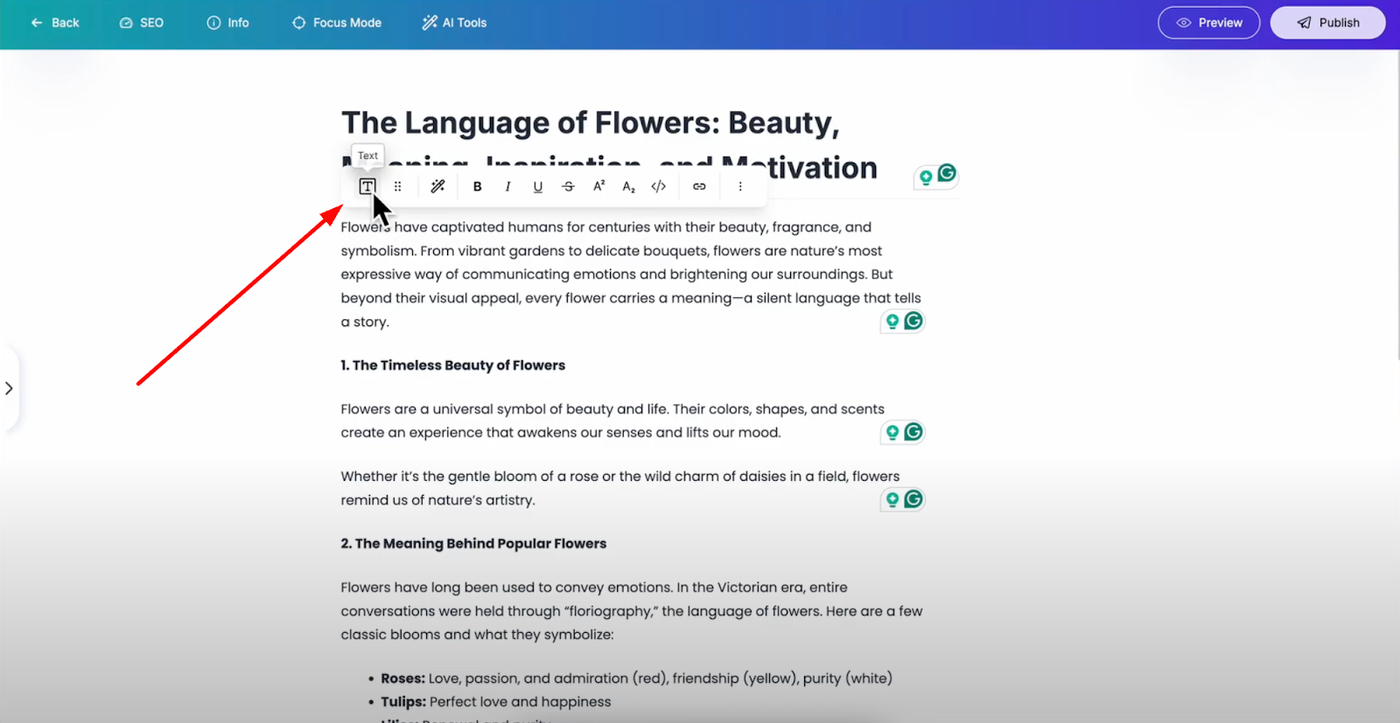
When you select a text block in Grigora, a toolbar appears with all the formatting options you need. This intuitive interface works just like WordPress, making it familiar and easy to use for content creators of all skill levels.
Block Transformation Options
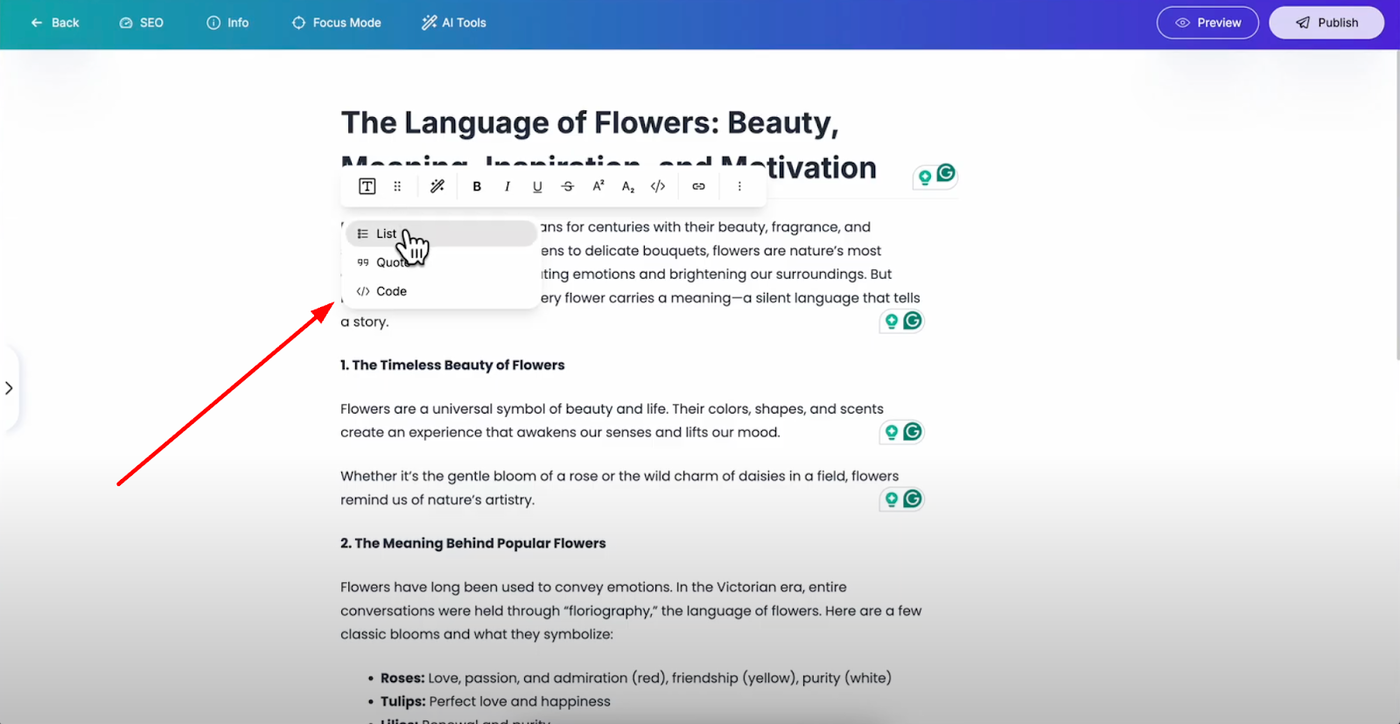
The first option lets you transform your text block into different formats for varied content presentation:
Convert to List Format for organized, scannable content
Convert to Quote Block for highlighted testimonials or important statements
Convert to Code Block for displaying code snippets or technical content
You can easily change formats back and forth.
Repositioning Text Blocks
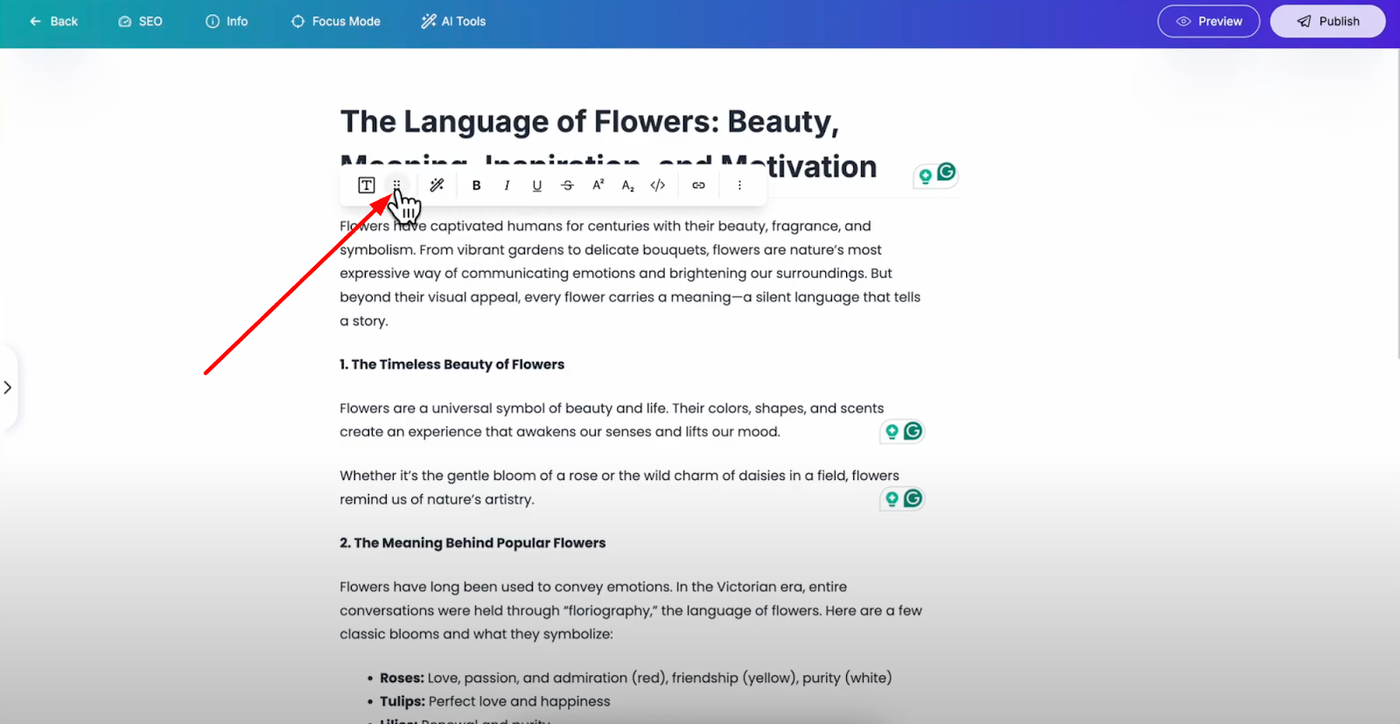
Use the drag option to reposition your text block anywhere on the page. Simply drag and drop it to a different section as needed, giving you complete control over your content layout and flow.
AI-Powered Content Enhancement
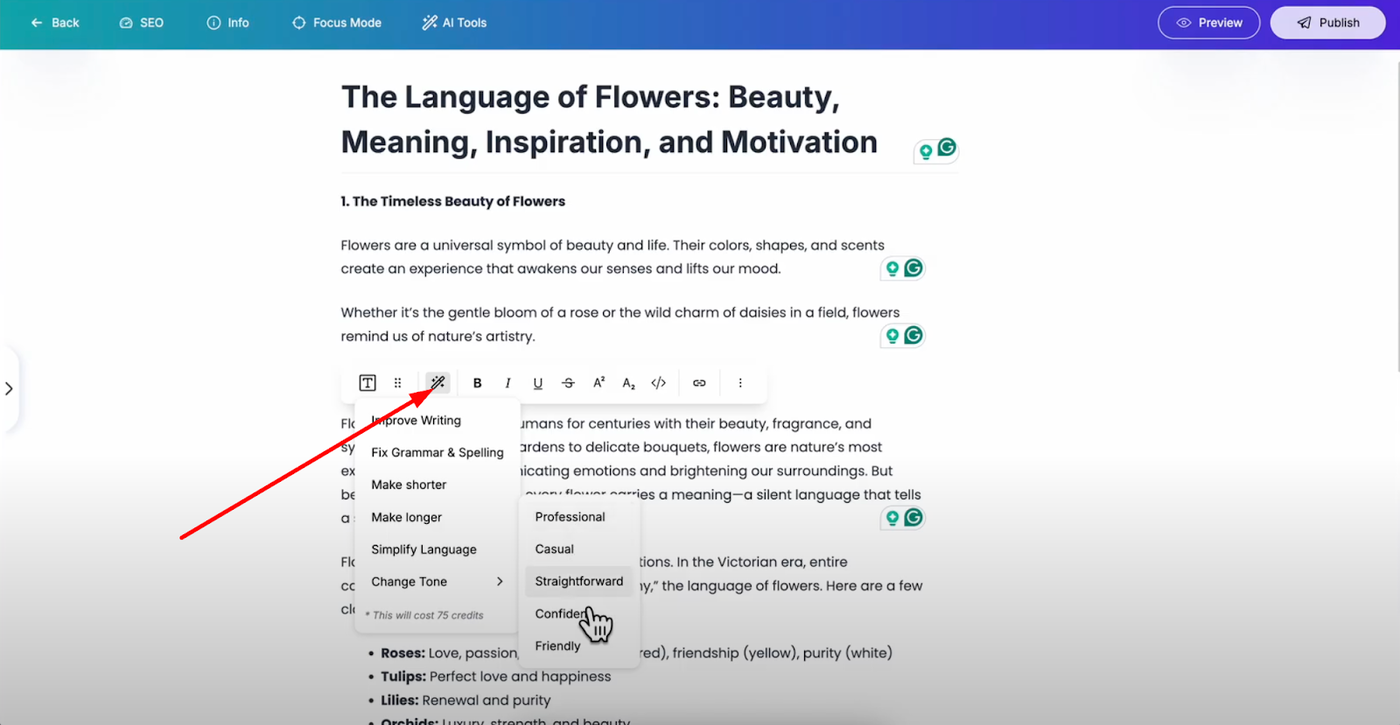
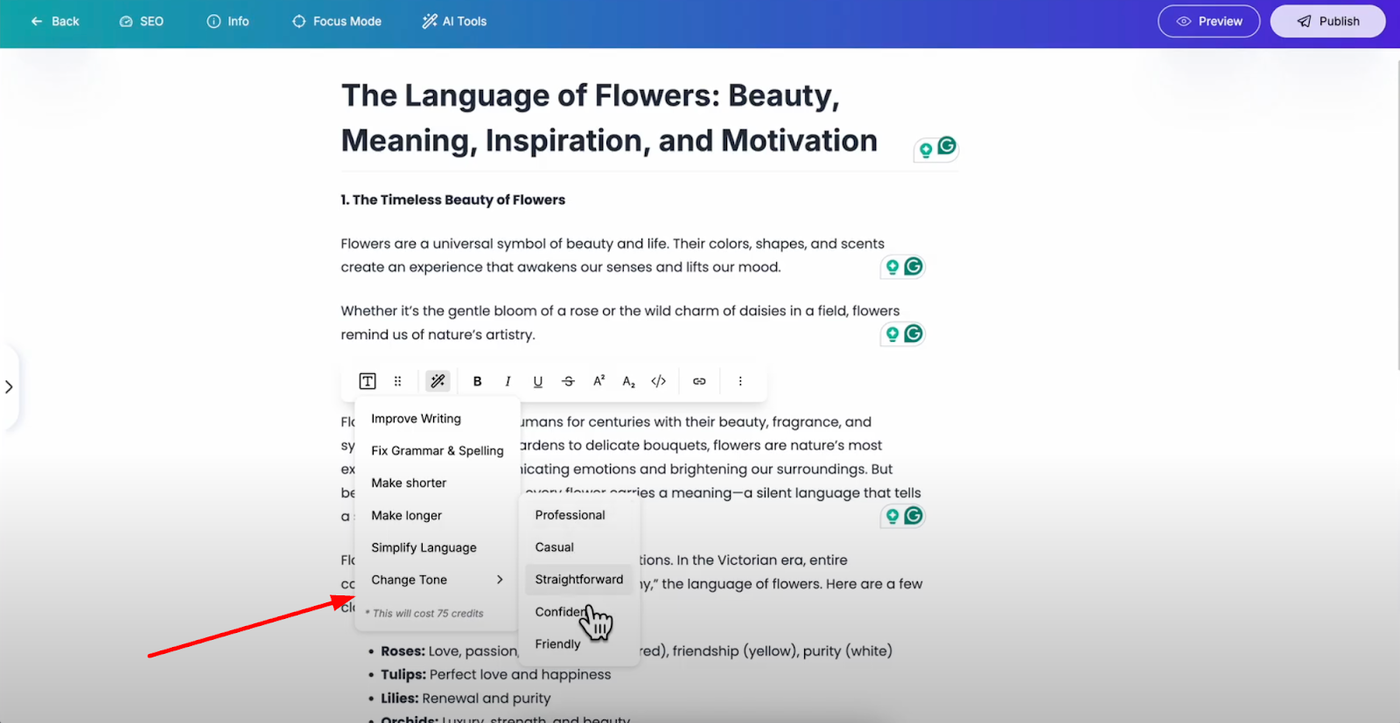
The "Rewrite with AI" feature helps you improve your content with intelligent suggestions:
Improve writing quality for better clarity and engagement
Fix grammar mistakes automatically without manual proofreading
Make text shorter or longer depending on your content needs
Simplify language for broader audience accessibility
Change tone to match your brand voice or target audience
Essential Text Formatting Options
Select your text and use these formatting options for professional presentation:
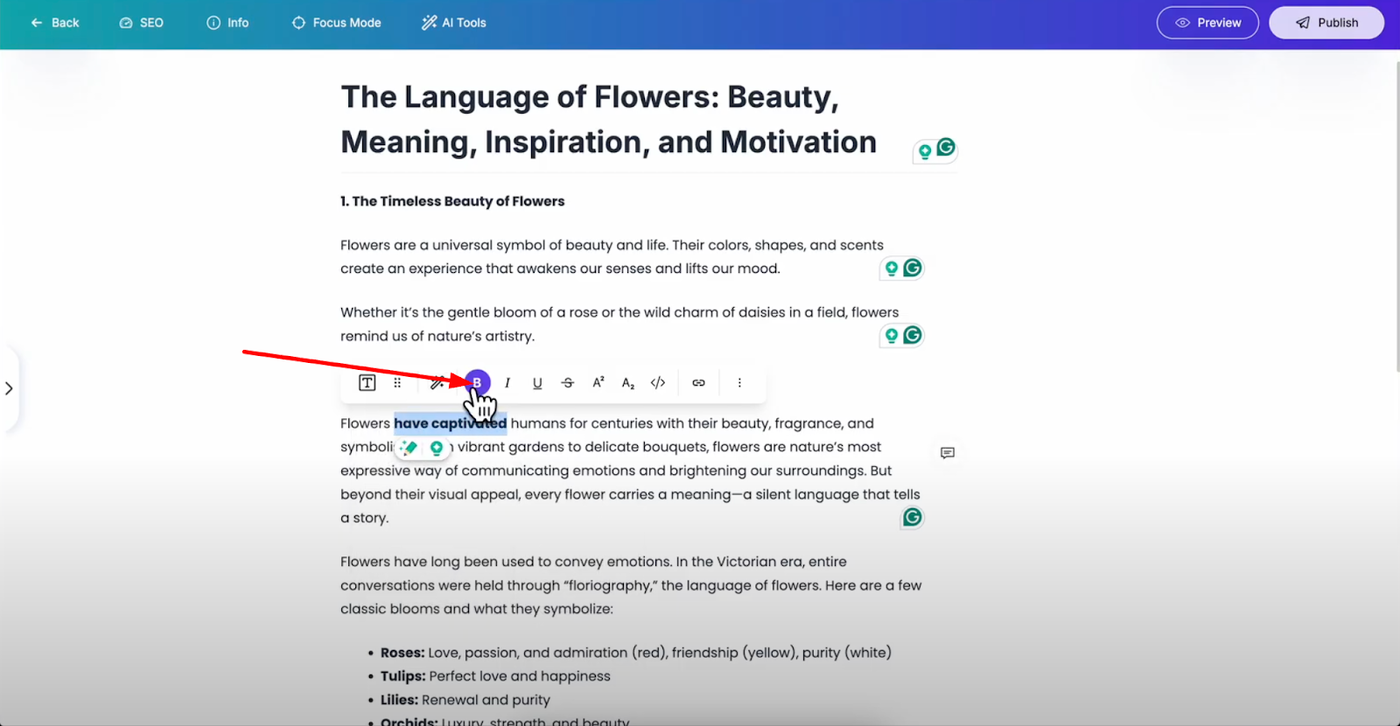
Basic Formatting: Bold, italic, underline, and strikethrough for emphasis and style
Advanced Options: Superscript, subscript, and code formatting for technical content and special formatting needs
Adding Hyperlinks
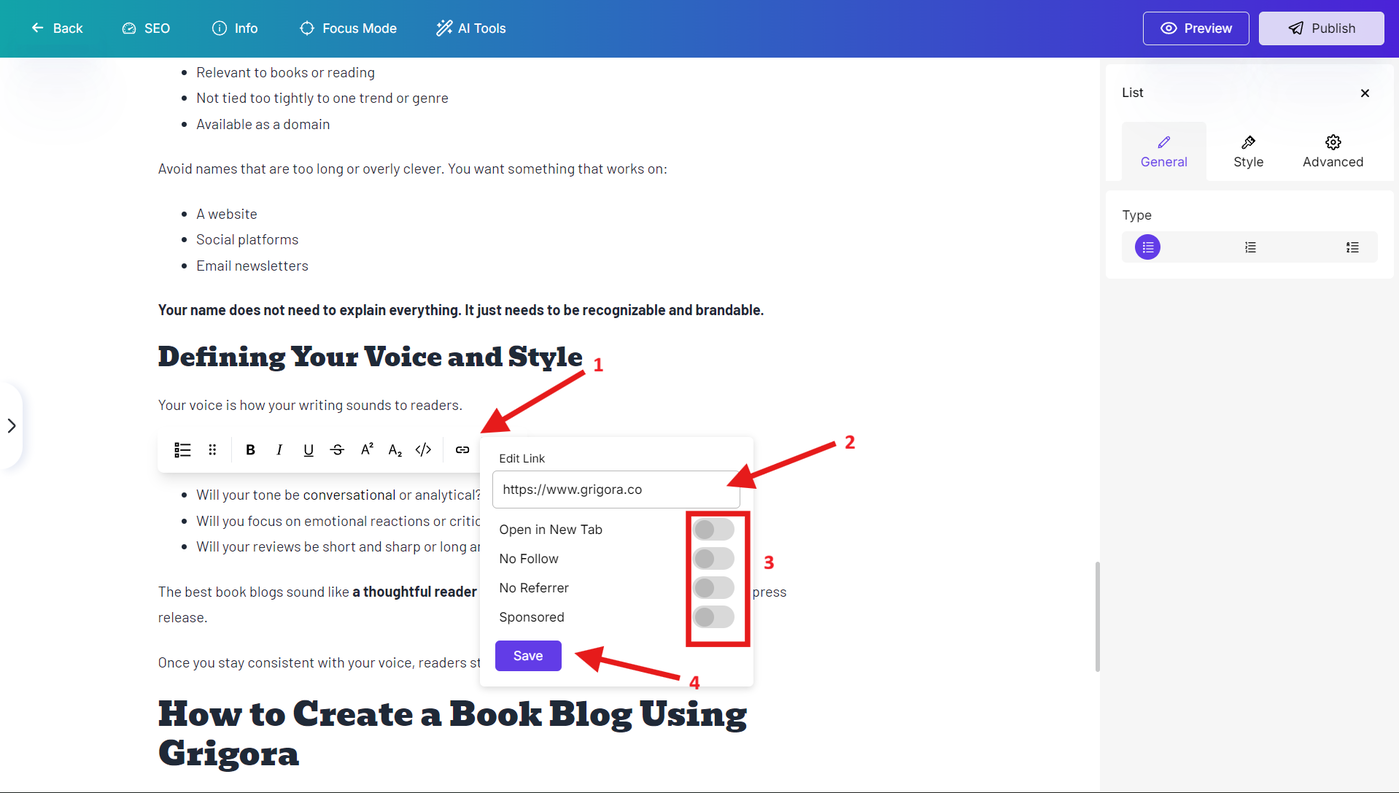
Select any text and click the link button to add hyperlinks that enhance user experience and SEO. When adding links, you get targeting options including:
Open in New Tab for external links
No Follow for SEO link management
No Refer for privacy protection
Sponsored for disclosure compliance
After setting your preferences, click "Save" to apply the link with your chosen settings.
Additional Formatting Controls
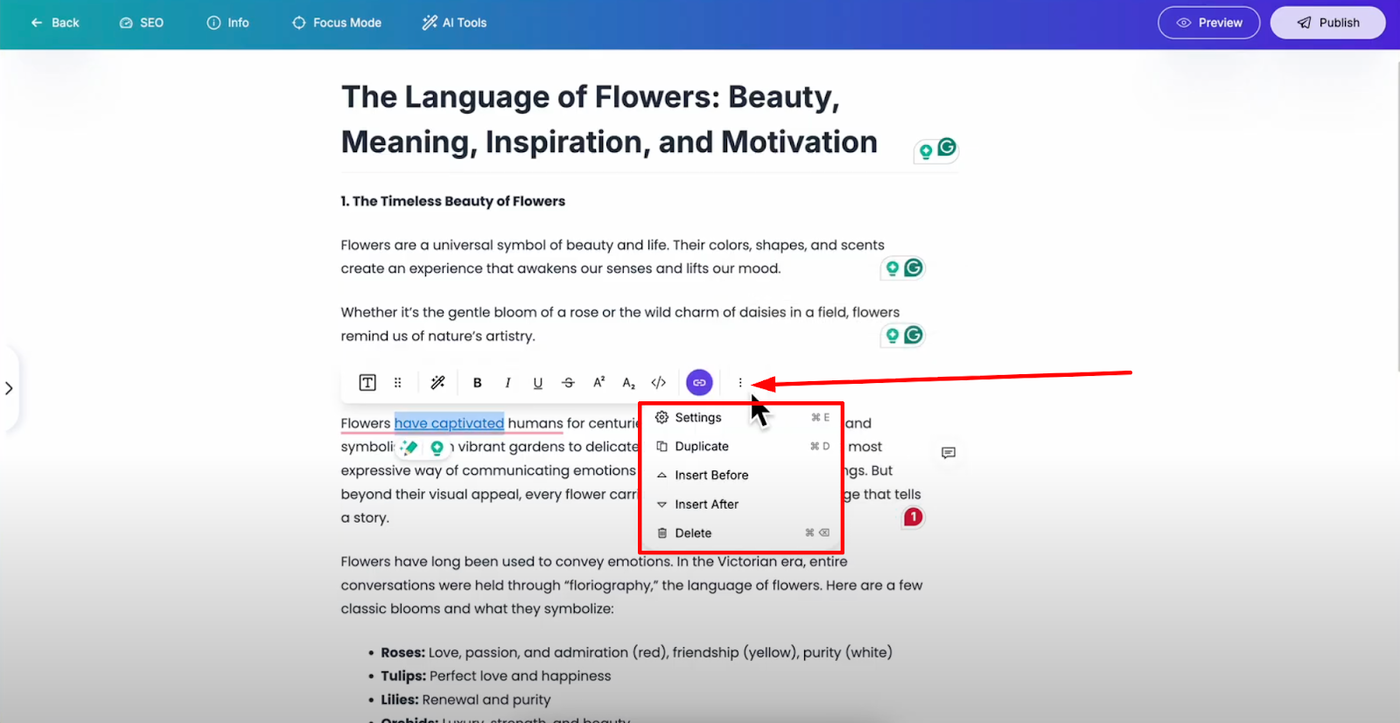
Click the three dots icon for more advanced options:
Settings: Opens text block settings for detailed customization
Content Management: Duplicate text blocks, insert text before and after existing content, or delete blocks as needed
This comprehensive toolbar system provides all the styling options you need for professional text formatting, creating a seamless editing experience that rivals traditional content management systems.