

Migrate your Blogger content to Grigora by exporting your Blogger blog, downloading the exported file, and uploading it to Grigora's migration tool.
Note: Before starting, make sure you have access to the Blogger blog you want to migrate and have a backup/export of its content.
Export Your Blogger Content
Step 1: Back up your Blogger content
Open the Blogger dashboard and select the blog you want to migrate.
Go to Settings → Manage Blog and click Back up content.
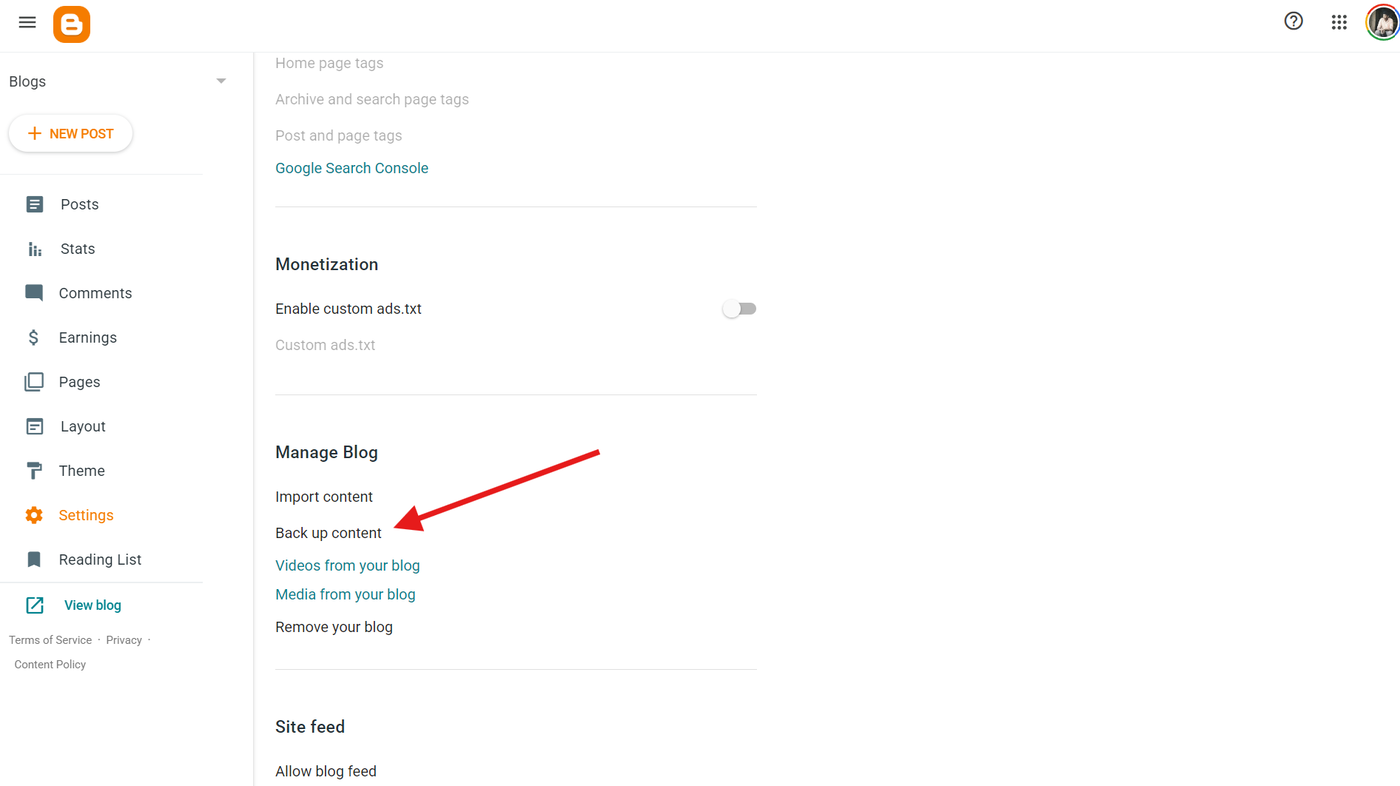
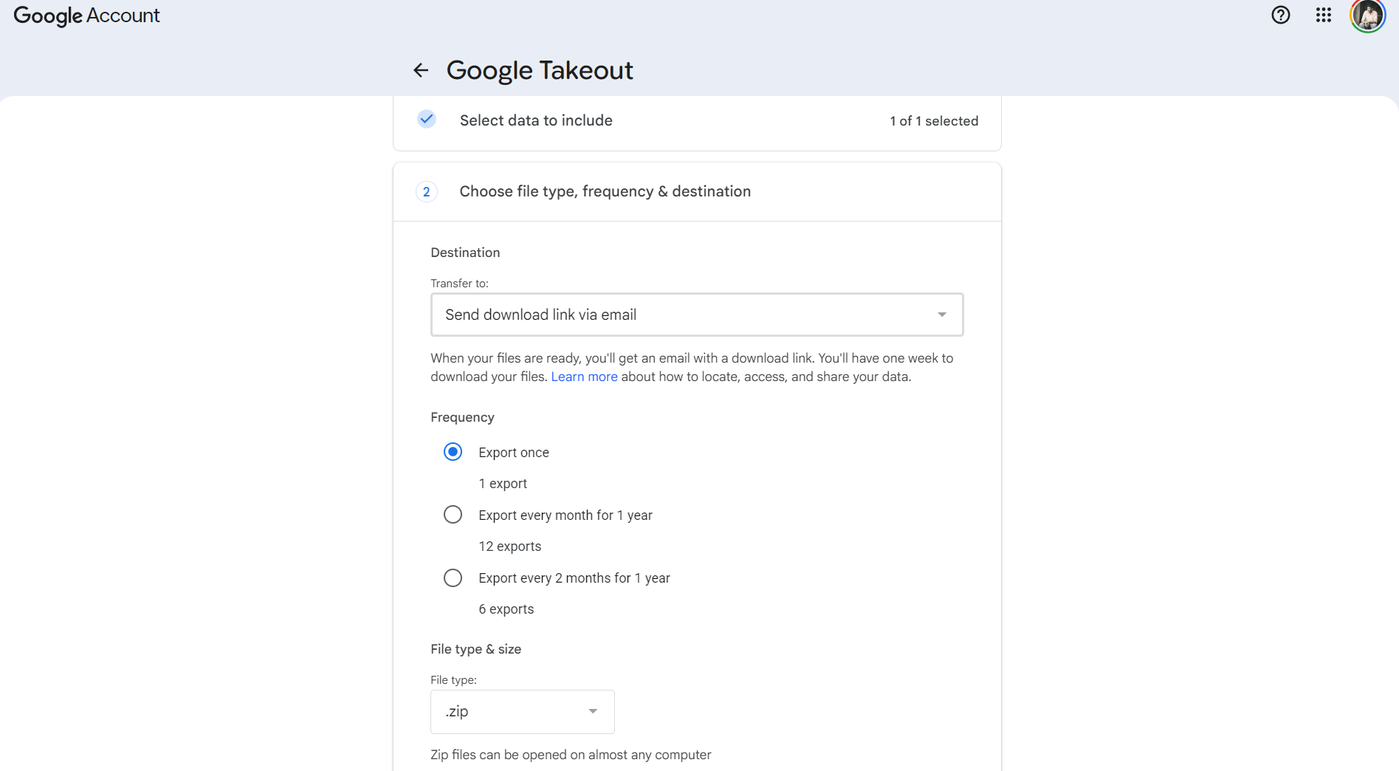
Alternatively, you can use Google Takeout to export your Blogger data. Select Blogger from the available products and continue with the export.
Step 2: Download the exported file
When using Google Takeout, choose Export once and select .zip as the file type. Complete the export and download the generated archive when it is ready.
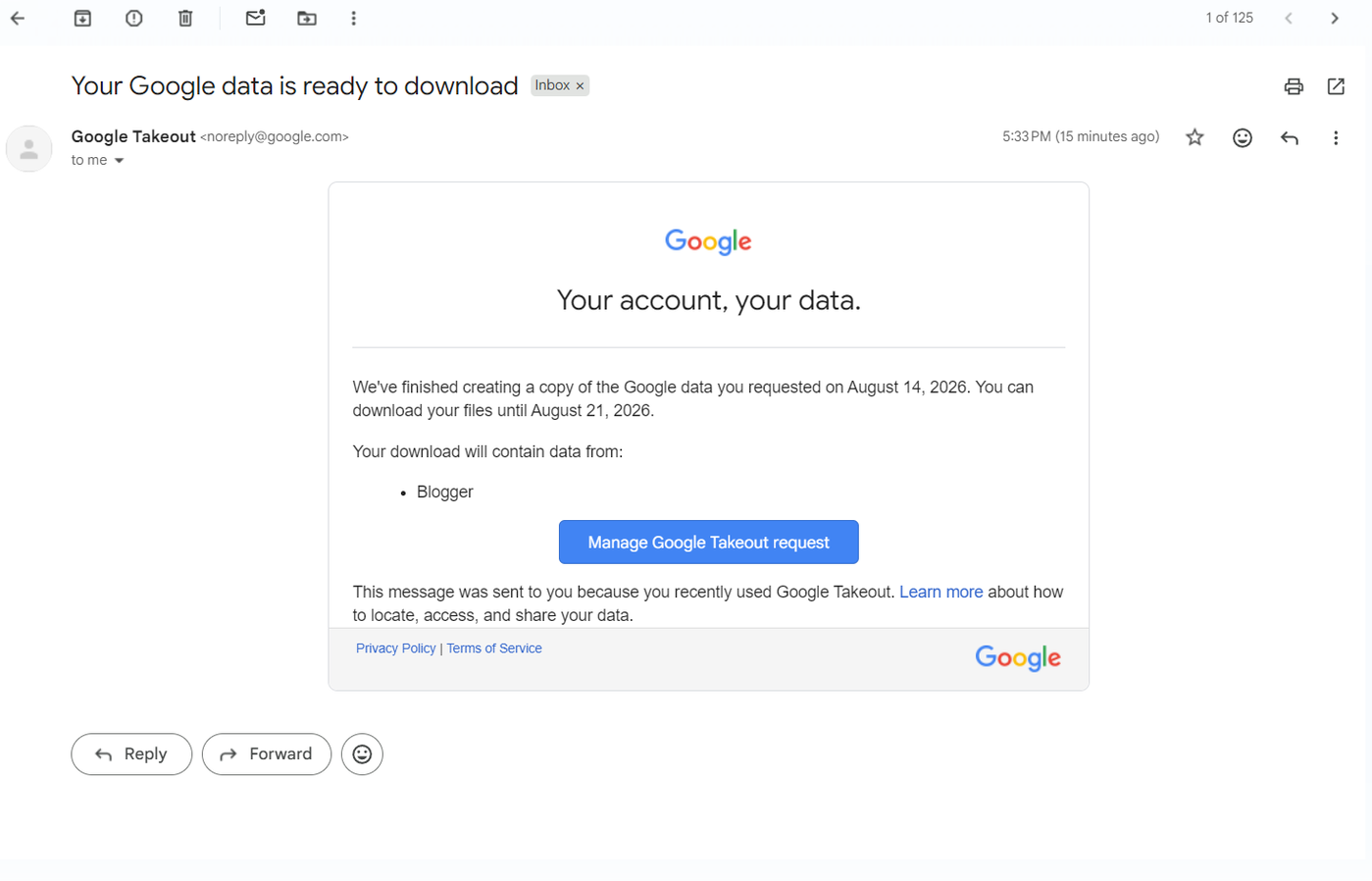
If you use Blogger's Back up content option, download the generated Blogger backup file.
Configure the Migration in Grigora
Step 3: Open Migration settings
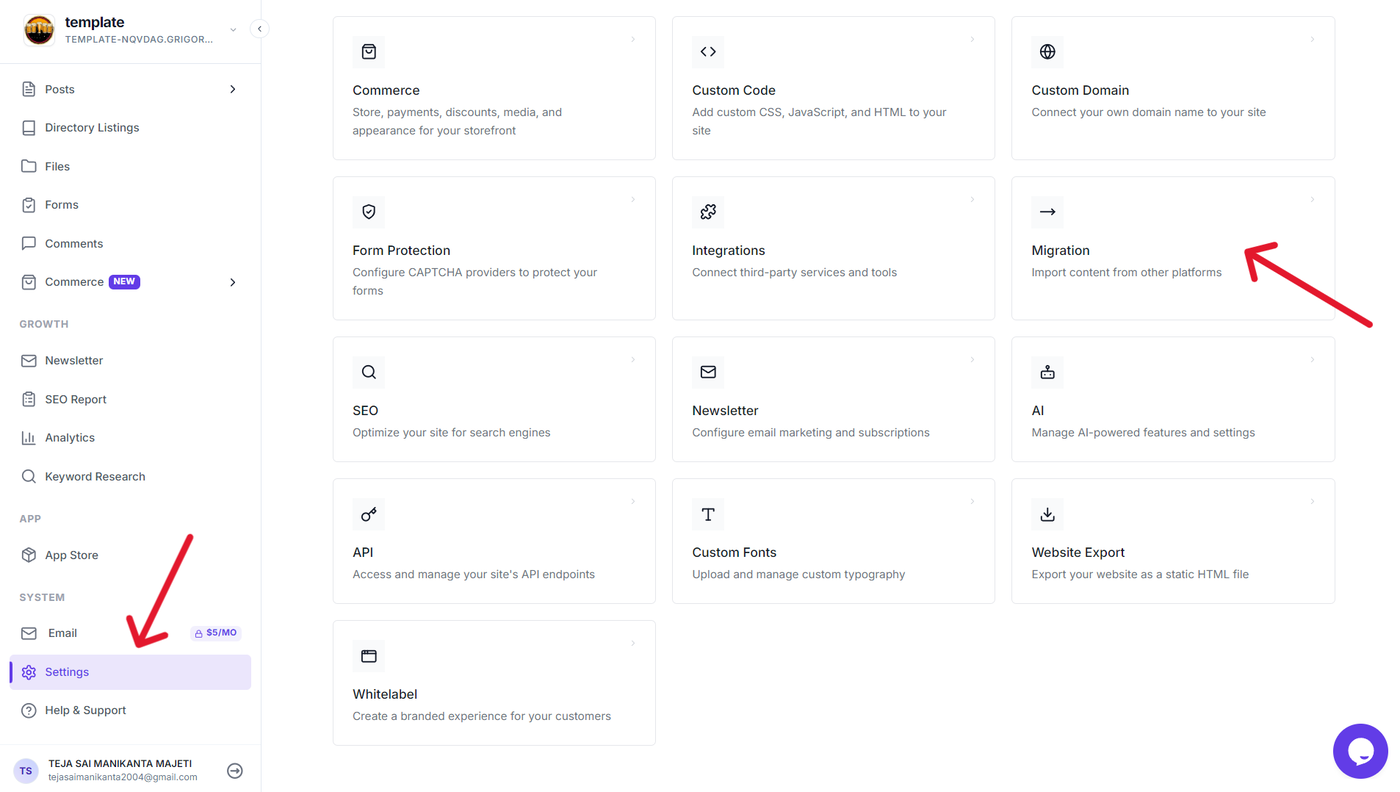
In your Grigora project, open Settings from the sidebar.
Then select Migration to open the migration settings.
Step 4: Select Blogger as the source platform
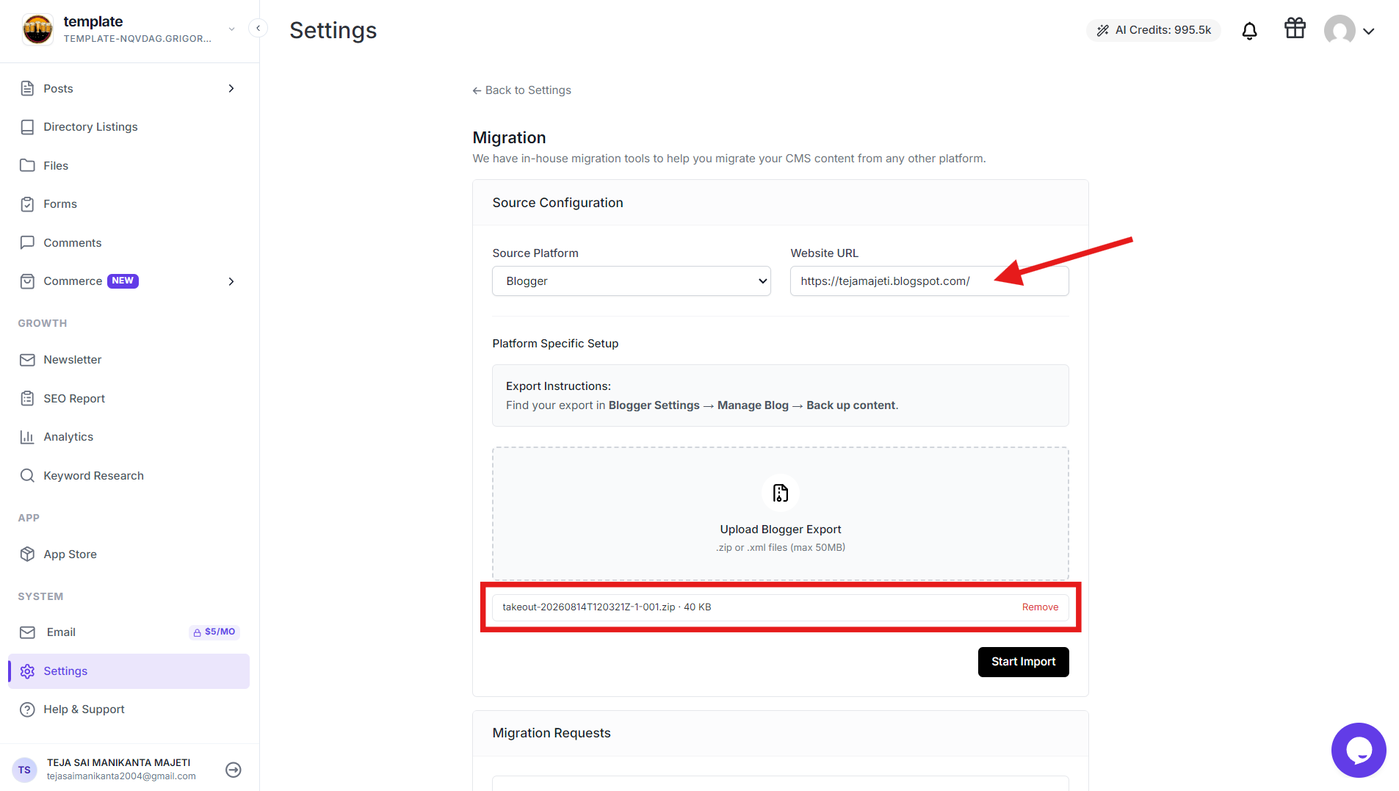
Under Source Configuration, select Blogger as the Source Platform.
Upload the Blogger backup/export file you downloaded earlier.
Start the Migration
Step 5: Start the migration
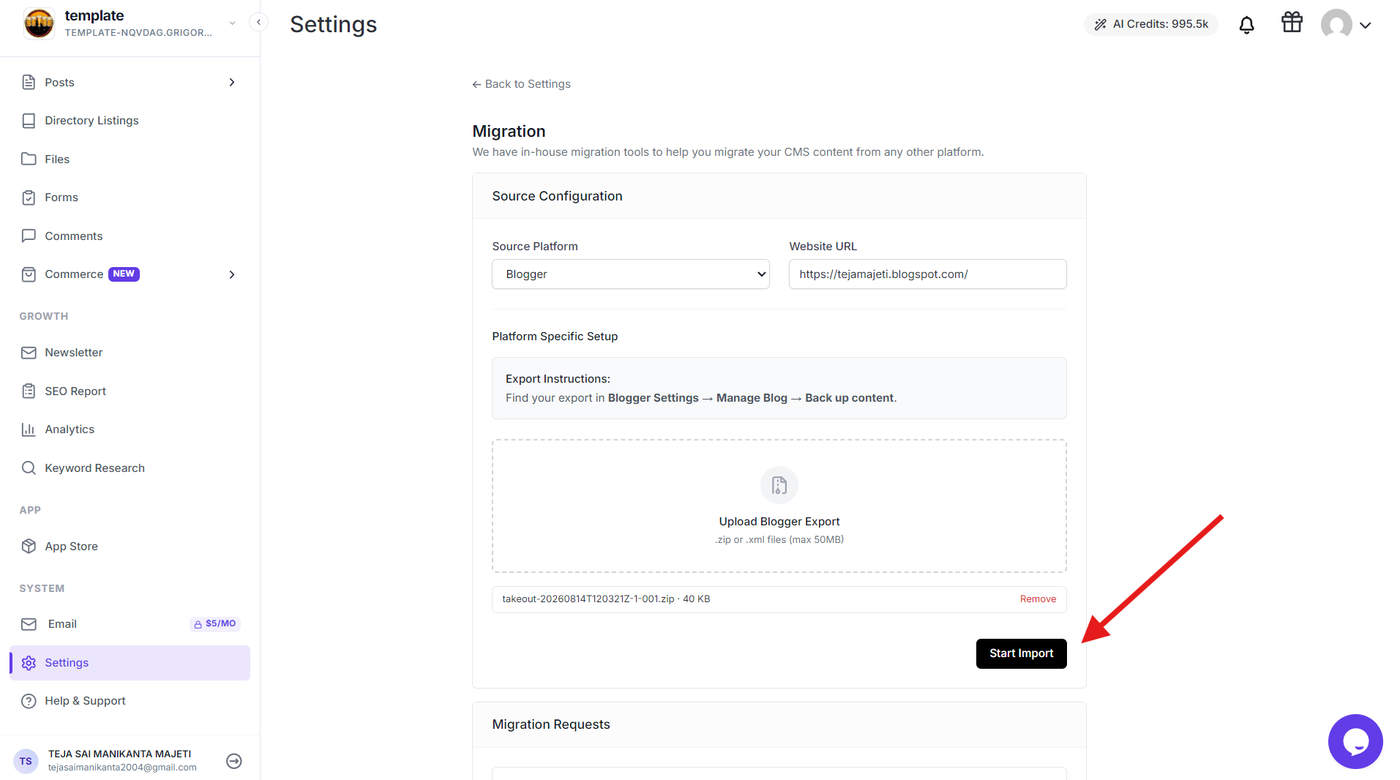
Review the uploaded file and migration configuration, then click Start Import.
Grigora will process the Blogger export and import the supported content into your project.
Verify the Migrated Content
Step 6: Review the migrated content
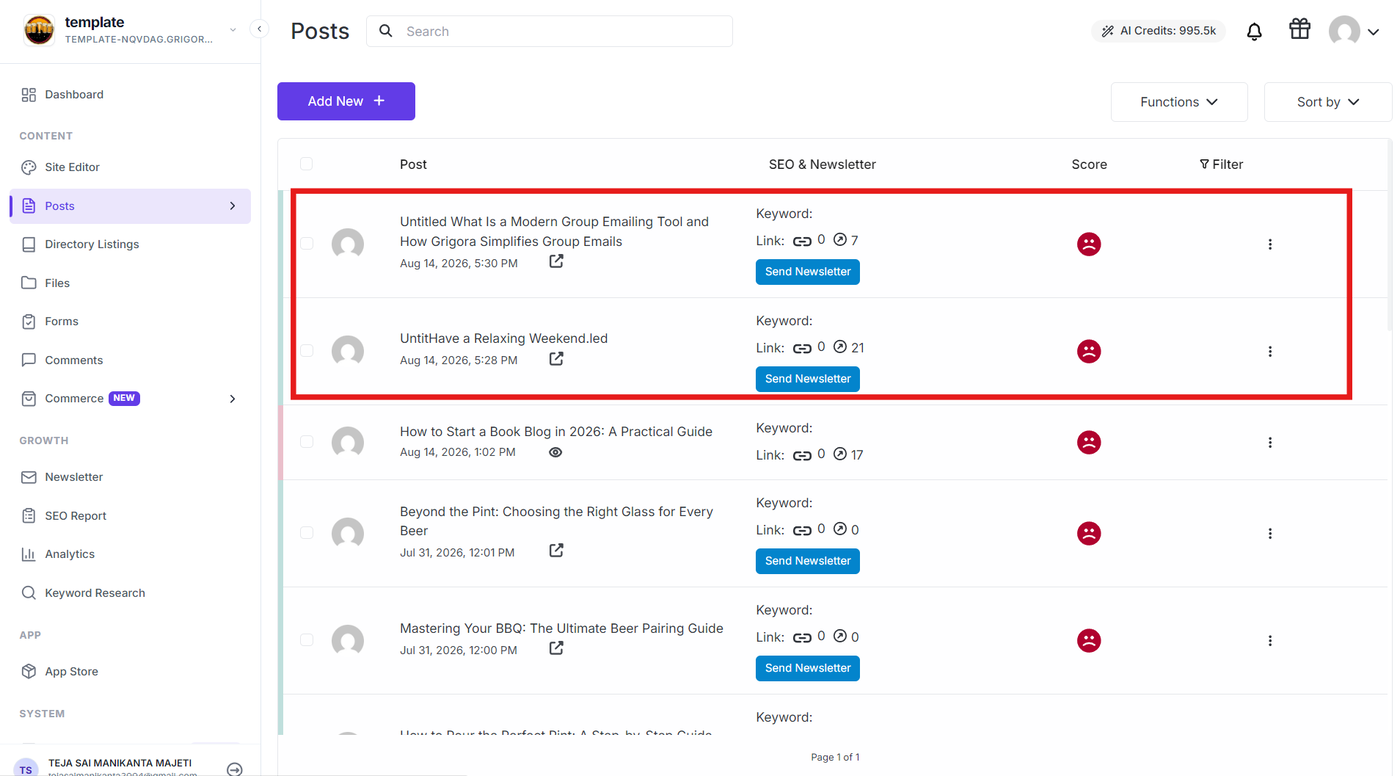
Once the migration is complete, open Posts in Grigora and verify the imported content.
Check that:
Post titles are correct.
Post content has been imported.
Featured images are assigned where available.
Slugs and other supported content are preserved.
Make any necessary adjustments to the migrated posts before publishing your site.