Product page templates in Grigora let you control the overall appearance of your store's product pages. You can choose a predefined template and customize its visual styling to match your store's design.
Open Product Page Settings
Step 1: Open Product Page Appearance
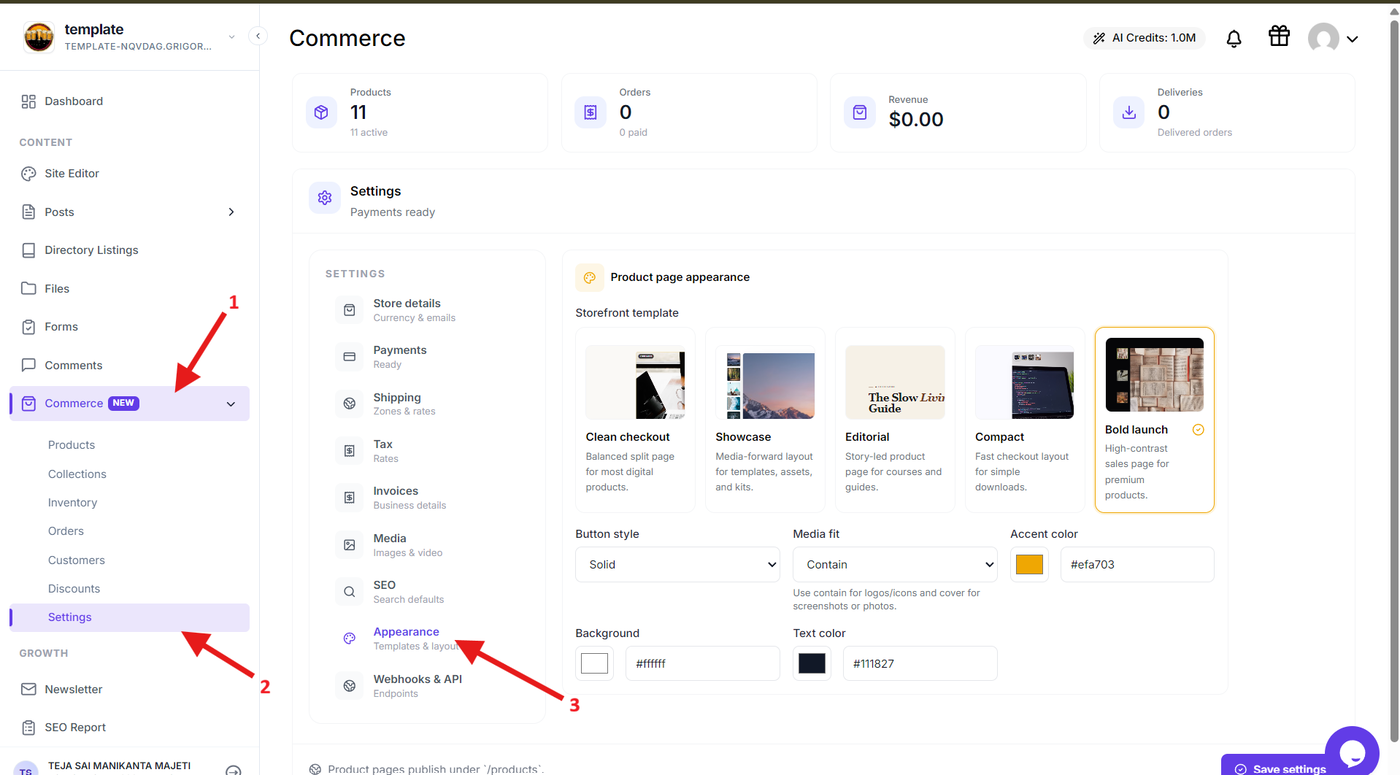
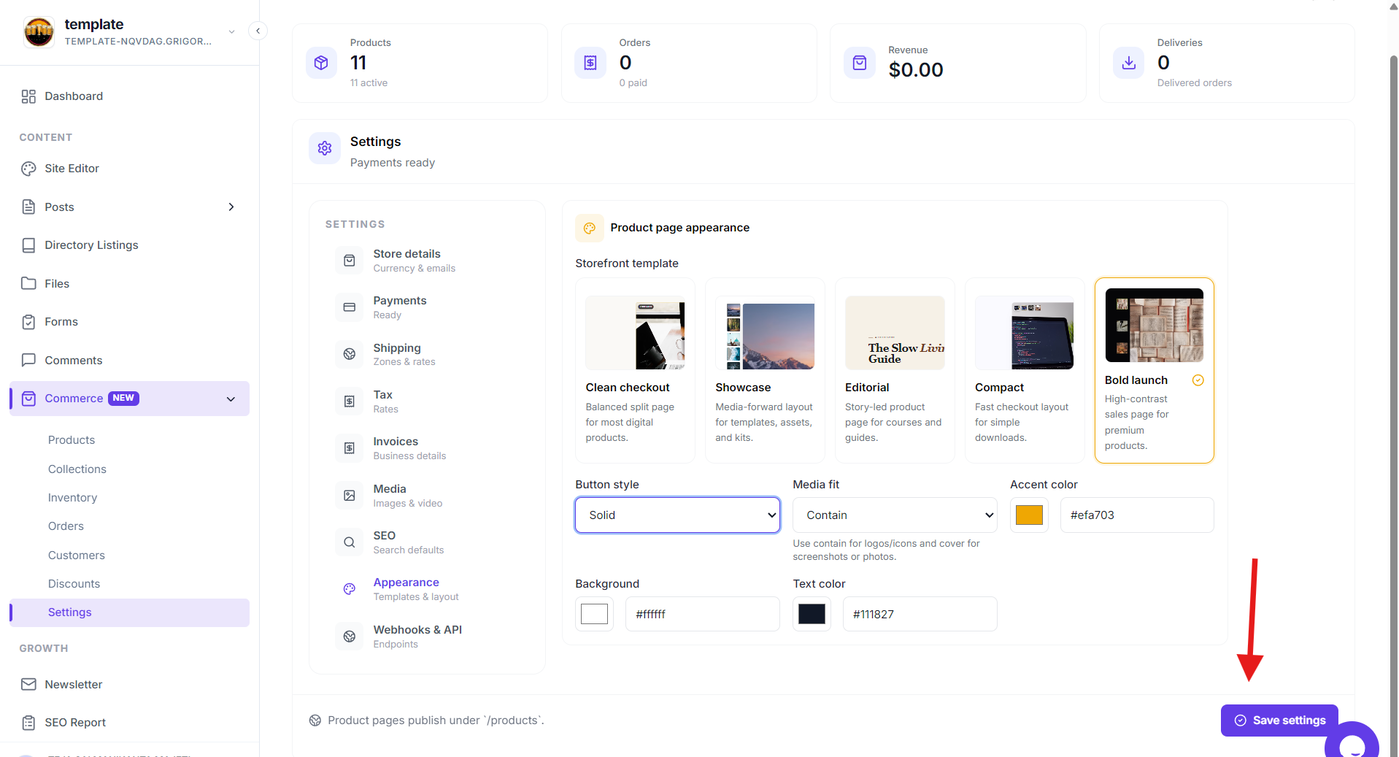
From the Grigora dashboard, expand Commerce and go to Settings → Appearance.
The Appearance section contains the settings for customizing how your product pages are presented.
Choose a Product Page Template
Step 2: Select a product page template
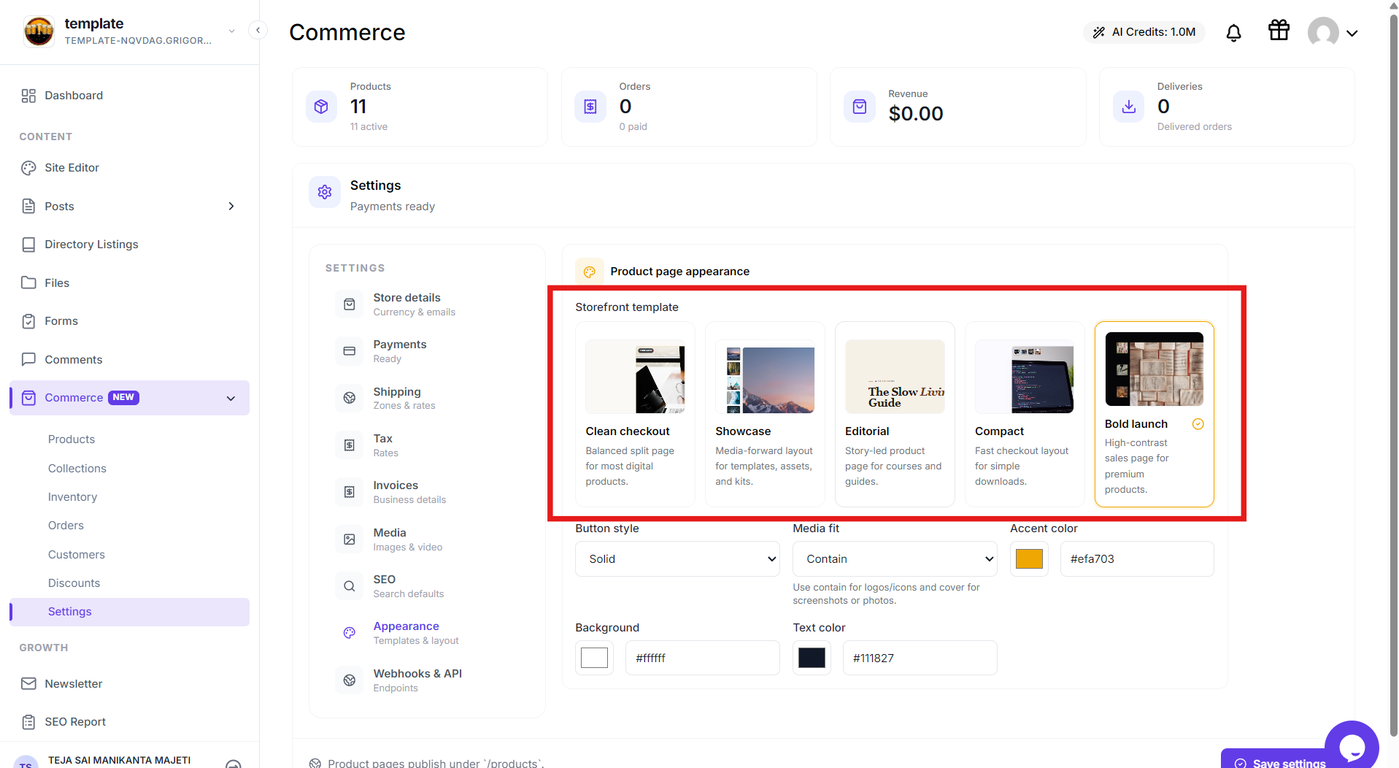
Choose one of the available product page templates:
Clean checkout – Provides a simple and focused product layout.
Showcase – Gives greater visual emphasis to product content and media.
Editorial – Uses a content-focused layout for presenting products.
Compact – Keeps product information organized in a more condensed layout.
Bold launch – Uses a stronger visual presentation for highlighting products.
Select the template that best matches the way you want your product pages to look.
Customize Product Page Styling
Step 3: Configure the product page styling
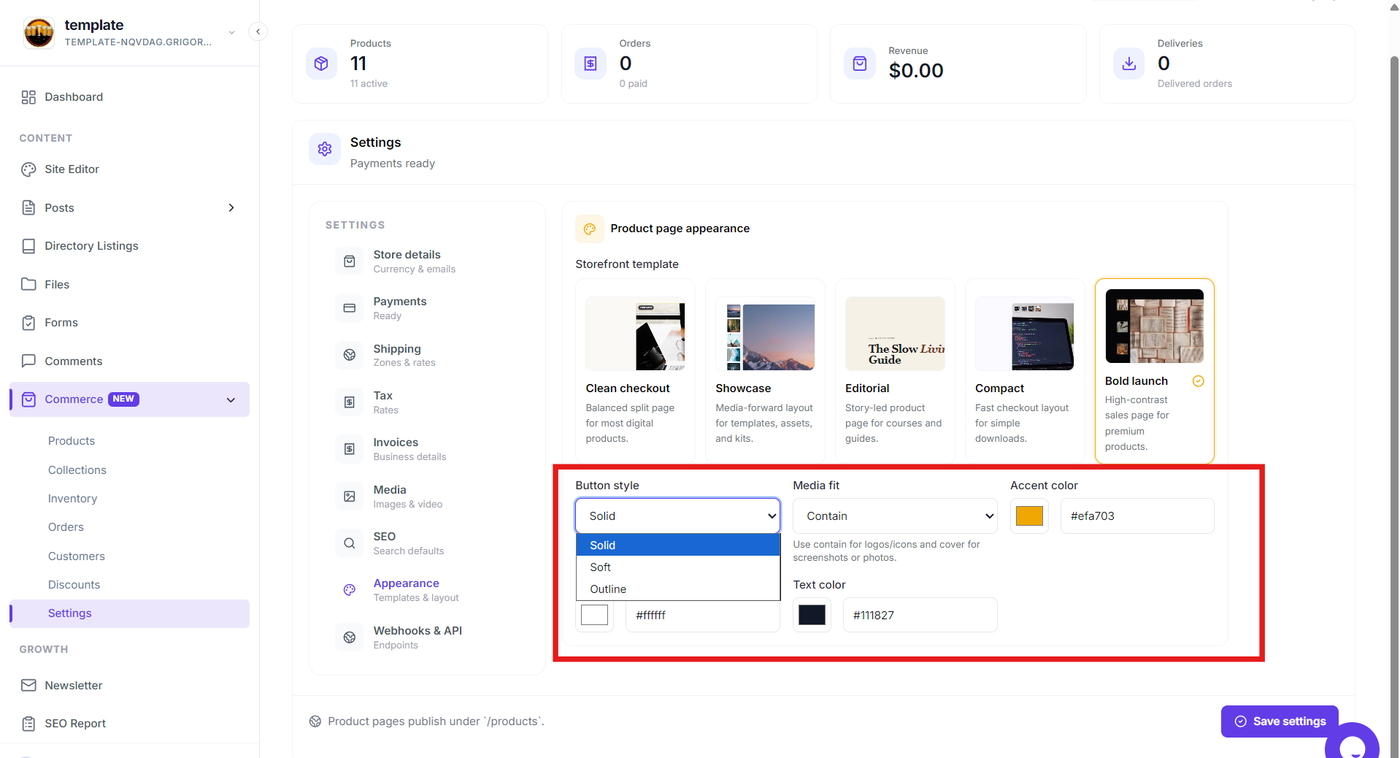
After selecting a template, customize its available appearance settings. You can configure options such as:
Button style – Controls the appearance of buttons on the product page.
Media fit – Controls how product images and other media fit within their containers.
Accent color – Sets the primary accent color used throughout the product page.
Background – Controls the product page background.
Text color – Sets the color used for product page text.
Adjust these settings to create a consistent visual style across your store.
Save Settings
Step 4: Save the appearance settings
After selecting the storefront template and configuring the available styling options, click Save settings at the bottom-right of the page to apply your changes.
Preview the Product Page
Step 5: Preview your product
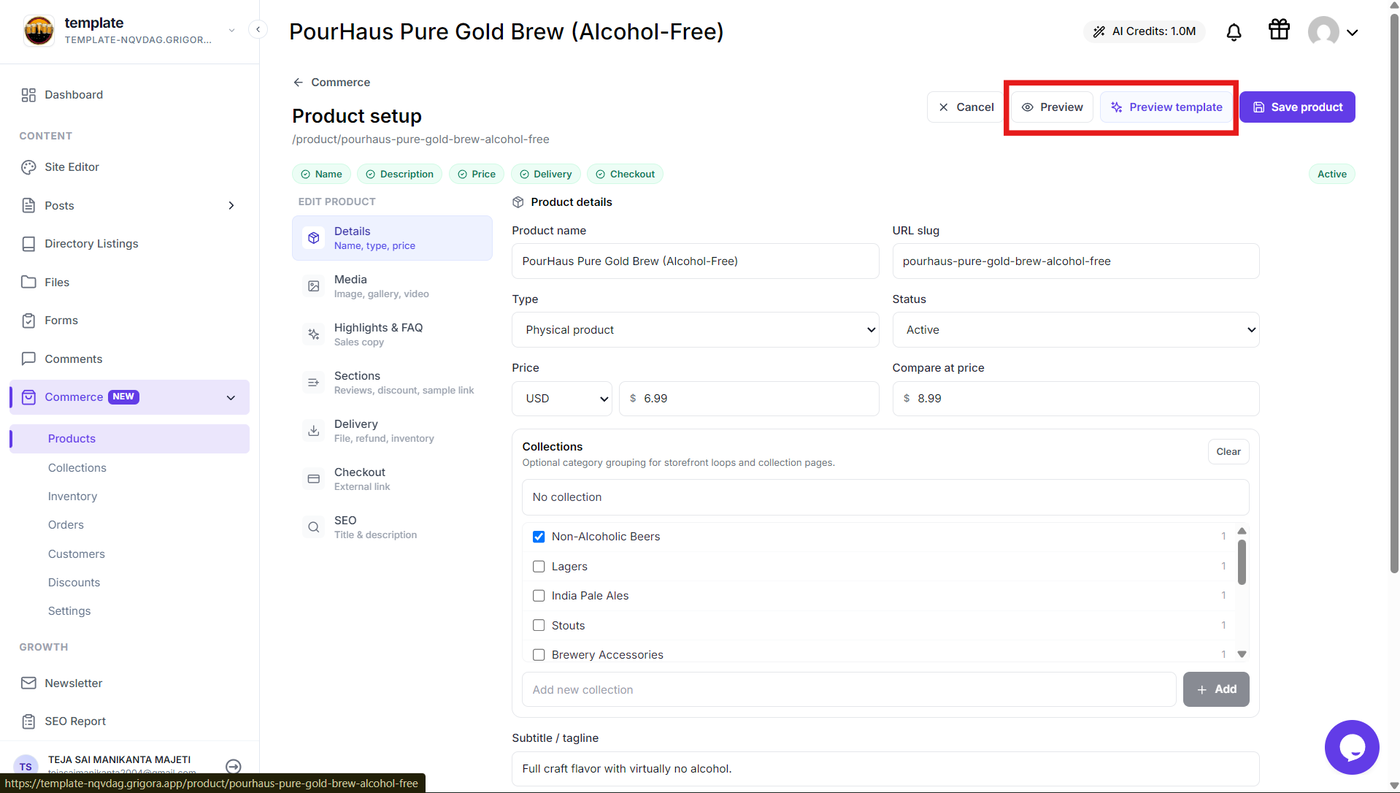
After completing the product configuration, use the Preview button to view the product page with your saved product data and check how it will appear on your storefront.
You can also click Preview template to view the selected template separately and see its layout and styling.
Review the product details and overall presentation, then make any necessary changes before saving the product.