Shipping zones and rates help you control how shipping is calculated for customers based on their delivery location. In Grigora Commerce, you can create shipping zones for specific regions and add shipping rates that determine the cost customers pay at checkout.
Open Shipping Settings
Step 1: Open Shipping Settings
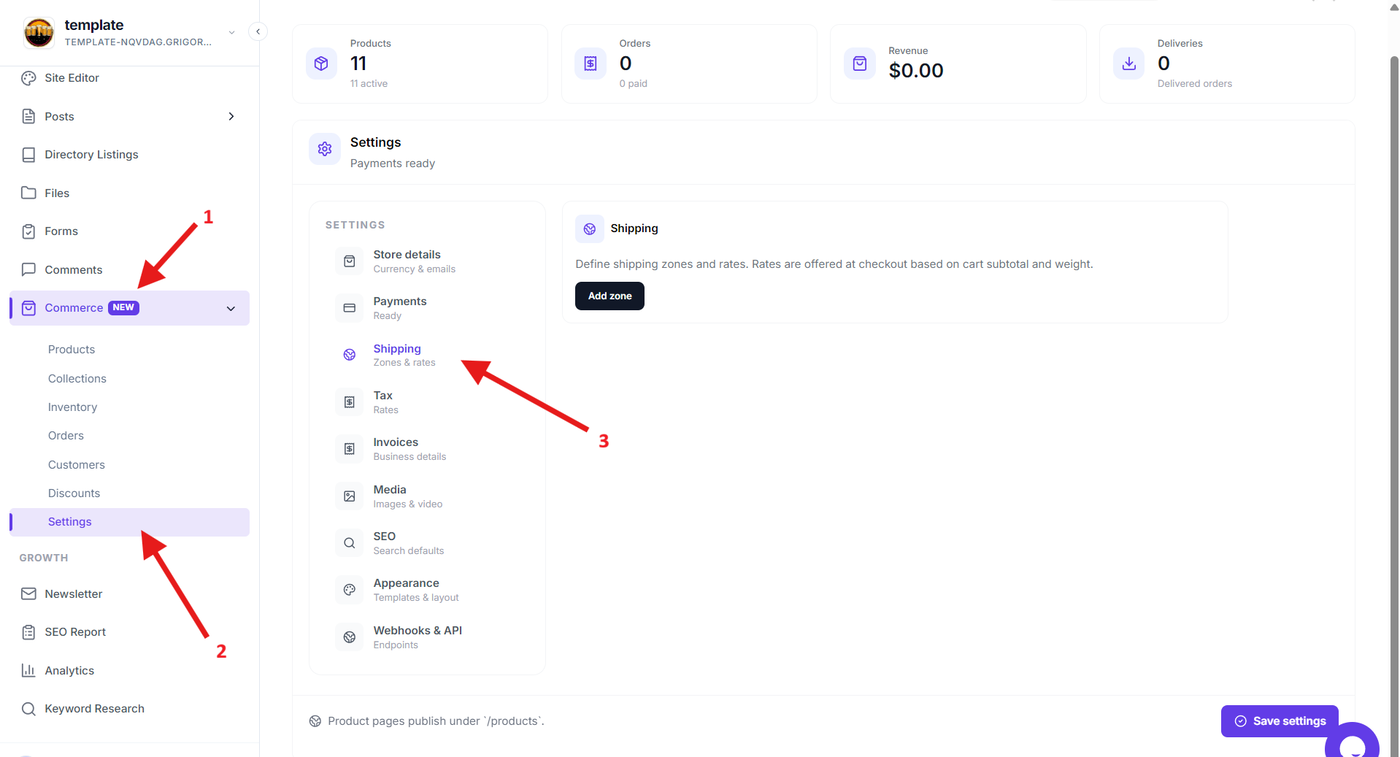
From the Grigora dashboard, expand Commerce in the sidebar and open Settings. Navigate to the shipping configuration section to manage your store's shipping zones and rates.
The shipping settings provide a centralized place to define where you ship and how much customers are charged for delivery.
Create a Shipping Zone
Step 2: Create a shipping zone
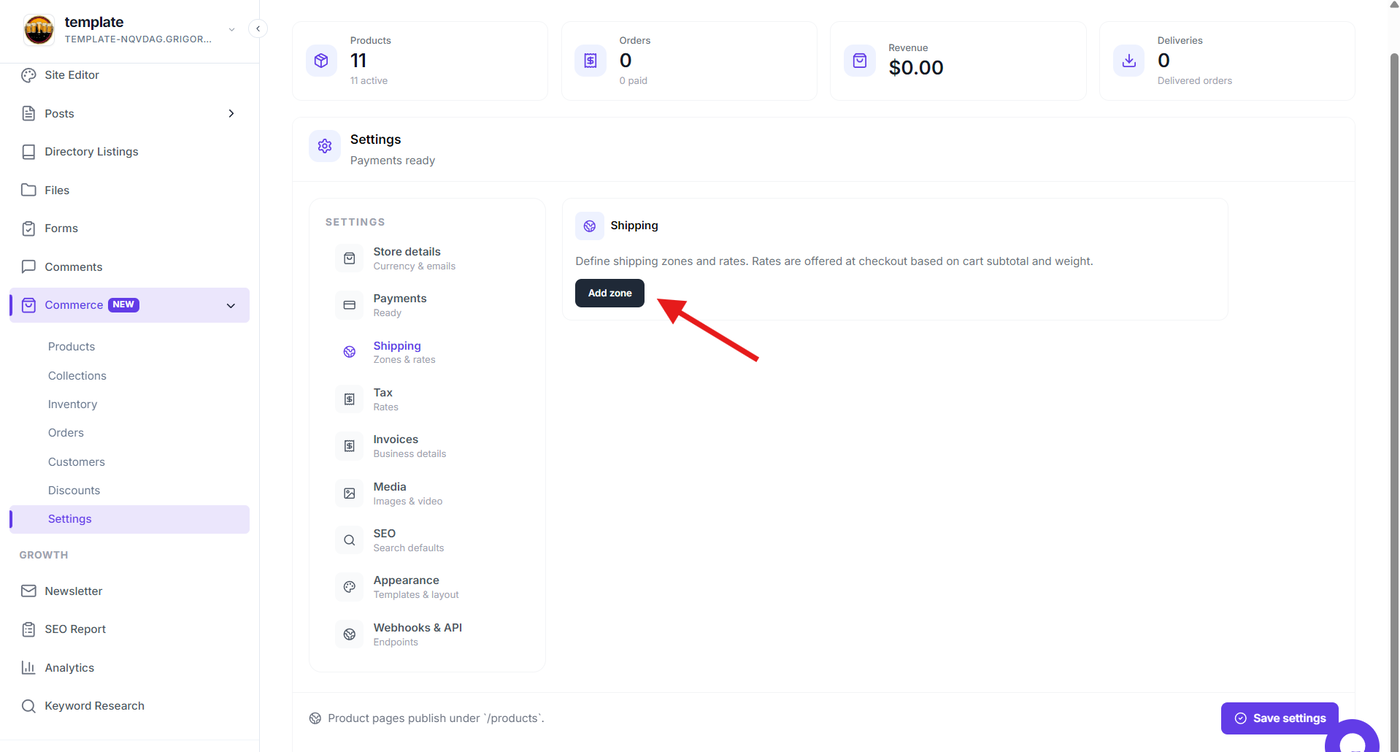
Create a new shipping zone and provide a name that clearly identifies the region it covers.
A shipping zone groups one or more delivery locations together so that you can apply the same shipping rates to customers in those locations.
Step 3: Select the locations for the zone
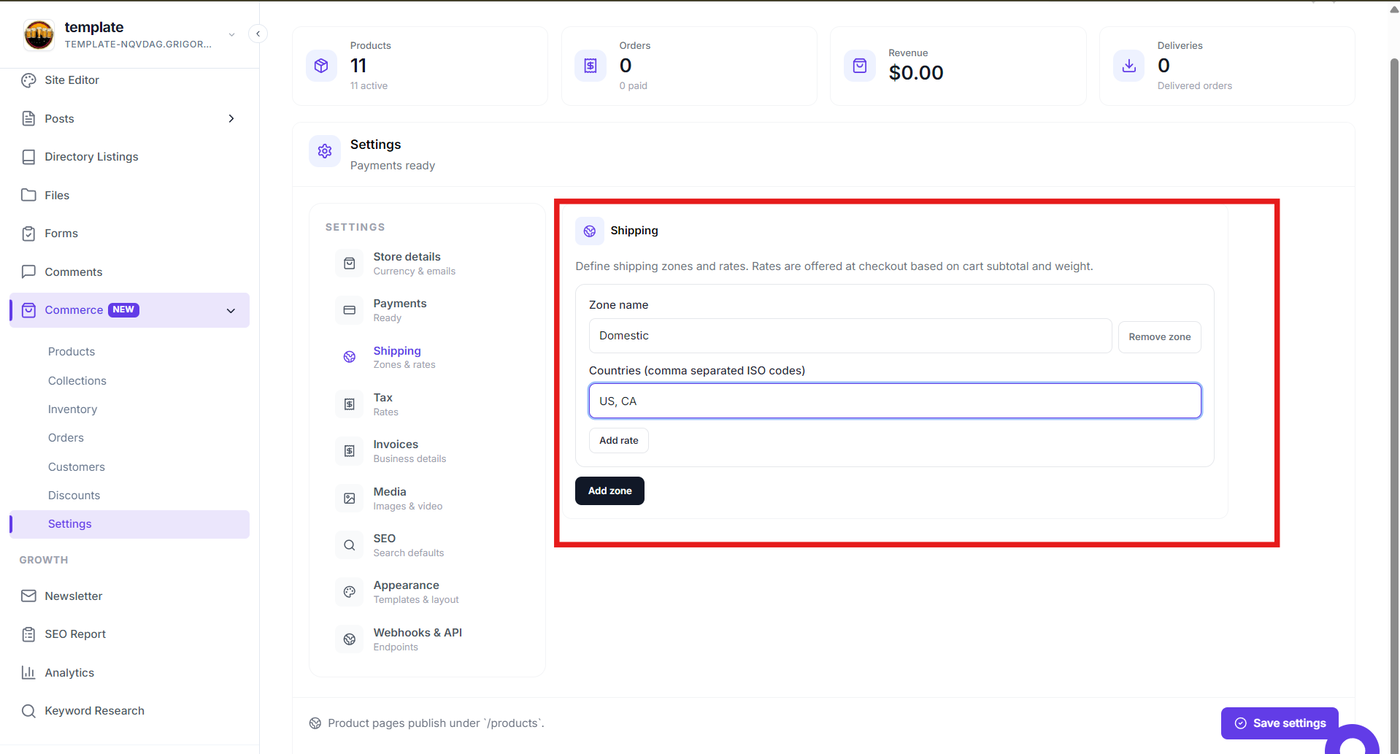
Select the countries, states, or other supported regions that should belong to the shipping zone.
Make sure the locations accurately represent where the shipping rates configured for this zone should apply. Avoid overlapping zones where possible, as overlapping locations can make it difficult to determine which rate should apply to an order.
Add a Shipping Rate
Step 4: Add a shipping rate
Open the shipping zone and add a shipping rate for the selected region.
Enter a name for the rate that clearly communicates the shipping option to customers, then configure the shipping charge using the available rate settings.
For example, you can create separate rates for different delivery options when your store needs to offer multiple shipping choices.
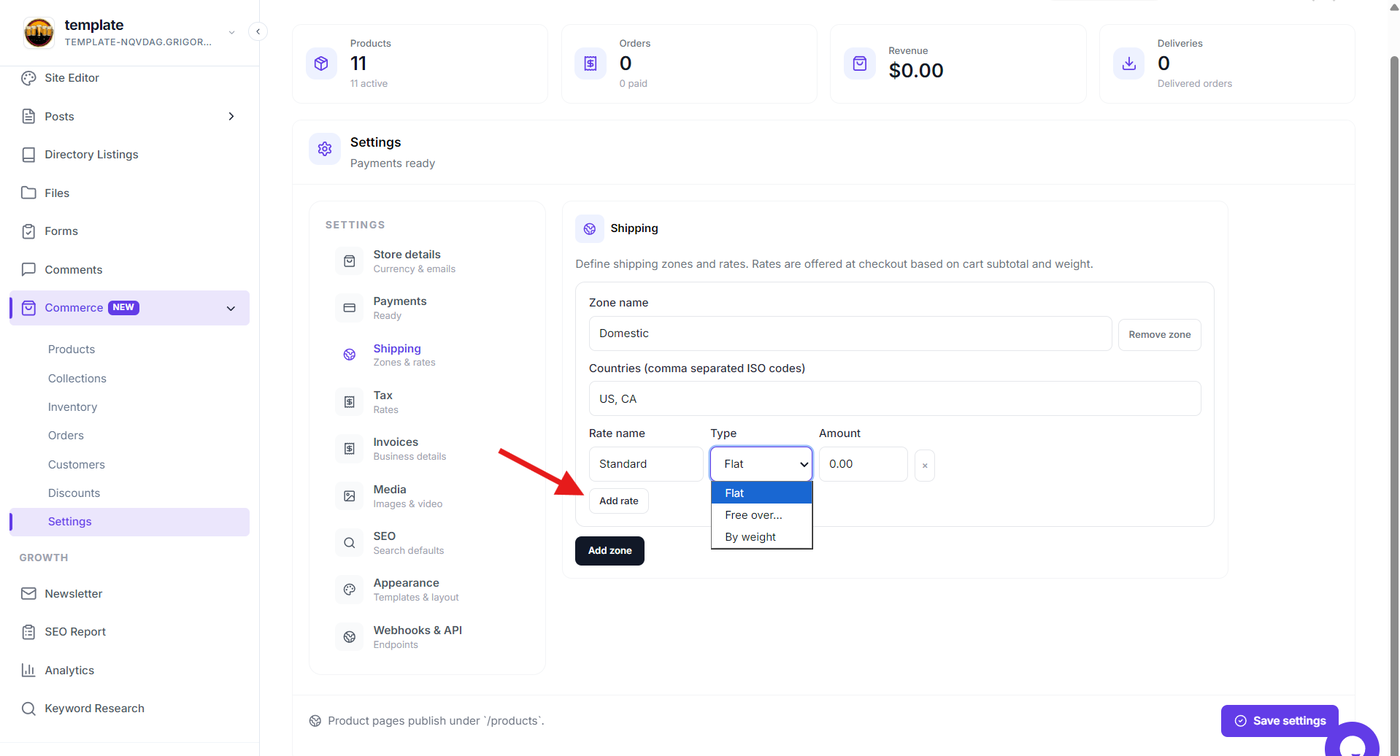
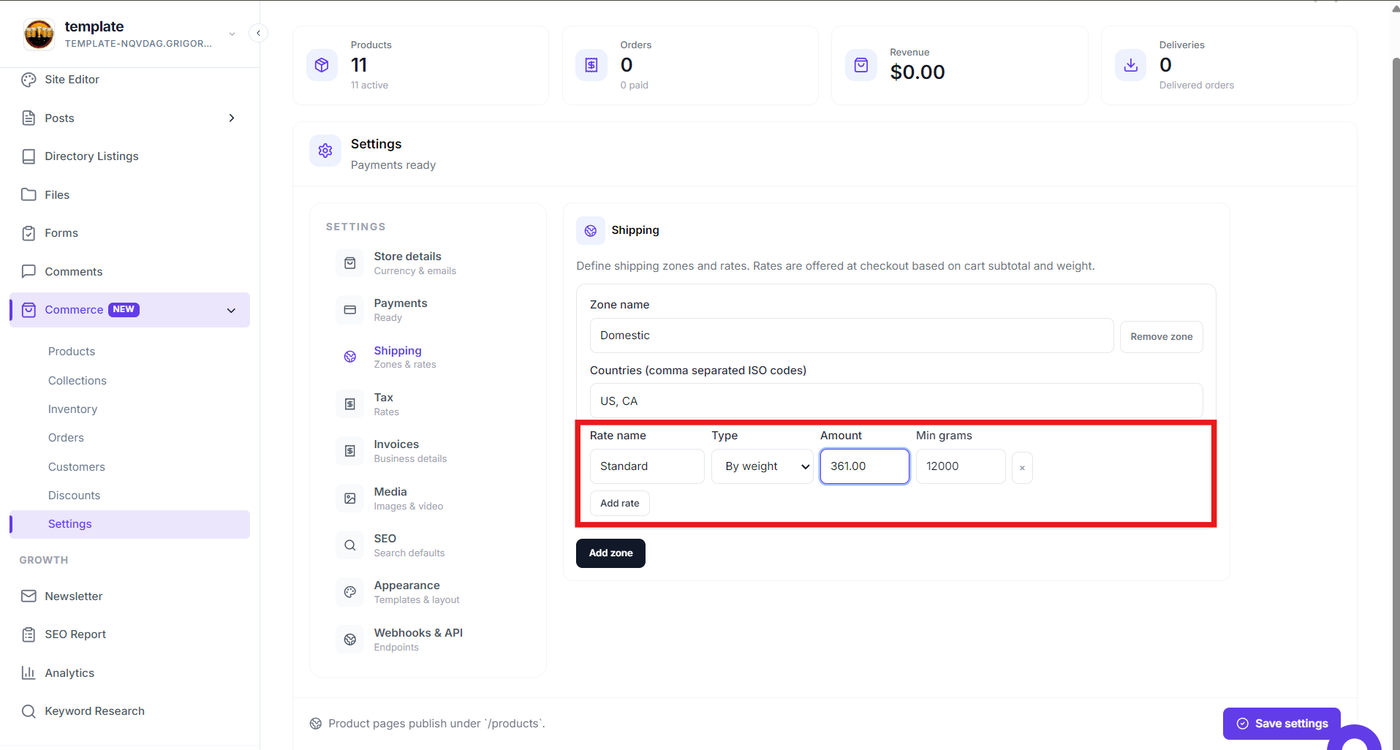
Step 5: Configure the shipping charge
Set the shipping amount that customers should be charged when the rate applies to their order.
Review the available rate configuration options and enter the required values based on your shipping policy. Make sure the configured charge reflects the actual delivery cost you intend to collect from customers.
Save and Manage Shipping Configuration
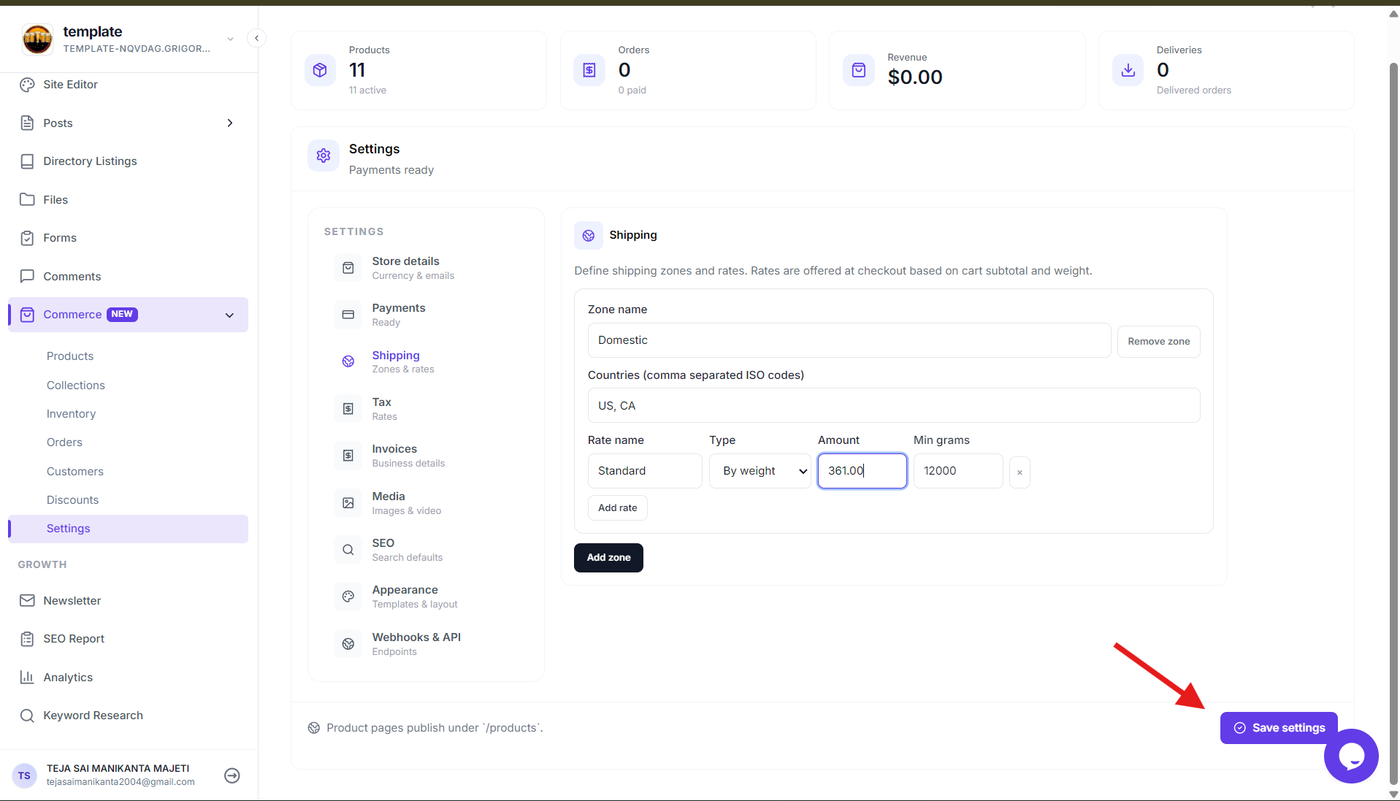
Step 6: Save the shipping zone and rate
After configuring the zone and its shipping rate, save the changes.
The zone and rate will be added to your shipping configuration and can be managed later if your delivery regions or shipping costs change.
Step 7: Remove shipping rates
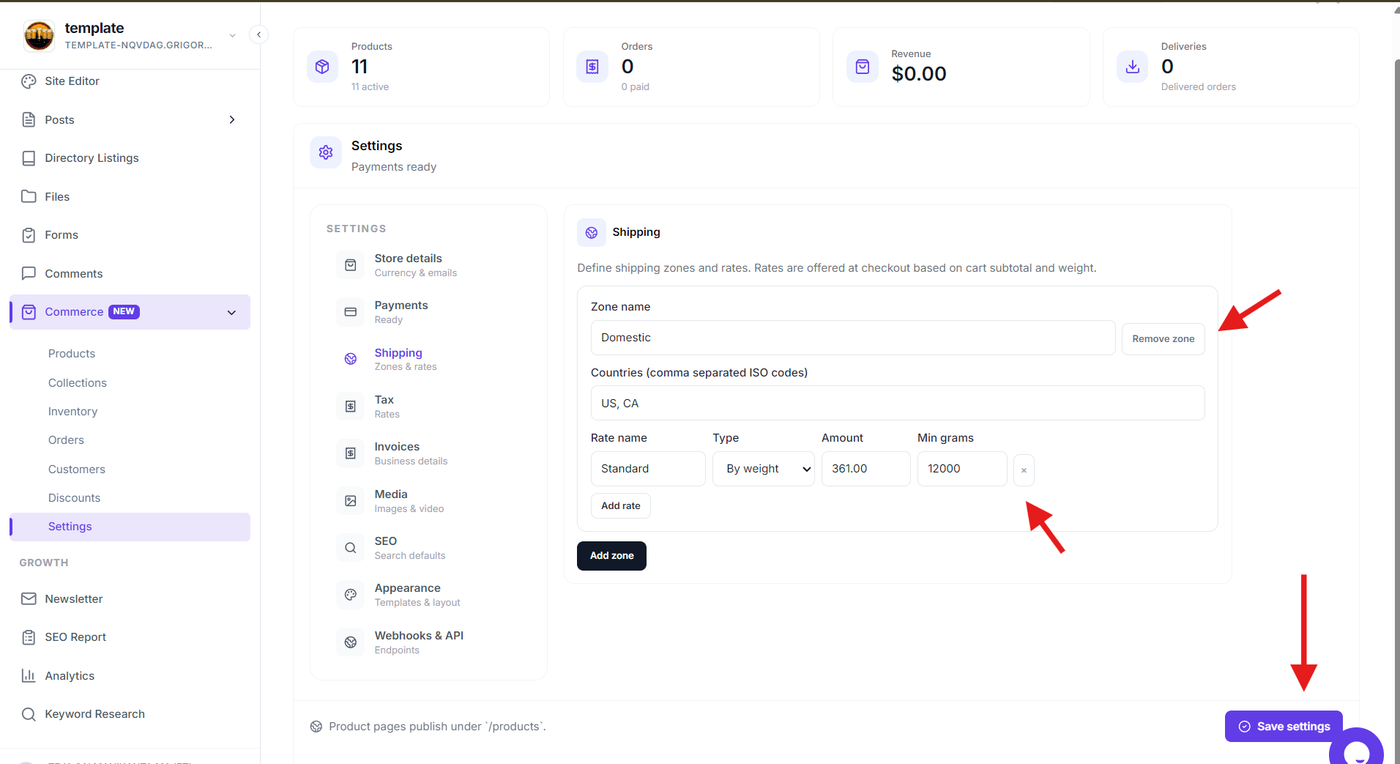
To remove a shipping rate, click the × button next to the rate you want to delete.
To remove an entire shipping zone, click Remove zone next to the zone name.
After making the required changes, click Save settings to apply them.