

In this comprehensive guide, we'll walk you through how to connect Grigora MCP with Claude Code. We'll show you how to add the Grigora remote MCP server, authenticate your Grigora account, authorize access, and verify that the connection is working.
Prerequisites
Before you begin, make sure you have:
Claude Code installed and configured.
A Grigora account with access to at least one site.
An active internet connection.
Step 1: Open Claude Code
Open your terminal and start Claude Code by running:
claude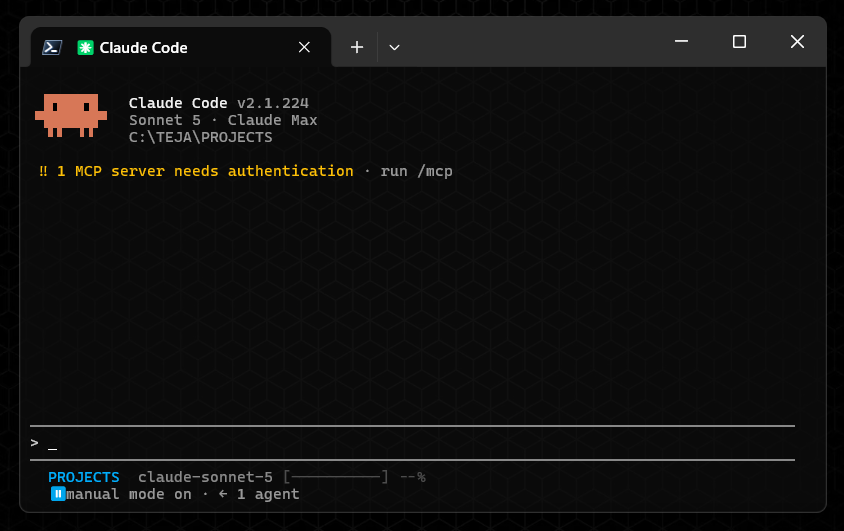
Step 2: Add the Grigora MCP Server
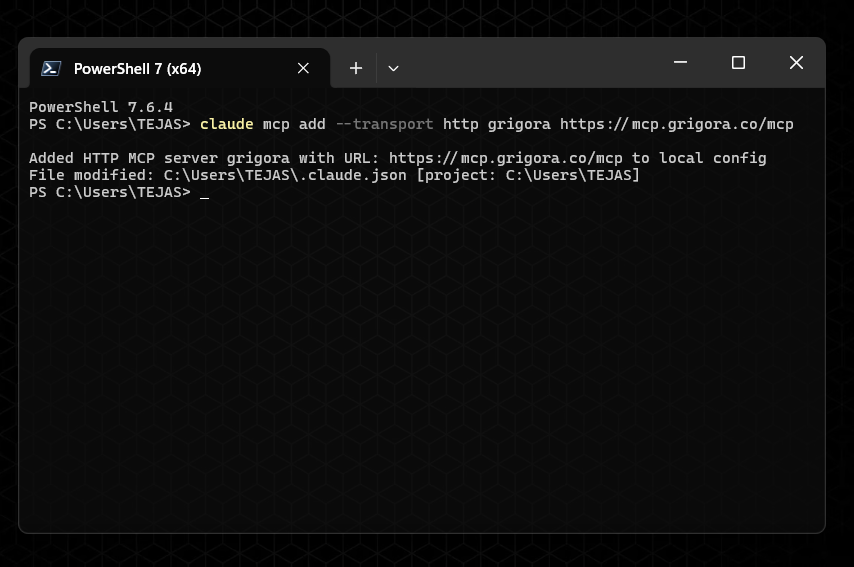
Run the following command in your terminal:
claude mcp add --transport http grigora https://mcp.grigora.co/mcpThis adds Grigora as a remote HTTP MCP server. HTTP is the recommended transport for remote MCP servers in Claude Code. (Claude)
Step 3: Verify the MCP Server
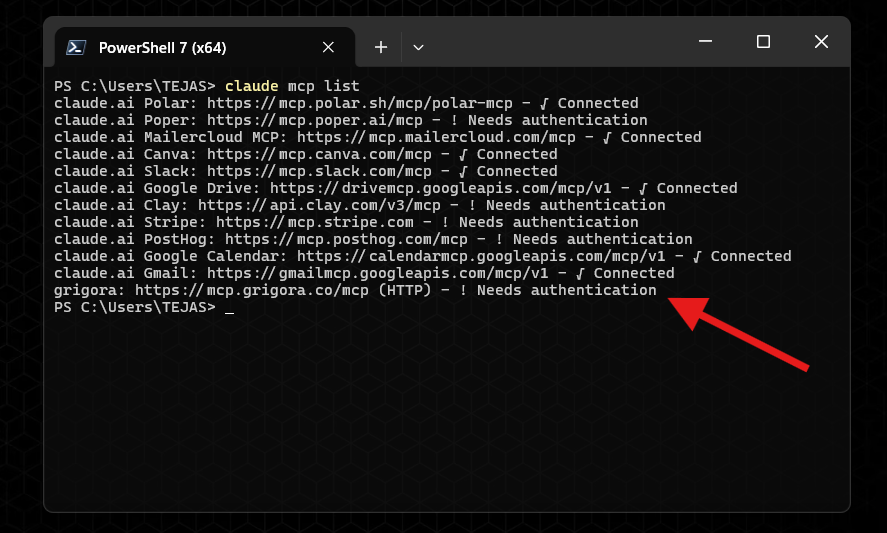
After adding Grigora, run:
claude mcp listYou should see grigora listed among the configured MCP servers. (Claude)
Step 4: Open the MCP Management Panel
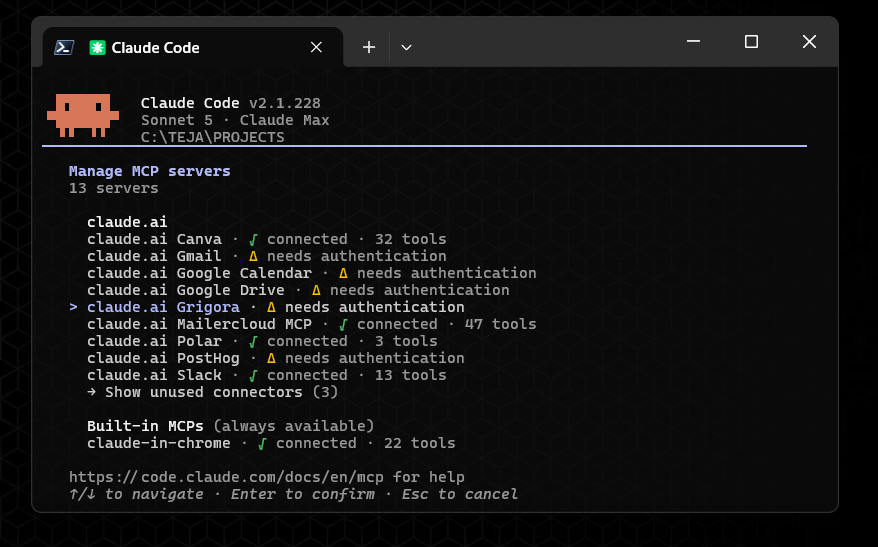
Inside Claude Code, run:
/mcpThe MCP panel allows you to view the configured servers and manage their authentication and connection status. (Claude)
Step 5: Authenticate with Grigora
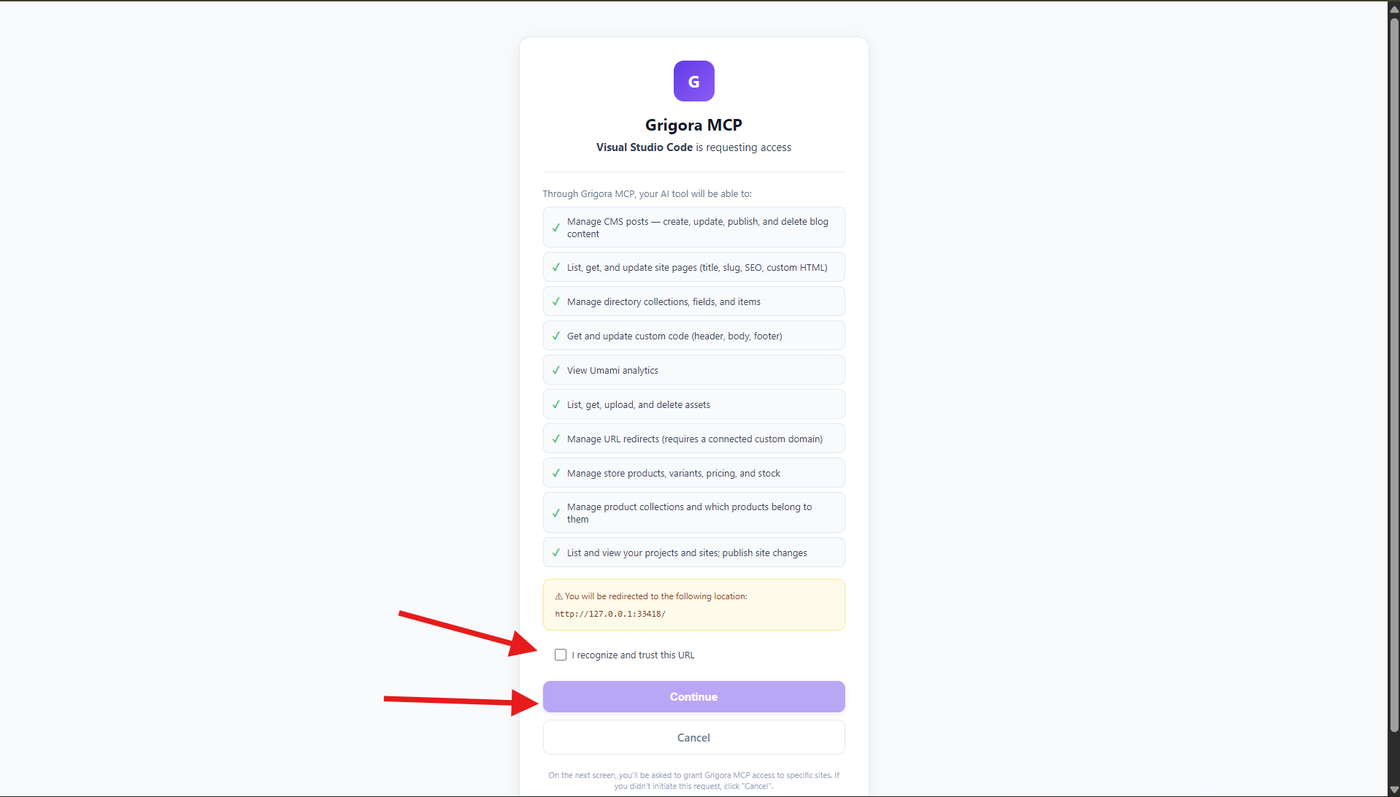
After allowing the connection, Claude will start the Grigora authentication flow and open your browser.
Continue with the authentication process to connect your Grigora account.
Step 6: Authorize Access
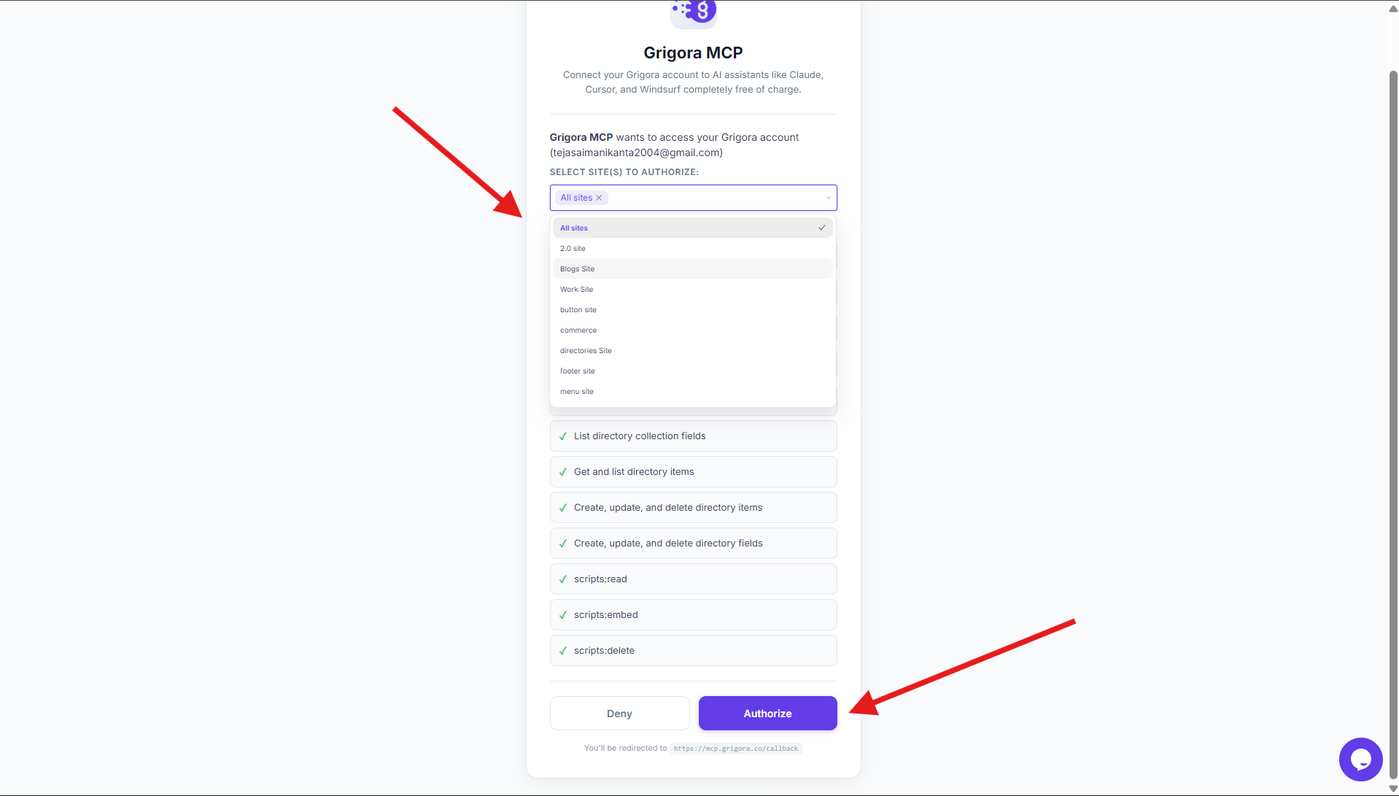
After reviewing the selected site(s) and permissions, click Authorize to grant Claude Code access to Grigora MCP.
Step 7: Confirm the Connection
After authorization is complete, return to Claude Code and open:
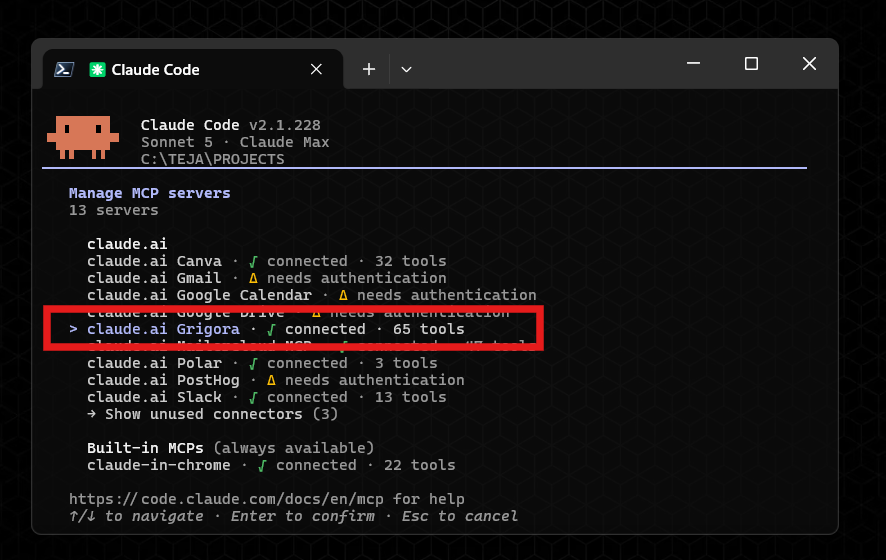
/mcpThe grigora server should now show as connected, with its available tools displayed. The /mcp panel shows the tool count for connected servers. (Claude)
Step 8: Test Grigora MCP
Send a prompt in Claude Code that requires access to your Grigora account.
For example:
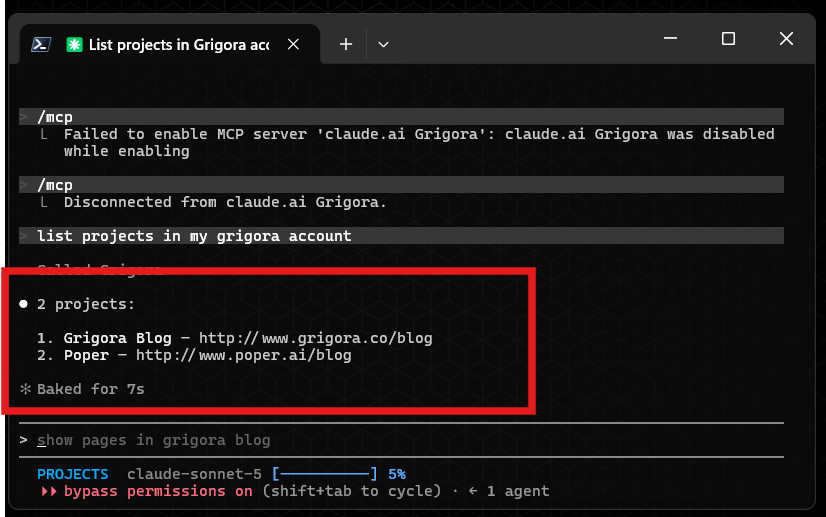
Show me the projects available in my Grigora account.
Claude Code should use the connected Grigora MCP tools to retrieve the requested information.
Troubleshooting
If Grigora MCP doesn't connect or its tools aren't available:
Verify that the configured URL is exactly:
https://mcp.grigora.co/mcpRun
claude mcp listto confirm that Grigora is configured.Run
/mcpinside Claude Code and check the Grigora connection status.If authentication is required again, select Grigora in
/mcpand authenticate again.If the browser doesn't open automatically, Claude Code provides a URL that you can open manually. (Claude)
If authentication succeeds but Claude Code doesn't recognize the connection, reload or restart Claude Code.
If the problem persists, use the Clear authentication option in the
/mcpmenu and authenticate Grigora again. (Claude)Verify that you authorized the correct Grigora site.
Note: Claude Code stores authenticated credentials securely and can refresh OAuth tokens automatically. (Claude)
Optional: Project-specific configuration
If you want Grigora MCP to be available only for a particular project, Claude Code also supports project-scoped MCP servers. These are stored in a .mcp.json file in the project's root directory. (Claude)
For the general Grigora setup, however, the simple claude mcp add --transport http approach is cleaner and avoids unnecessary manual JSON configuration.