

When creating or managing dynamic segments in Grigora, you will notice two essential metrics displayed in the segment editor: contacts match and can receive campaigns (sendable contacts).
Often, the number of contacts who can receive campaigns is lower than the number of contacts who match your segment rules. This is not an error—it is an automated safeguard designed to protect your sender reputation, comply with privacy laws, and ensure you never email unverified, bounced, or unsubscribed readers.
This guide explains the difference between these two counts, how Grigora determines who can receive campaigns, and what each skip reason badge means in the Sample matches preview.
The Difference at a Glance
Inside the segment drawer (accessible by clicking New segment or selecting an existing segment under Newsletter > Segments), Grigora displays a live metric summary at the bottom-left of the screen:
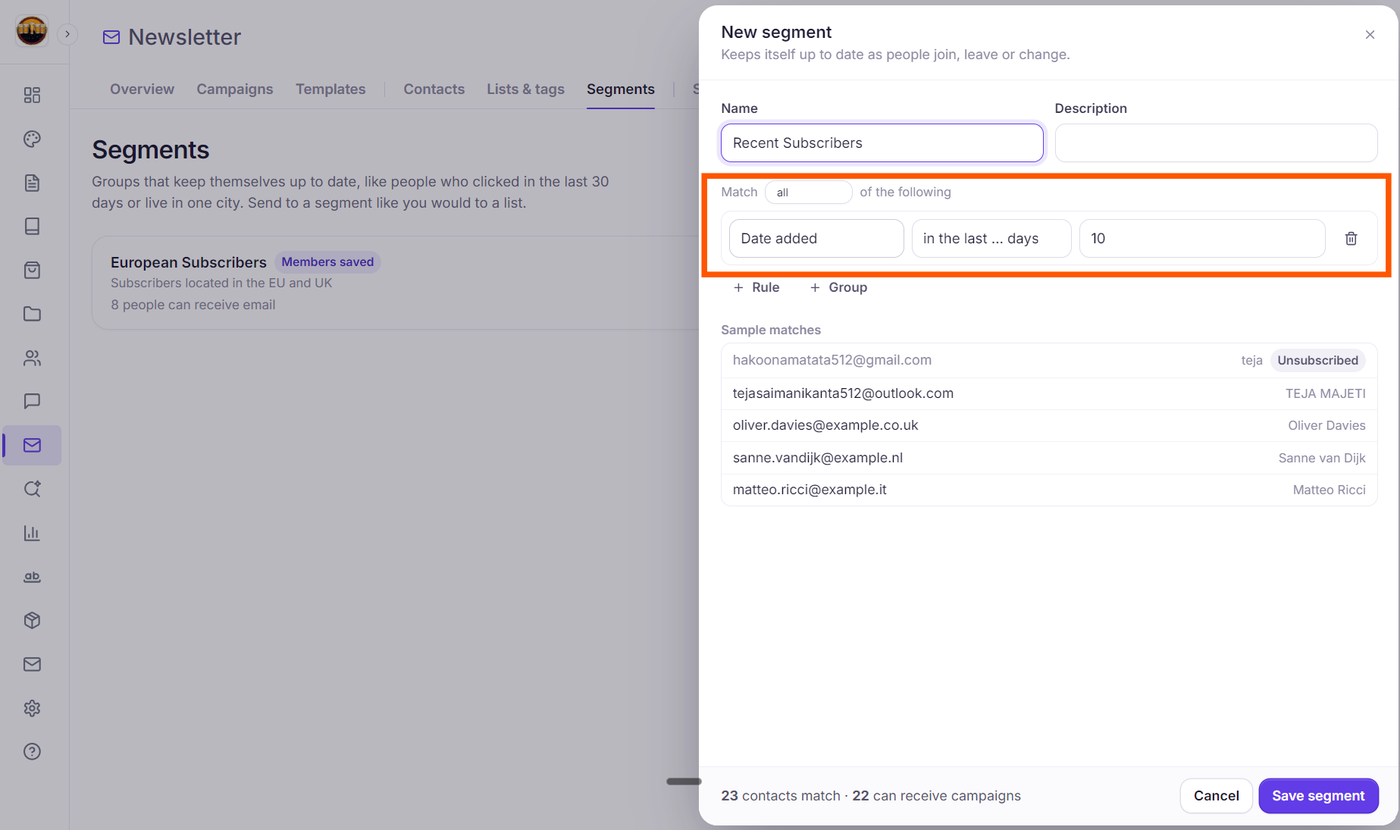
Contacts Match (Rule Matches):
Displays as {N} contacts match (or 1 contact matches). This represents the total number of contact profiles in your audience database whose profile attributes satisfy your filter criteria (for example:
Timezone contains Europe/orJoined in the last 30 days).Sendable Contacts (Can Receive Campaigns):
Displays alongside the match count as · {N} can receive campaigns. This represents the subset of matching contacts who are active, confirmed, and deliverable. Only these contacts will be emailed when a broadcast is sent to this segment.
Dashboard View: On the main Segments page (
Newsletter > Segments), each segment card highlights this deliverable number directly beneath its description as {N} people can receive email (or {N} person can receive email).
Why Matching Contacts Cannot Receive Campaigns
Even if a subscriber satisfies all your segment conditions, they will be excluded from email dispatches if they fail Grigora's deliverability checks. Grigora screens every matched contact against six protection rules:
Badge in Sample Matches | Subscriber State | Why Campaigns Skip This Person |
|---|---|---|
Not confirmed yet | Pending Double Opt-in | The subscriber signed up through a double opt-in form but has not clicked the confirmation link in their verification email. Sending marketing emails to unconfirmed contacts violates anti-spam guidelines. |
Unsubscribed | Opted Out | The subscriber clicked an unsubscribe link in a previous newsletter or requested removal. Grigora permanently blocks dispatches to respect their preference and comply with CAN-SPAM and GDPR. |
Bounced | Hard Bounce (Cleaned) | Their receiving mail server permanently rejected a previous dispatch (e.g., mailbox does not exist or domain is invalid). Continuing to send to dead mailboxes damages your domain reputation. |
Marked as spam | Complaint | The subscriber marked a previous broadcast as spam or junk. Grigora suppresses the address immediately to protect your inbox placement across Gmail, Outlook, and Yahoo. |
On the do-not-send list | Suppressed Address | The email was manually added to your site's Suppression list (under |
Cannot be emailed | Restricted / Invalid | The contact has an invalid email format or lacks an active delivery path. |
Inspecting Skip Reasons in "Sample Matches"
Beneath the rule builder, the Sample matches section shows a live preview list of contacts satisfying your rules:
Deliverable Contacts: Rendered in crisp dark text with their email address and full name. These contacts are fully eligible and included in the can receive campaigns count.
Skipped Contacts: Their email address is rendered in muted gray text, and a distinct slate pill badge appears next to their name showing the exact reason (e.g., Unsubscribed, Bounced, or Not confirmed yet).
Tooltip Explanation: Hovering your mouse over any skip badge displays the label: "Campaigns skip this person".
Understanding Segment Statuses on the Dashboard
When you navigate to Newsletter > Segments, your saved segments display several status indicators:
Members saved: A purple badge appearing next to the segment title (e.g., Members saved 2 hours ago). This indicates that the segment members have been materialized for fast delivery.
Live Reachable Counter: Displays the deliverable volume (e.g., 8 people can receive email). If Grigora is actively calculating the audience, it shows Counting.
Send a campaign: Clicking this button immediately launches the Campaign Builder with this segment pre-selected in your target audience.
Refresh Icon (Save current members now): Allows you to refresh and pre-calculate members ahead of a large campaign dispatch.
Trash Icon (Delete segment): Opens a confirmation modal stating: "Delete the segment '[Name]'? Campaigns that already went to this segment keep their recipient list."
How Segments Behave in the Campaign Wizard (Step 2: Audience)
When you build an email campaign, your segments appear in Step 2: Audience under the Segments column:
Dynamic Re-evaluation: Segments display the hint: "Rules, checked again when sending starts." Even if you build a campaign today, Grigora re-evaluates the segment rules at the exact moment sending begins to capture the freshest audience.
Inclusion (+ Send): Click + Send to add the segment to your Send to list. The live counter on the right updates to reflect eligible recipients.
Exclusion (- Skip): Click - Skip to exclude members of this segment under Except. Exclusion rules strictly override inclusions.
Automatic Deduplication: If a subscriber matches both an included list and an included segment, they receive only one email.
Why This Separation Matters for Your Marketing
Zero Wasted Quota: You only dispatch emails to active, deliverable contacts, preventing wasted credits against shared domain caps (1,000 recipients) or custom SMTP quotas.
Domain Reputation Protection: Automatically filtering out bounced and complained addresses maintains high sender scores and prevents spam folder placement.
Audience Accuracy: You can create broad behavioral rules (e.g., "Anyone who signed up in the last year") without worrying about manually cleaning out people who unsubscribed six months ago.
Next Steps
How to Target the Right Audience: Including and Excluding Lists, Tags, and Segments
How to Create an Email Campaign in Grigora: The Complete 4-Step Walkthrough
How to Manage Suppressed Contacts, Spam Complaints, and Hard Bounces
Understanding Campaign Statuses in Grigora: Drafts, Scheduled, Sending, Paused, and Sent