

Managing an email newsletter involves iterating on proven formats, updating drafts, and managing previous broadcasts. In Grigora, you can duplicate any existing campaign to reuse its design and audience targeting, edit campaigns that have not yet sent, or cancel and delete old campaigns to keep your workspace organized.
This guide explains how to manage your campaigns lifecycle across all statuses: Draft, Scheduled, Sending, Paused, and Sent.
Overview of Campaign Lifecycle Actions
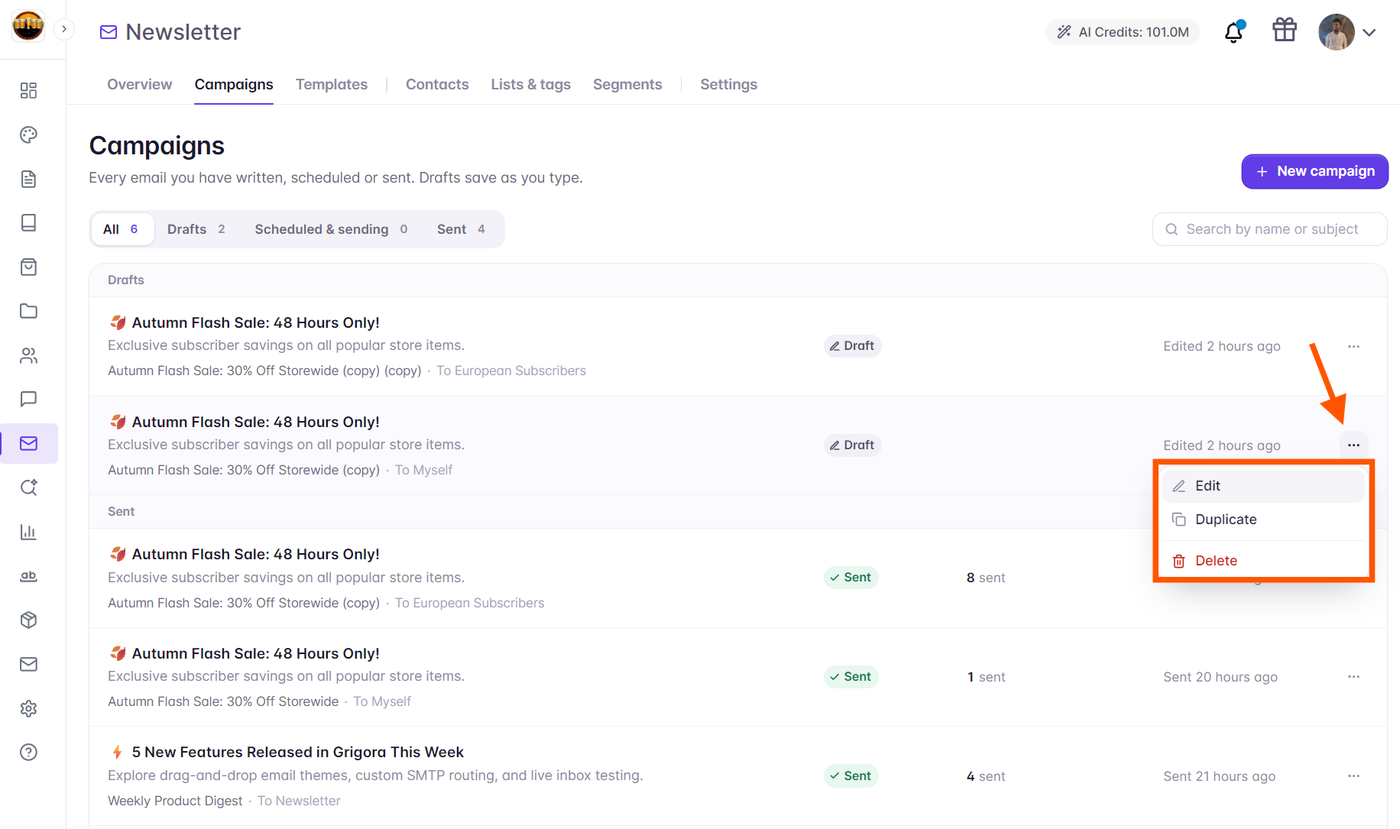
Every campaign in your dashboard has an action menu (accessible via the three dots icon on the right side of the campaign row). The available actions depend on the campaign status:
Edit: Available for
DraftandScheduledcampaigns. Opens the 4-step campaign builder where you can modify subject line, sender details, audience, email content, and schedule.View Report: Available for campaigns that are
Sent,Sending,Paused,Failed, orCancelled. Opens detailed performance analytics.Duplicate: Available for all campaigns. Creates a fresh draft copy containing the complete email layout, subject line, and audience targeting rules.
Pause / Resume: Available during live dispatch for in-flight campaigns.
Cancel Campaign / Stop Sending: Available for
Scheduledcampaigns to prevent them from going out, or for active campaigns to halt remaining dispatches.Delete: Available for non-active campaigns (
Draft,Scheduled,Sent,Failed,Cancelled). Permanently removes the campaign and its history.
How to Duplicate an Existing Campaign
Duplicating a campaign allows you to use a previous high-performing newsletter as a template for your next broadcast, preserving your blocks, branding, and audience configuration.
Navigate to Newsletter → Campaigns from the left navigation sidebar.
Locate the campaign you wish to copy. You can use the search bar or filter by tabs (All, Drafts, Scheduled & sending, Sent).
Click the three dots icon (
...) on the far right of the campaign row and select Duplicate.Grigora will clone the campaign content, subject settings, and recipient audience rules, then automatically open the new campaign in the Campaign Editor in
Draftstate.Update your campaign name, refresh any timely content or dates, and proceed through the builder.
Note: Duplicating campaigns requires your project website to be published. If your website is unpublished, Grigora will prompt you to publish your site first so delivery and asset URLs can be resolved.
How to Edit a Draft or Scheduled Campaign
If a campaign has not yet started sending, you can modify any part of it at any time:
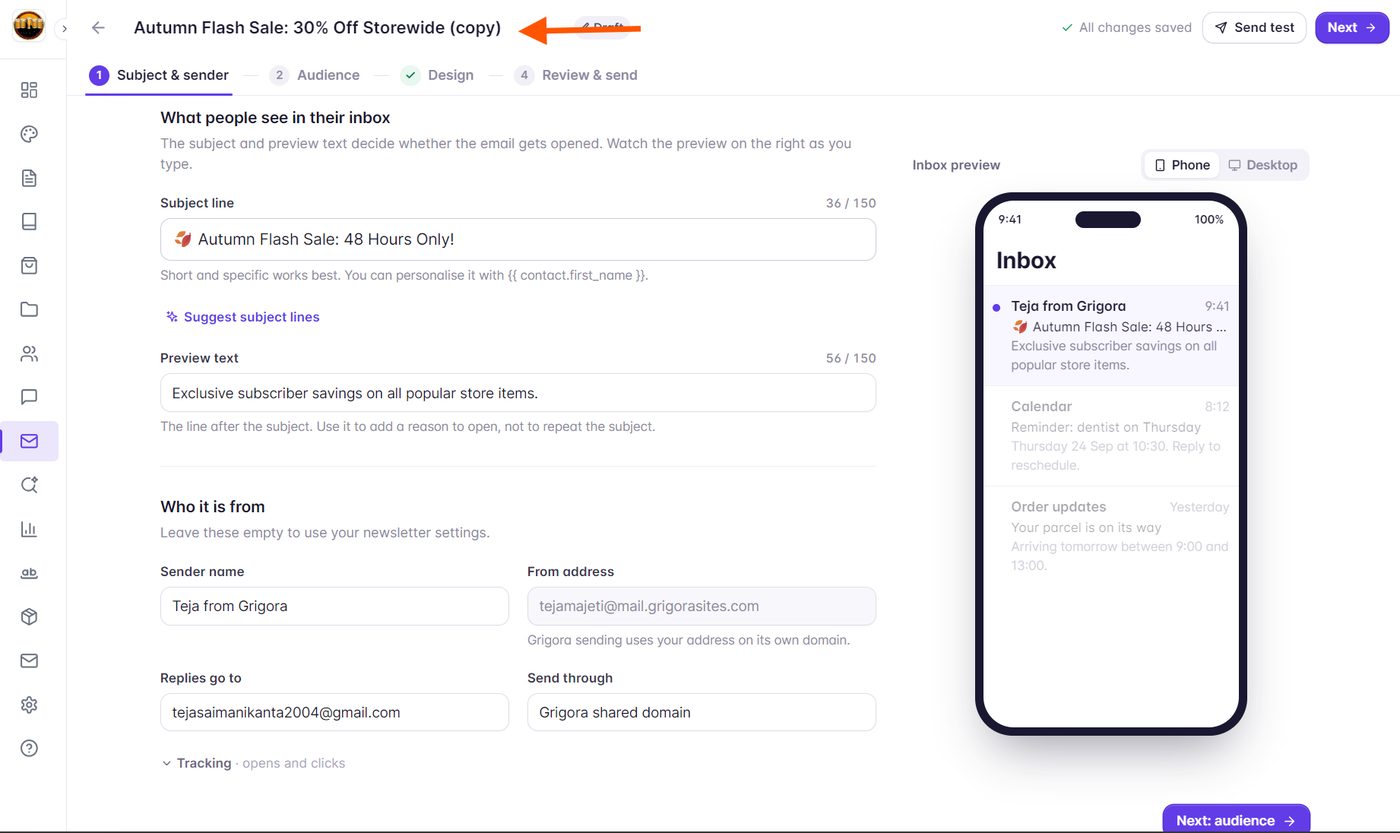
Editing a Draft: Click directly on the campaign row or choose Edit from the action menu. Your changes save automatically as you make them.
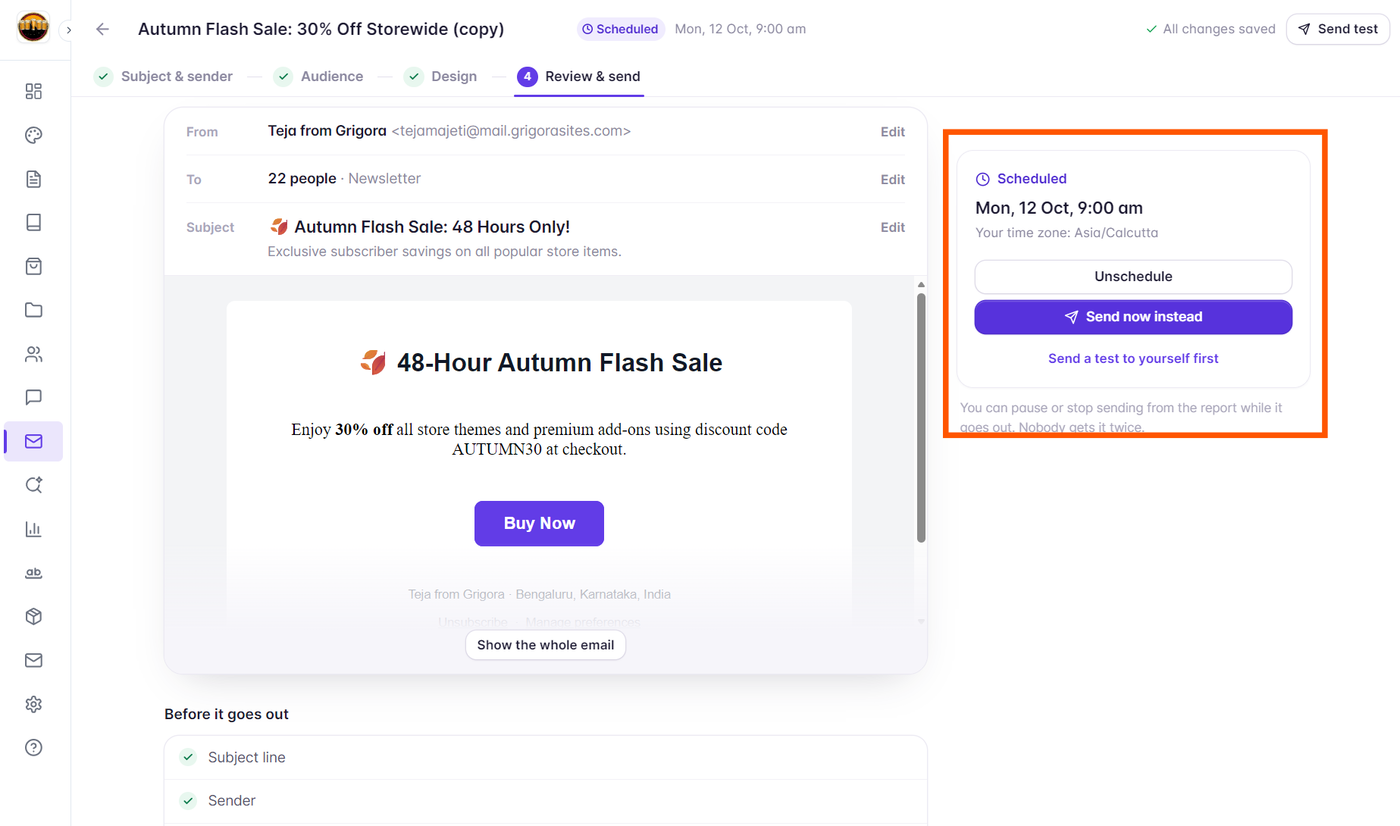
Editing a Scheduled Campaign: Click Edit on a scheduled campaign to make content tweaks or update the audience. If you want to change the delivery date or time, proceed to the Review & send step, click Unschedule, pick a new slot, and confirm.
How to Cancel or Delete a Campaign
When you no longer need a draft or want to cancel an upcoming broadcast:
Cancelling a Scheduled Campaign: Open the action menu and select Cancel campaign. The campaign will not be sent, preventing any emails from reaching your subscribers.
Deleting a Draft or Past Campaign: Select Delete from the action menu. Grigora will show a confirmation dialog explaining that the campaign and its reports will be permanently erased. Click Delete campaign to confirm.
Warning: Deleting a sent campaign also erases its historical reporting, click logs, and delivery receipts. If you want to retain reporting data for compliance or auditing, keep the campaign in your Sent list.
Best Practices
Use consistent naming conventions for your duplicated campaigns (e.g., "Weekly Digest - Oct 14", "Monthly Roundup - Nov 2026") to easily locate them in search.
Always send yourself a test email after duplicating an existing broadcast to verify all updated links, dates, and images before sending.
Review excluded segments on duplicated campaigns to make sure recent unengaged subscribers or recent purchasers are accurately targeted.