

Once you have customized an email layout that matches your brand—complete with your logo, colors, typography, layout columns, and social links—you can save it as a reusable template. This lets you and your team reuse your signature design for future broadcasts without having to build it from scratch.
This guide explains how to save custom email designs directly from the campaign builder, access your saved designs library, and launch new campaigns from them.
How to Save an Email Design as a Template
You can save your email layout as a reusable template at any time while designing a campaign:
Open an existing draft campaign or start a new campaign and proceed to Step 3: Design.
Customize your email layout using the block library, style settings, or AI designer until you are satisfied with your layout.
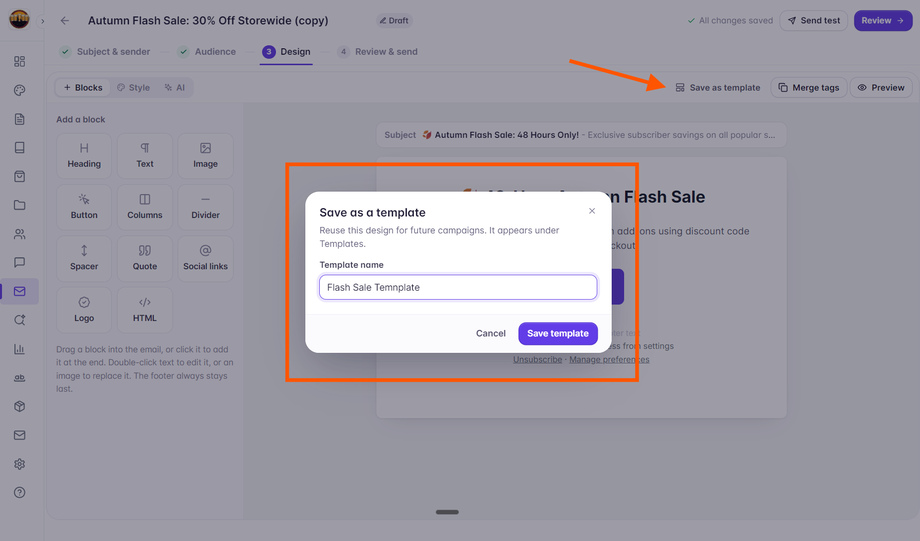
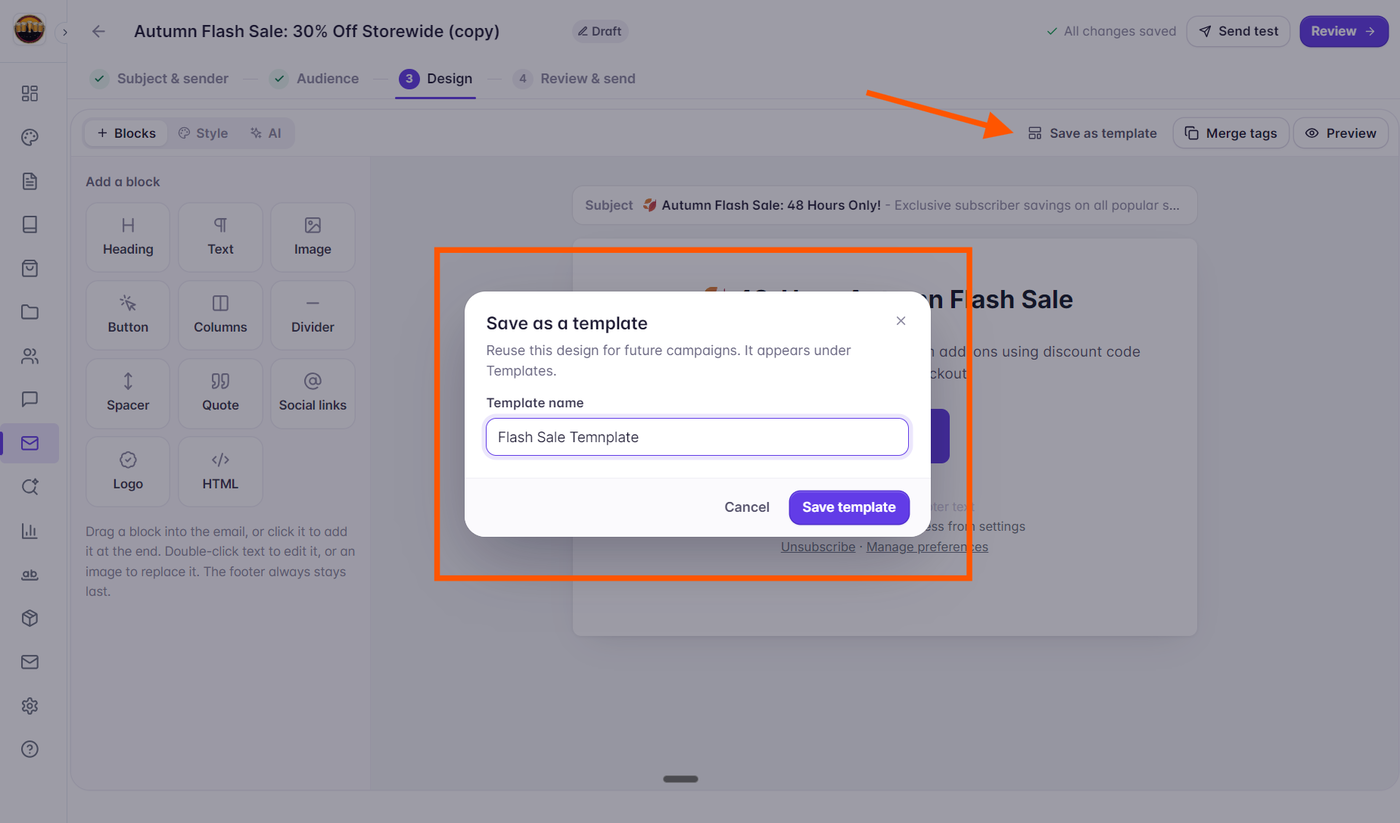
In the toolbar located directly above the email preview canvas, click the Save as template button (located to the left of Merge tags and Preview).
The Save as a template modal immediately opens on your screen.
In the Template name field, enter a recognizable name for your layout (for example, "Weekly Flash Sale" or "Monthly Company Digest").
Click the Save template button.
A confirmation notification confirms: "Template saved." Your design is now safely stored in your project's template library.
Where to Find Your Saved Designs
All templates you create are organized in your project template library:
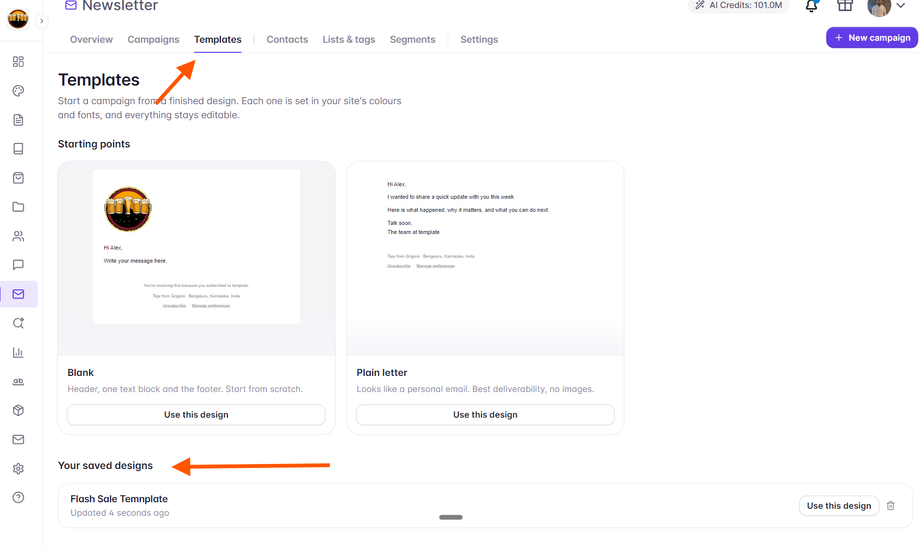
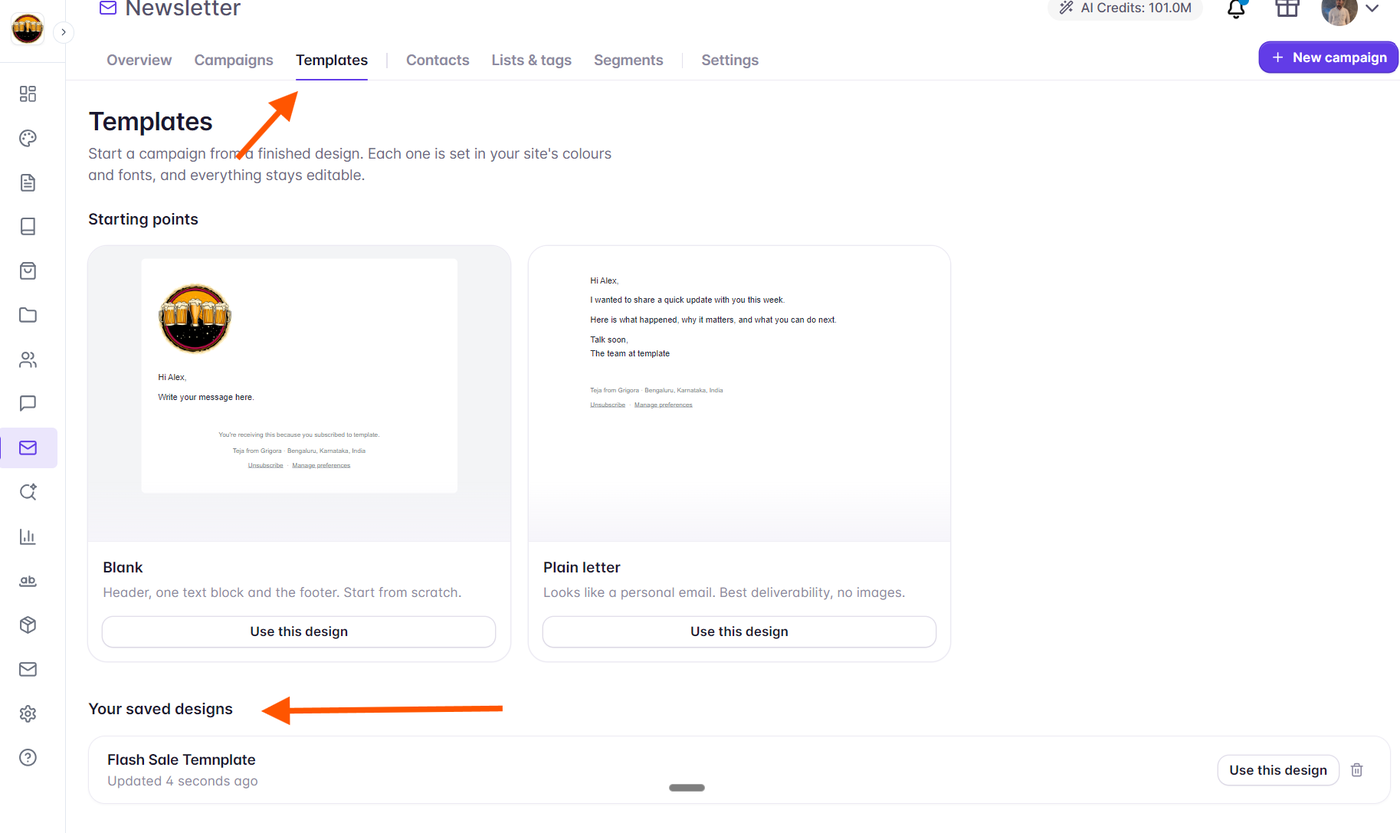
In the left sidebar, click Newsletter.
Click Templates.
Scroll down to the Your saved designs section.
Here, you will see a list of all your custom designs showing the template name, optional description or category pill, and the last updated time.
Starting a New Campaign from a Saved Template
When you are ready to compose a new broadcast using your saved layout:
Navigate to Newsletter → Templates.
Locate your template under the Your saved designs section.
Click the Use this design button on the template row.
A modal prompt appears asking you to name your new campaign. Enter your desired campaign name in the text field.
Click Create campaign.
Grigora immediately generates the new campaign and opens the editor with your saved layout, blocks, and styling already loaded.
How to Delete a Custom Template
If you no longer need a saved design and want to keep your library organized:
Navigate to Newsletter → Templates.
Find the design you wish to remove under Your saved designs.
Click the Trash can icon (
Delete) on the right side of the template row.A confirmation dialog appears asking you to confirm deletion.
Click Delete template. The template is immediately removed from your library.
Note: Deleting a saved template will never alter, delete, or affect any past or scheduled campaigns that were previously created using that design.